Delete Notification Group to stop members of the group receiving notifications of silence alerts.
1. Login to your Broadcast.Radio portal.
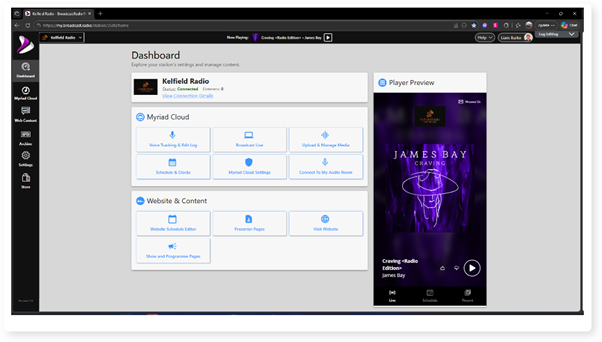
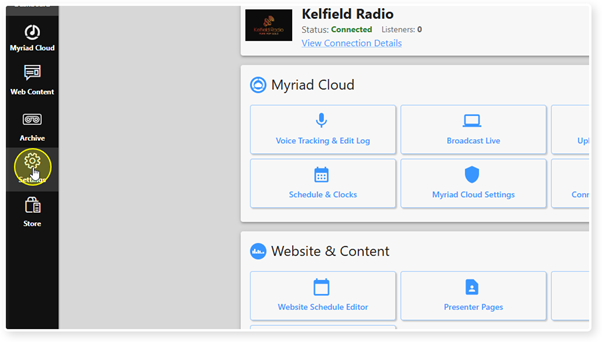
2. Click on the Settings menu option.
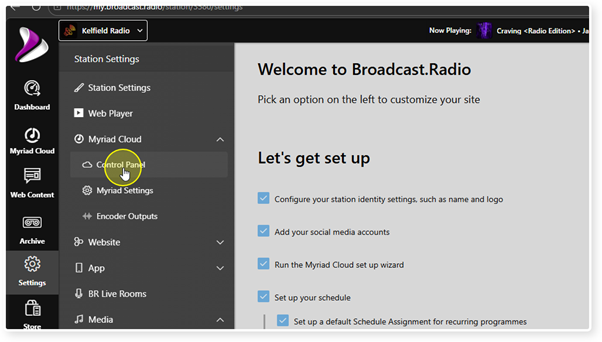
3. Expand the Myriad / Myriad Cloud option and select Control Panel.
You can also access these settings directly using the Silence Monitor option on the main menu.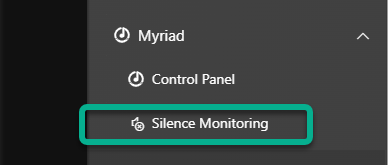
4. Scroll down to the Silence Monitoring section.
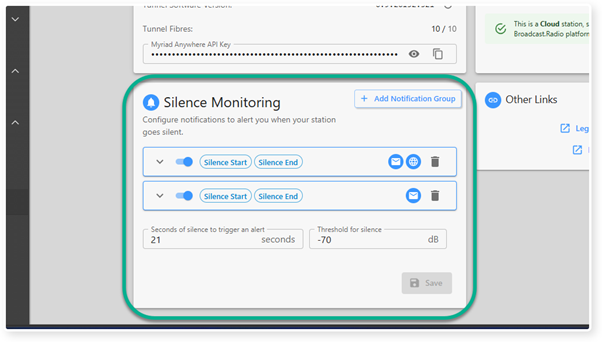
5. You will see the list of existing Notification Groups.
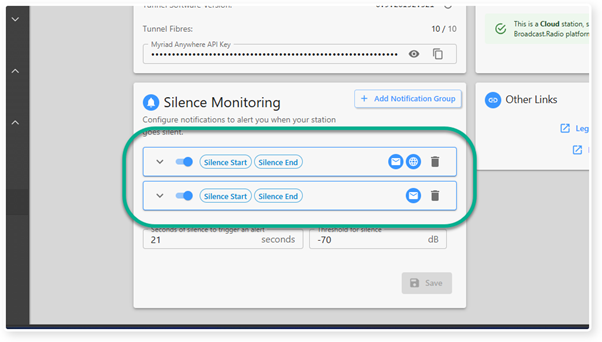
6. To delete a Notification Group, click on the Delete icon to the right.
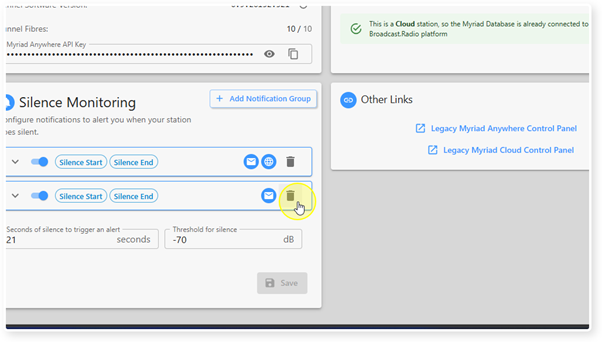
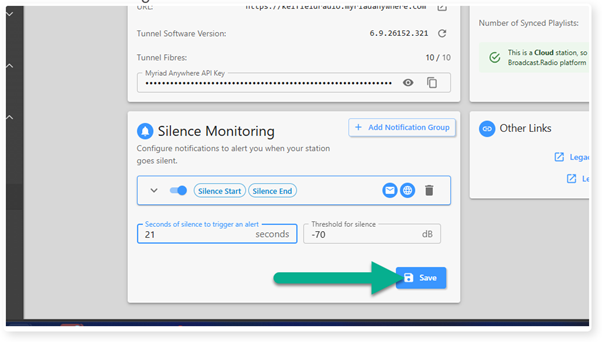
7. The Notification Group will be removed from the list. Click on the Save button to confirm the changes.
Was this article helpful?
That’s Great!
Thank you for your feedback
Sorry! We couldn't be helpful
Thank you for your feedback
Feedback sent
We appreciate your effort and will try to fix the article