You can use Segue Trim Markers to set the start and end points on Media Items just for a specific segue.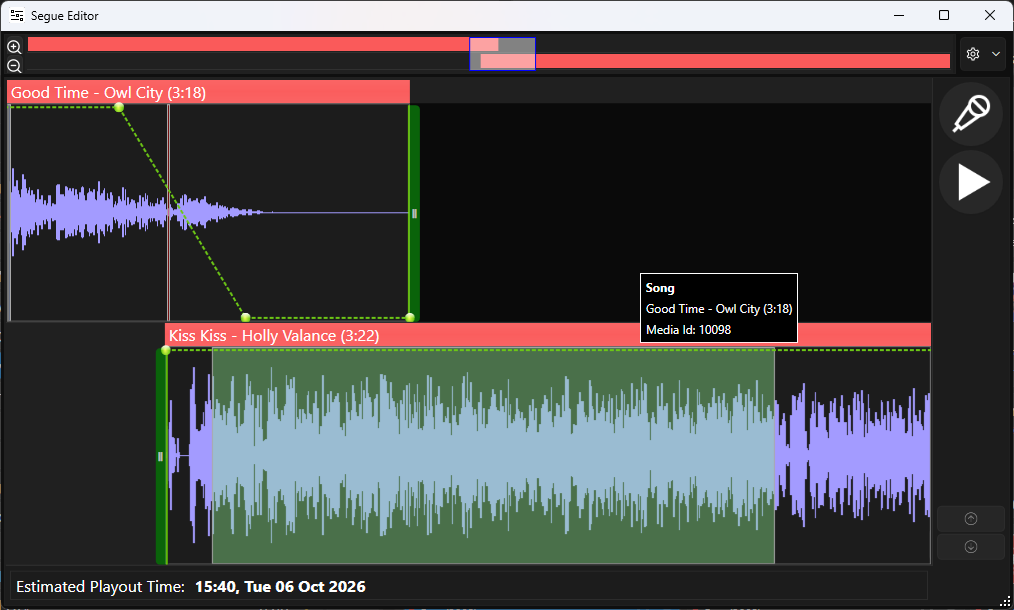
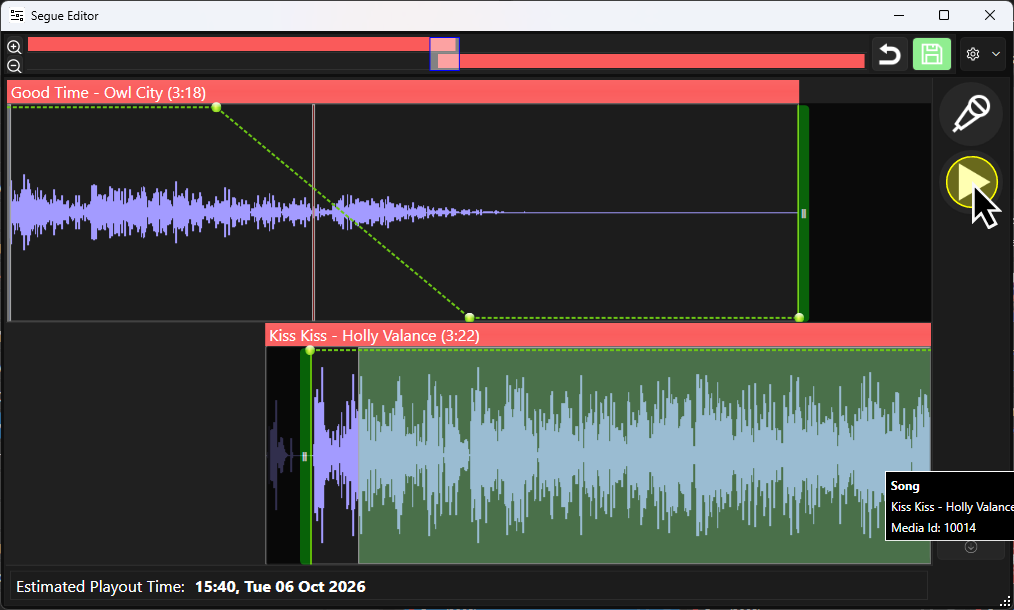
In the example above, we are looking at a segue between Good Time by Owl City and Kiss Kiss by Holly Valance.
The Holly Valance song starts with a kissing noise a second before the music starts.
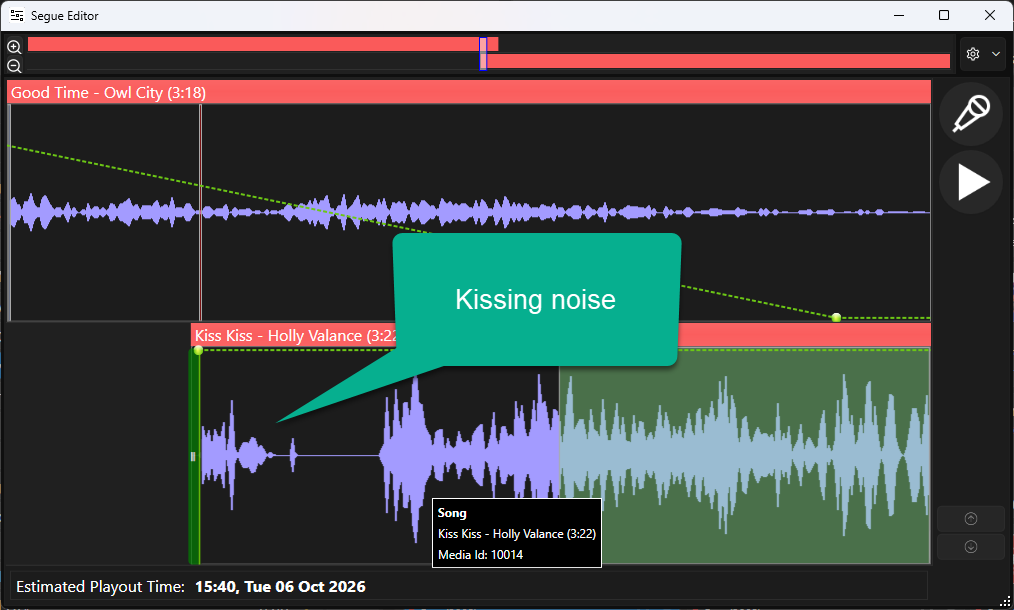
Let's say that for this segue only, we wanted to remove that kissing noise and get straight to the music. By setting the Segue Trim Marker to start after the kissing noise but before the music starts, we can remove it from the segue.
Here's how:
- Select the Segue in question. Make sure you select the Song that will be playing at the end of the Segue.
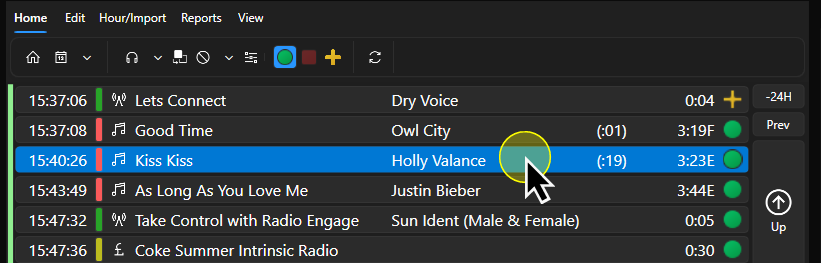
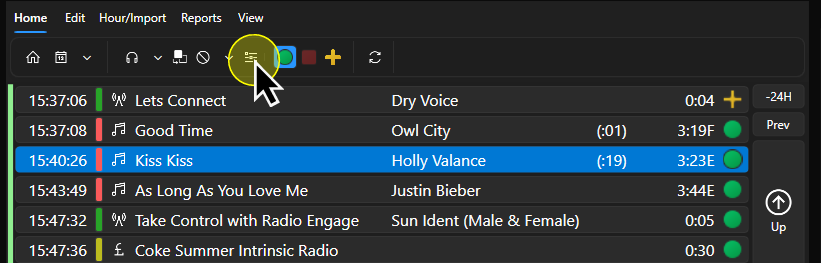
- Click on the Segue Editor button on the Home ribbon. You can also double click on the Song to open the Segue Editor.
- In the Segue Editor, you can use the Zoom buttons or the mouse wheel (if it has one) to zoom in to make positioning easier.
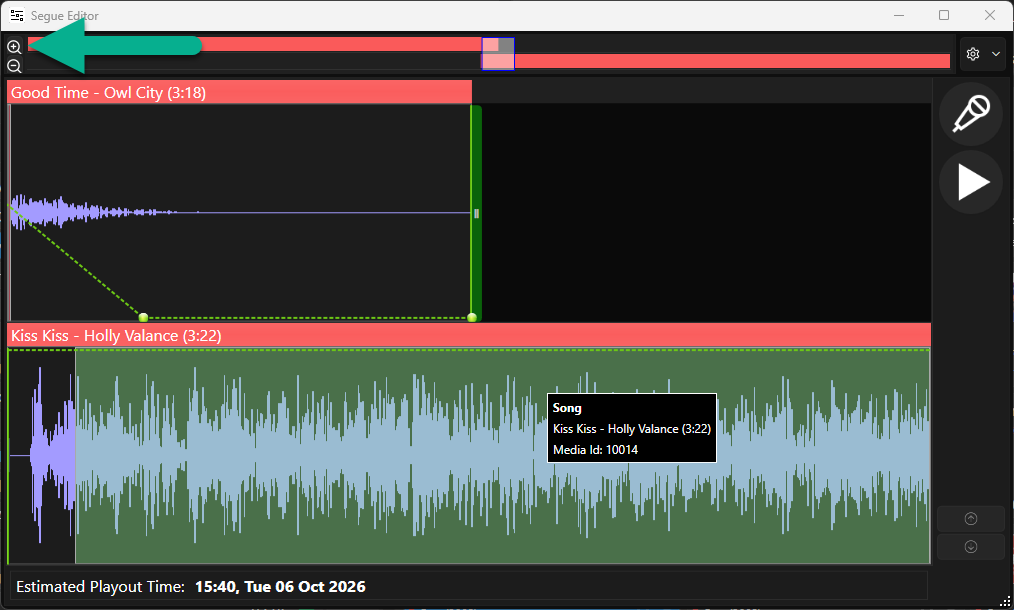
- You can also use the Time Line to reposition the viewed area to cover the full segue.
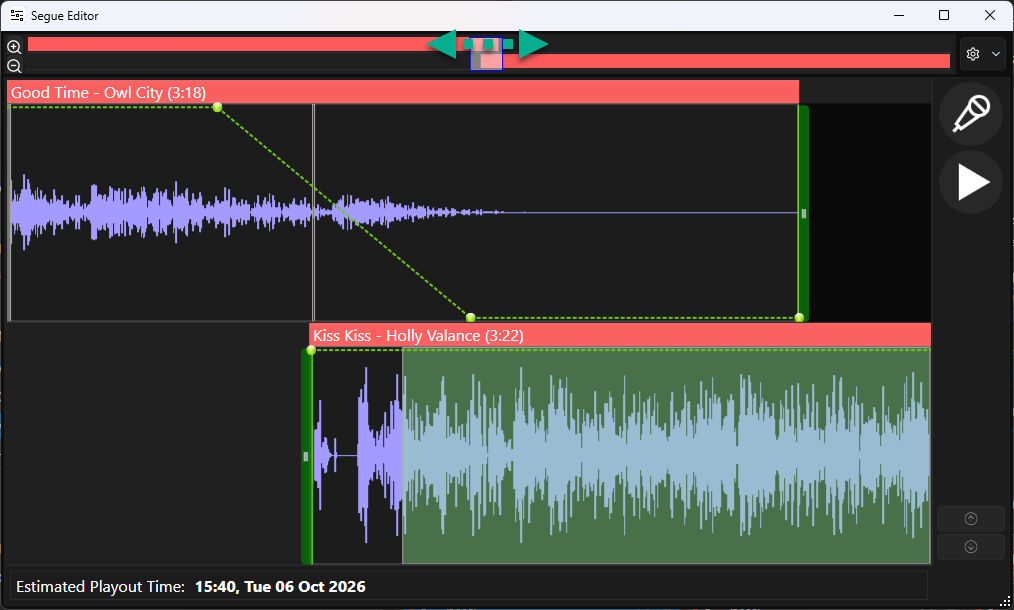
- Click on the Start Trim Marker on the Kiss Kiss track and drag it to just before the music starts fully.
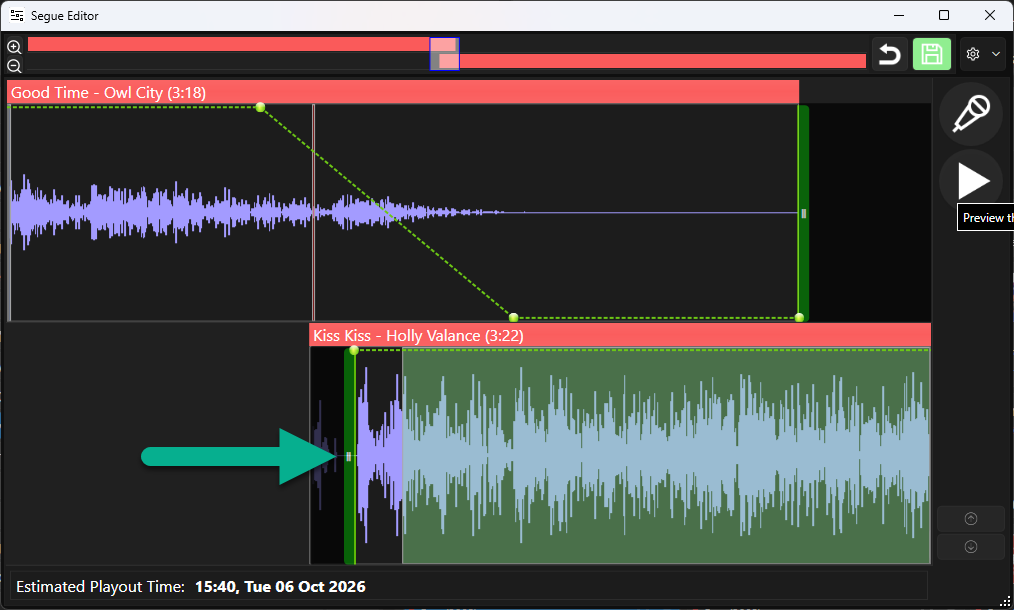
For this segue only, Myriad will treat this as the start of the Media Item. - You may have to drag the Media Item in the lower track to ensure a smooth segue (as you have just trimmed audio from the beginning of the original segue!).
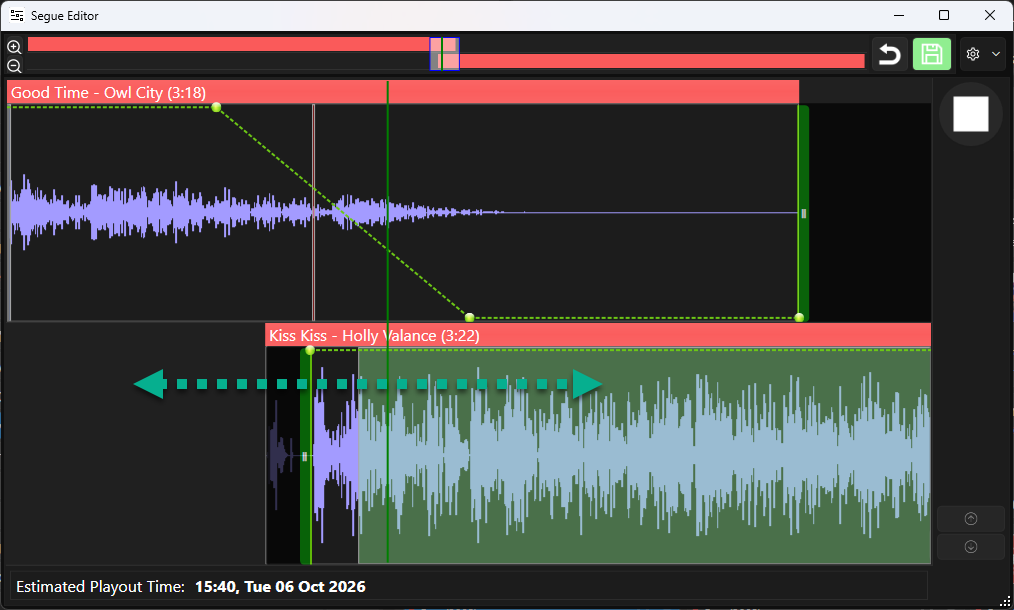
- You can review the segue by clicking on the Preview button.
- If you are happy with the new segue, click on the Save button.
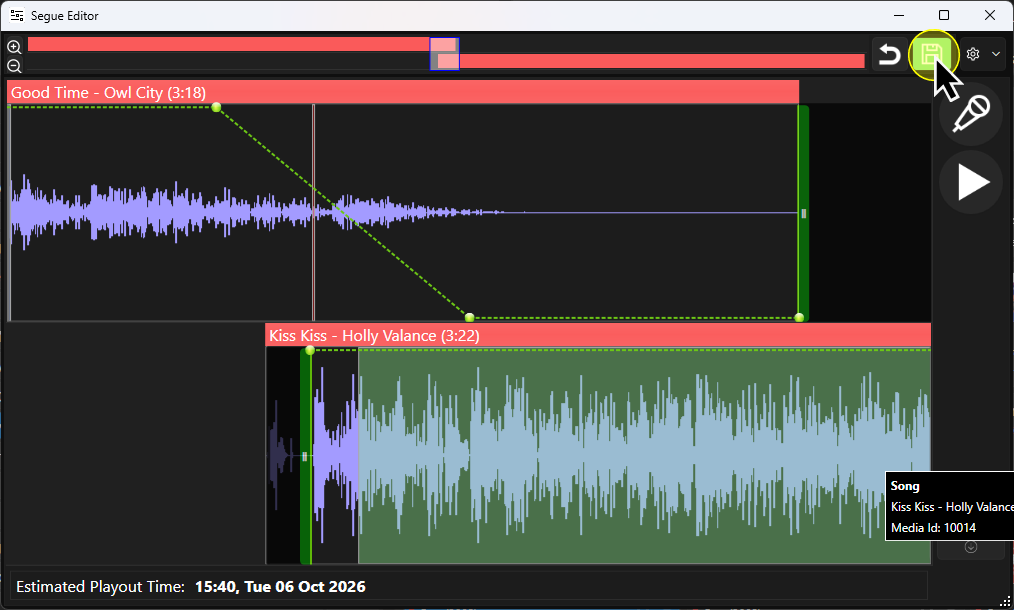
The segue will be saved in the Log and the timing adjusted accordingly.
Was this article helpful?
That’s Great!
Thank you for your feedback
Sorry! We couldn't be helpful
Thank you for your feedback
Feedback sent
We appreciate your effort and will try to fix the article