If Time Stretching is enabled (see Station Menu > Station Settings > AutoFade Tab) then Myriad may apply a time stretch up to the a maximum allowed, to Songs and Basic Media Items in the Log, to ensure the Log is running to time.
By default, all Songs are allowed to be time stretched when in AutoFade mode. You can expand this option to include all Basic Media Items and all Pre-Recorded Show items if you like (see Station Menu > Station Settings > AutoFade Tab)
You can toggle this option on a per Media Item basis to prevent some Songs (Basic Media or Pre-recorded Shows) for being time stretched.
Please note that Adverts, Links, Voice Tracks and News Items are never time stretched regardless of per Media Item settings.
To enable / disable Time Stretch on an individual Media Item, follow these steps:
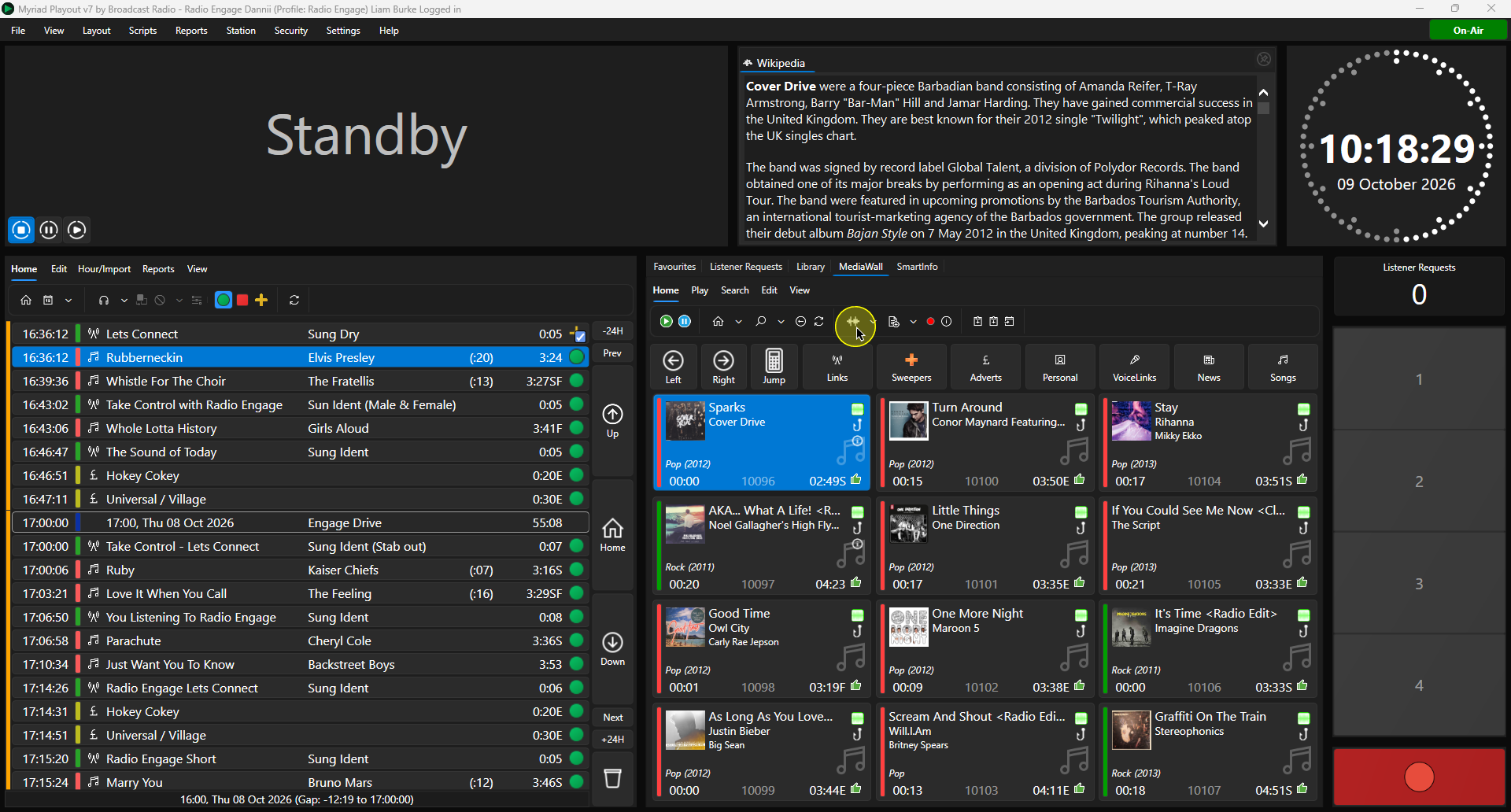
- Select the Media Item you want to add or edit, and click on the Edit button on the ribbon.
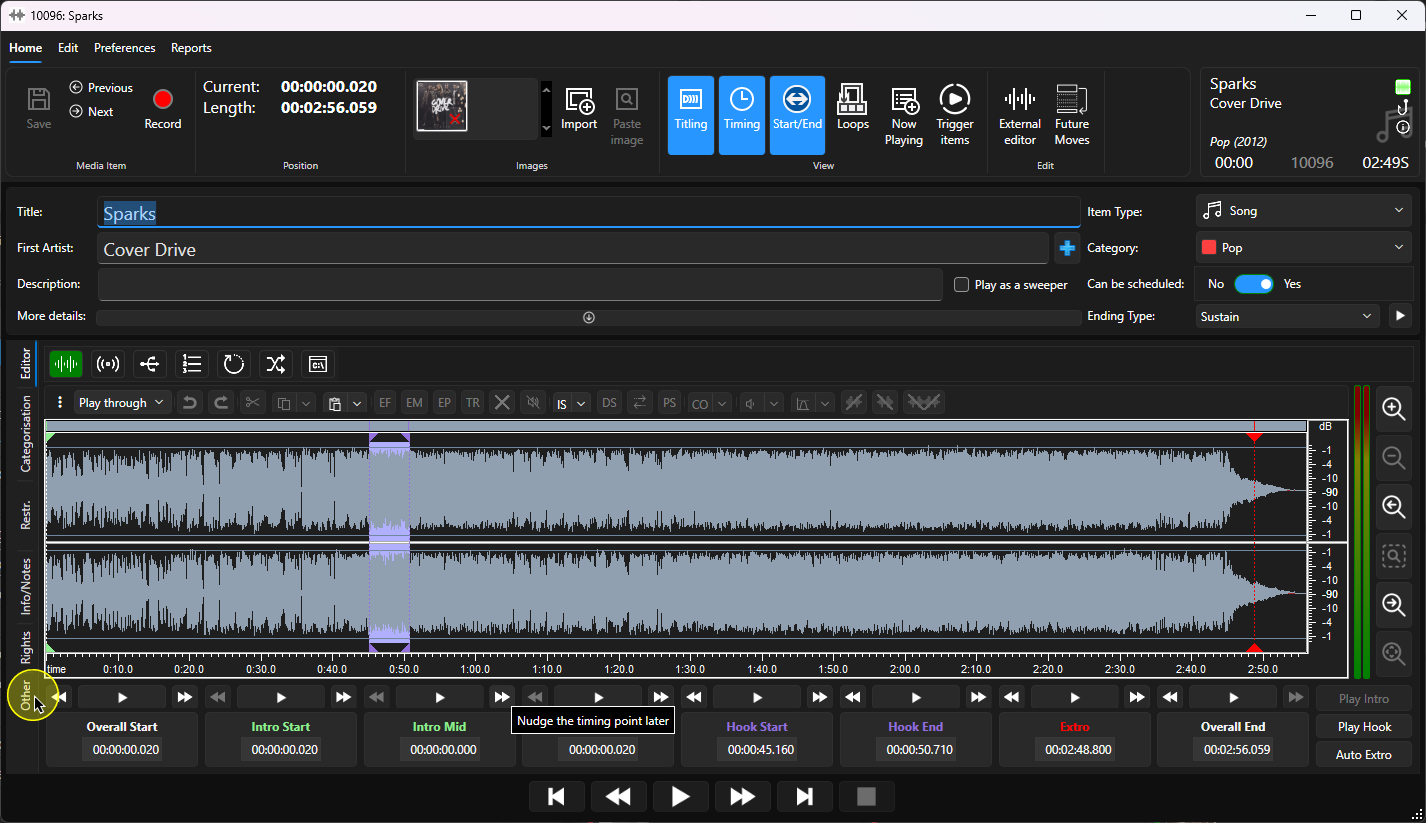
- Click on the Other tab.
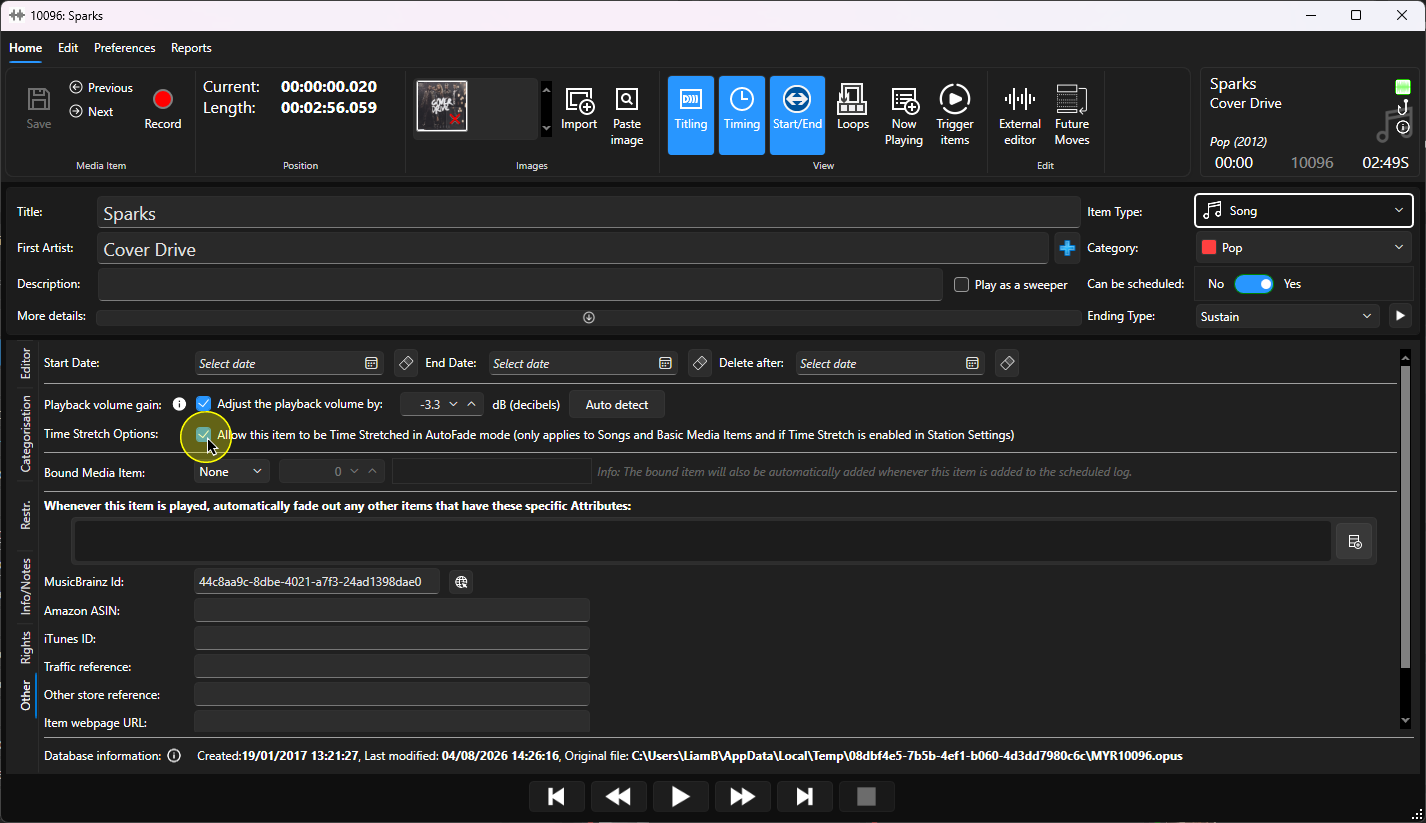
- Tick or untick the Allow this item to be time stretched option in the Time Stretch Options section.
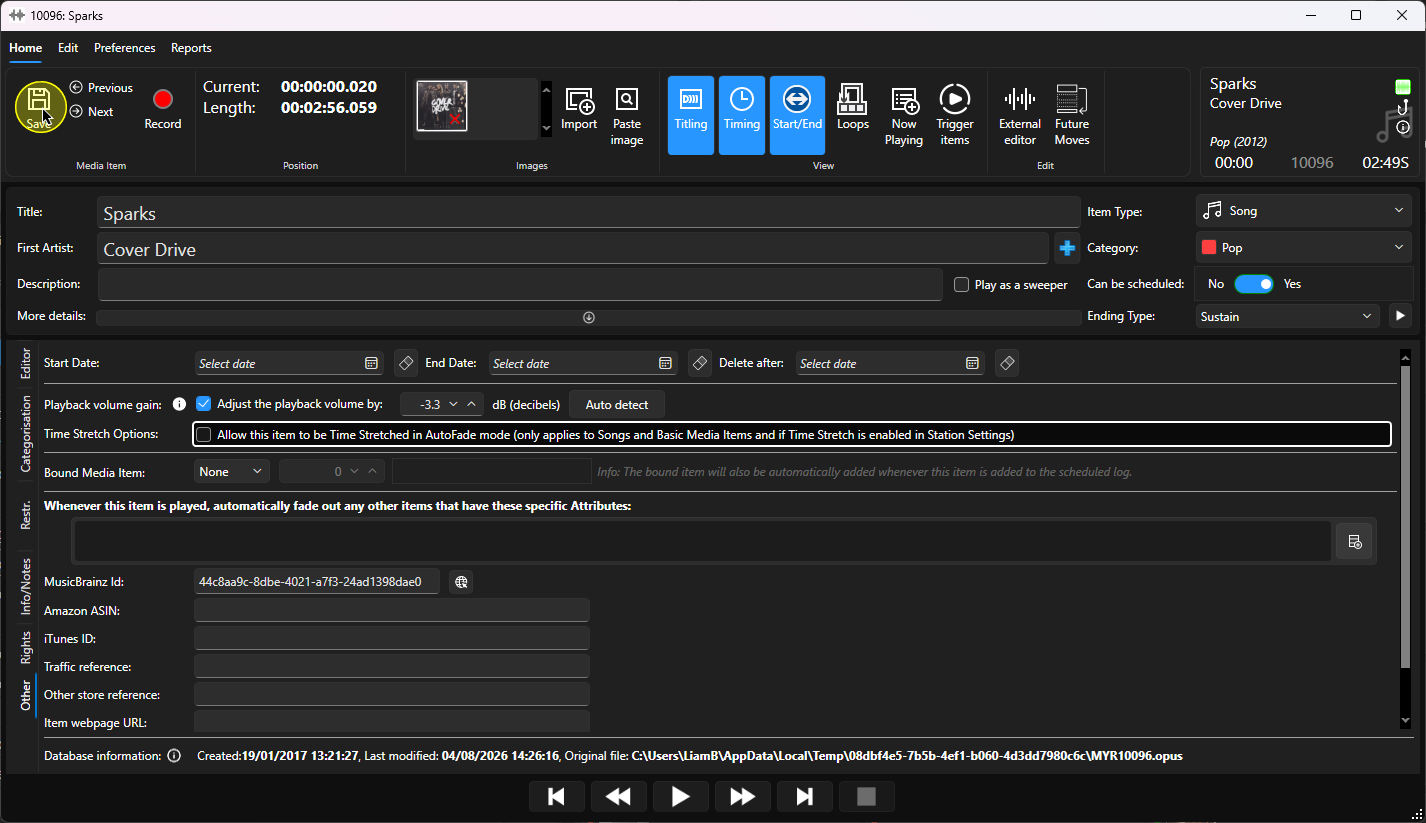
- Click Save.
Was this article helpful?
That’s Great!
Thank you for your feedback
Sorry! We couldn't be helpful
Thank you for your feedback
Feedback sent
We appreciate your effort and will try to fix the article