All Media Items are set as either Basic Media Items, Songs, Links (Jingles), Adverts, Voice Tracks, News Items or Pre-Recorded Show. You can change a Media Item's Type using the Edit window.
Please note that audio imported into ranges with an Item Type assigned will automatically be set as that Item Type.
1. To edit a Media Item Type, select the Media Item.
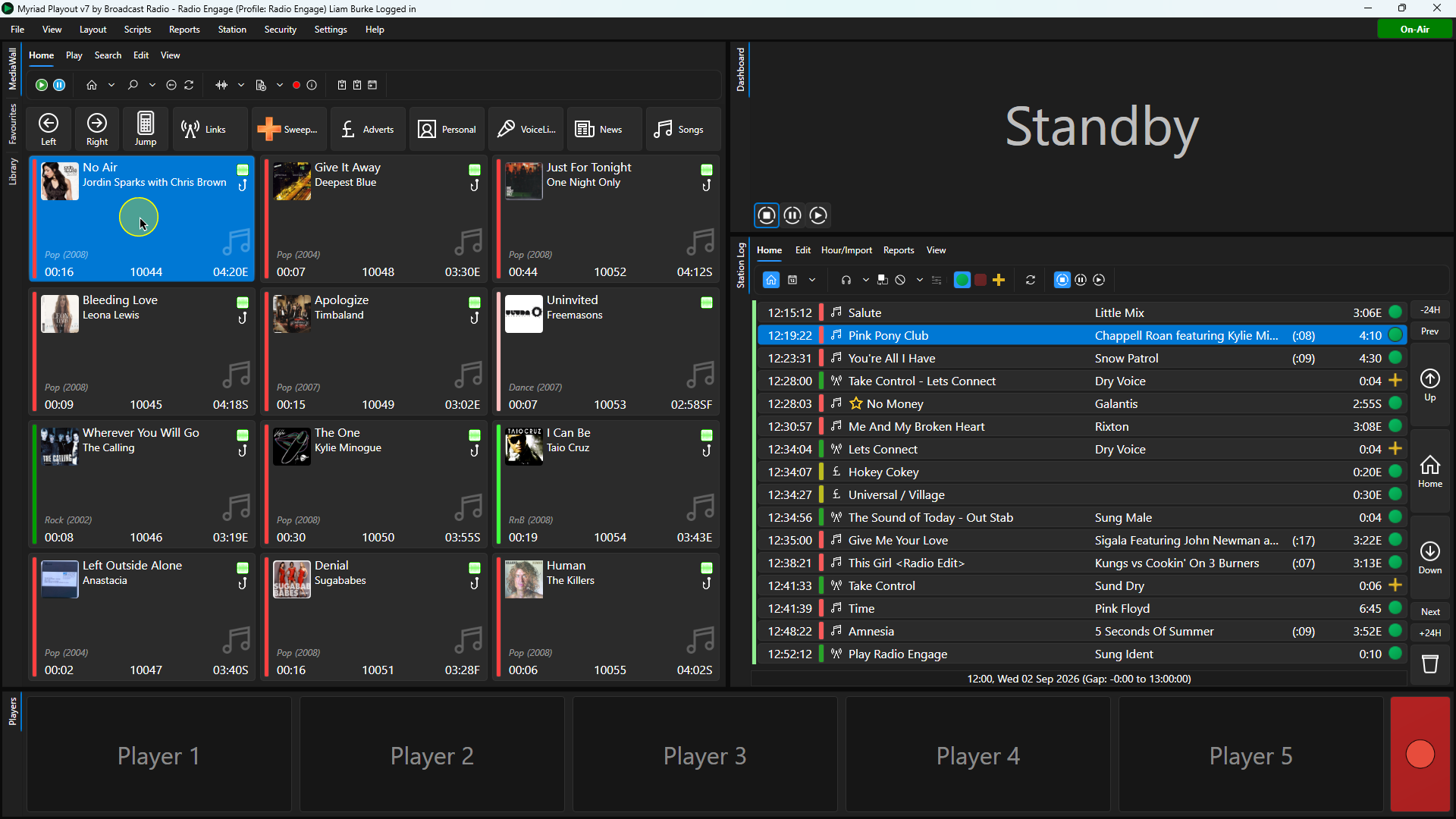
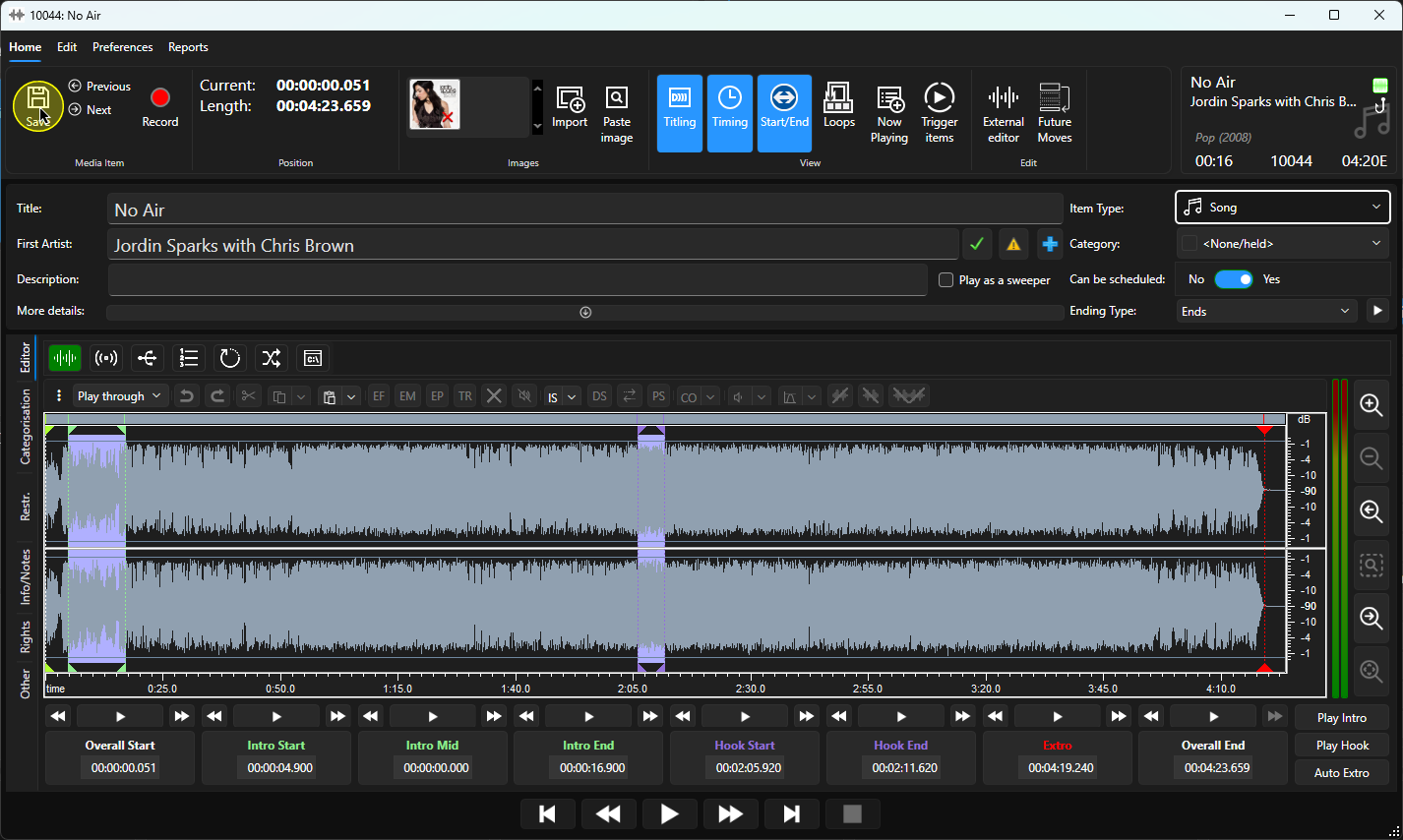
2. Click on the Edit button on the Home ribbon to open the Edit window. You can also right click on the Media Item and use the Edit option on the right click menu.
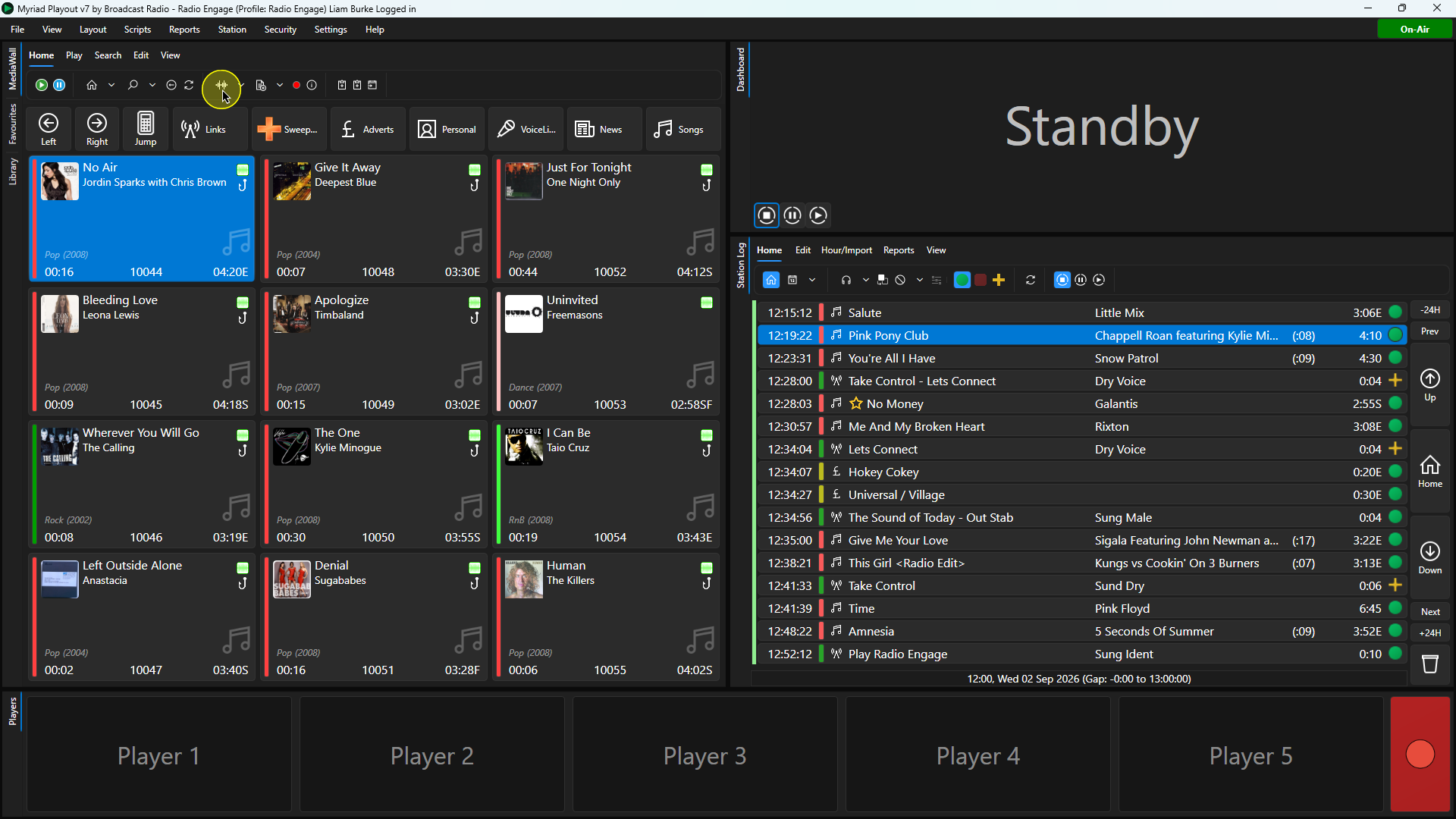
3. Once the Edit window is loaded, the Item Type can be changed using the drop down options.
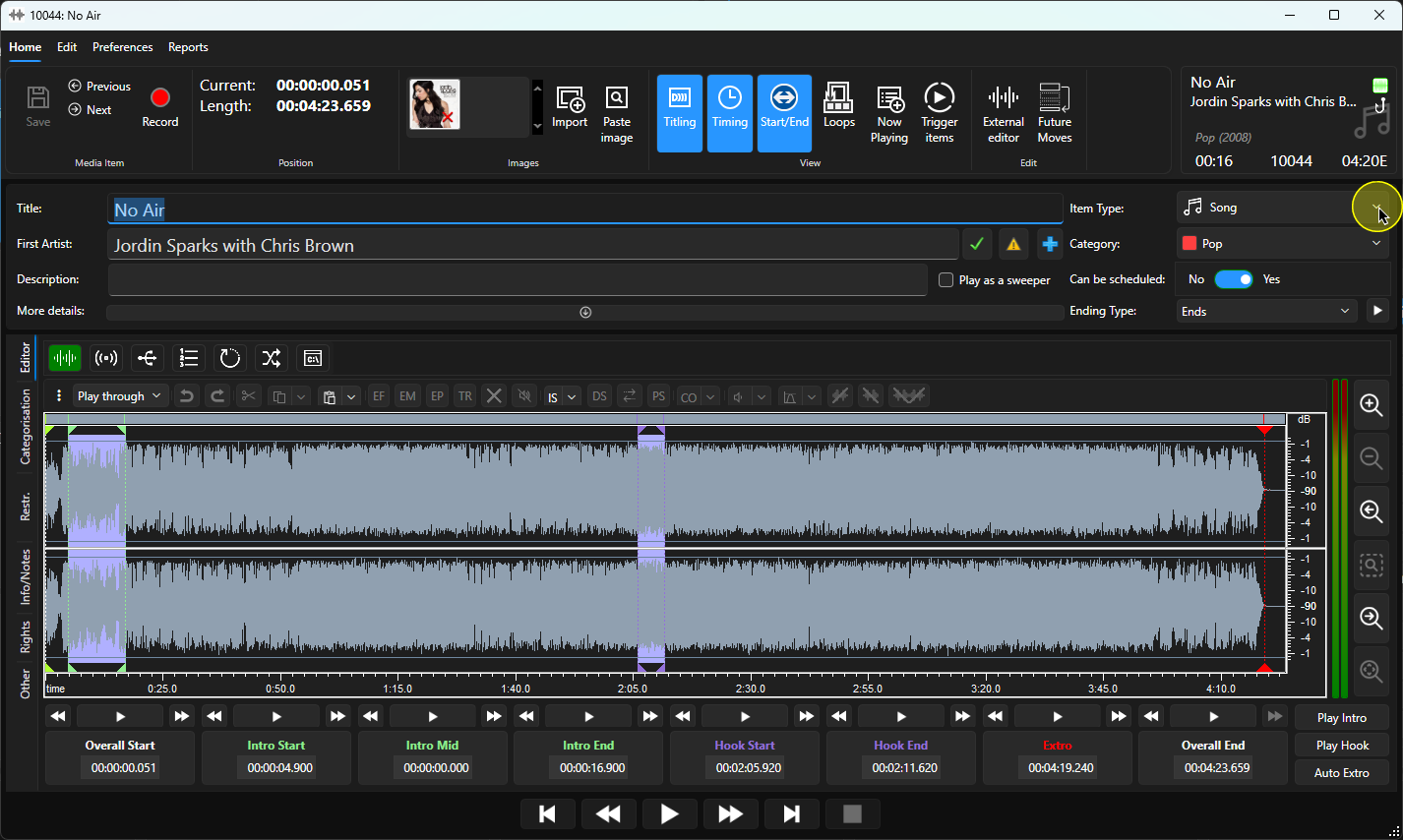
4. Select the Item Type from the list.
- Basic Item - Default Media Item.
- Link - Used for jingles, promos, sweepers etc.
- Advert - Commercial adverts and promotional material.
- Song - Music and other content (Songs lengths can be manipulated when in AutoFade mode).
- Voice Tracl - Used to store temporary recorded voice links that will be used in automation.
- News Item - News specific content usually related to Myriad News.
- Pre-Recorded Show - Used for partial or compete pre-recorded shows.
5. Once you have set the Media Item Type, click Save to save the changes.
6. The Media Item Type is indicated by the icon on the Media Wall. If the icon is blank, it is a Basic Media Item.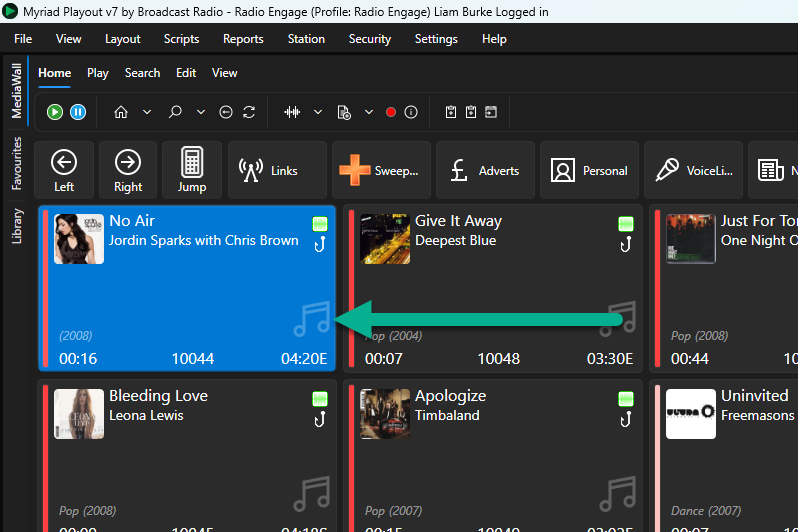
The options are:
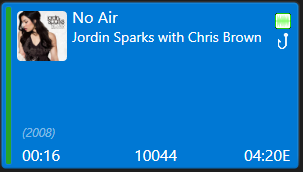 | Basic Media Item (Blank) |
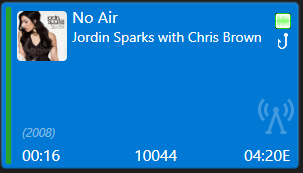 | Link (Jingle) |
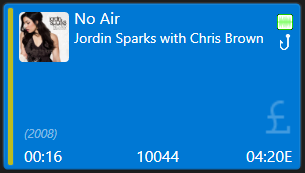 | Advert (May display as $ or € depending on your settings) |
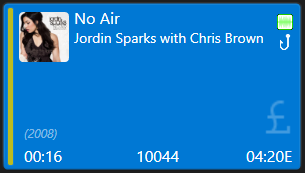 | Song |
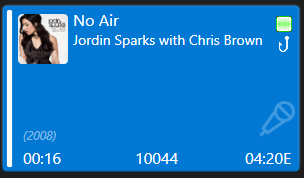 | Voice Track |
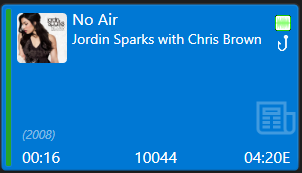 | News |
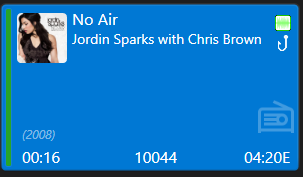 | Pre-Recorded Show |
Was this article helpful?
That’s Great!
Thank you for your feedback
Sorry! We couldn't be helpful
Thank you for your feedback
Feedback sent
We appreciate your effort and will try to fix the article