You can set Primary and Secondary Categories for Songs, Links, Adverts and News Items.
1. Select a Media Item on the Media Wall
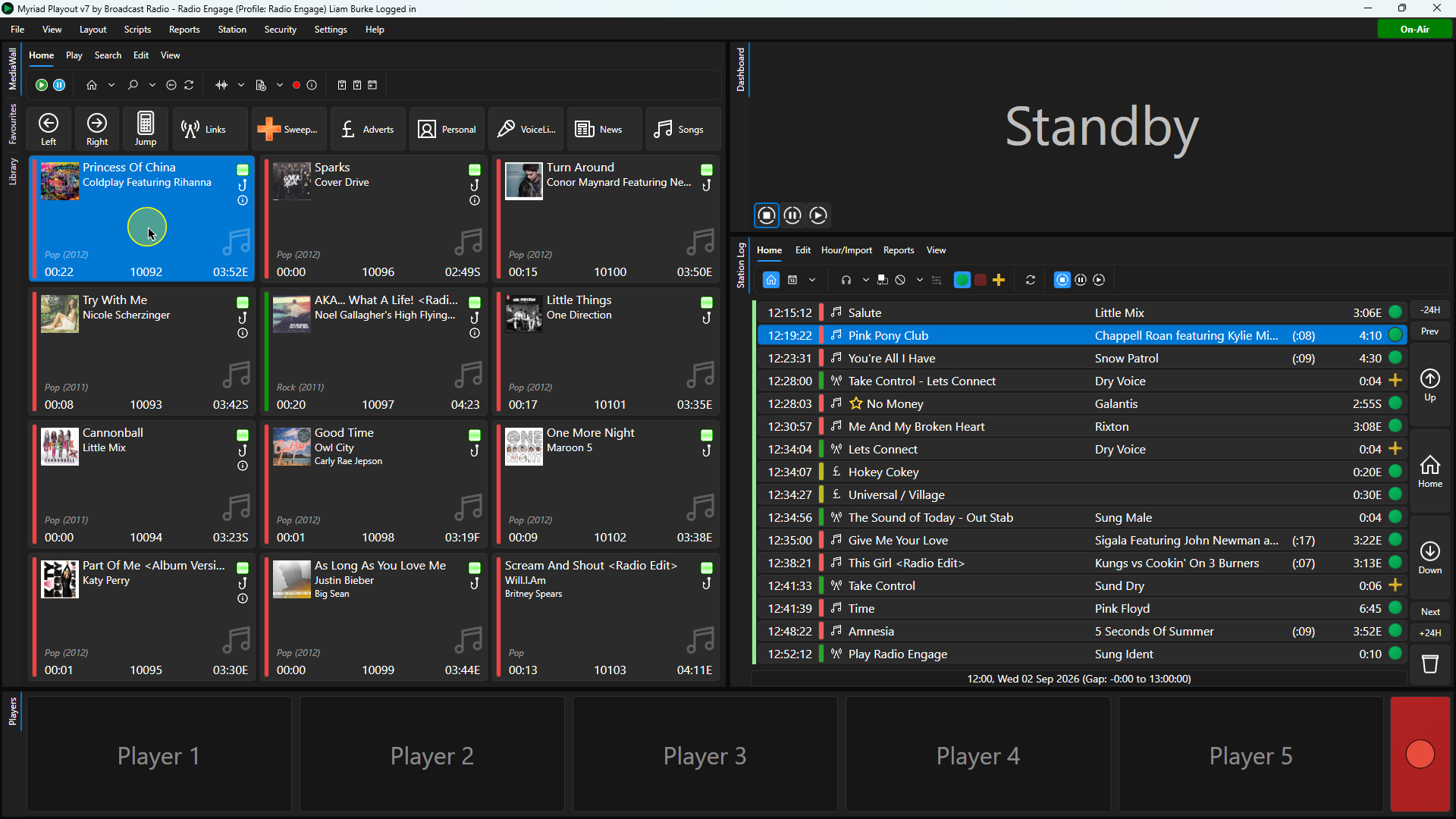
2. Click on the Edit button on the Home ribbon or use the Edit option on the right-click menu.
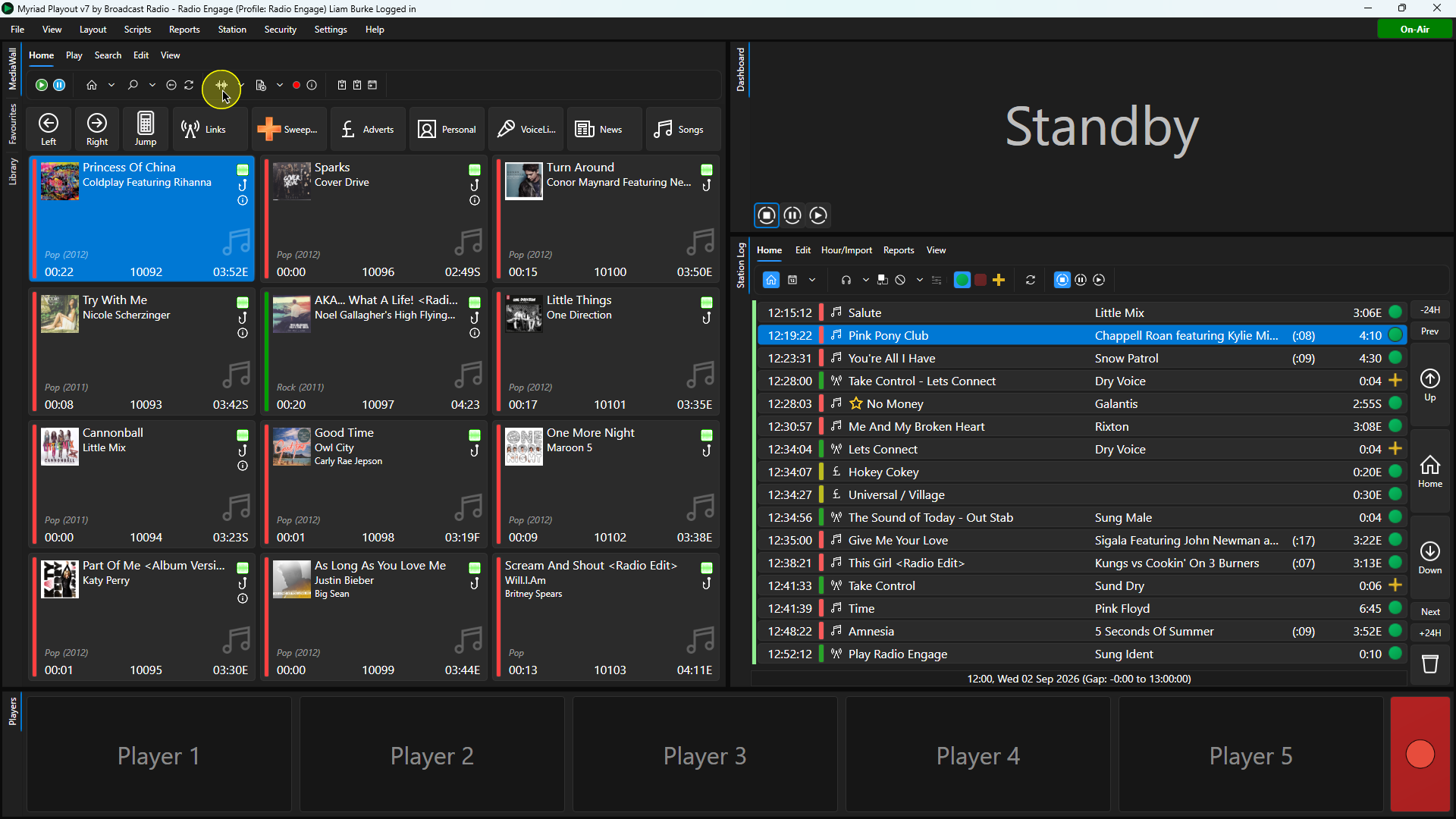
3. Once the Edit window has loaded, click on the Categorisation tab.
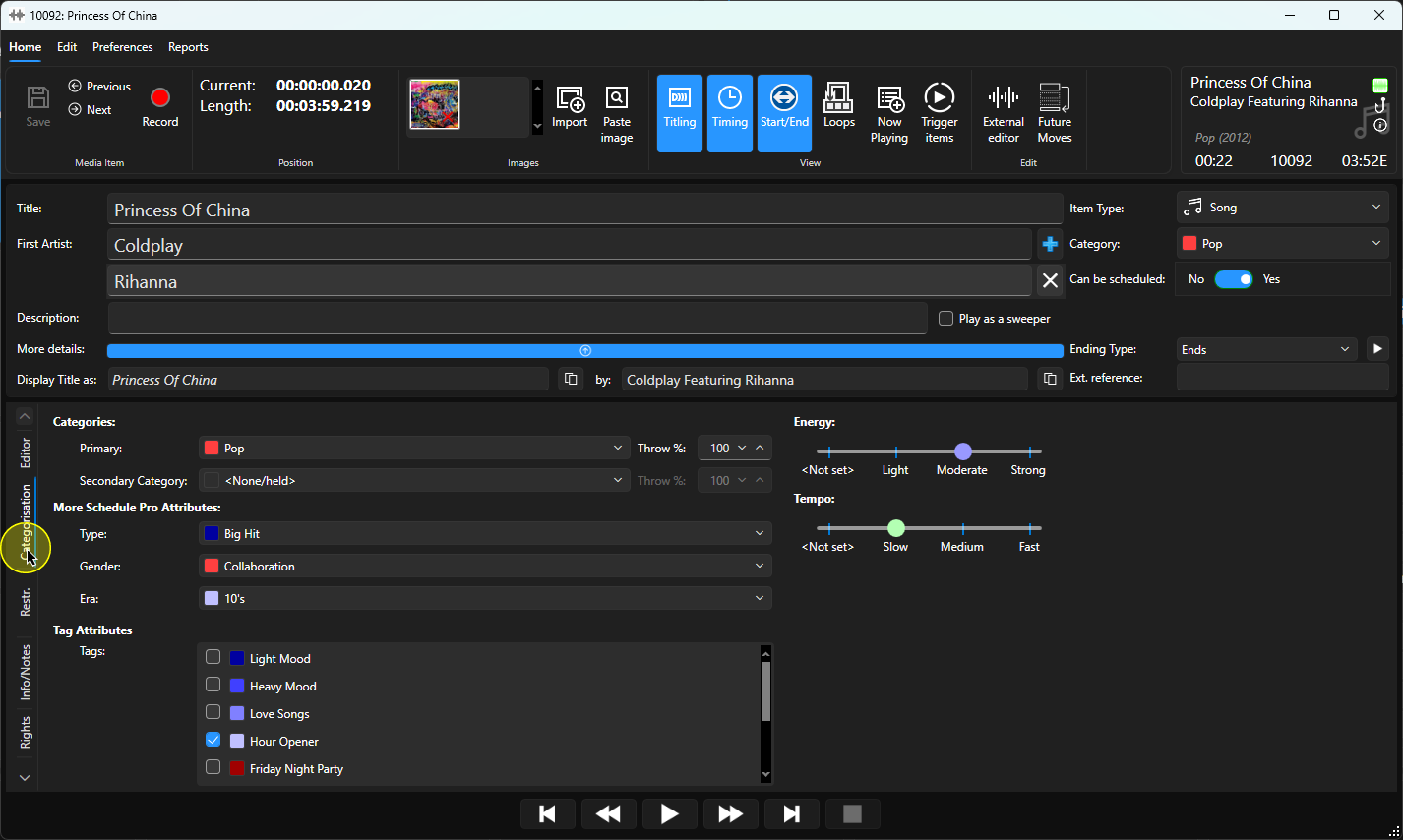
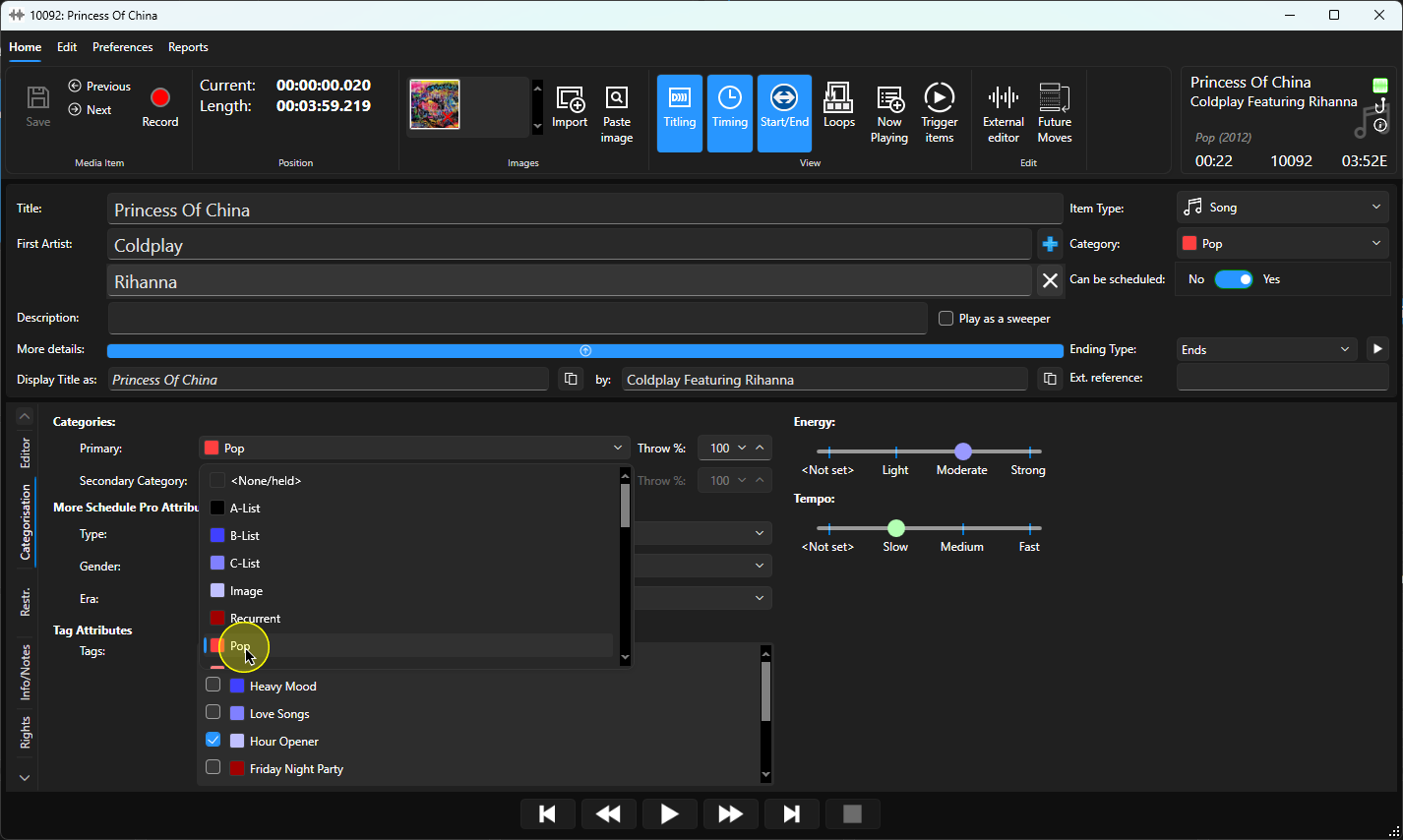
4. Use the drop down option to view the Category option for this Media Type.
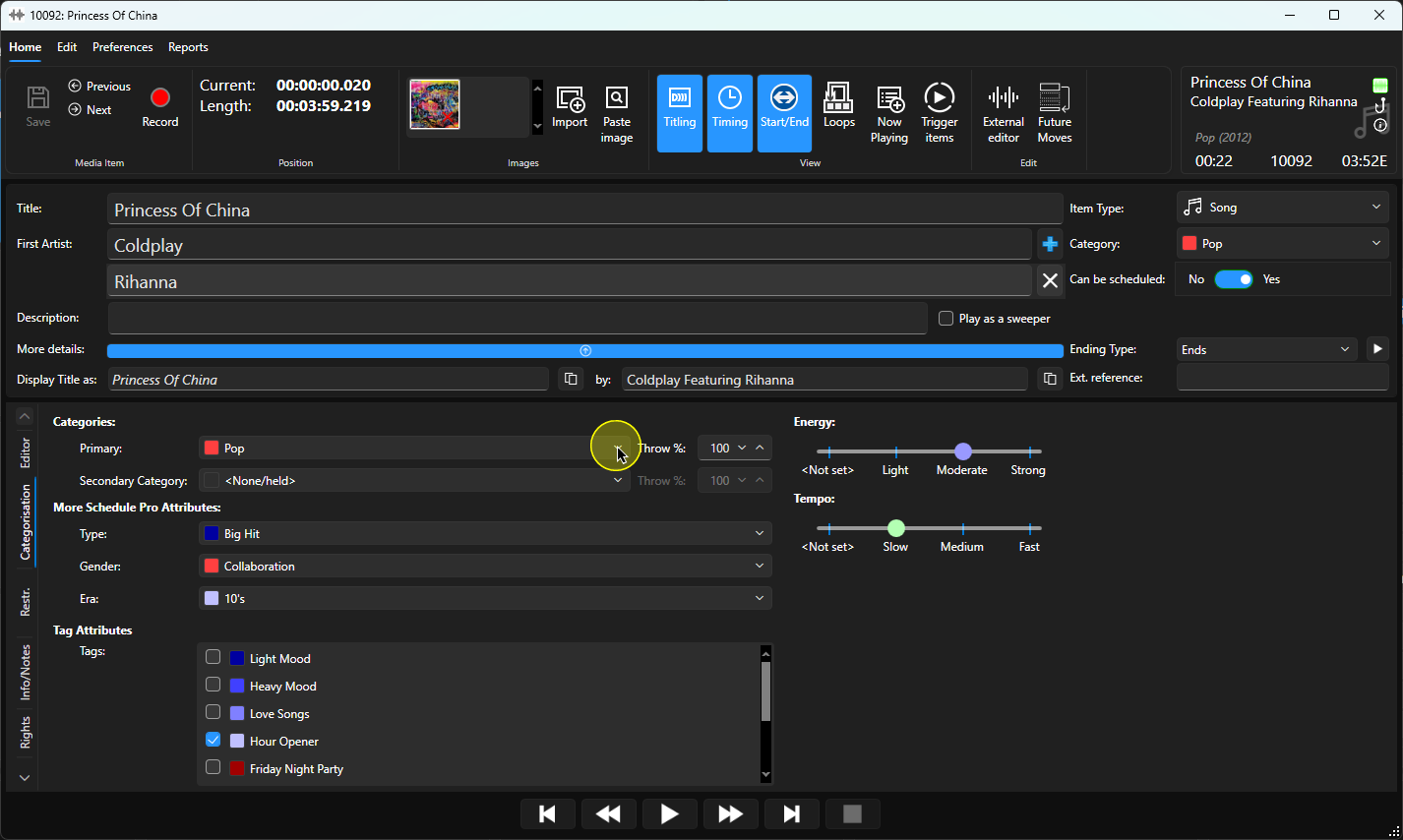
5. Select the Primary Category from the list. Items set as <None/Held> will not be automatically Scheduled.
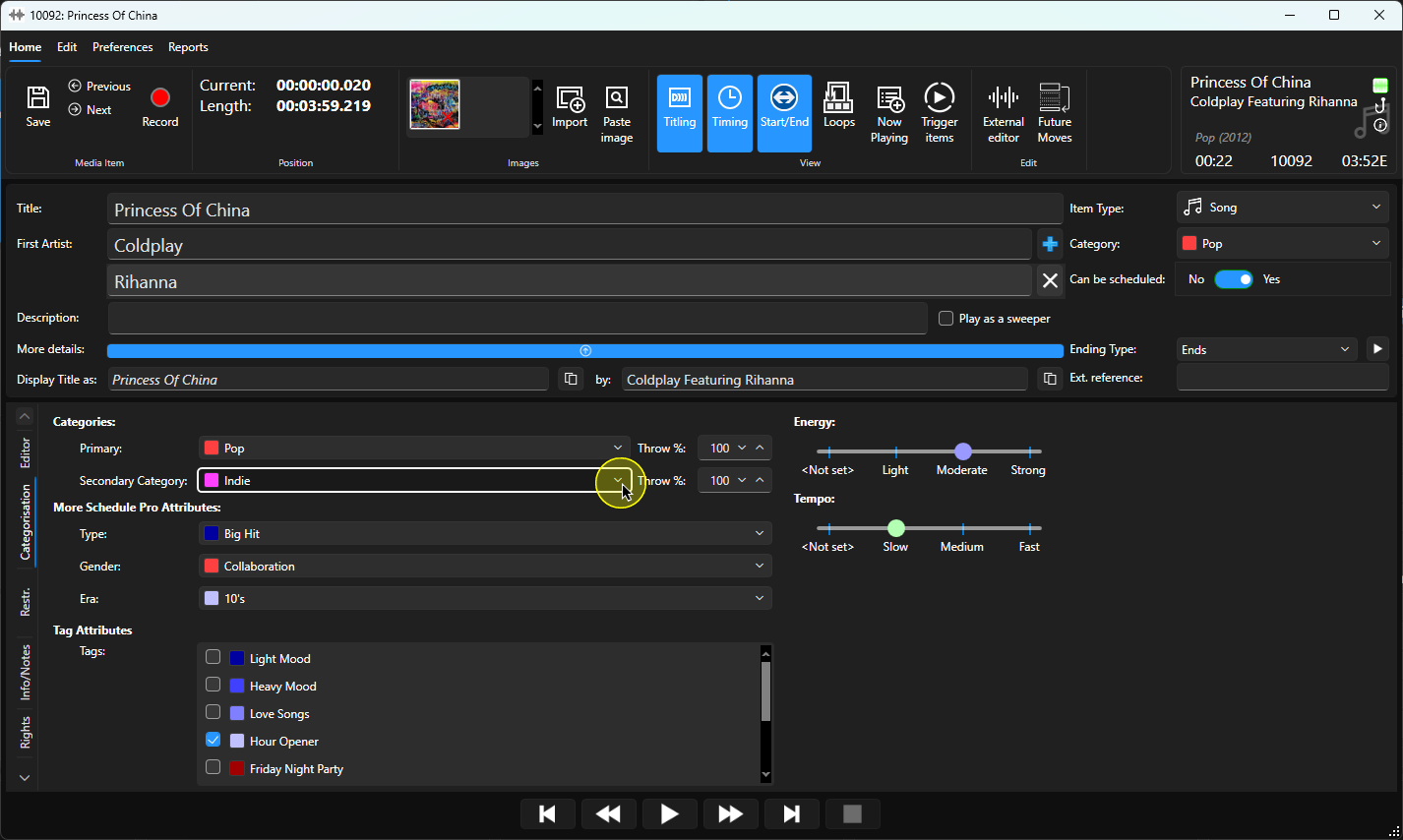
6. You can optionally set a Secondary Category, once the Primary is set.
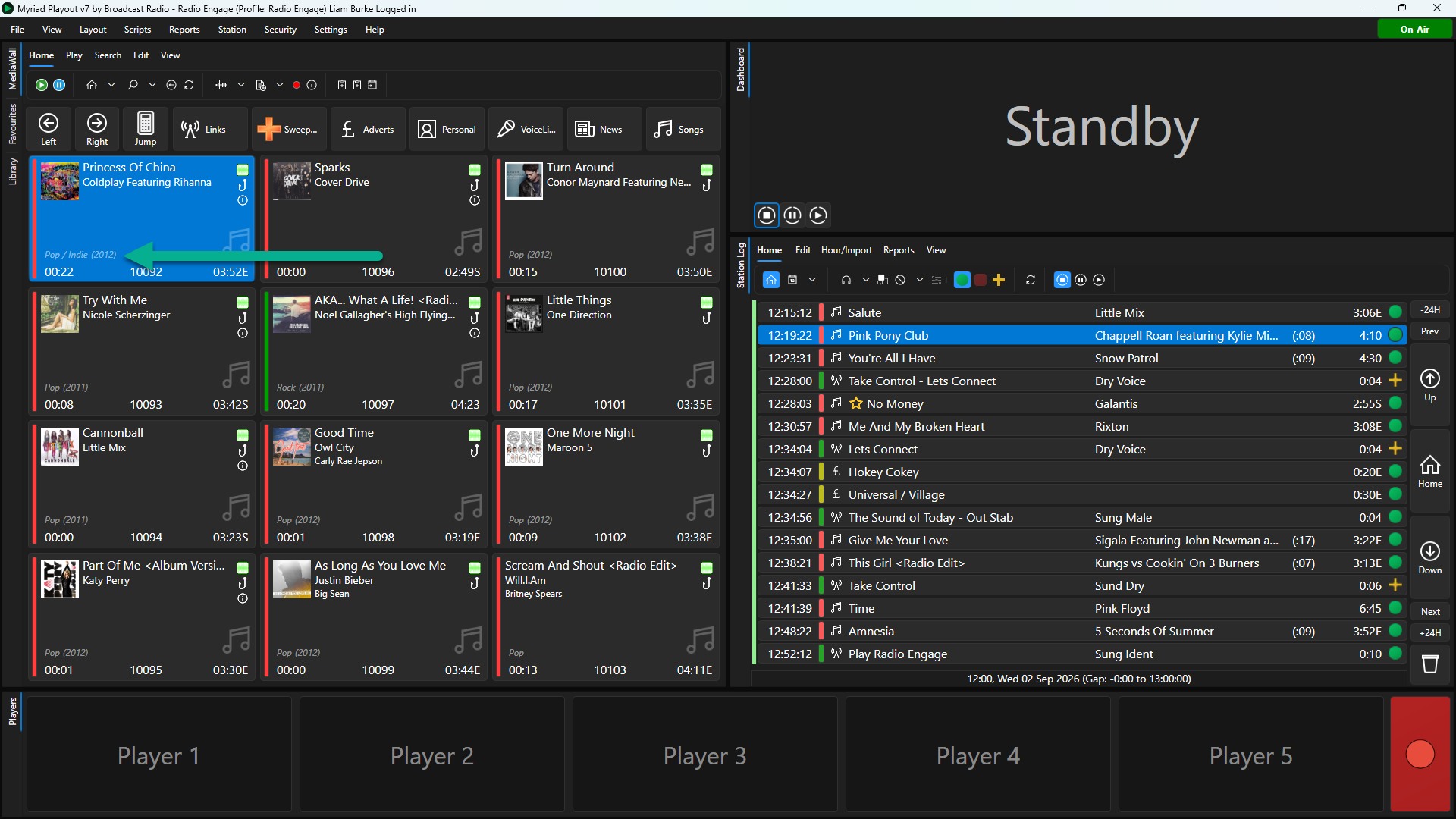
The Media Item will exist in both Category Decks simultaneously.
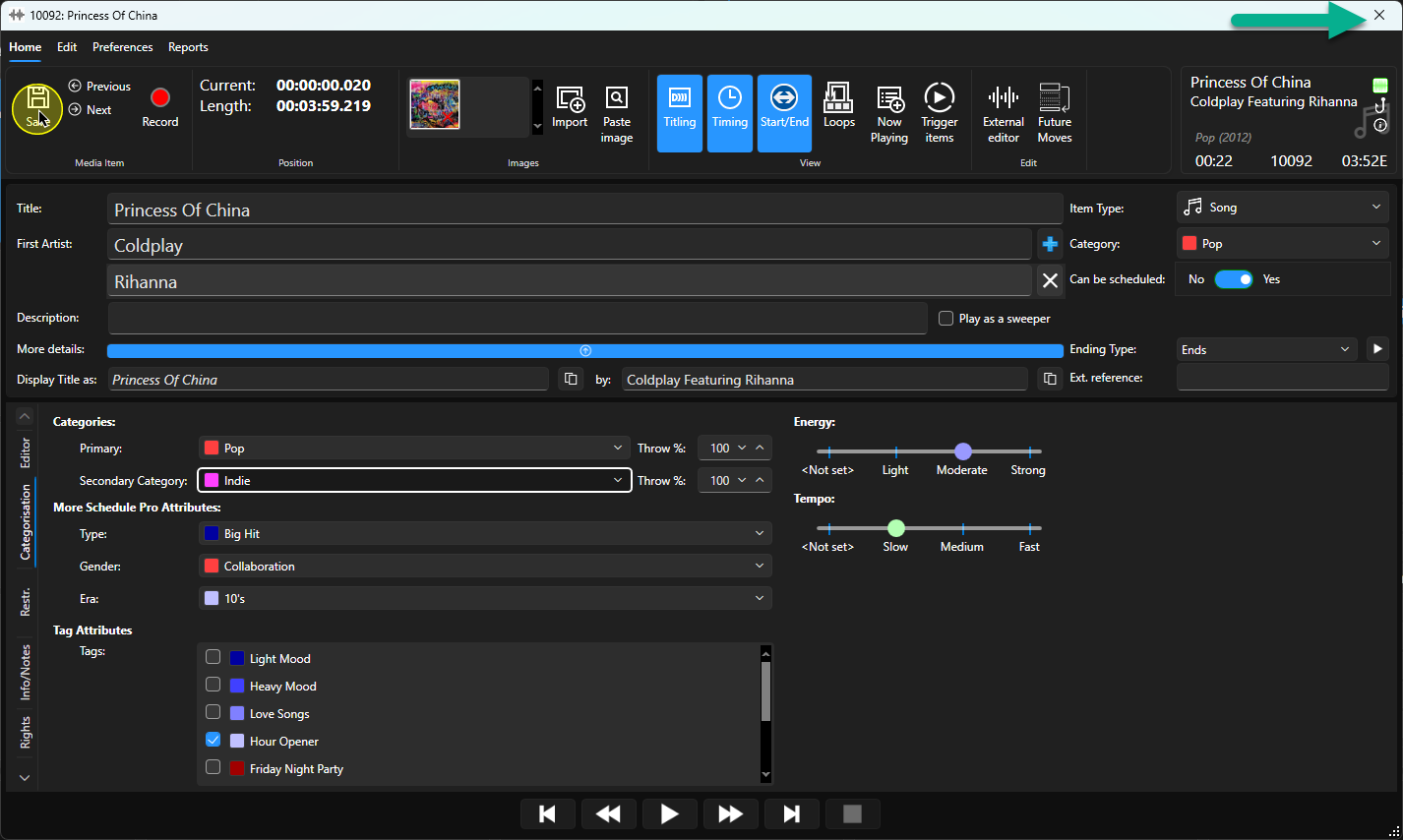
8. Click Save then close the Edit window.
9. The category is listed on the Media Item on the Media Wall.
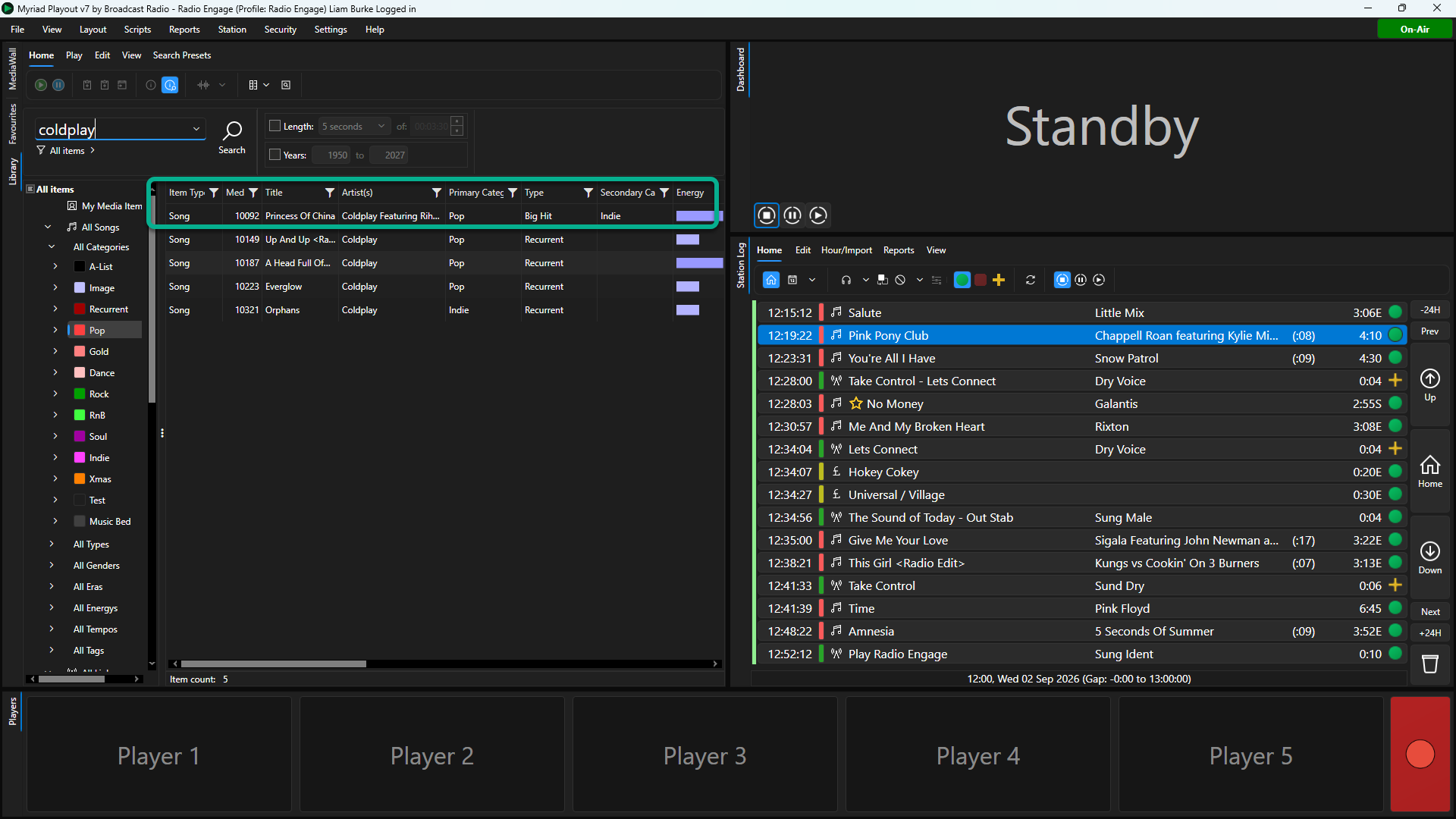
10. In the Library view, Primary and Secondary Categories are listed as columns.
Was this article helpful?
That’s Great!
Thank you for your feedback
Sorry! We couldn't be helpful
Thank you for your feedback
Feedback sent
We appreciate your effort and will try to fix the article