By default, Media Items with more than one Artist will display all Artists as a comma separated list. You can override this to display Artists in a more DJ and listener friendly way using the 'by' field on the Edit window.
1. In the example below, the Media Item has two artists listed, The Fratellis and Kylie Minogue. They are displayed as a list on the Media Item.
This correctly identifies the two separate Artists for scheduling purposes but you may wish to use a more DJ / listener friendly way to display them.
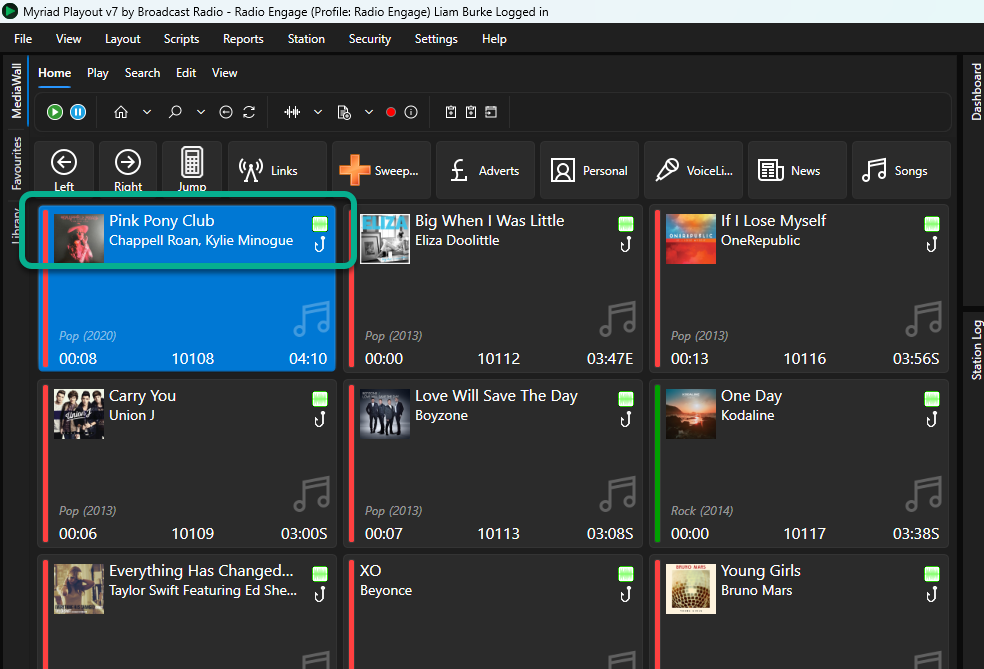
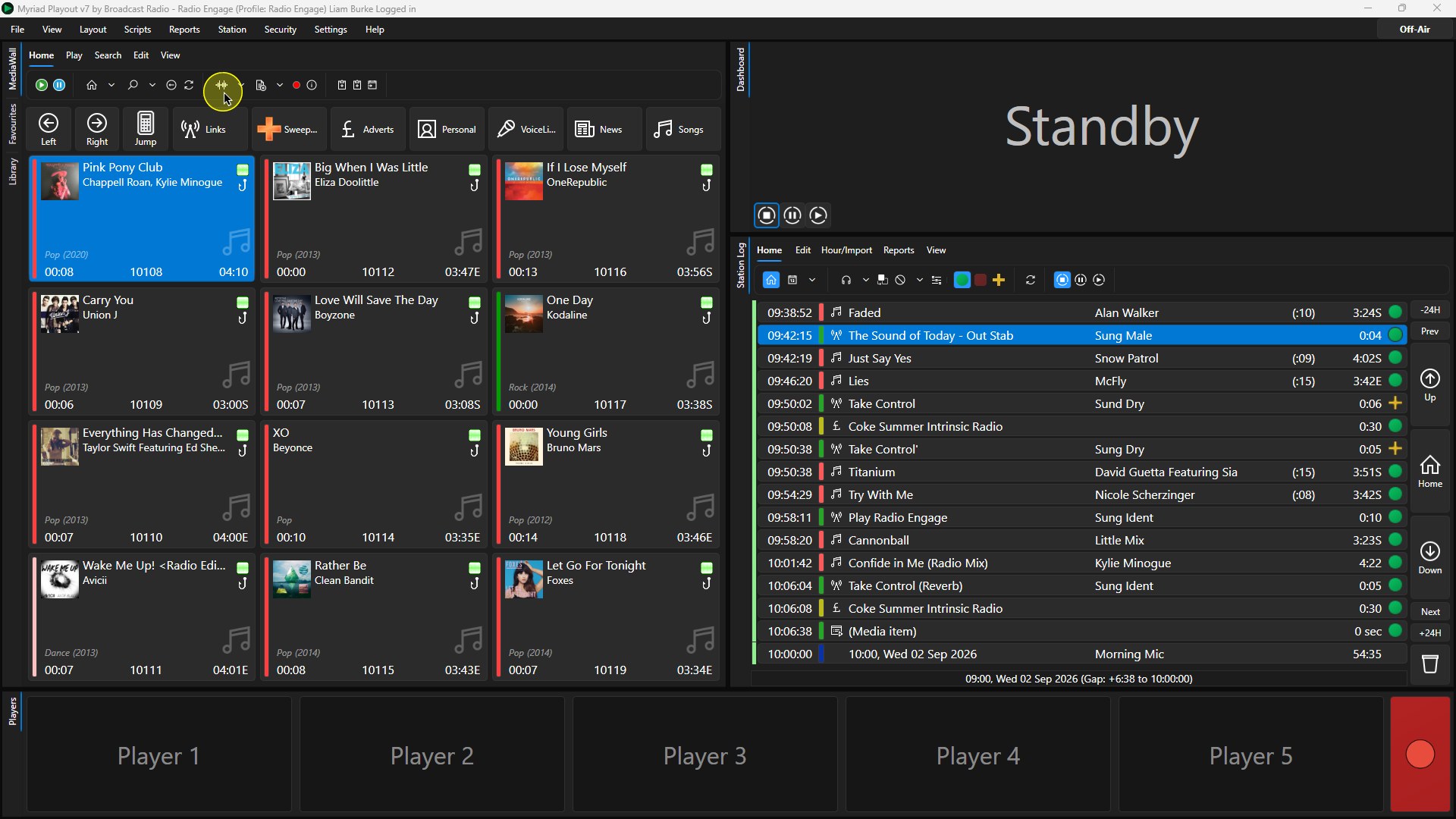
2. Select the Media Item and click on the Edit button to open the Edit Window. You can also right-click on the Media Item and choose Edit if you prefer.
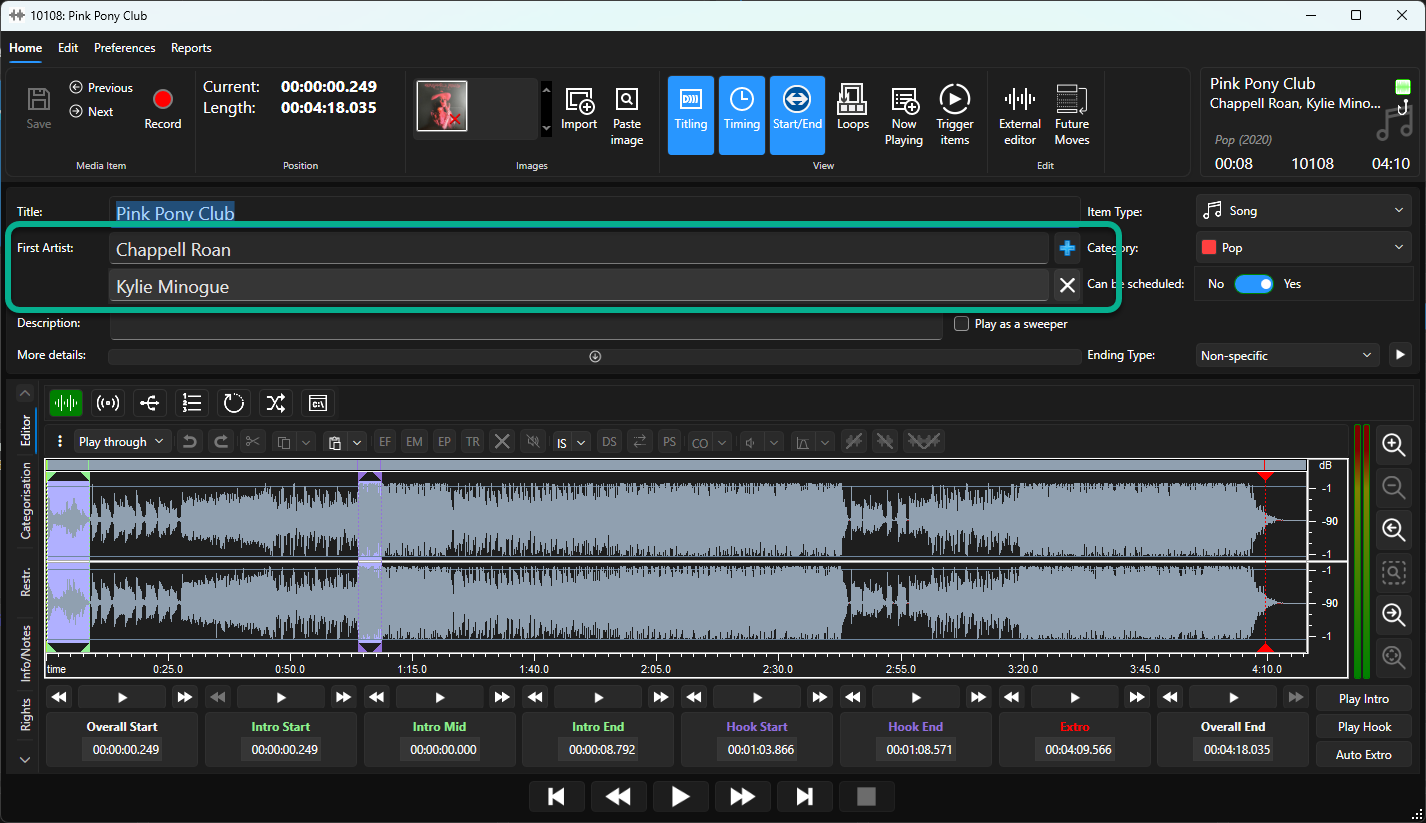
3. Here we can see the two Artists listed separately which is the correct way to assign multiple Artists to a Media Item.
4. First click on the More Details drob down option to expand the Display As and By fields. You may not have to do this if you have expanded them previously.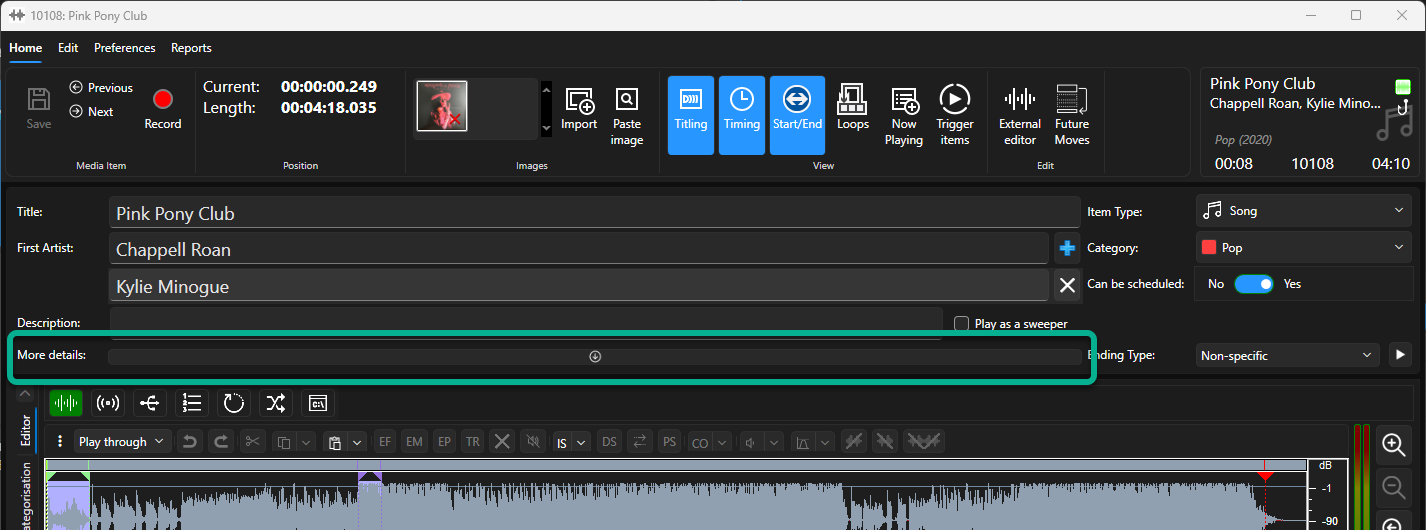
The Display Title As and By fields will override the Media Item Title and Artists fields when displaying Media Item details and when metadata is sent to external systems / platforms via OCP.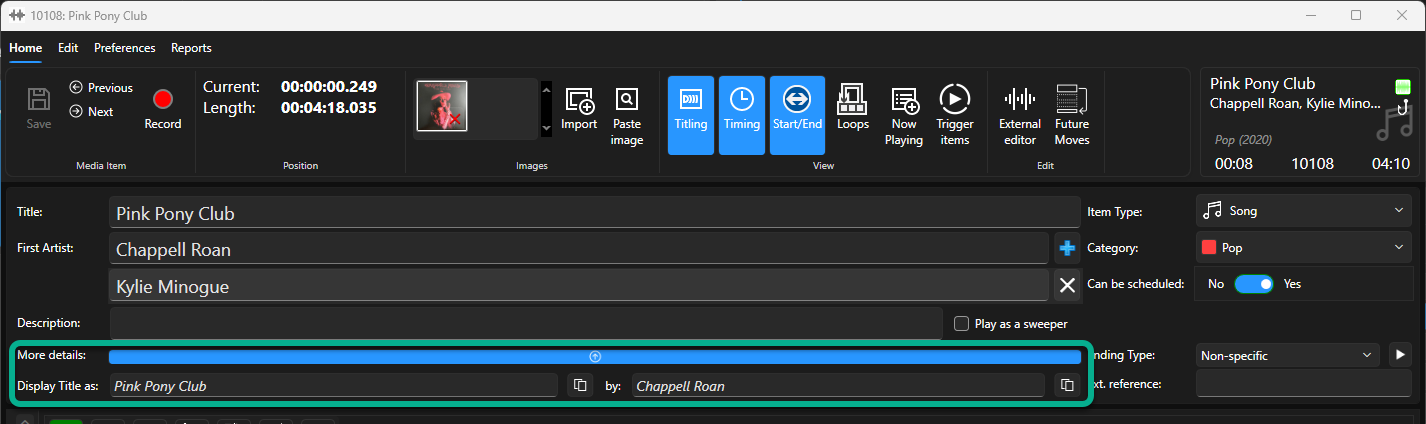
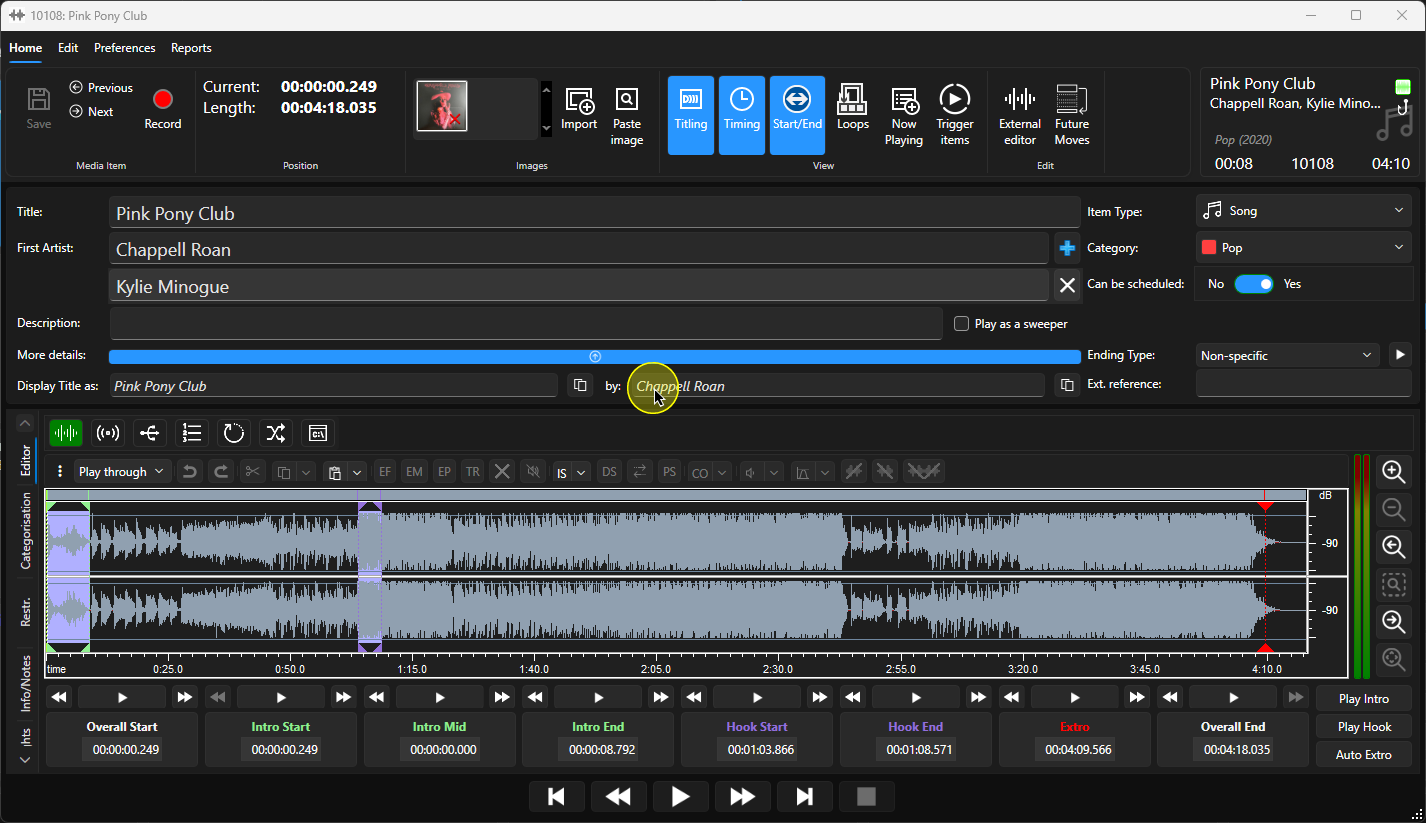
Click into the 'By' field and type in how you would like the Artists to be displayed to DJ's and listeners.
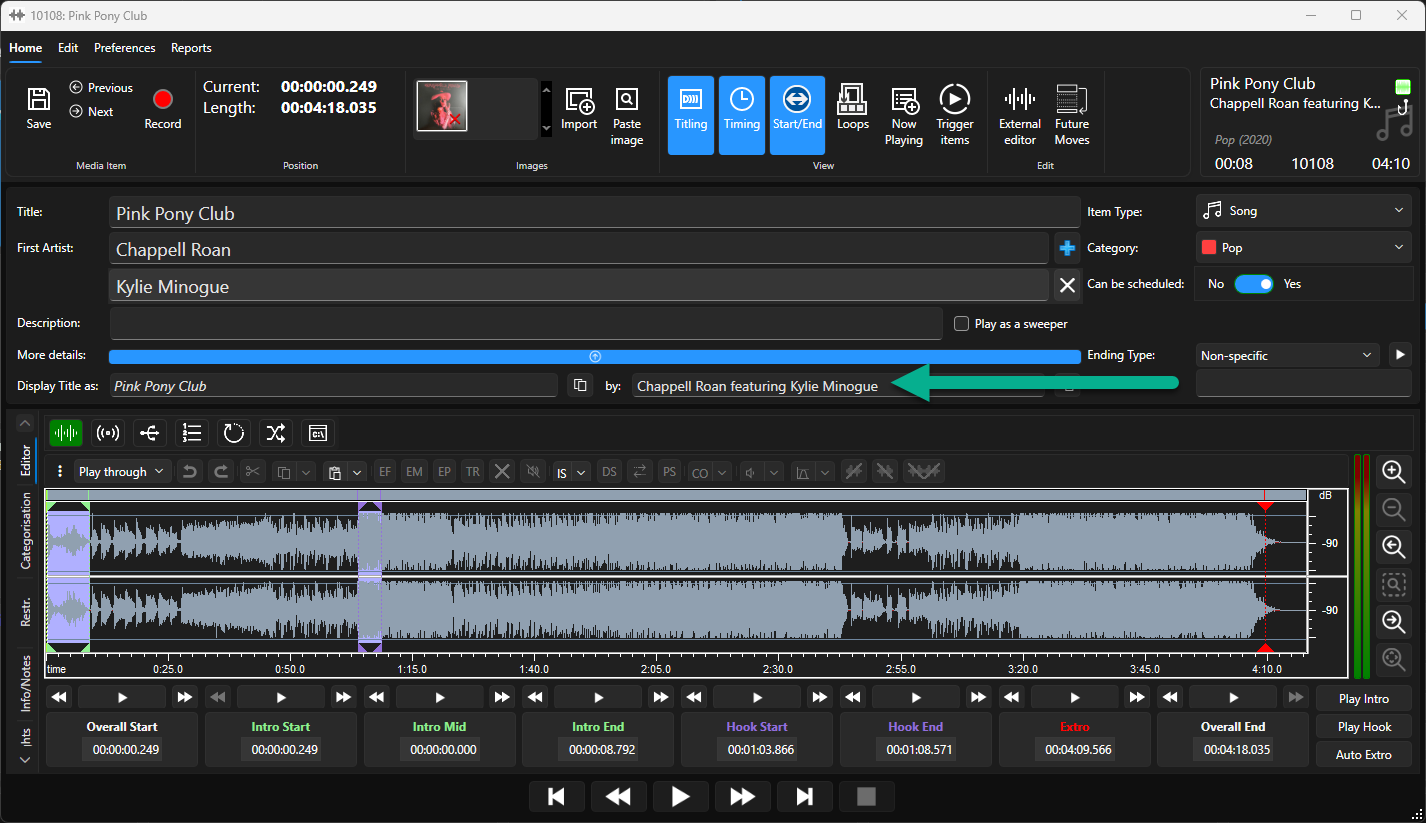
5. In this example we have added 'Chappell Roan featuring Kylie Minogue' to the 'By' field.
6. When you are happy, click Save.
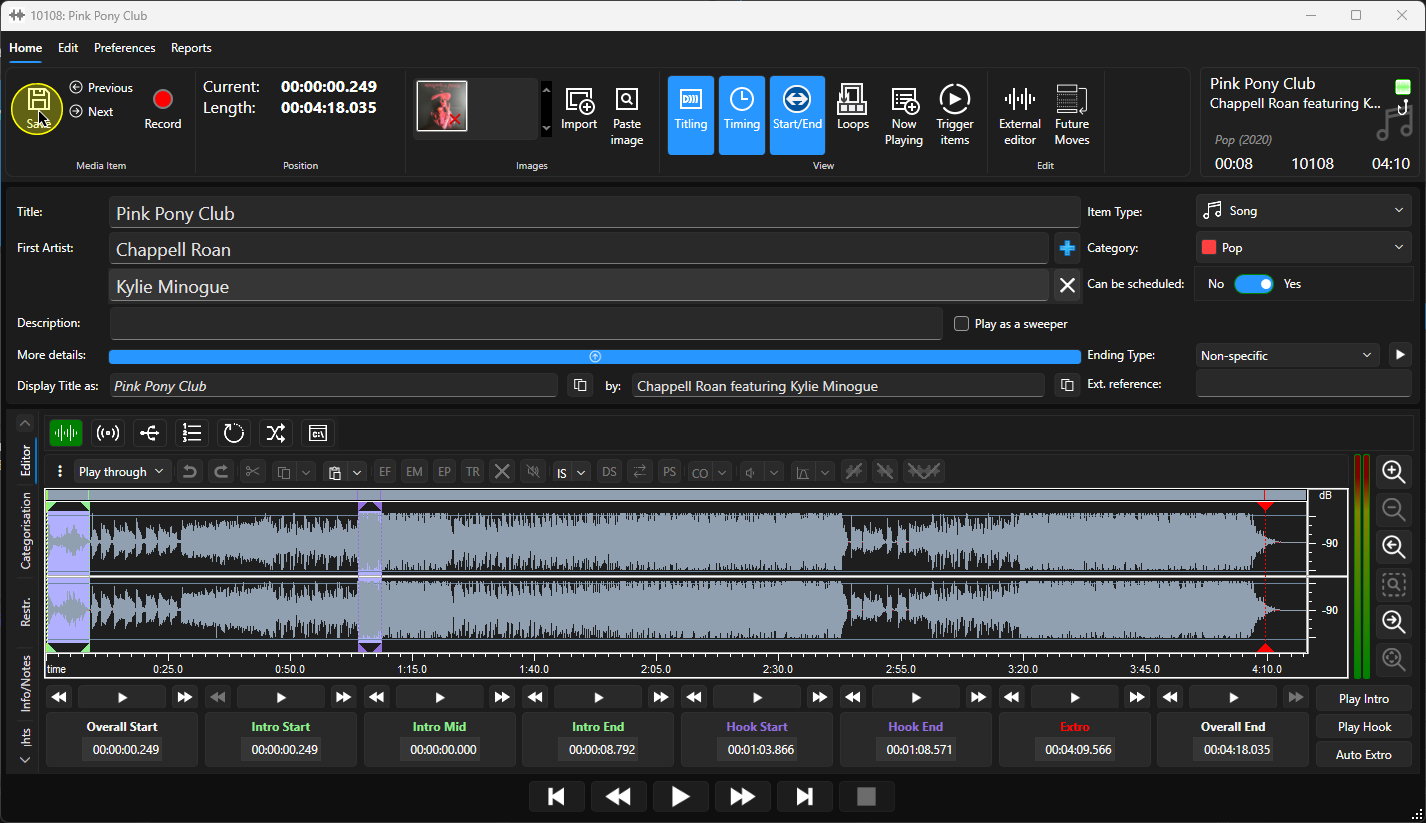
7. Now, whenever the Media Item is used, the Artists will be displayed using the text from the 'By' field.
Was this article helpful?
That’s Great!
Thank you for your feedback
Sorry! We couldn't be helpful
Thank you for your feedback
Feedback sent
We appreciate your effort and will try to fix the article