You can set a Media Item End Type for any Media Item but they are usually used on Songs to indicate how the Song ends to presenters and when Myriad is in AutoFade mode.
1. Select the Media Item you want to set or edit the End Type for.
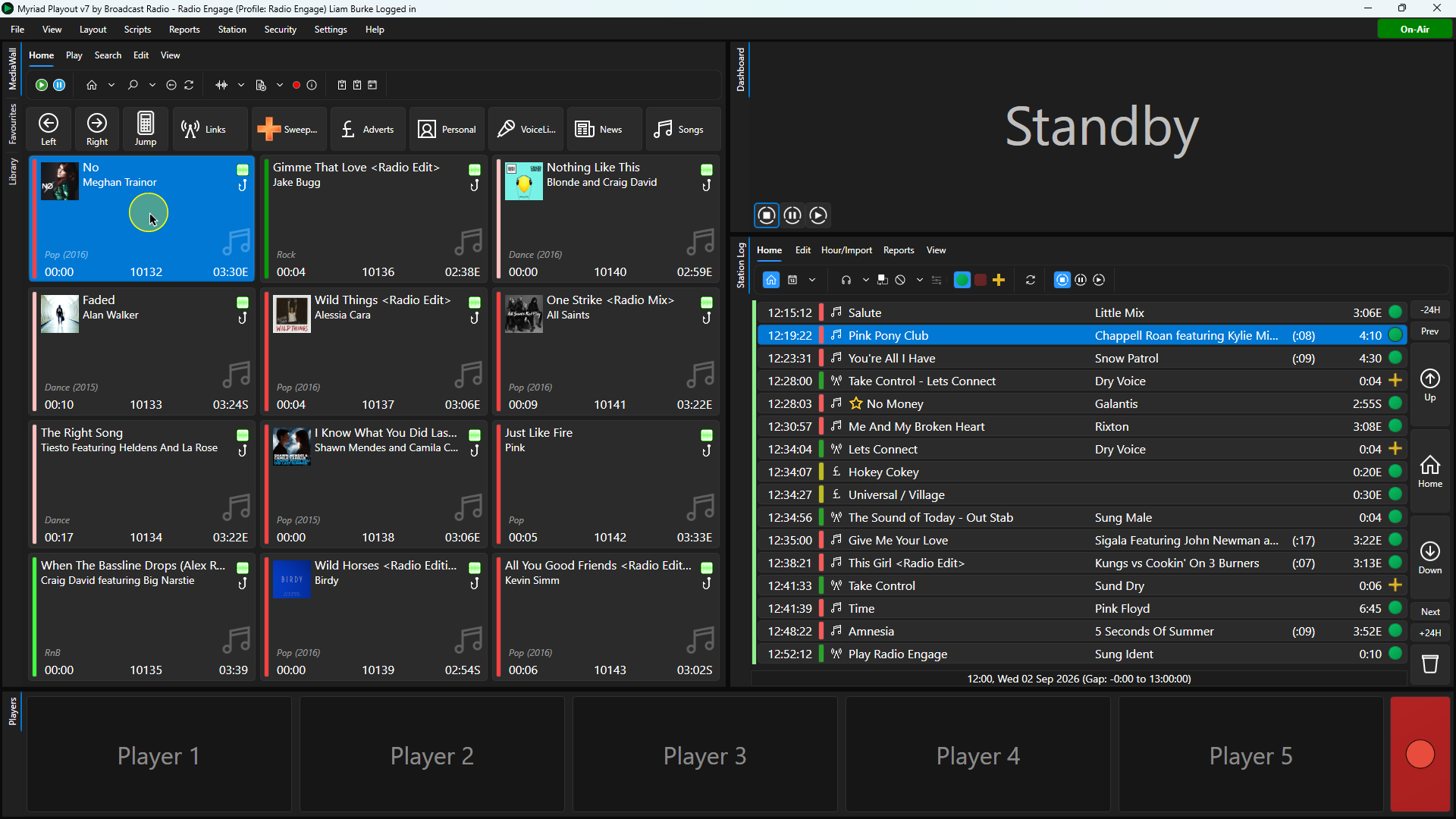
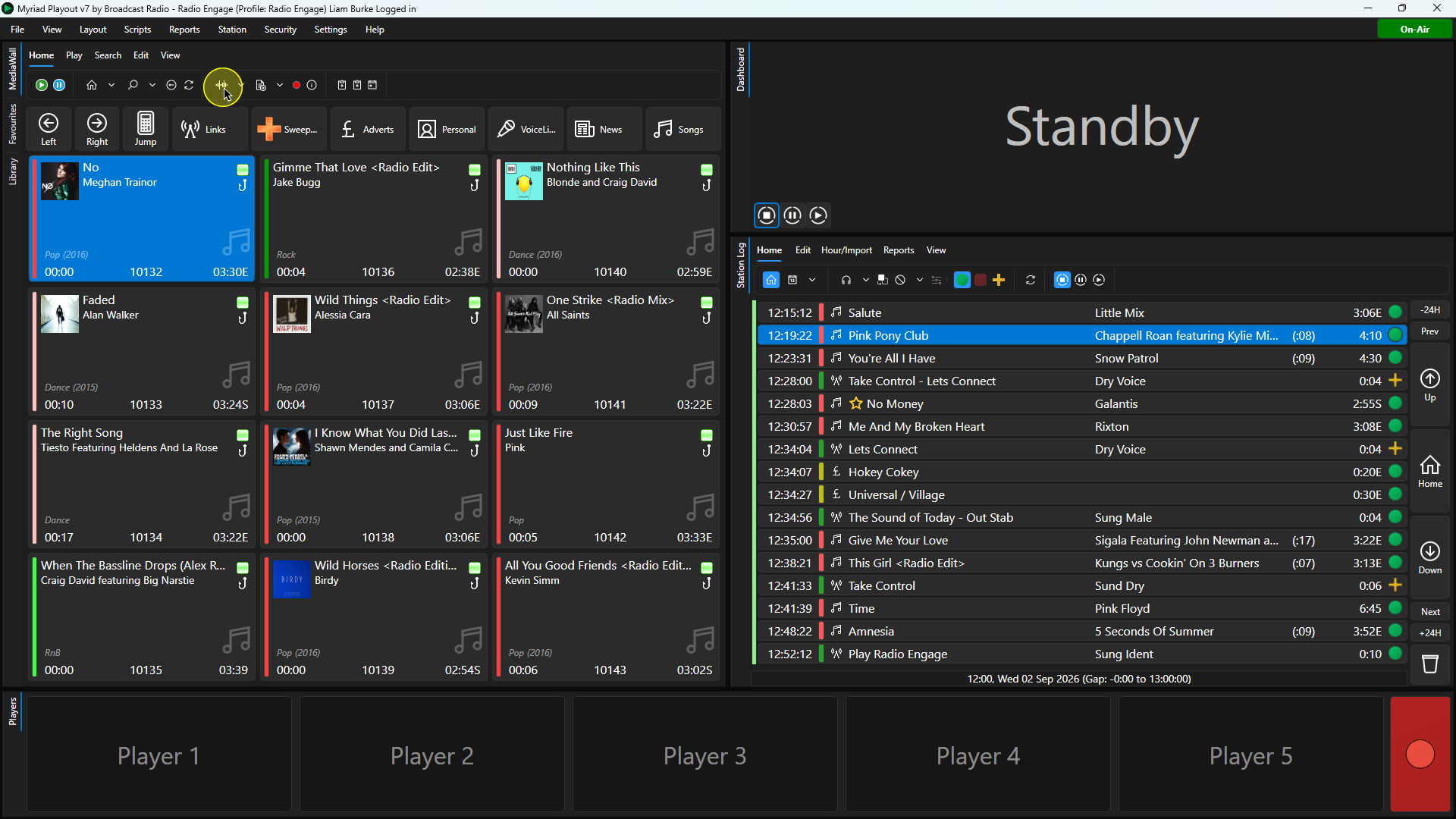
2. Click on the Edit button on the Home ribbon. You can also access Edit via the right click menu.
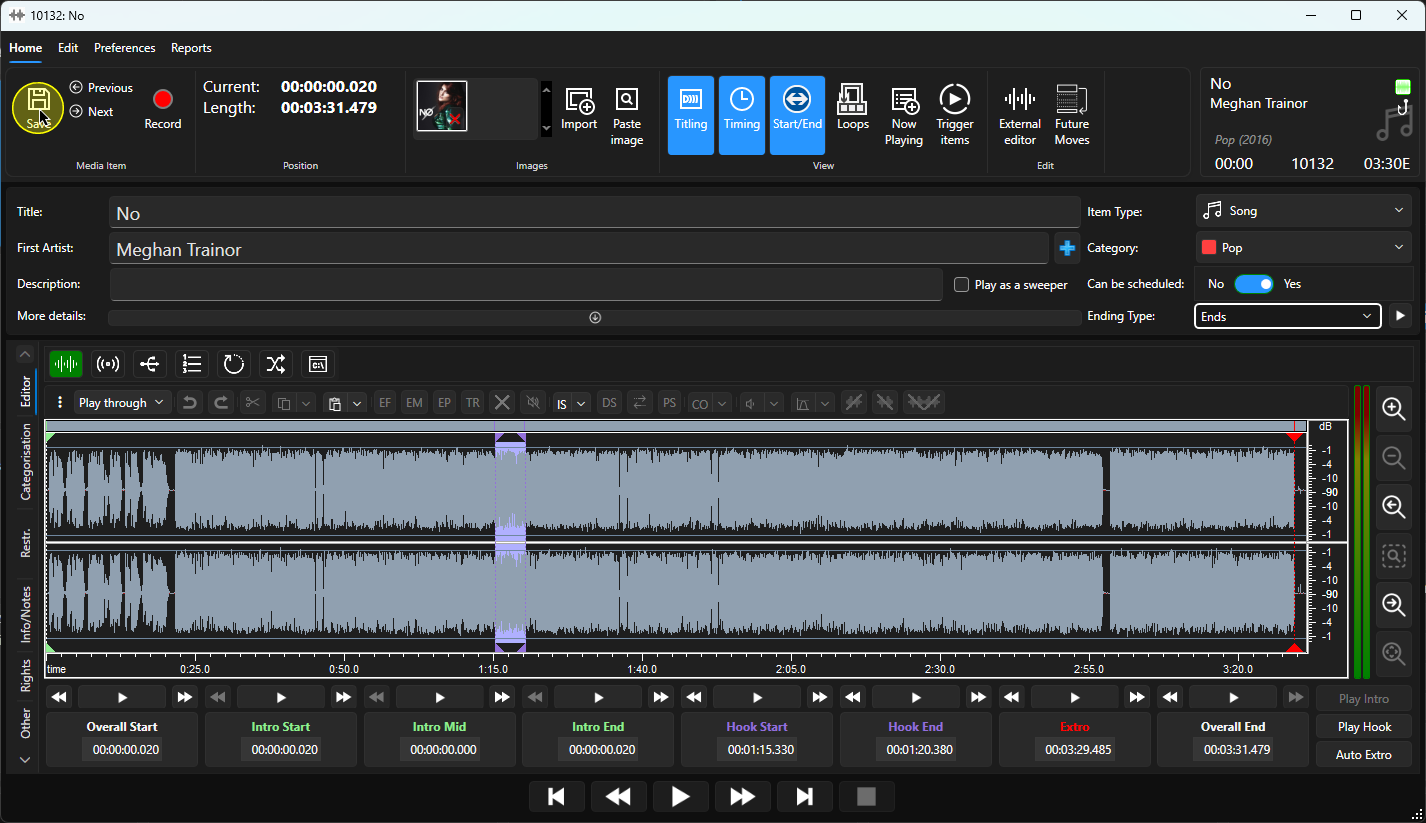
3. Once the Edit window has loaded, you can set the Ending Type using the drop down options.
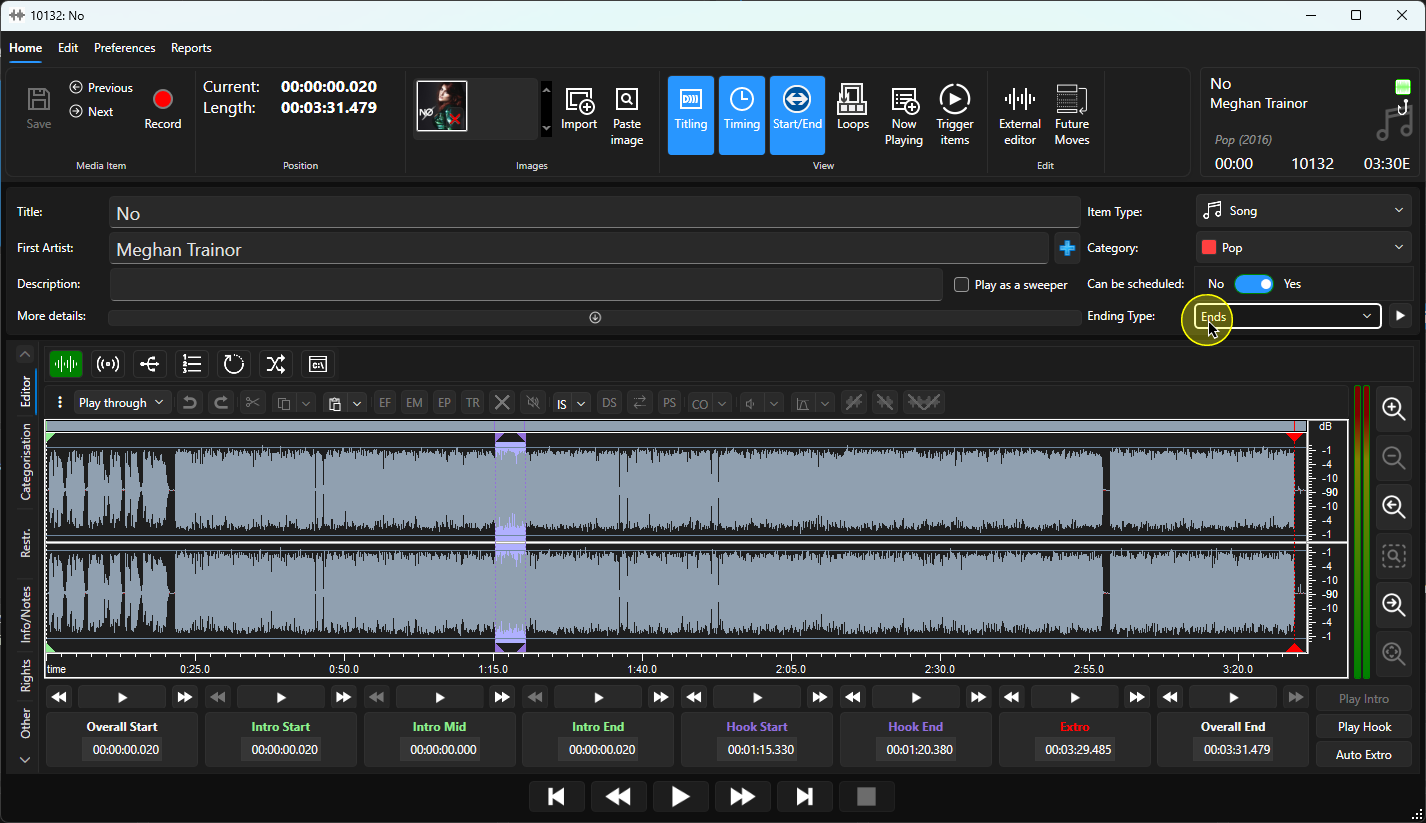
4. The options are:
- Non-specific - The Ending Type has not been set.
- Ends - The item comes to a sudden ending.
- Fades - The item fades out.
- Sustain - The item finishes on a long sustained sound or note.
- Slow Fades - Item fades out slowly over time.
In AutoFade mode, Myriad will prioritise fading to Songs with the Fade Ending Type and only fade other Ending Types under certain conditions.
5. Once you have set the Ending Type, click on the Save button.
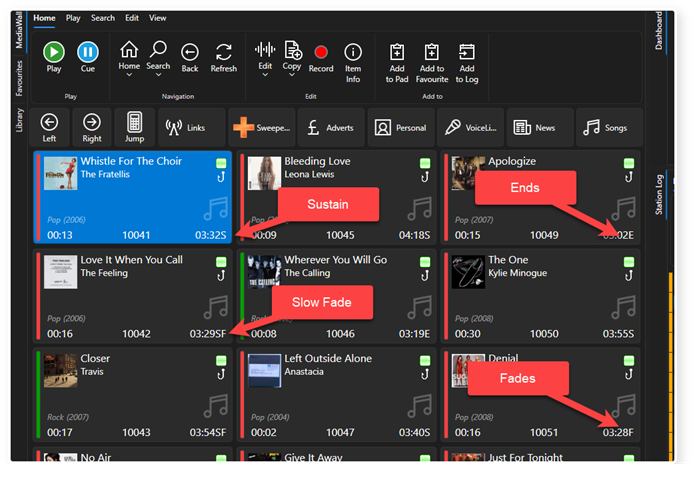
6. The Ending Type is displayed to the right of the overall duration on the Media Wall. End Type has it's own column in the Library view.
Was this article helpful?
That’s Great!
Thank you for your feedback
Sorry! We couldn't be helpful
Thank you for your feedback
Feedback sent
We appreciate your effort and will try to fix the article