TABLE OF CONTENTS
- Introduction
- Accessing Media Item Information
- The Item Details Tab
- The Schedule Log + Warning Tab
- The Edit History Tab
- The Play Logs Tab
Introduction
The Media Item Information view can be added to Layouts as a tile or accessed directly by right clicking on a Media Item and selecting the Display Information option.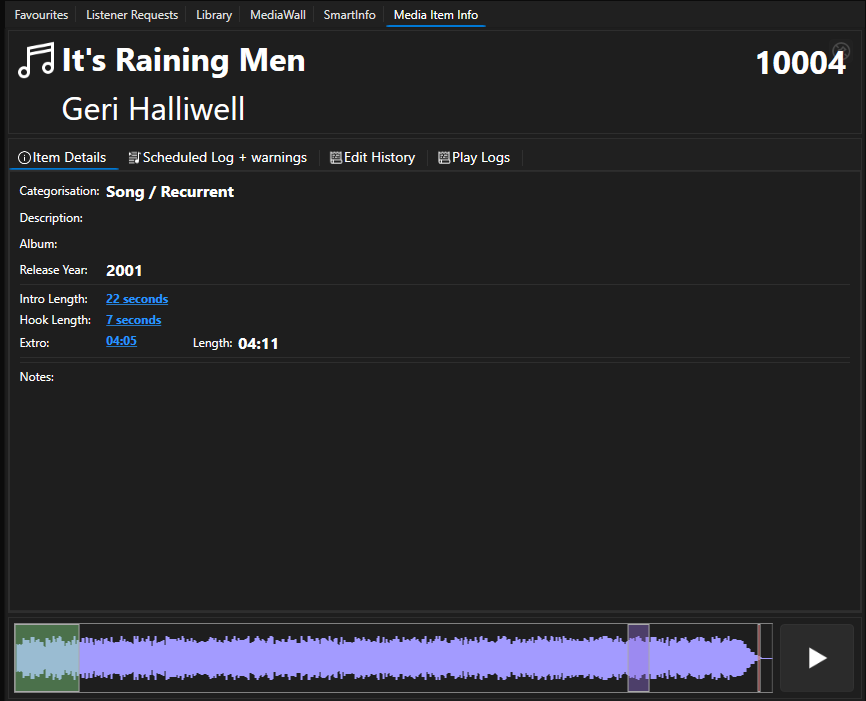
The Media Item Information panel allows you to access the following information:
- Item Details
- Title & Artist
- Item Type & Category
- Description
- Album
- Year of Release
- Intro Length (with preview)
- Hook Length (with preview)
- Extro (with preview)
- Audio Preview
- Schedule Log + Warnings
- Nearest Title Separation - relative to 'now' or selected Log position)
- Nearest Artist Separation - relative to 'now' or selected Log position)
- Previous / Next Day Nearest Play - relative to 'now' or selected Log position)
- Title / Artists Recent Play Grid
- Edit History
- Play Logs
Accessing Media Item Information
You can add the Media Item Information to your Layouts using the Layout Editor (see Using the Dynamic Layout Editor In Myriad 7)
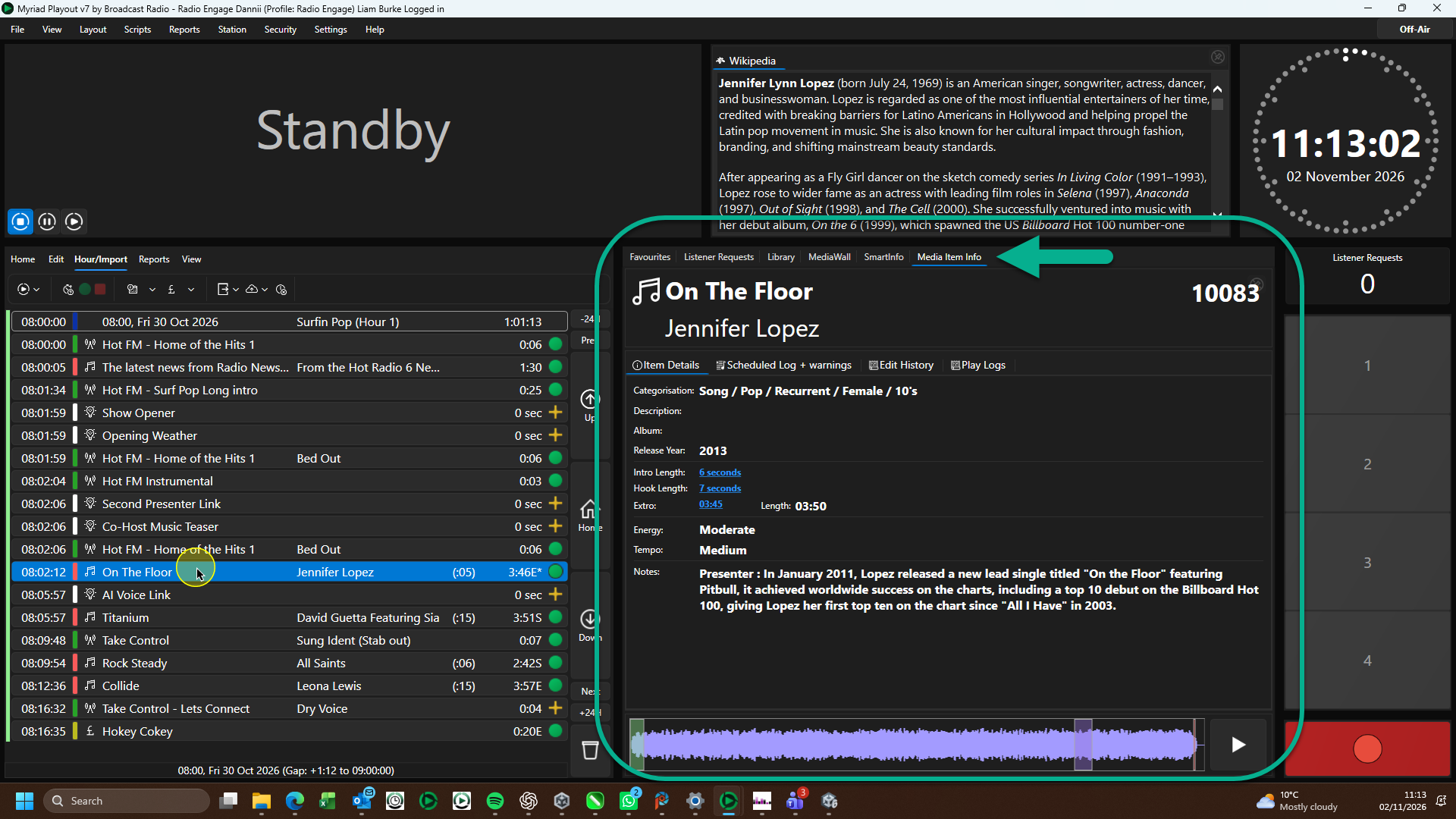
When the Media Item Information panel is active, it will display the information for the most recently selected Media Item ion the Log, Media Wall, Library or Favourites.
In the example above, we have clicked on 'On the Floor' by Jennifer Lopez in the Log, the Media Item Information panel is showing the information for the selected Media Item.
You can prevent the penal from automatically updating by clicking on the Pin button on the Media Item Information panel.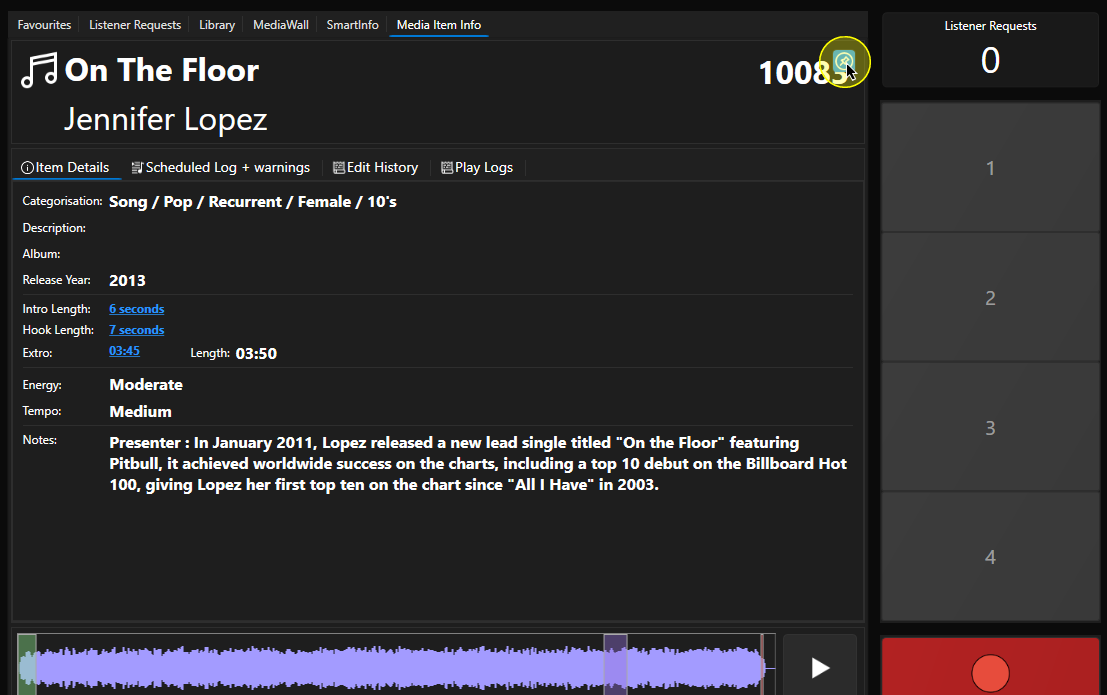
This will lock the current information in place until the pin is released.
You can also access the Media Item Information using the Display Item Information option on the right click menu in the Log, Media Wall or Library.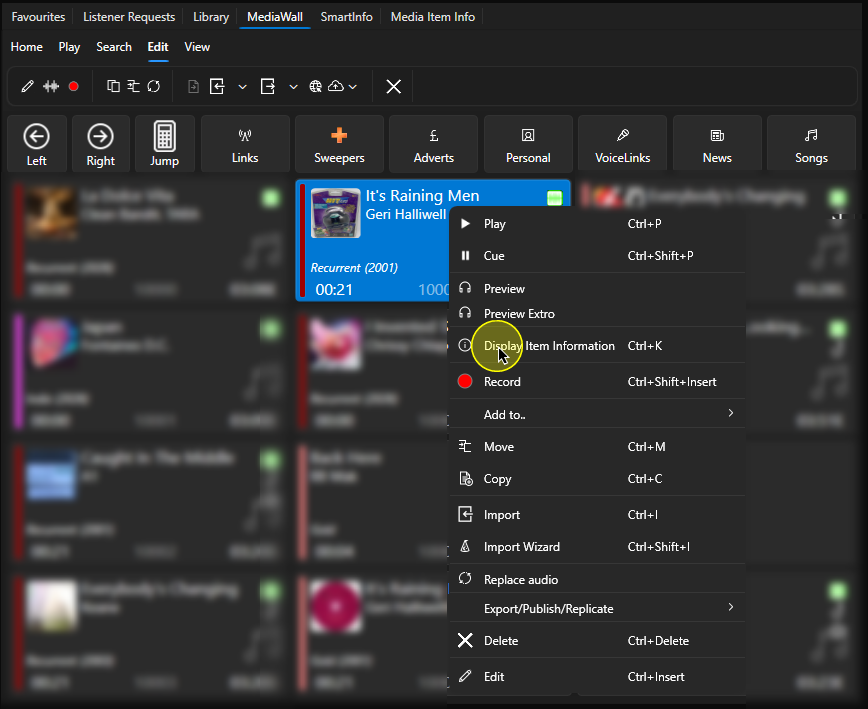
This will open the Media Item Information panel in a floating window.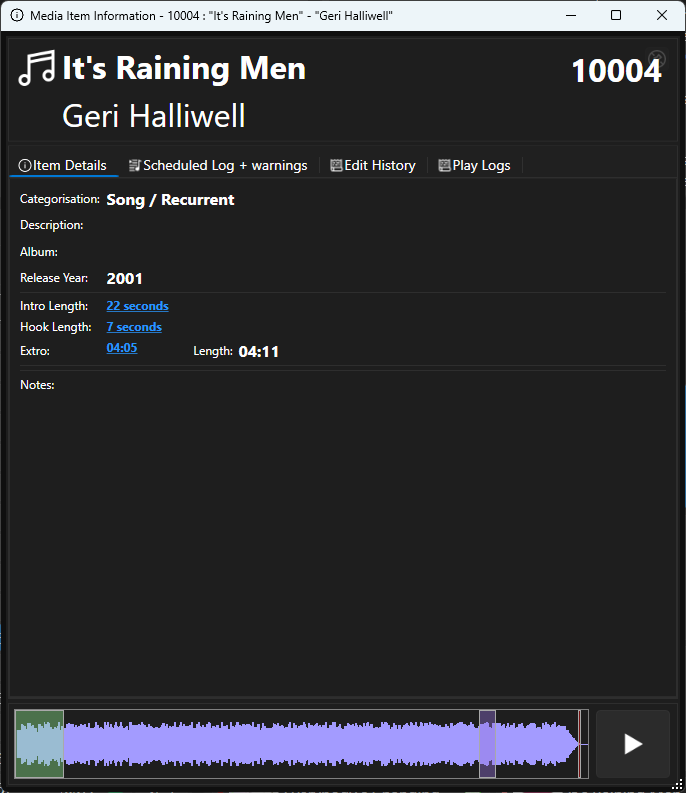
Finally, you can access the Media Item Information for the selected Media Item by pressing <Ctrl>+<K> on your keyboard.
The Item Details Tab
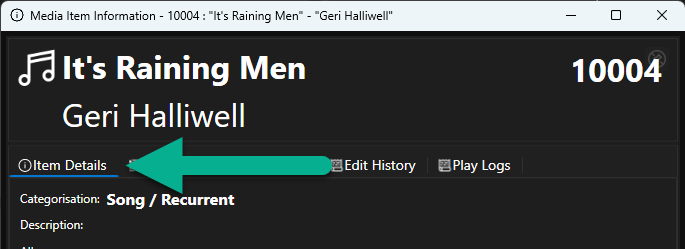
Select the Item Details tab to access general information about the Media Item.
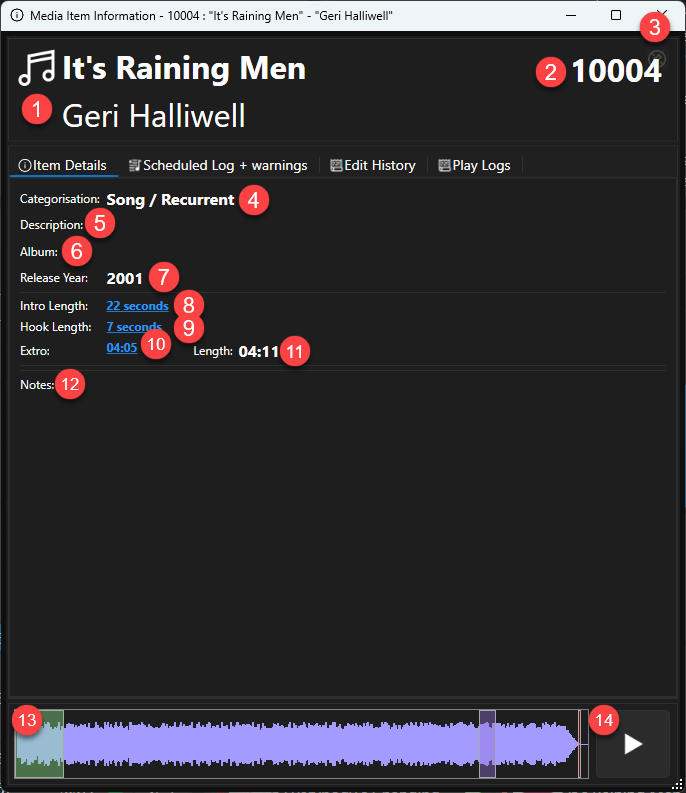
- Title & Artist
- Media ID
- Pin Button - stops automatic update until unpinned.
- Item Type / Category
- Descripion
- Album
- Year of Release
- Intro Duration - click to hear preview.
- Hook Duration - click to hear preview.
- Extro Time - click to hear preview.
- Total Duration
- Note - Media Item notes.
- Preview Media Waveform - includes timing markers such as Intro, Hook and Extro. You can click inside the waveform to move playback position.
- Play Preview
The Schedule Log + Warning Tab
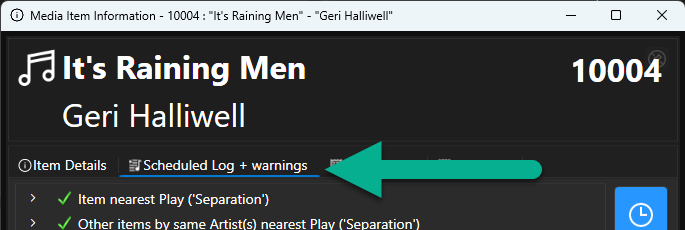
Click on the Schedule Log + Warnings tab to access schedule history and schedule warning for the Media Item.
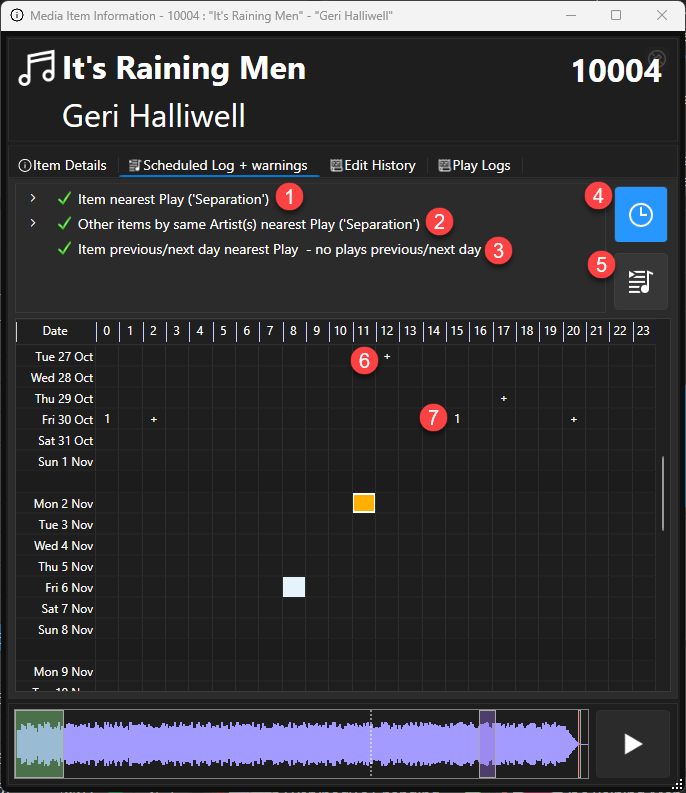
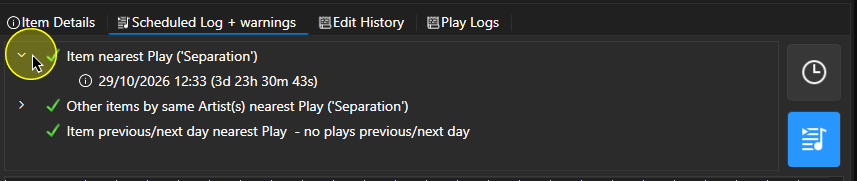
- Item Nearest Play (Separation) - A green tick indicates that using the Media Item will not break the top level 'Nearest Play' separation (see Station Menu > Station Settings > Myriad Schedule Tab > When Display an Items Schedule Information, show warnings section). You can expand the node to see more information about the nearest Title play.
A red cross indicates that using the Media Item would break the top level rule. The node will automatically expand to show the nearest time the Title is scheduled in the Log.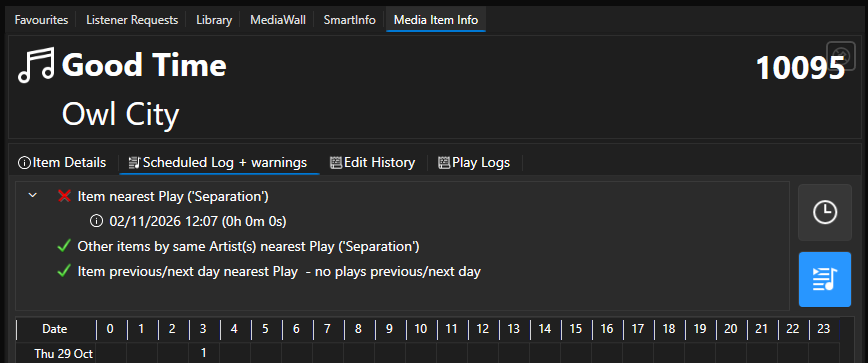
- Other Items by Same Artist Nearest Play (Separation) - This warning shows whether any other Media Items by the same Artists, are scheduled in the Log within the configured minimum separation (see Station Menu > Station Settings > Myriad Schedule Tab > When Display an Items Schedule Information, show warnings section).
As with the Title Separation above you can expand the node to see more information.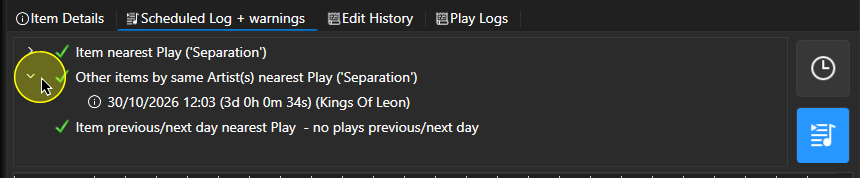
If another Media Item but the same Artists is scheduled within the minimum time, the warning will display a red cross and the node will be expanded to show the issue.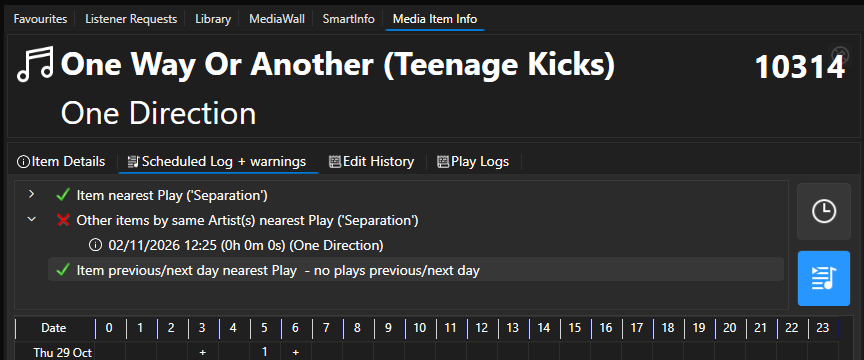
- Item Previous / Next Day Nearest Play (Separation) - This works in a similar way to the Title and Artists options above, but using the Log from the previous and next day around the same time. This can prevent Songs being selected that were played in the same show yesterday or are scheduled to be played in tomorrows show.
As before, a green tick indicated that the selected item did not play yesterday or is scheduled to play tomorrow withing the configured time window (see Station Menu > Station Settings > Myriad Schedule Tab > When Display an Items Schedule Information, show warnings section).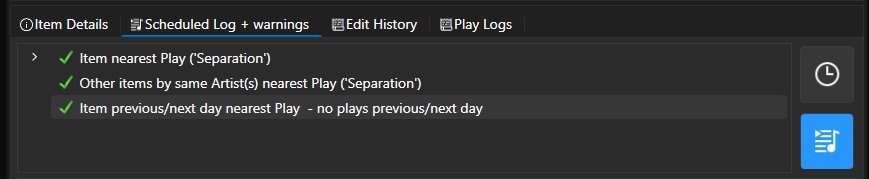
A red cross indicated the item as either played yesterday within the time window or is scheduled to play tomorrow within the time window. The node will automatically expand to show the reason for the warning.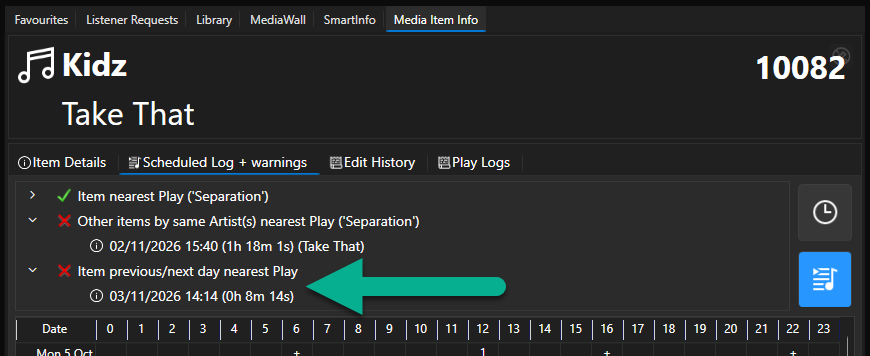
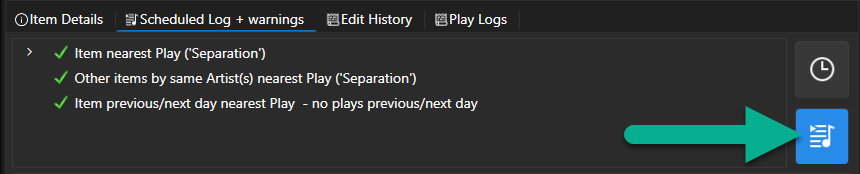
- Timing Relative To Now - When this option is selected, the warnings are displayed relative to the current time now. This useful if you are looking for alternative items during a live show.
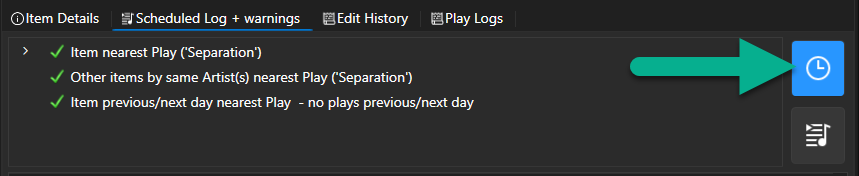
- Timing Relative To Selected Position In The Log - When this option is selected, the warning are displayed relative to the time of the selected item in the Log. This is useful if you are making changes to a future show in the Log and want to make informed decisions about using content based on the schedule warnings relative to the Log for the future show.
- Recent Play Grid - Media by Same Artist (+) - The '+' icon on the Recent Play grid indicates that in that hour, a different Media Item by the same Artist is scheduled to play (or was played for past entries).
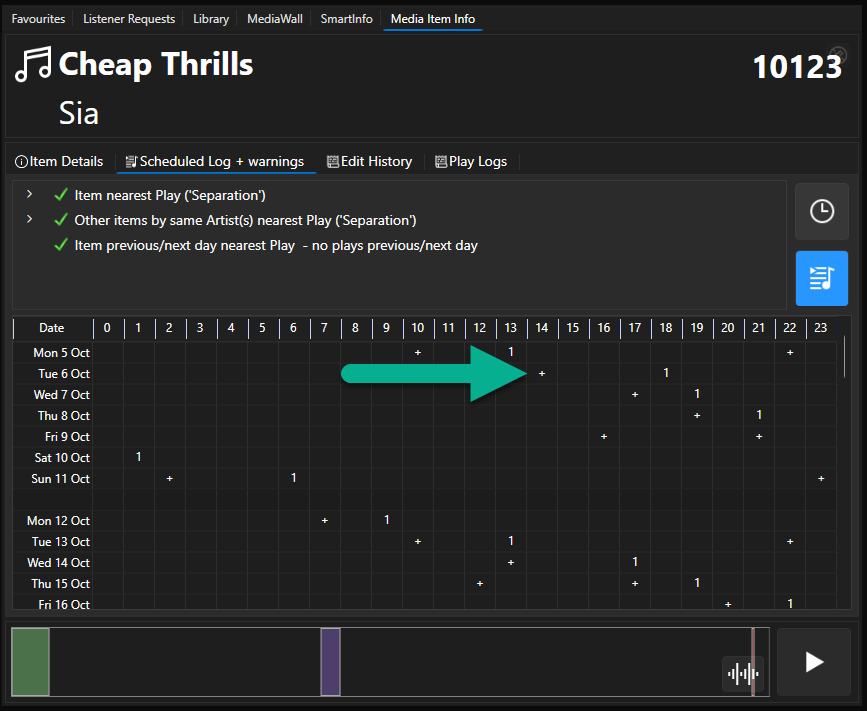
In the example above, we can see that a Song by Sia was played in the 14:00 hour on the 6th of October, but it was not Cheap Thrills. - Recent Play Grid - Media Item Played / Scheduled (1) - A number in an hour within the Recent Play Grid indicates that the selected Media Item was played or is scheduled to play in that hour, the number indicates the amount of times it was or will be played.
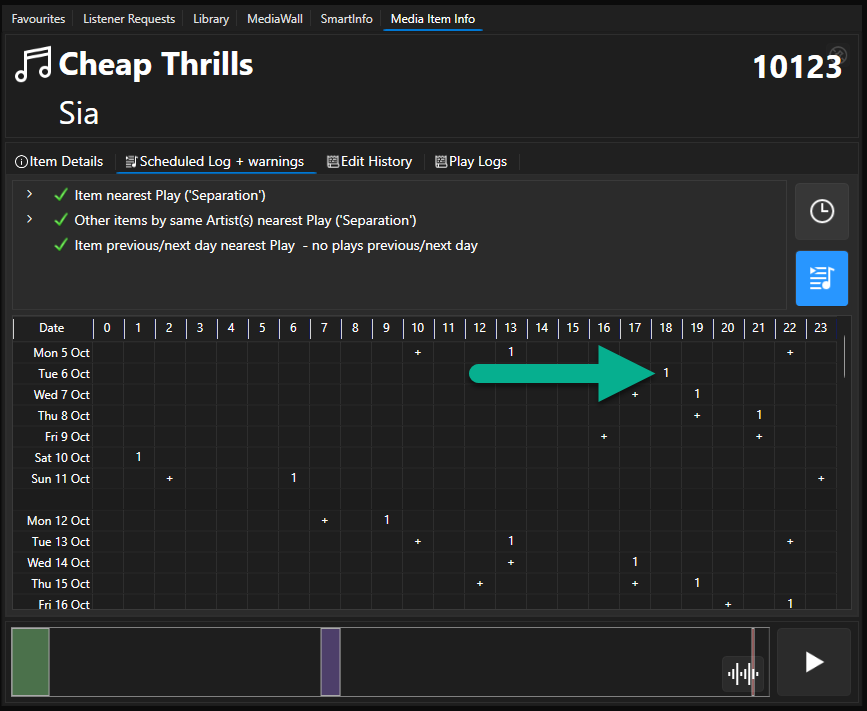
In the example above, we can see that Cheap Thrills by Sia as played once in the 18:00 hour on the 6th of October. In most cases, the number displayed will be '1' as Media Items are not often played more than once in an hour. The exception is some jingles or production elements which may be played more frequently.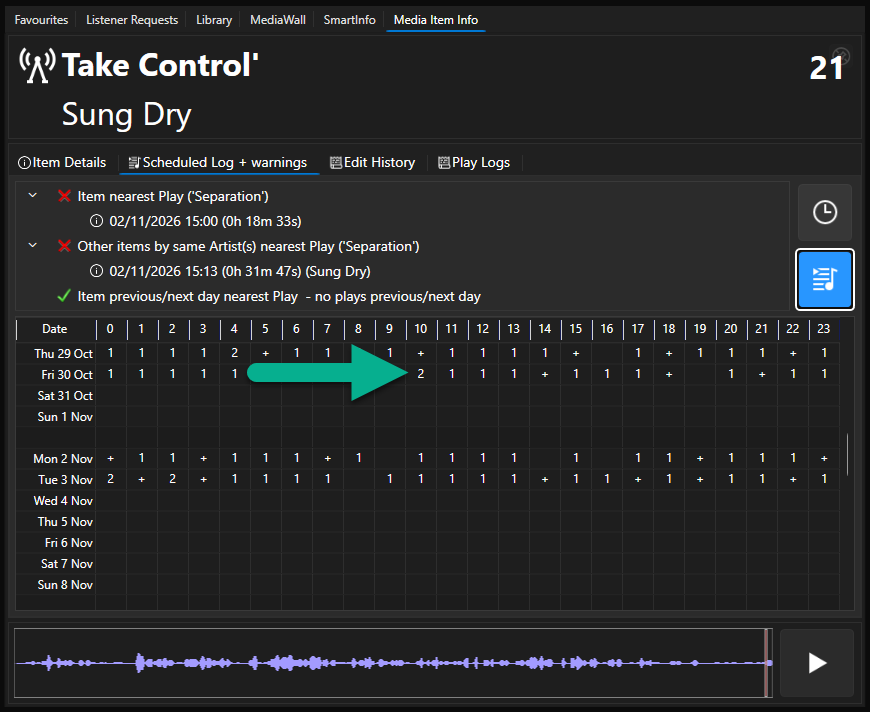
The Edit History Tab
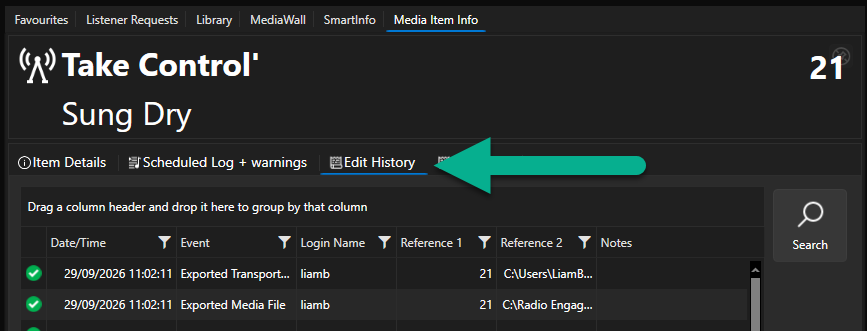
The Edit History tab can be used to quickly access the recent edit history for a Media Item.
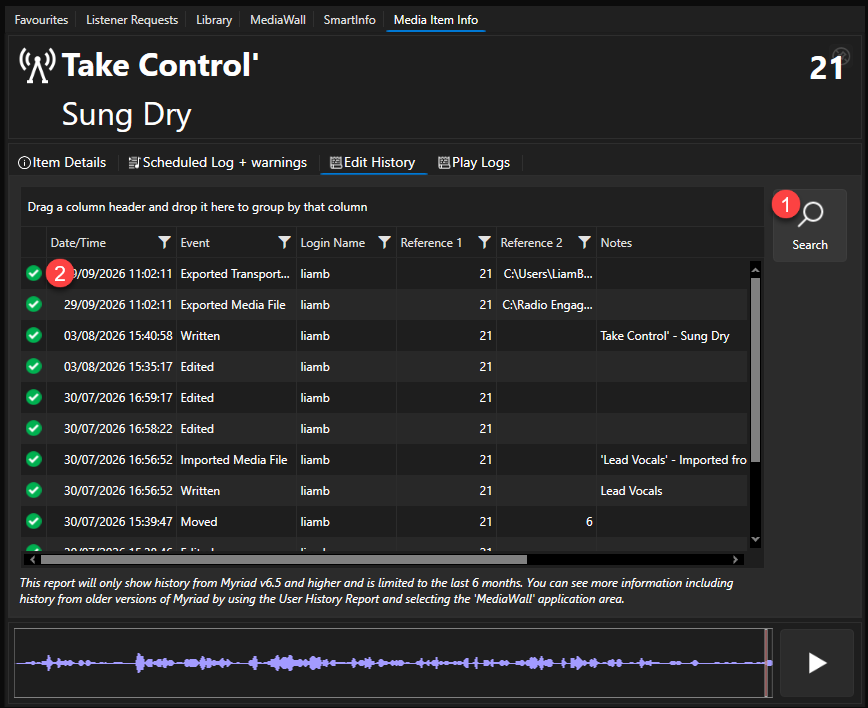
- Click Search to see the results.
- Results are listed in the main window.
The Play Logs Tab
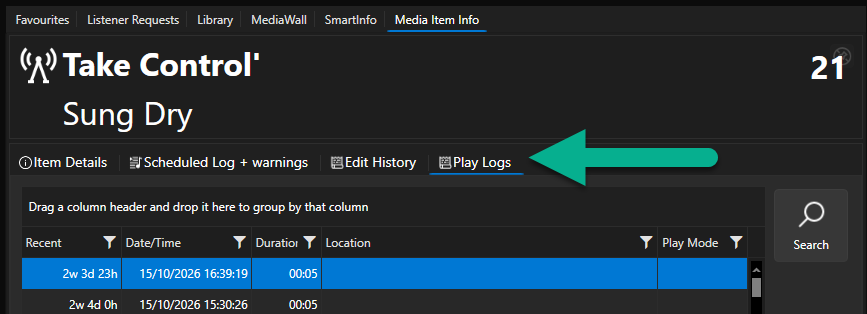
The Play Logs tab can be used to view the recent play history for the selected Media Item.
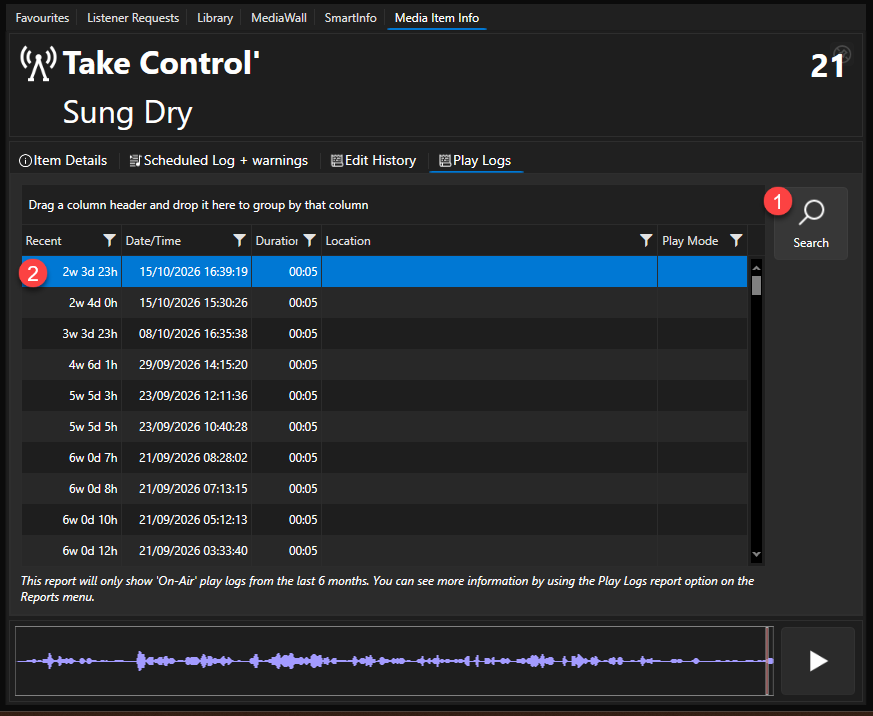
- Click Search to see the results.
- Results are listed in the main window.
Was this article helpful?
That’s Great!
Thank you for your feedback
Sorry! We couldn't be helpful
Thank you for your feedback
Feedback sent
We appreciate your effort and will try to fix the article