The Mass Change tool in Myriad Playout allows you to apply changes to multiple Media Items at the same time.
Things you can change with the Mass Change tools include:
- Virtually all fields in the Edit Windows (Title, Category, Tags, Colours, Restrictions etc).
- Media Processing (Convert File Format, Normalise, Generate Peak Files, Auto Extro & Write Metadata to File).
- Move & Copy Media on Media Wall.
- Mass Delete
- Assign External Reference
- Split Artist Names (Rihanna Featuring Jay-z becomes two separate artists).
All of these tools are available via the Media Report / Mass Change option on the Reports menu.
In this walk through, we will use the Mass Change tool to change the Category and Tags on a selection of Songs, but the same process applies to all the tools available win the Media Report / Mass Change tool.
To use the Mass Change tool to change Category and Tags for a selection of Songs, follow these steps:
- In Myriad Playout (or Myriad Schedule) click on Reports Menu > Media Reports / Mass Change.
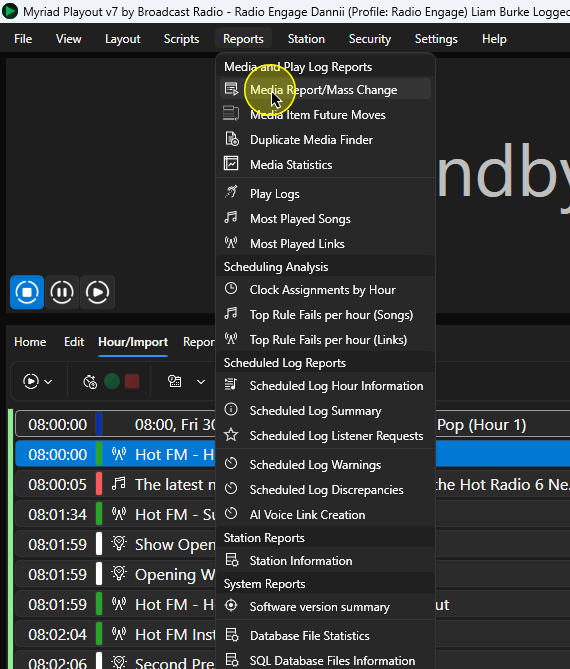
- For this example, we will move some Songs from the Pop Category to the Recurrent Category and add the 'Big Hit' Tag at the same time.
Start by selecting the Pop Category from the Navigation Tree to display all the Songs in the Pop Category (you can also use the Search or Advanced Search features to find the Media you want to apply changes to).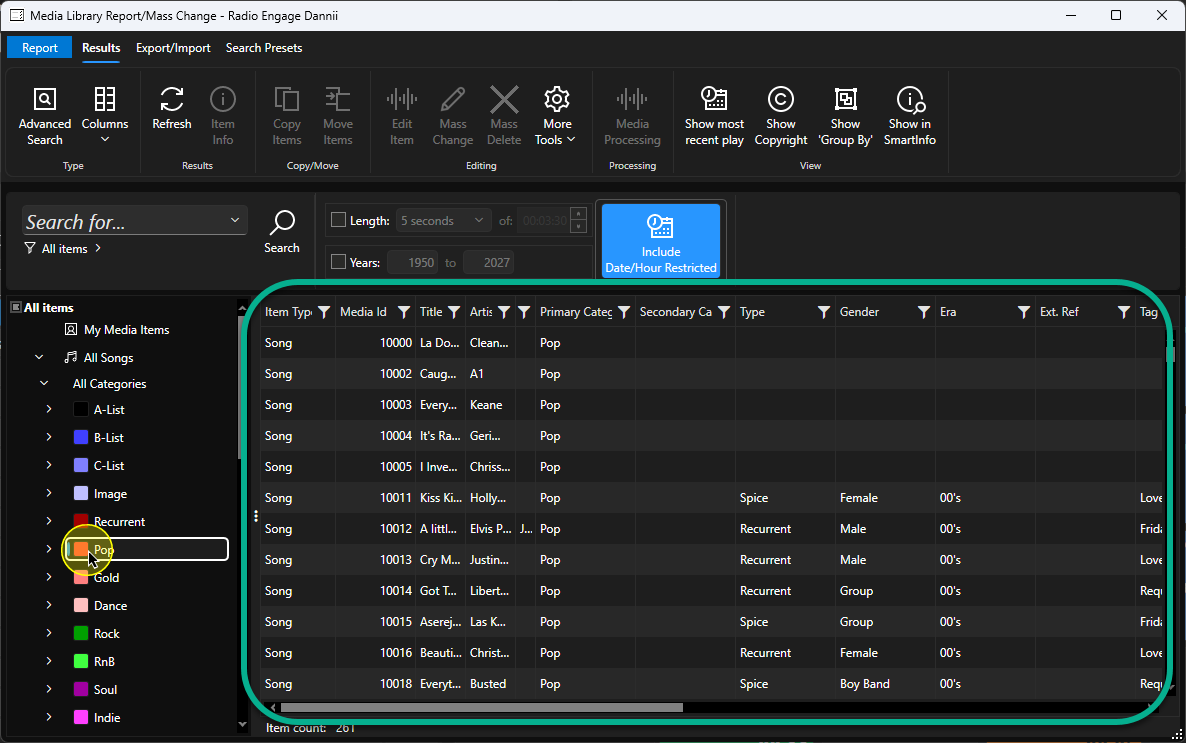
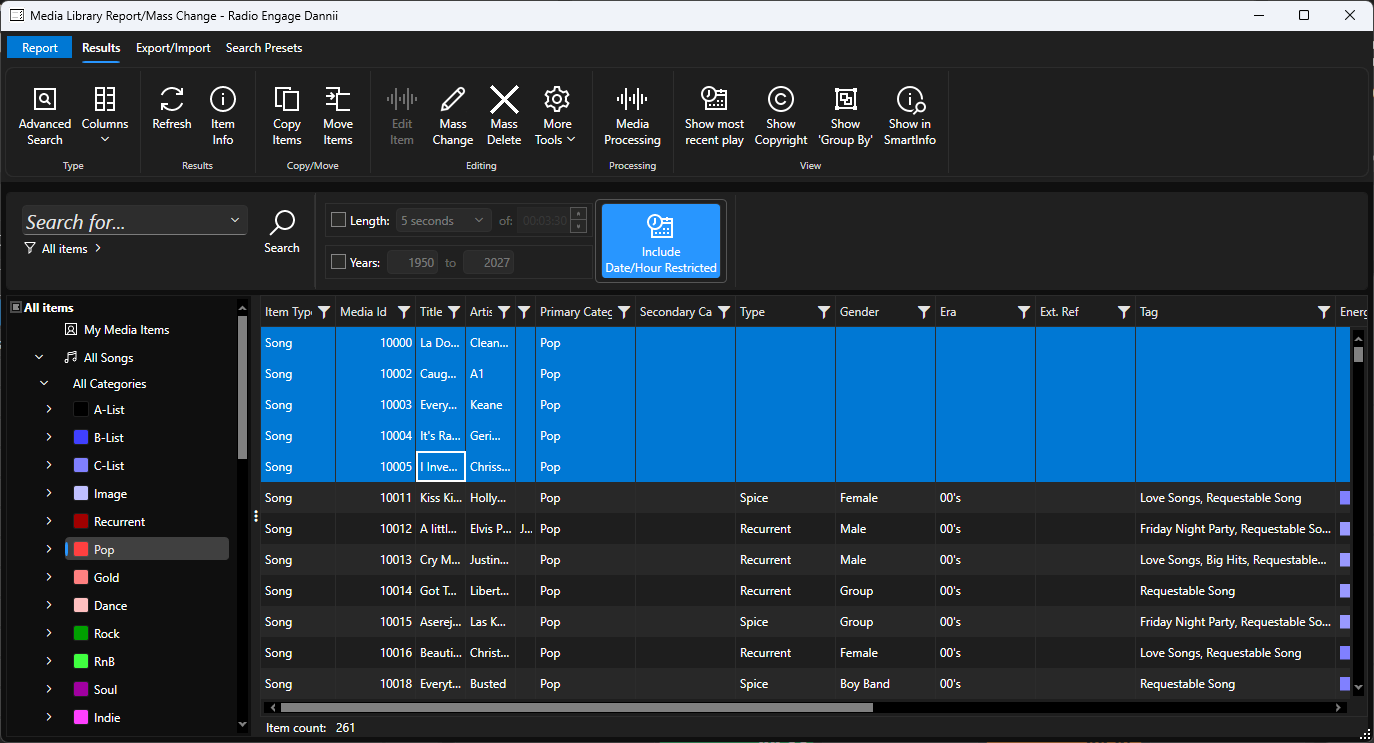
- Use the <Crtl>+left click to select the Media Items you want to change (you can also used <Shift>+left click to select a range or <Ctrl + A> to select all items lised.
- Click on the Mass Change button. Select a different tool from the ribbon if you want to do something other than Mass Change.
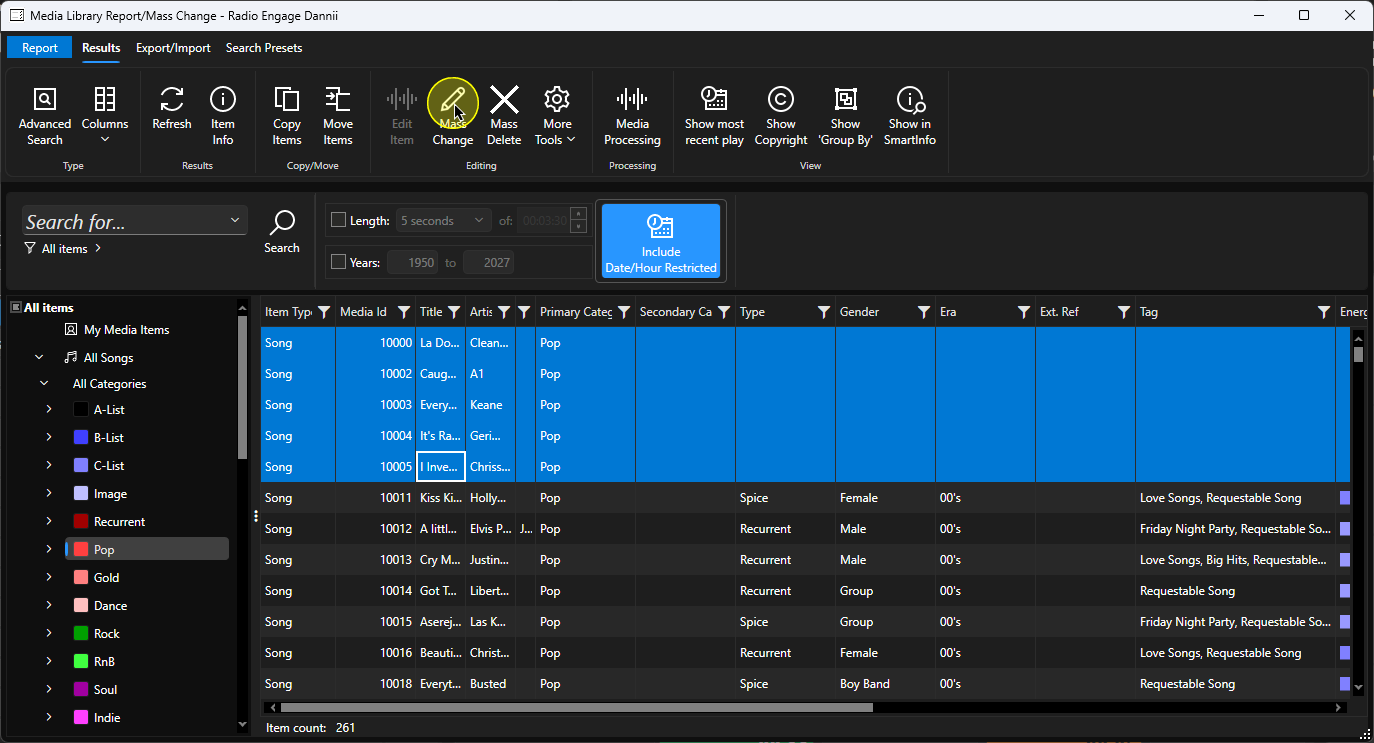
- This will open the Mass Change tool. The Mass Change tool includes virtually every field from the Edit Window. To change a particular field, first tick the enable box to the left, then add the change you want to make.
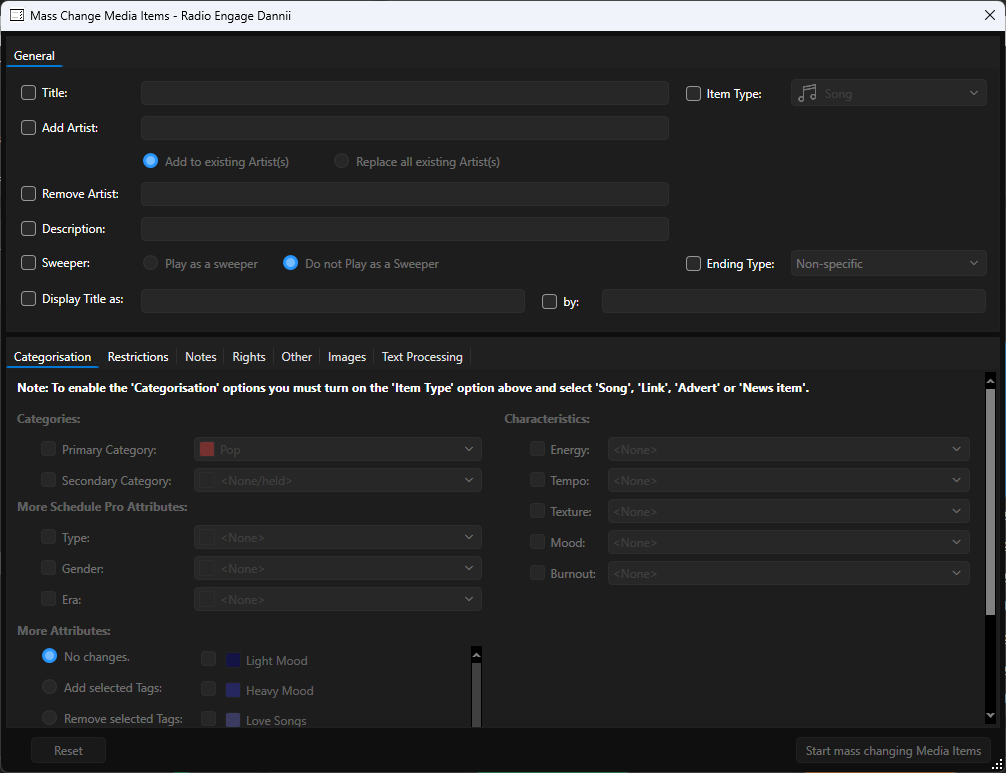
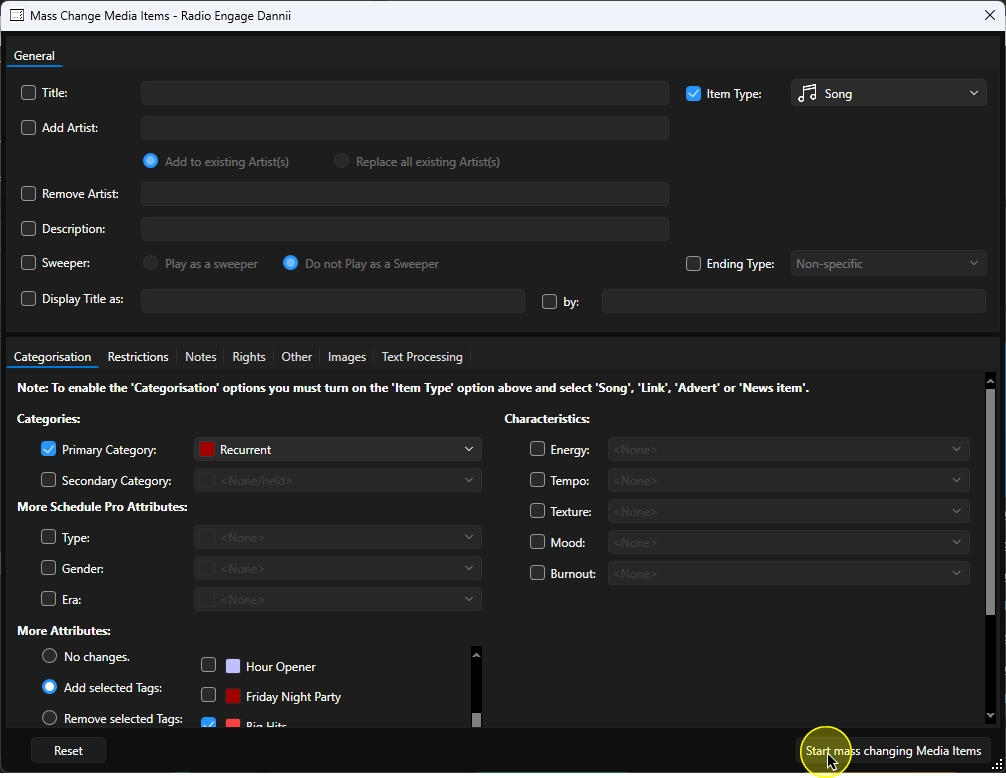
- In this example, we want to change the Category from Pop to Recurrent so we will need to enable the Category field, but before we can do that, we have to set the Item Type to Song so the Mass Changer will know what Categories to allow.
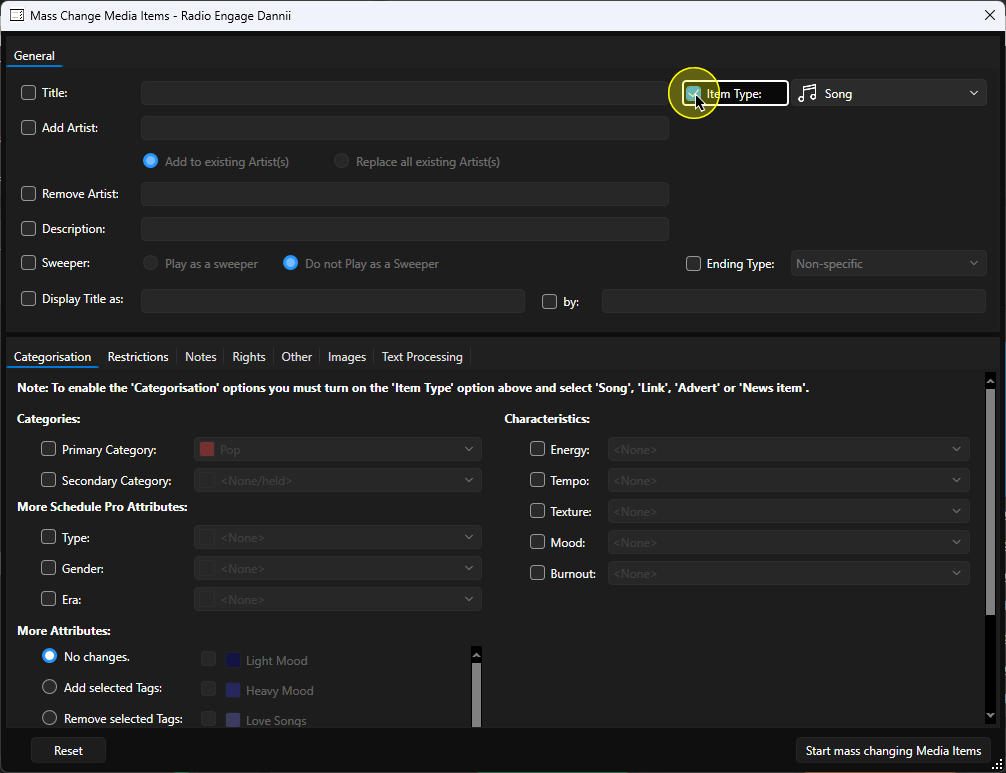
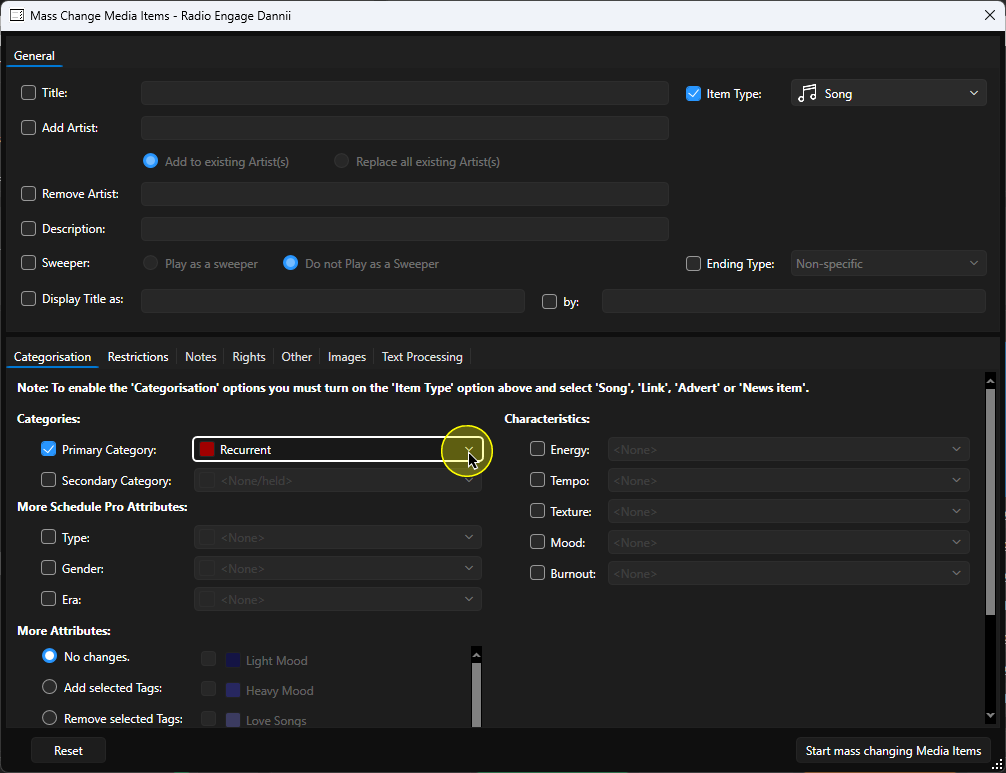
- The Category options are now enabled. Tick the Primary Category field and select Recurrent from the drop down list.
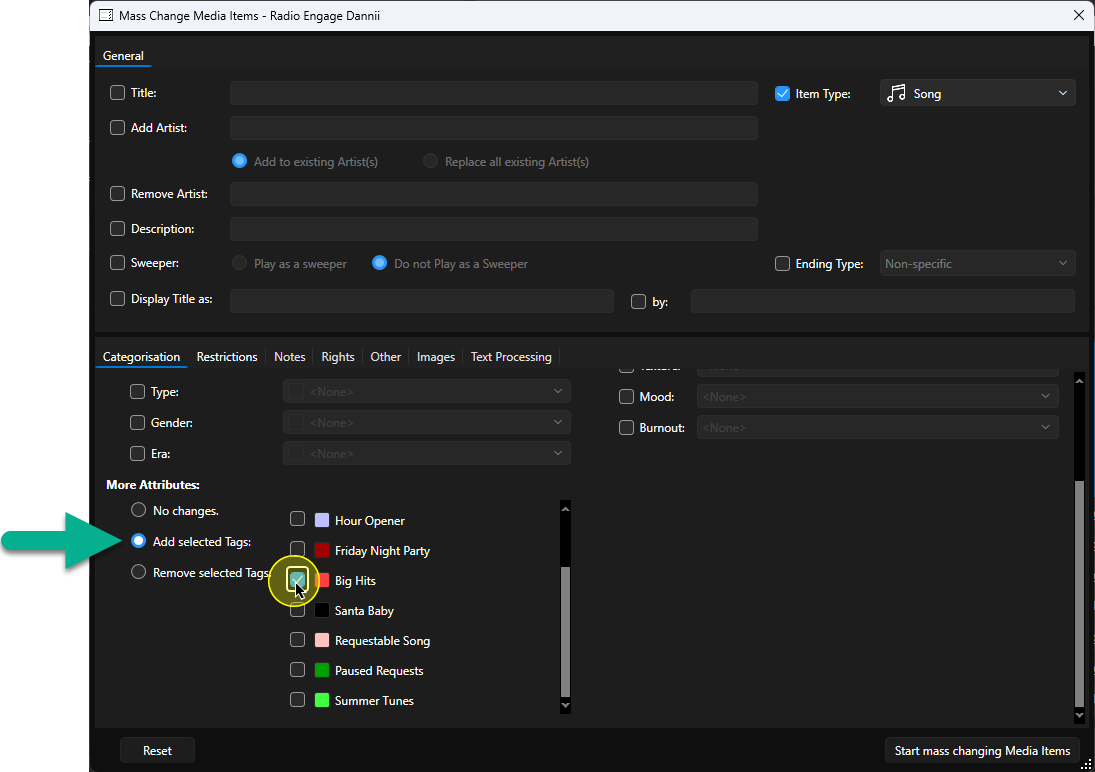
- We also wanted to add the 'Big Hits' Tag to the selected Songs. Scroll down to the More Attributes section and enable Add selected tag. You can then tick the Big Hits tag.
- You can continue to add an other changes to the Mass Change process. Explore the tabs to see the different options available.
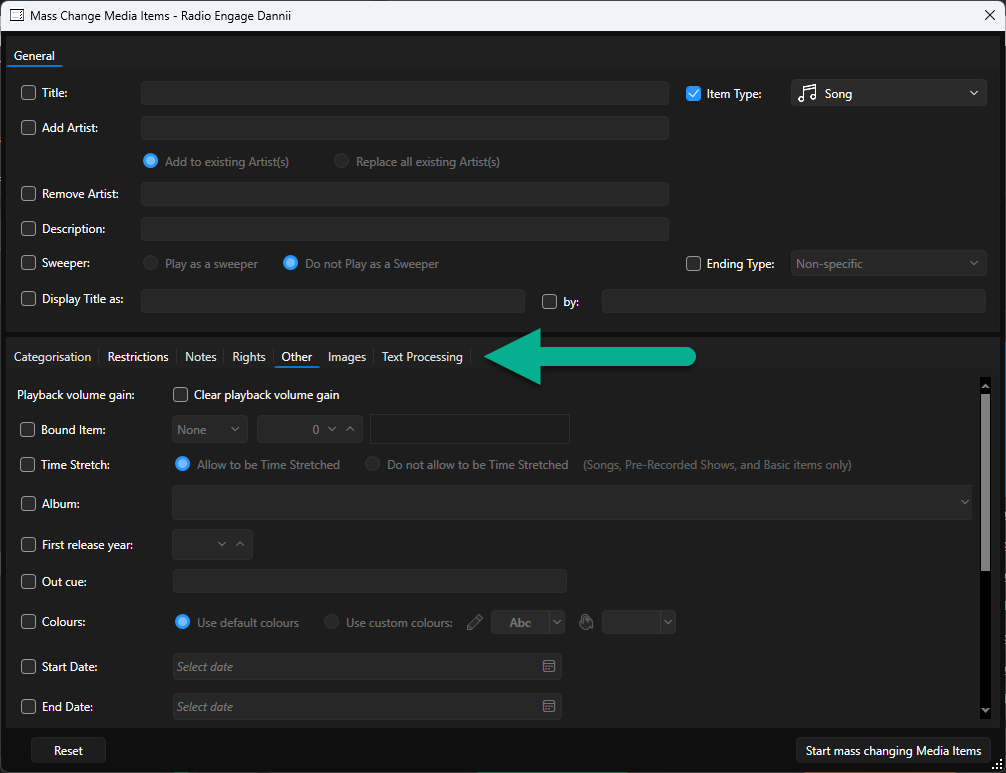
- When you are happy with your selections, click on the Start Mass Changing Media Items button.
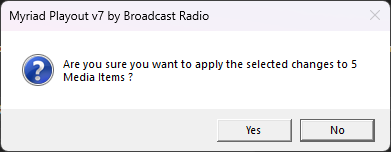
- You will be asked to confirm, click Yes to continue.
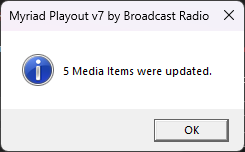
- As all changes are done at a database level, if mass changing lots of items should only take a few seconds. Once complete, you will get a confirmation popup.
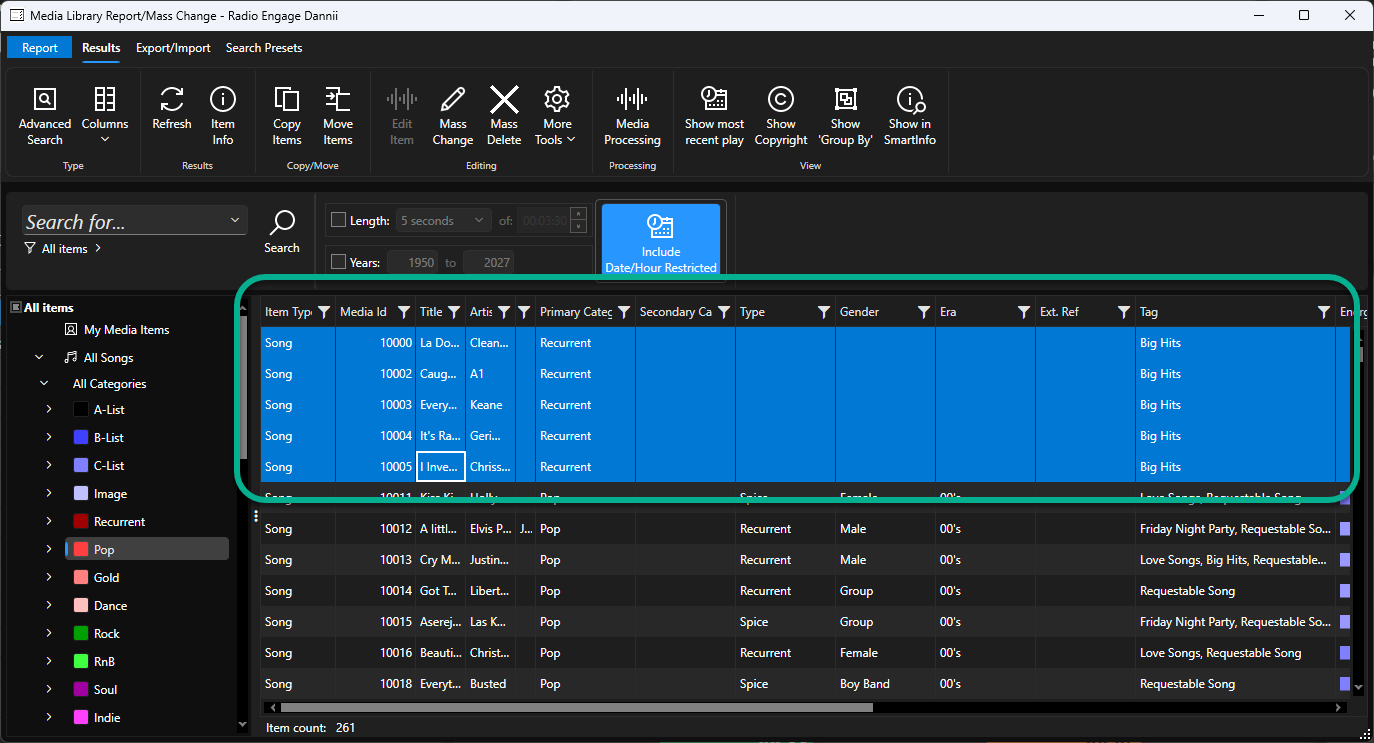
- As you can see, the selected items are now in the Recurrent Category and have the 'Big Hits' Tag applied.
This is just one tool within the Media Report / Mass Change window. Take some time explore the options and see how it could help speed up making changes to the content on your Myriad system.
Was this article helpful?
That’s Great!
Thank you for your feedback
Sorry! We couldn't be helpful
Thank you for your feedback
Feedback sent
We appreciate your effort and will try to fix the article