You can delete individual Media Items by following these steps:
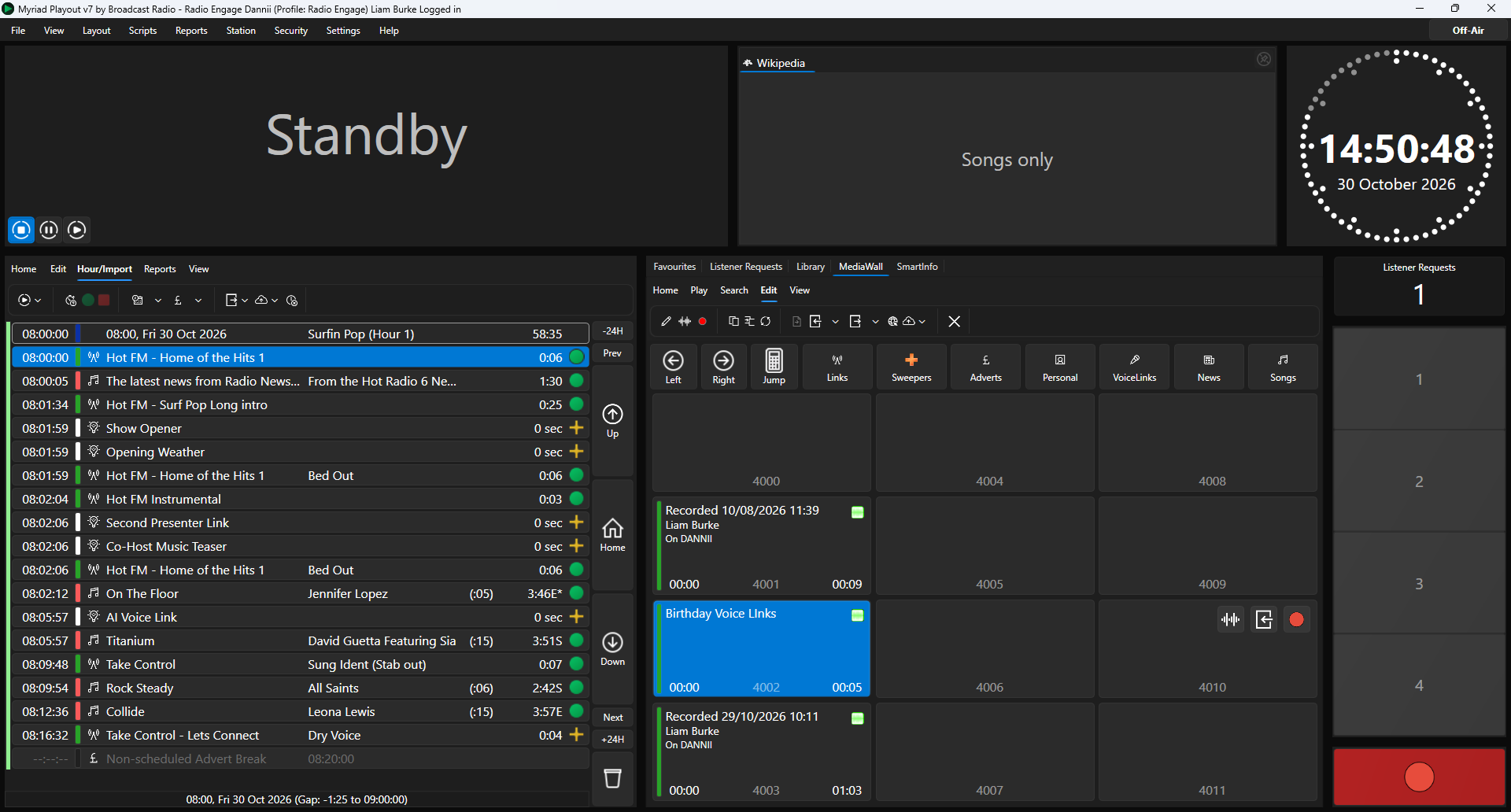
- On the Media Wall or Library tab select the Media Item you want to Delete.
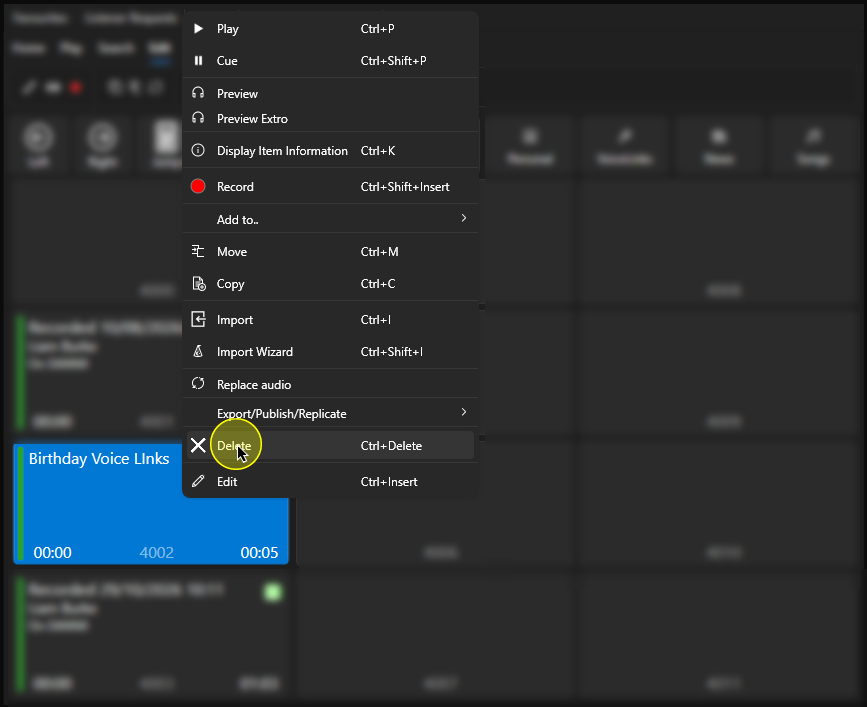
- Right click on the item and select Delete from the menu.
Alternatively, select the Media Item and then click on the Delete button on the Edit tab.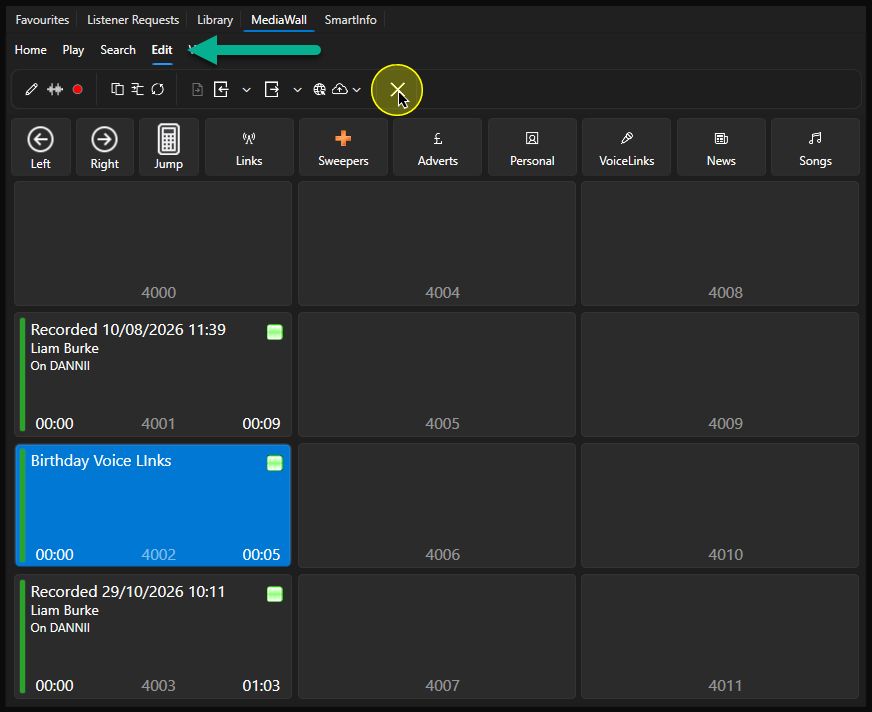
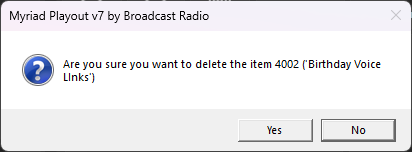
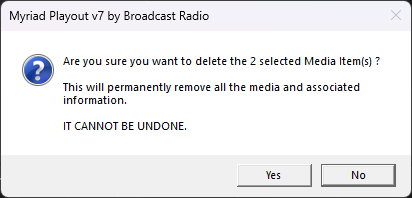
Finally, you can simple press <Ctrl> + <Delete> on our keyboard. - Whichever method you use, you will be asked to confirm before the item is deleted. Click Yes to proceed.
If you have multiple Media Items you want to delete, follow these steps:
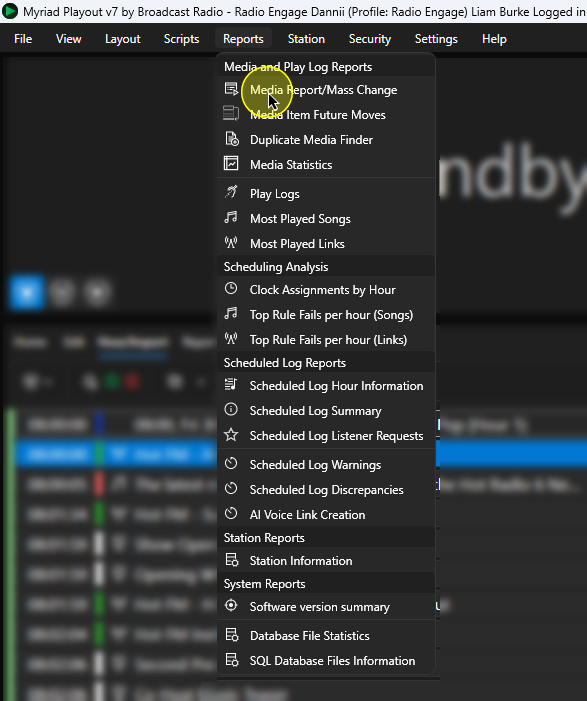
- In Myriad Playout or Myriad Schedule, click on the Reports Menu > Media Reports / Mass Change option.
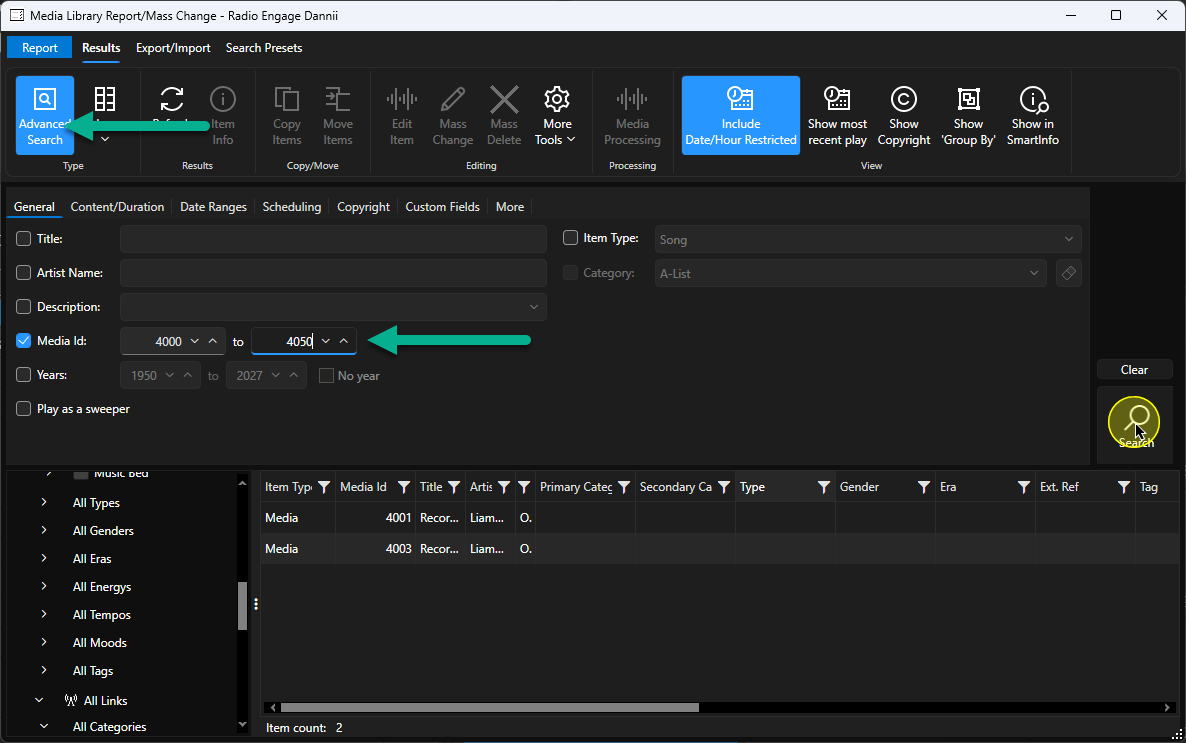
- You can use the Search, Advanced Search or Navigation Tree to find and select thee items you want to delete. In this example, we have used the Advanced Search to show all the Media Items between Media ID 4000 and Media ID 4050.
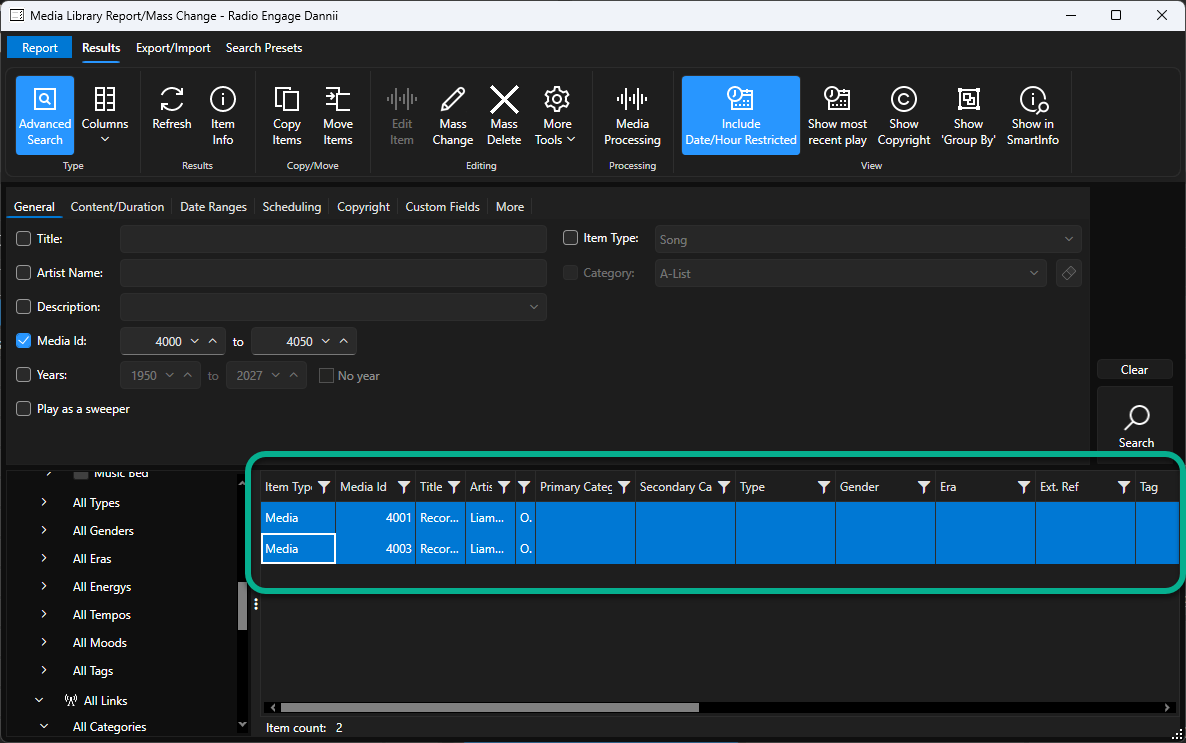
- Highlight the Media Items you want to delete. You can use <Ctrl> + <A> to select all items, <Ctrl> + left click to select items or <Shift> + left click to select a range.
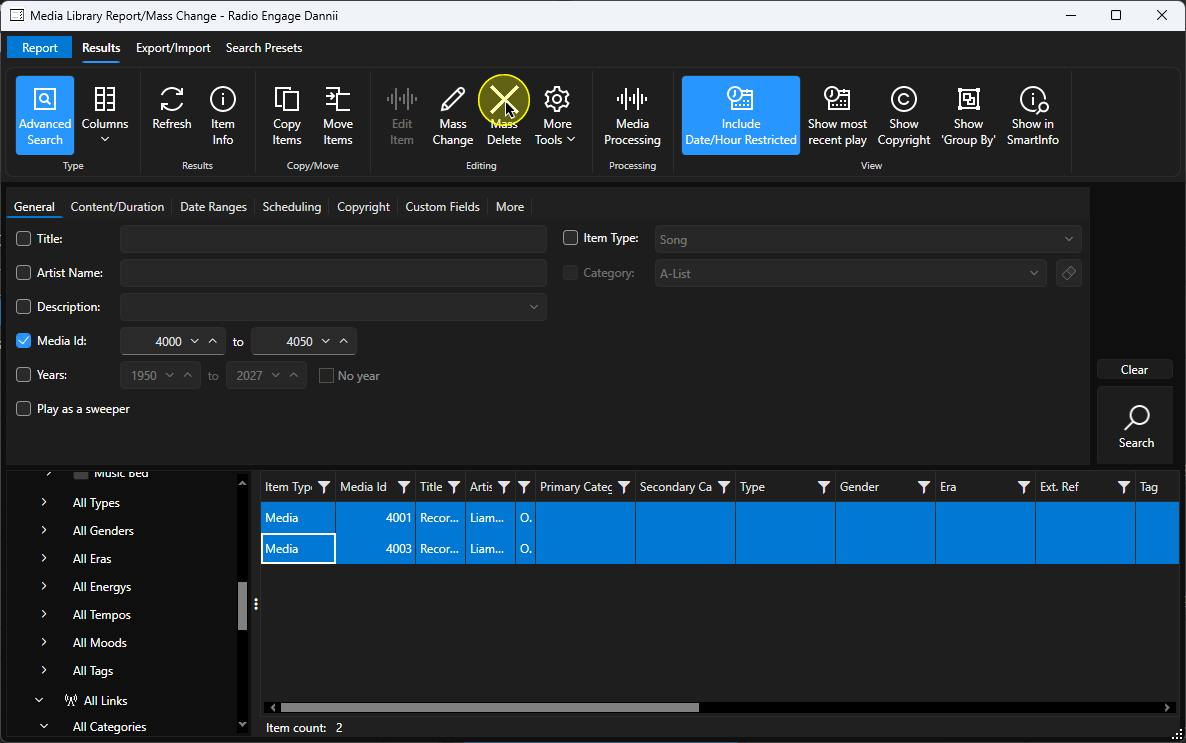
- When you have made your selection, click on the Mass Delete button.
- You will be asked to confirm the action four times! Click Yes to proceed.
Please note that by default, deleted items are moved to a 'deleted' folder and can be recovered for a short period of time following deletion.
Was this article helpful?
That’s Great!
Thank you for your feedback
Sorry! We couldn't be helpful
Thank you for your feedback
Feedback sent
We appreciate your effort and will try to fix the article