IMPORTANT: If you are using Myriad Schedule or Myriad Schedule Pro, you move content around on the Media Wall without affecting availability of content for scheduling as Myriad Schedule and Myriad Playout share a common Media Wall. You should re-schedule after moving content around on the Media Wall as Media ID is used to place Media Items in the Log at schedule time and moving them will not automatically update the Log.
AutoTrack Standard & Pro users and 3rd party scheduling system users should avoid moving content on the Media Wall as moving Media to another Media ID will not automatically update the media reference in AutoTrack or 3rd party systems.
TABLE OF CONTENTS
Moving Individual Media Items
To move an individual Media Item, follow these steps:
- Locate the item you want to move on the Media Wall.
- You can either Right Click and select Move.
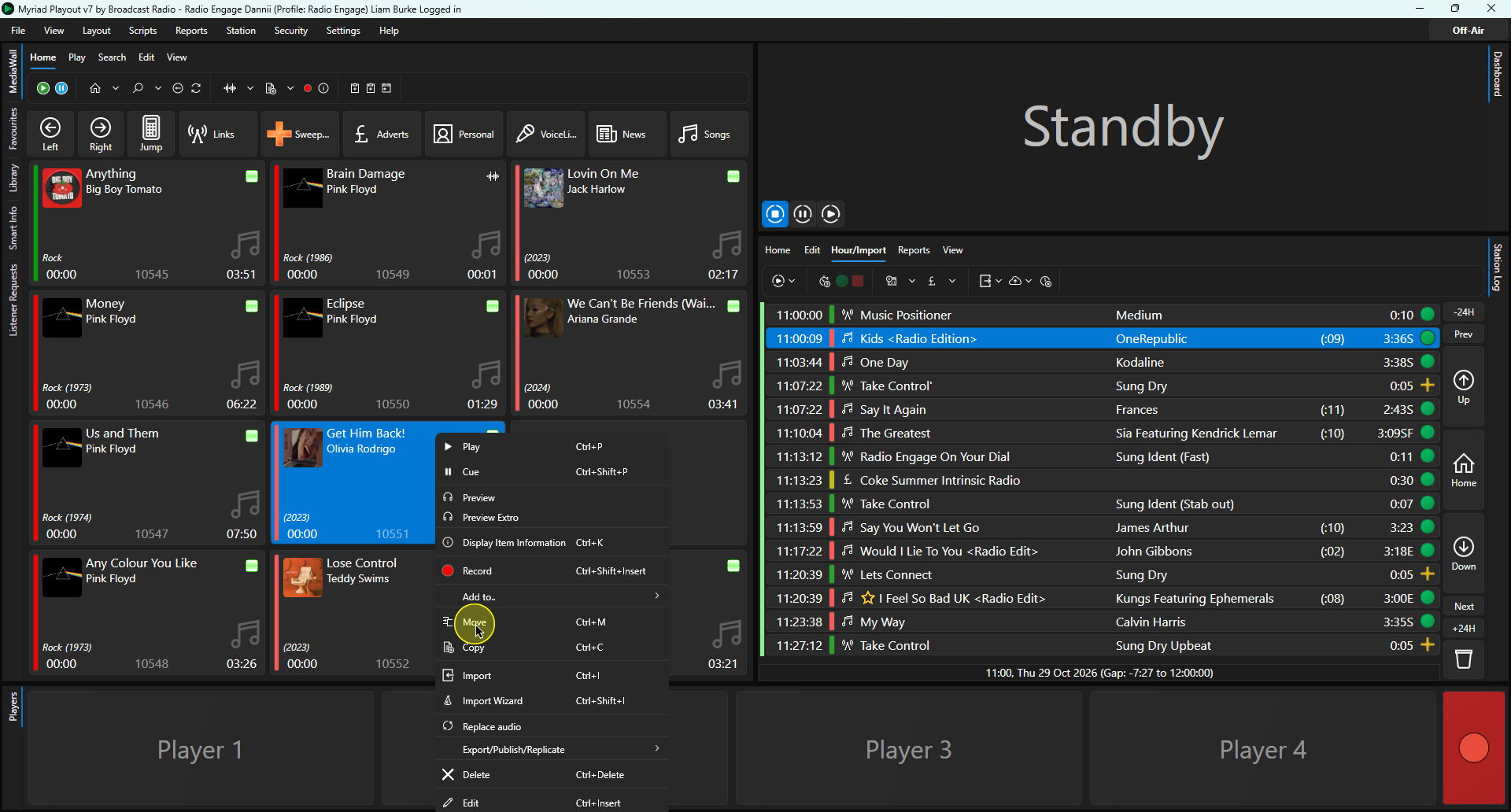
Or you can select the Media Item to move, click on the Edit Tab and then click on the Move button.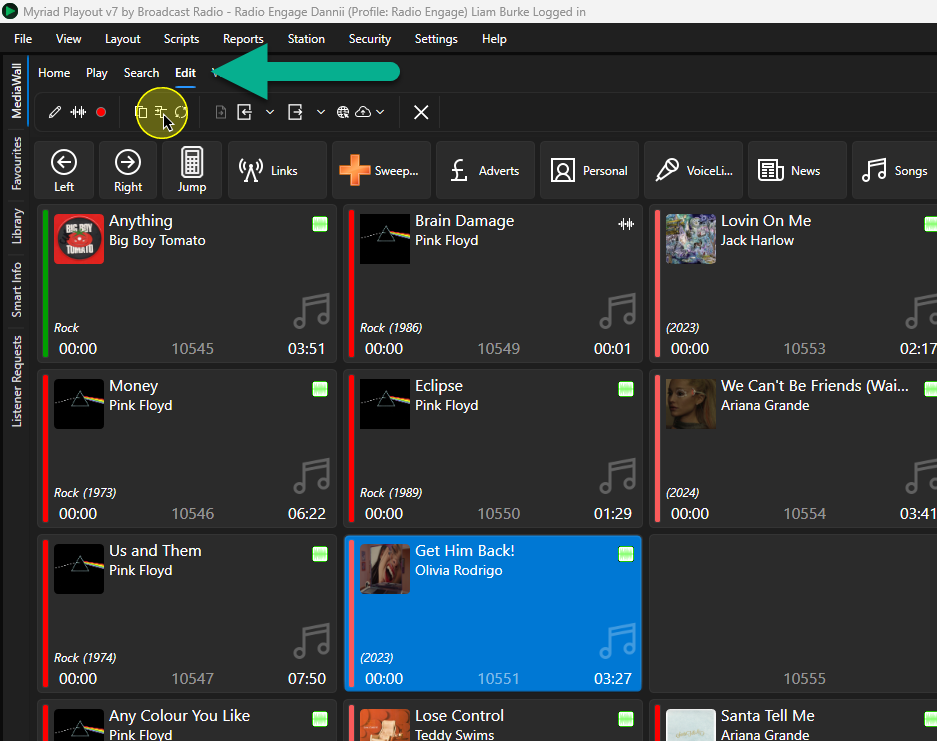
- Use the Media Browser window (which will open automatically) to select the Media ID to move the Media to.
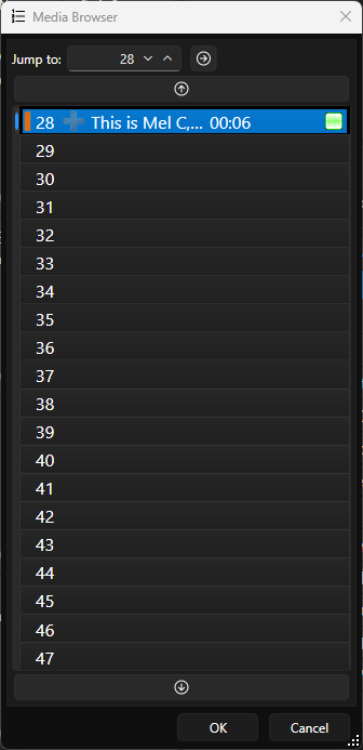
You can use the Jump to field to jump to a specific place on the Media Wall.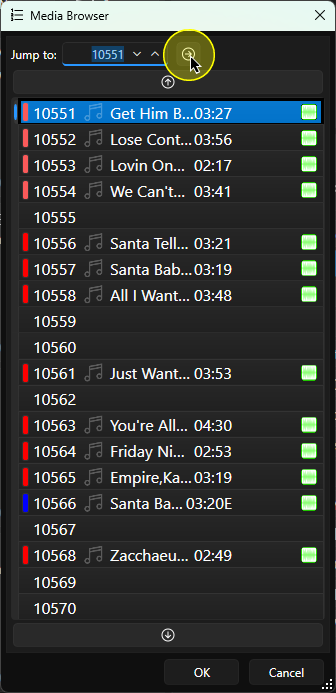
- When you have located the place you want to move the Media to, double click on the empty Media ID in the Media Browser window.
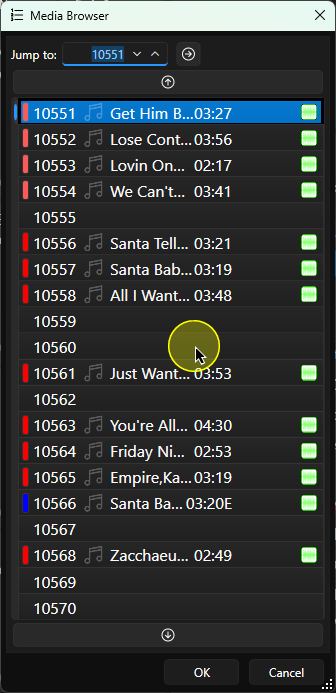
- The Media Item will be moved to the selected Media ID.
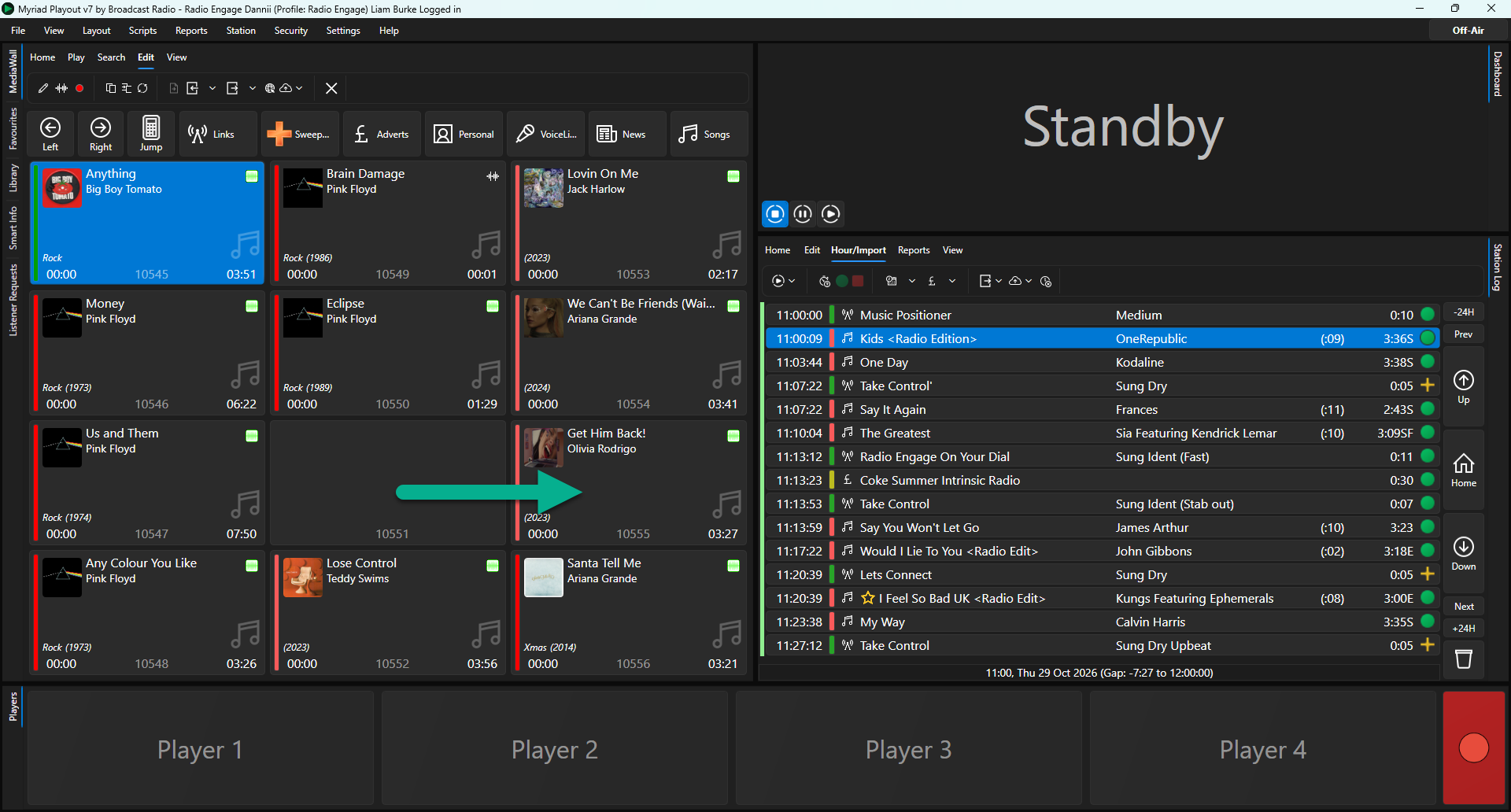
Mass Moving Media Items
If you want to move more than one Media Item, you can do so using the Mass Changer.
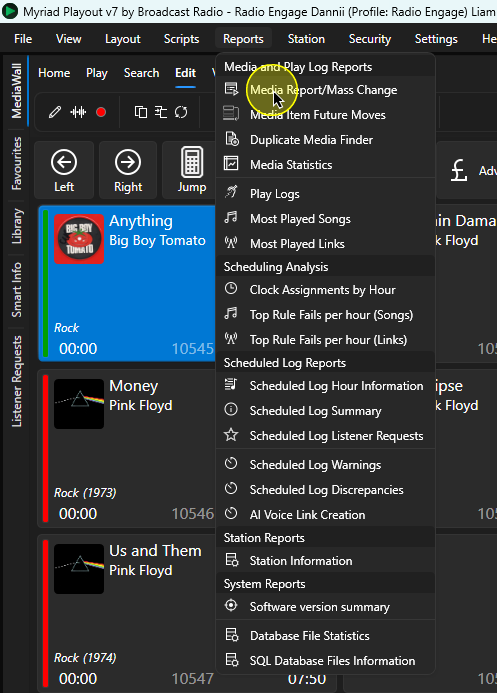
- Click on Reports Menu > Media Reports / Mass Changer.
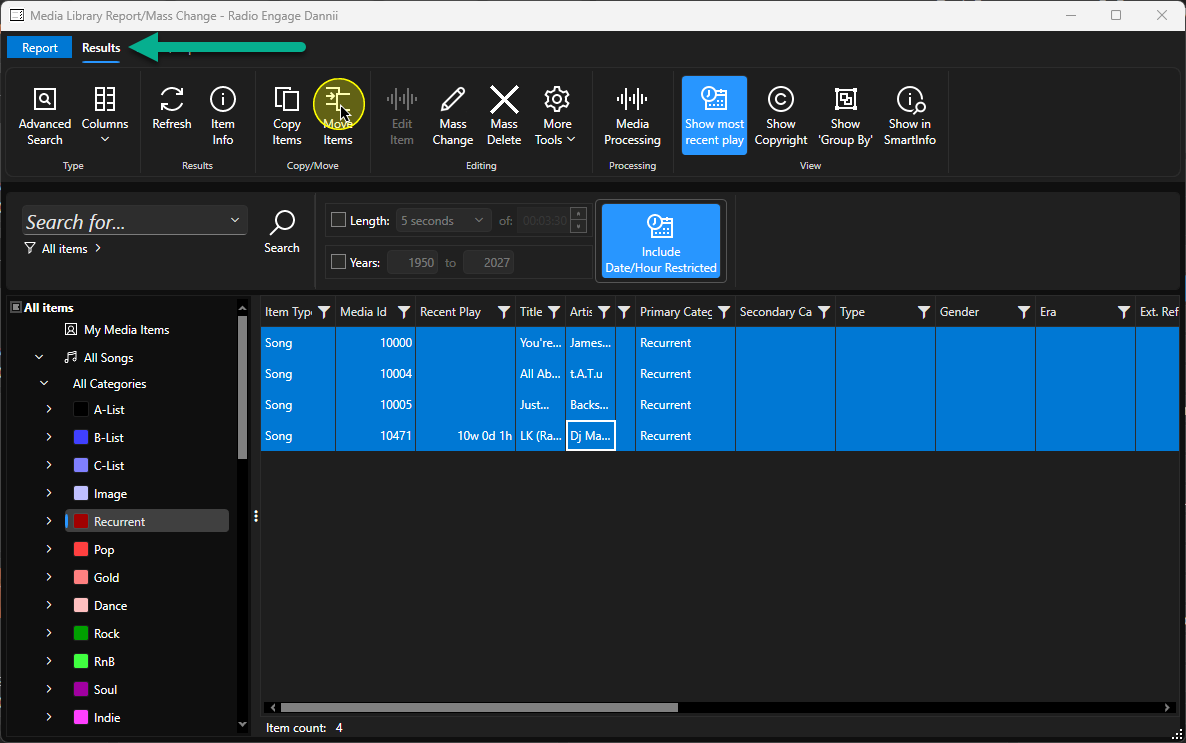
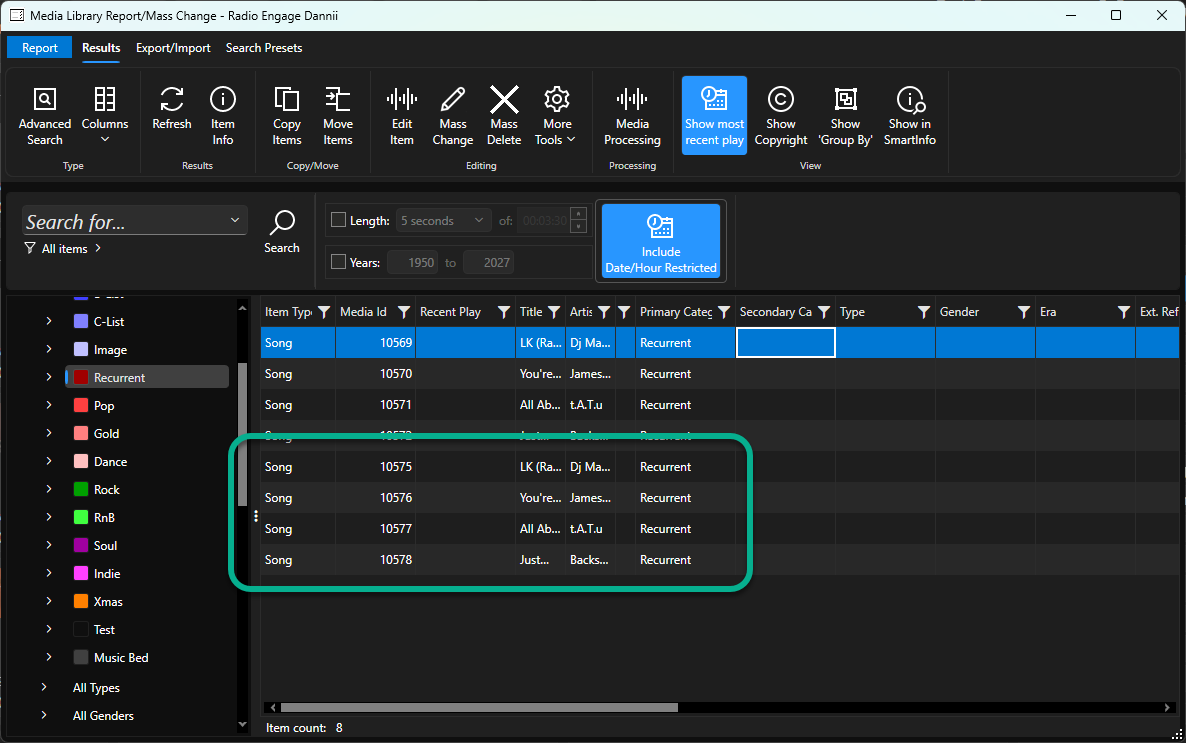
- Use the Navigation Tree or Search options to select the Media items you want to move. In this example, we have selected all of the Songs in the Recurrent Category.
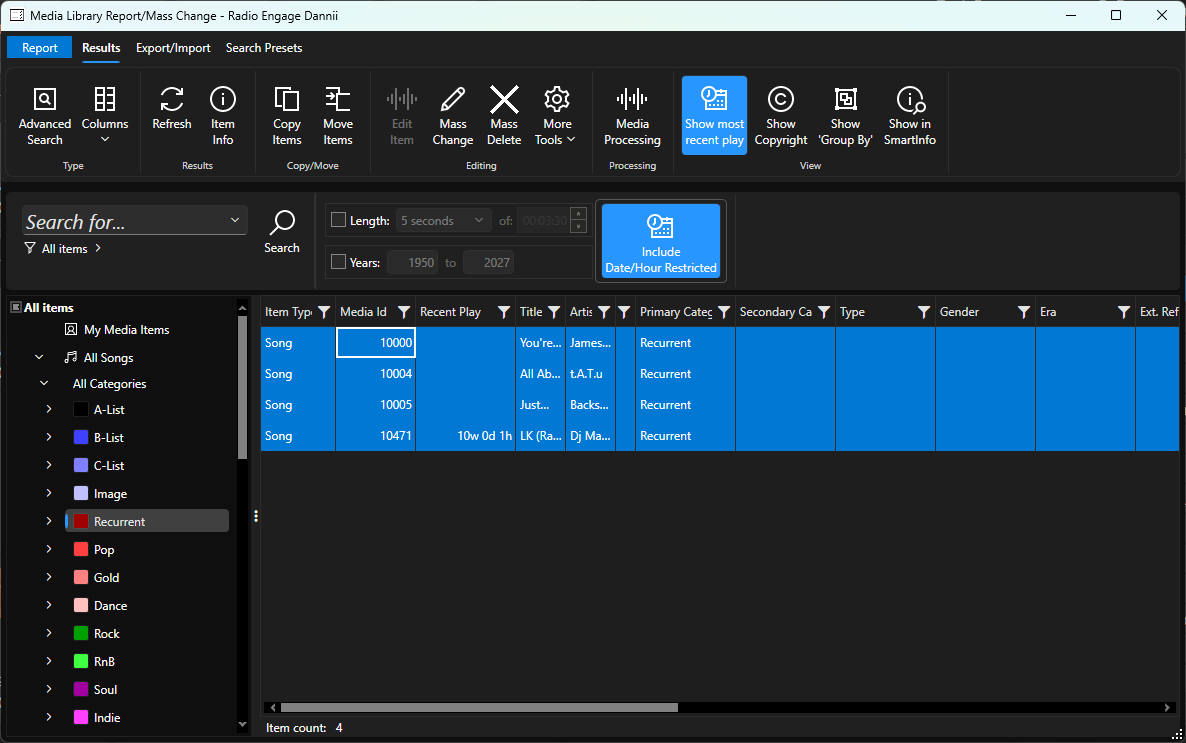
You can use <CTRL + A> to select all listed Media, <SHIFT>+ left click to select range or hold down <Ctrl> + left click to select multiple individual Media Items. - Click on the Move Items button on the Results Tab.
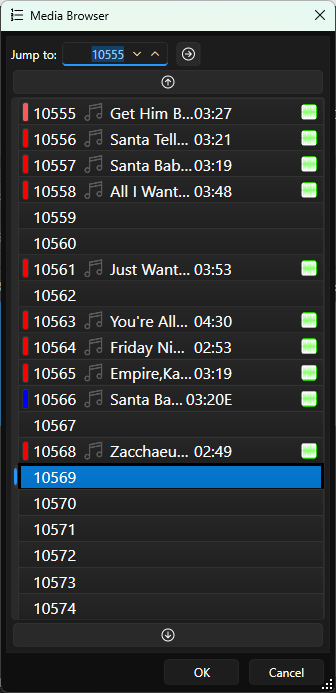
- The Media Browser window will open automatically, to allow you to select the target Media ID for the first item to be moved.
- Double click on the Media ID you want to move them to. Please note that all the selected Media Items will be moved to empty Media ID's starting from the selected Media ID. If Media ID's already contain Media, the next empty Media ID will be used.
Note: You can use this method to compress Media with an range, removing gaps in the Media Wall.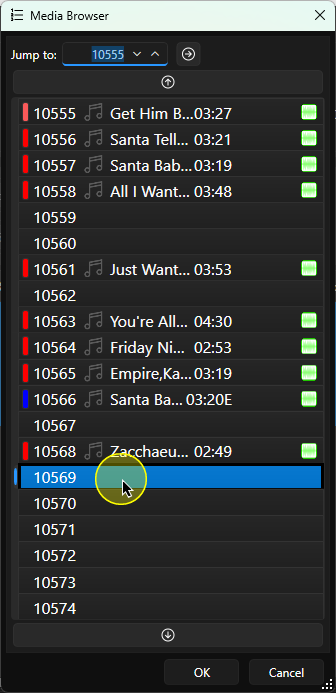
- You will be asked to confirm the action. Click Yes to proceed.
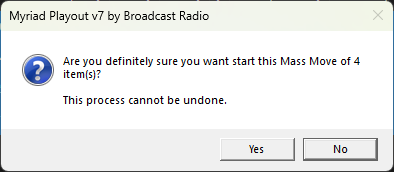
- Moving multiple items may take some time.
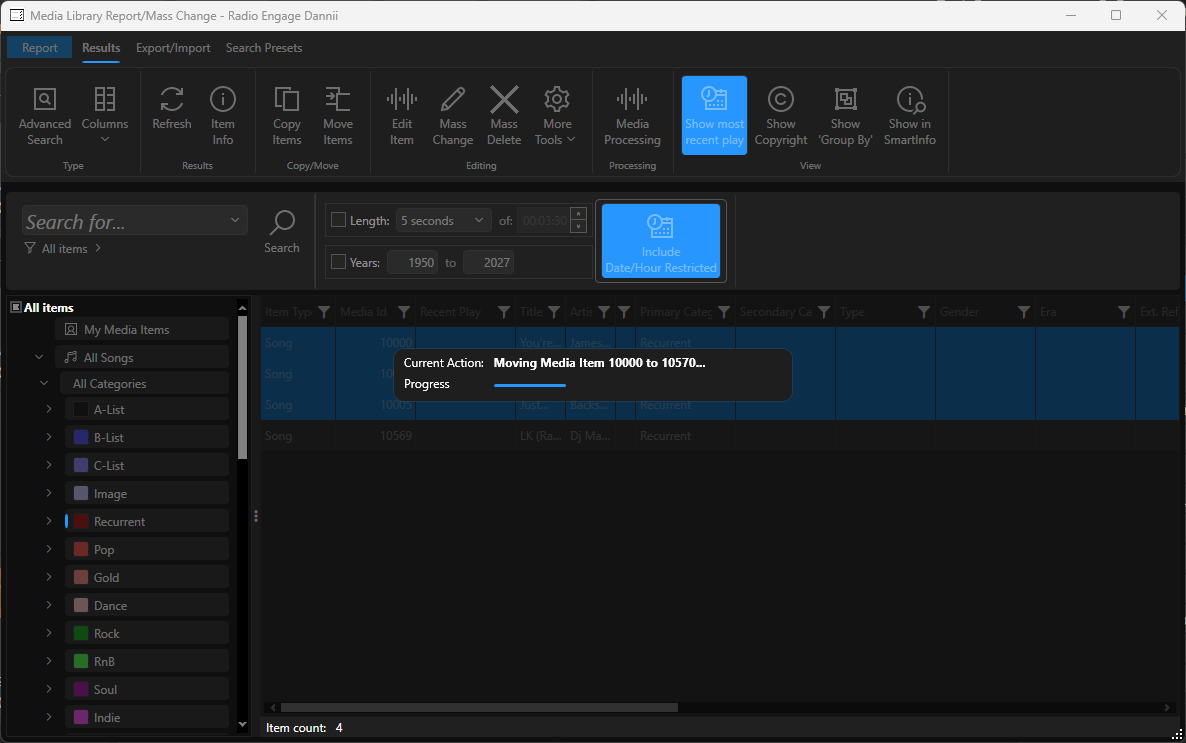
- Once the process is complete, the new Media ID's will be listed in the Media Report window.
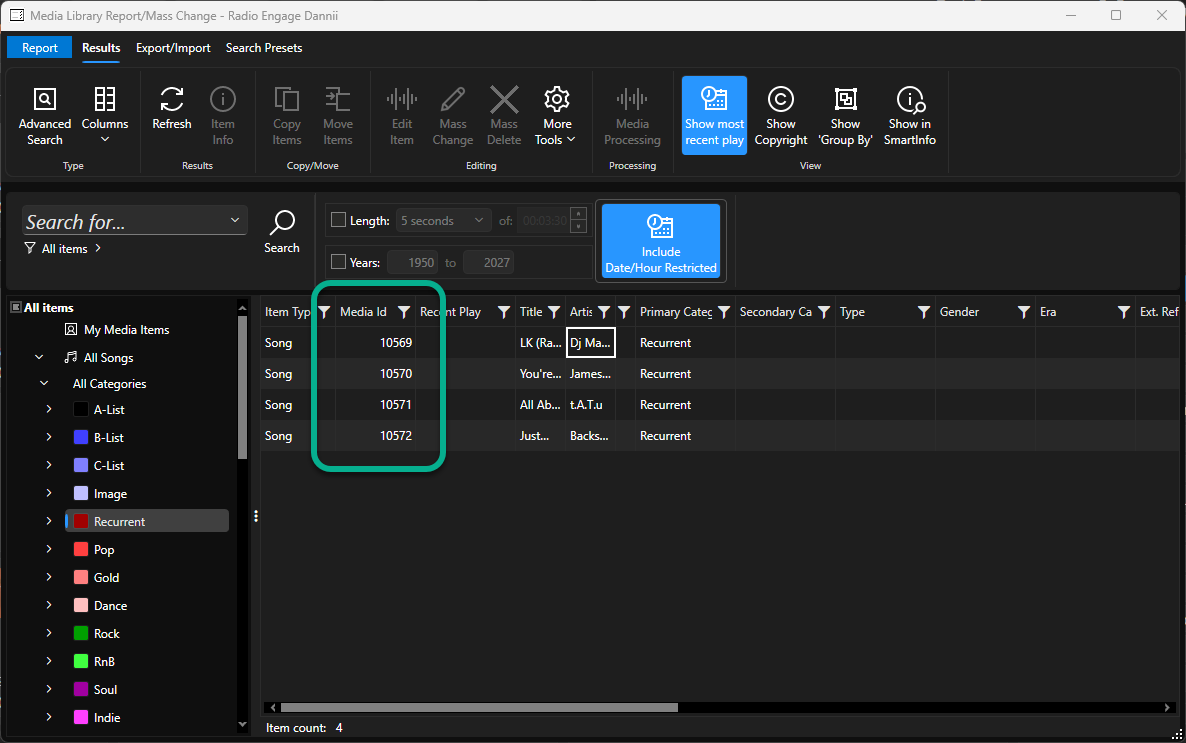
IMPORTANT - You need to reschedule after moving Media on the Media Wall. In the example above, we moved everything in the Recurrent Category. Any content already scheduled from the Recurrent Category, in the Log, will point to the incorrect Media ID's now. To correct this, un-schedule (you can un-schedule only the Recurrent Category if you have Schedule Pro) and re-schedule the Log. This will use the new Media ID's for the Songs in the Recurrent Category.
Copy A Media Item
To copy a Media Item, follow these steps:
- Select the Media Item to copy on the Media Wall.
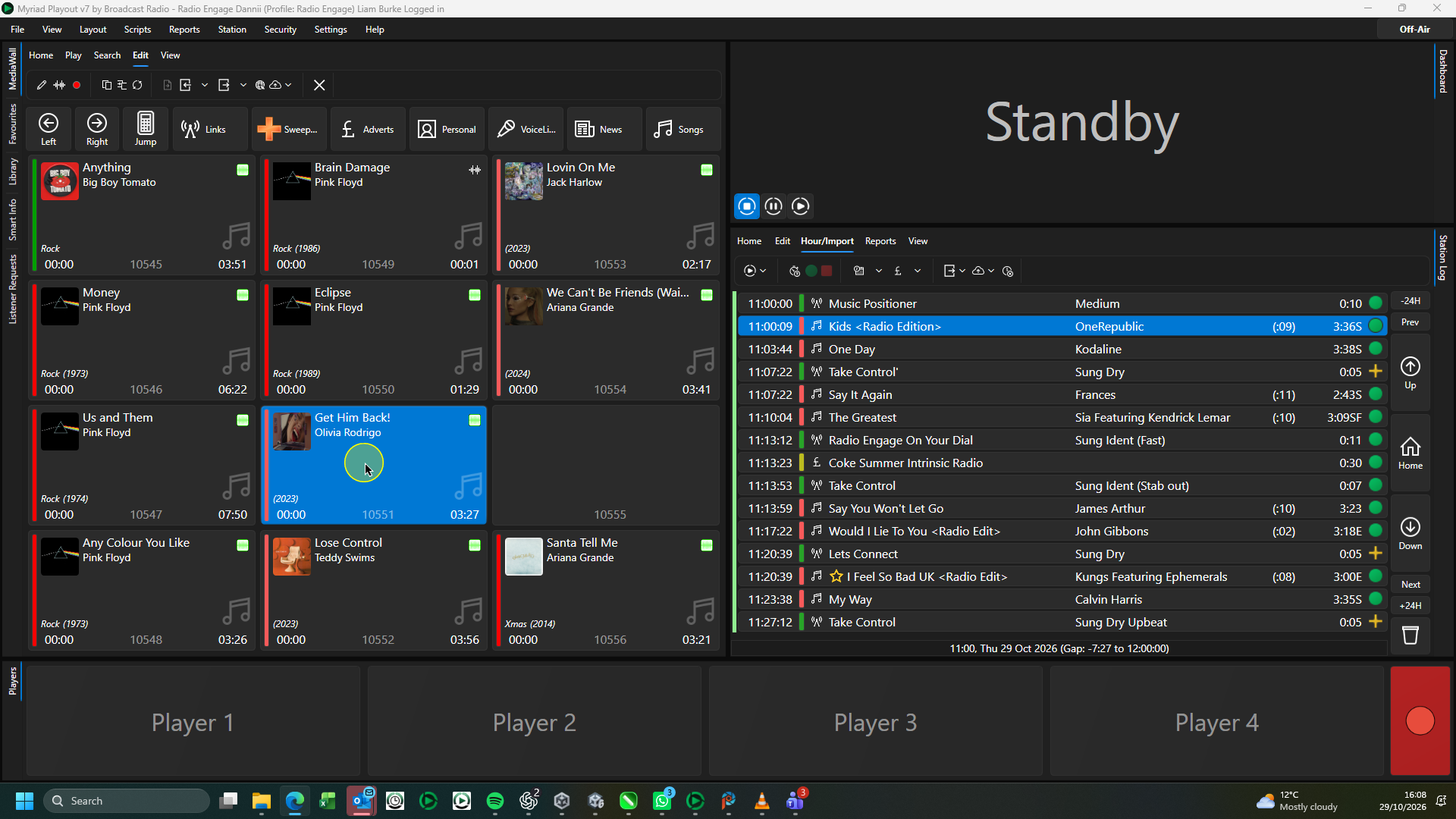
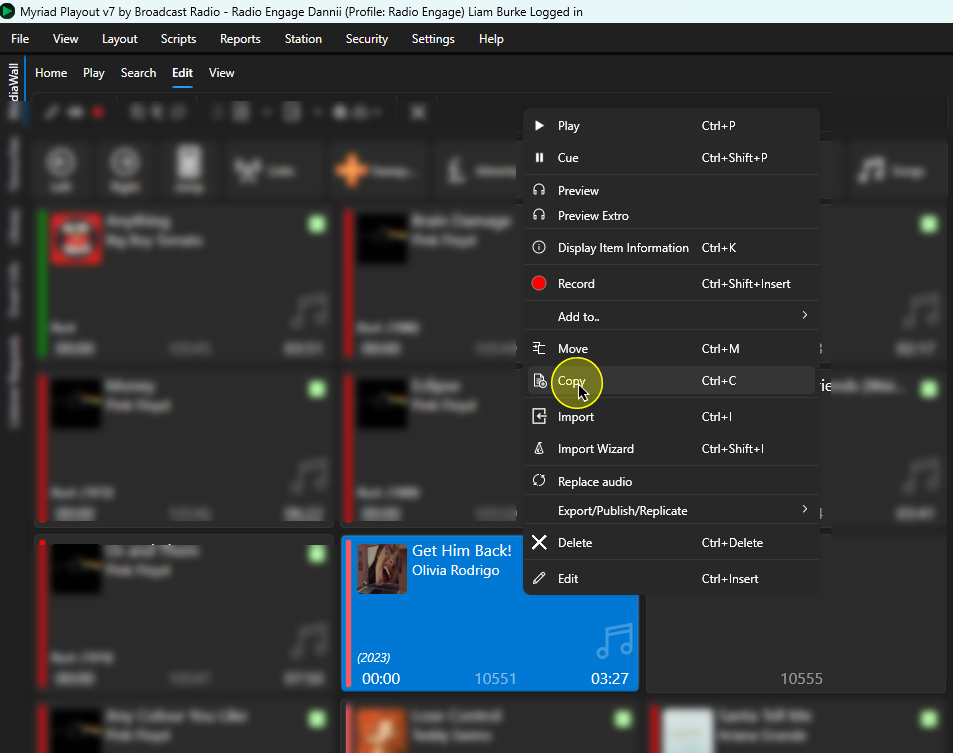
- Right click and select Copy Media.
You can also use the Copy Button on the Edit Tab on the Media Wall.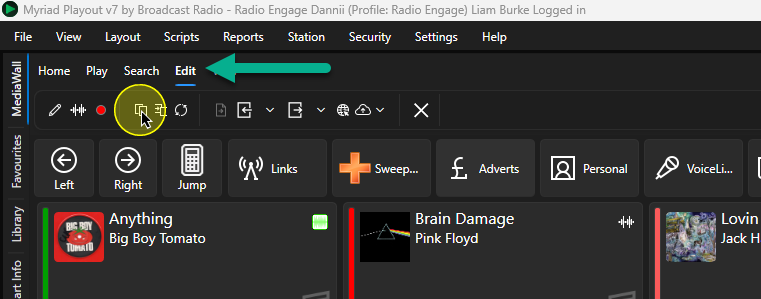
Finally, you can also us <Ctrl + C> on your keyboard. - The Media Browser window will open automatically.
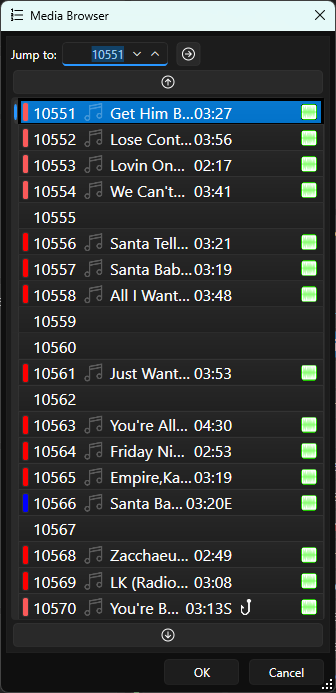
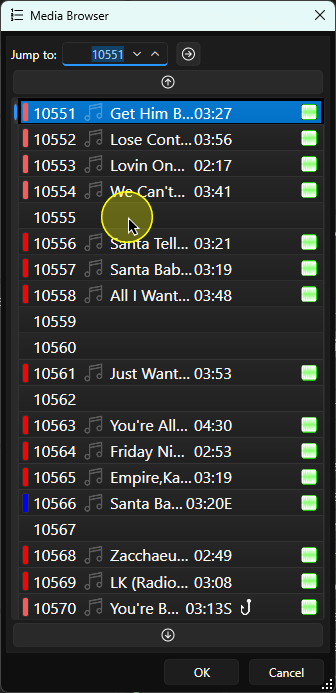
- Double Click on the Media ID you want to copy the Media to.
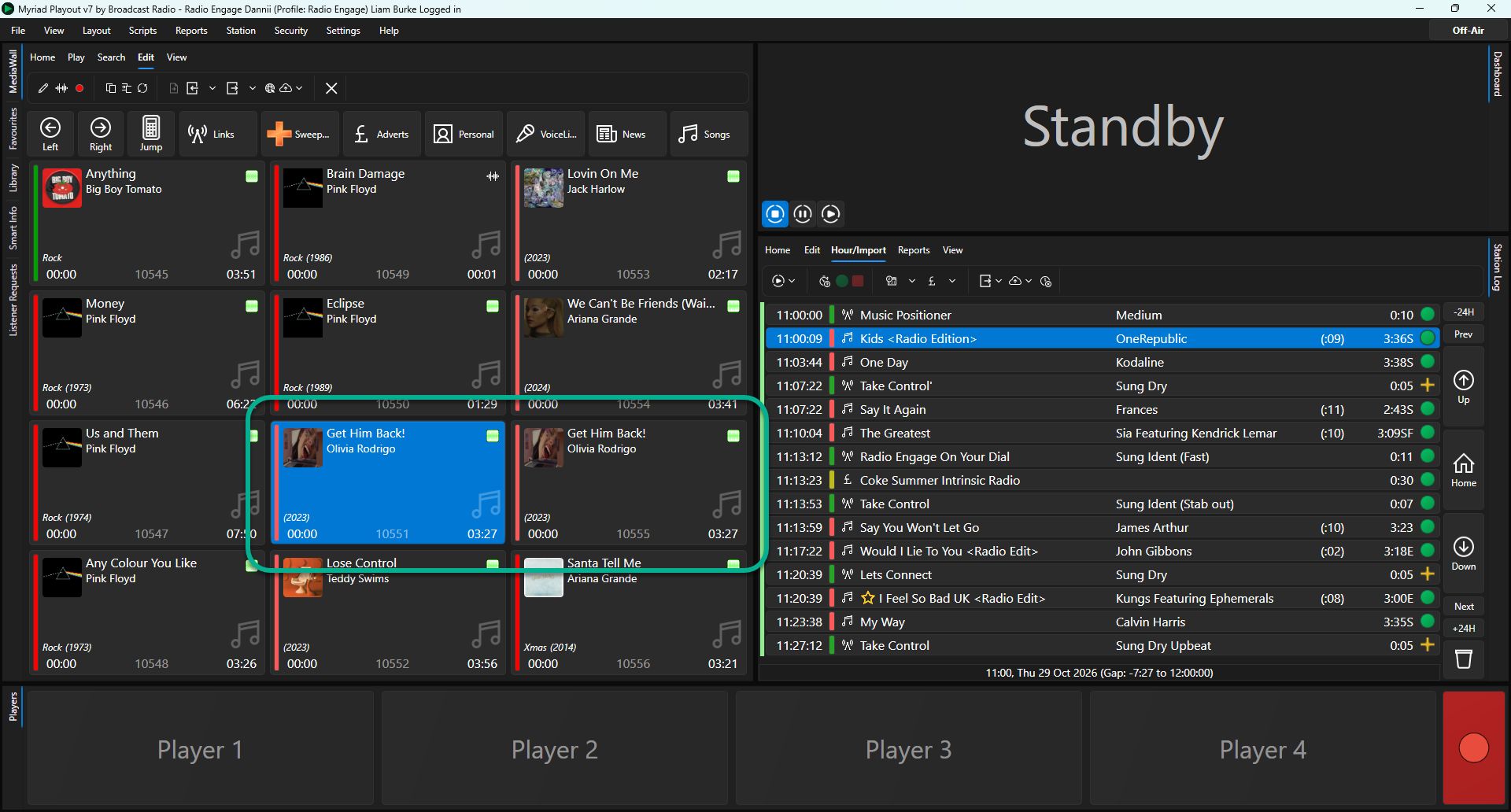
- The Media will be duplicated to the new Media ID.
CAUTION - Whilst copying Media will not impact scheduling in the same way as moving content, you should consider that duplicating content will result in that Media being listed twice Myriad Schedule. Artist / Title Separation Rules will prevent it being scheduled close together in the Log, but there will still be two copies of the same Song in rotation which will result in it being scheduled more frequently.
Best practice is to open the Edit Window for the duplicate and set the Category to <None/Held> which will remove it from scheduled rotation.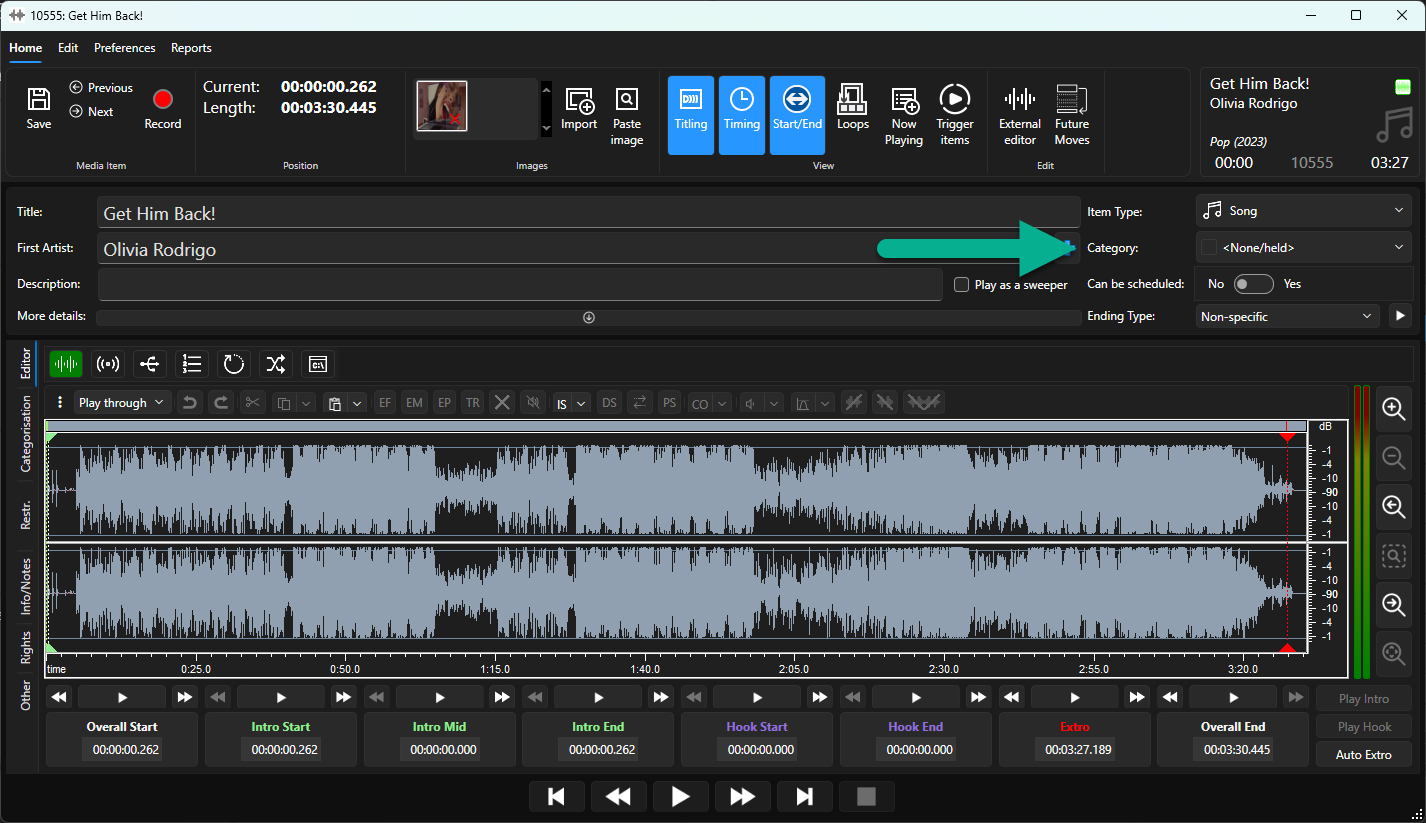
Mass Copy Media Items
You can mass duplicate items on the Media Wall using the following steps:
- Click on Reports Menu > Media Reports / Mass Changer.
- Use the Navigation Tree or Search options to select the Media items you want to copy. In this example, we have selected all of the Songs in the Recurrent Category.
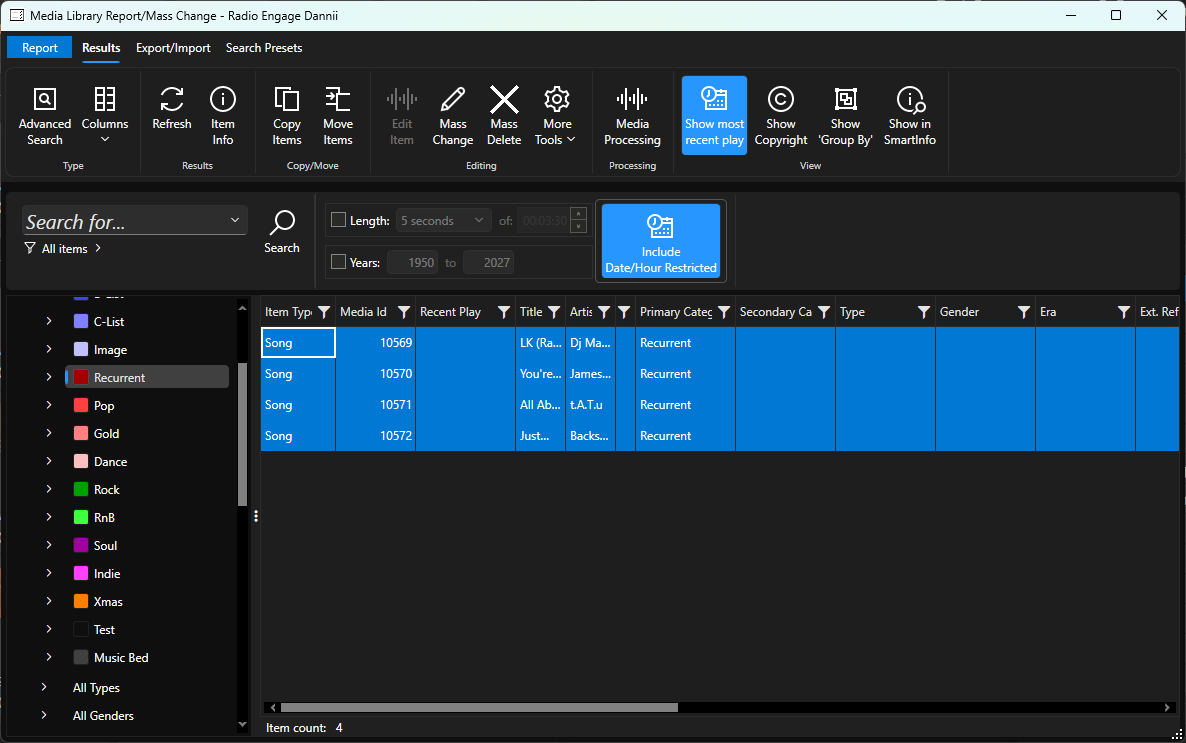
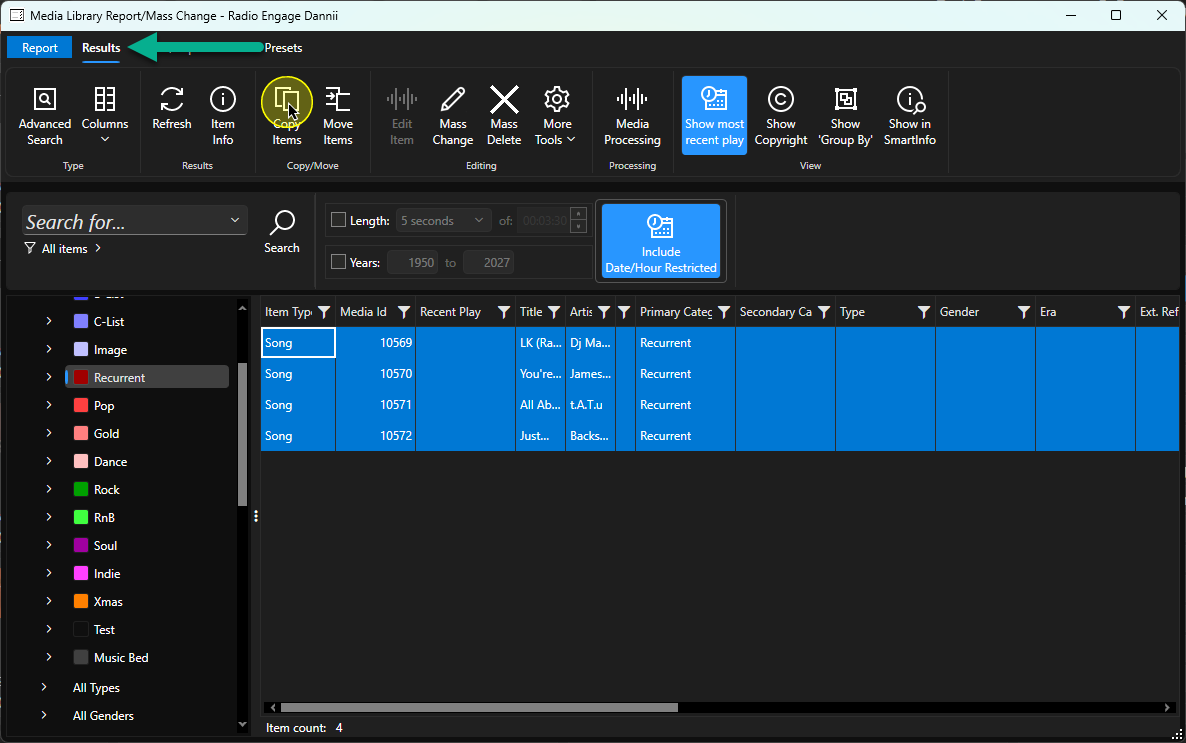
You can use <CTRL + A> to select all listed Media, <SHIFT>+ left click to select range or hold down <Ctrl> + left click to select multiple individual Media Items. - Click on the Copy Items button on the Results Tab.
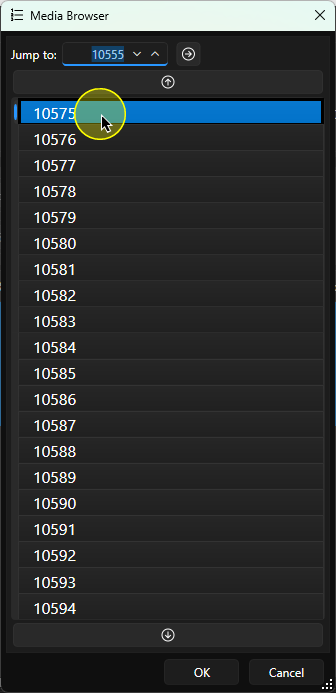
- The Media Browser window will open automatically, to allow you to select the target Media ID for the first item to be copied.
- Double click on the Media ID you want to copy them to. Please note that all the selected Media Items will be copied to empty Media ID's starting from the selected Media ID. If Media ID's already contain Media, the next empty Media ID will be used.
- Copying multiple items may take some time.
- Once the process is complete, the copied Media will be listed in the Media Report window.
CAUTION - Whilst copying Media will not impact scheduling in the same way as moving content, you should consider that duplicating content will result in that Media being listed twice Myriad Schedule. Artist / Title Separation Rules will prevent it being scheduled close together in the Log, but there will still be two copies of the same Song in rotation which will result in it being scheduled more frequently.
Best practice is to open the Edit Window for the duplicated items and set the Category to <None/Held> which will remove it from scheduled rotation. You can use the Mass Change option to change multiple Media Items to <None / Held> at the same time.
Was this article helpful?
That’s Great!
Thank you for your feedback
Sorry! We couldn't be helpful
Thank you for your feedback
Feedback sent
We appreciate your effort and will try to fix the article