Over time, moving and deleting content on our Media Wall may result in areas with empty Media ID's forming gaps in your Media Wall.
Operationally, this has no effect on Myriad Playout, but it is possible to use the Mass Move tool in Myriad Playout (and Myriad Schedule) to move content to a new position on the Media Wall, removing any gaps in the Media Wall in the process.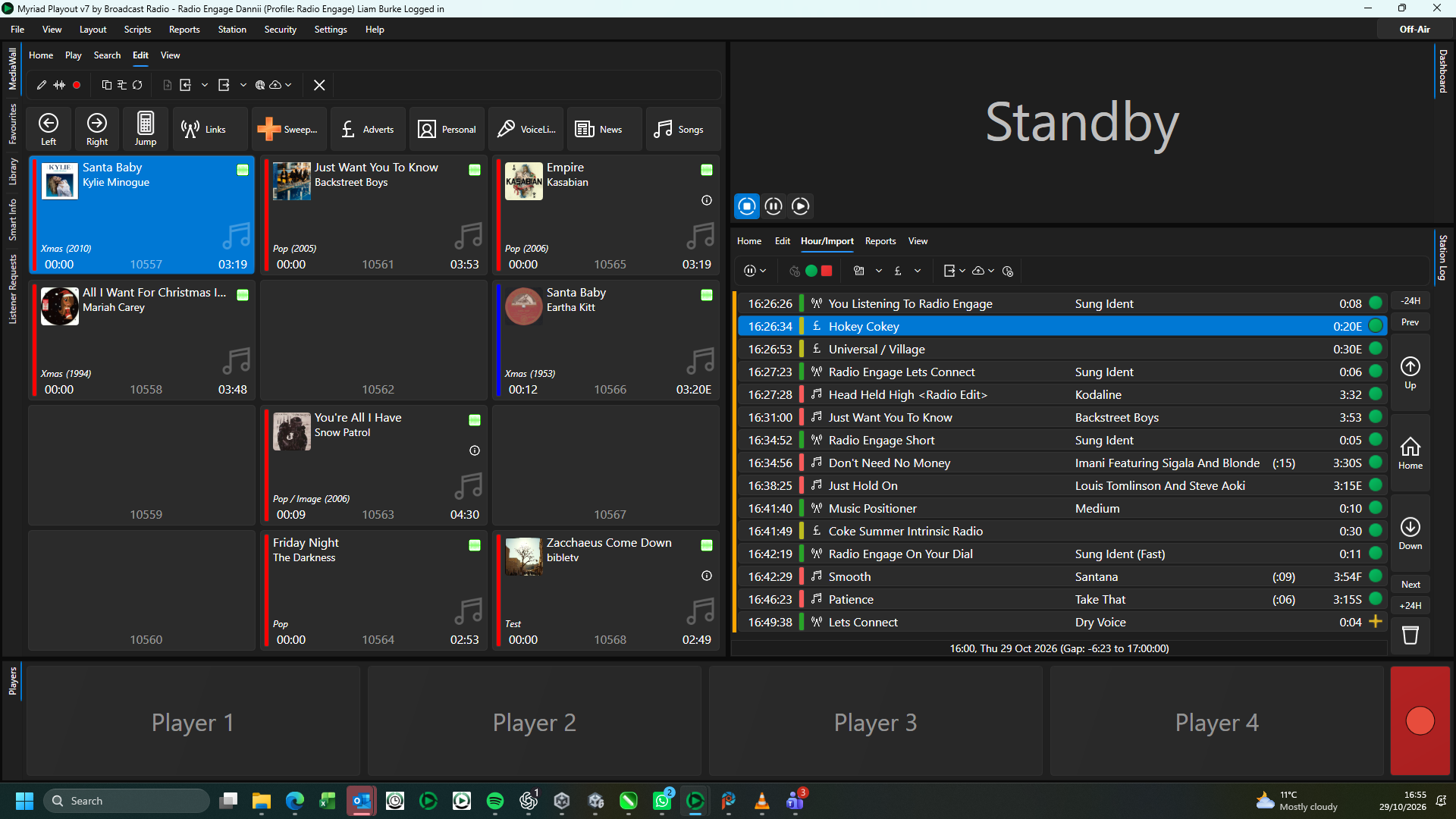
Let's say your music is currently located from 10,000 to 11,000 but you have a number of gaps in that range, which you would prefer to remove.
The process would be:
- Mass move everything between 10,000 and 11,000 to a new position on the Media Wall (which currently has no content).
- Mass move the Songs back to the 10,000 starting position for Songs.
It is important that the holding location has enough empty Media ID's to accommodate everything you are mass moving. Any content that already exists will be mixed in with the Songs and moved back to the Songs range in the second phase.
Caution - You cannot undertake this process while you are running Myriad in Live or automated mode on any workstation!
You will also need to completely un-schedule and re-schedule following this process as all Media ID's will change.
If you use AutoTrack or a 3rd party Scheduler - DO NOT DO THIS!!!
- Click on Reports Menu > Media Reports / Mass Change.
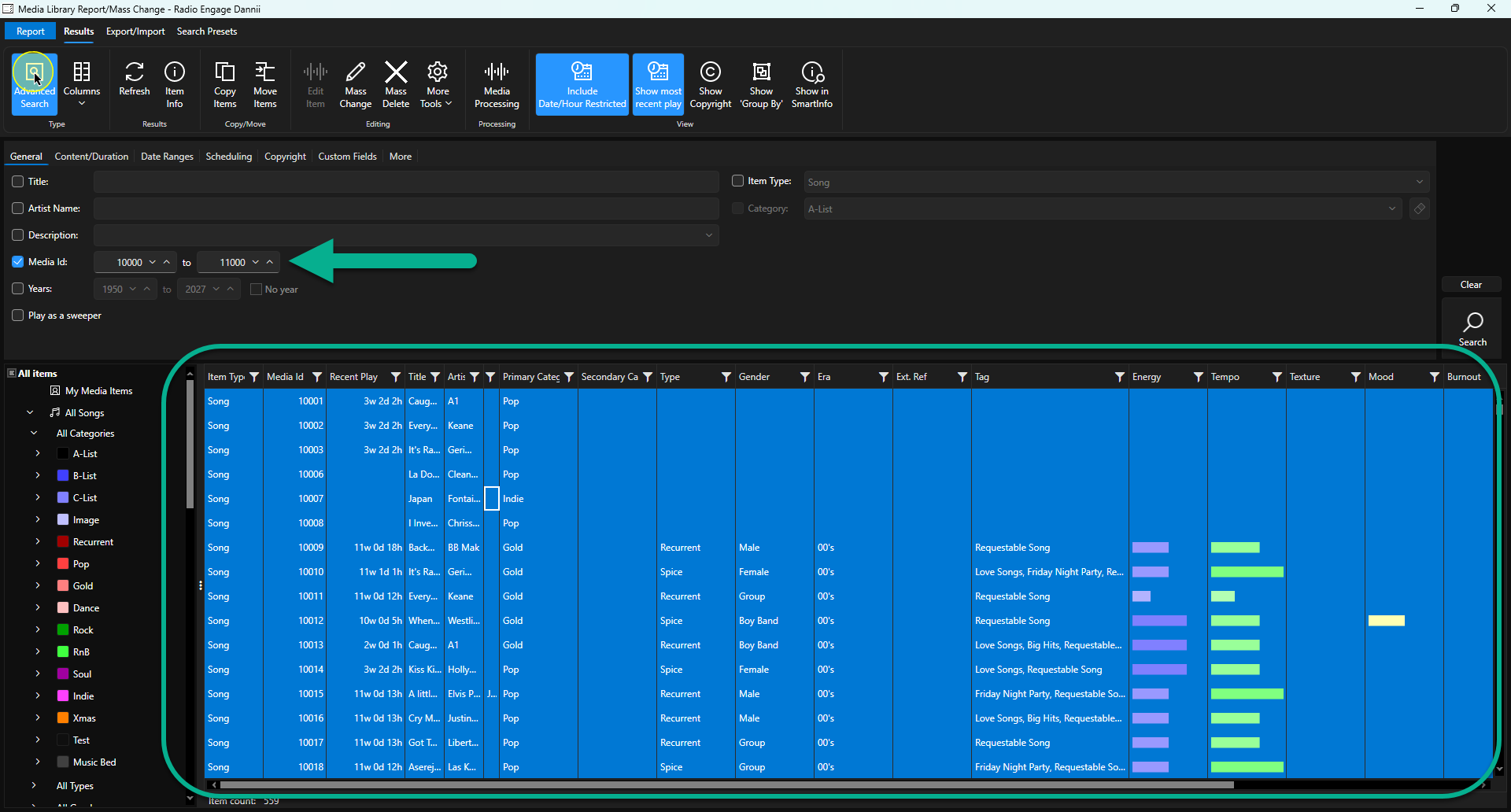
- Select the items you want to move. In this example we want to use the Advanced Search option to select Media ID 10,000 to Media ID 11,000. Use <Ctrl + A> to select everything in that Media ID Range.
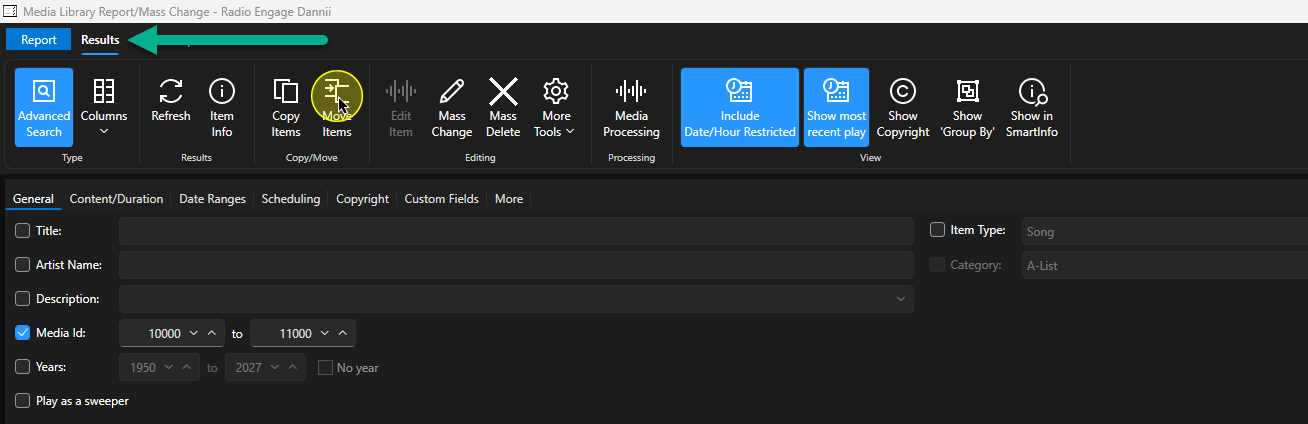
- Click on the Move Items button on the Results tab.
- This will open the Media Browser window. Use this to select the target Media ID for moving the first item to.
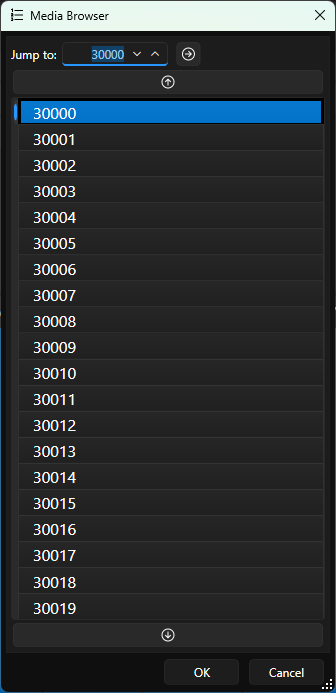
CAUTION - Make sure to select a starting Media ID that has enough sequential empty Media ID's to accommodate you are moving. - Double click on the Media ID you want to move to.
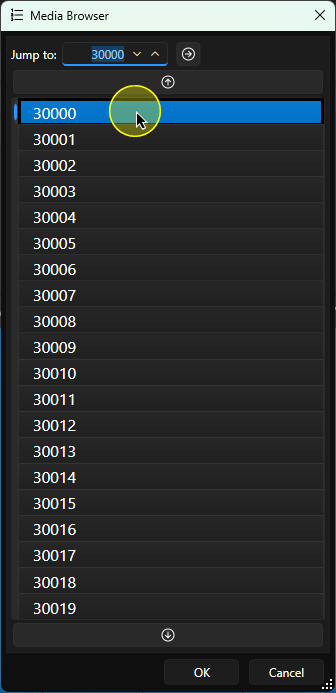
- You will bee asked to confirm the action. Click on Yes if you want to proceed.
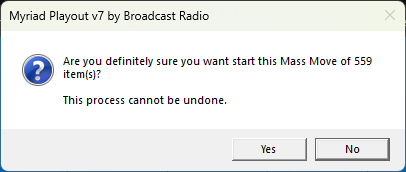
- This will take some time depending on how many items you selected.
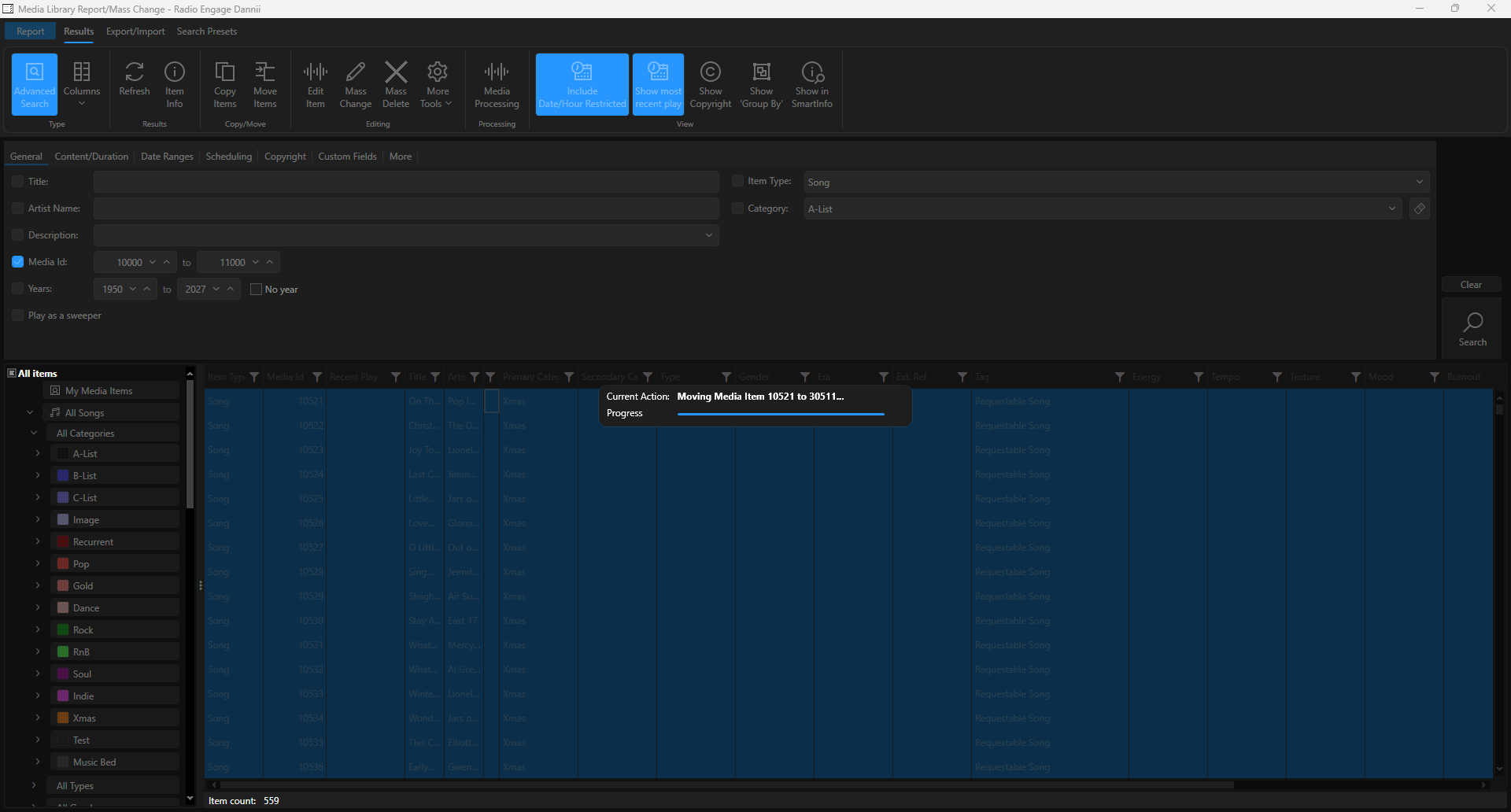
- Once the process is complete, your selected items will be moved to the new location on the Media Wall with no gaps.
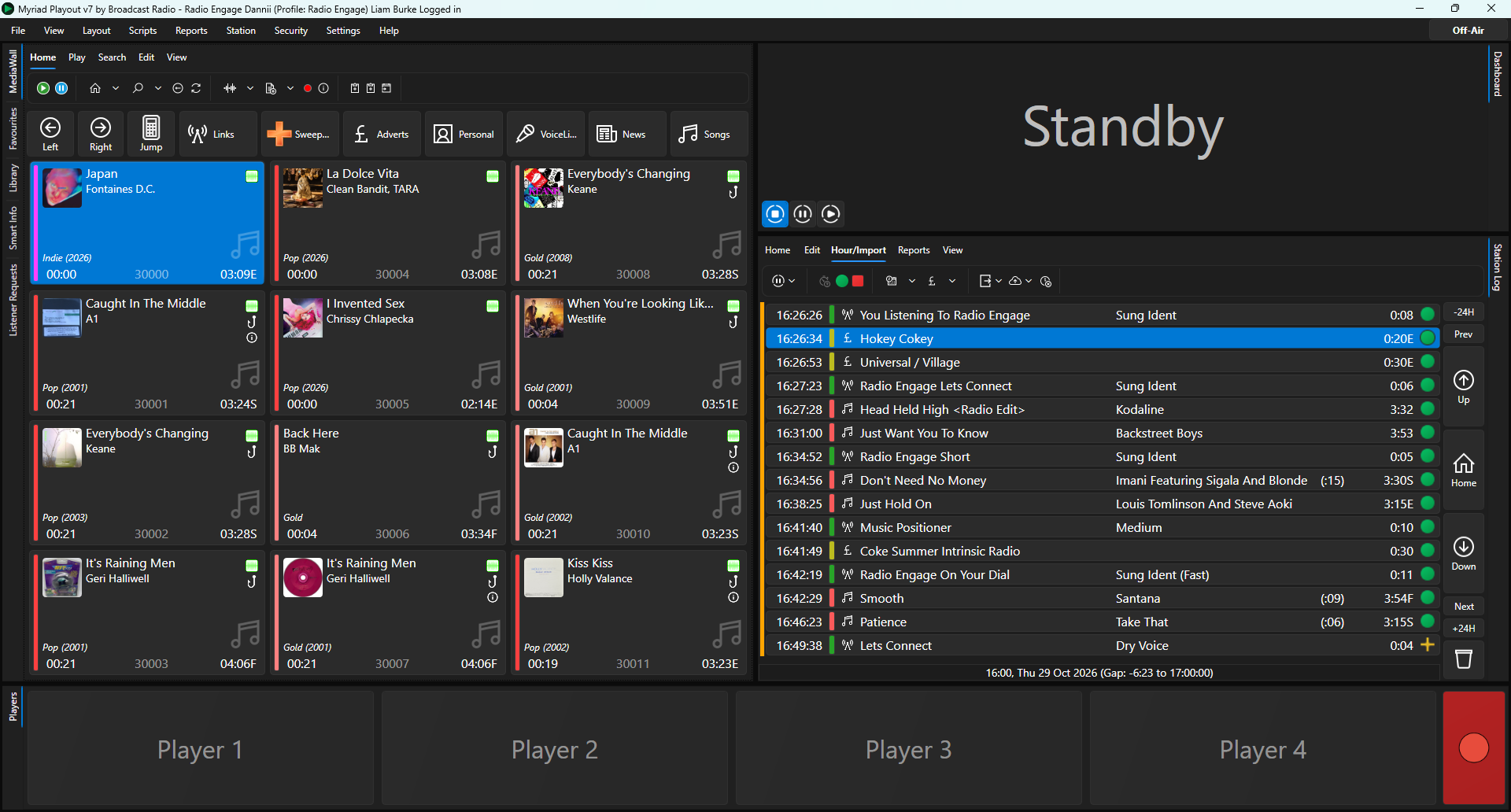
If we compare the original location with the new location, you can see that the gaps have been removed.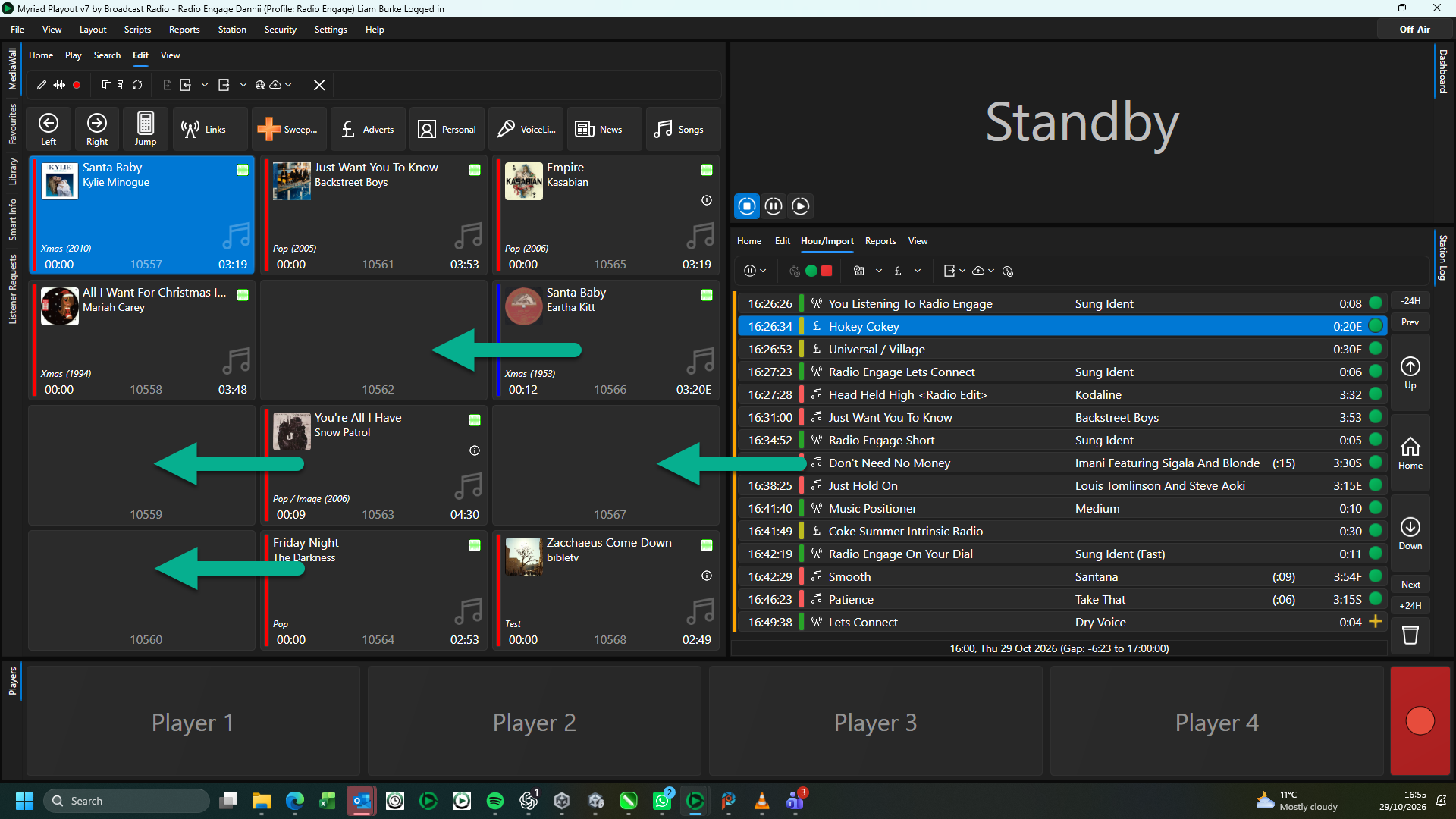
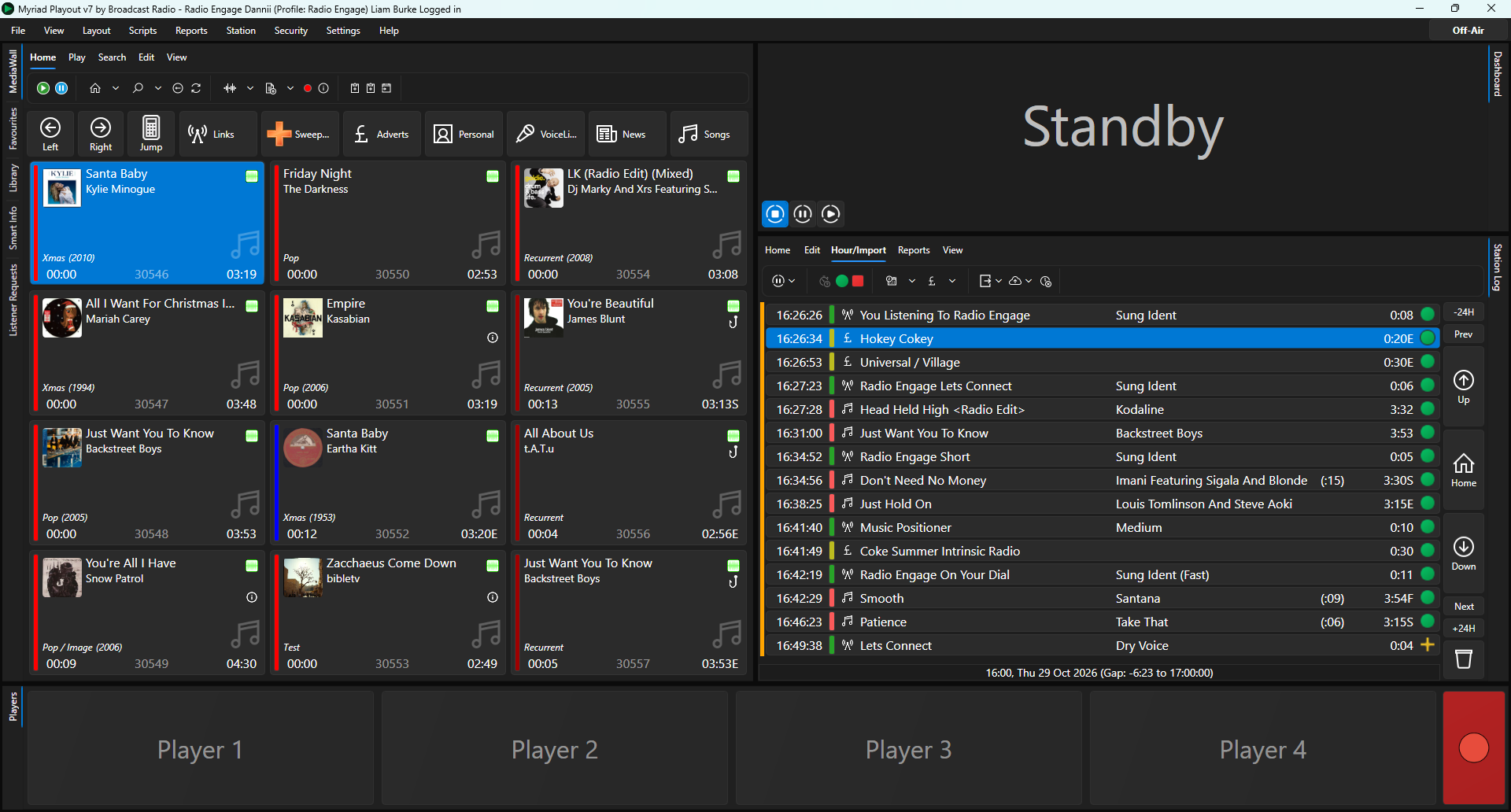
- But the Songs are now starting at 30,000, not 10,000. If you are happy to leave them in this new location then that is fine, Myriad Schedule will schedule using the new Media ID's next time you schedule.
You will need to un-schedule everything you have already scheduled, and re-schedule for the Media ID references in the Log to be correct. - If you want to move your Songs back to 10,000, repeat the steps above.
- Open Reports Menu > Media Report / Mass Change.
- Select everything from 30,000 to 31,000.
- Click Move Items.
- Double click on Media ID 10,000 on the popup Media Browser.
- Wait for the content to be moved back to the 10,000 onwards location.
- Once that is finished, you are free to re-schedule.
Was this article helpful?
That’s Great!
Thank you for your feedback
Sorry! We couldn't be helpful
Thank you for your feedback
Feedback sent
We appreciate your effort and will try to fix the article