Sometimes, you want to update the audio for a Media Item but leave all the other metadata (Title, Category, Restrictions etc) as they are.
Follow these steps:
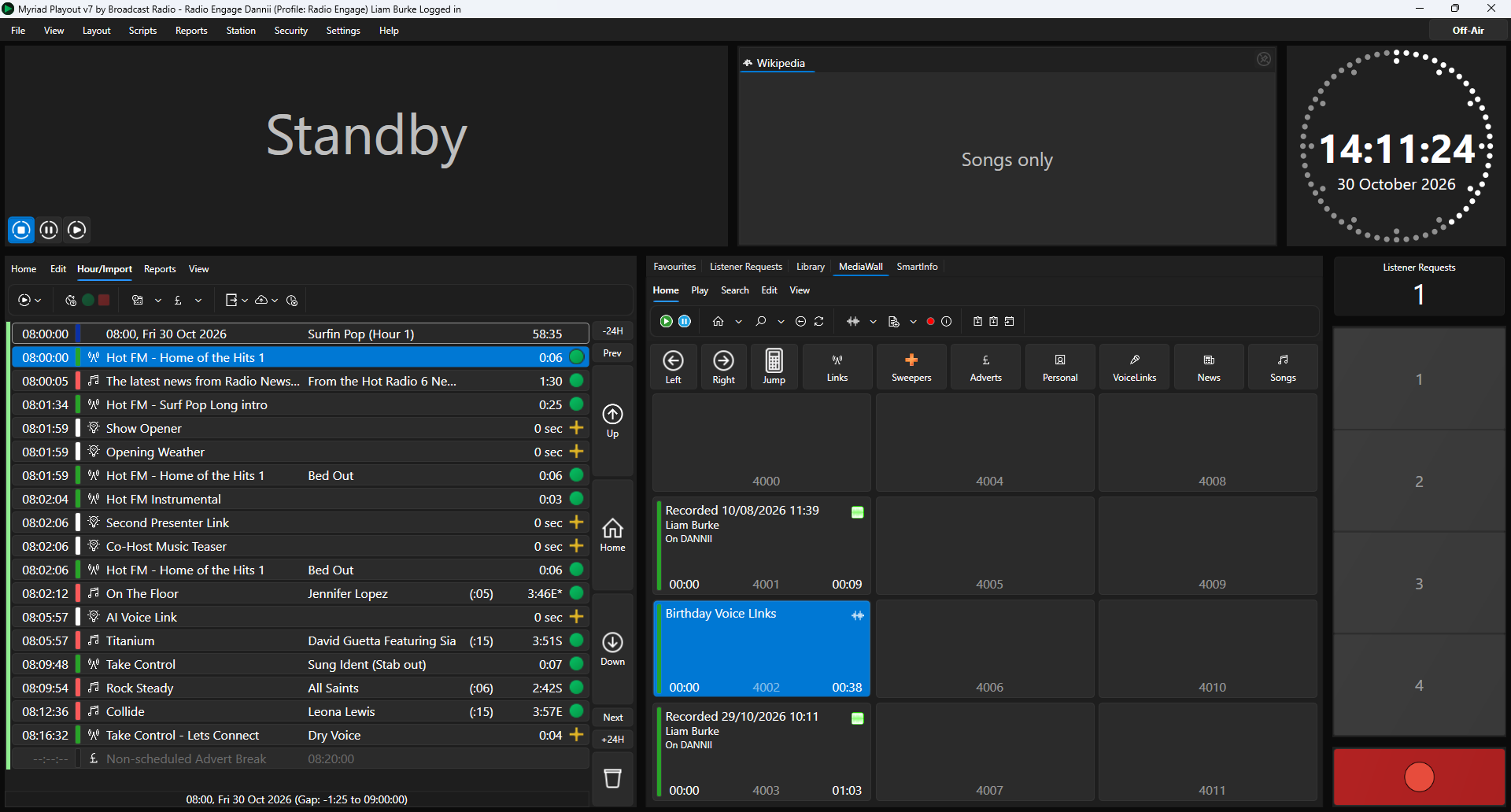
- On the Media Wall locate the Media Item you want to replace the audio for.
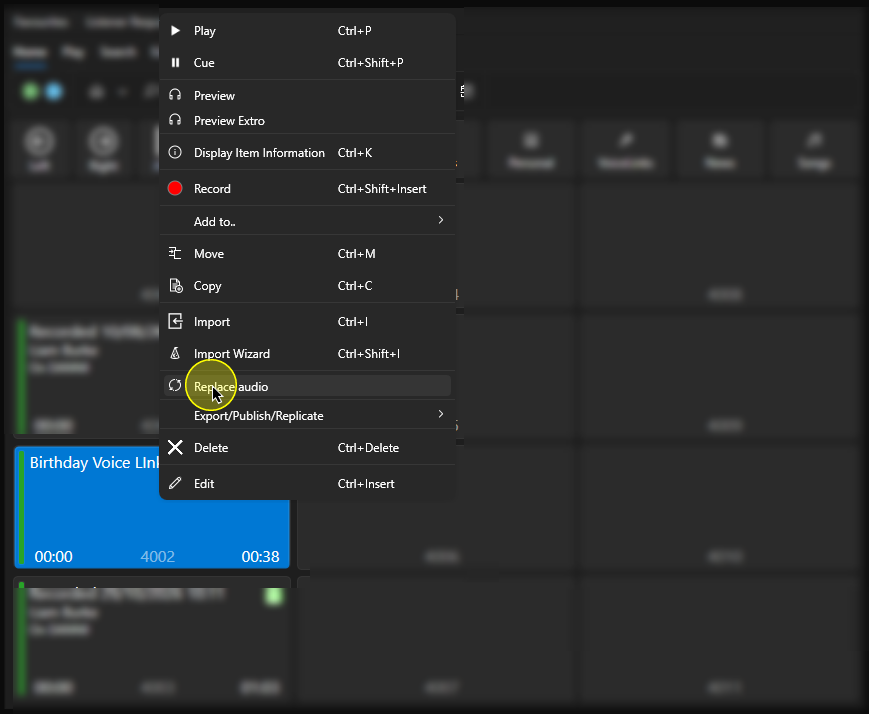
- Right Click on the Media Item and select Replace Audio.
Alternatively, you can select the Media Item and click on the Replace Audio button on the Edit Tab.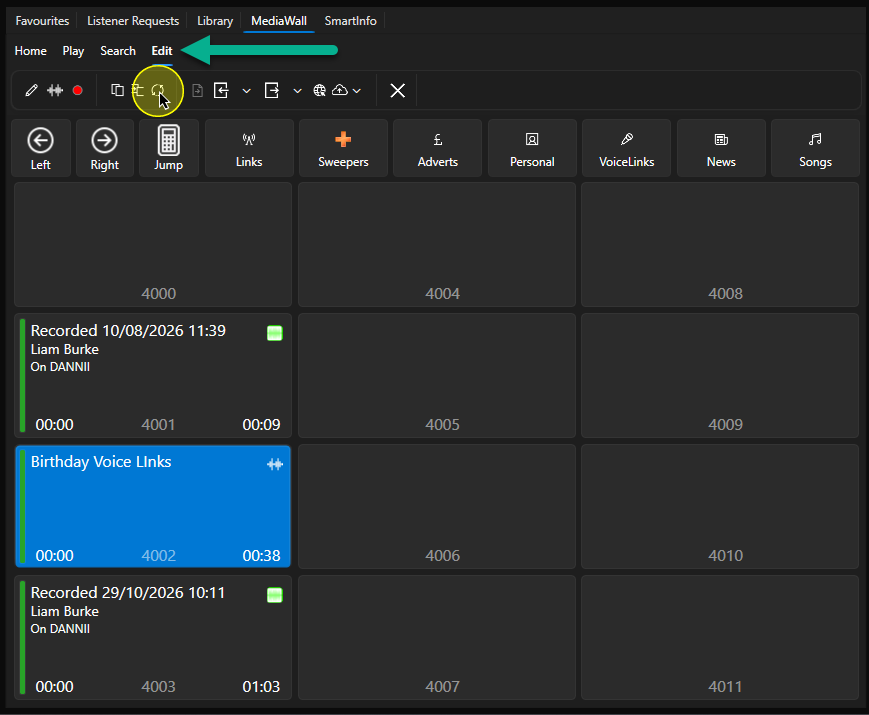
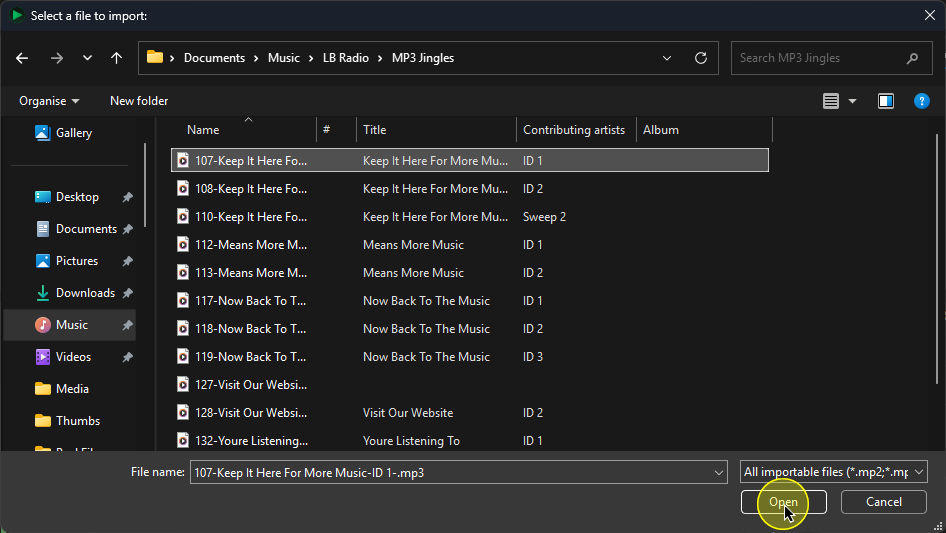
- Use the file browser to select the audio file you want to use to replace the audio and then click on Open.
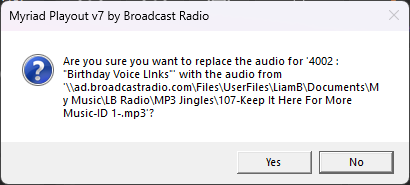
- You will be asked to confirm the action. Click Yes to proceed.
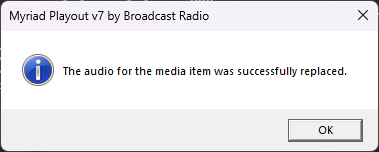
- Once the audio has been replaced, you will get a confirmation.
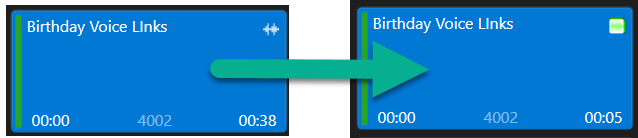
- The Title and all other details of the Media Item are retained but the audio is updated to the new audio file (note the duration has changed from 38 seconds to 5 seconds).
Was this article helpful?
That’s Great!
Thank you for your feedback
Sorry! We couldn't be helpful
Thank you for your feedback
Feedback sent
We appreciate your effort and will try to fix the article