You can import multiple audio files to the Media Wall using the Import Wizard. The Import Wizard also allows you to set extended criteria such as Media Item Type, Category and normalisation levels.
1. Right-click on any Media Item on the Media Wall.
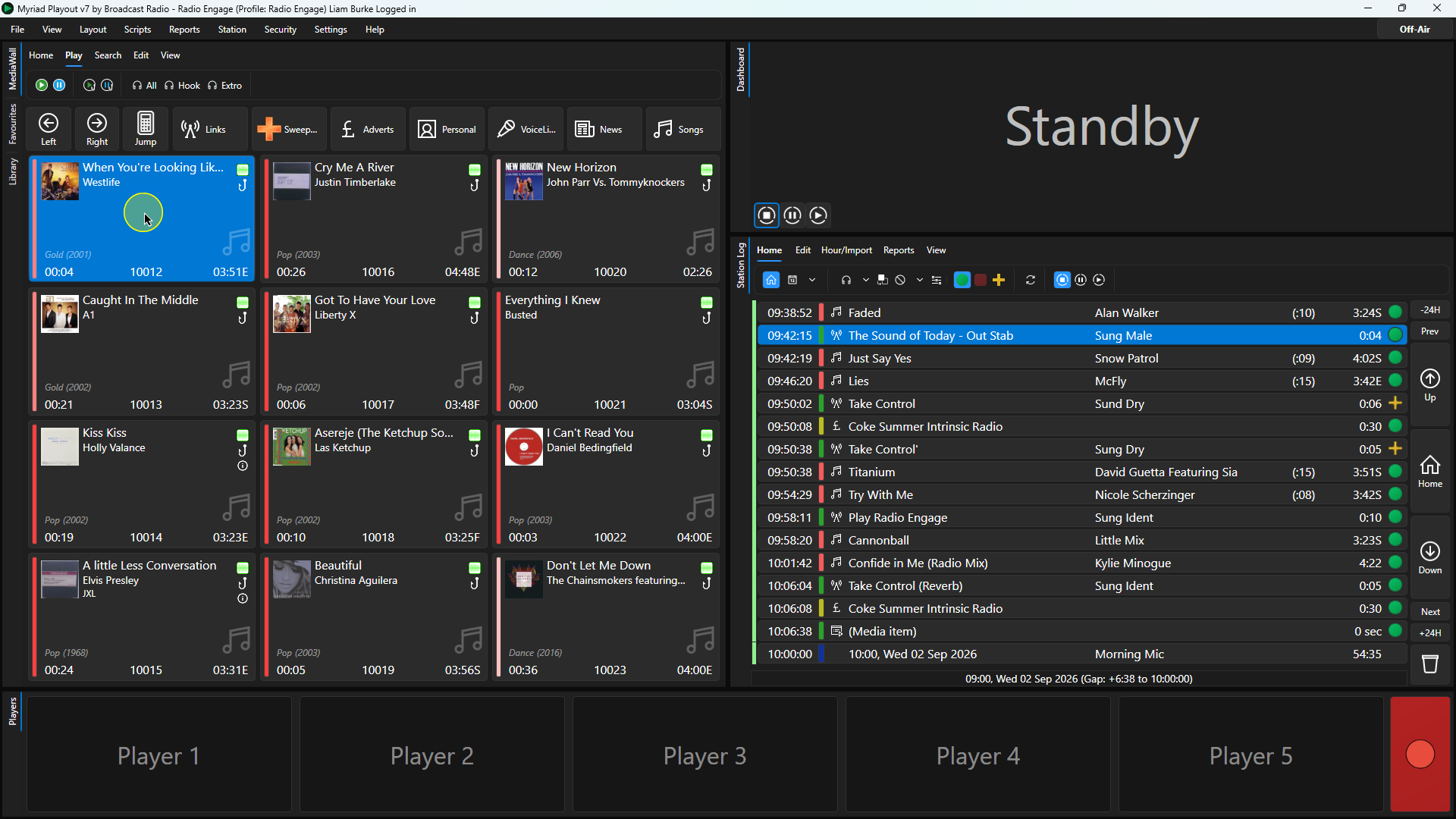
2. Select the Import Wizard option.
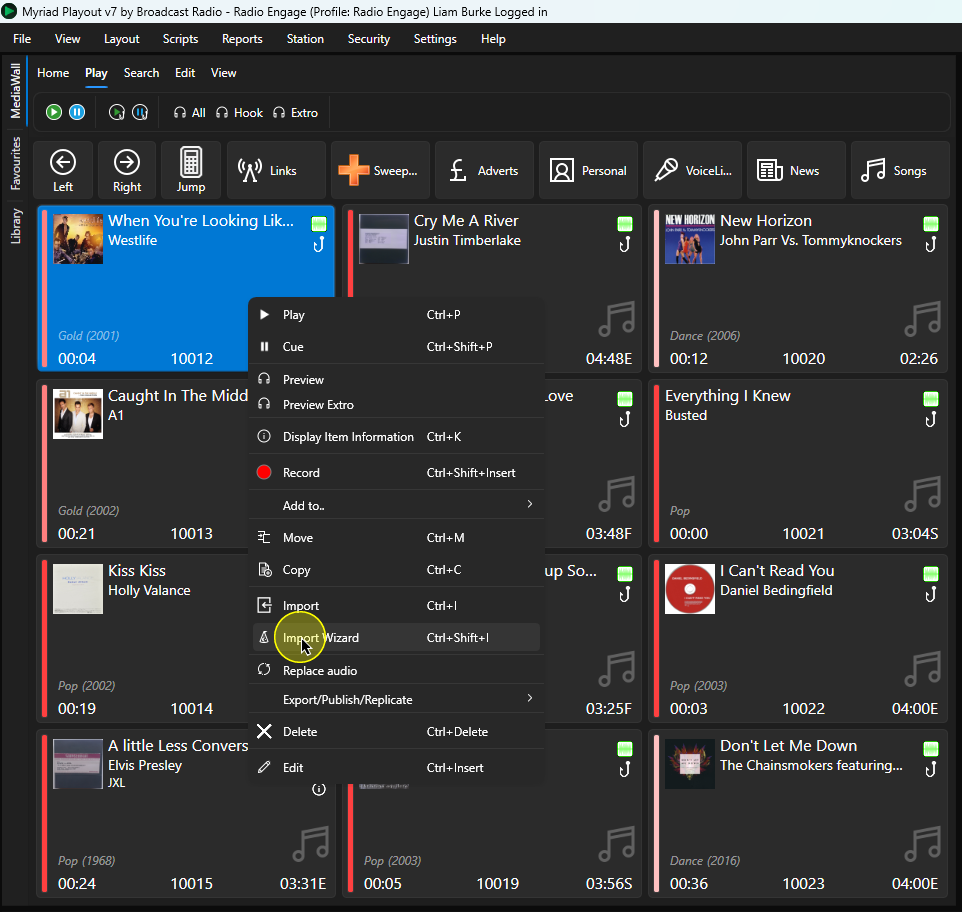
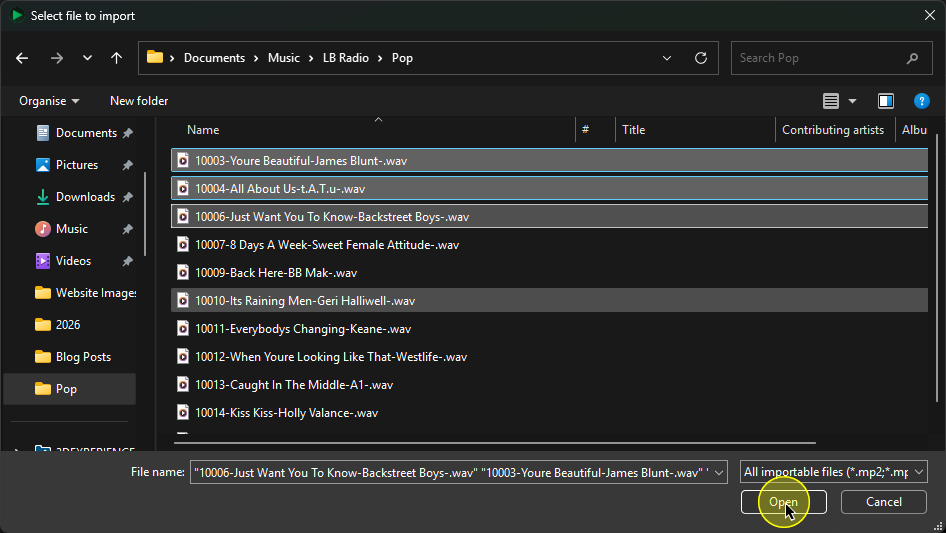
3. Click on Add Files to add a selection of audio files. You can also use the Add Folder button if you want to add everything in a single folder.
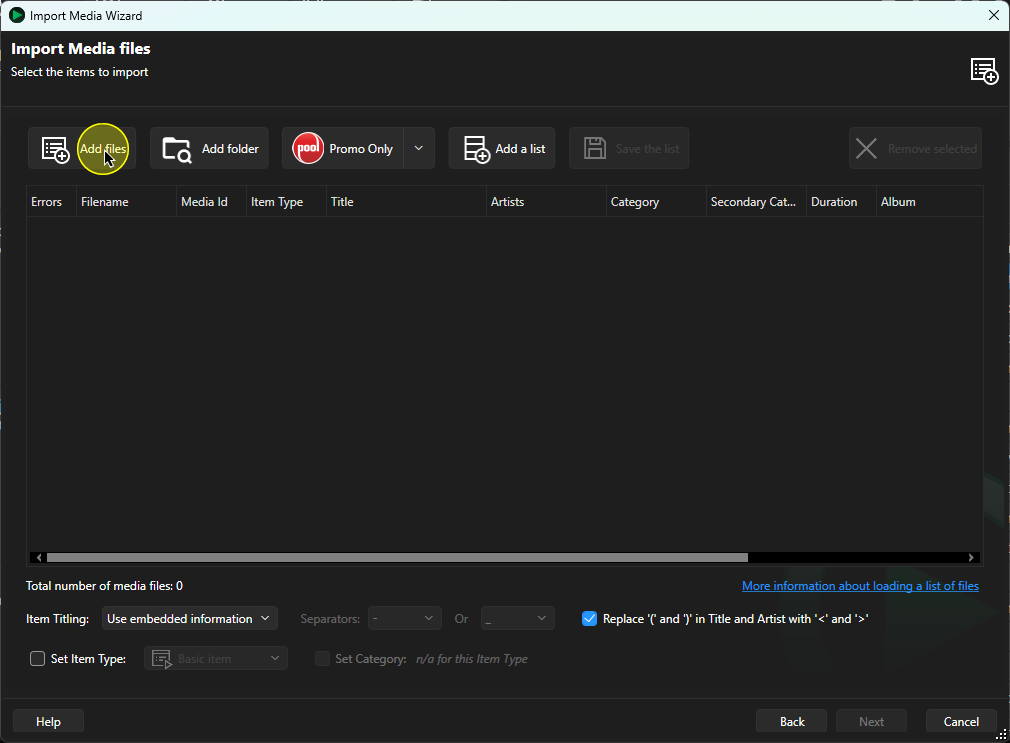
4. Select the audio files you want to import and click on the Open button.
5. Click "Open"
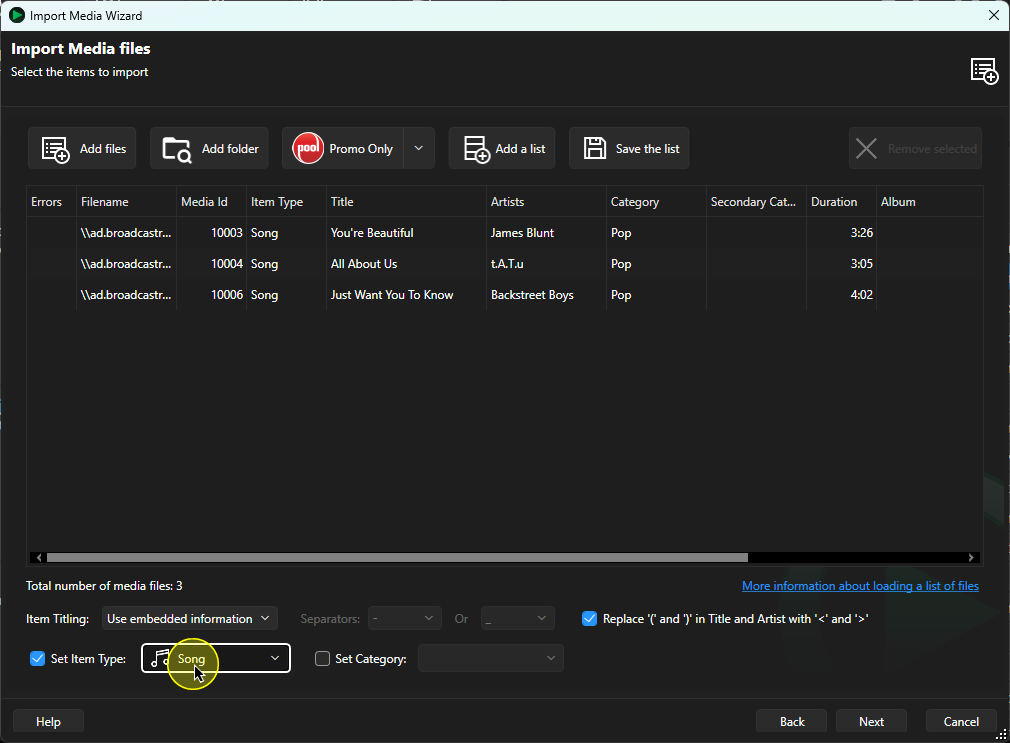
6. Set the correct Item Type. In this example we are importing some Songs, so set the Item Type as Song.
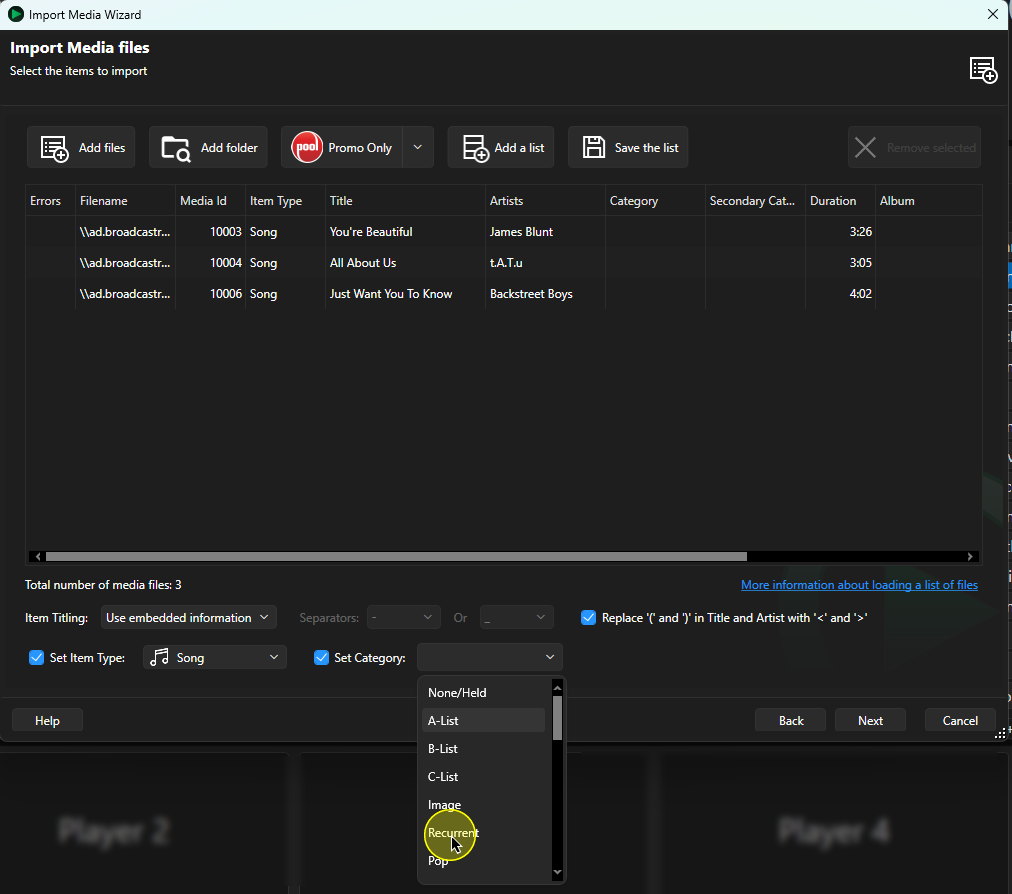
7. You can also optionally set the Category to import into. In this case they are older pop Songs so we will set the Category to Recurrent.
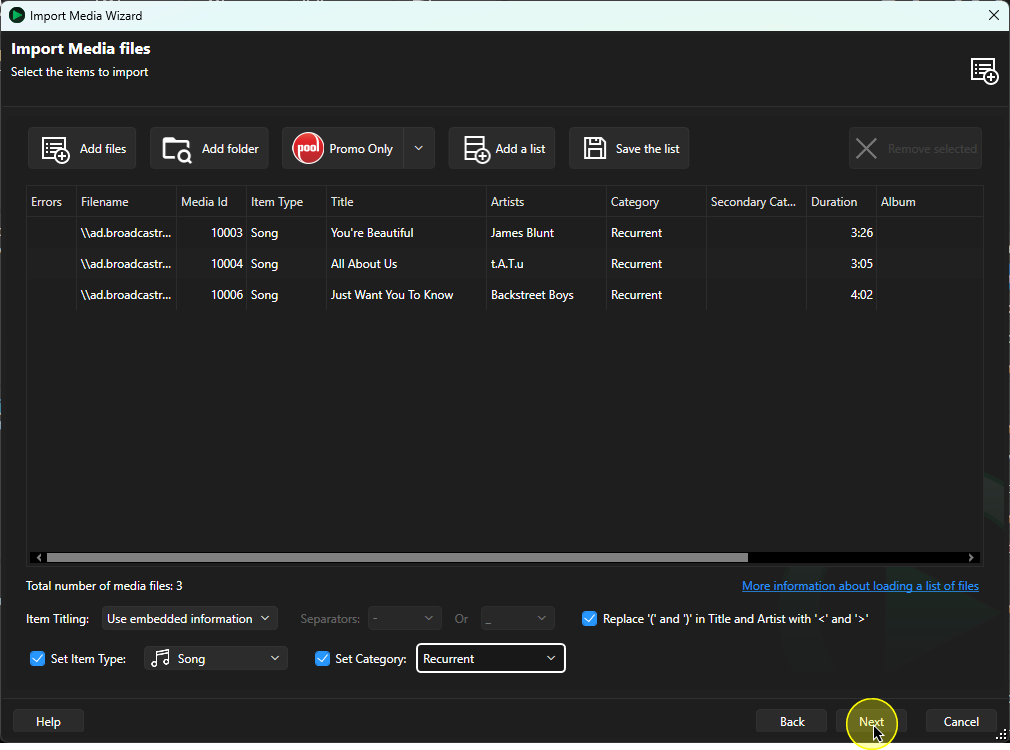
8. Click "Next"
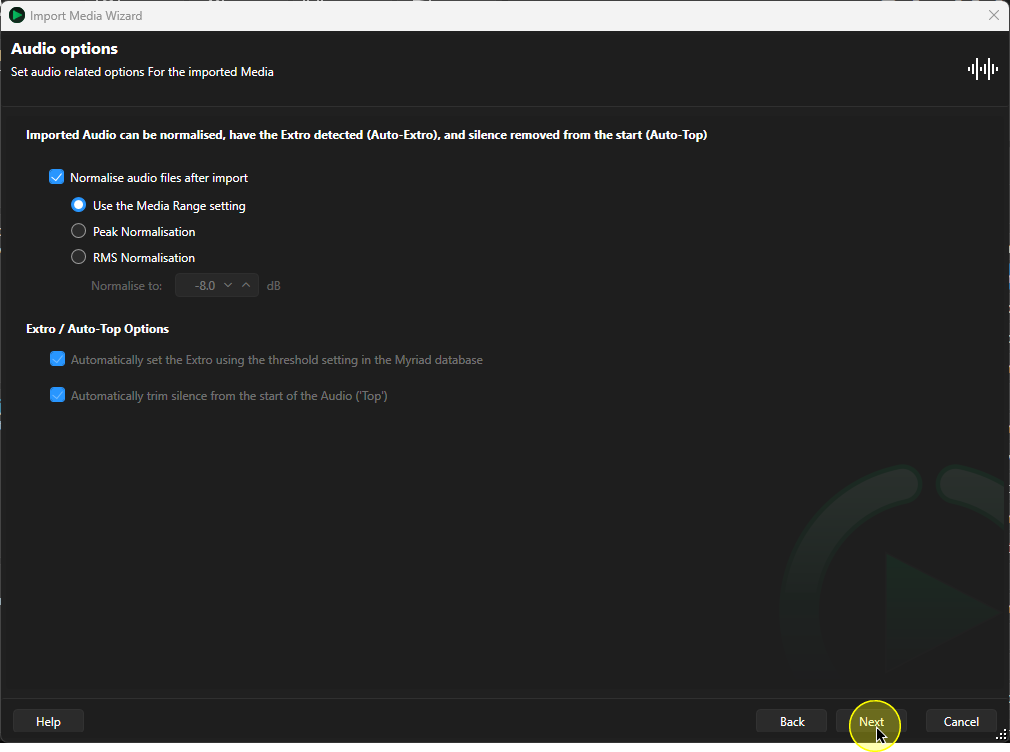
9. You can choose to use the default Normalisation settings for the selected Media Range (recommended) or override the settings. When you are happy, click Next.
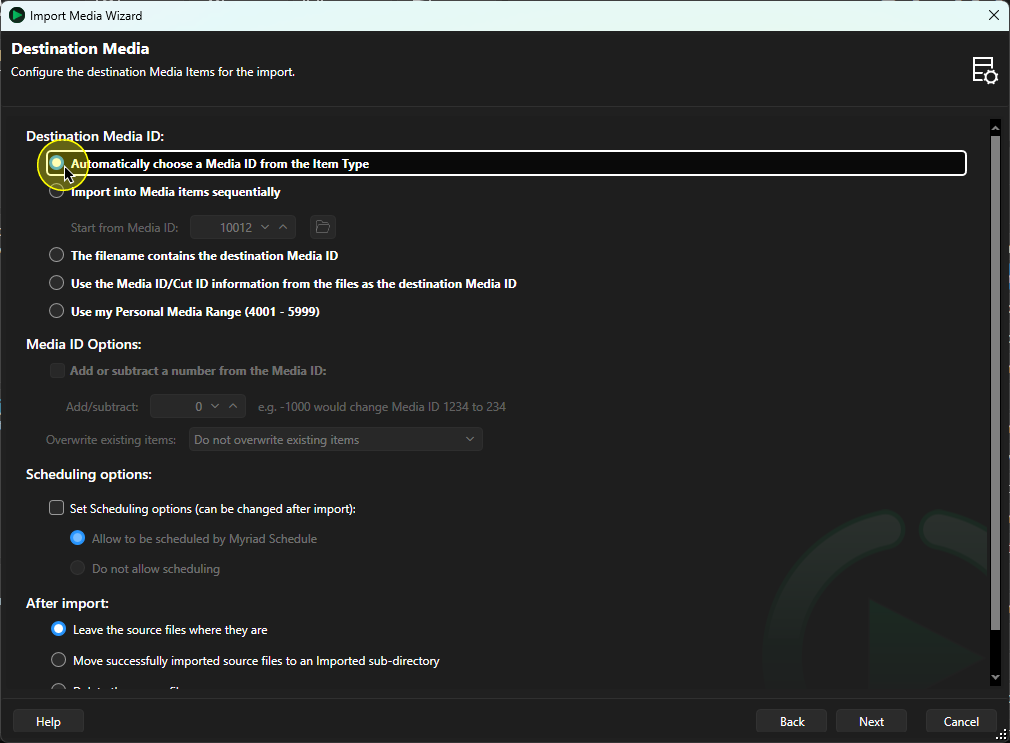
10. IMPORTANT - Set the Destination Media ID to "Automatically Choose A Media ID from the Item Type". This will automatically assign empty Media ID's within the range for the Media Type selected earlier (Songs in this case).
You can also choose to import sequentially starting a fixed ID, import using Media ID number in the file name (ie 10500 Song.wav) or using Media ID/Cut from embedded metadata.
Click Next to move on to the next step.
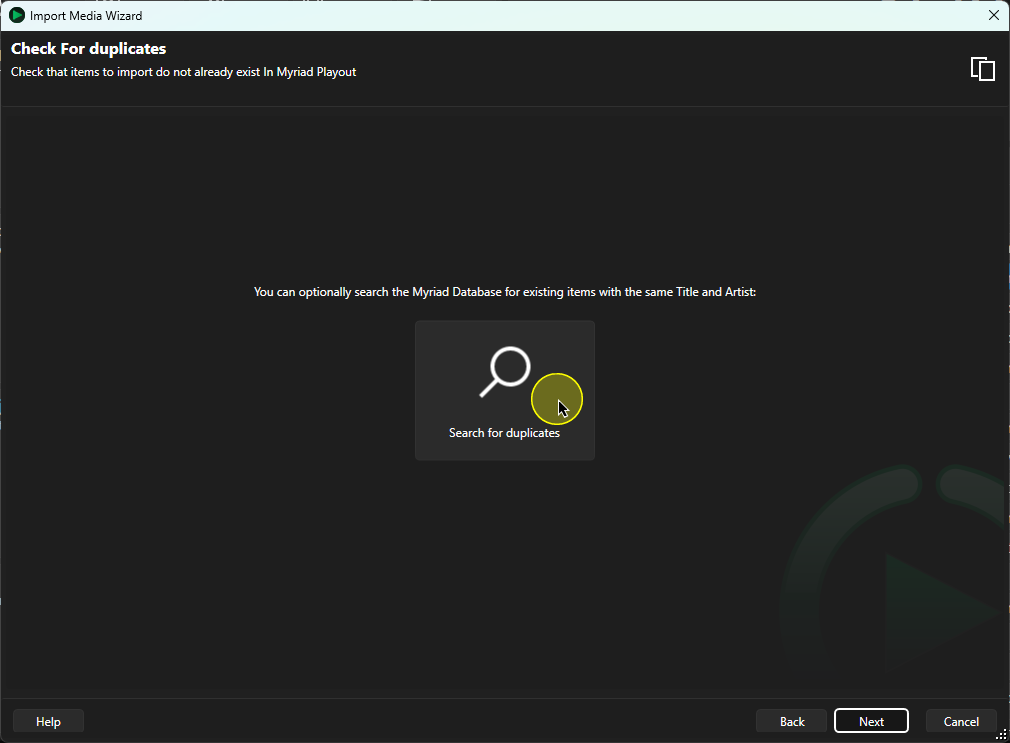
11. You have the option to Search for Duplicates. If Duplicates are located, you can exclude them from the import process.
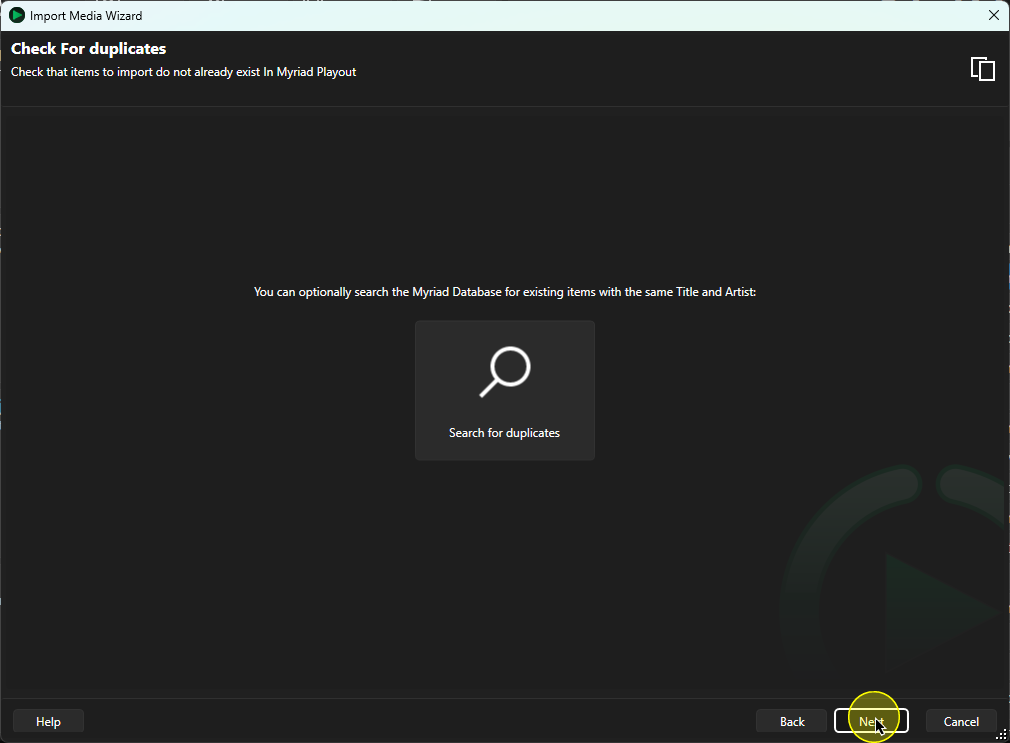
12. Click "Next" to move on to the next page.
13. Here you can see that the audio files have been assigned to empty Media ID's within the Songs Range on the Media Wall.
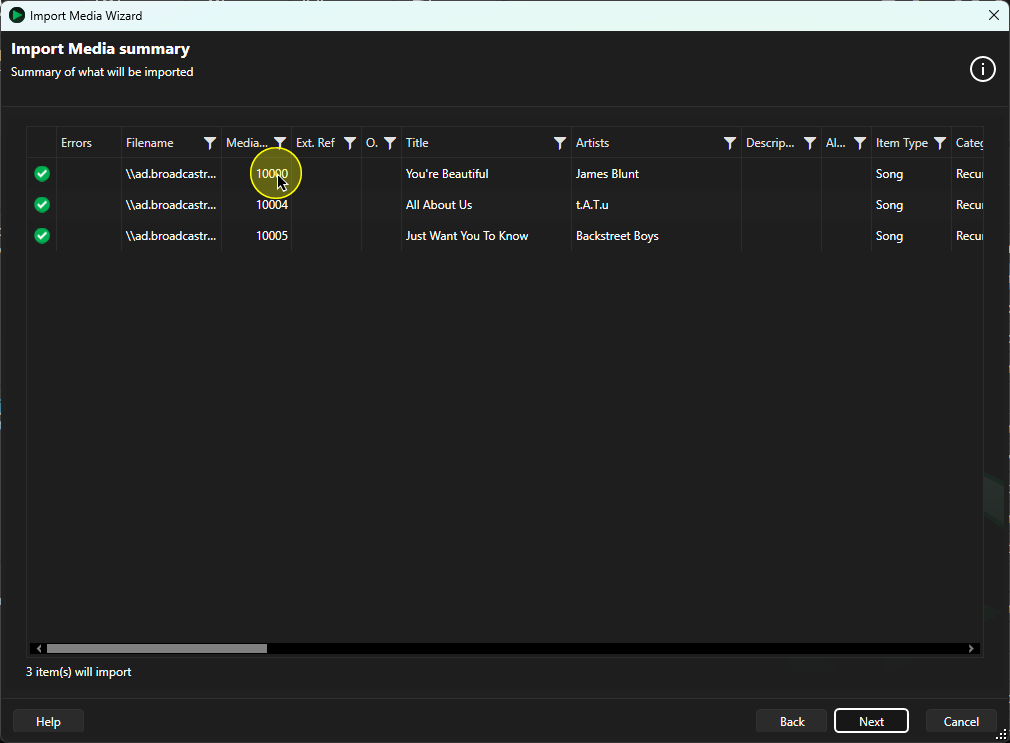
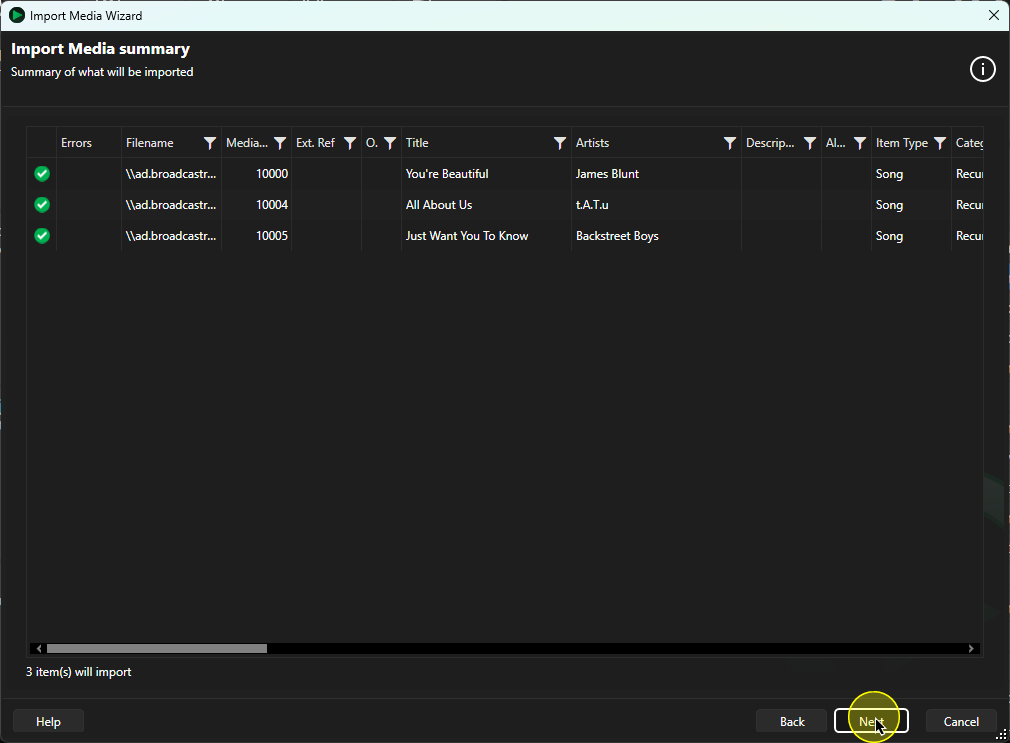
14. Click "Next" to continue.
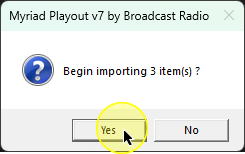
15. You will be asked to confirm the import action. Click Yes to proceed.
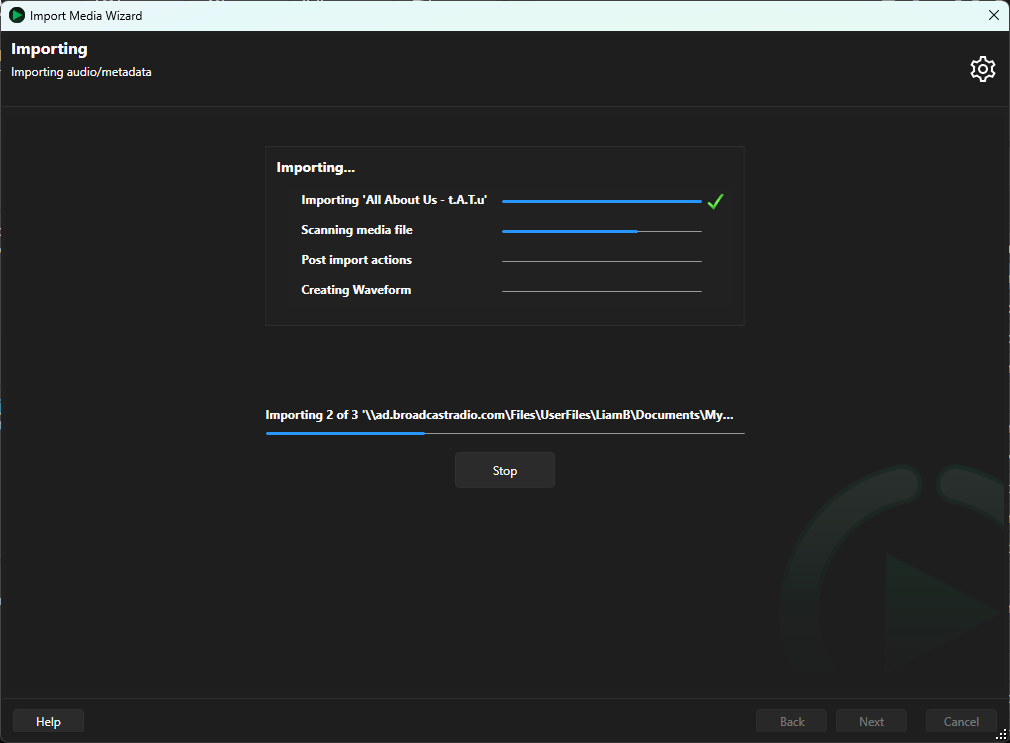
16. The audio files will now be imported to the Media Wall using your selected options.
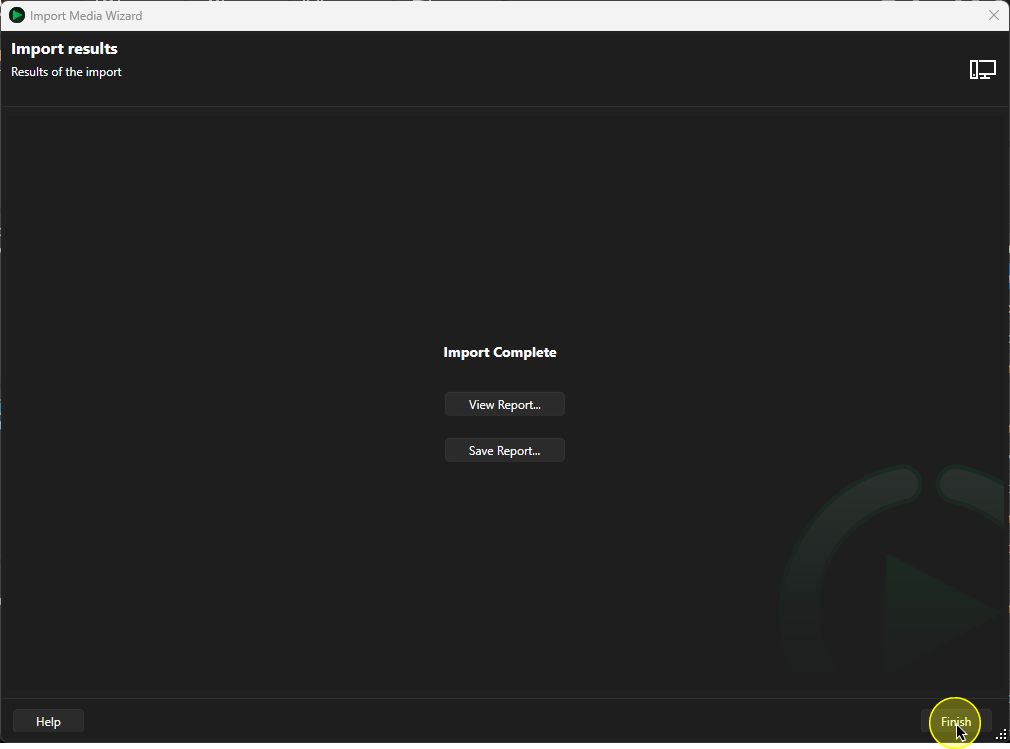
17. Once the process is complete, you can click on View Report to see a summary of the import process. You can also Save the Report if you wish.
Click Finish to close the Import Wizard.
Was this article helpful?
That’s Great!
Thank you for your feedback
Sorry! We couldn't be helpful
Thank you for your feedback
Feedback sent
We appreciate your effort and will try to fix the article