You can record real-time audio into Myriad in a number of different ways.
TABLE OF CONTENTS
- Using The Recorder
- Using The Quick Record Button On Empty Media Items On The Media Wall
- Record Using The Ribbon or Right Click Menu
Using The Recorder
Most inbuilt layouts in Myriad include the Recorder in alongside the Media Players.
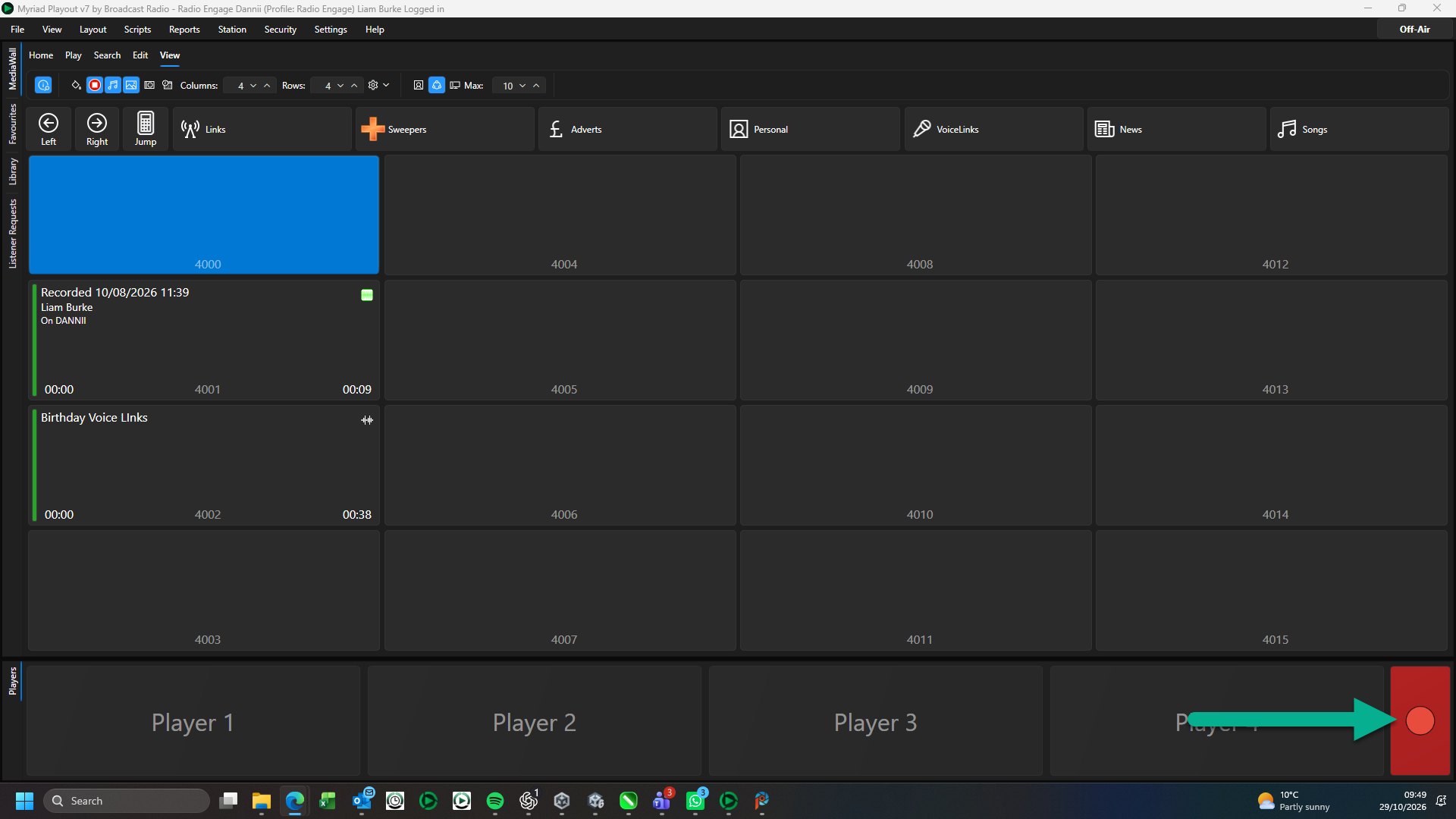
This provides a quick and simple way to record into the next available (empty) Media ID in your personal range.
- Simply click on the Record button to start the record process.
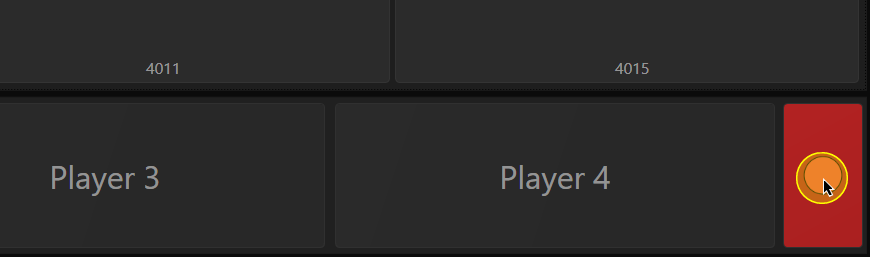
- The Record will initially switch to a yellow 'waiting' state. You can see that the next empty Media ID in the Users personal range has been assigned.
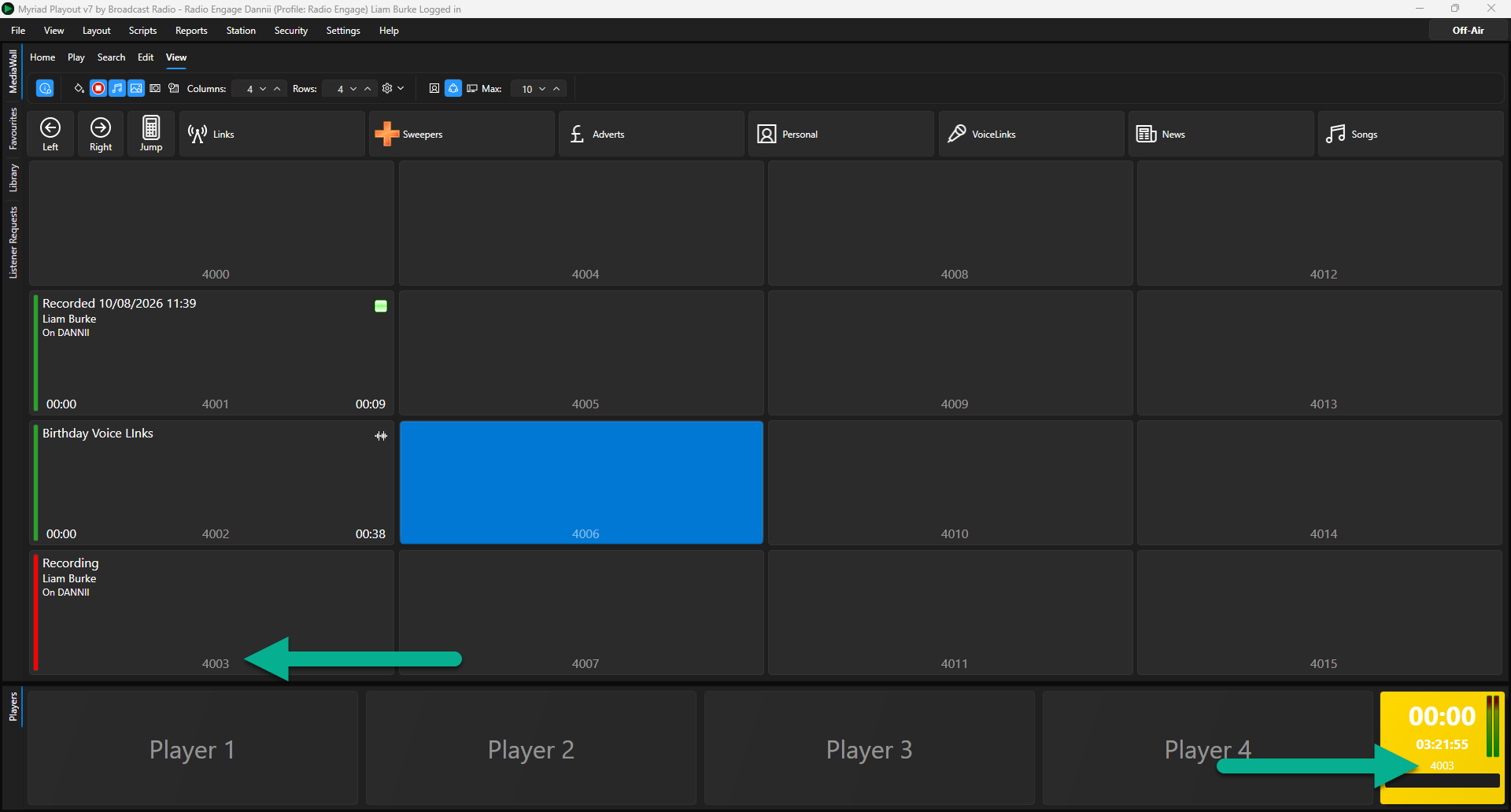
In this state, the Recorder is monitoring the incoming audio level on the selected audio input device (see Settings Menu > Media Engine Settings > Media Players tab > Record Audio Device to assign audio recording input device). When the audio input level rises about a pre-set threshold (see View Menu > Customise > Playback/Record tab > Level Trigger Record Threshold).
The the input audio volume level exceed the thresshold, the Record will automatically start recording.
You can also click on the recorder to manually start recording.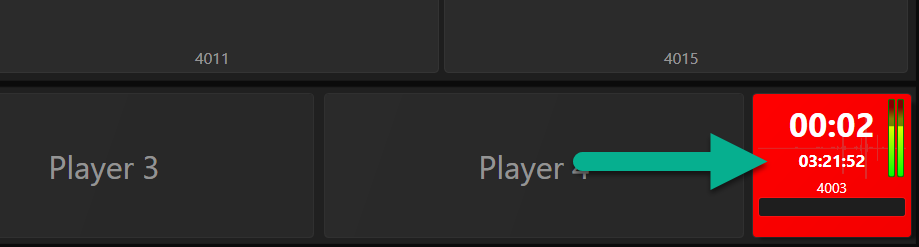
- To stop recording, click on the Recorder.
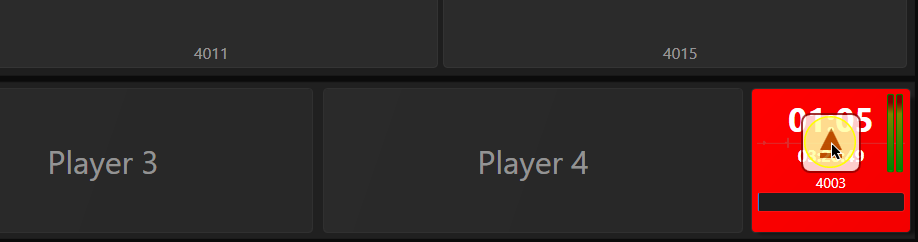
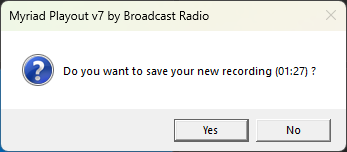
- You will be asked to confirm saving your recording. Click Yes to save the recording or No to discard the recording (caution - this will permanently delete the recording).
- You can now play your recording using a Media Player or edit using the Edit Window.
Using The Quick Record Button On Empty Media Items On The Media Wall
Myriad 7 introduced quick access buttons on empty Media ID's to allow you to quickly import or record content into the Media ID.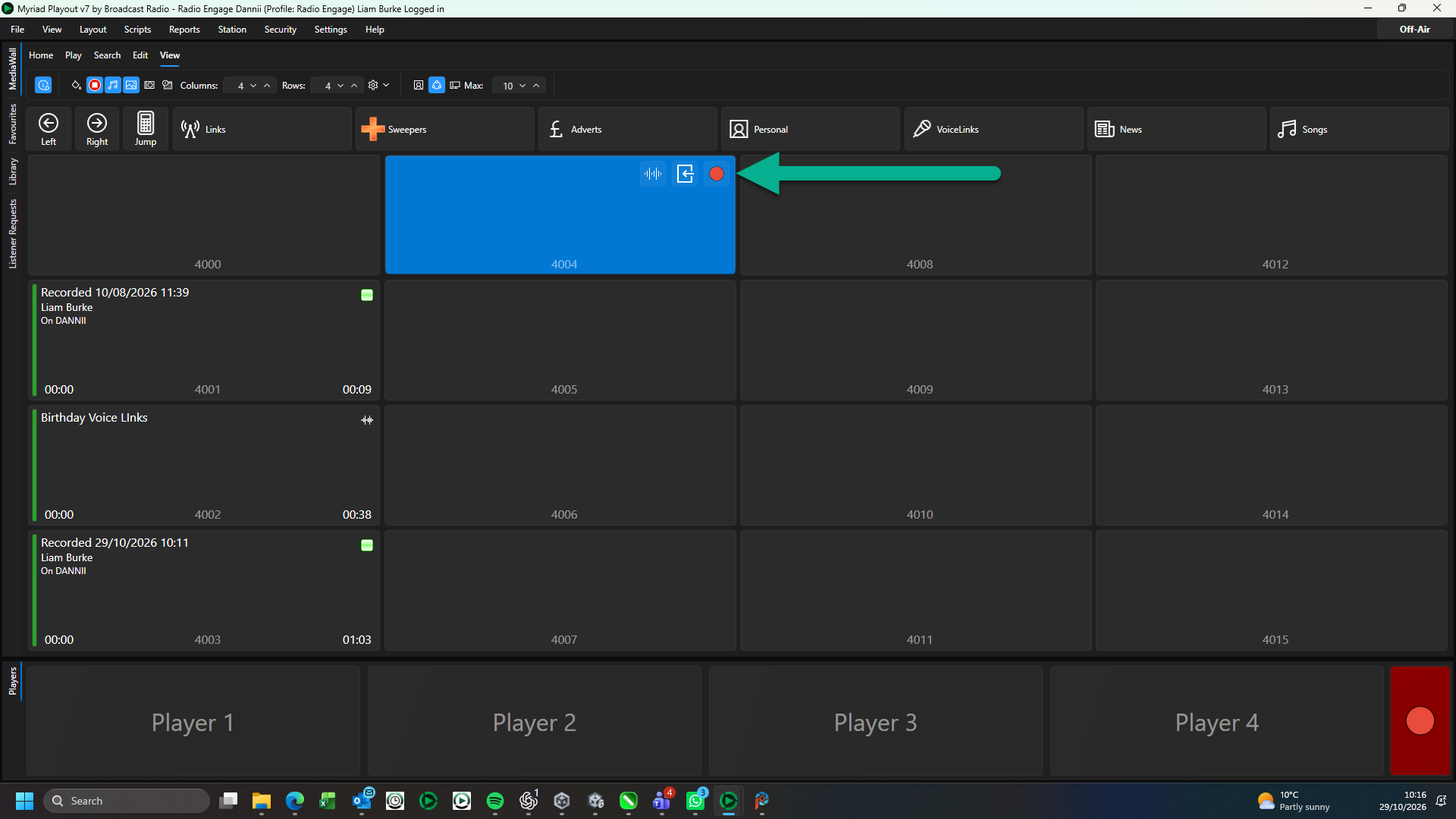
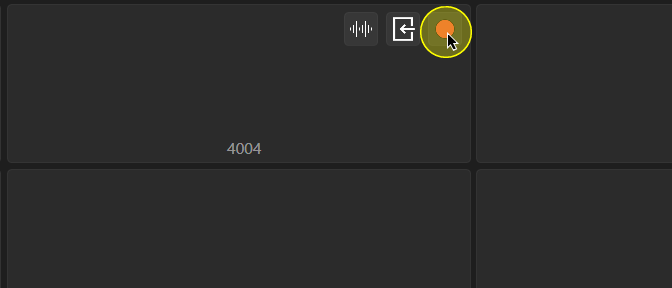
- Hover the mouse over an empty Media ID on the Media Wall.
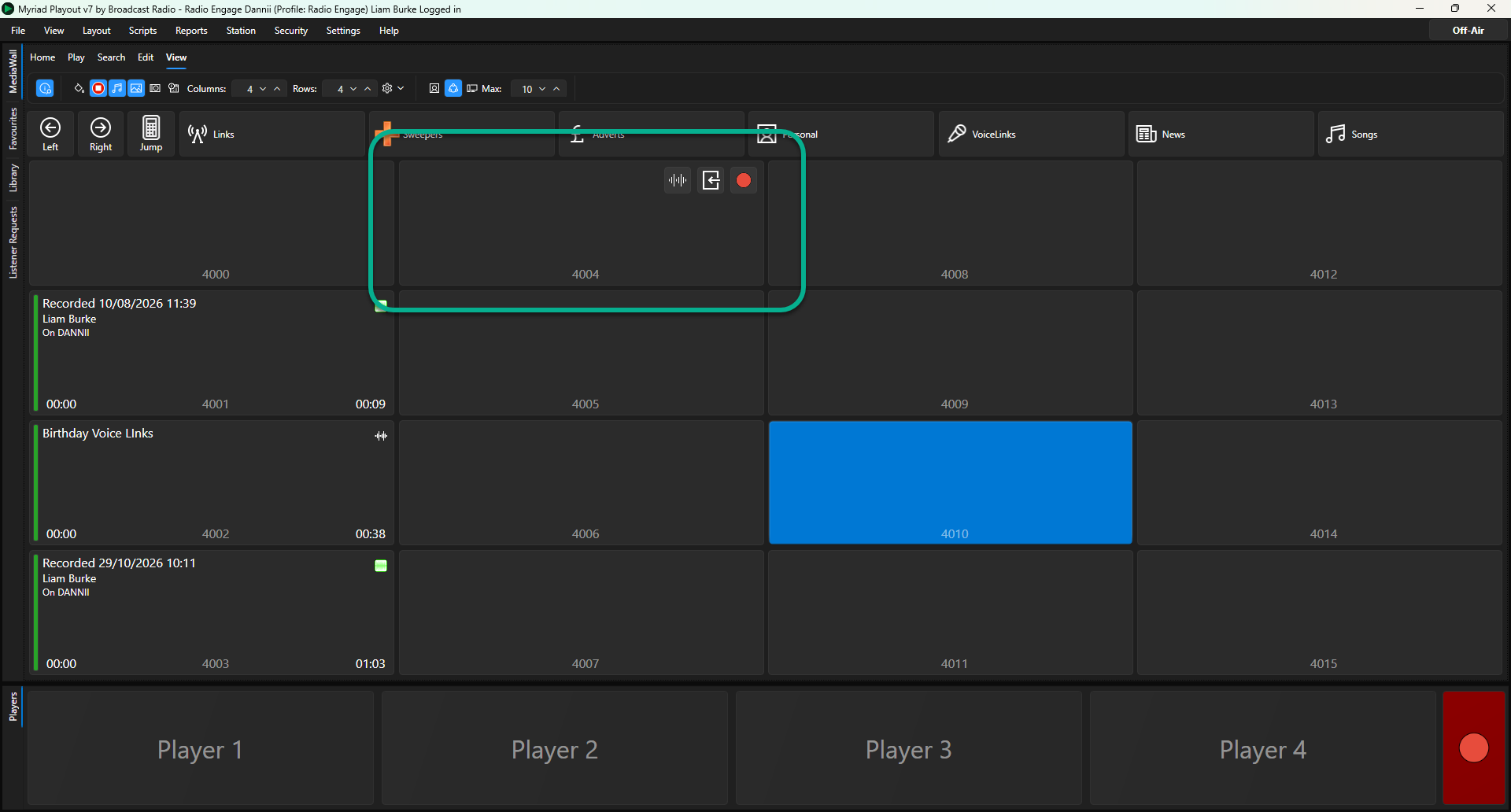
- Click on the Record button.
- The Record will initially switch to a yellow 'waiting' state. You can see that the next empty Media ID in the Users personal range has been assigned.
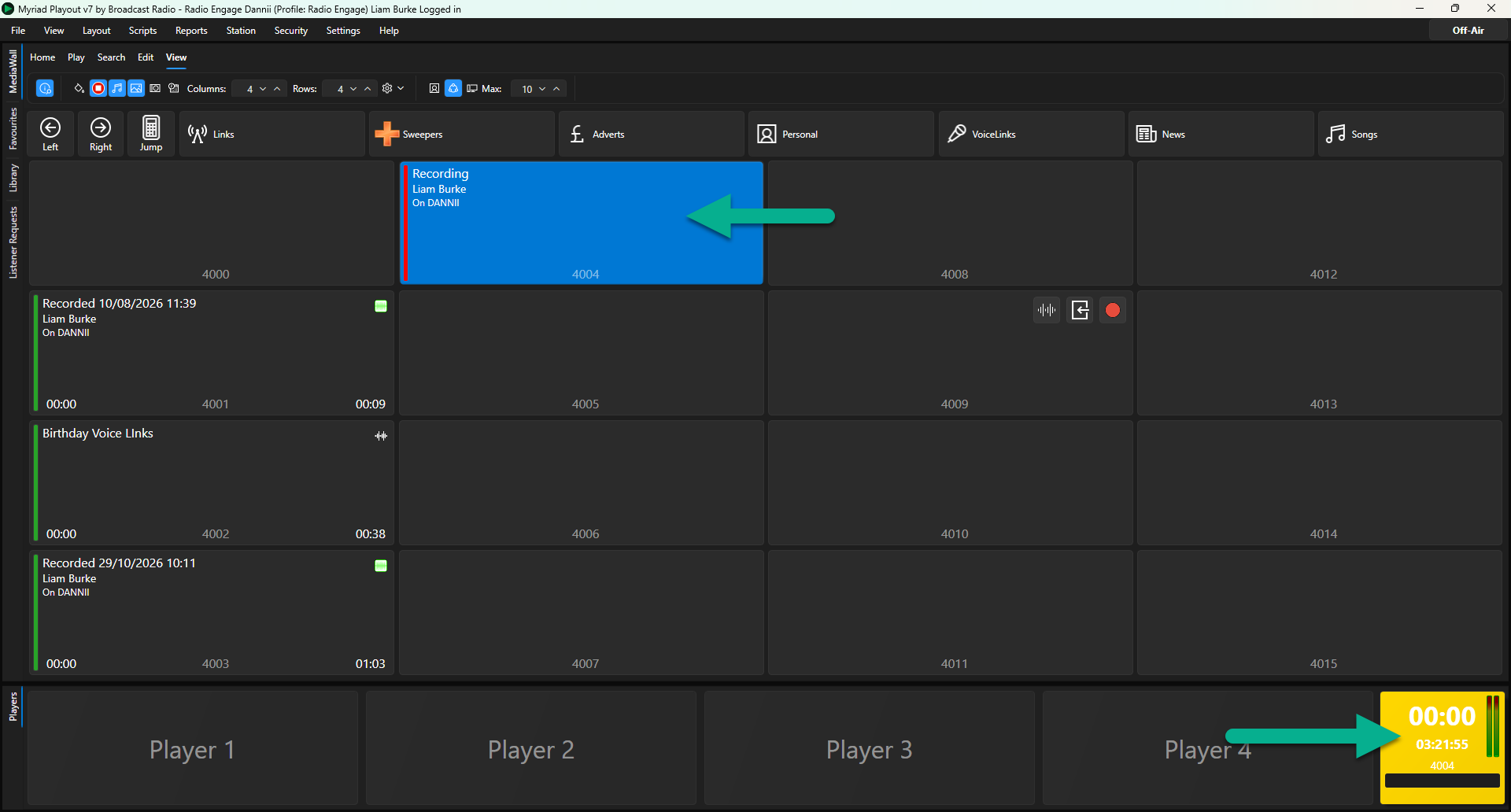
In this state, the Recorder is monitoring the incoming audio level on the selected audio input device (see Settings Menu > Media Engine Settings > Media Players tab > Record Audio Device to assign audio recording input device). When the audio input level rises about a pre-set threshold (see View Menu > Customise > Playback/Record tab > Level Trigger Record Threshold).
The the input audio volume level exceed the thresshold, the Record will automatically start recording.
You can also click on the recorder to manually start recording. - Once the input audio level has exceeded the trigger threshold, the Record will automatically start recording.
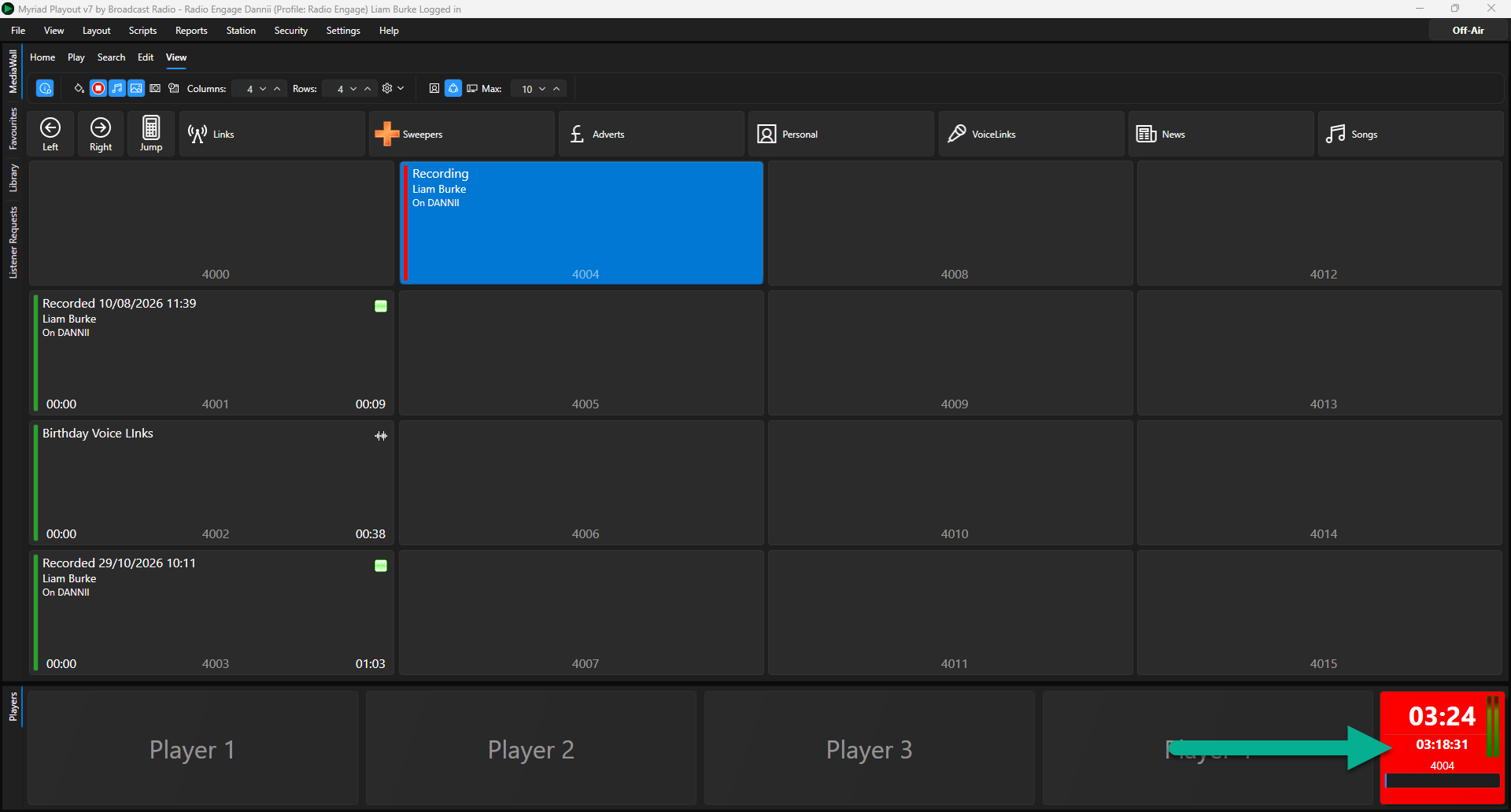
- To stop recording, click on the Recorder.
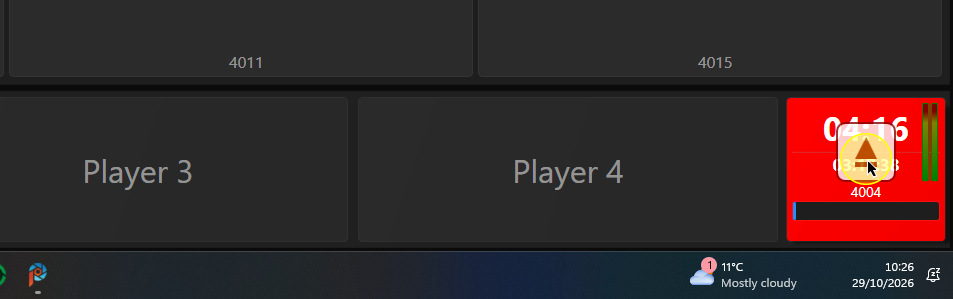
- You will be asked to confirm saving your recording. Click Yes to save the recording or No to discard the recording (caution - this will permanently delete the recording).
- You can now play your recording using a Media Player or edit using the Edit Window.
Record Using The Ribbon or Right Click Menu
You can also initiate the recording process using either the Record button on the Edit tab or the Record option on the right click menu.
To use the Record button on the ribbon:
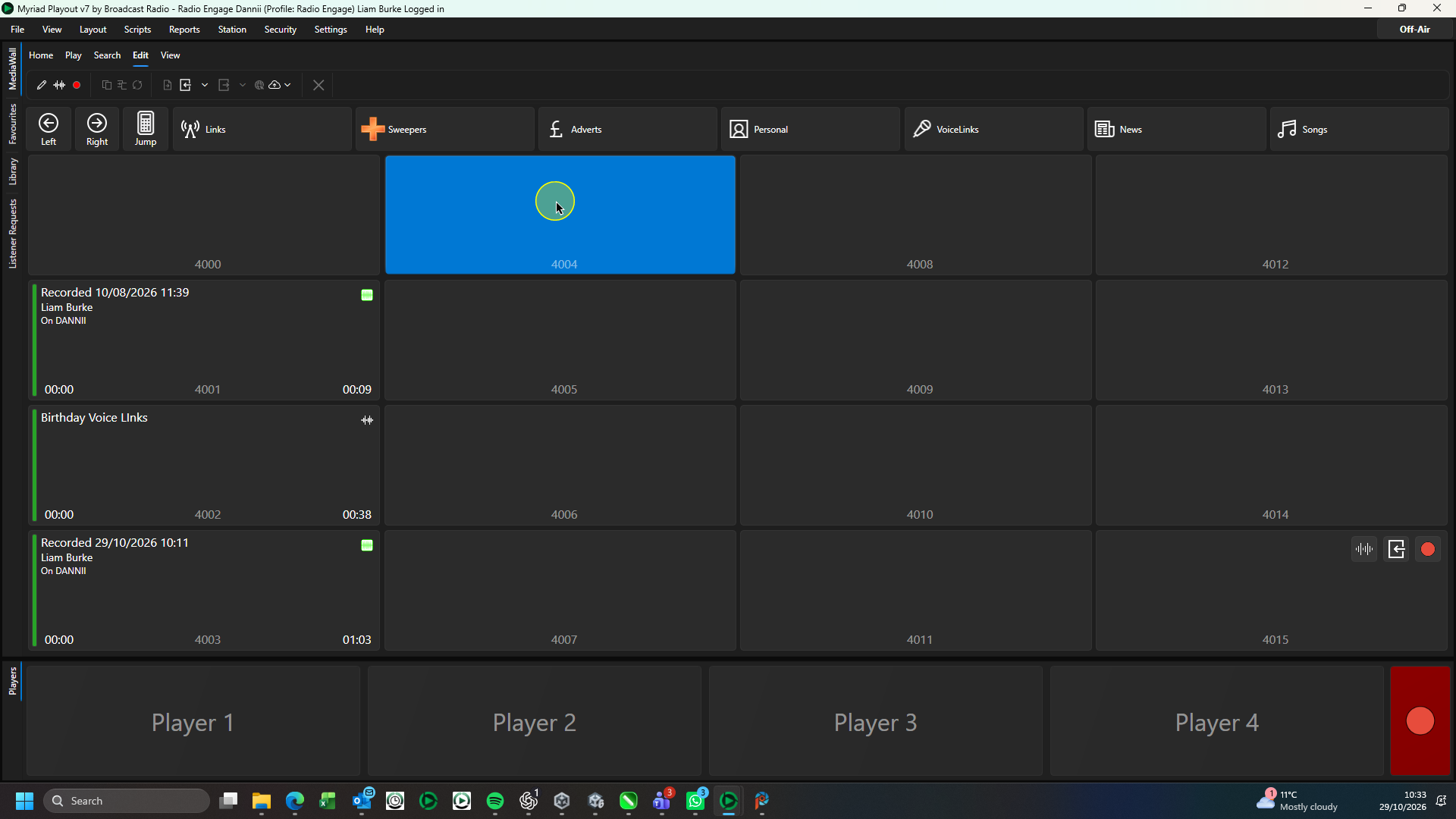
- Select an empty Media ID on the Media Wall.
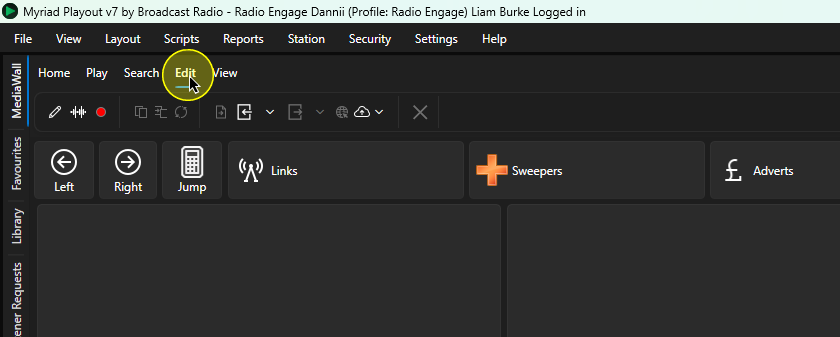
- Switch to the Edit tab.
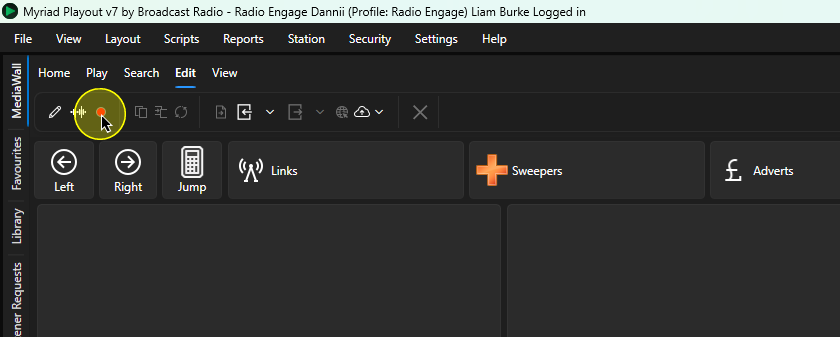
- Click on the Record button.
- The Record will initially switch to a yellow 'waiting' state. You can see that the next empty Media ID in the Users personal range has been assigned.
In this state, the Recorder is monitoring the incoming audio level on the selected audio input device (see Settings Menu > Media Engine Settings > Media Players tab > Record Audio Device to assign audio recording input device). When the audio input level rises about a pre-set threshold (see View Menu > Customise > Playback/Record tab > Level Trigger Record Threshold).
The the input audio volume level exceed the thresshold, the Record will automatically start recording.
You can also click on the recorder to manually start recording. - Once the input audio level has exceeded the trigger threshold, the Record will automatically start recording.
- To stop recording, click on the Recorder.
- You will be asked to confirm saving your recording. Click Yes to save the recording or No to discard the recording (caution - this will permanently delete the recording).
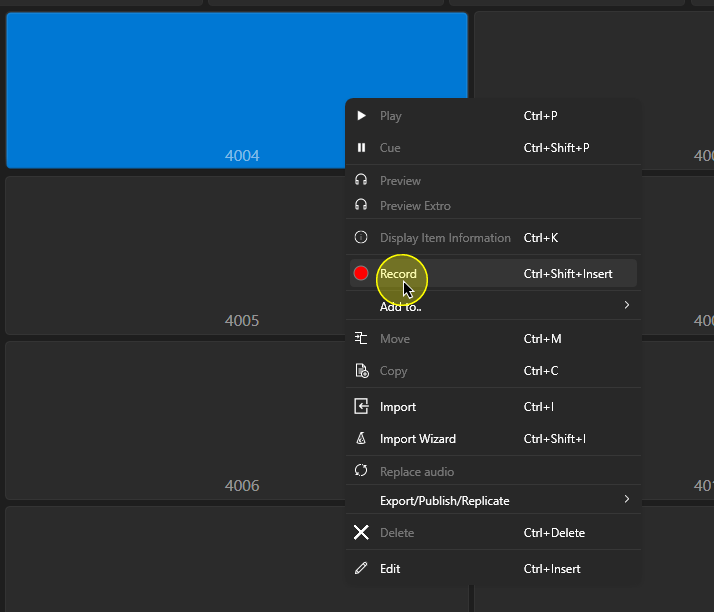
You can also use the right click menu to trigger the same process.
- Select the Media Wall.
- Right click on an empty Media ID.
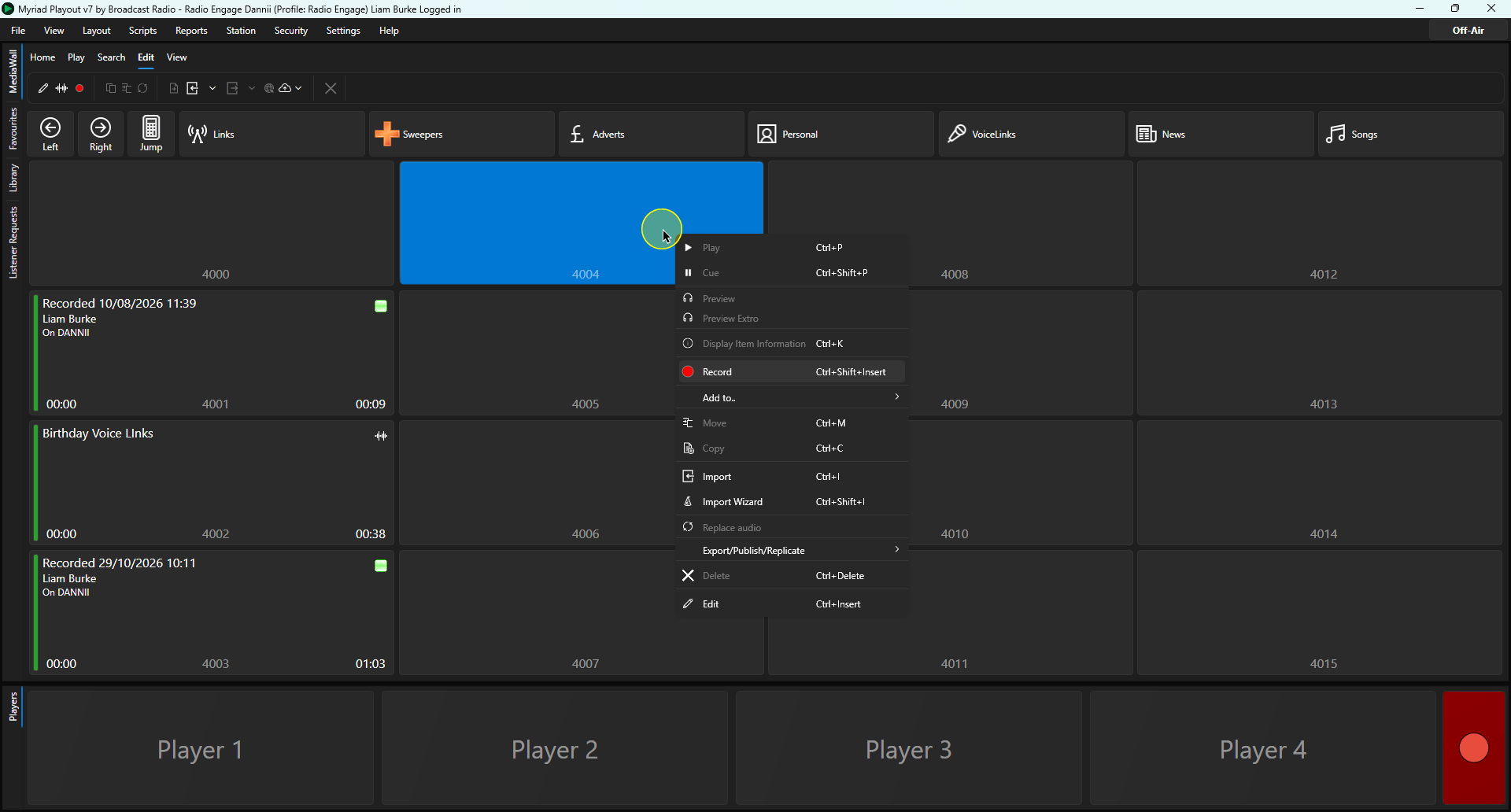
- Click on the Record button or press <CTRL+SHIFT+INSERT>.
- The Record will initially switch to a yellow 'waiting' state. You can see that the next empty Media ID in the Users personal range has been assigned.
In this state, the Recorder is monitoring the incoming audio level on the selected audio input device (see Settings Menu > Media Engine Settings > Media Players tab > Record Audio Device to assign audio recording input device). When the audio input level rises about a pre-set threshold (see View Menu > Customise > Playback/Record tab > Level Trigger Record Threshold).
The the input audio volume level exceed the thresshold, the Record will automatically start recording.
You can also click on the recorder to manually start recording. - Once the input audio level has exceeded the trigger threshold, the Record will automatically start recording.
- To stop recording, click on the Recorder.
- You will be asked to confirm saving your recording. Click Yes to save the recording or No to discard the recording (caution - this will permanently delete the recording).
Was this article helpful?
That’s Great!
Thank you for your feedback
Sorry! We couldn't be helpful
Thank you for your feedback
Feedback sent
We appreciate your effort and will try to fix the article