There are two main options for importing a single audio file onto the Media Wall. In this example we will walk through both options for importing a new Song into the Songs range on the Media Wall.
Option 1 (Drag and drop)
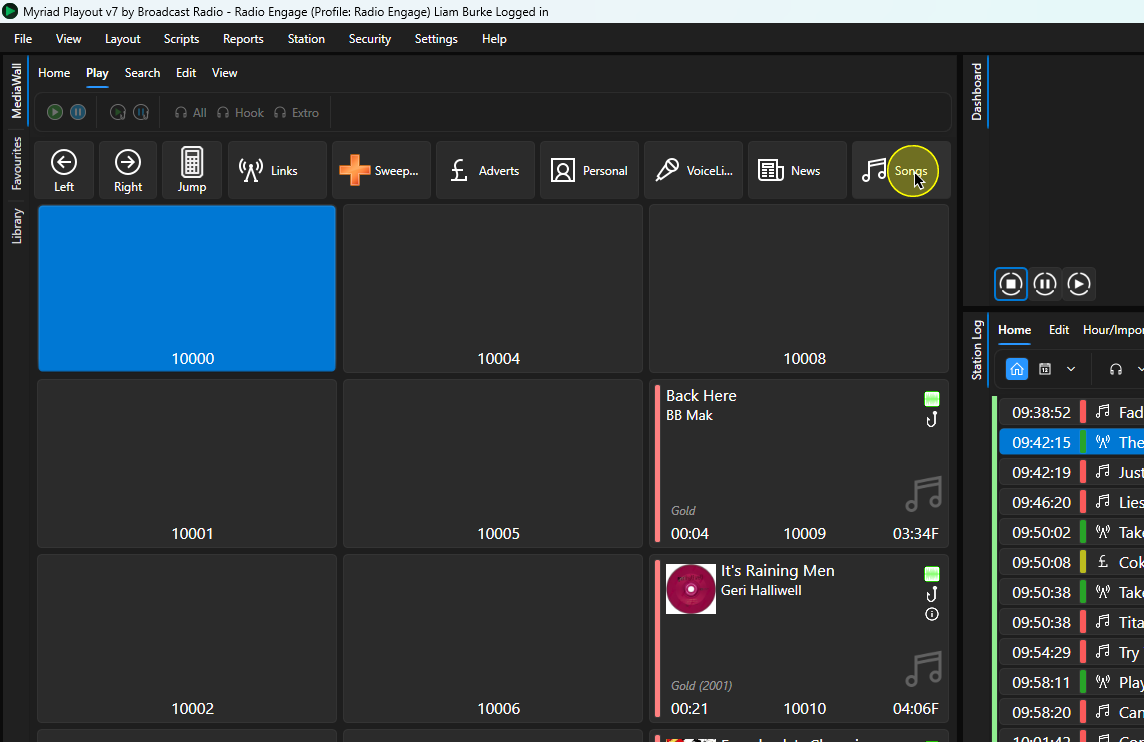
- Start by jumping to the range on the Media Wall where your Songs are stored. By default this is Media ID 10,000 upwards and can be accessed by the Songs Navigation button.
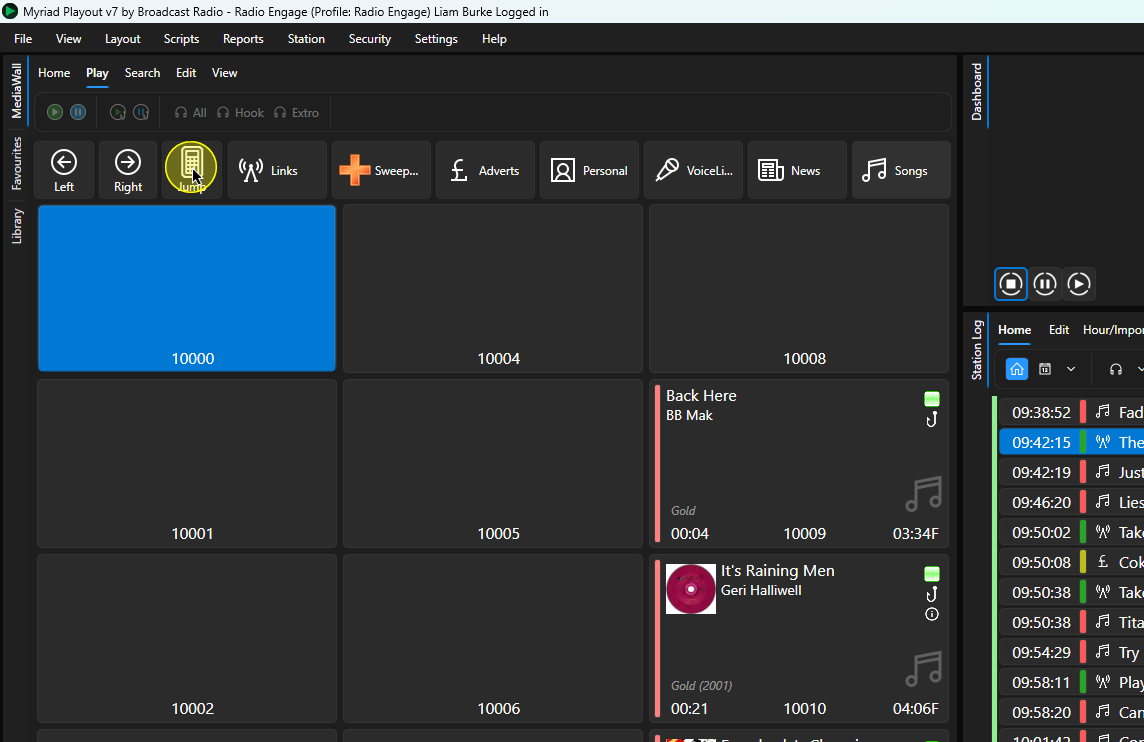
- To find the next empty Media ID in the range, click on the Jump button.
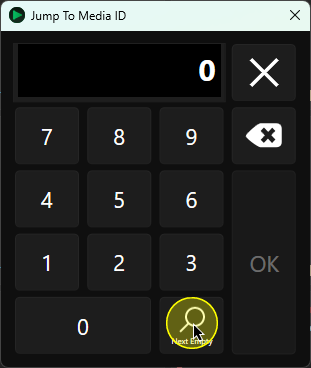
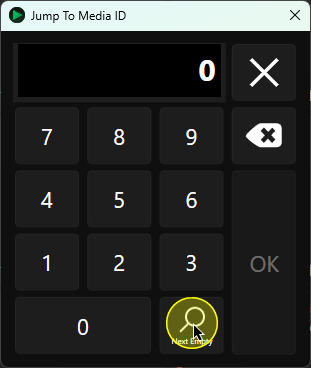
- On the Jump To Media window, click on the Next Empty button.
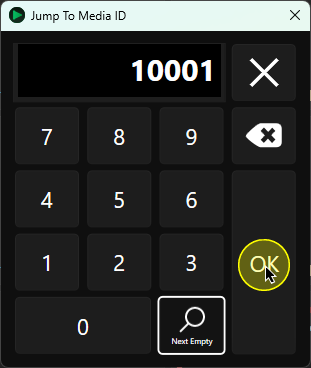
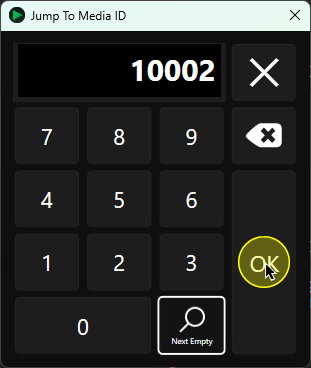
- This will locate the next empty Media ID in the Songs range. Click on the OK button to jump to that Media ID on the Media Wall.
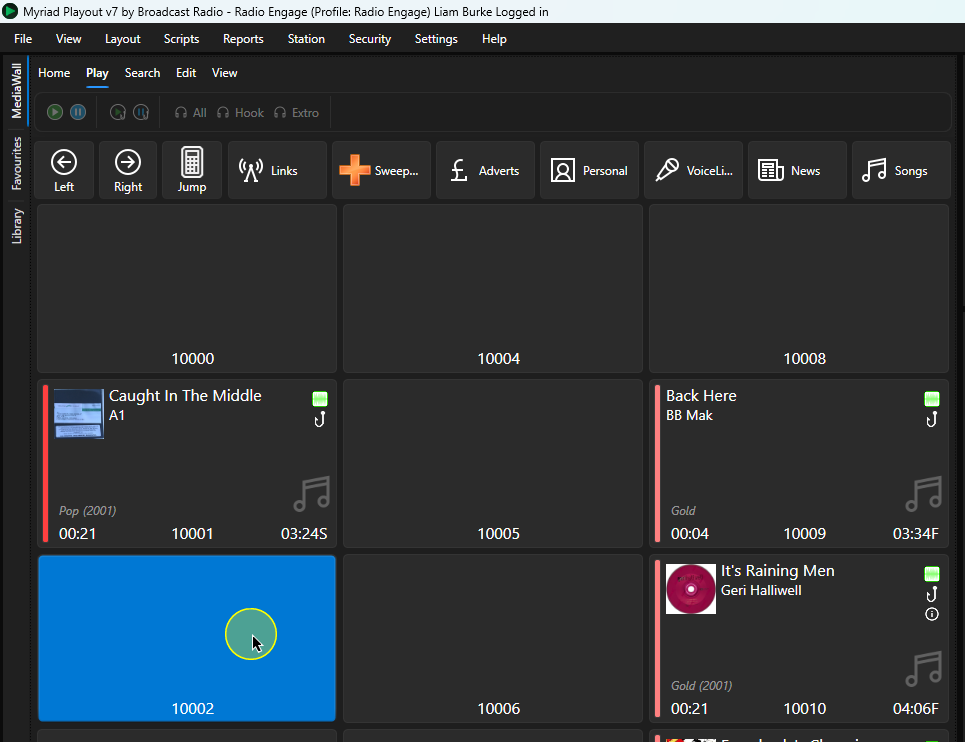
- Here you can see the empty Media ID.
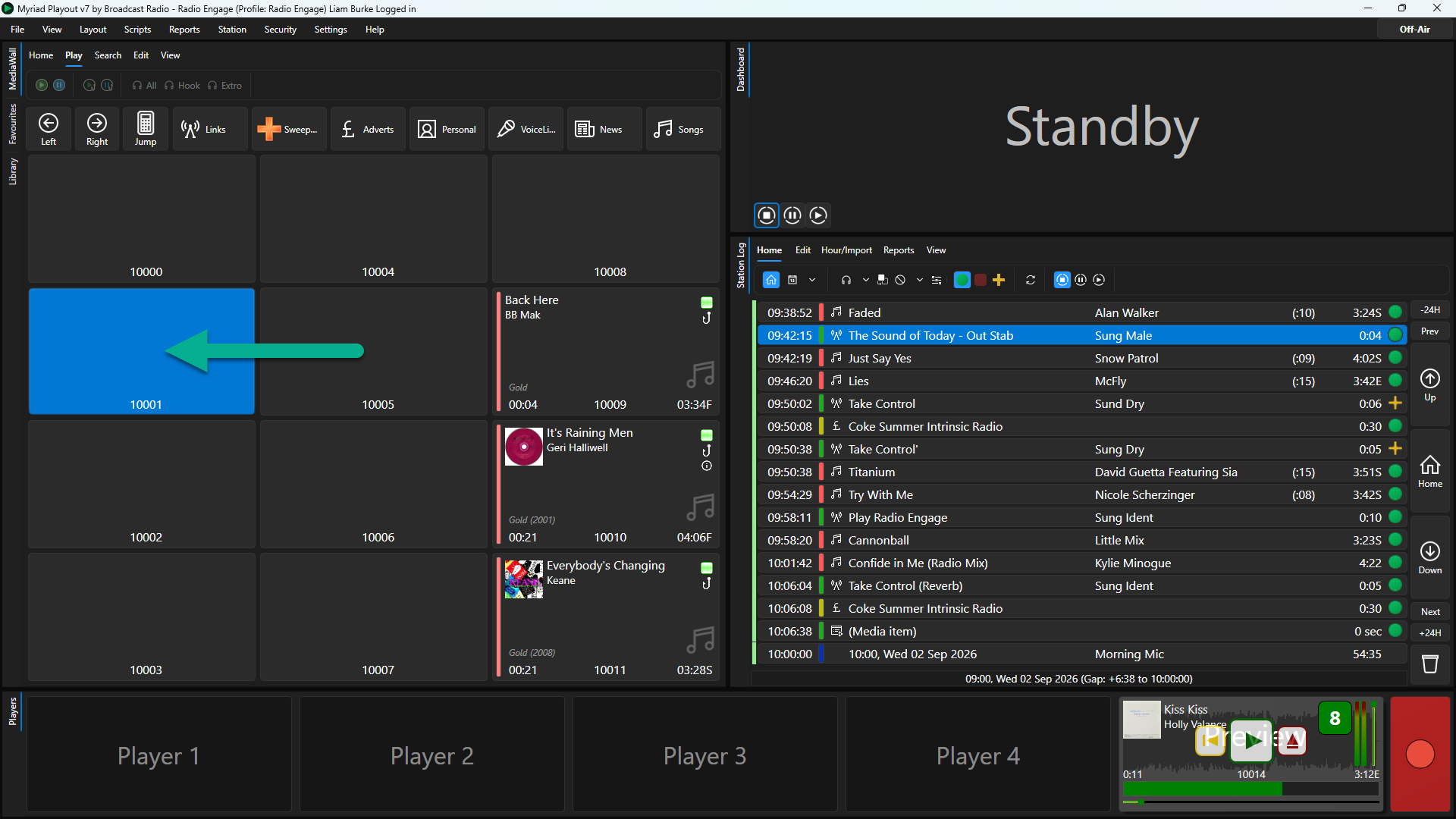
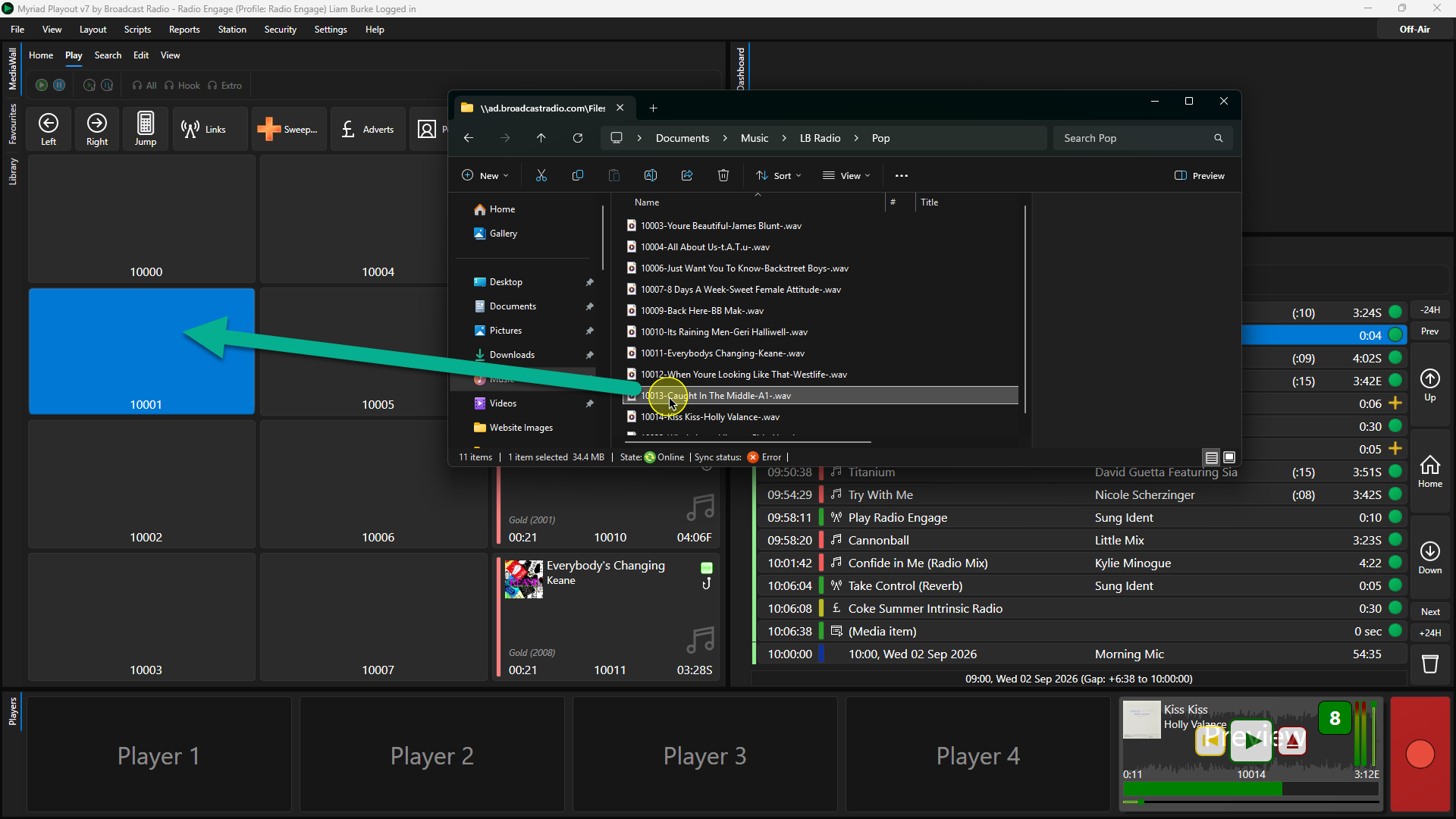
- Open a File Explorer window and navigate to the folder with the audio you want to import, then drag the audio file directly onto the empty Media ID on the Media Wall.
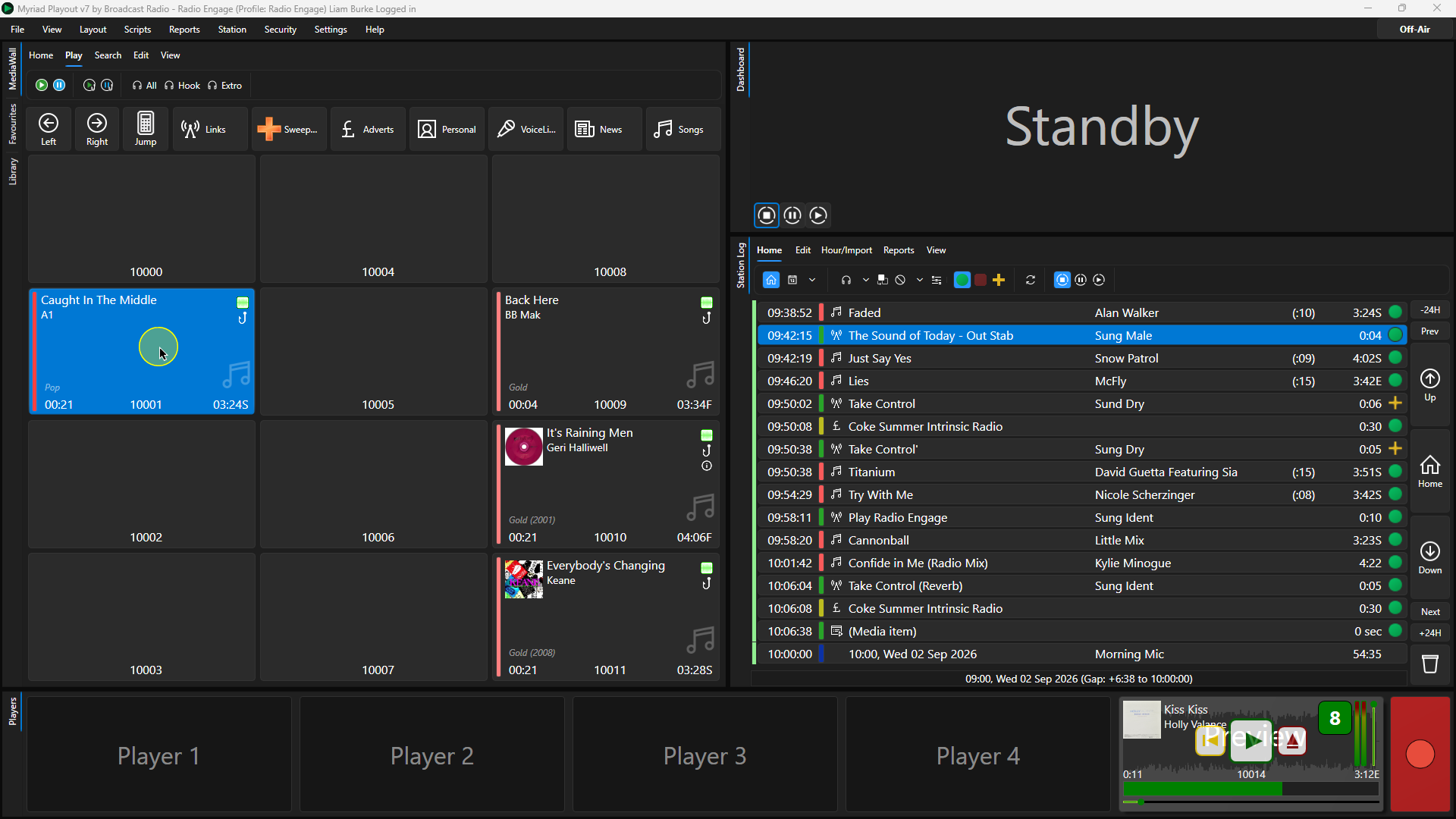
- The import progress will be indicated at the right-hand side of the Myriad application. Once complete, the Media Item will be ready to play.
Option 2 (Right-click menu)
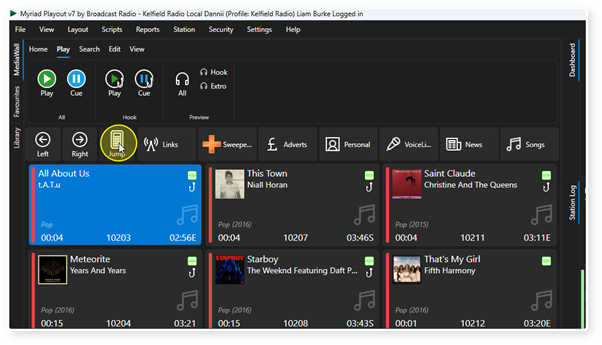
You can also import into an empty Media ID using the right click menu. Start by clicking on the Jump button to find the next empty Media ID in the current range.
- Click on the Jump button.
- Click on the Next Empty button.
- Click on the OK button.
- Right-click on the empty Media ID.
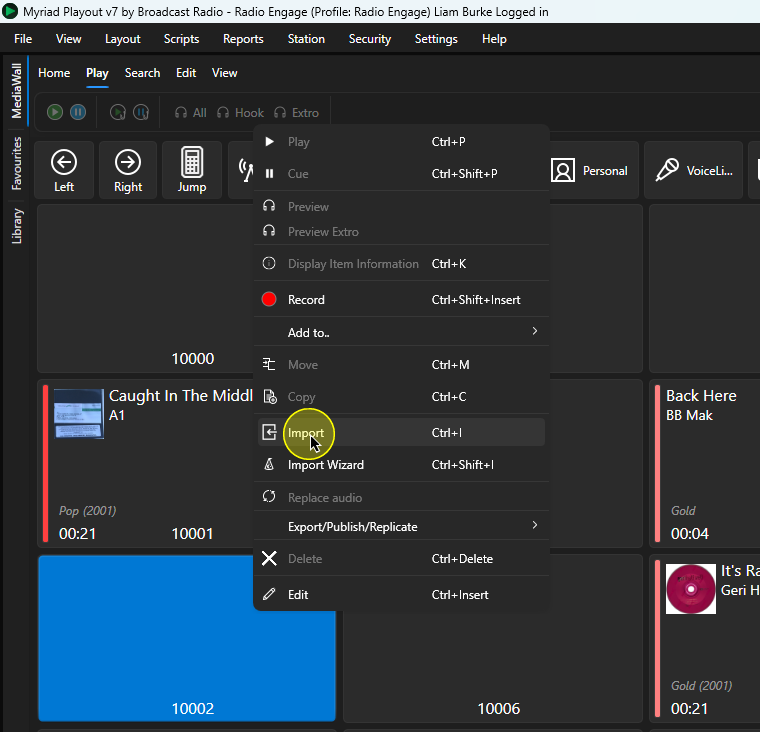
- Select Import from the right-click menu.
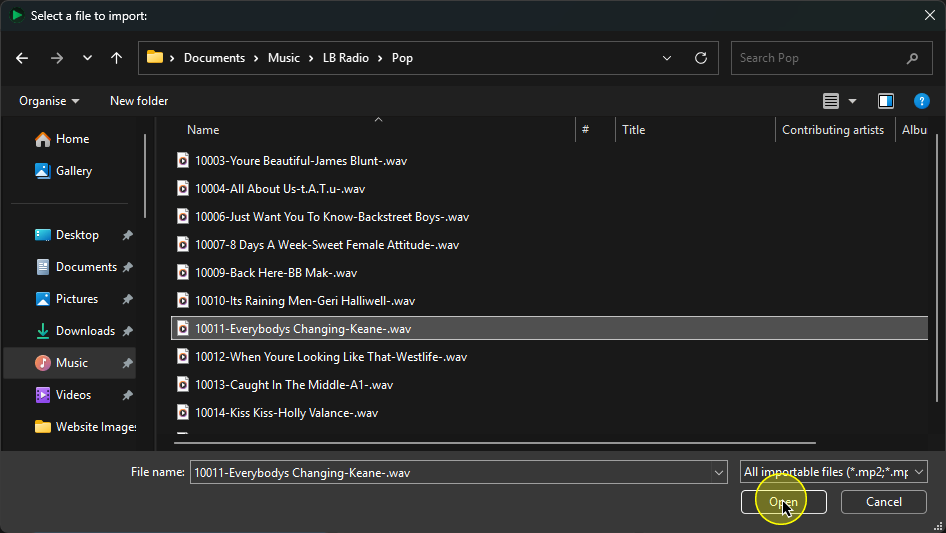
- Navigate to the folder with the audio file to import, select the file and click on Open.
13. The import progress is displayed in the top right of the screen.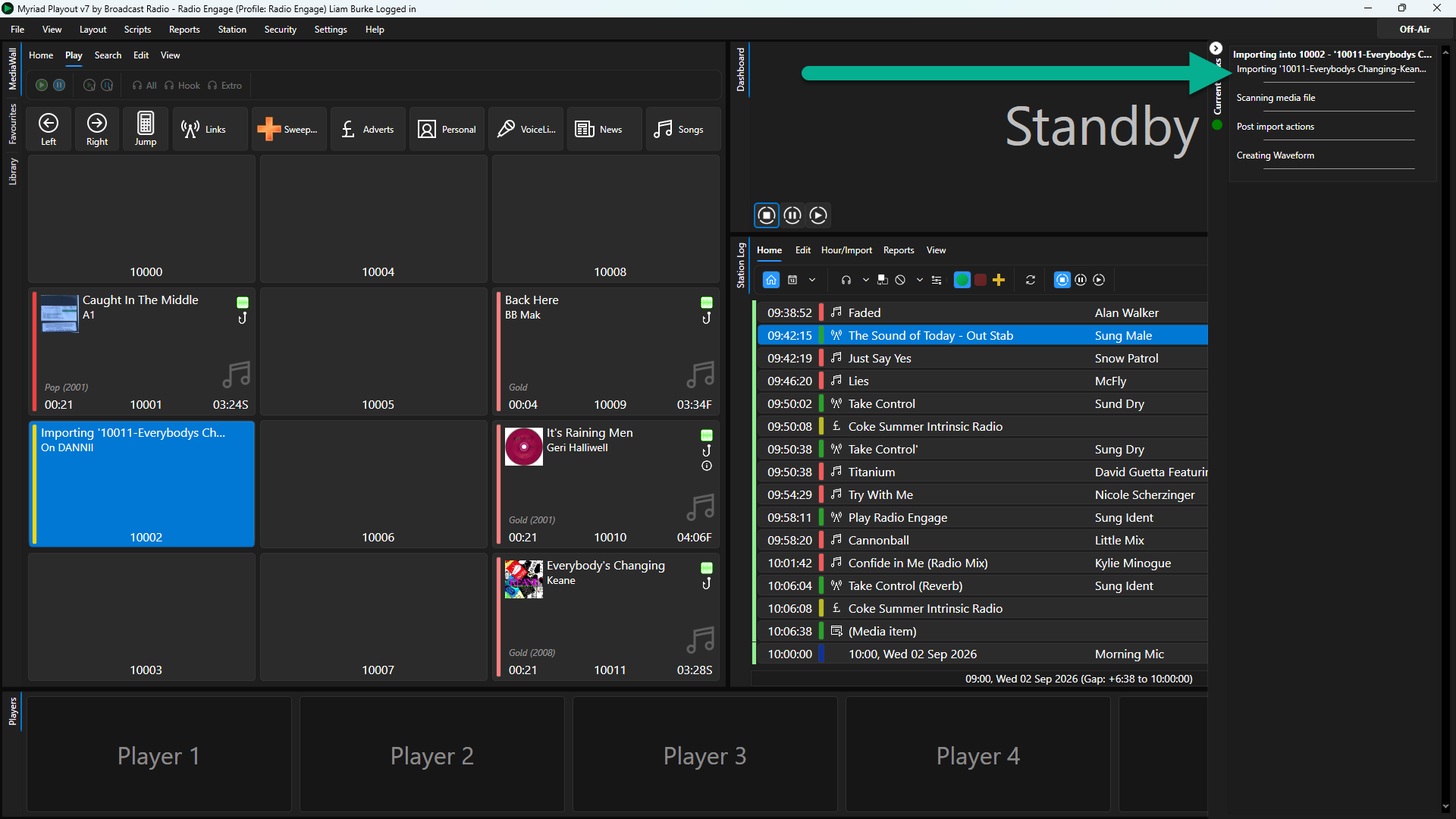
- Once the import process is complete, the Song is ready to be played.
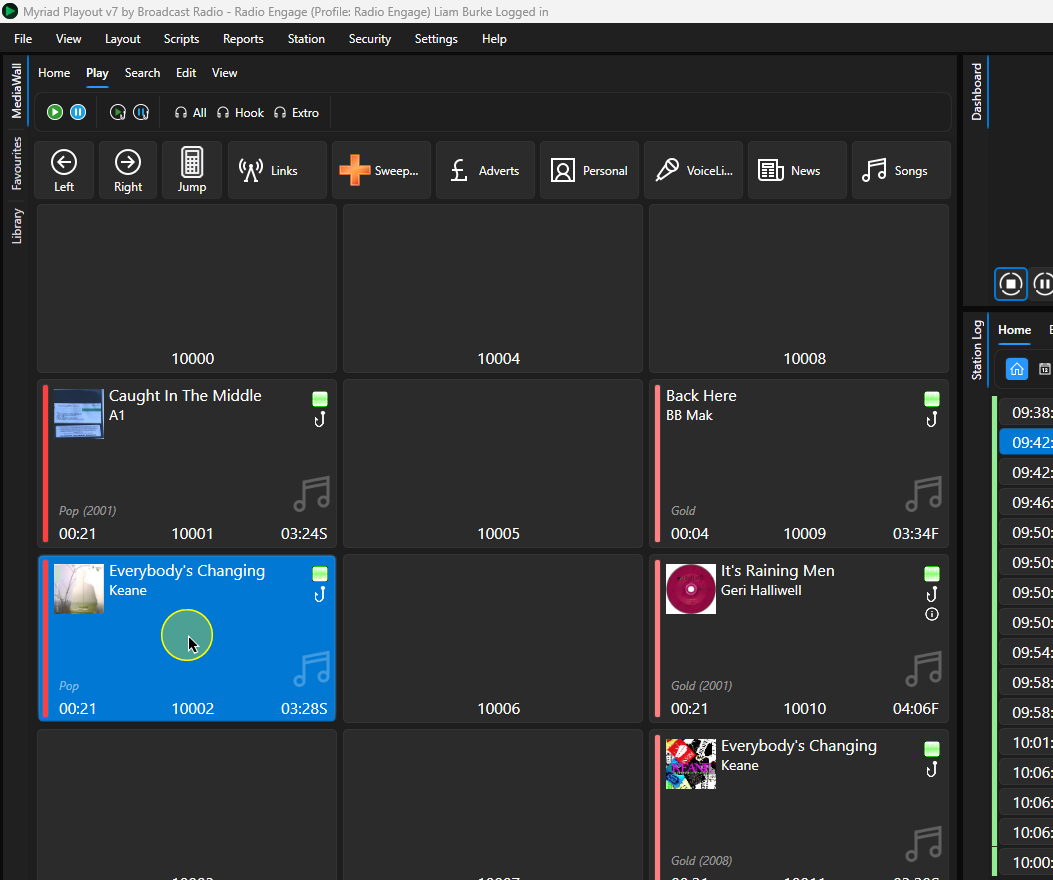
Option 3 - Quick Import Button
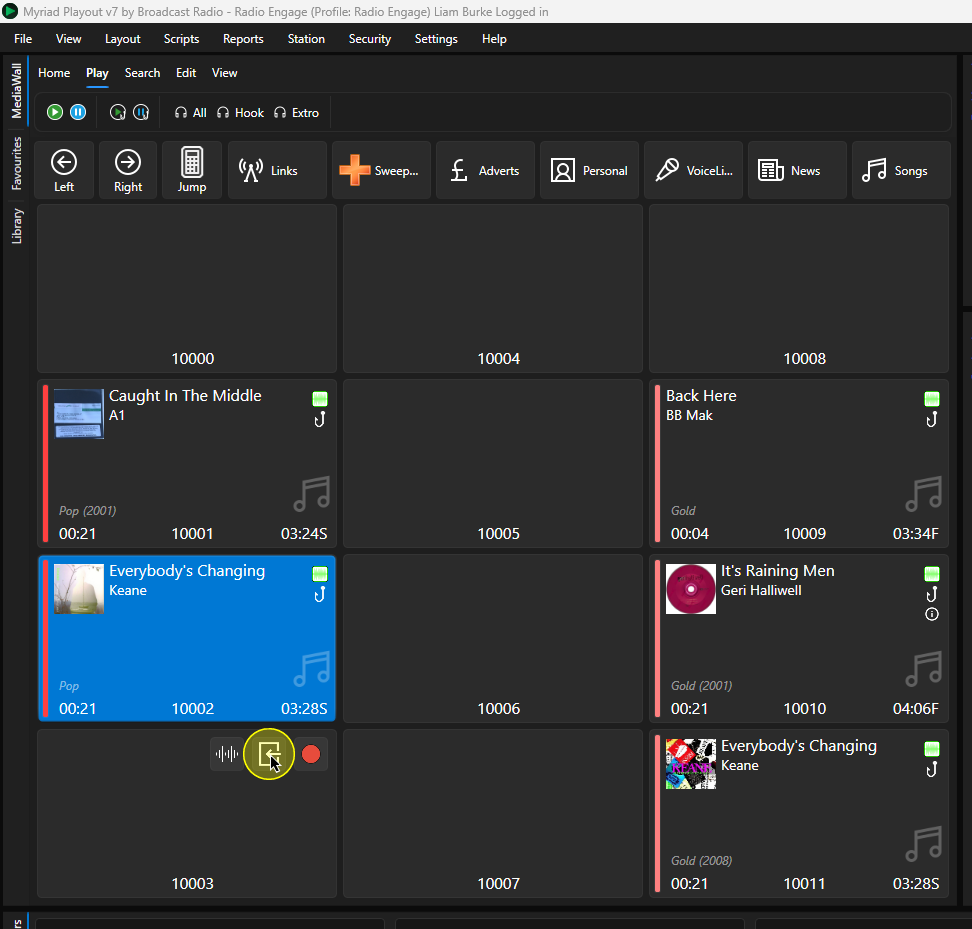
Myriad 7 introduces a quick import option on empty Media Items.
- Hover the mouse over an empty Media Item.
- Three buttons will appear in the top right-hand corner of the Media Item.
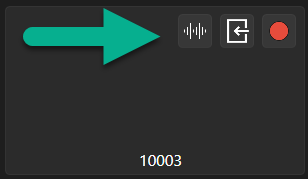
These allow you to:
Edit the Media Item.
Import into the Media Item.
Record into the Media Item. - Click on the Import Media option.
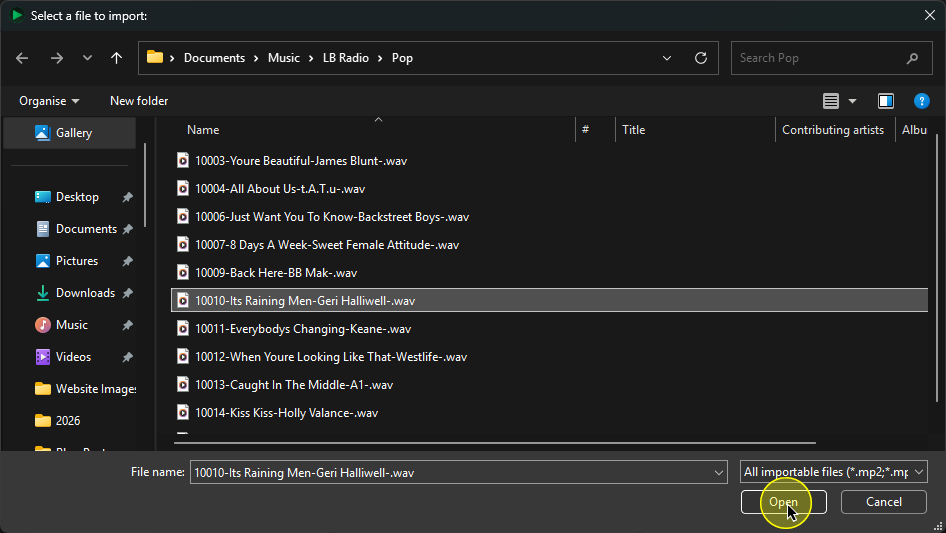
- Select the Media File you want to import and then click Open.
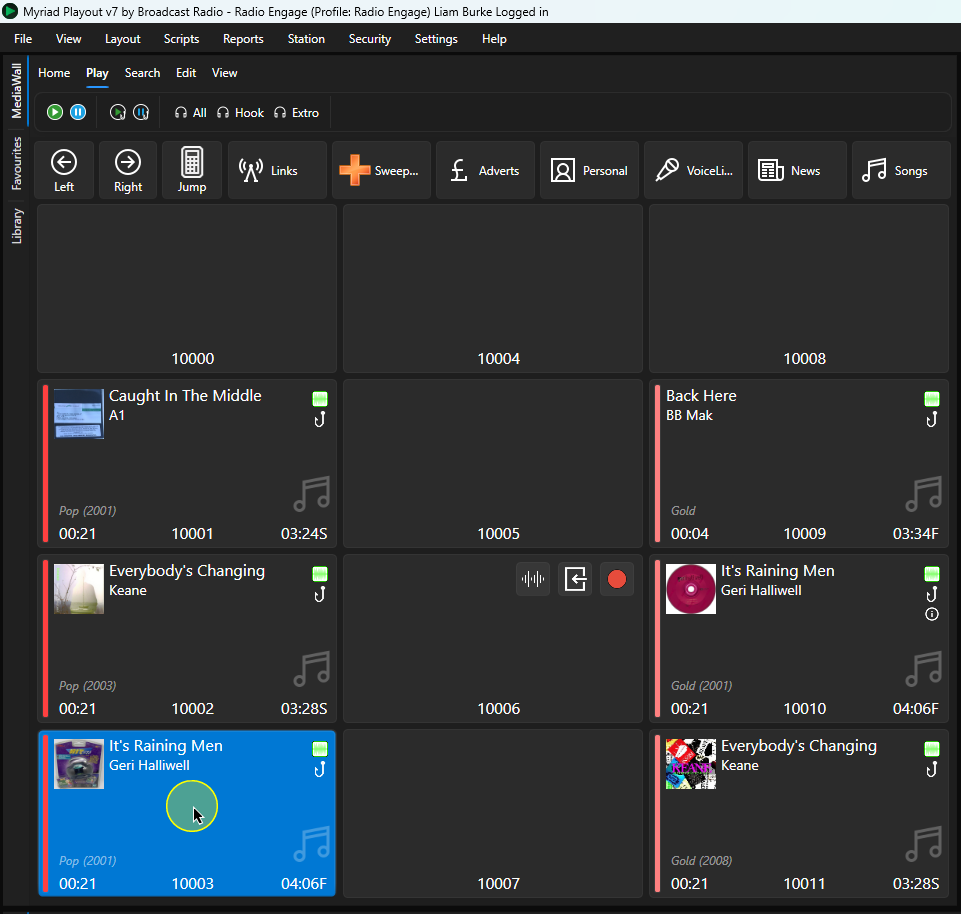
- Once the import process is complete, the Media Item will be ready to play.
Was this article helpful?
That’s Great!
Thank you for your feedback
Sorry! We couldn't be helpful
Thank you for your feedback
Feedback sent
We appreciate your effort and will try to fix the article