TABLE OF CONTENTS
Introduction
The Show Management feature in Myriad Playout allows you to add key information for shows in on your radio station. Clocks can be linked to shows to allow you to build an electronic program guide (EPG) that can be used to power show information on your website, web player and mobile apps.
Show Management is closely related to Presenter Management which allows you to add details about the personalities on your radio station.
Adding A New Show
To add a new Show, follow these steps:
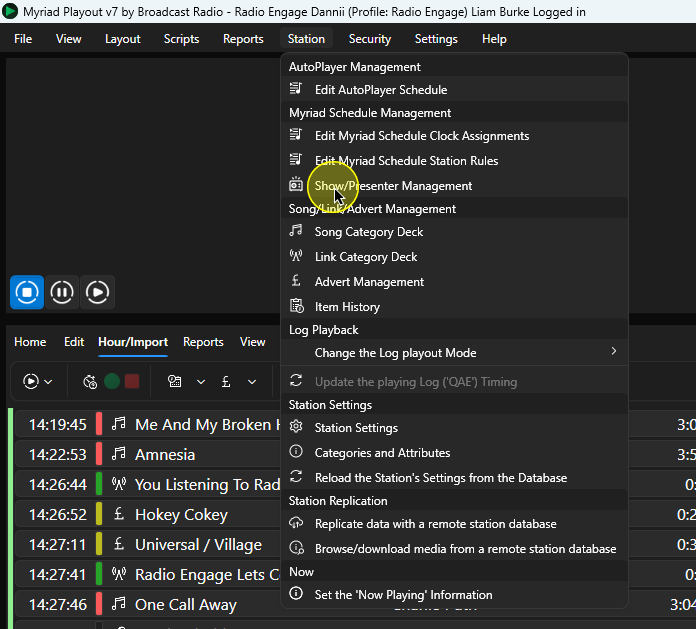
- In Myriad Playout, click on Station Menu > Show/Presenter Management.
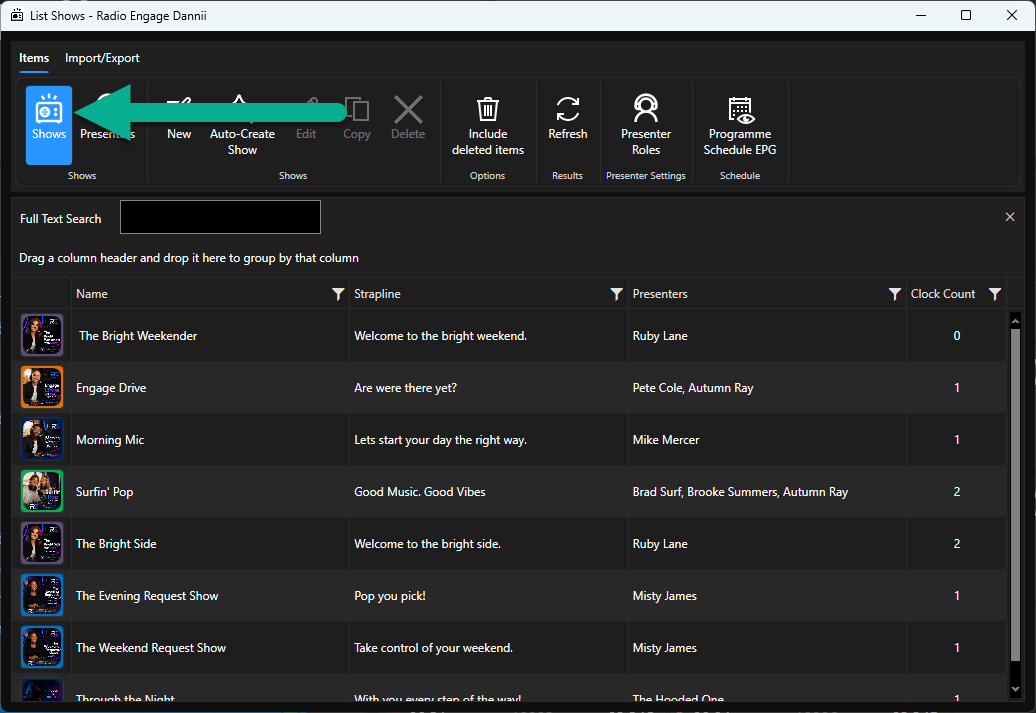
- Make sure Shows is selected on the Items tab.
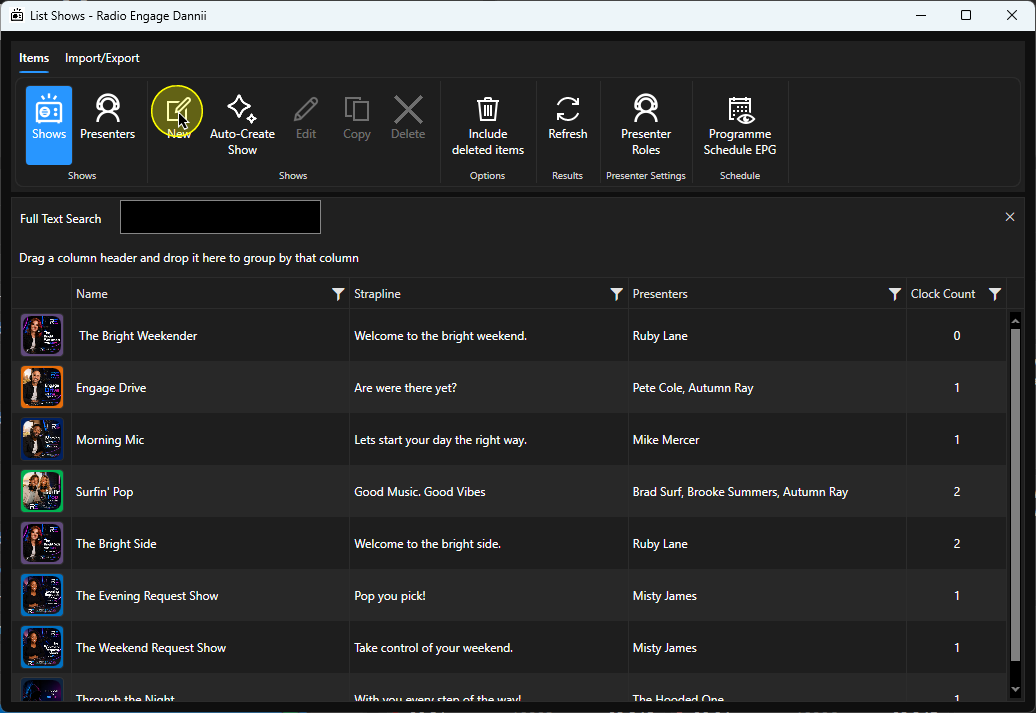
- Click on the New button.
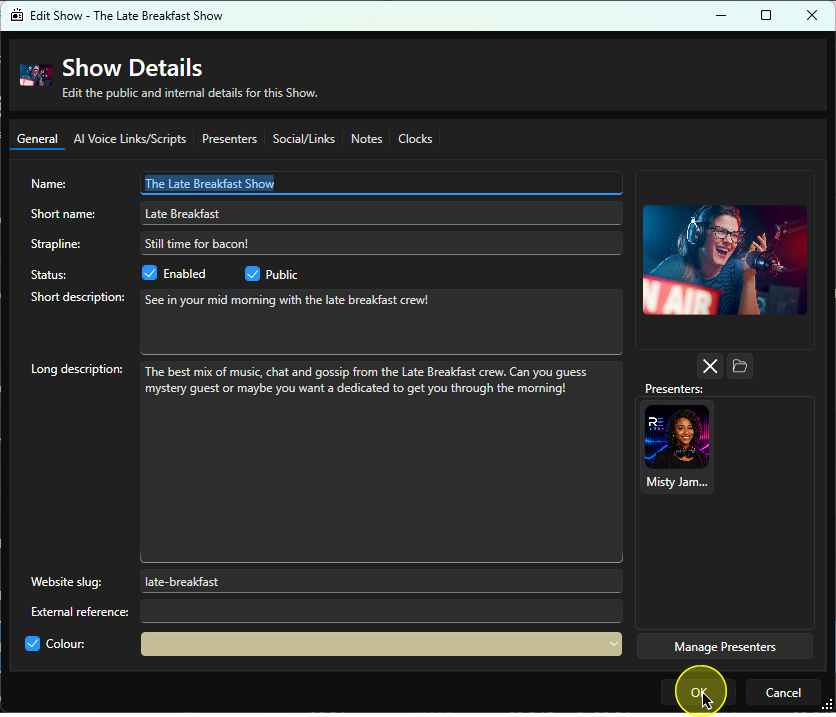
- On the General Tab, fill in the following information (Name is the only mandatory):
- Name - Full Show name.
- Short Name - Short name used in Myriad.
- Strapline - Test to associate with the Show.
- Status - Enabled (available inside Clocks in Myriad), Public (posted to connected platforms).
- Short Description - Used in both Myriad and Broadcast.Radio for a short description of the Show.
- Long Description - Full show description used in both Myriad and Broadcast.Radio for a detailed description of the Show.
- Website Slug - Readable part of the URL after the domain name (eg www.mystation.com/breakfast-show). Used with 3rd party websites.
- External Reference - Reference used to link with 3rd party websites.
- Colour - Set a colour that will be associated with the Show in the EPG.
- Click on the Upload Image button to add an image to your show. Browse and select a suitable show image.
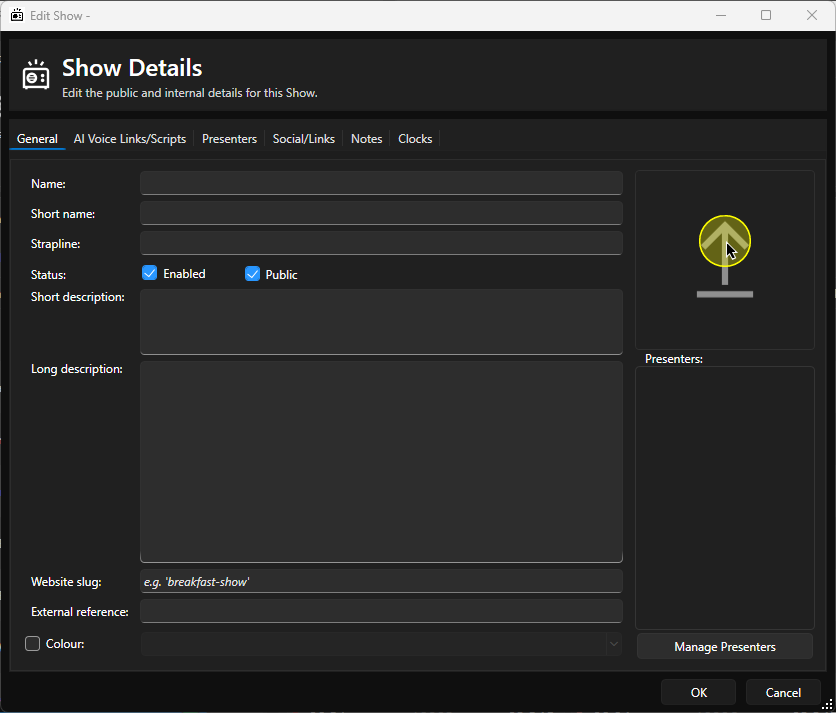
- Click on the Manage Presenters button.
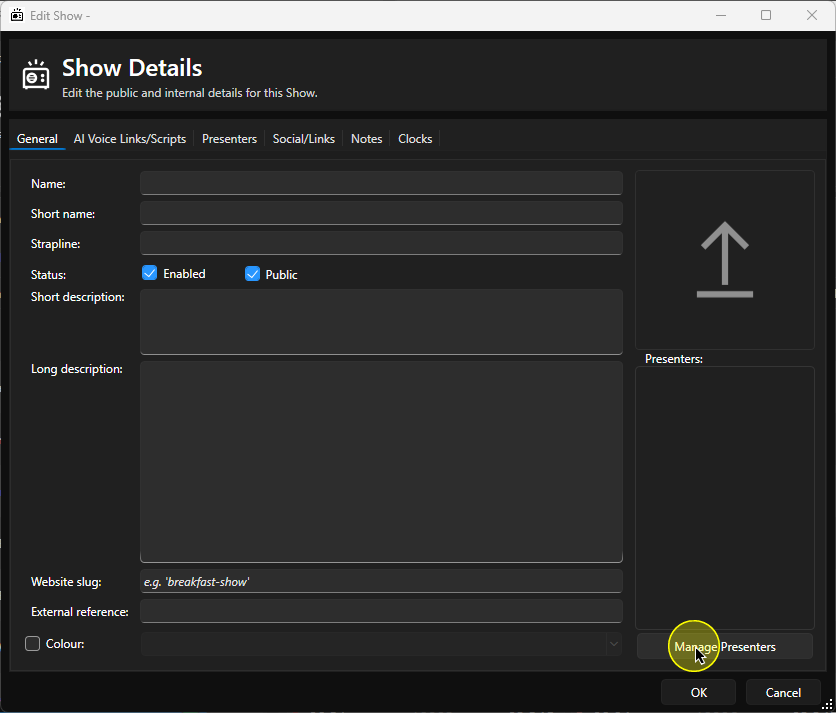
This will take you to the Presenters tab.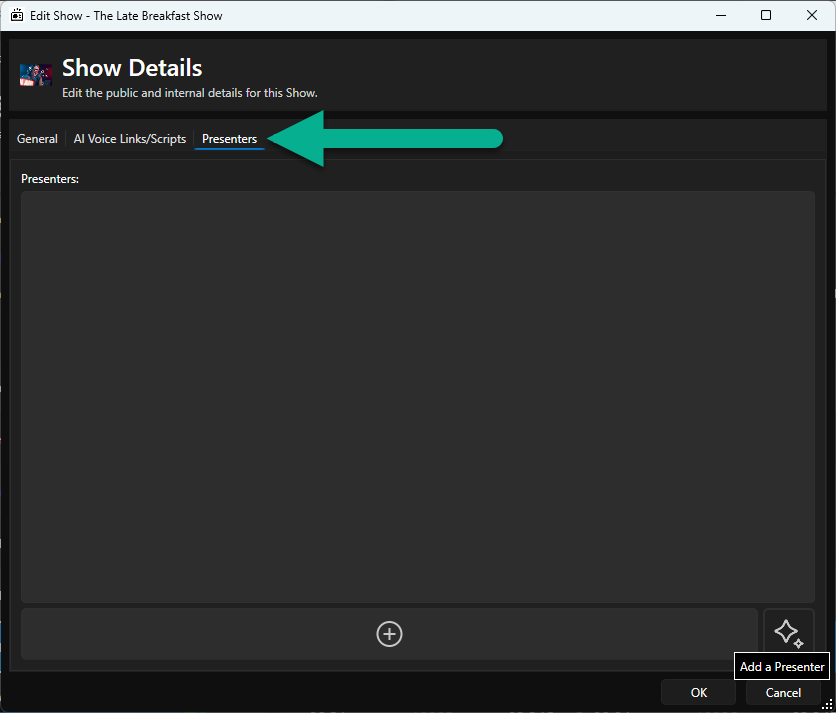
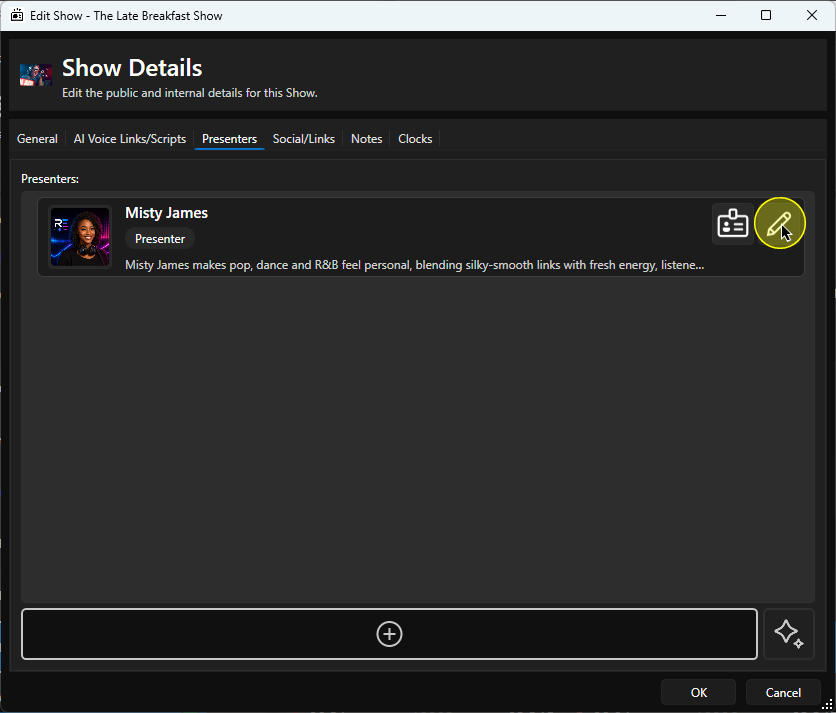
Click on the '+' button to ad a Presenter to the Show.
Select from one of your existing Presenters and click OK (you can skip this for now if you have not yet created the Presenter profile for the person presenting this Show).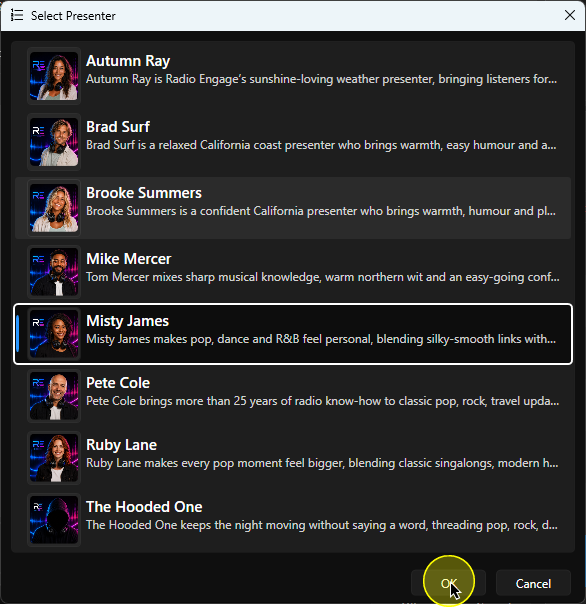
You can repeat this to add more Presenters.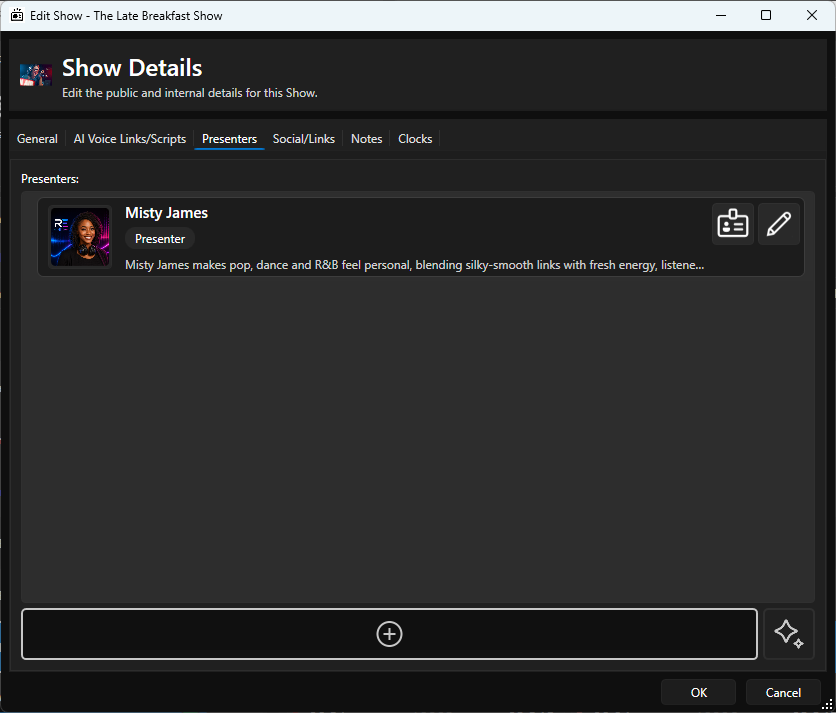
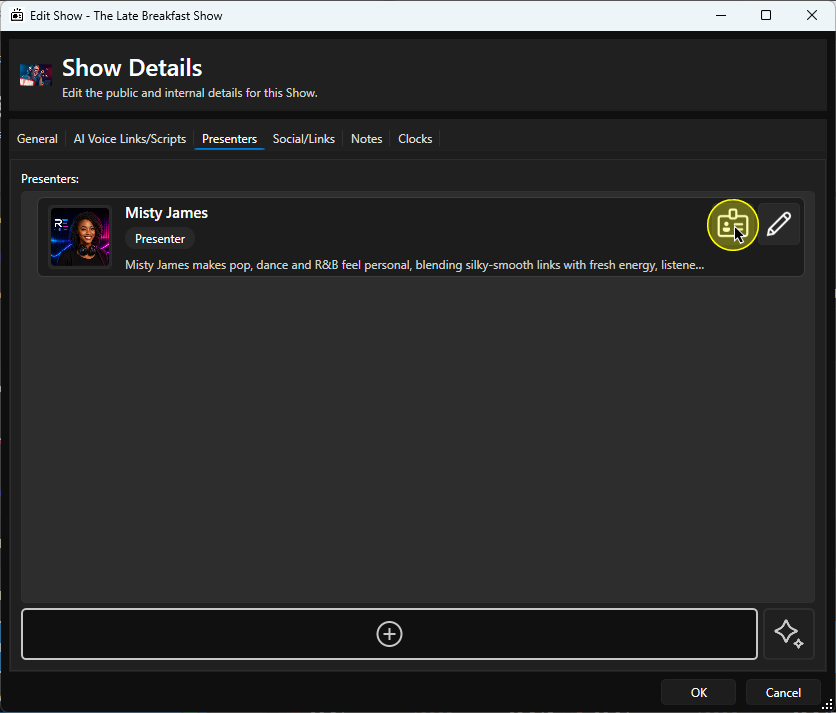
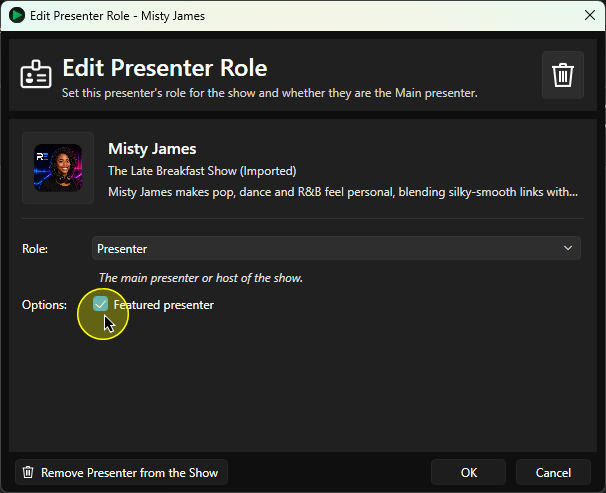
- Once you have one or more Presenters, you can assign a Role within the Show using the Assign Role button.
- Use the drop down to select the Role from the list.
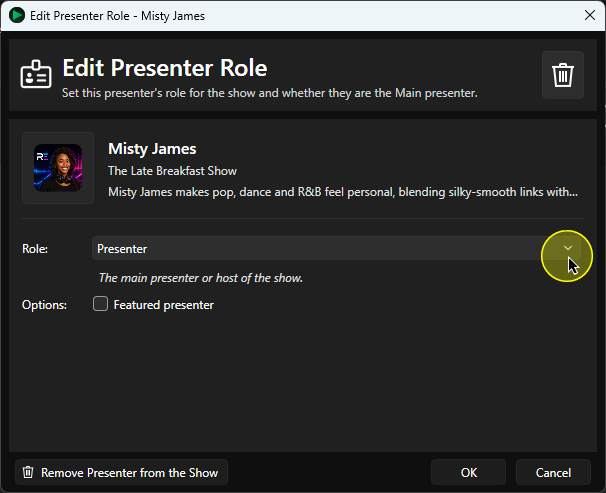
The default options are:- Presenter
- Co-Presenter
- News Reader
- Weather
- Traffic
- Entertainment Correspondent
- Sports Correspondent
- Contributor
- Guest
You can edit these options using the Presenter Roles button on the main ribbon. See - Managing Presenter Roles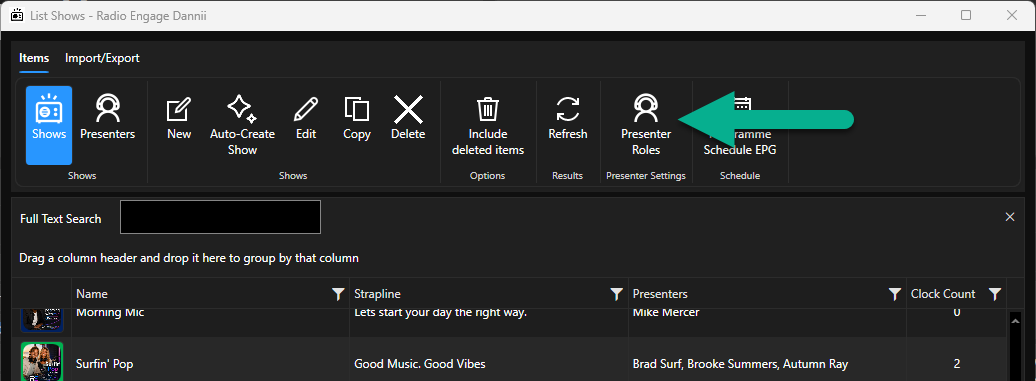
- If this Presenter is going to be the main presenters for the Show, tick the Featured Presenter option.
The Featured Presenters will then be included in the Show List.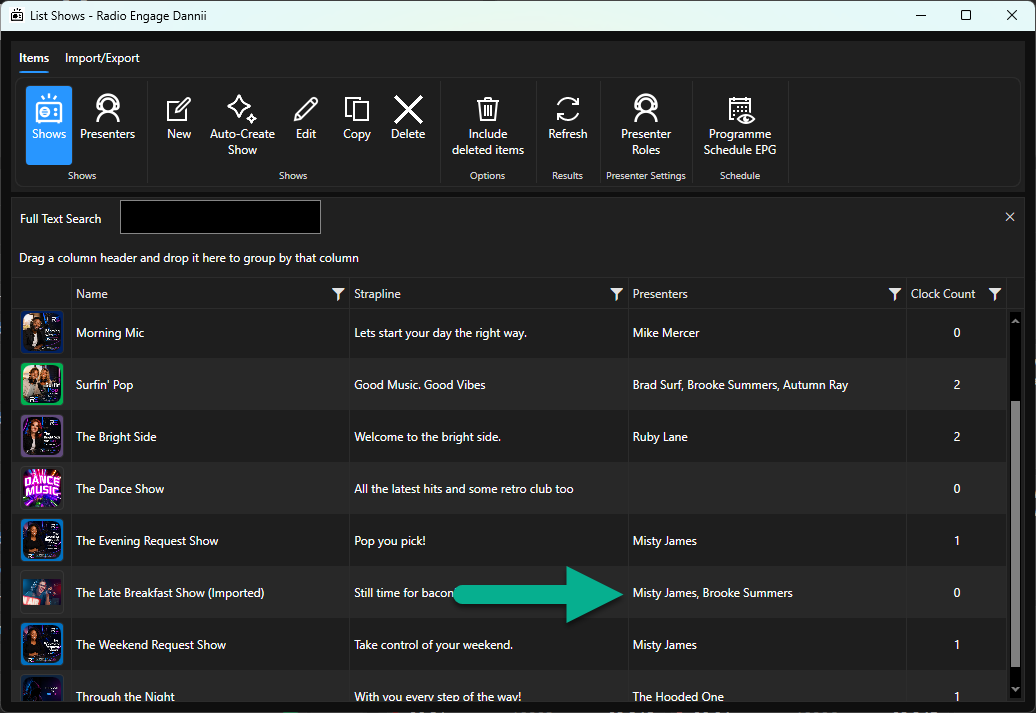
- You can also edit the Presenter profile if required.
- (Optional) Switch to the AI Voice Link/Scripts tab.
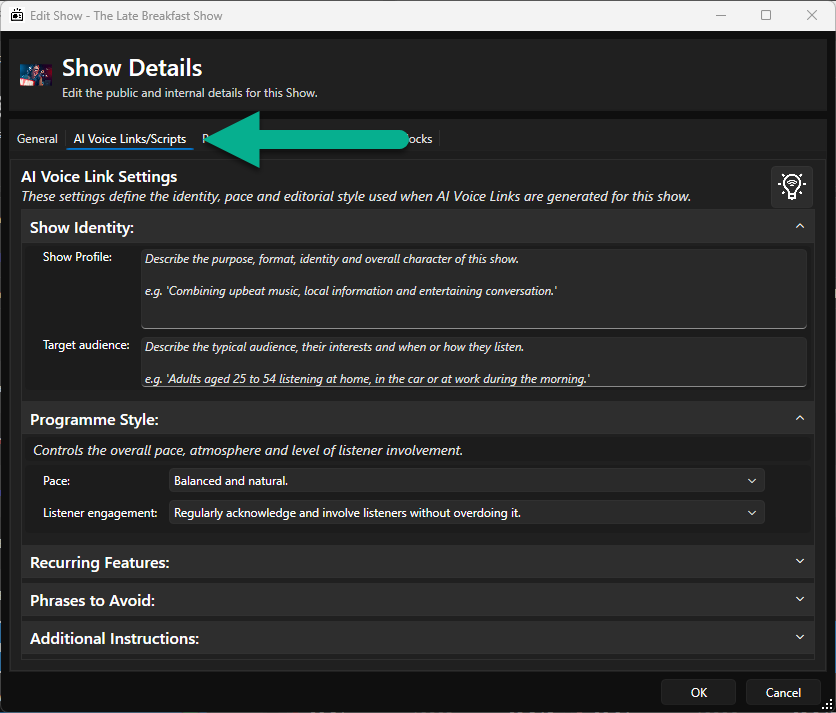
Use the fields on this tab to add more information about the Show to help with the generation of AI Voice Links for the Show. Options include:- Show Profile - General overview of the Show.
- Target Audience - Describe who the Show is aimed at. This helps the AI Voice Links to target content topics.
- Pace - Describe the pacing of the Show. Use the drop down to select the most appropriate option.
- Listener Engagement - Use the drop down to select the most appropriate option.
- Recurring Features - Describe any recurring or key features that may be included as topic points in AI script generation.
- Phrases to Avoid - Add any words or phrases you want to avoid in AI script generation.
- Additional Instructions - Add anything else you want to be added to the prompt used to create AI Voice Links within this Show.
- Click on the Social/Links Tab.
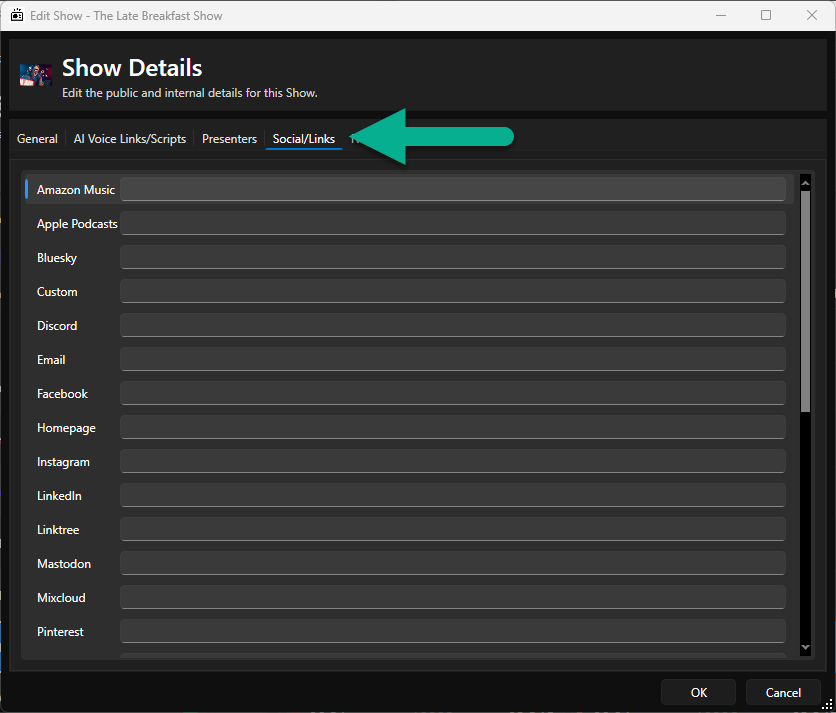
Add appropriate social links that should be associated with this Show. - Click on the Notes tab.
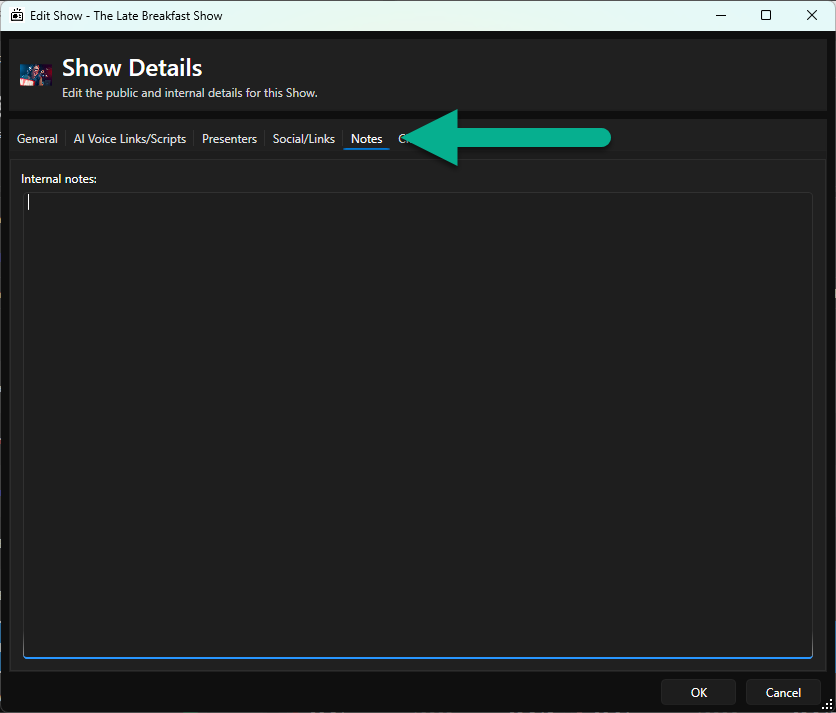
Type in any notes you want to add for the Show. These are internal notes only. - Click on the Clocks tab.
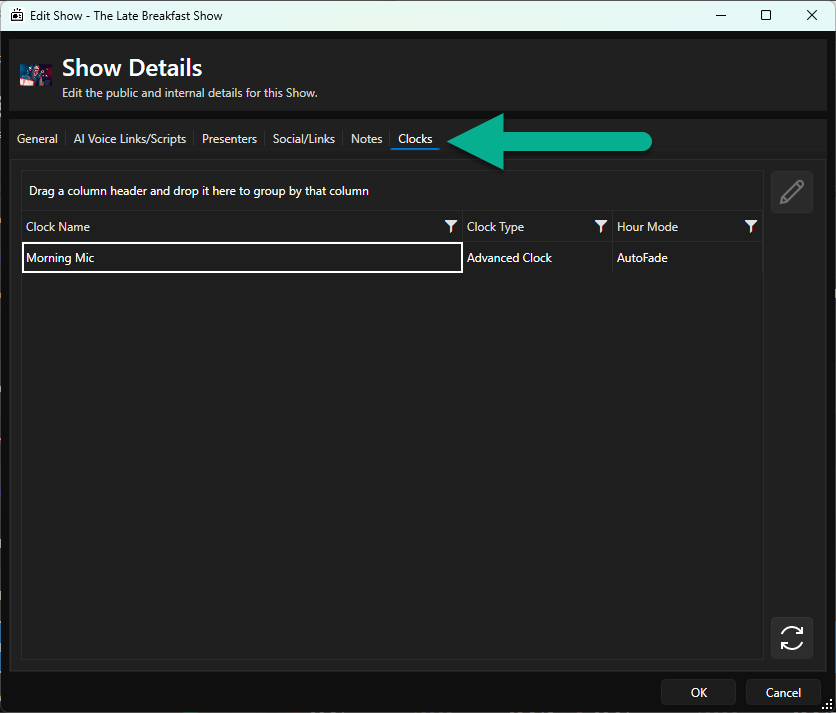
You will see a list of Clocks that are linked to the Show. You can highlight a Clock and click on the Edit button to edit the associated Clock.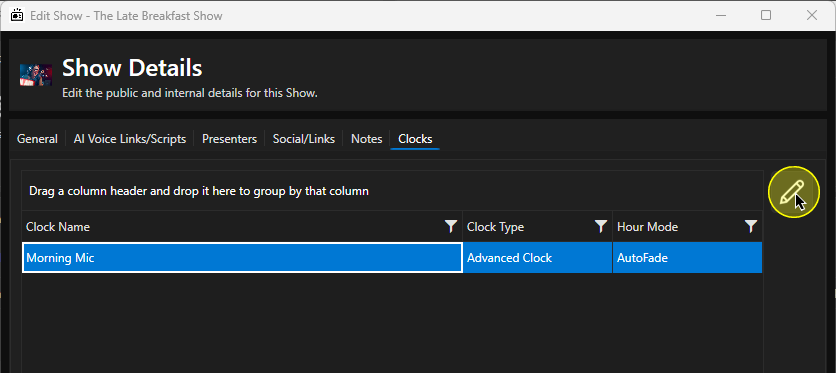
- When you are happy with your Show, click on the OK button to save it and close the Show Edit window.
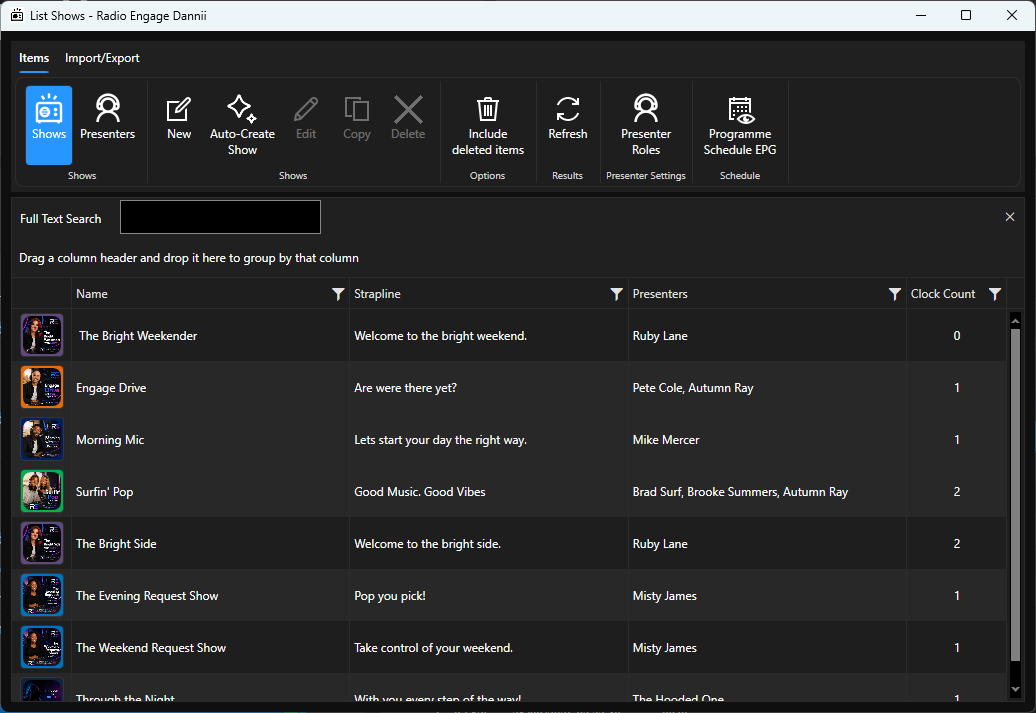
Your Show will be added to the Show list.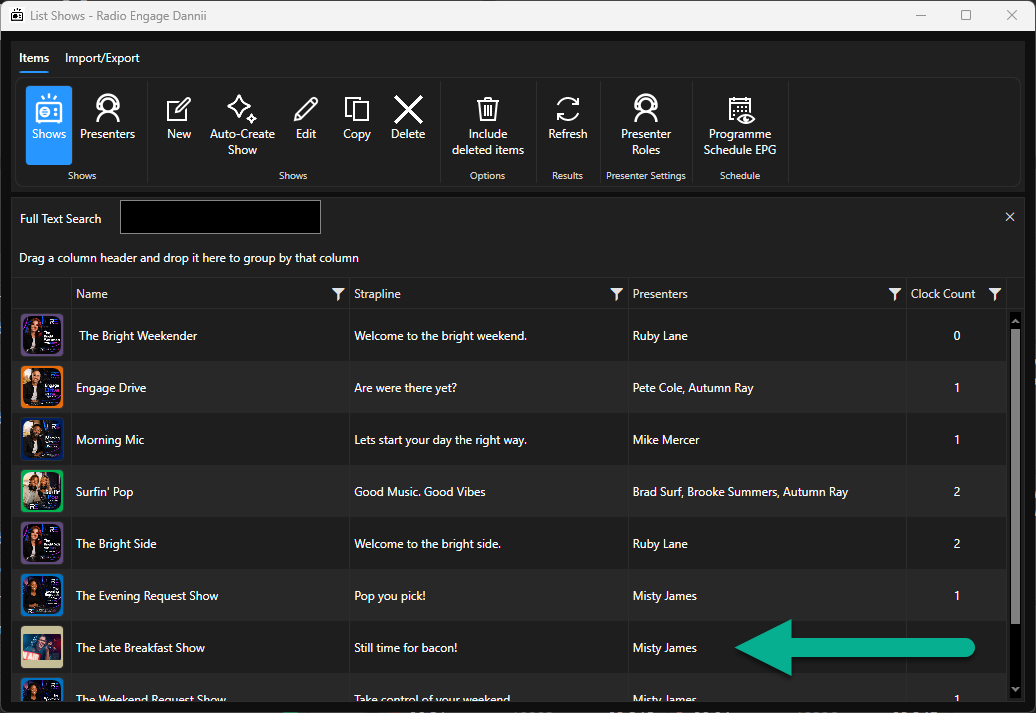
Was this article helpful?
That’s Great!
Thank you for your feedback
Sorry! We couldn't be helpful
Thank you for your feedback
Feedback sent
We appreciate your effort and will try to fix the article