You can export Shows for use on other stations, or import Shows created by other stations using these steps.
Export A Show
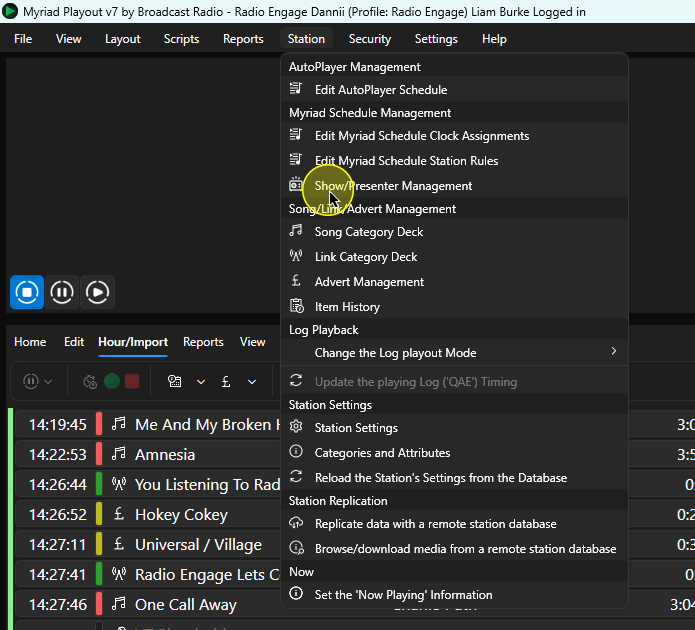
- In Myriad Playout, click Station Menu > Show/Presenter Management.
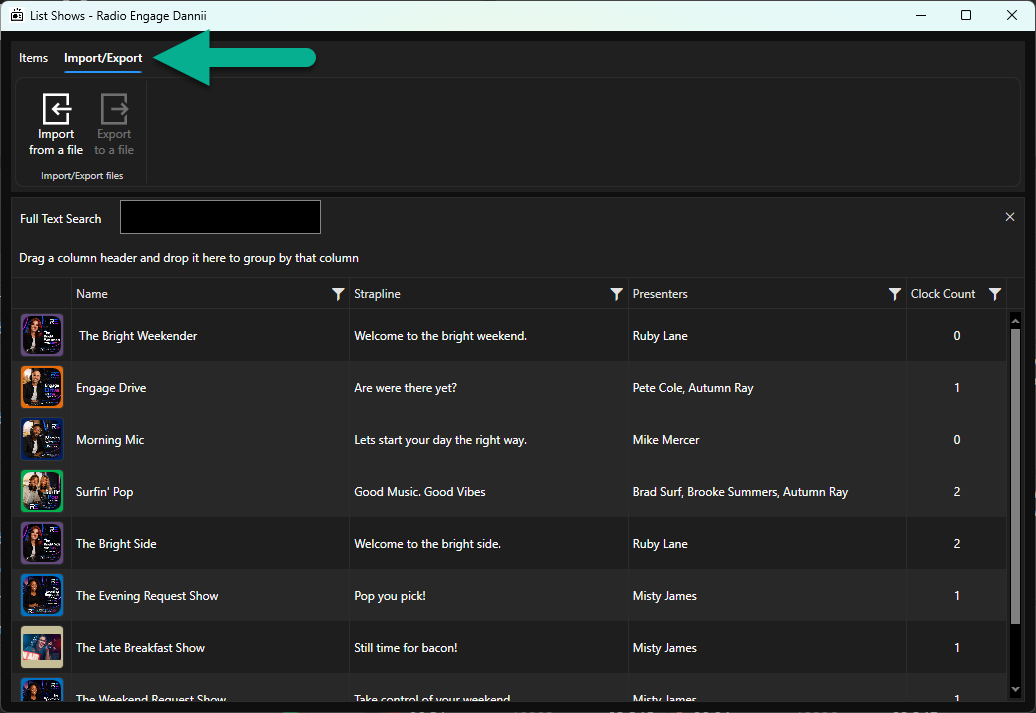
- Switch to the Import/Export tab.
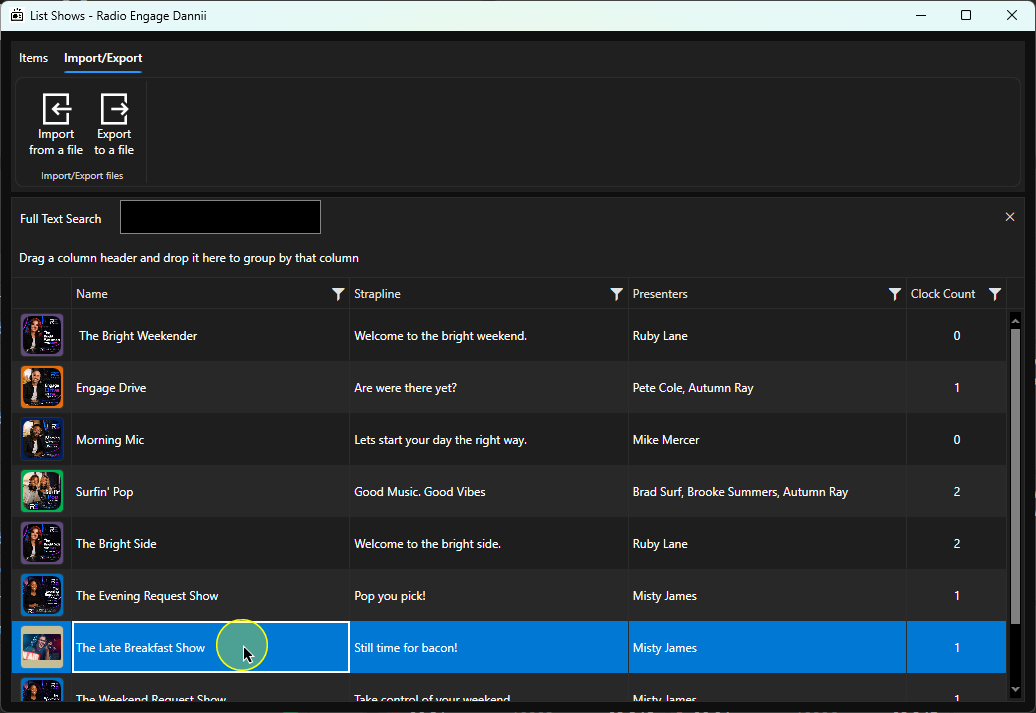
- Select the Show you want to export.
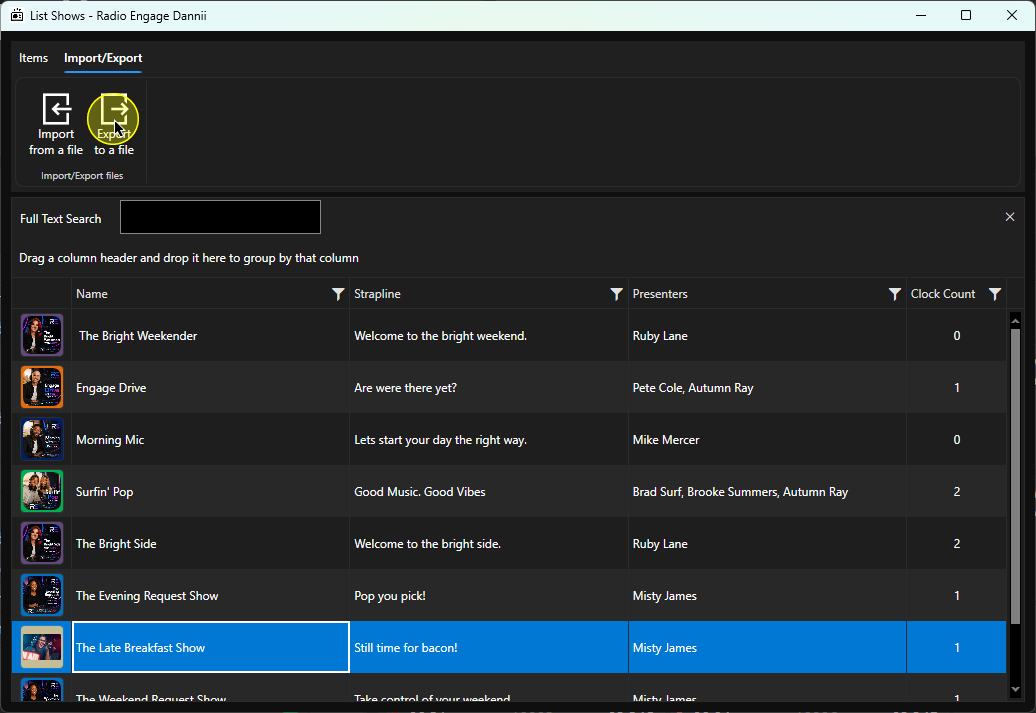
- Click on the Export to a file button.
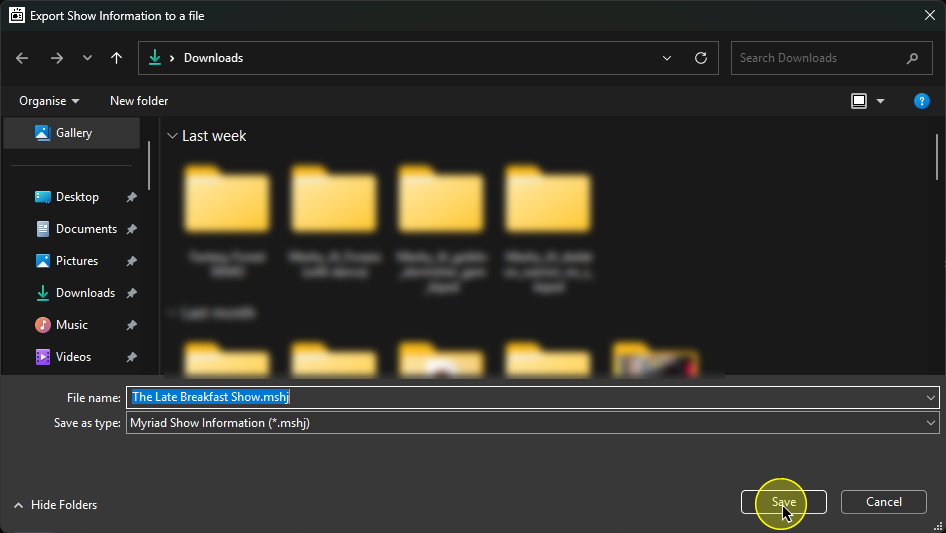
- Set the File Name & Location and then click on the Save button.
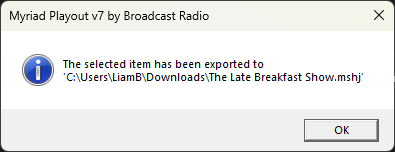
- You will receive a confirmation once the file is saved.
Import A Show
- In Myriad Playout, click Station Menu > Show/Presenter Management.
- Switch to the Import/Export tab.
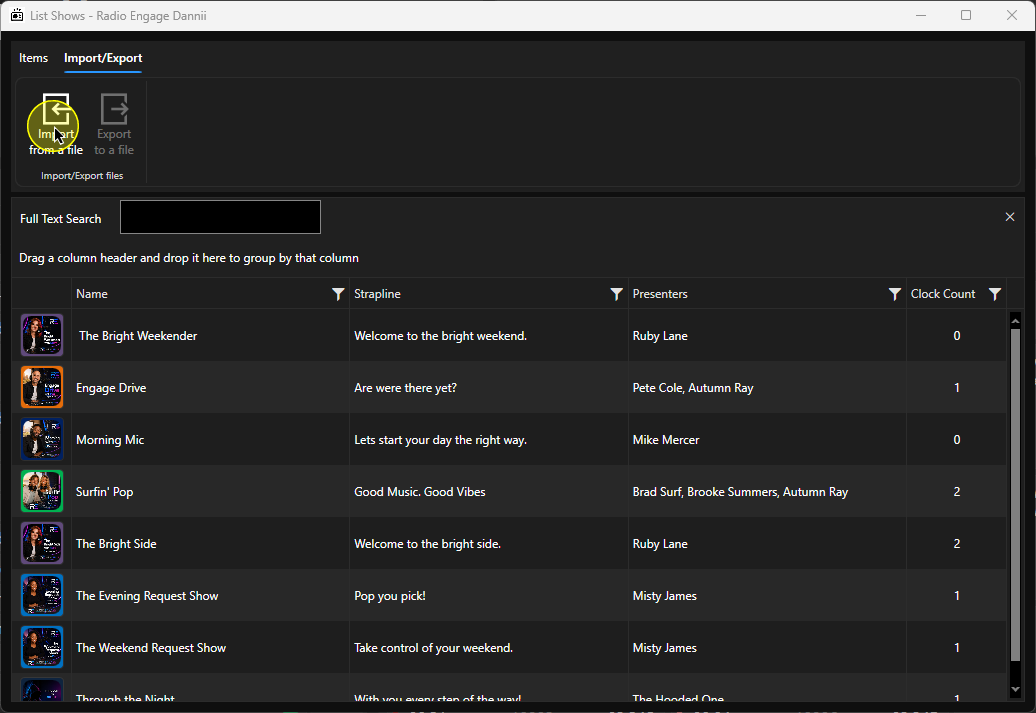
- Click on the Import from a file button.
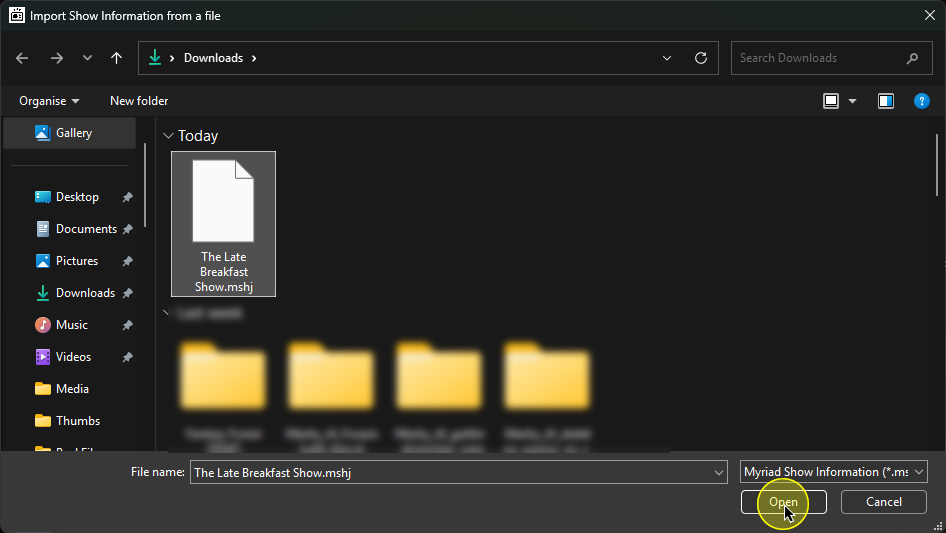
- Browse and select the file you want to import, then click Open.
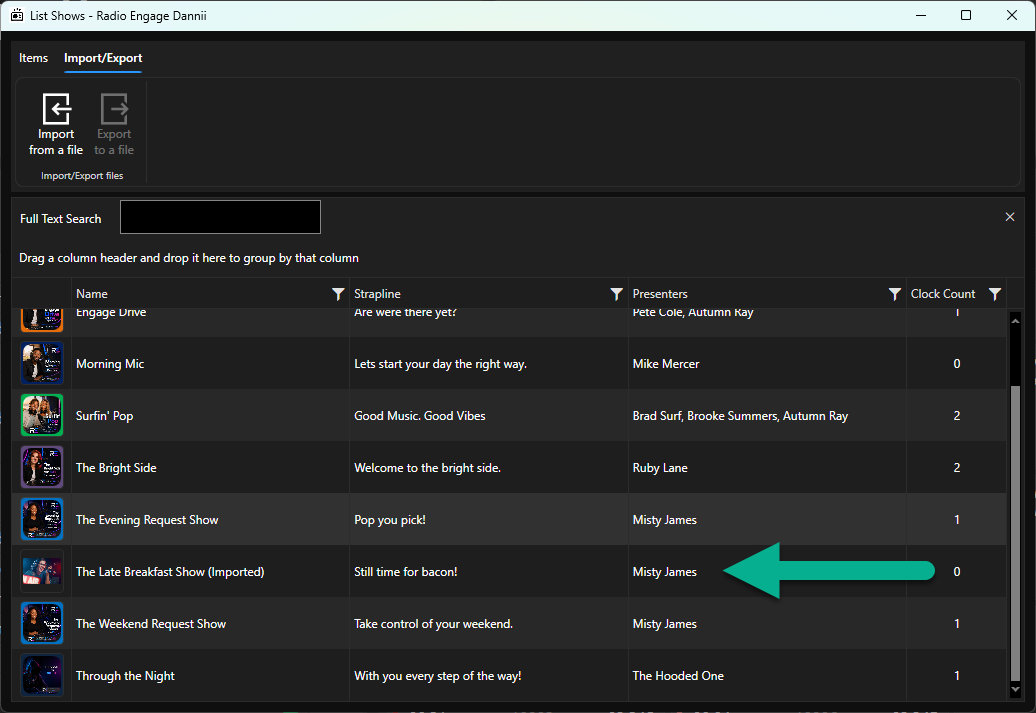
- The imported Show will be added to the list with (Imported) added to the Title. You can select the Show and use the Edit button (on the Items tab) to change the Title.
Was this article helpful?
That’s Great!
Thank you for your feedback
Sorry! We couldn't be helpful
Thank you for your feedback
Feedback sent
We appreciate your effort and will try to fix the article