In Myriad 7, Presenters allow you to flesh out the details for the on-air talent on your radio station. Whether that is for internal use or to be published on your website, web player or mobile apps, Presenters allows the talent to be more than just a name!
In addition, if you use AI Voice Links on your station, the extended AI Voice Link details for Presenters allow you to inject unique personality in an show the Presenter is associated with.
To add a new Presenter, follow these steps:
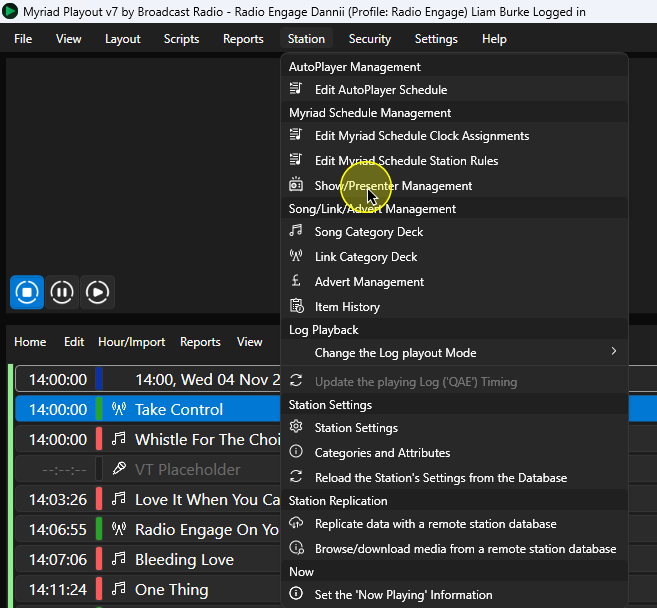
- In Myriad Playout, click on Station Menu > Show/Presenter Management.
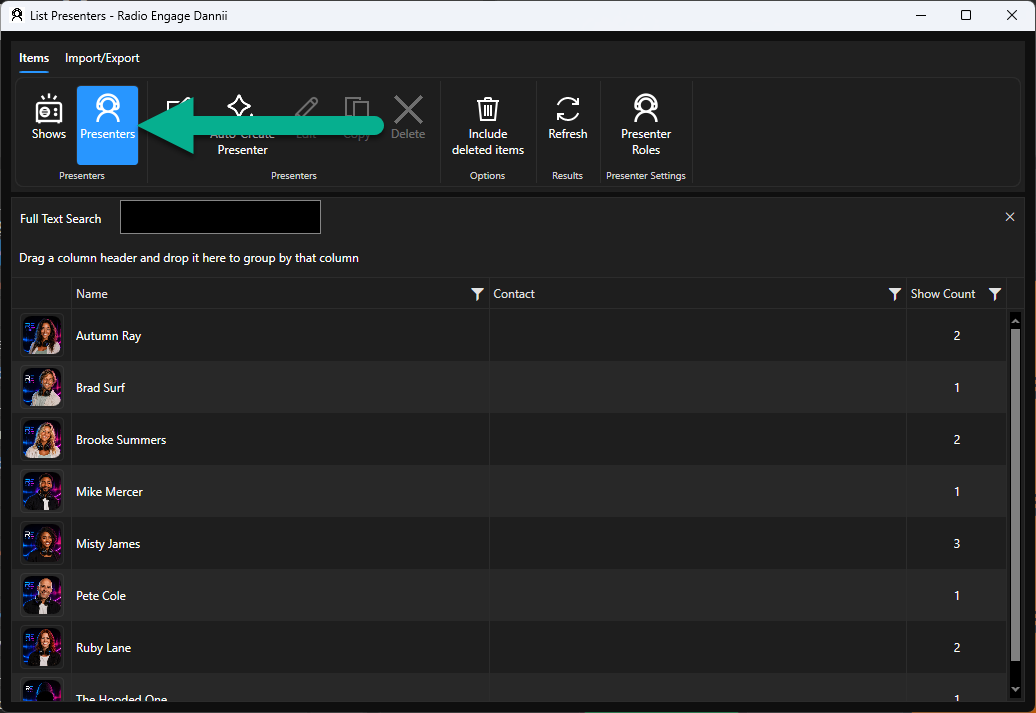
- Make sure the Presenter option is selected.
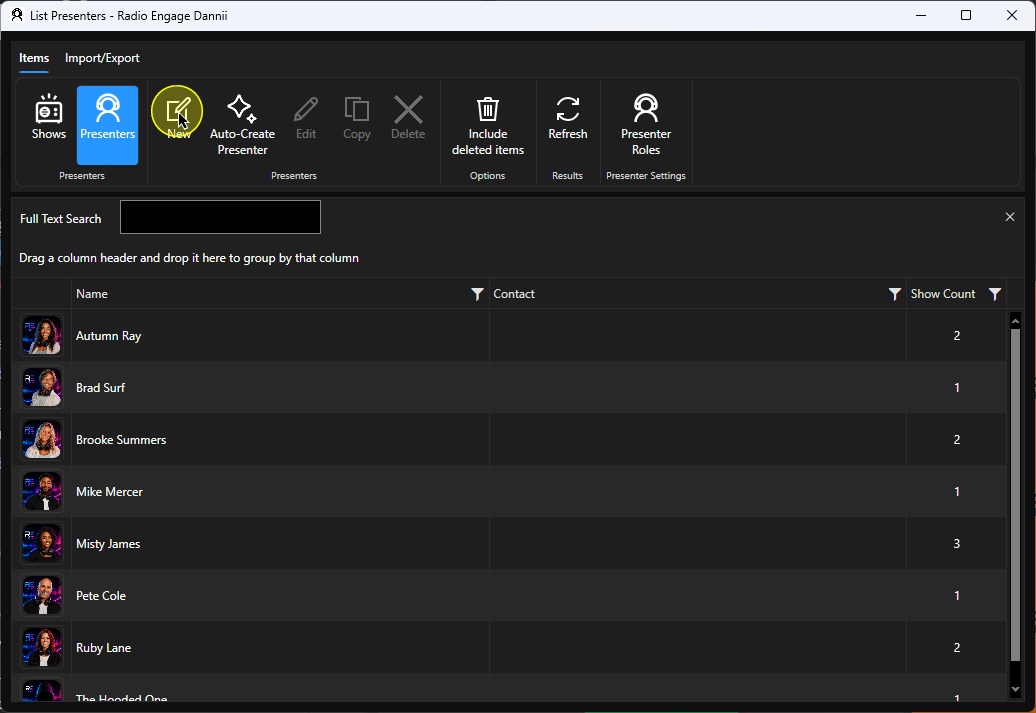
- Click on the New button.
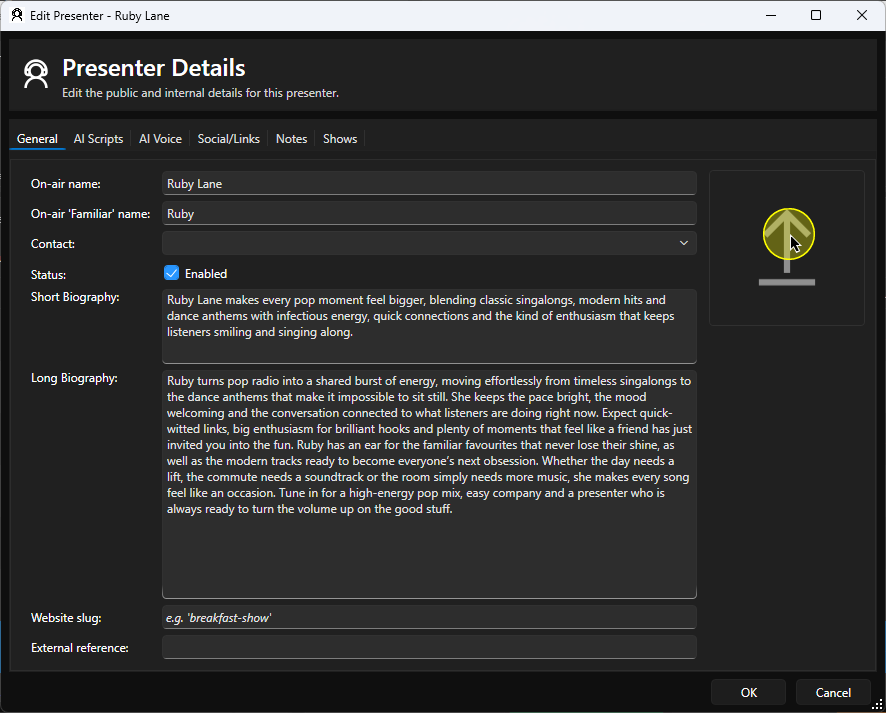
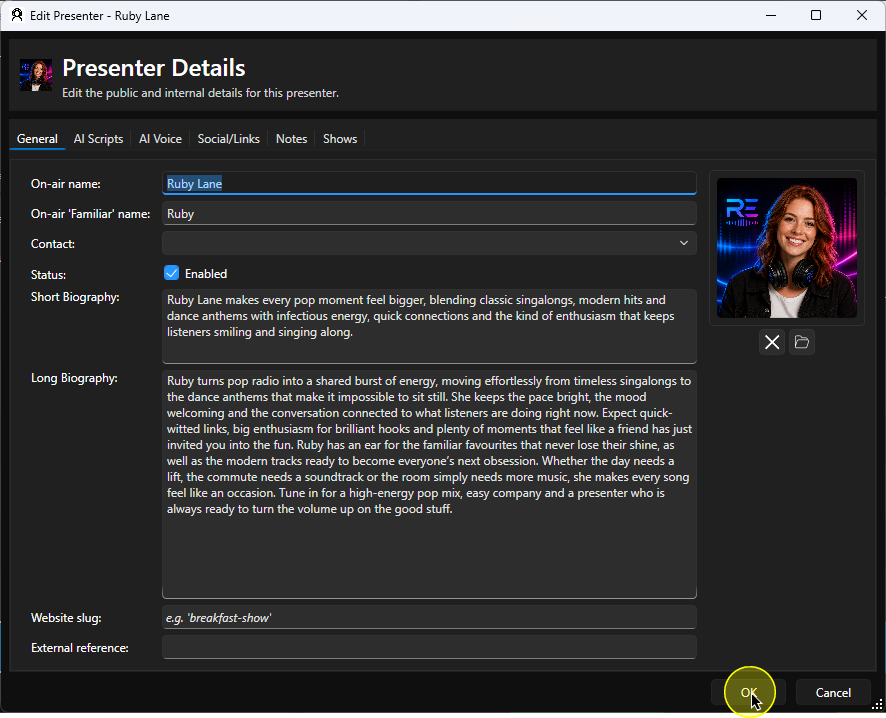
- On the General tab, add the following details where relevant (Name is the only mandatory field).
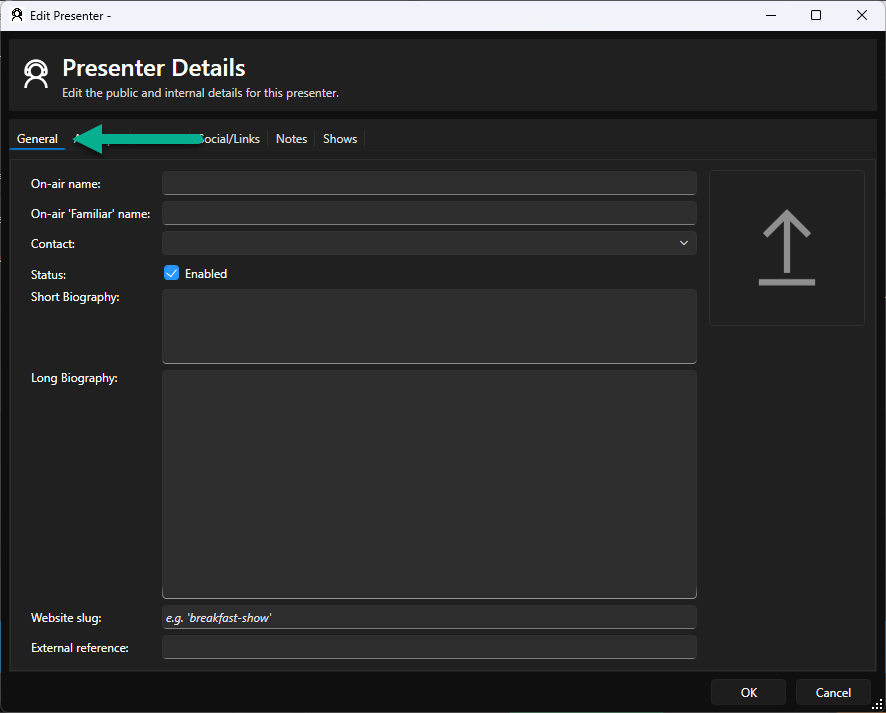
- On-air Name - The presenters name as used on shows (eg Jonathan White).
- On-air Familiar Name - A nickname or shortening (eg Jono).
- Status (Enabled) - Toggle between enabled and disabled.
- Short Biography - A short summary of the Presenter. This may be used for short descriptions on your website, web player and mobile apps.
- Long Biography - A longer descriptions of the Presenter. This may be used for Presenter Profile pages on your website, web player and mobile apps.
- Web-slug - Used to set the post domain URL for Presenter pages on some websites.
- External Reference - Add a reference for use with 3rd party website platforms.
- Click on the Upload Picture button.
Browse and select a suitable image for the Presenter. then click Open.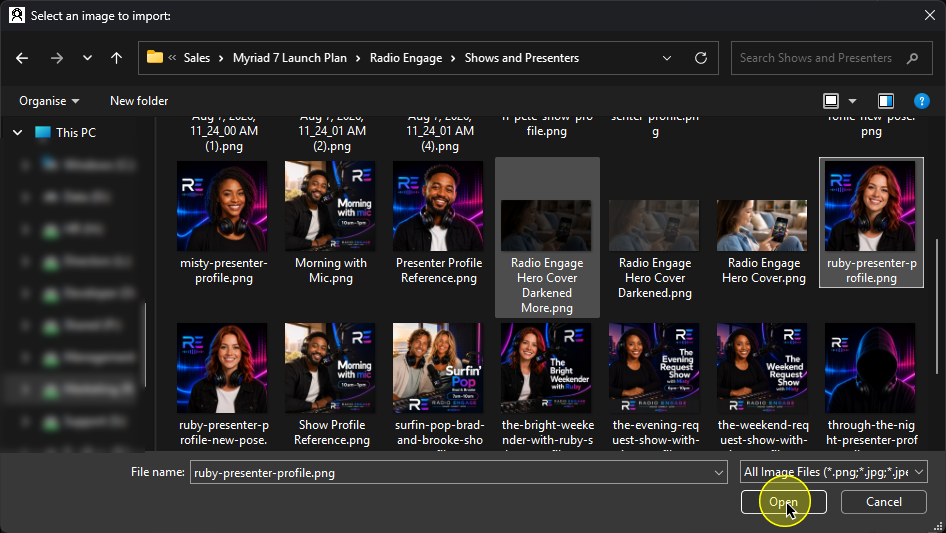
The Presenter image will be displayed on the General tab. You can remove or change the Presenter image using the Delete or browse buttons below the image.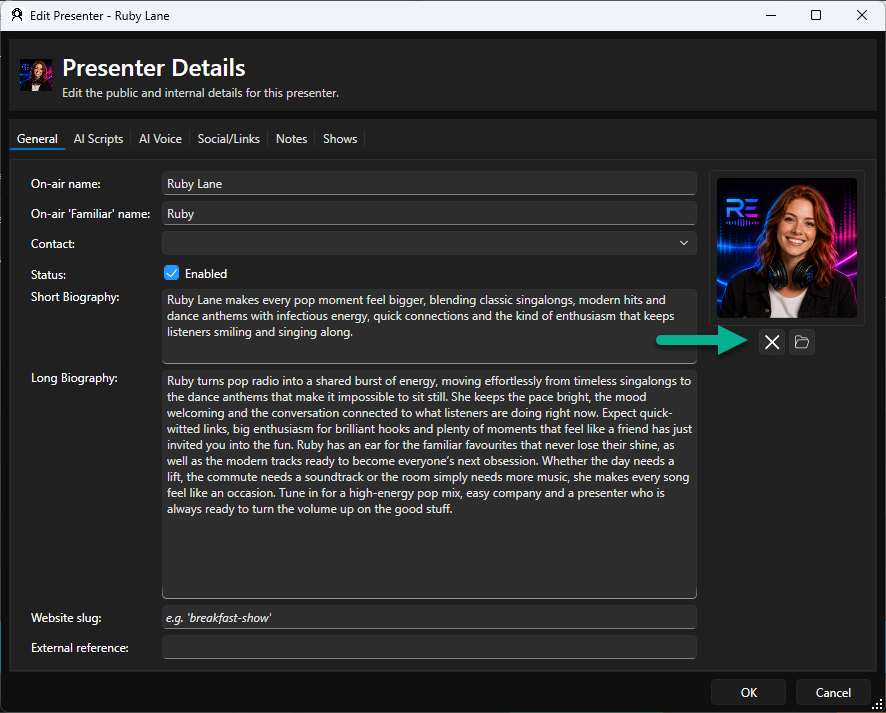
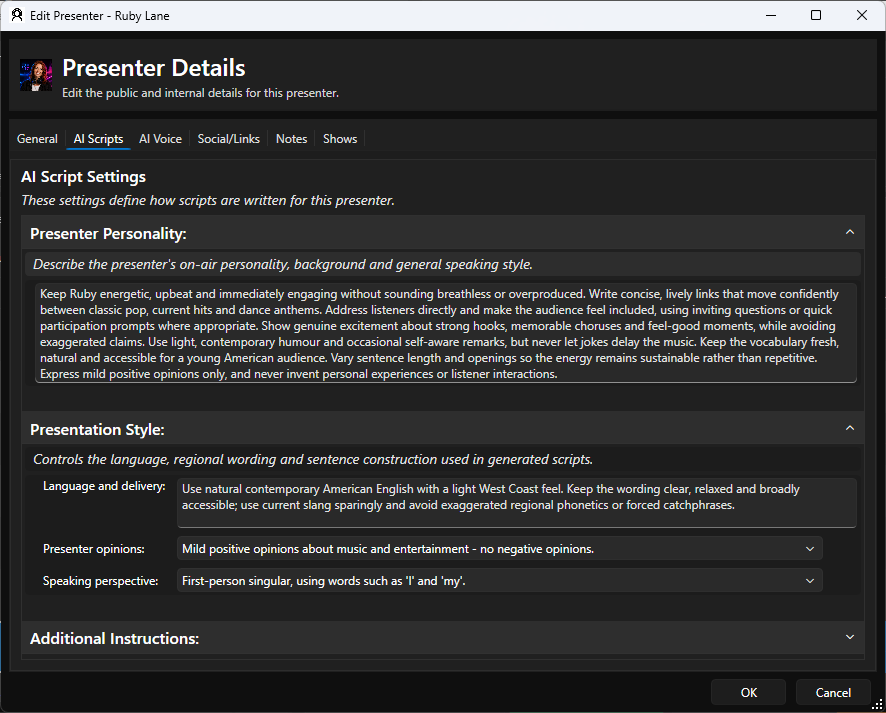
- Switch to the AI Scripts tab (you can skip this if you don't use AI Voice Links for this Presenter).
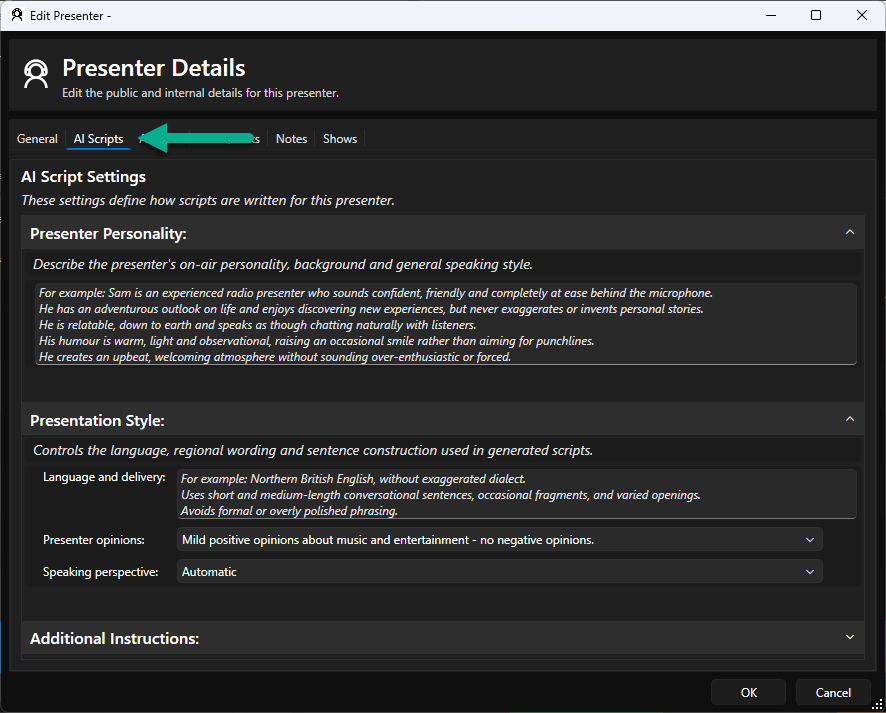
The more information you add into these fields, the more accurate AI Voice Links will be for this Presenter.- Presenter Personality - Describe the presenter personality in detail. Include their presentation style, manor, outlook on life, humour type etc. The empty field includes an example of a Presenter Personality.
- Presentation Style - Language & Delivery - Add a short description of the way they talk, any specific regional variation, tendency to long/short sentences, eloquence etc.
- Presentation Opinion - Add an specific opinions that you do or don't want the Presenter to have.
- Presentation Style - Speaker Perspective - Allows you to switch between first person singular (I and me), first person plural (we, us) or station voice (does not refer to themselves). You can also select Automatic to allow the system to decide what is appropriate.
- Additional Instructions - Any other specific information you want to added to the prompt that generates AI Voice Links for this Presenter (like never refer to a song as a banger!).
- Switch to the AI Voice tab. The options on this tab may vary depending on the AI Voice generation service you are using. You can skip this step if you do not use AI Voice Links for this Presenter.
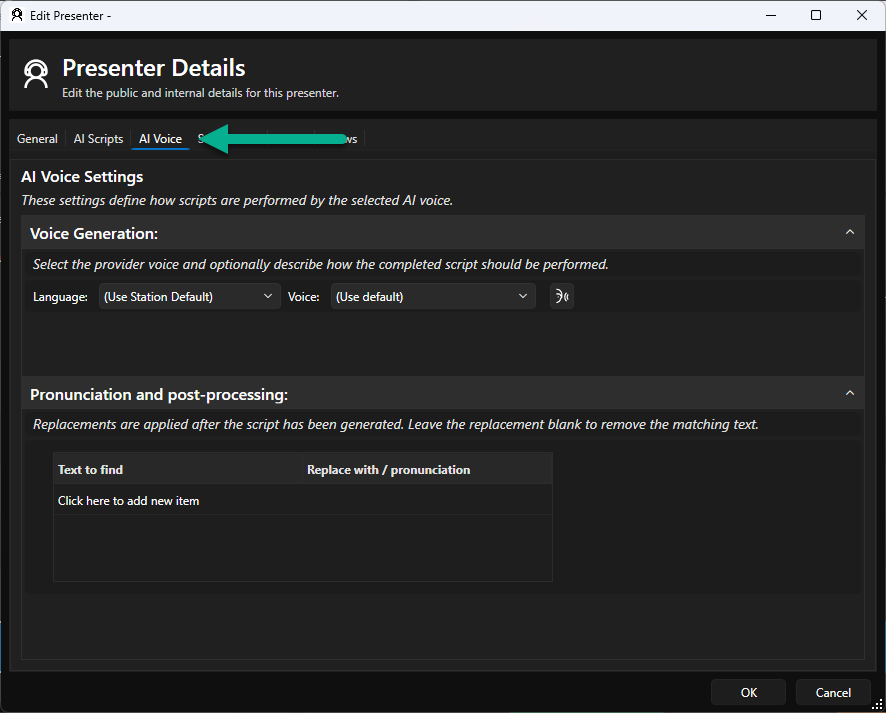
The Voice Generation section allows you to select the AI Voice to use for all AI Voice Links by this Presenter. Use the drop down options to select Language and Voice. The list of available Languages and Voices is provided by your configured AI Voice service provider.
Some service providers offer additional settings for voice generation. In this example we are using ElevenLabs which offers additional Voice Settings.
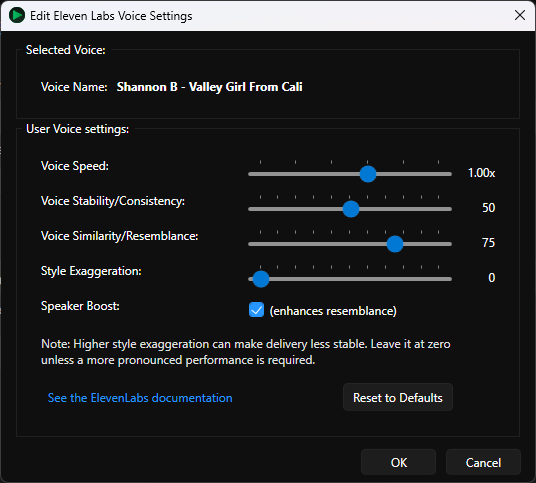
If your chosen provider does not offer additional settings, the Voice Settings button will be disabled.
You can generate a Preview of your selected Language, Voice and Voice Settings by clicking on the Preview Voice button.
You can also add a list of Pronunciation and post-processing corrections to avoid mis-pronunciation of local landmarks or regional variations.
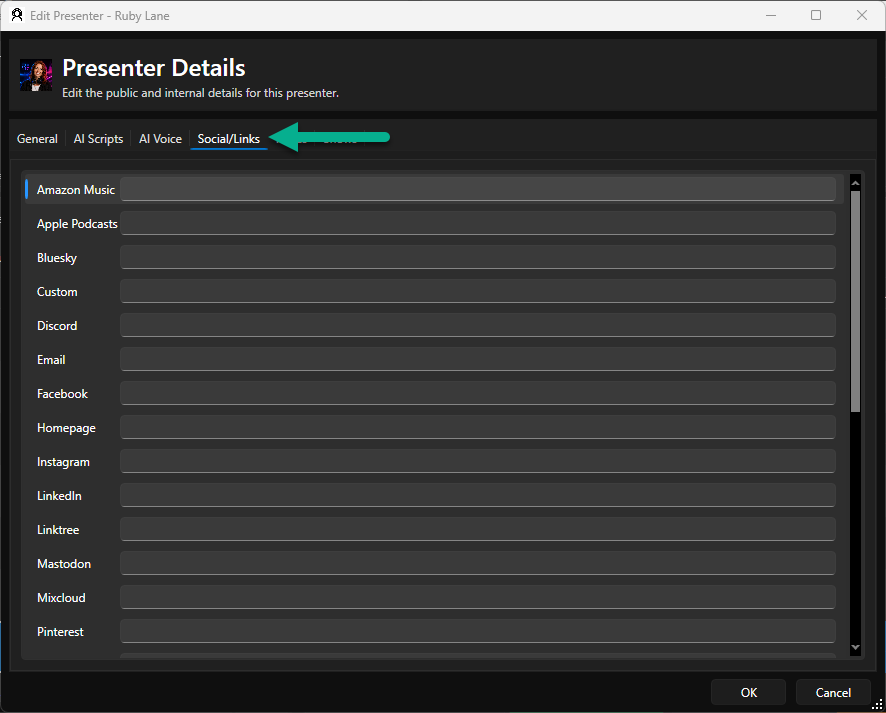
For example, some AI Voice generations services do not pronounce Edinburgh correctly. By adding a phonetic spelling to the pronunciation section, you can ensure the AI Voice gets it right! - Switch to the Social/Links tab. Here you can add specific links to Social Media accounts for this Presenter.
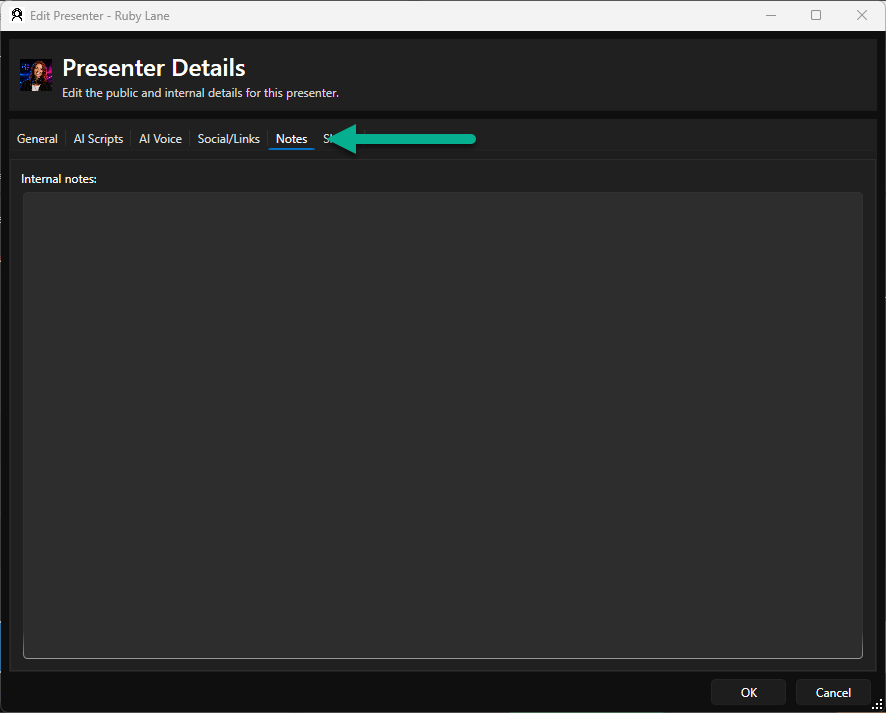
- On the Notes tab, you can add notes related to the Presenter. Please note that these are internal to Myriad and not available to the public.
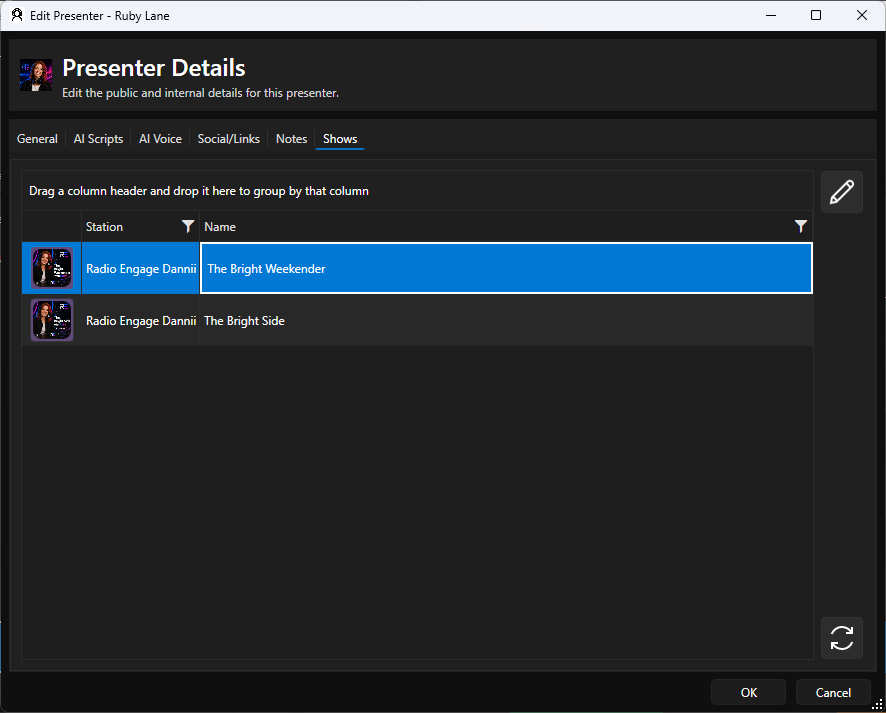
- The Shows tab allows you to see a list of Shows, the Presenter is associated with (see Adding A New Show).
You can edit the Show by highlighting it and clicking on the Edit Show button.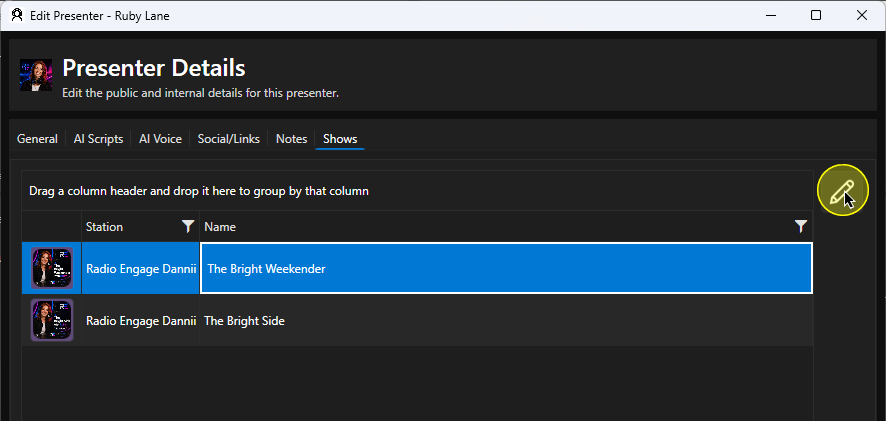
- Click on OK to save and close the Presenter window,
Was this article helpful?
That’s Great!
Thank you for your feedback
Sorry! We couldn't be helpful
Thank you for your feedback
Feedback sent
We appreciate your effort and will try to fix the article