In this guide, we will cover what audio source inputs the Audio Monitor can be configured to monitor and how to set the level threshold and duration to determine a 'silence' event.
1. Initially, the Audio Monitor will use your default sound input device as it's monitoring source.
You can change the monitoring input source along with what constitute 'silence' via the Settings menu.
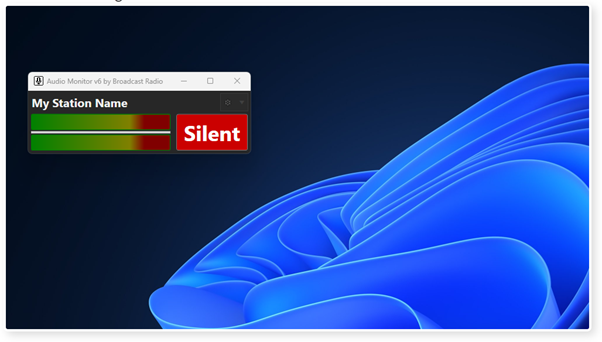
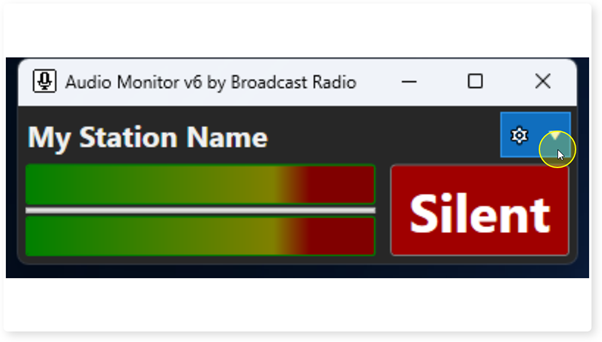
2. Click on the Settings drop down menu option.
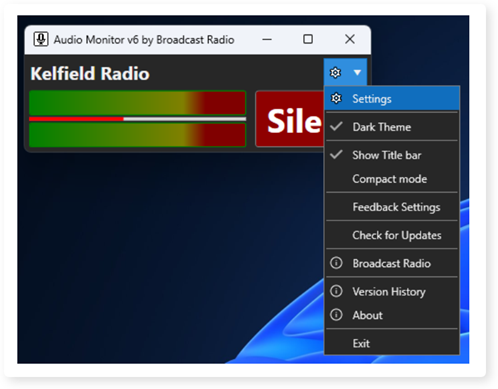
3. Select Settings from the menu.
4. Drag from here
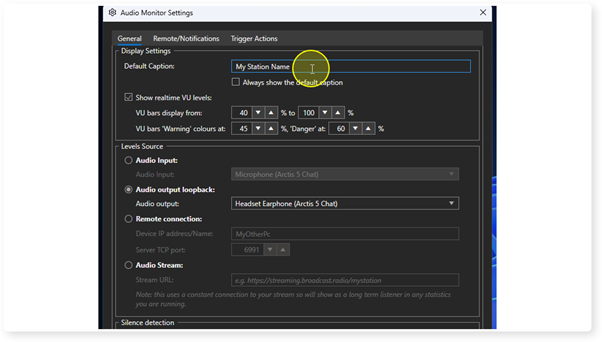
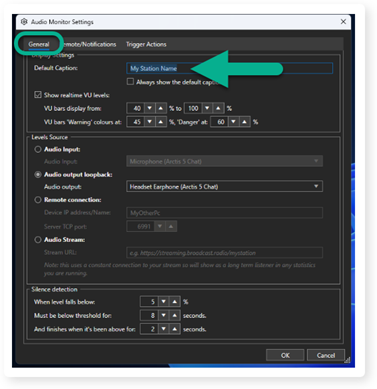
5. On the General Tab, start by typing in your Station Name.
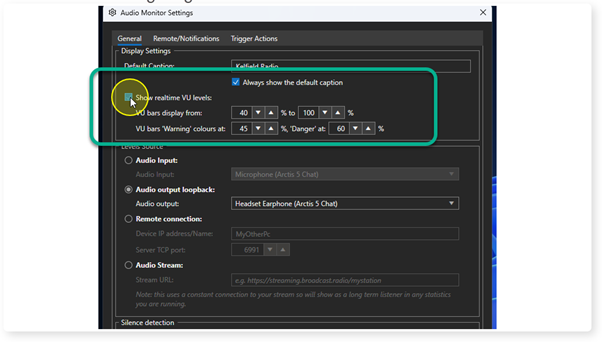
6. You can select whether to show realtime VU meters and set the display range and colour warning ranges.
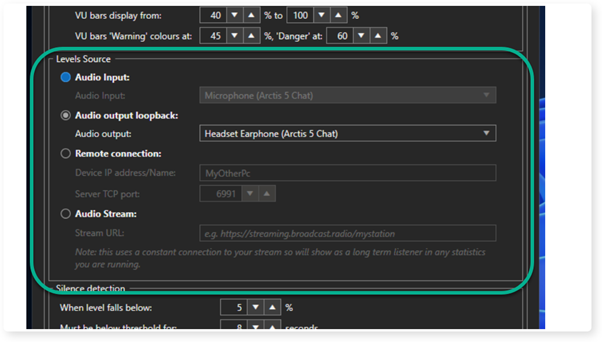
7. The Levels Source section is used to set the source of the audio that the Audio Monitor will be monitoring.
The options are:
Audio Input - Standard audio sound device input to the local PC.
Audio Output Loopback - Allows you to select a local audio output device to effectively 'listen' to. For example, this may be set to the sound device a playout system is using to play audio.
Remote Connection - Allows you to monitor the audio from another Audio Monitor instance running on a remote PC. You will need to enter the IP address and the port it is broadcasting the audio data on.
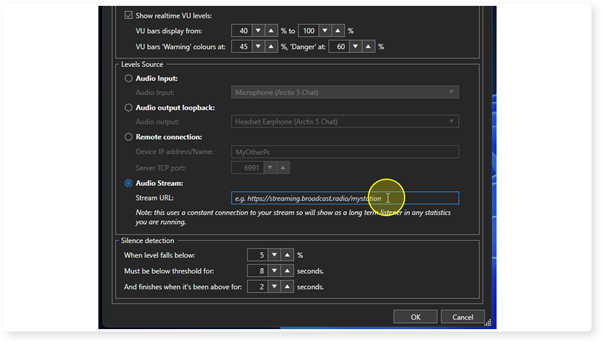
Audio Stream - Monitor the audio from a standard web radio stream URL.
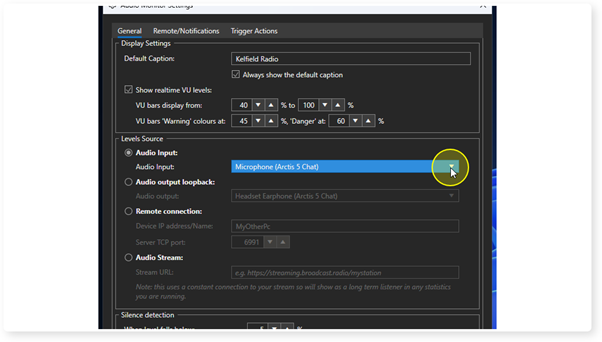
8. To select an Audio Input, tick the Audio Input option and use the drop down list to select the sound device to use.
9. To use the Audio Loopback, select the option and then use the drop down list to select a sound output device to 'listen to'.
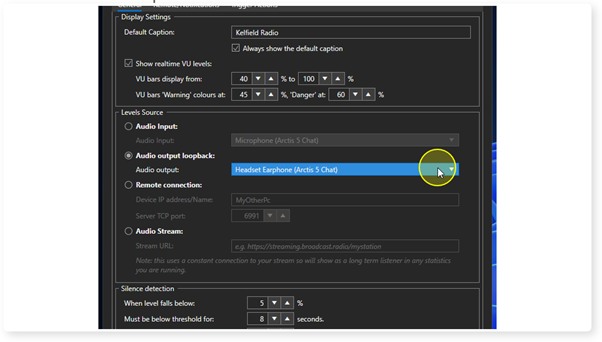
10. Click "Remote connection:"
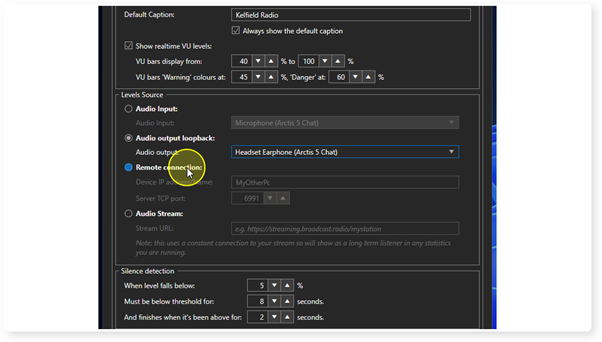
11. If you select the Remote Connection option, type in the computer name or IP address of the remote PC running Audio Monitor. You only need to change the Port number if you have changed it at the remote end.
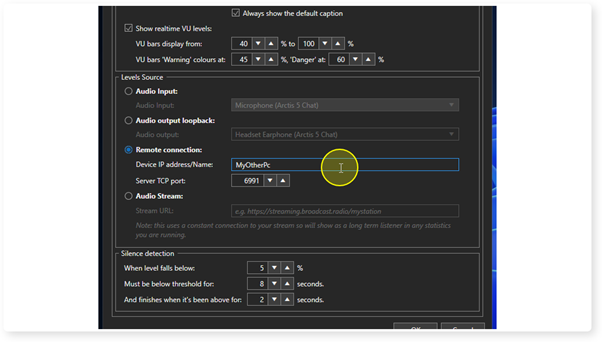
12. To monitor a stream, select the Audio Stream option and type or paste in the URL for the stream source.
13. Click "Arrow60Up"
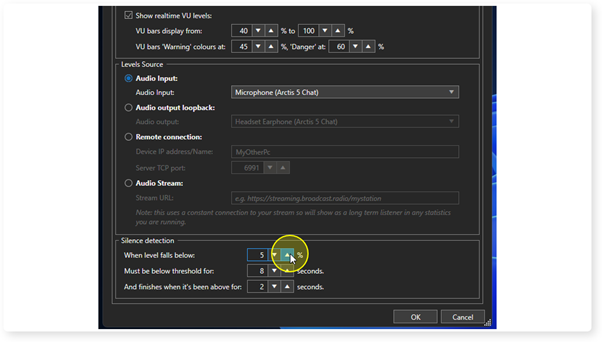
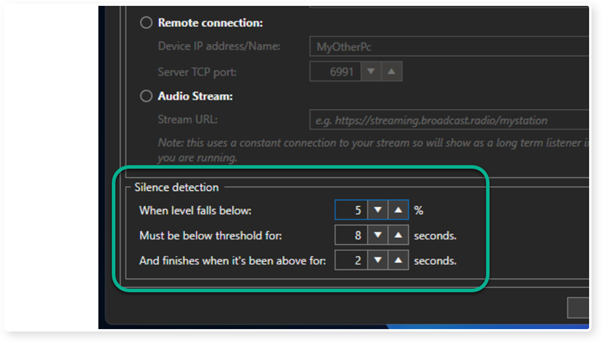
14. You can adjust the audio level percentage below which you consider the audio to be silent. This is know as the threshold level.
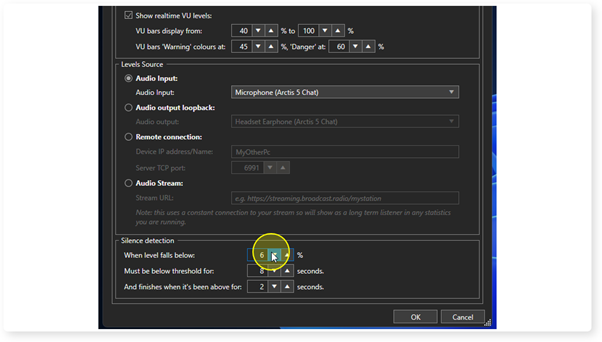
15. You can also set how many seconds the audio needs to be below the threshold before the Audio Monitor considers it a Silent event and triggers an alert.
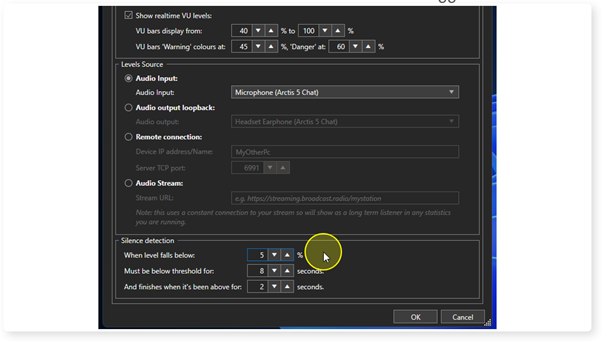
16. Finally, you can set a time in seconds that the audio level needs to be above the threshold for, to class as an end to the Silent event.
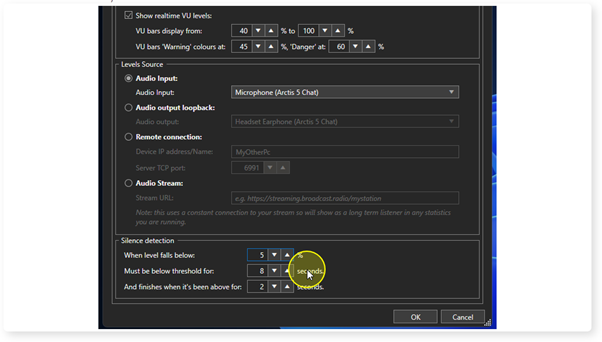
17. So in the example below, if the audio level drops below 5% for a duration greater than 8 seconds then a Silent Alert will be triggered.
When the audio rises above 5% for 2 seconds or more, the Silent Alert will end.
18. When you are happy with the settings, click on OK.
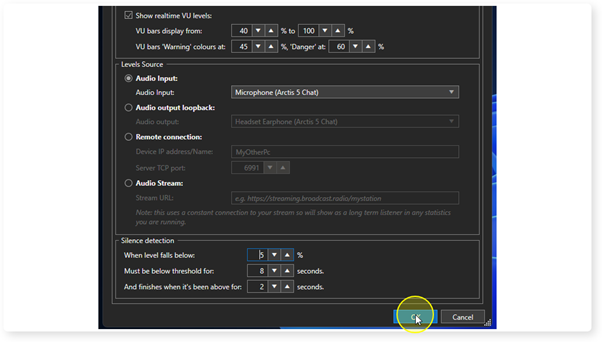
19. The Audio Monitor will now monitor the level of the selected audio source and trigger a Silent Alert if the level drops below the threshold for the a duration set.
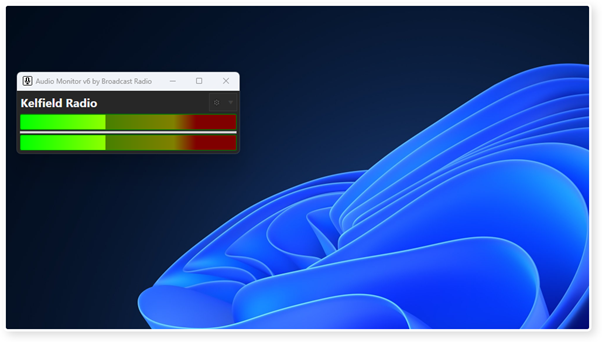
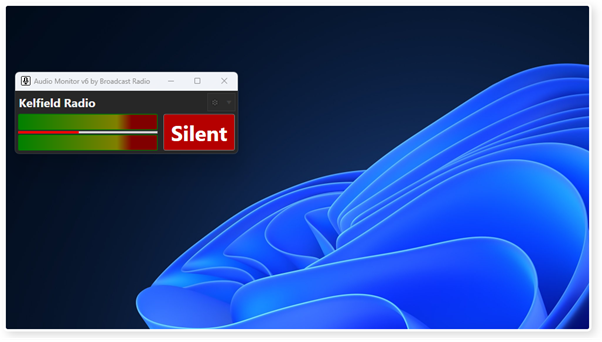
20. If a Silent Alert is triggered, the Silent warning appears on screen and the Audio Monitor can notify you and your team using one or more Notification methods (see Setting Up Notifications).
Was this article helpful?
That’s Great!
Thank you for your feedback
Sorry! We couldn't be helpful
Thank you for your feedback
Feedback sent
We appreciate your effort and will try to fix the article