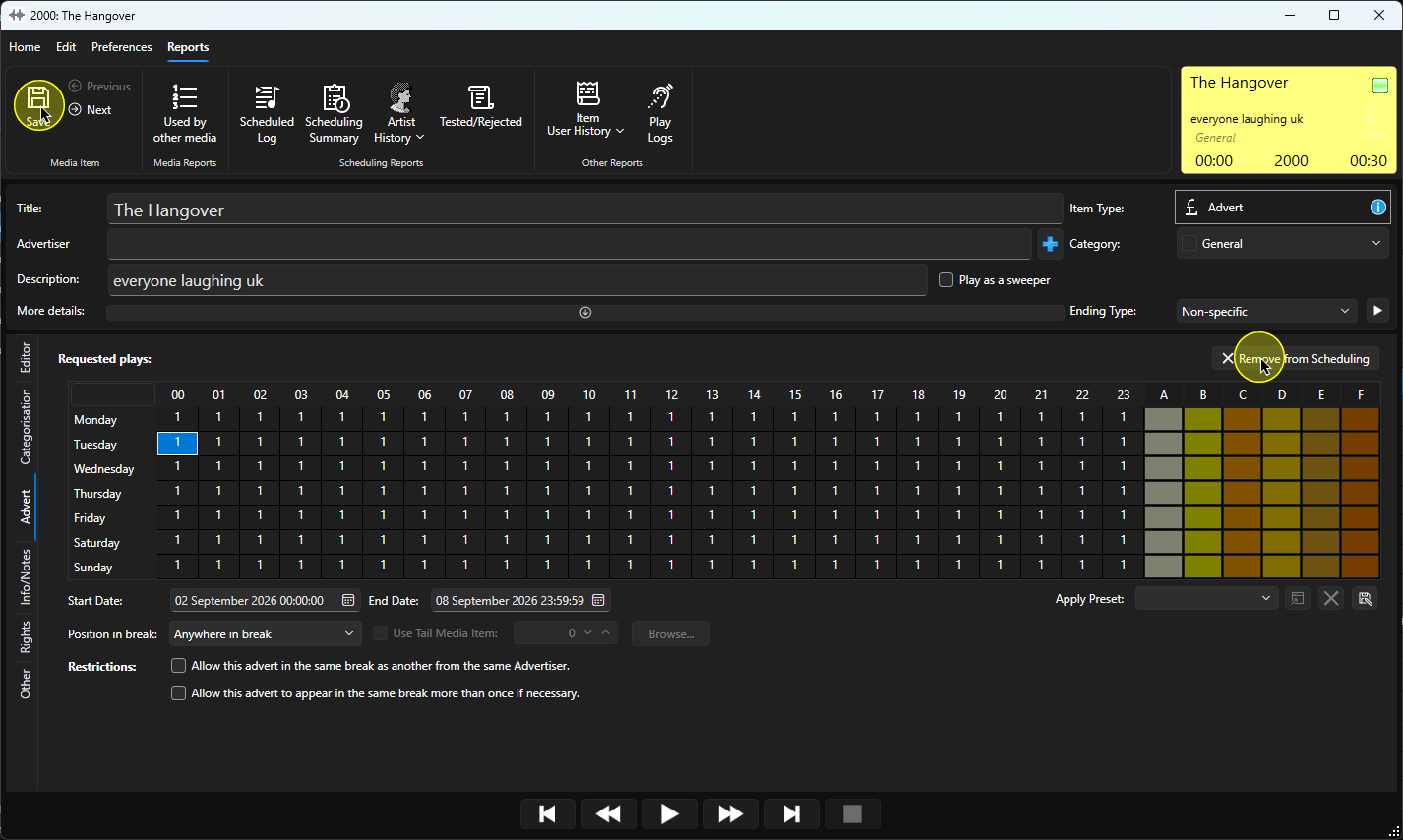
You can toggle whether an Advert should be scheduled using the options on the Adverts tab in the Edit window.
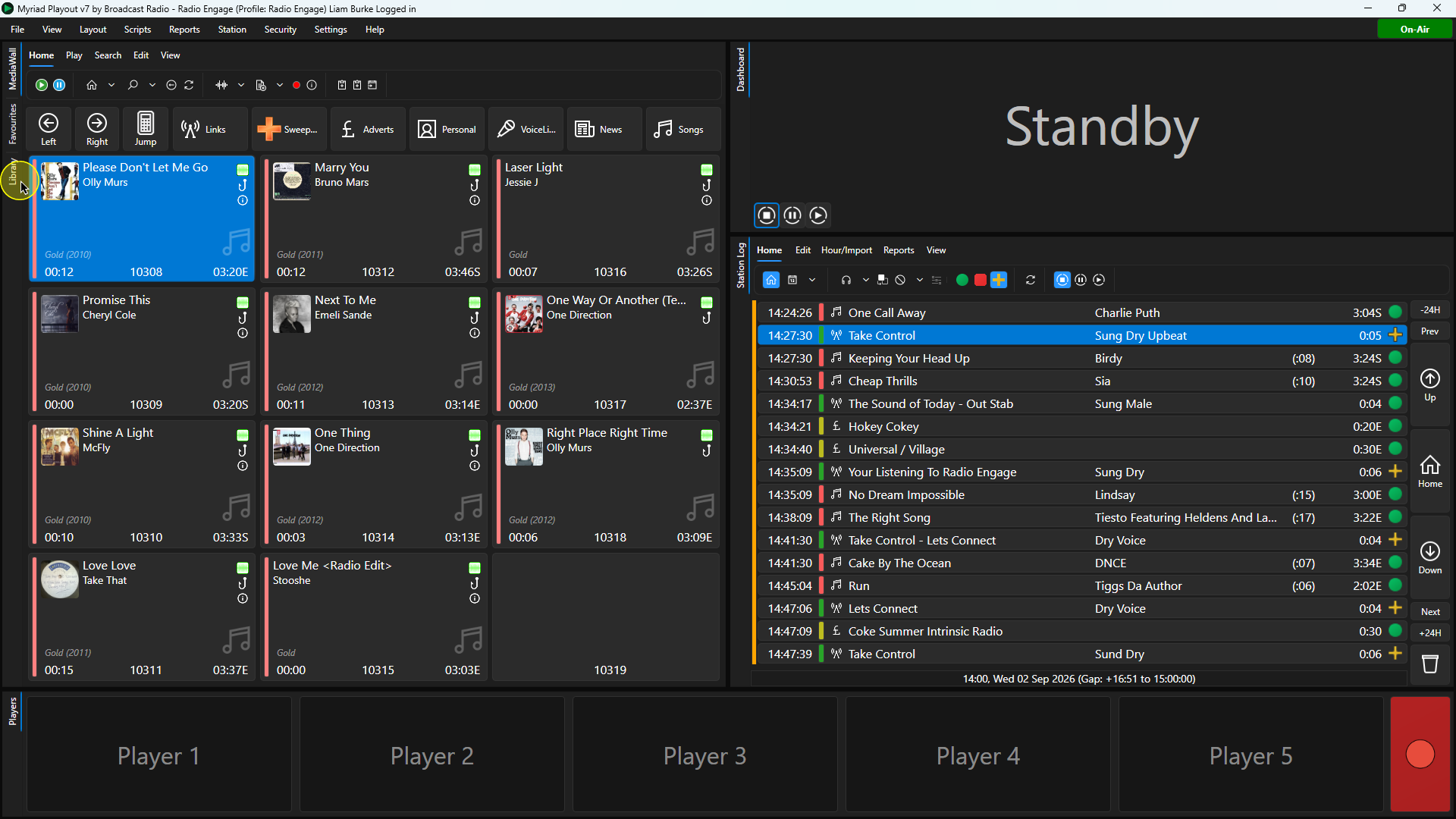
1. Click on the Library tab in Myriad Playout. You can also use the Media Wall to select an Advert to edit if prefered.
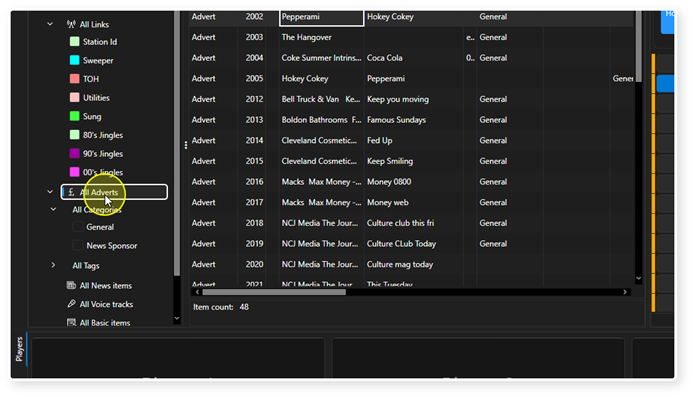
2. Select All Adverts in the left hand navigation list.
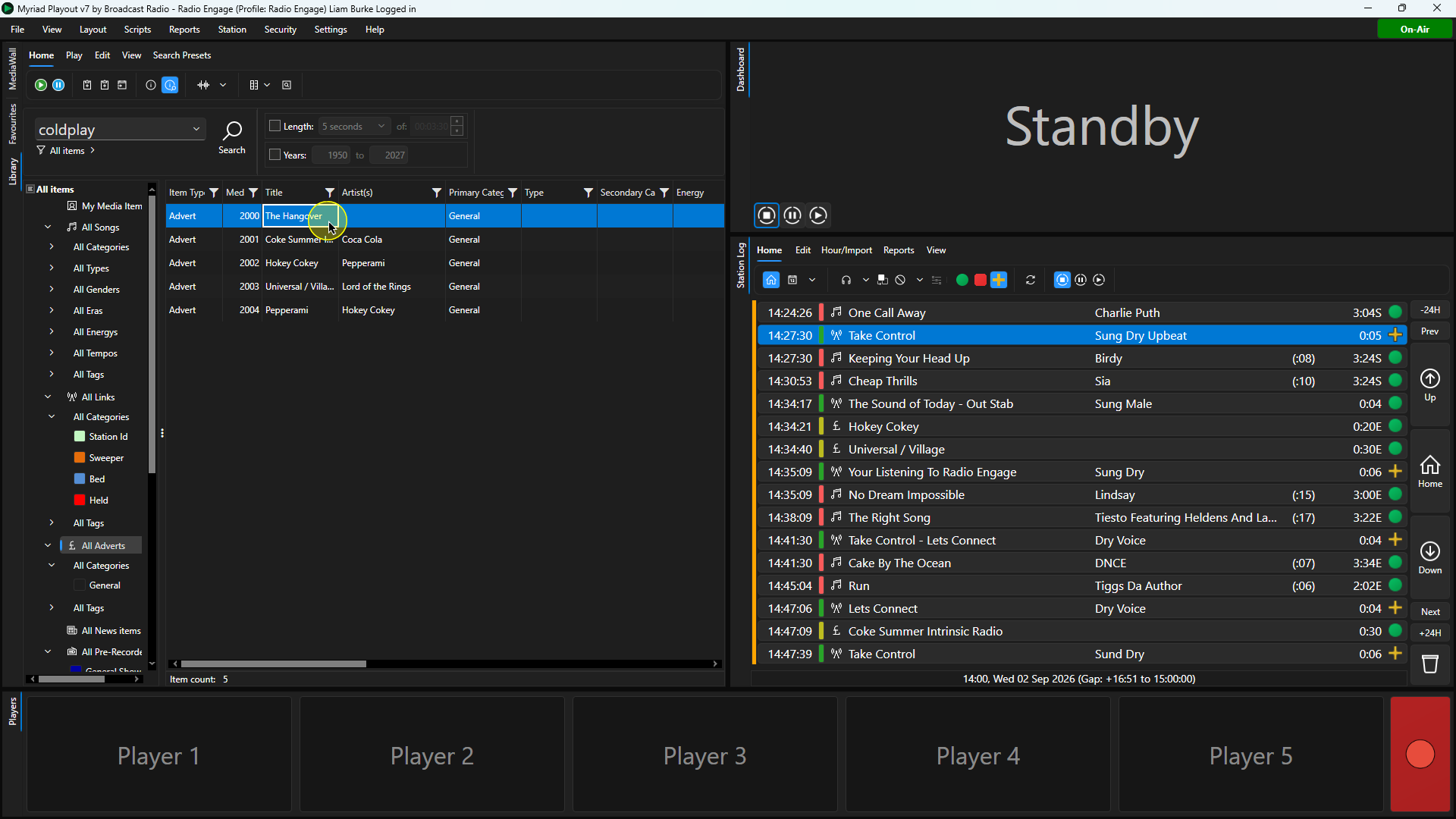
3. Select the Advert you want to Edit.
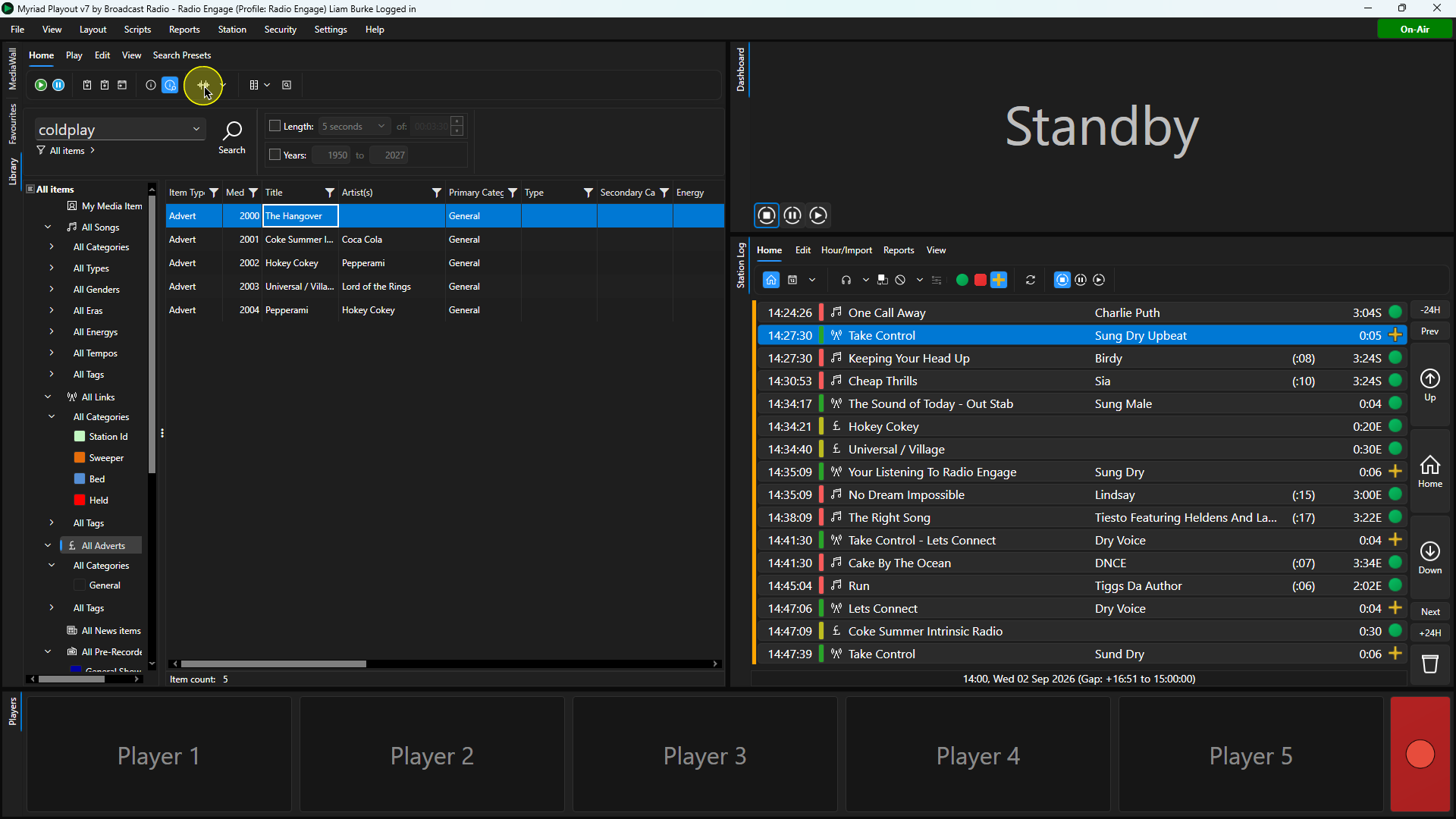
4. Click on the Edit button or use the right-click menu to select Edit.
5. Once the Edit window has loaded, click on the Adverts Tab.
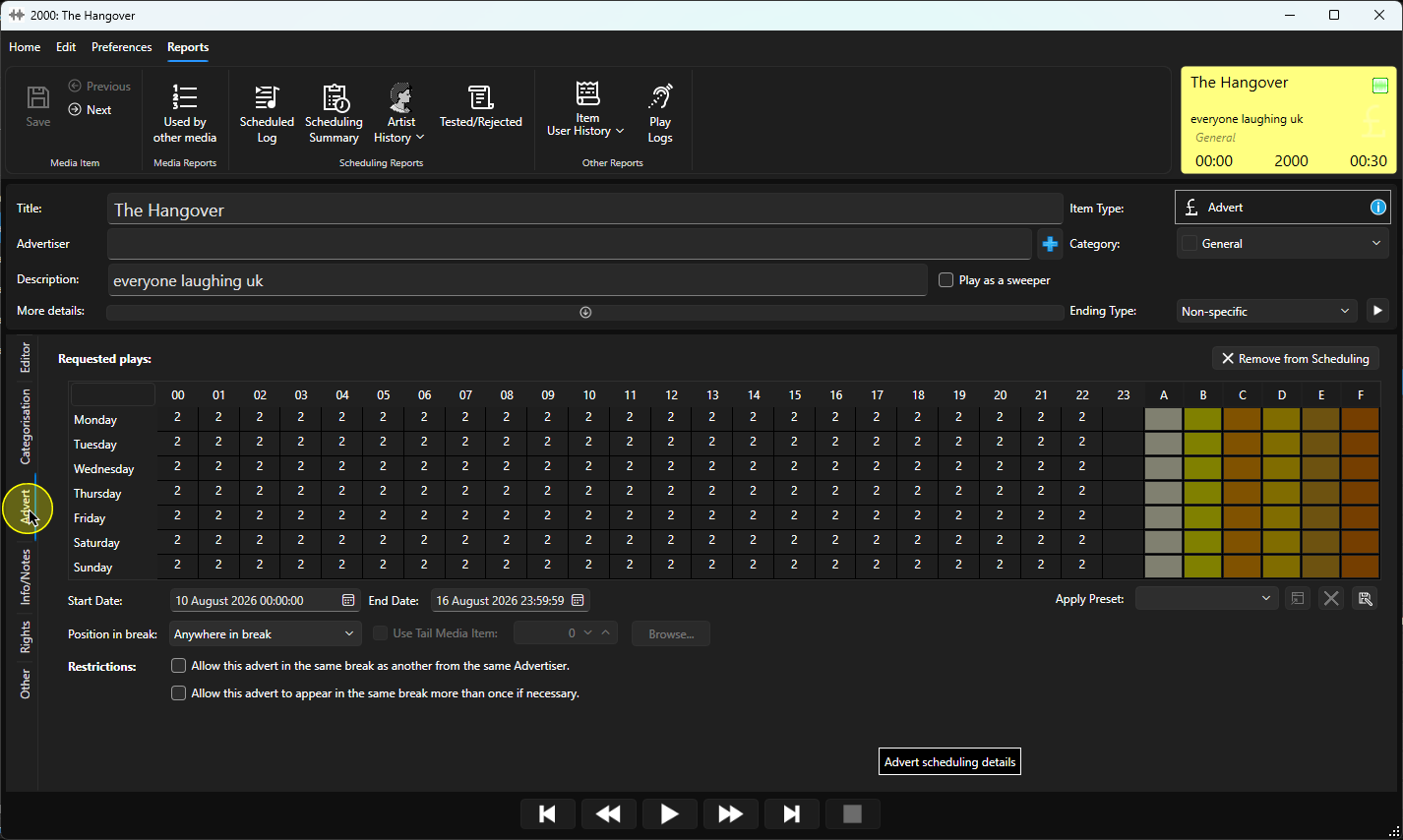
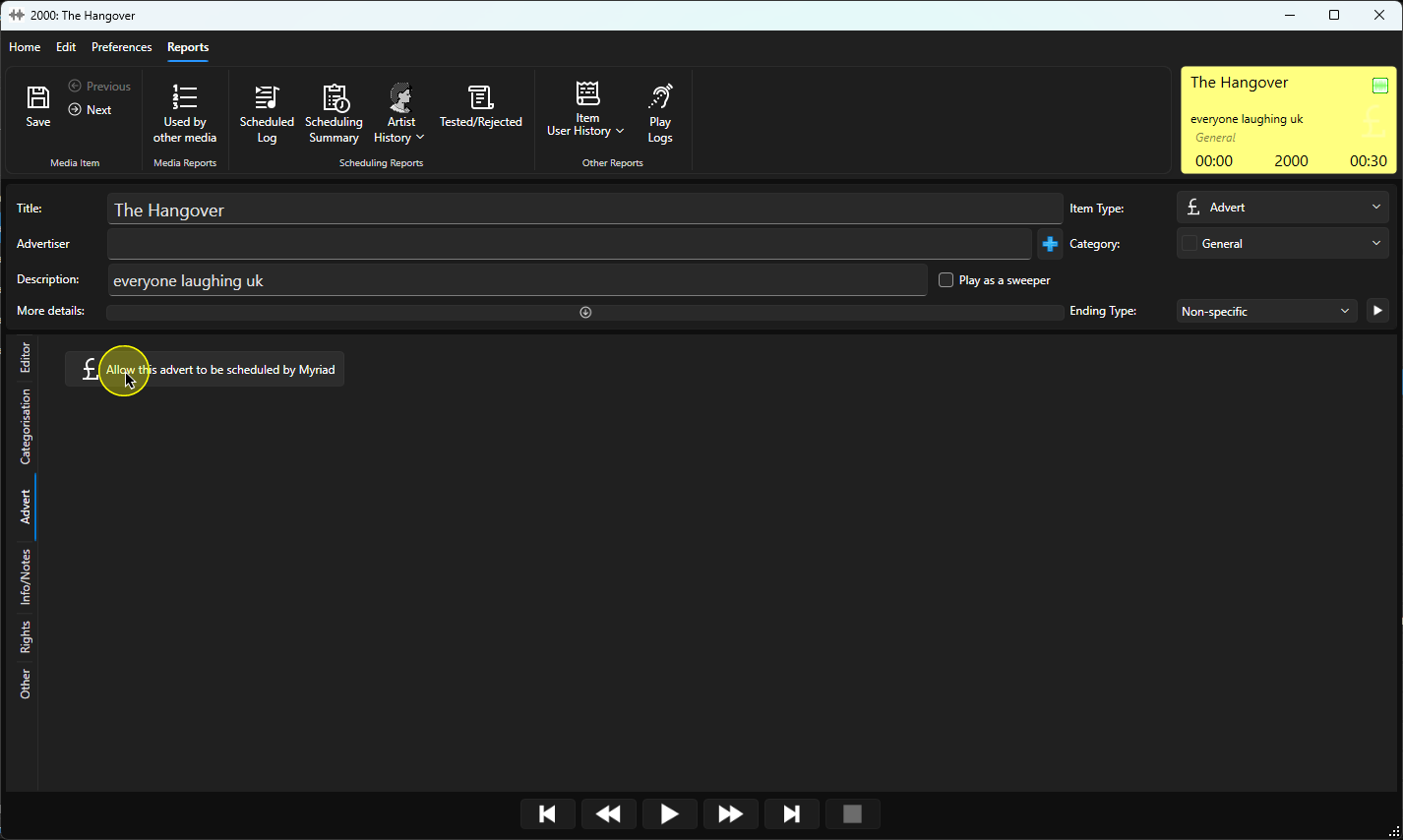
6. If the Advert is not currently enabled to be scheduled, click on the "Allow this advert to the Scheduled by Myriad" button.
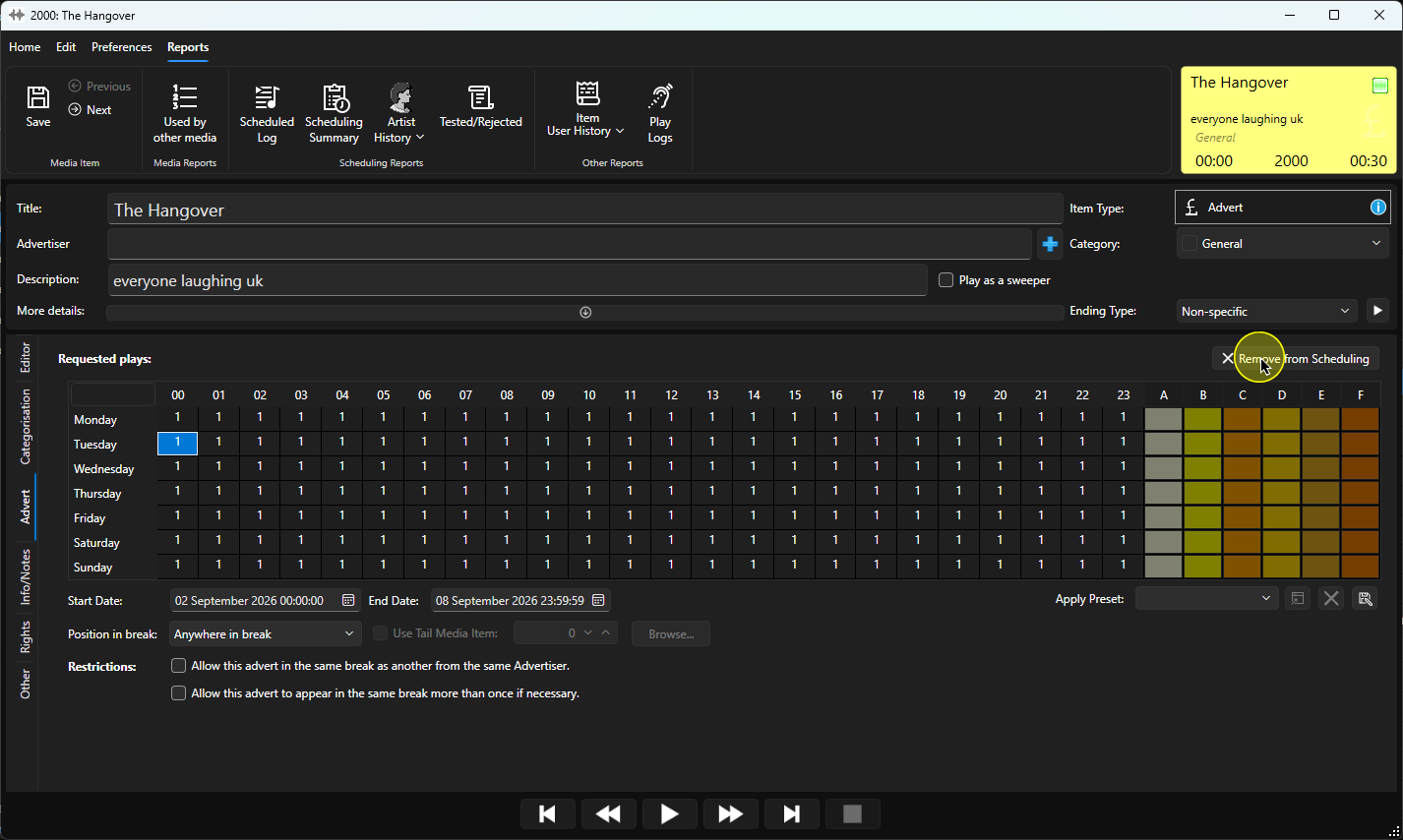
7. You can also stop an enabled Advert from scheduling using the "Remove from Scheduling" button.
8. Please note that Adverts are automatically enabled for scheduling and removed from scheduling based on the Start and End dates.
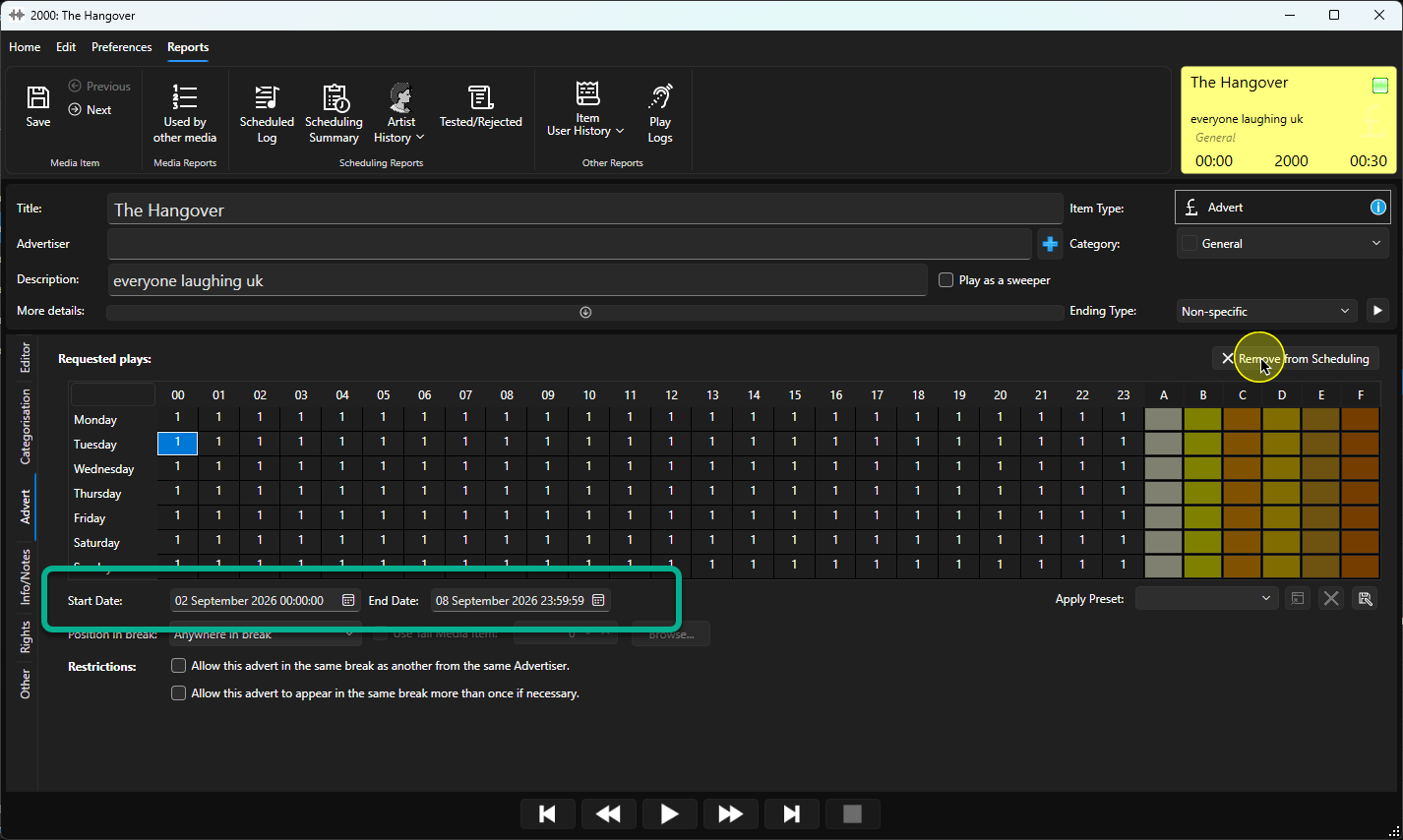
9. Click on Save to save the changes.
Was this article helpful?
That’s Great!
Thank you for your feedback
Sorry! We couldn't be helpful
Thank you for your feedback
Feedback sent
We appreciate your effort and will try to fix the article