Collision Tags can be assigned to Adverts that are advertising similar or related products so that the Advert Scheduler can separate them when placing them in scheduled Advert Breaks. For example, a Food & Drink Collision Tag could be assigned to adverts for McDonalds and Burger King to ensure that their adverts are not scheduled side by side.
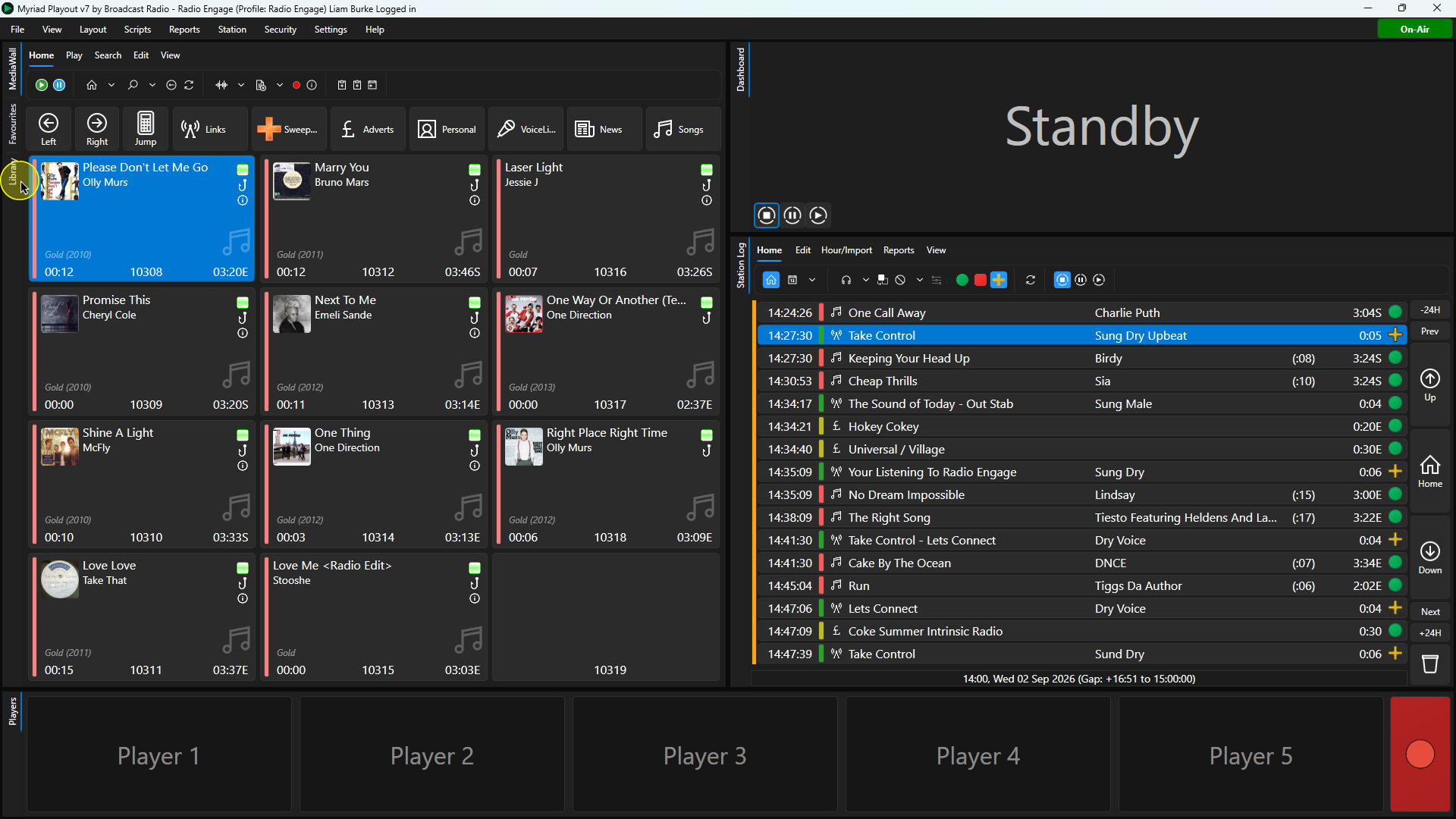
1. In Myriad Playout, click on the Library tab. You can also start on the Media Wall if you prefer.
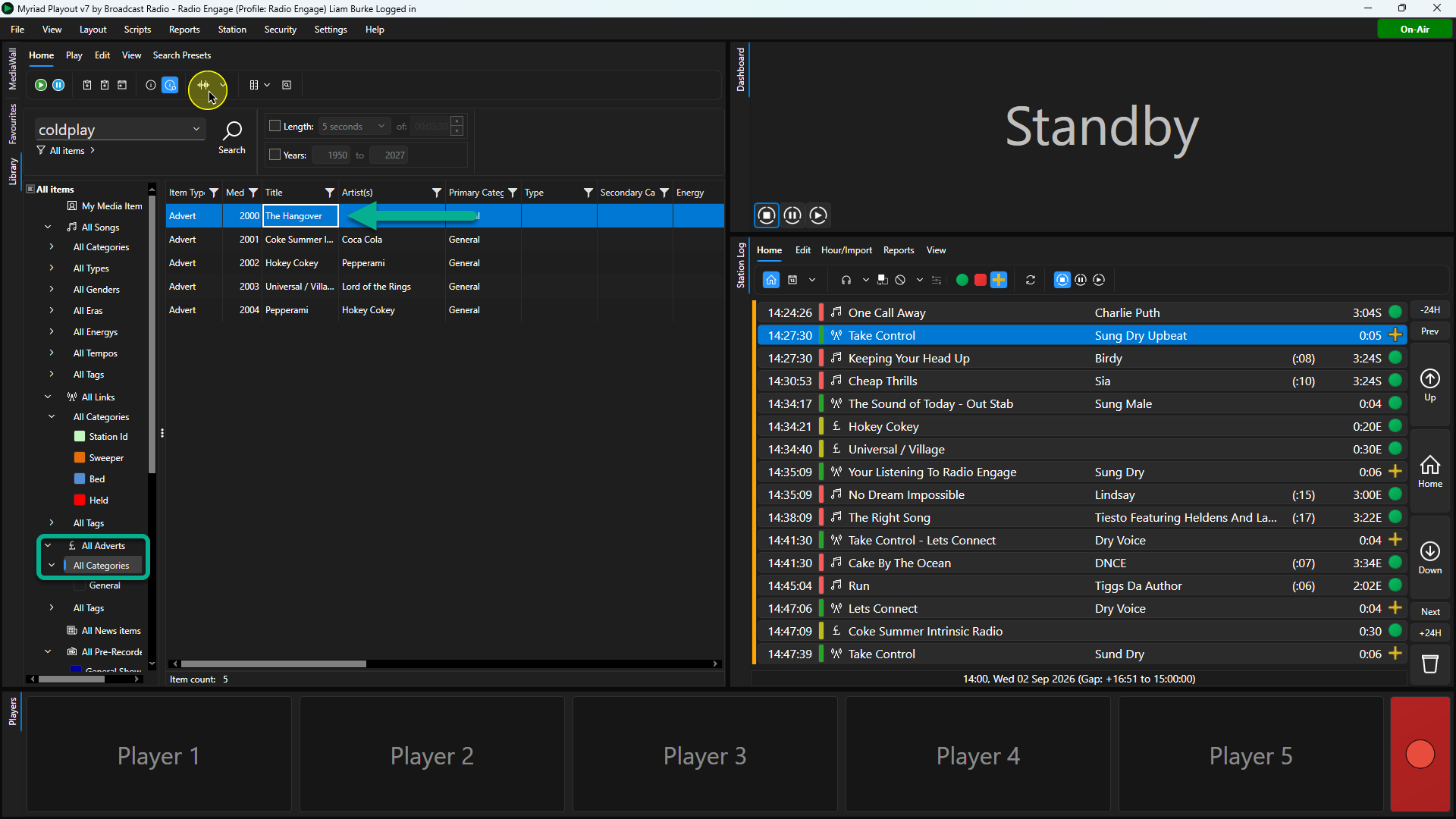
2. Select All Categories in the Adverts section on the left navigation panel. Select the Advert you want to assign the Collision Tag to and click on the Edit button on the Home ribbon.
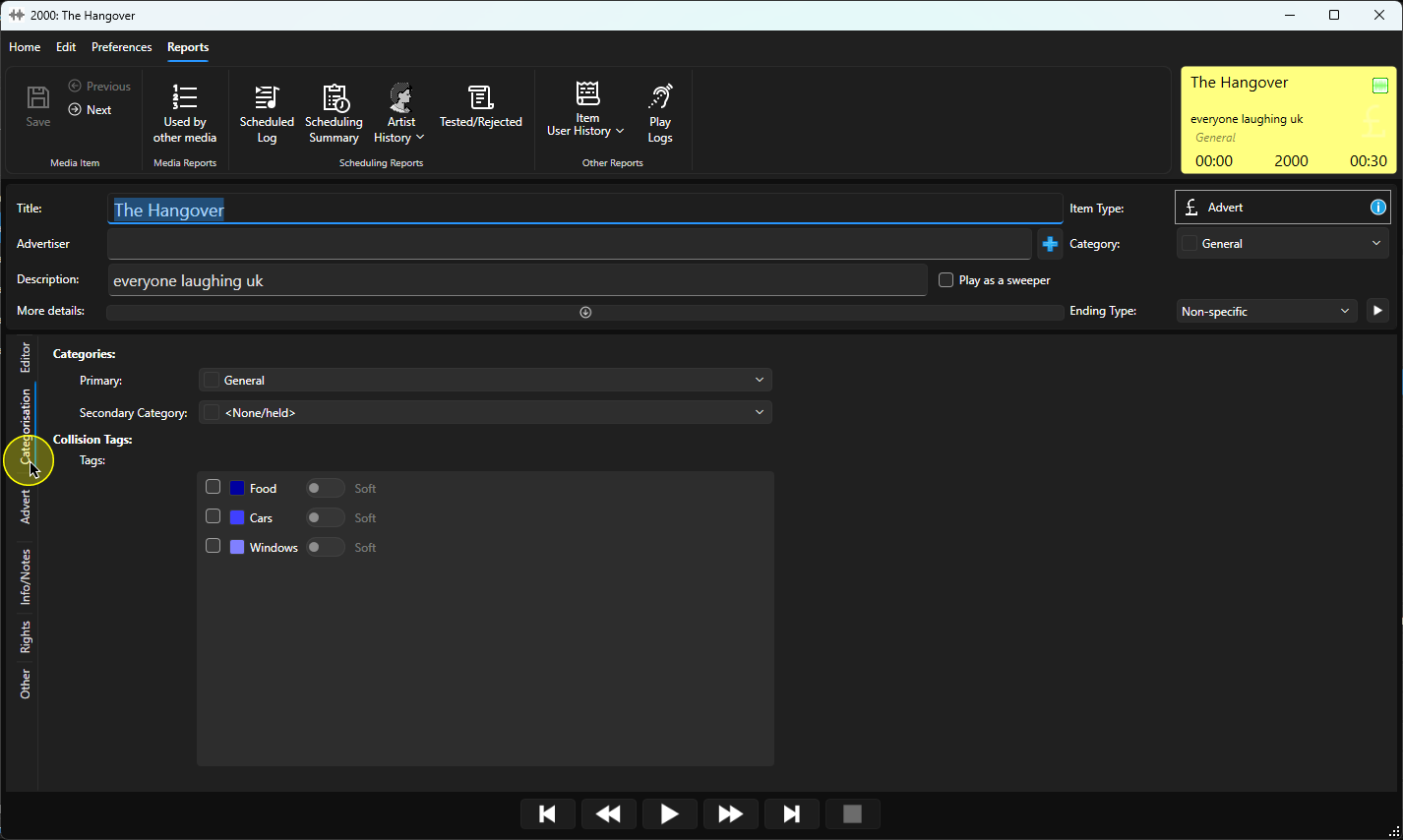
3. Once the Edit window has loaded, click on the Categorisation tab.
4. The list of available Collision Tags is displayed. Tick any Tags that apply to this Advert.
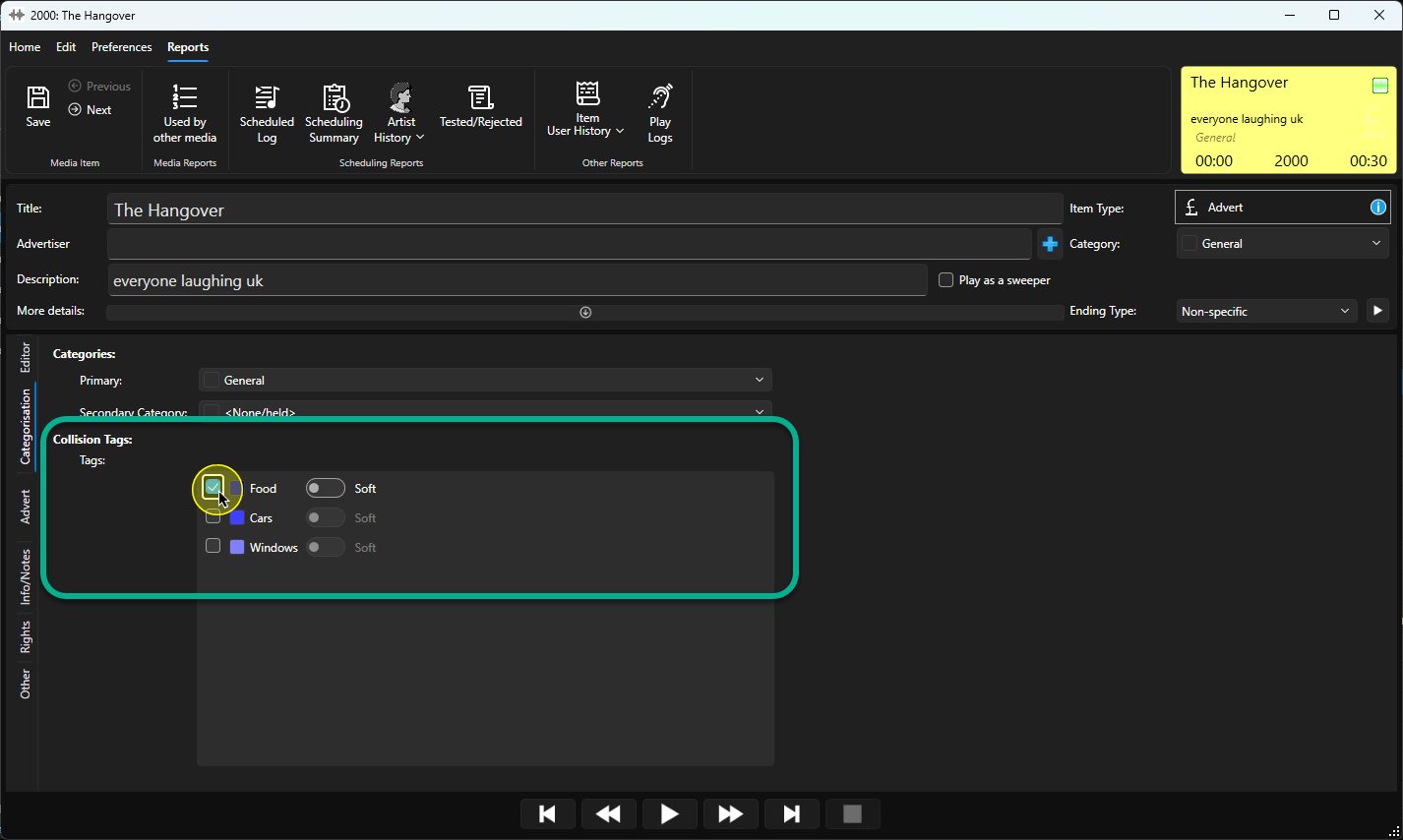
5. You can also select whether the Collision Tag should be applied as a Soft (breakable) rule or a Hard (non-breakable) rule.
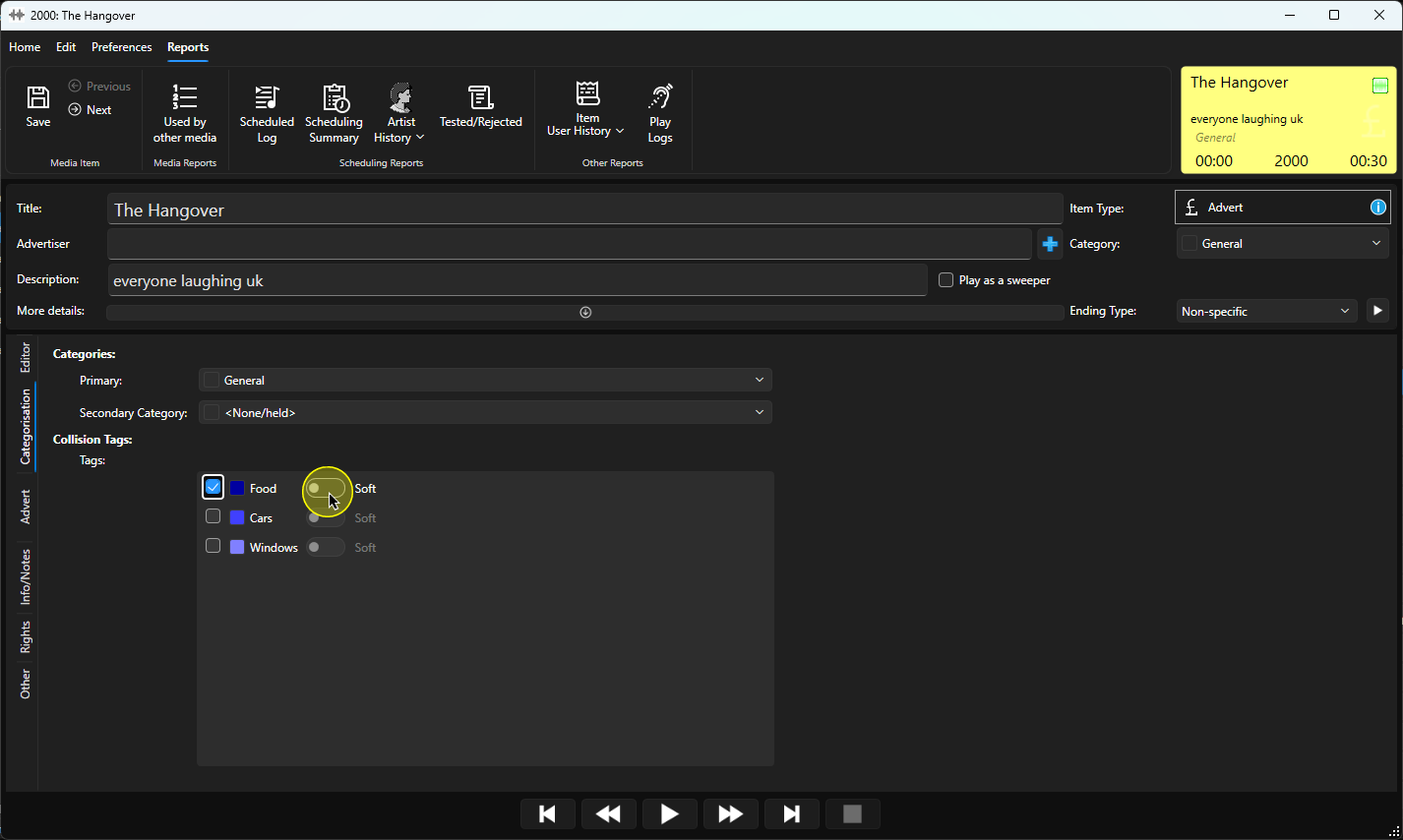
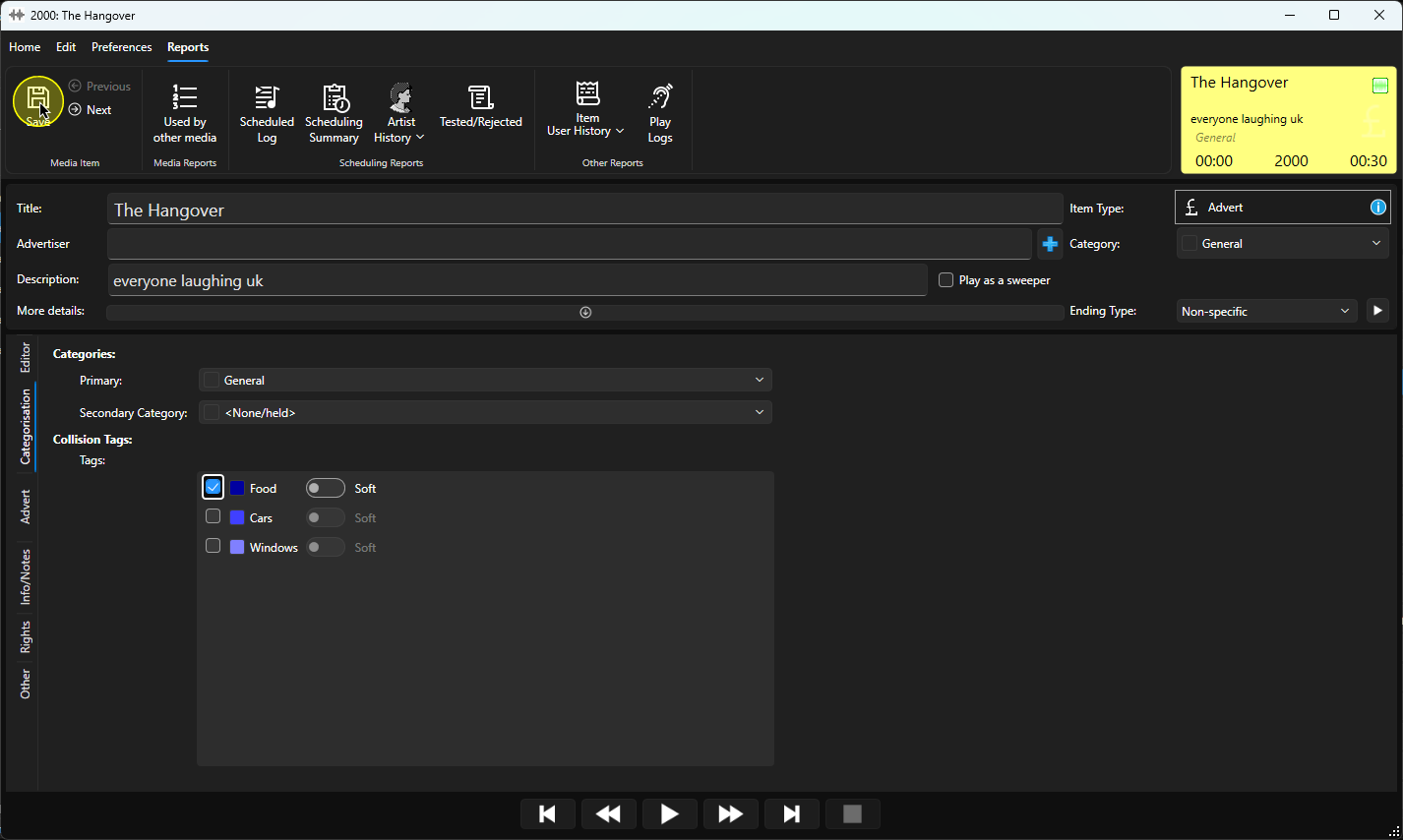
6. When you are finished, click on the Save button and close the window.
Was this article helpful?
That’s Great!
Thank you for your feedback
Sorry! We couldn't be helpful
Thank you for your feedback
Feedback sent
We appreciate your effort and will try to fix the article