Adverts that are scheduled by Myriads Schedule, require additional information to tell Myriad Schedule how often the adverts should be scheduled, which hours to schedule them into and between which dates.
There are two different ways in which Myriad Schedule deals with Advert Requested Plays:
Per Hour Plays
You can set the amount of times in a single hour you would like the Advert to be scheduled. In the example below, the Advert has been set to be played two times every hour of the week.

Per Band Plays
Alternatively, you can set up to six 'bands' with a target requested number of plays within the band. In the example below, Band A runs from 7am to 10am, Band B runs from 10am to 4pm and Band C runs from 4pm to 7pm. The section to the right shows how many times the Advert should be scheduled to play in each Band so in this example, the Advert will be scheduled twice in Band A (Breakfast show), three times between 10am and 4pm and only once between 4pm and 7pm (drivetime).
Combining Hour Plays & Bands
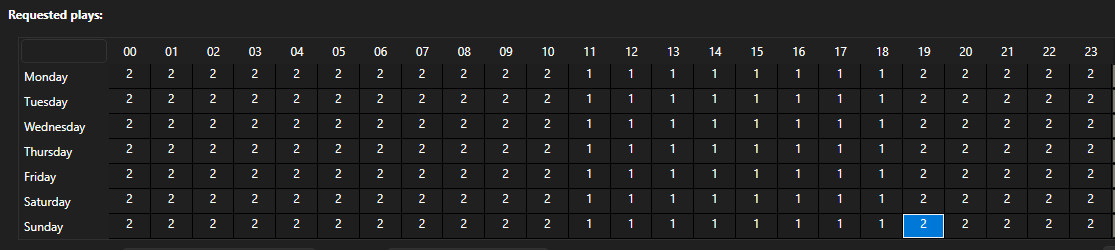
You can of course combine these to achieve the Advert placement you require. In the example below, the Advert will be scheduled to play every hour through the night, then twice in the breakfast show, three times in morning to afternoon period, once in 'drivetime', rested between 7pm and 9pm and then played once an hour through the rest of the evening.
Start / End Dates
The Requested Plays will only be applied between the Start and End dates for the Advert. This allows you to set an automatic start and end date covering the period the advertiser has paid for.
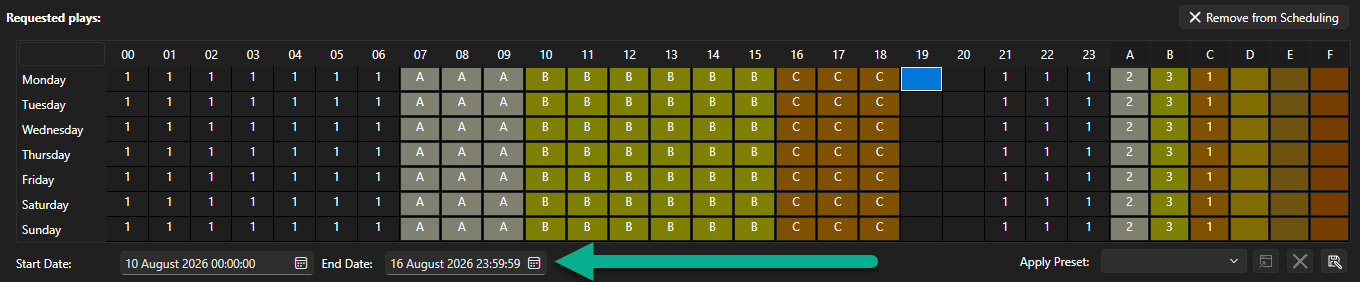
To set Requested Plays & Start / End Dates, follow these steps:
- Select an Advert on the Media Wall or Library tabs.
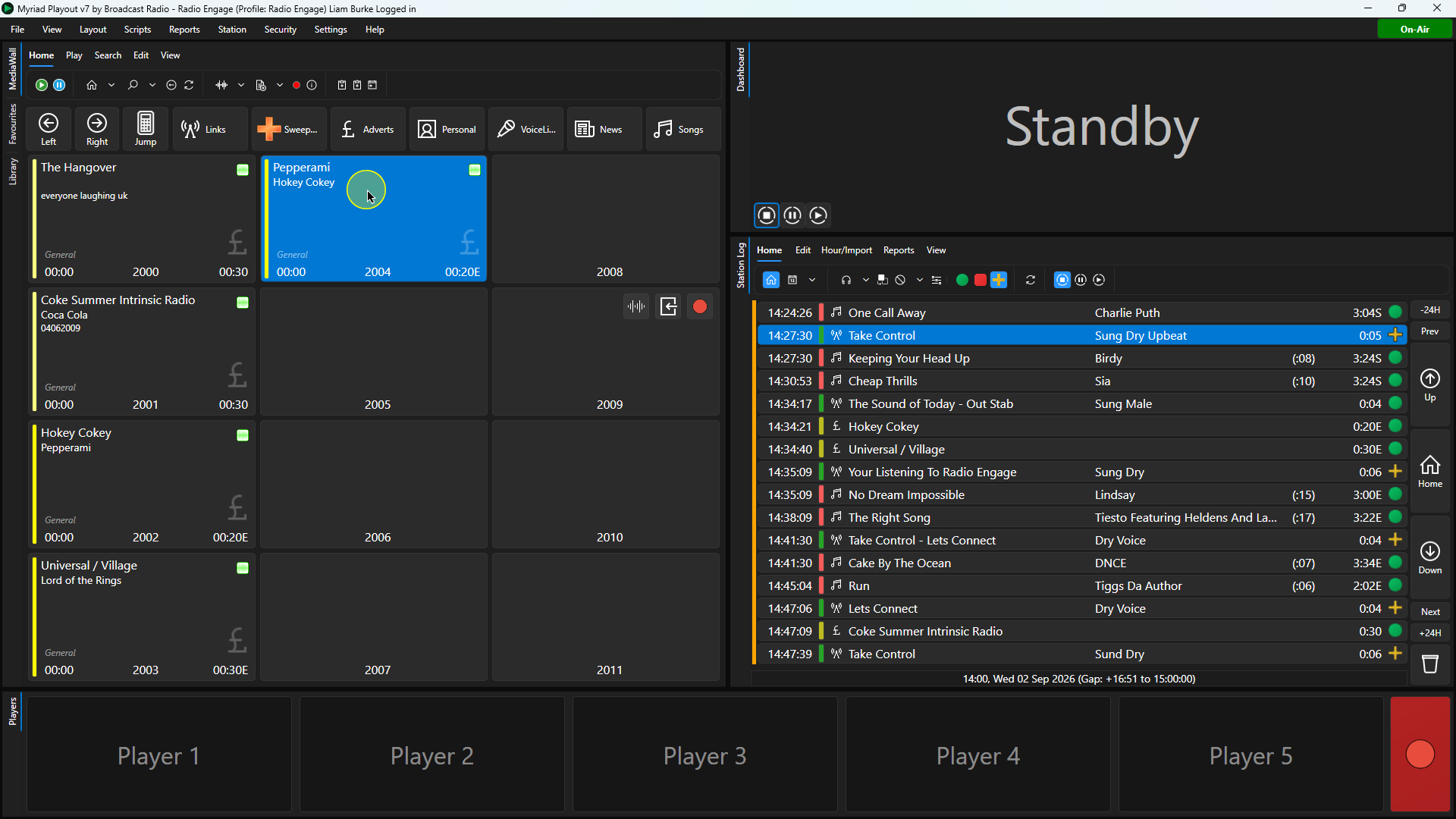
- Click on the Edit button on the ribbon (or you can use the right-click option).
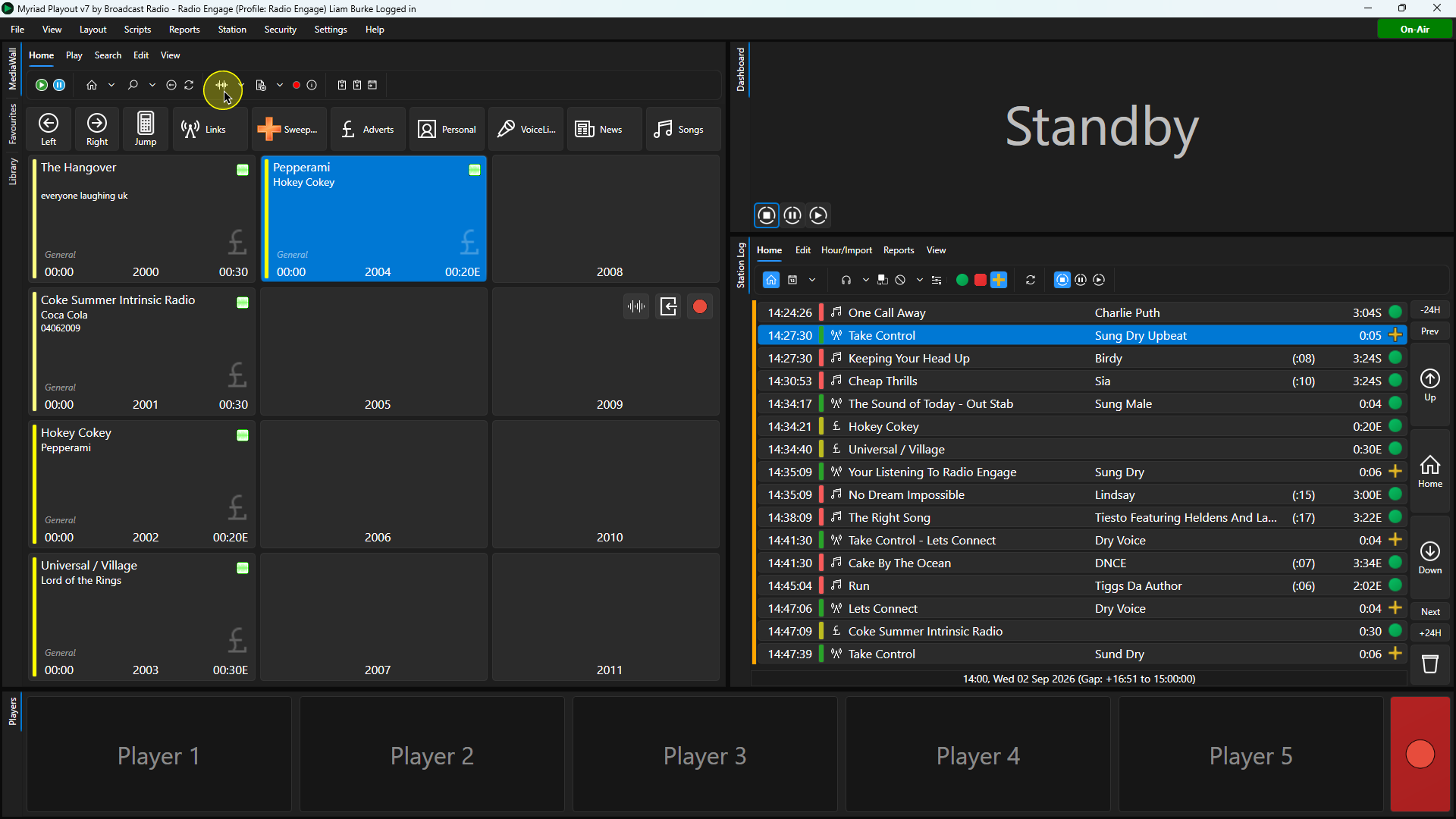
- Click on the Adverts tab.
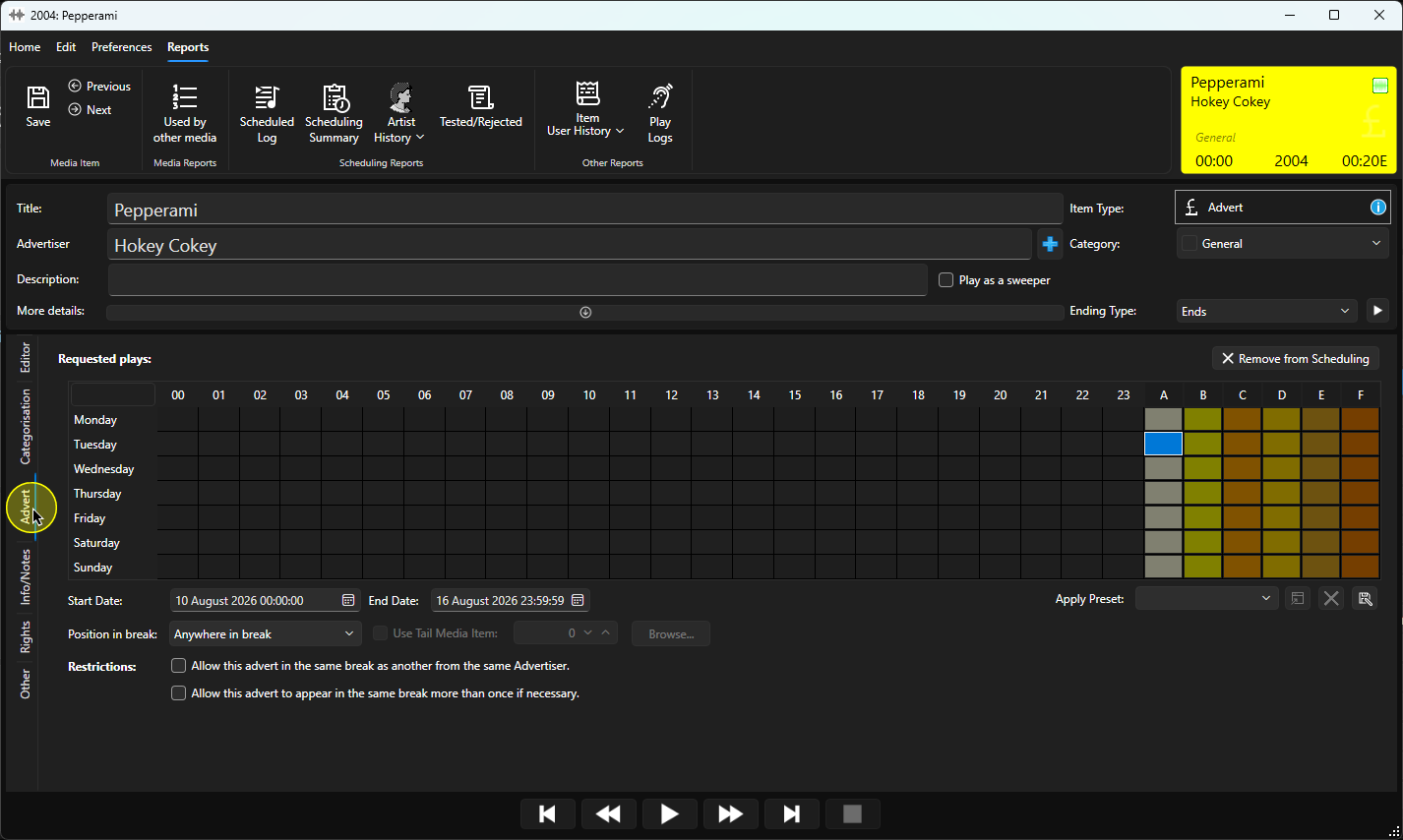
- If you want to set Per Hour Plays, left click and drag over the hours you want to select them. In the example below we have selected midnight to 10am (Monday to Sunday).
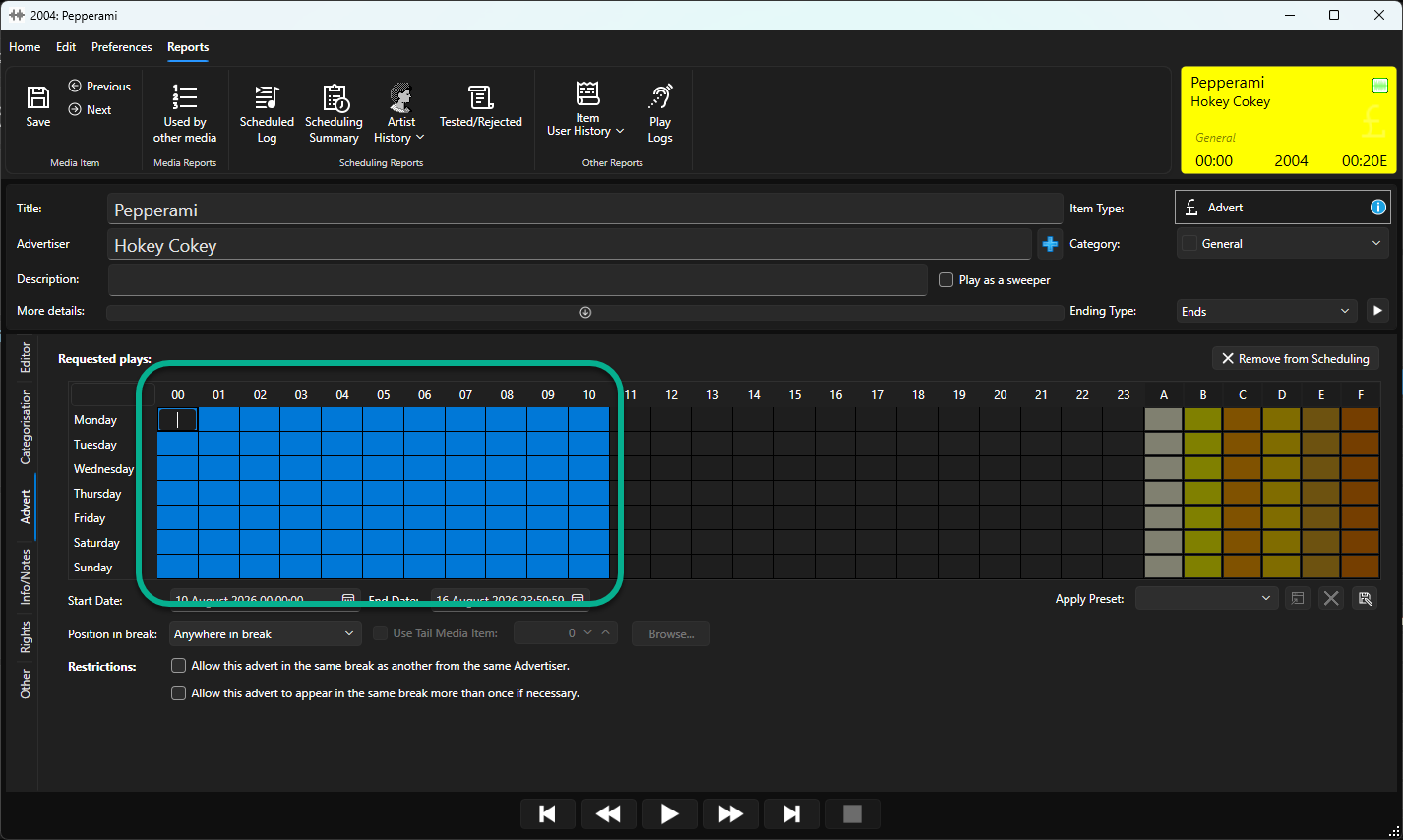
- You will see that the upper left selected hour allows you to type in a number or a letter. If you type in a number here, that number will be applied to each of the selected hours. In the example below, we have added the number 2 indicating we want the Advert to be scheduled twice in each of these hours. Once you have added a number, press the <enter> key to apply the number to the selected hours.
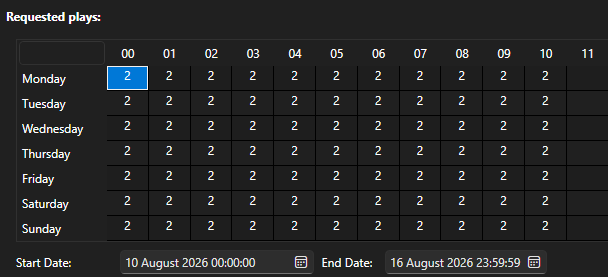
- You can repeat this for all of the hours of the week.
- Alternatively, if you want to use Per Band Plays, select the hours in the same way but type in A,B,C,D,E or F instead of a number.
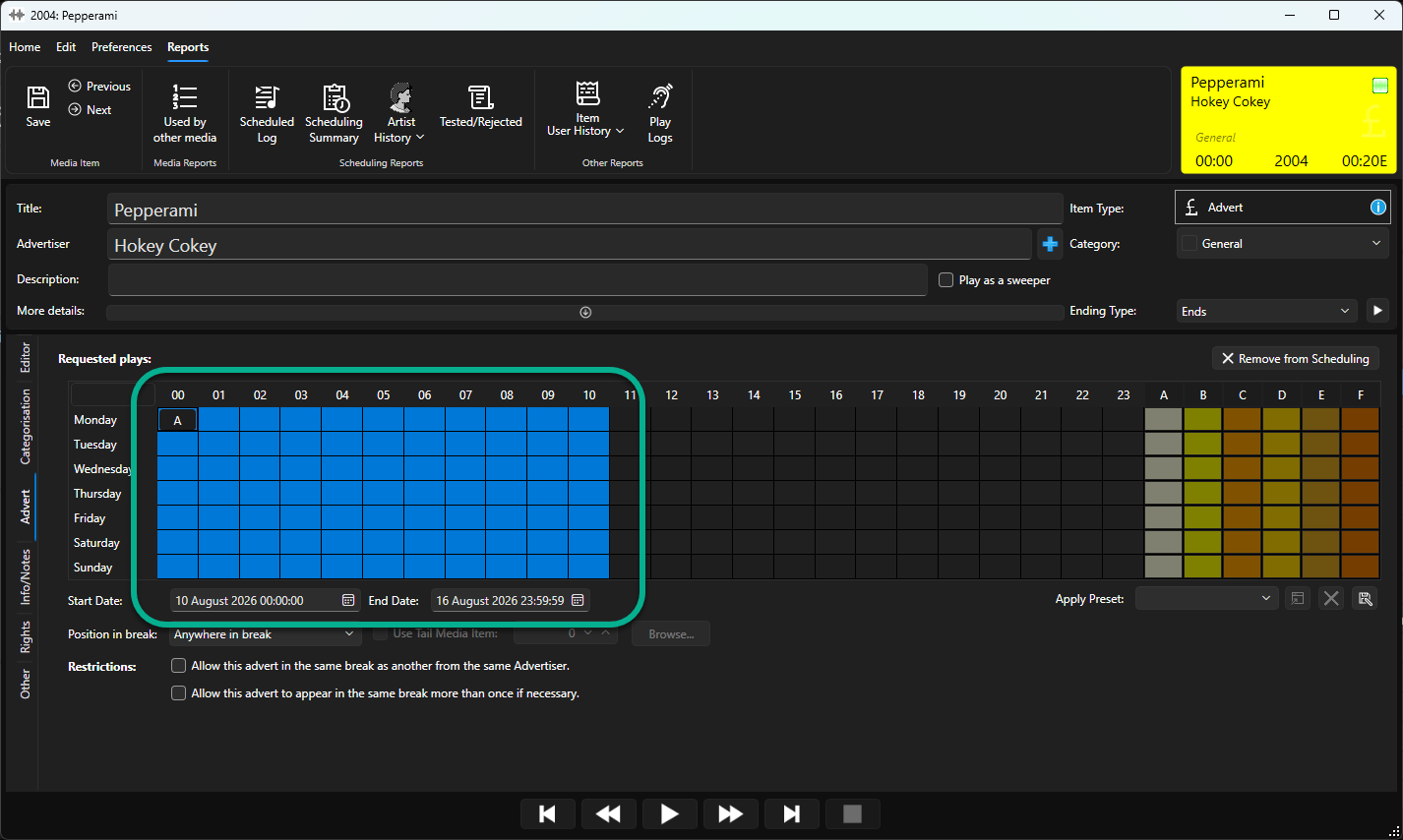
- When you press <Enter> the Band letter is applied to the selected hours.
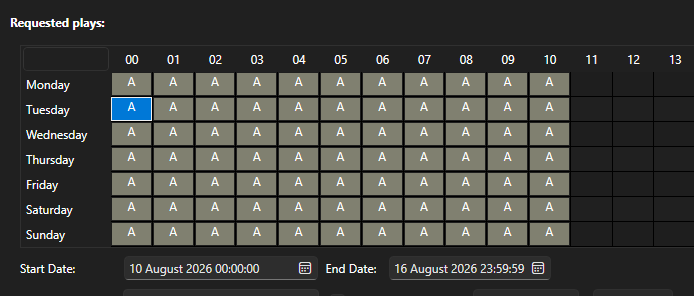
- Now we have established when Band A is, we need to set the number of plays for the Advert within the Band. Do do this, select each day of the week in the Band A column to the right and set the number of plays for the Advert within that Band.
In the example below, Band A runs from midnight to 11am and the Advert will be scheduled to play three times within that band.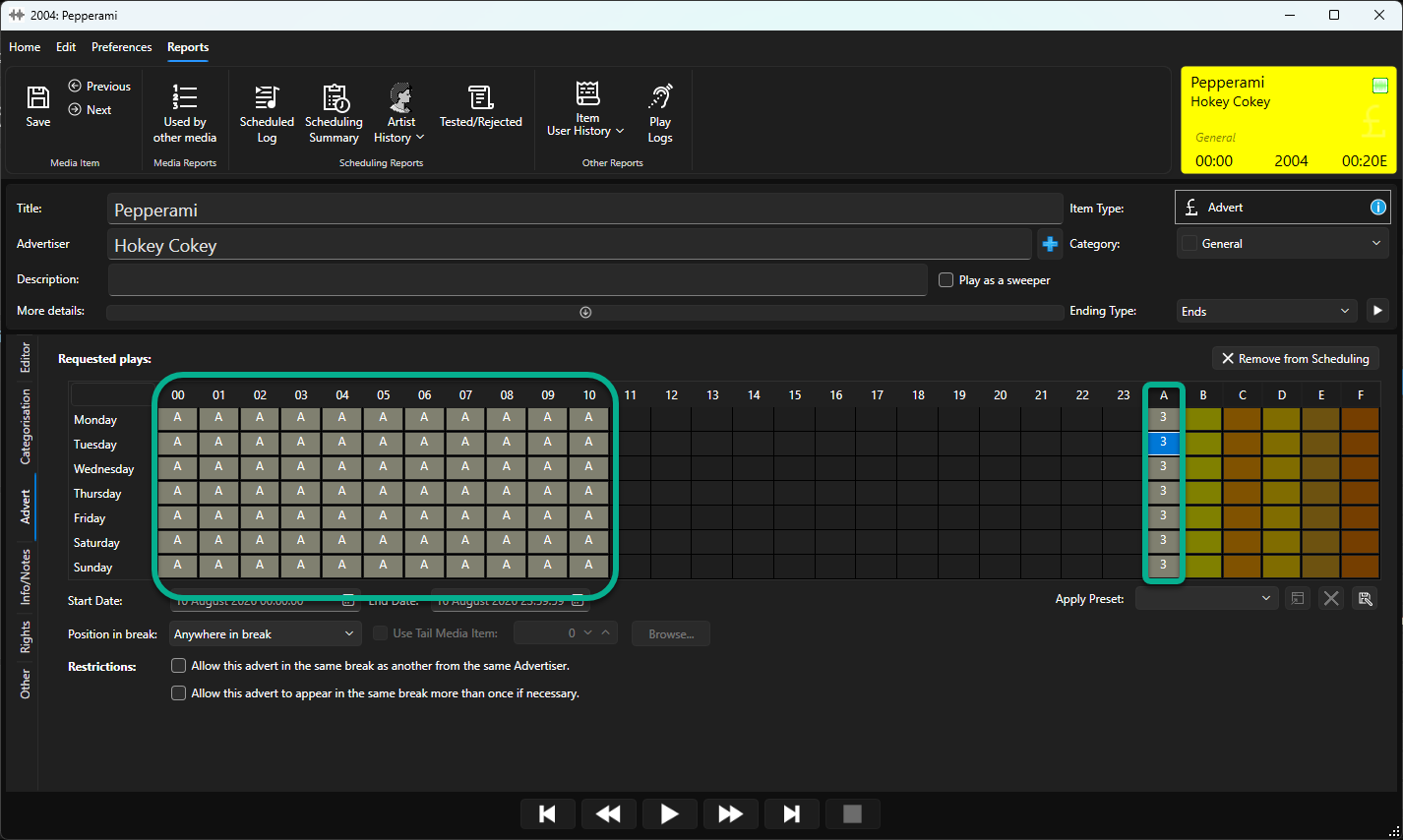
- Continue to use Band and Hour Plays to set the desired pattern for the Advert.
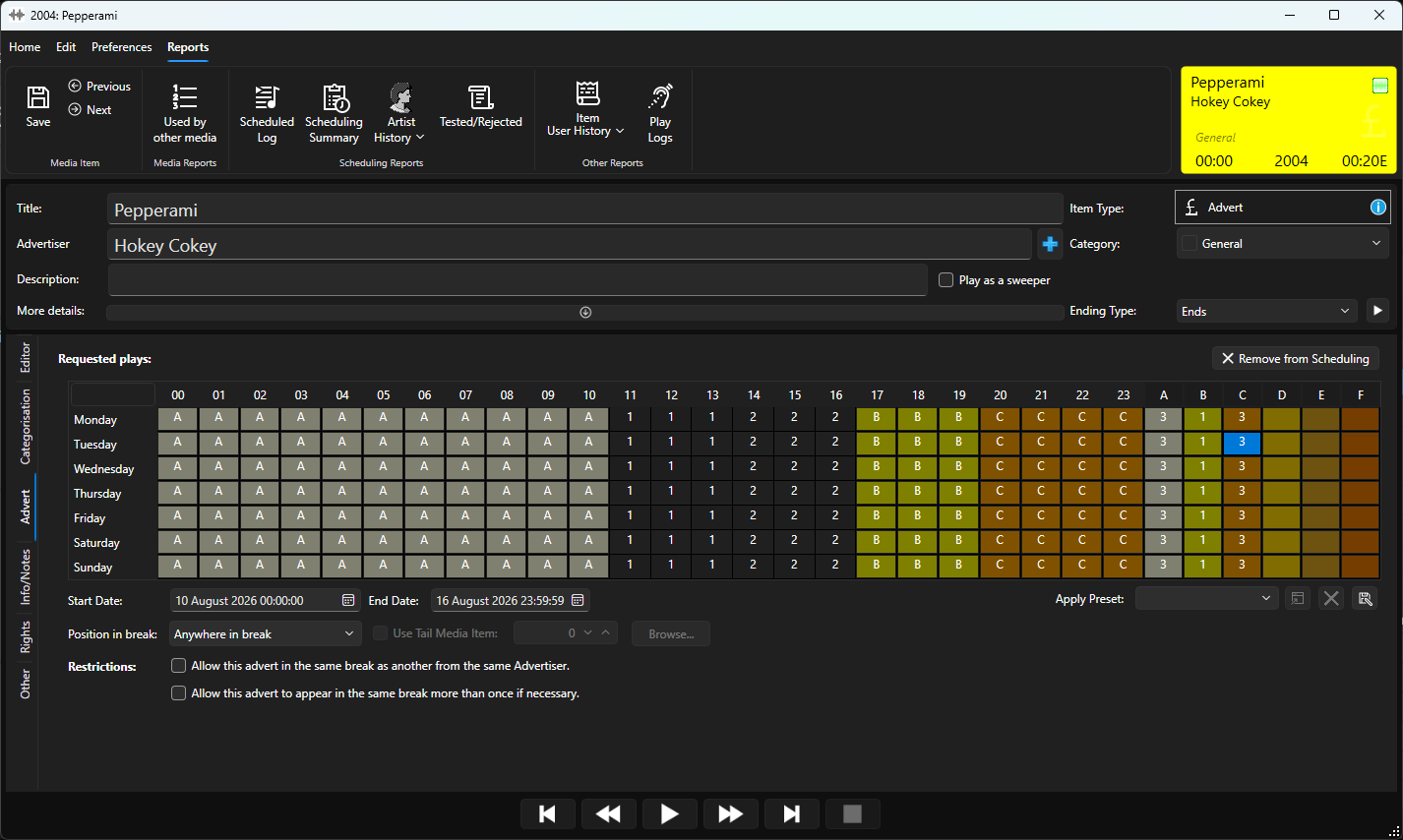
- You can save these as Preset to apply to other Adverts. Click on the Save Preset button and give the preset a suitable name.
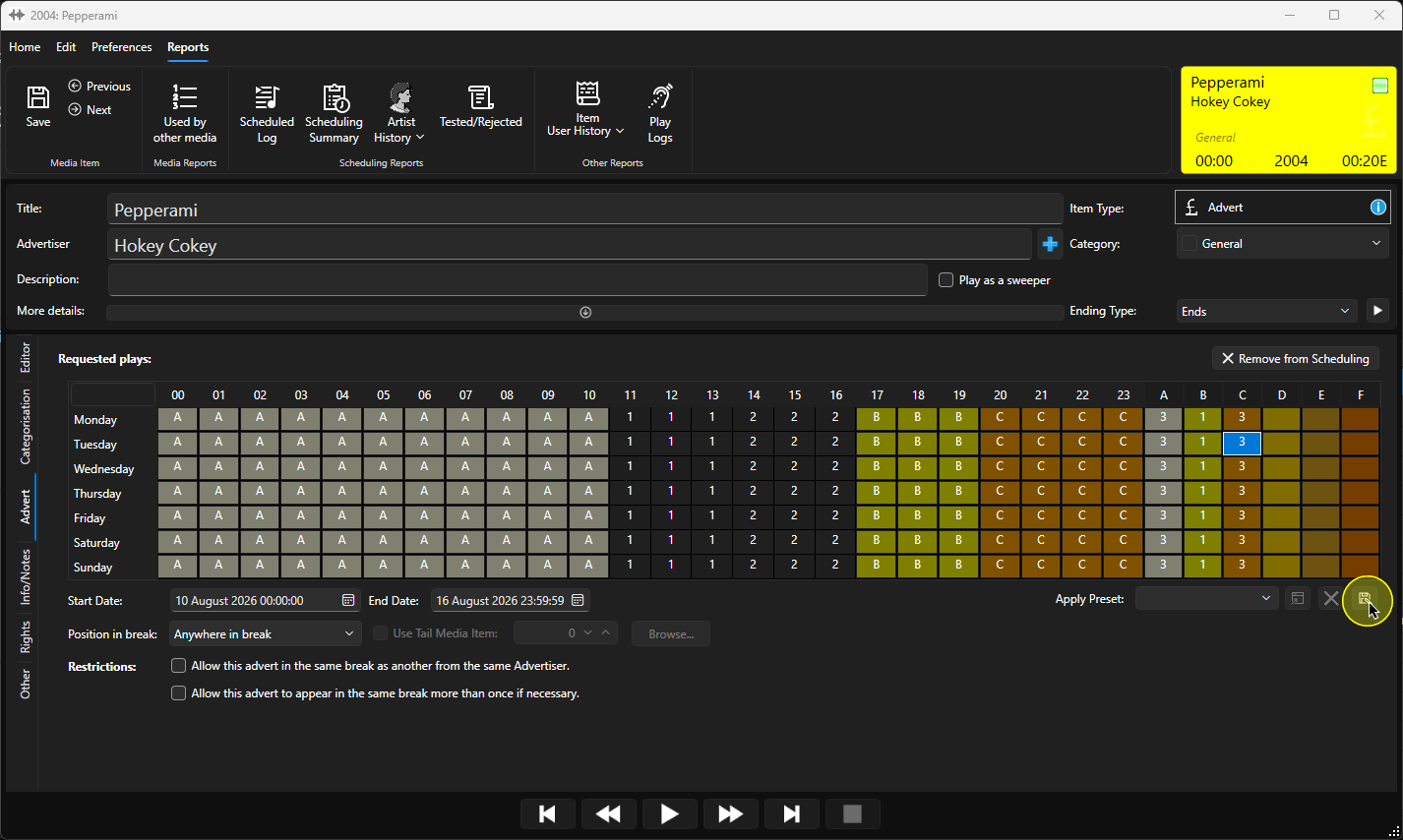
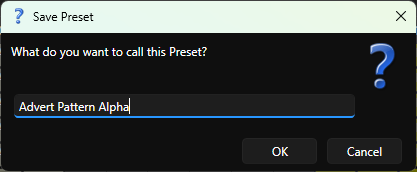
- To apply an existing Preset,use the drop down Apply Preset list to select the Preset and then click the Apply Preset button.
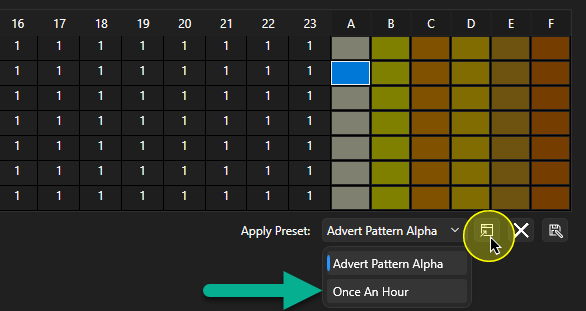
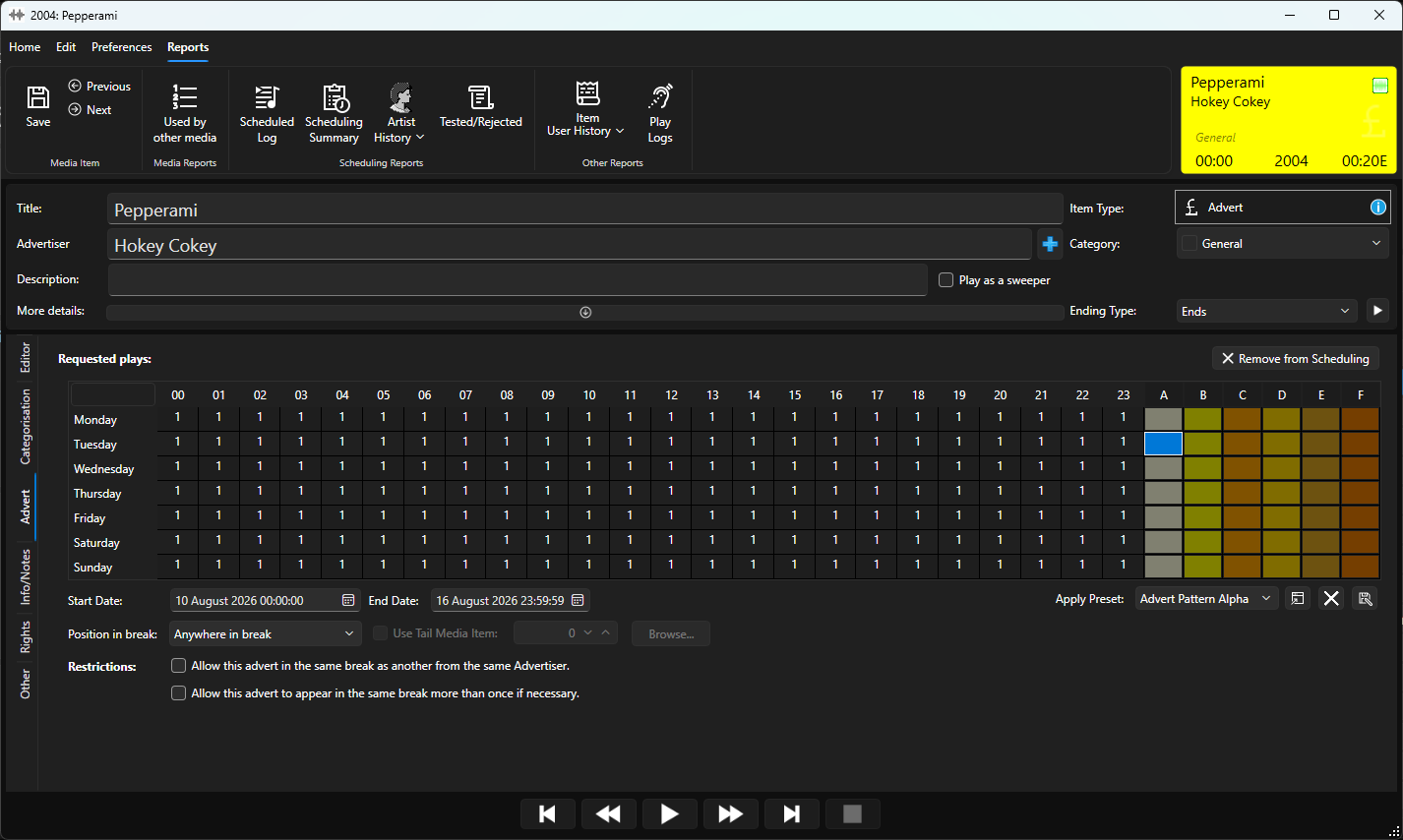
- The Preset pattern will be applied to the Advert.
- You can also use the Start and End Date fields to set the first and last dates and times that the advert will be automaticallly scheduled.
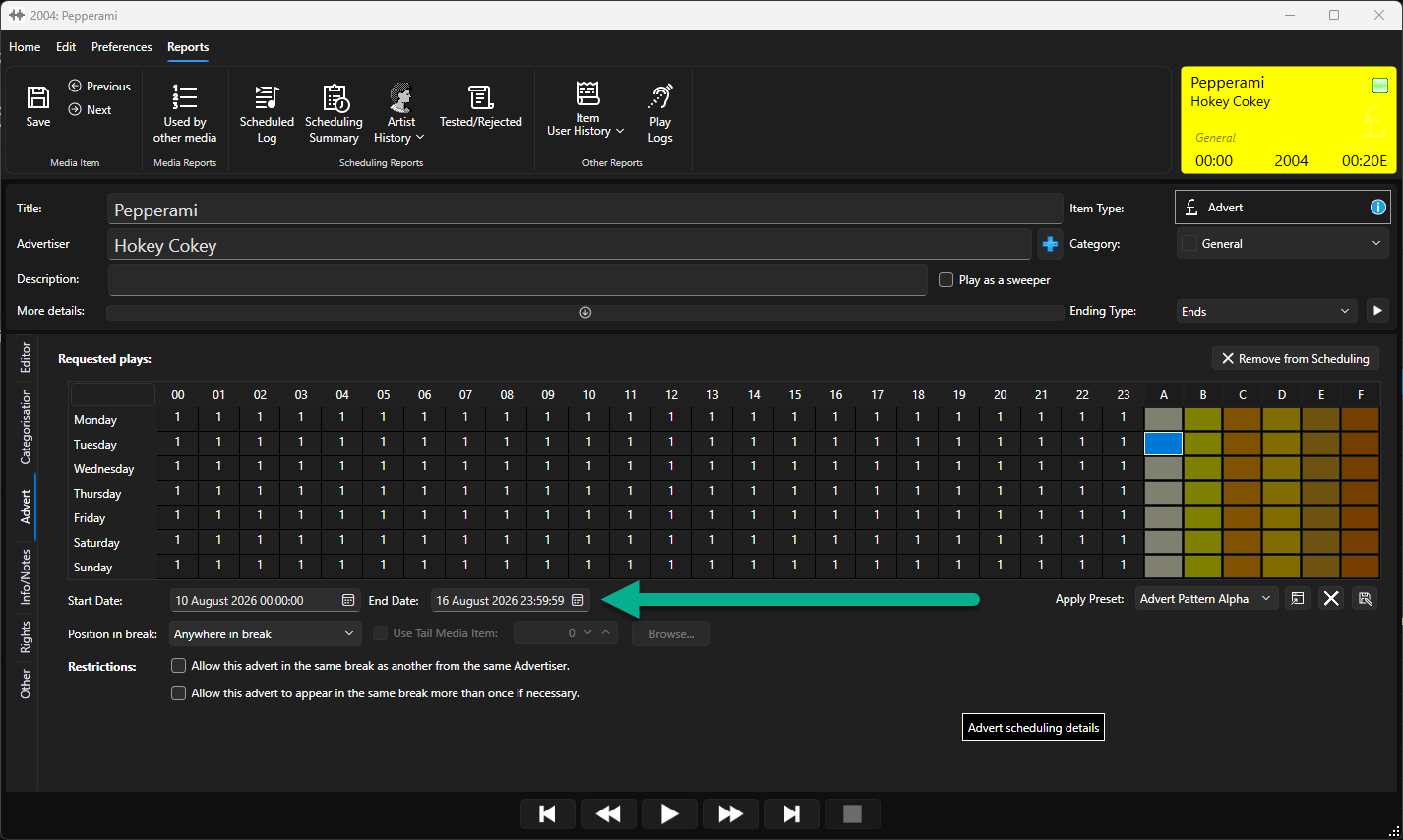
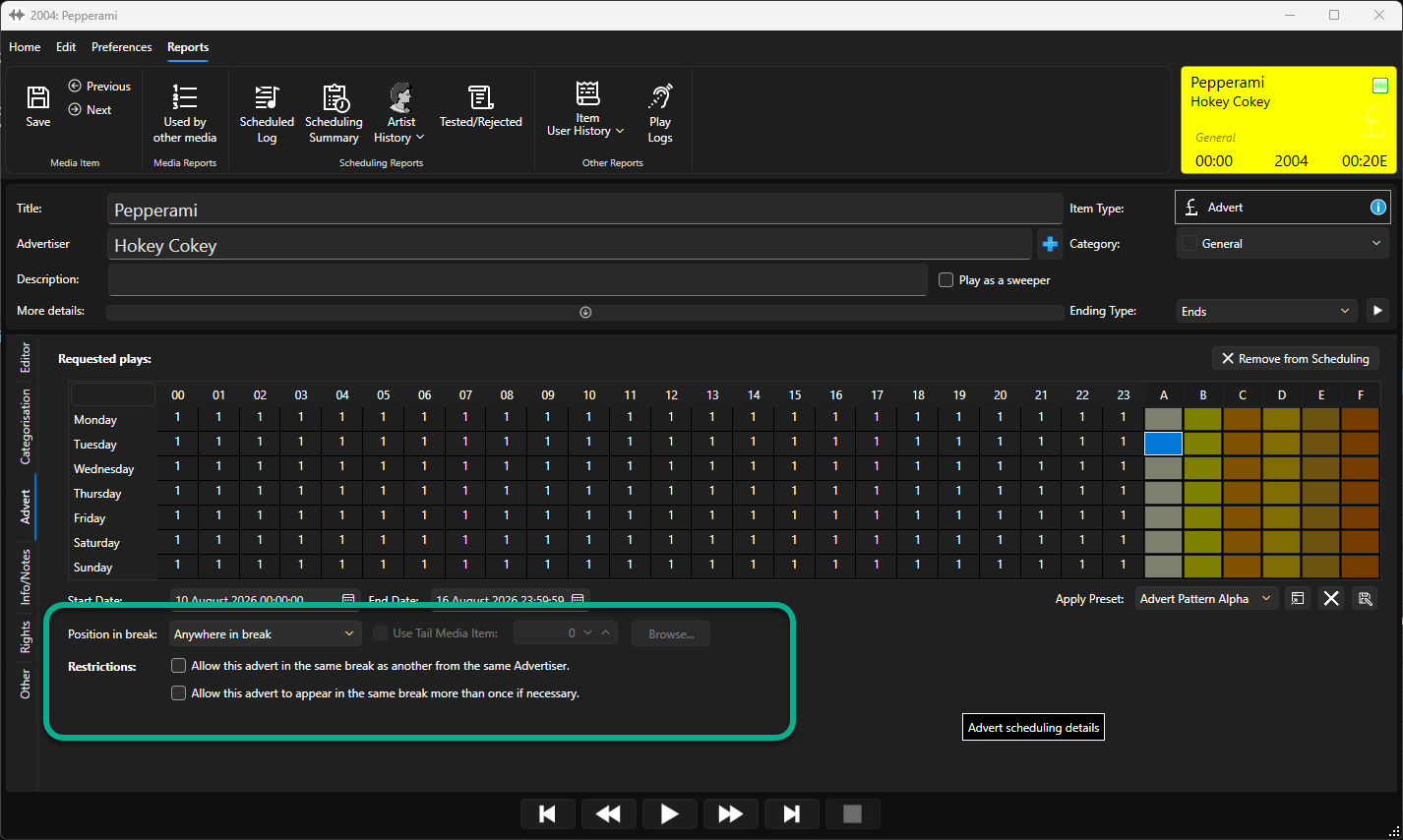
- The other options on the Advert tab allow you set preferred position within an Advert Break and whether to allow adverts from the same advertiser or indeed the same advert within a single advert break if required.
- When you have finished configuring your Advert Requested Plays and Start/ End dates, click on the Save button and close the Edit window.
Was this article helpful?
That’s Great!
Thank you for your feedback
Sorry! We couldn't be helpful
Thank you for your feedback
Feedback sent
We appreciate your effort and will try to fix the article