The unique API Key is used to provide access to your Broadcast.Radio Station for Myriad Playout and select 3rd party application. To integrate with Myriad Playout, copy this API key and past it into the Database Settings > Stations Tab > Station Details & Features.
1. Login to your Broadcast.Radio portal.
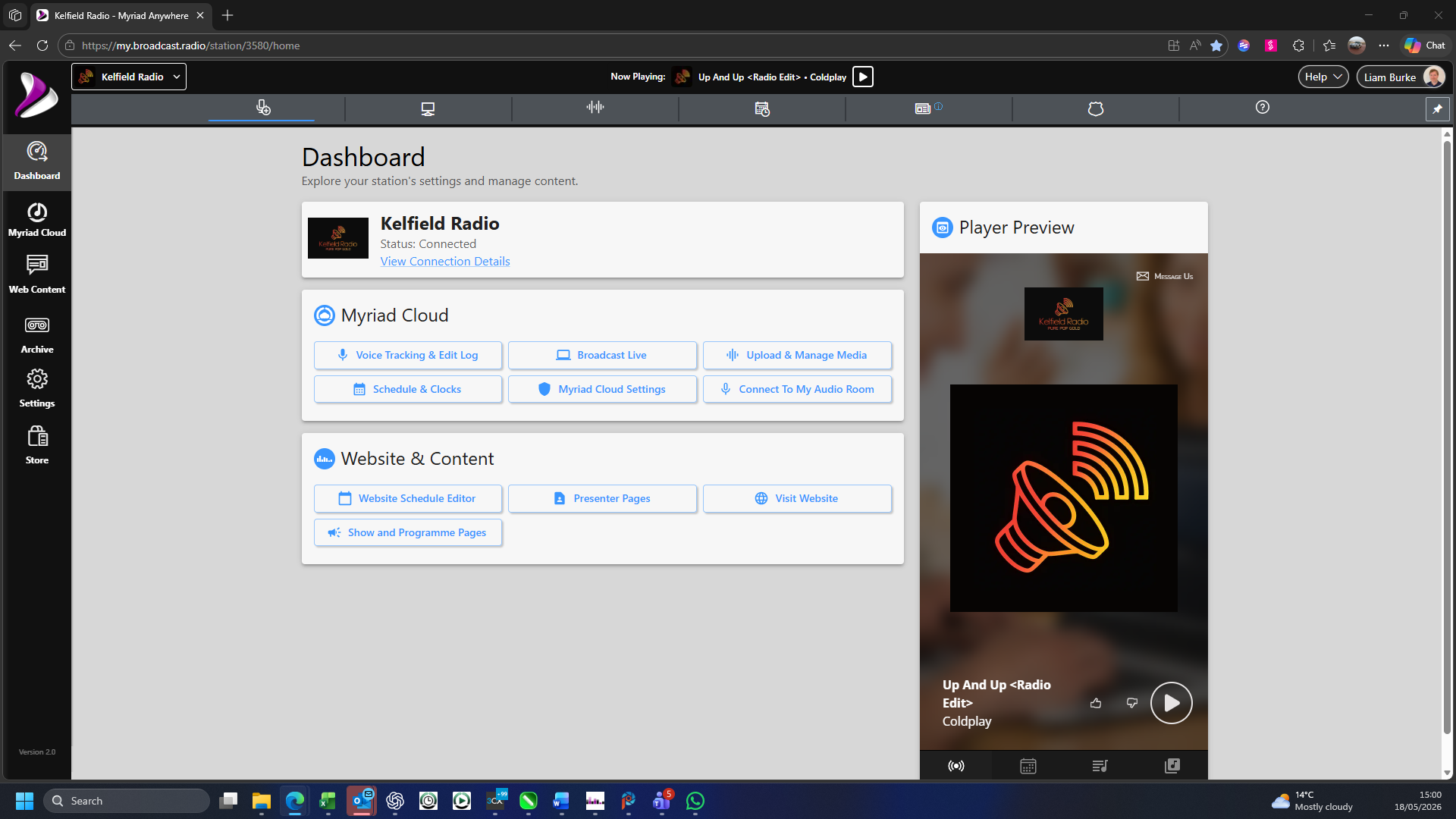
2. Click on the Settings option.
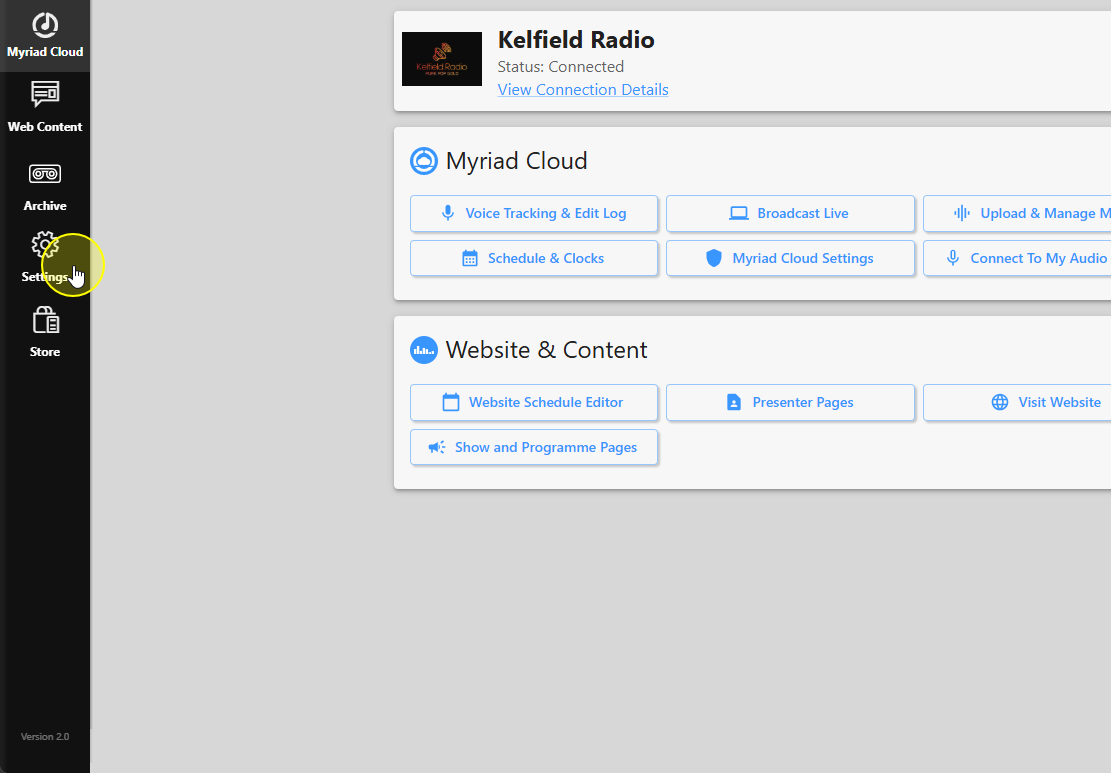
3. Select Station Settings.
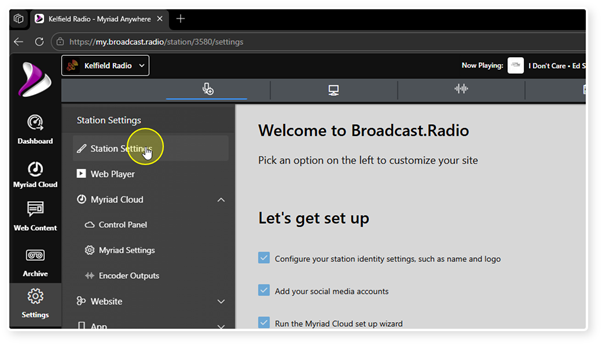
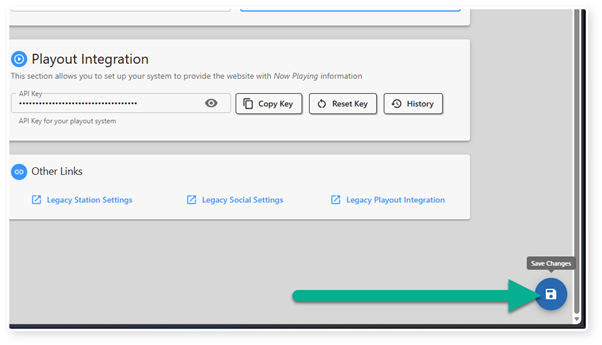
4. Scroll down to the Playout Integration section.
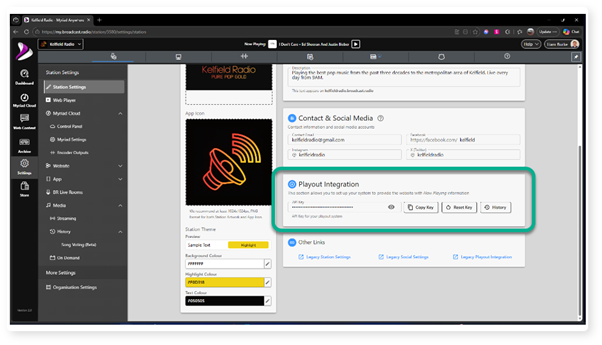
5. You API Key will be hidden by default. To view the key, click on the 'eye' icon.
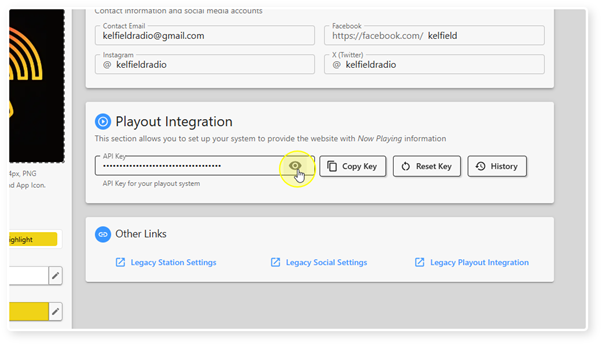
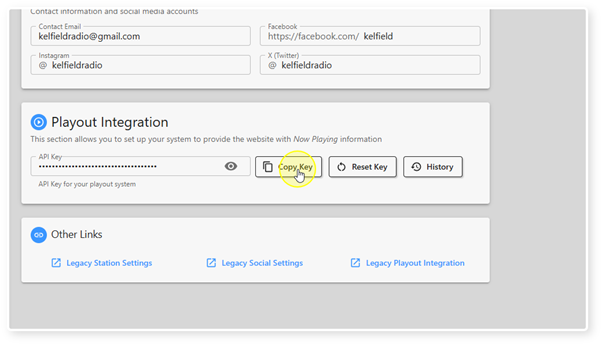
6. To copy your API key, click on the Copy Key button.
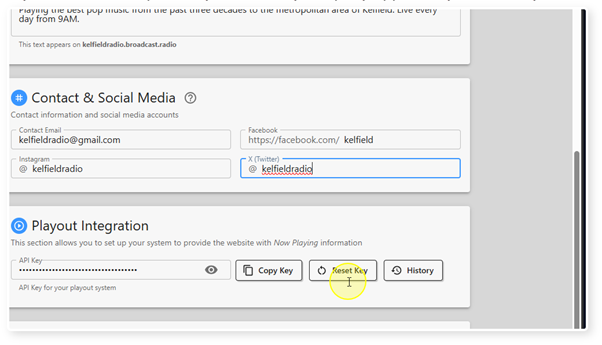
7. If you need to reset your API Key, click on the Reset Key button. Please note you will need to update Myriad and any 3rd party apps with your new key.
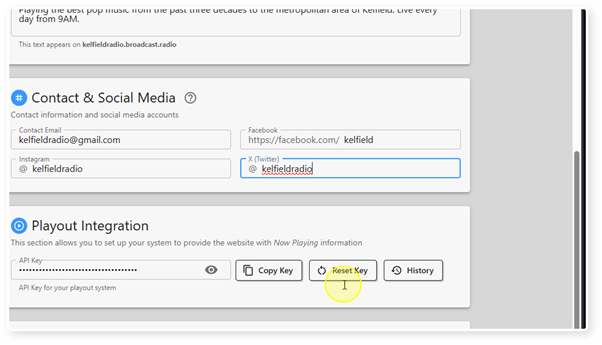
8. You can view the metadata history by clicking on the History button.
9. Click on the Save button to save your changes.
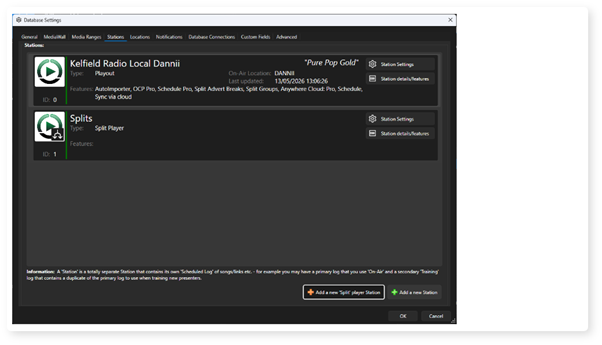
10. To add the API key to Myriad Playout, click on Settings Menu > Database Settings > Stations Tab (in Myriad Playout)
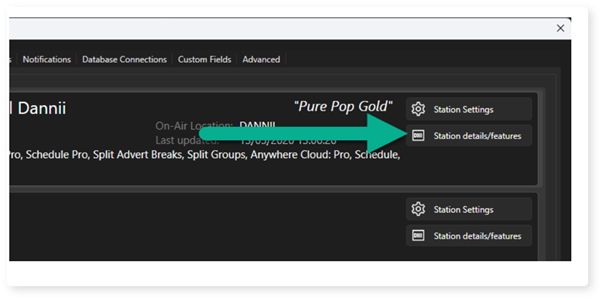
11. Click on the Station Details / Features button.
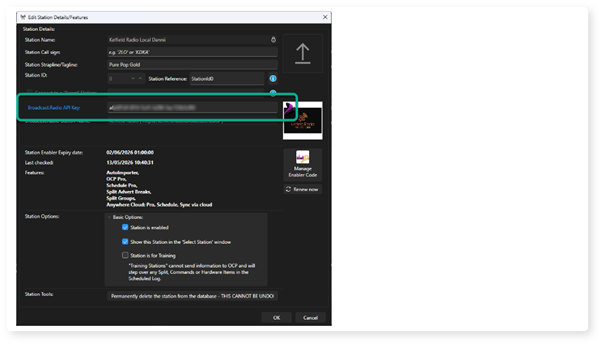
12. Paste the API key into the Broadcast.Radio API Key field and click on OK.
Was this article helpful?
That’s Great!
Thank you for your feedback
Sorry! We couldn't be helpful
Thank you for your feedback
Feedback sent
We appreciate your effort and will try to fix the article