For content streamed via the Broadcast Radio streaming service, the Streams setup in the Streaming page will have multiple additional features to allow you get the most from your streaming service and configure your encoder solution to connect to the Broadcast Radio streaming servers.
Please note that Streams will be setup automatically for streaming customers and Myriad Cloud customers.
To add another Stream hosted by Broadcast Radio, please contact hello@broadcastradio.com.
1. Login to your Broadcast.Radio portal.
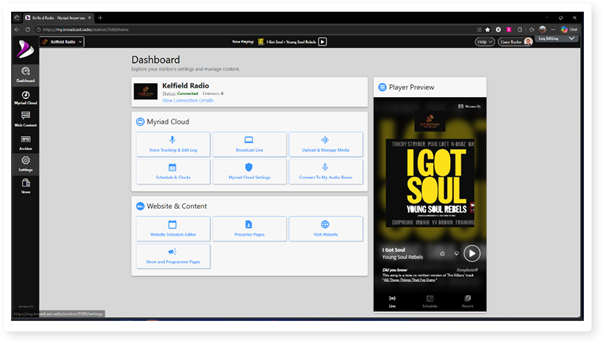
2. Open the Settings menu.
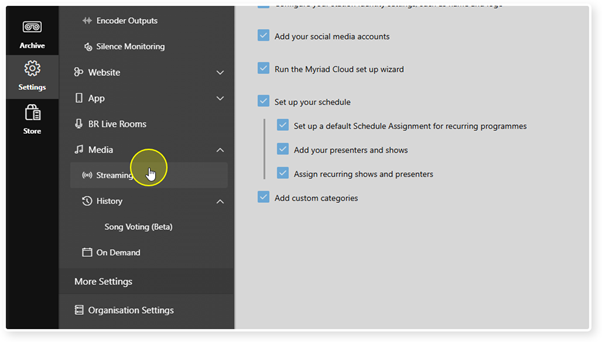
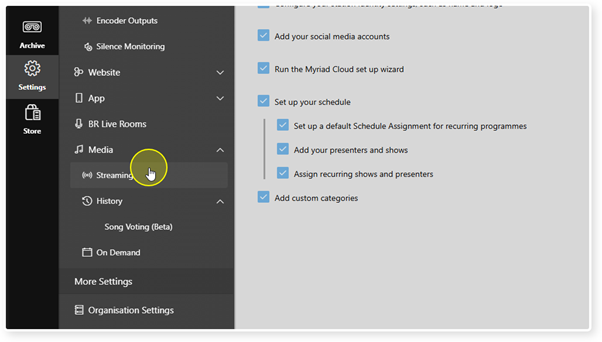
3. Click on Streaming.
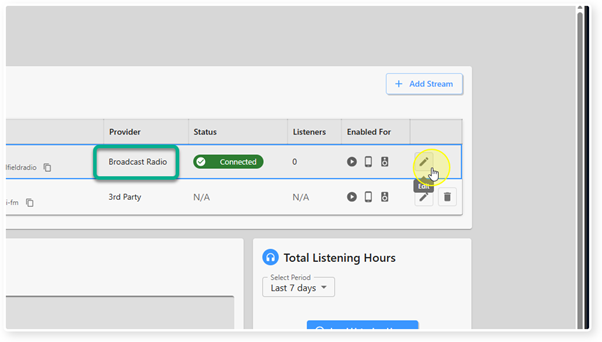
4. The Provider column shows which Steams are hosted by Broadcast Radio and which are hosted by 3rd party providers.
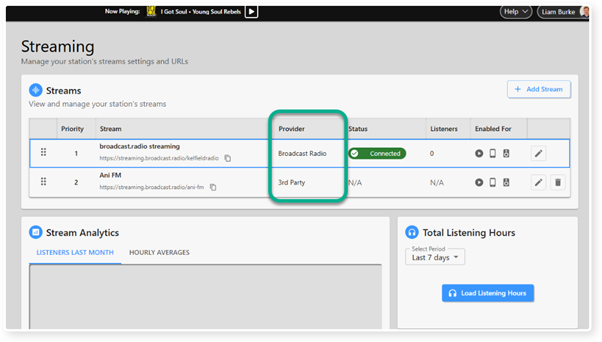
5. Click on the Edit button on a Stream hosted by Broadcast Radio.
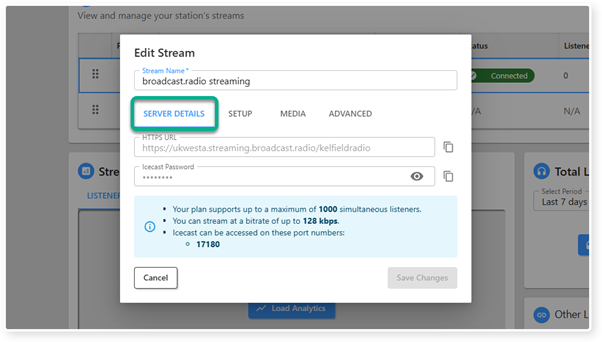
6. The Server Details tab includes the top level details for your Stream.
Stream Name - The displayed name for the Stream.
HTTPS URL - Your unique URL for accessing the Stream from a web browser or other compatible device. You can use the copy button to the right to copy the URL to the clipboard.
Icecast Password - This is the randomly generated password you will need to login to the Icecast portal (although you should never need to). You can view the password by clicking on the eye icon. You can also copy the password using the copy button.
Subscription Details - The Subscription Details panel shows key subscription information including maximum number of connections, maximum bitrate and unique port number.
7. The Setup tab provides the information needed for the BR Encoder or a 3rd party encoder to send source audio to your Stream.
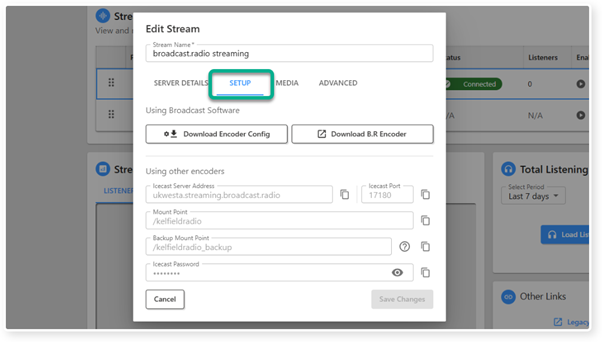
The options are:
Using Broadcast Radio Software
Download Encoder Config - This button downloads a configuration file for the Broadcast Radio Encoder, pre-populated with the information needed to allow the BR Encoder to connect to your stream mount point. Just download this file and select it in Broadcast Radio Encoder > Settings > Encoder Settings > Add From File.
Download BR Encoder - This button allows you to download the BR Encoder installation files. Please note that BR Encoder is free for BR Streaming customers.
Using Other Encoders - This section includes the standard information you will need to enter into a 3rd party encoder solution, for it to send encoded audio to your BR hosted stream.
Icecast Server Address - The server address to send to.
Icecast Port - The unique port for your stream mount point.
Mount Point - The unique name for your stream mount point.
Backup Mount Point - Used to connect a second encoder as a backup. If your primary encoder disconnects, listeners will be trasnfered to the backup mount point until your primary reconnects.
Icecast Password - Password needed to connect. You can view this by clicking on the 'eye' icon.
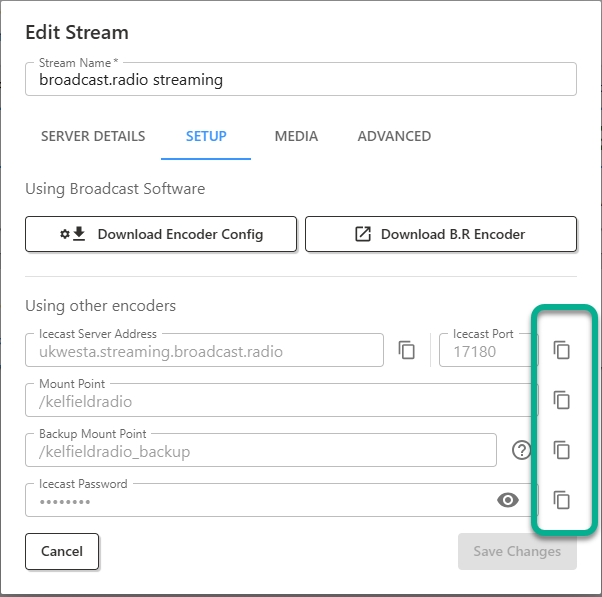
All of these fields have a copy button next to them to allow you to copy the data and paste into your 3rd party encoder.
8. The Media tab allows you to upload an Intro File and a Fallback/Backup file.
Intro File - This audio file will play before the stream starts on all devices.
Fallback / Backup File - This audio file will play in the event that there is no encoder sending audio to the primary or backup mount points.
In both cases, the audio file must be the same format and bitrate as your main stream (see Server Details tab).
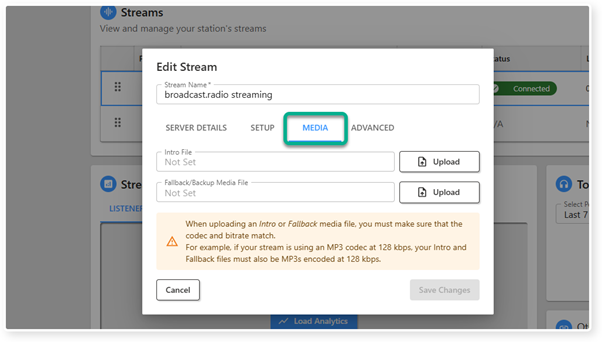
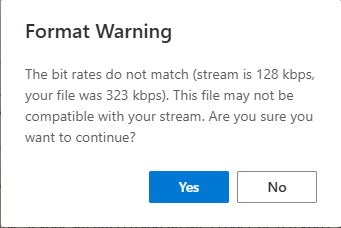
To add an Intro or Fallback file, click on the Upload button and select the audio file to upload. If you select a file that doesn't match your main stream format and bitrate, you will receive a warning message.
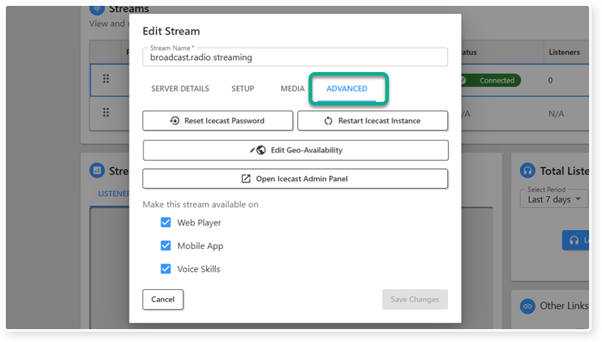
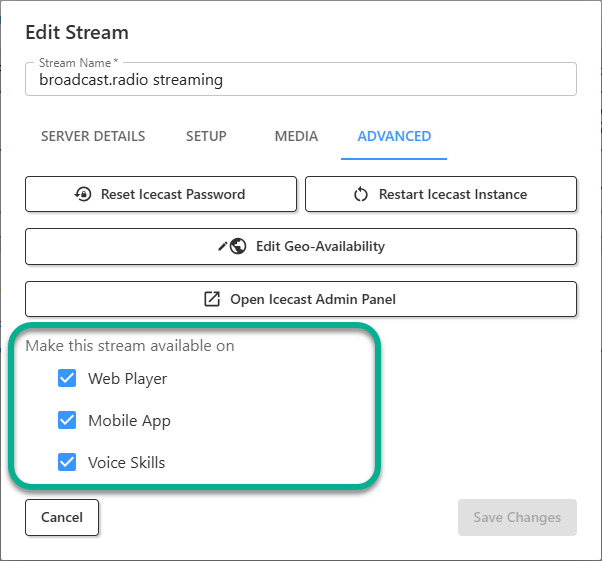
9. The Advanced tab includes a selection of general settings and features related to streaming.
These include:
Reset Icecast Password - This will reset your Icecast password. Doing so will require you to update all encoders with the new password.
Restart Icecast Instance - This button will restart your Icecast instance on the Broadcast Radio streaming servers. If you are experiencing difficulties with your stream, this is a good first option to try before raising a support ticket.
Edit Geo-Availability - You can restrict the countries that your stream is available using the Edit Geo-Availability option. Click the button and tick the regions you want to have access.
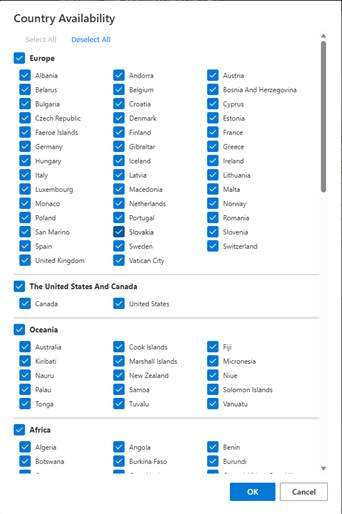
Please note that Geo-Availability uses IP address blocks to estimate location and can be fooled by tools such as VPNs.
Open Icecast Admin Panel - This button will open the Icecast Administration panel for your stream on the Broadcast Radio streaming servers. The Icecast Admin panel provides various advanced options. We do not recommend using this unless you are familar with the operations and understand the ramifications of making changes.
Make This Stream Available On - You can select which type of devices this stream should be available on. The options are Web Player, Mobile Apps and Alexa Voice Skills.
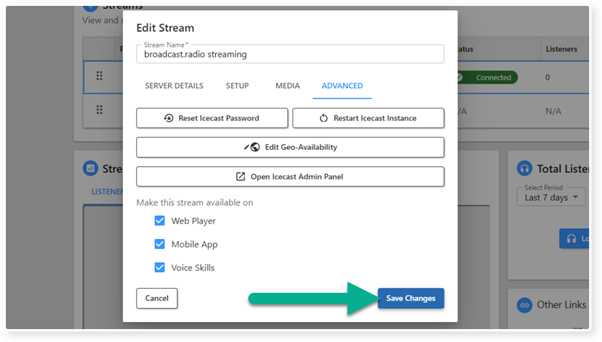
10. Once you have finished with the Stream Settings, click on the Save Changes button.
Was this article helpful?
That’s Great!
Thank you for your feedback
Sorry! We couldn't be helpful
Thank you for your feedback
Feedback sent
We appreciate your effort and will try to fix the article