You can edit the details for a Stream using a 3rd party streaming provider by following these steps.
1. Login to your Broadcast.Radio portal.
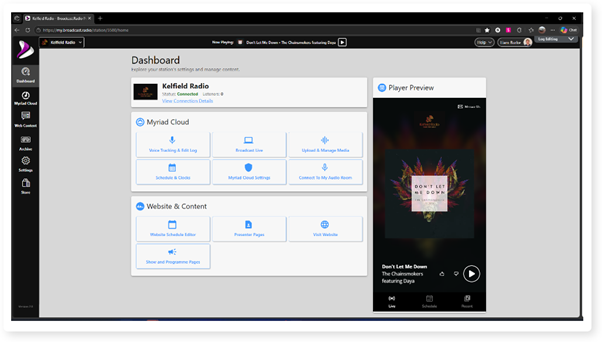
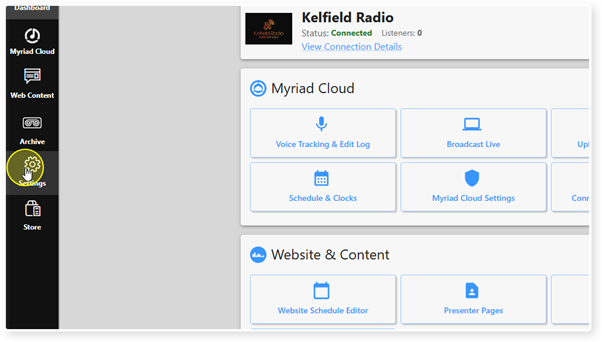
2. Click the Settings menu option.
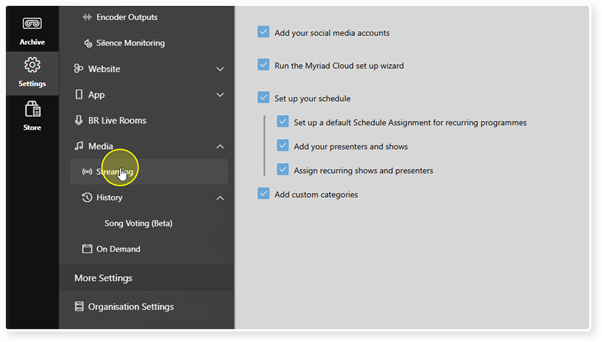
3. Select Streaming from the list of options.
4. Check the Provider column to see which Streams are provided via Broadcast Radio streaming servers and which use 3rd party streaming providers.
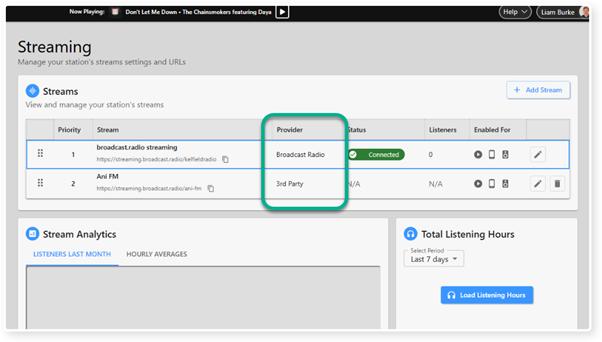
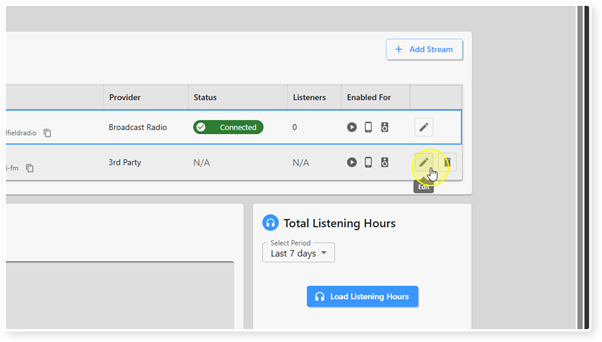
5. Click on the Edit button for a Stream that is provided by a 3rd party.
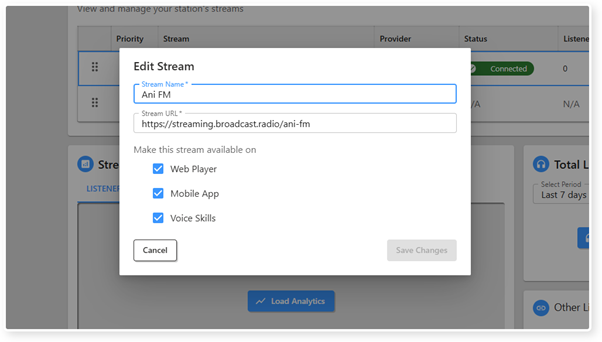
6. You can edit the details as required.
Stream Name: To identify the Stream.
Stream URL: Streaming server address provided by your streaming provider.
Mount Name: Your unique Mount Name should be appended to the Stream URL with a / proceeding it (see screen shot).
Make Stream Available On: Tick the options (Web Player, Mobile App, Alexa Voice Skill) to enable the Stream on that device type.
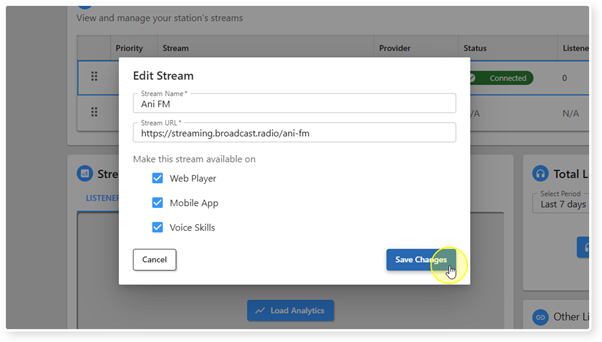
7. When you are happy, click on Save Changes.
Was this article helpful?
That’s Great!
Thank you for your feedback
Sorry! We couldn't be helpful
Thank you for your feedback
Feedback sent
We appreciate your effort and will try to fix the article