The Subscriptions section in Organisation Settings allows you to view and edit all active Subscriptions within each of your Brands as well as view previously canceled subscriptions.
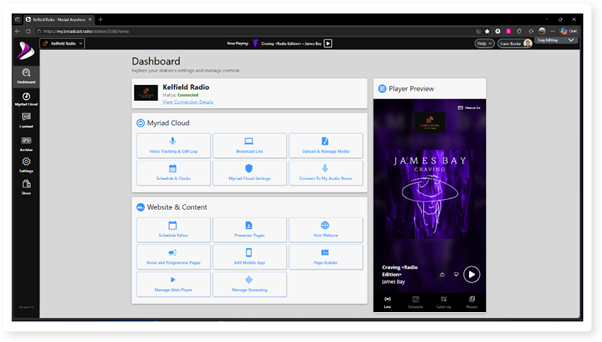
1. Login to your Broadcast.Radio portal.
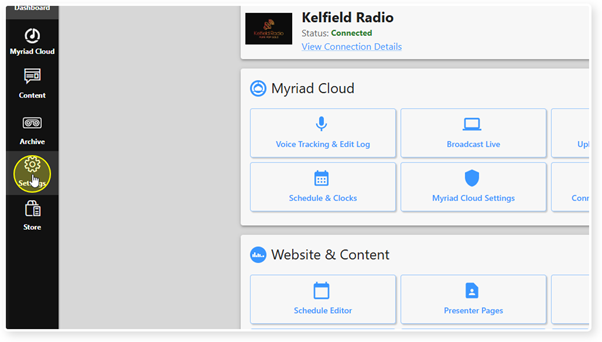
2. Click on the Settings menu option.
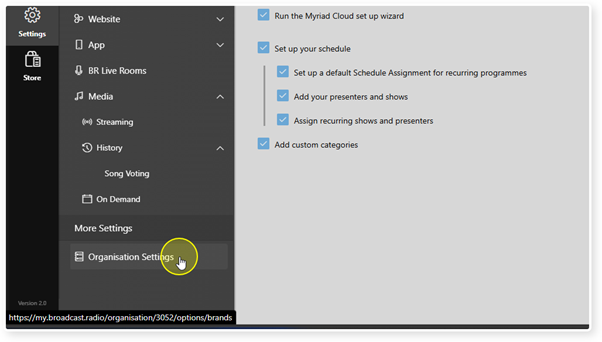
3. Select Organisation Settings.
Alternatively, you will have a direct link to Subscriptions if you are billed via the online payment portal.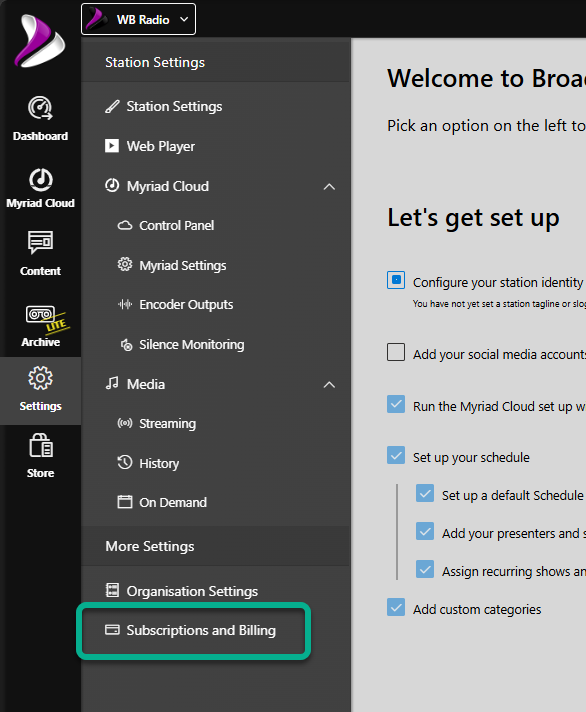
4. In the Billing section, click on Subscriptions.
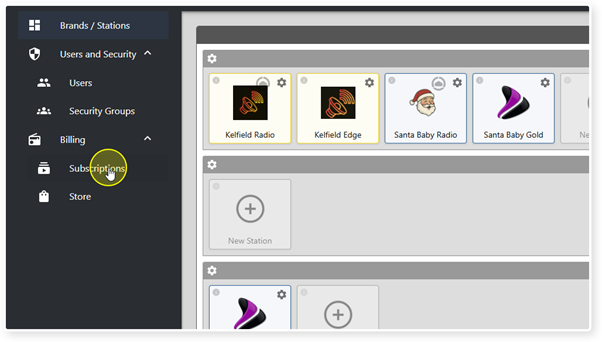
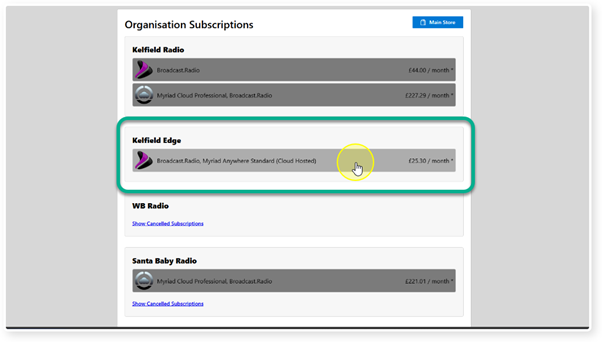
5. The active Subscriptions within each Brand in your Organisation are displayed.
To view the details for a Subscription or to make changes to a Subscriptions, click on the Subscription in question.
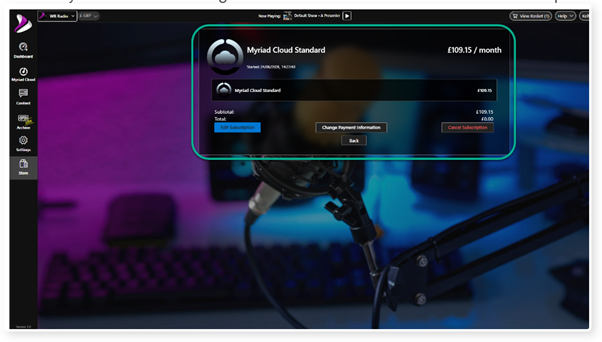
6. This will open the Store page for your Subscription. Here you can see the total monthly or annual cost along with the costs for each service in the Subscription.
7. You can Edit your Subscription by clicking on the Edit Subscription button.
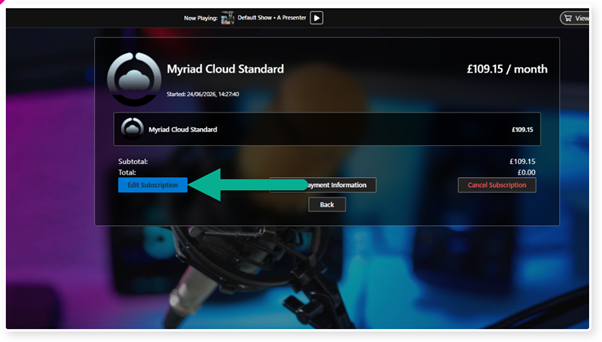
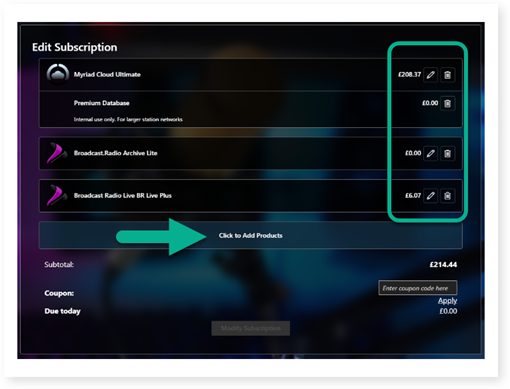
You can Edit your Subscription by clicking on the Edit Subscription button, this will open a summary of your Subscription.
You can use the Edit or Delete buttons within each Subscription element to change options (where applicable) or delete elements.
You can also click on the Add Products button to add additional products. The list of Products offered will be dependent on what is already in your Subscription (for example Myriad Cloud Ultimate customers will not be added the Mobile Apps add-on as it is included in the Myriad Cloud Ultimate package).
Follow the on-screen instructions to complete your Subscription updates.
If you are billed directly by Broadcast Radio (not via online payment portal) then you will receive a message asking you to contact your Broadcast Radio account manager in order to make changes to your Subscription.
8. You can also Cancel your Subscription from this window.
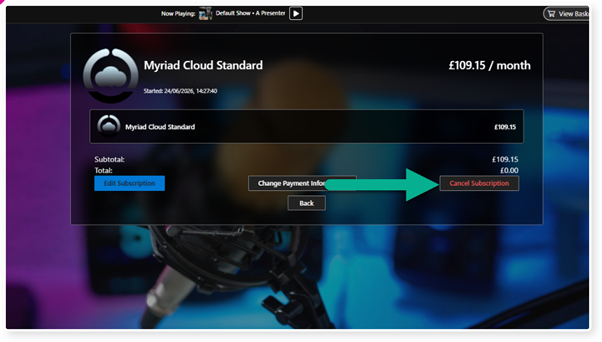
Click on the Cancel Subscription button.
You will receive a message say when your Subscription will cancel (end of your current billing period) and asking you to confirm.
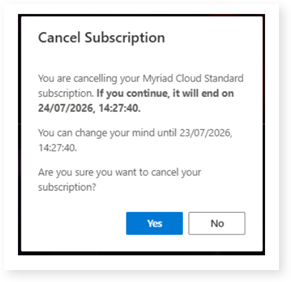
If you click Yes to proceed, your Subscription will cancel from the indicated date and time.
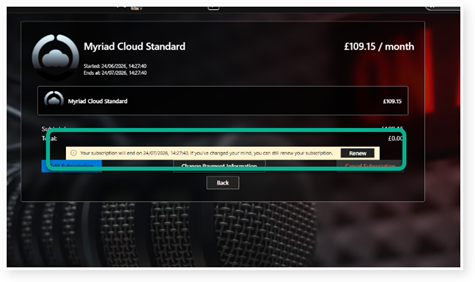
If you change your mind, you will still be able to renew your Subscription up to the cancellation date.
If you are billed directly by Broadcast Radio (not via online payment portal) then you will receive a message asking you to contact your Broadcast Radio account manager in order to cancel your Subscription.
9. If you pay for your Subscription via the online portal, you can also update your payment method from this window.
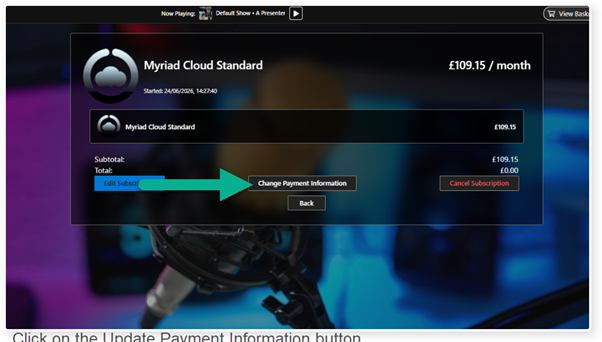
Click on the Update Payment Information button.
This will take you directly to our payment portal provider (Stripe) to allow you to update your payment method.
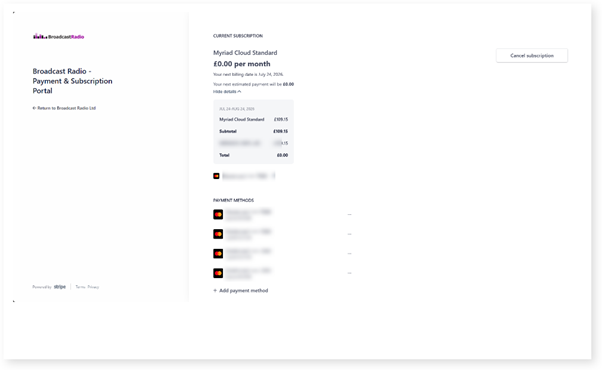
The Update Payment Information button will not be displayed if you are billed directly by Broadcast Radio Ltd (not via the online payment portal).
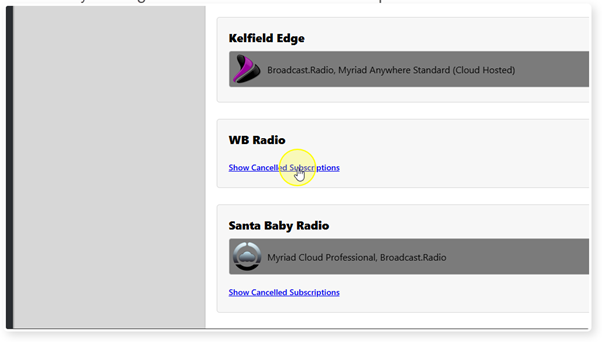
10. If a Brand has any old Subscriptions that are now cancelled, you can view the details by clicking on the Show Cancelled Subscriptions.
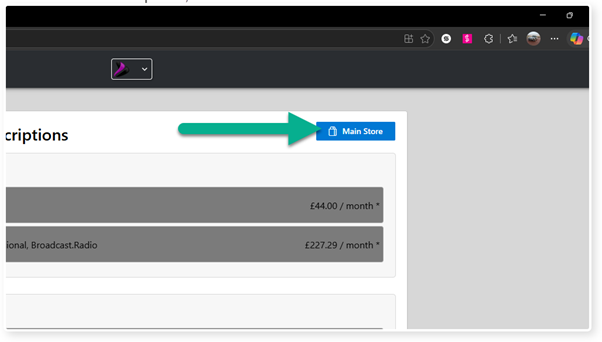
11. If you would like to browse the products and services available to you via the Broadcast.Radio portal, click on the Main Store button.
Was this article helpful?
That’s Great!
Thank you for your feedback
Sorry! We couldn't be helpful
Thank you for your feedback
Feedback sent
We appreciate your effort and will try to fix the article