The Extro is the point in a Media Item where Myriad Playout will start the next item when playing from the Log. You can set this point manually or have Myriad set it for you using AutoExtro.
1. Highlight the Media Item you want to set the Extro for, on the Media Wall.
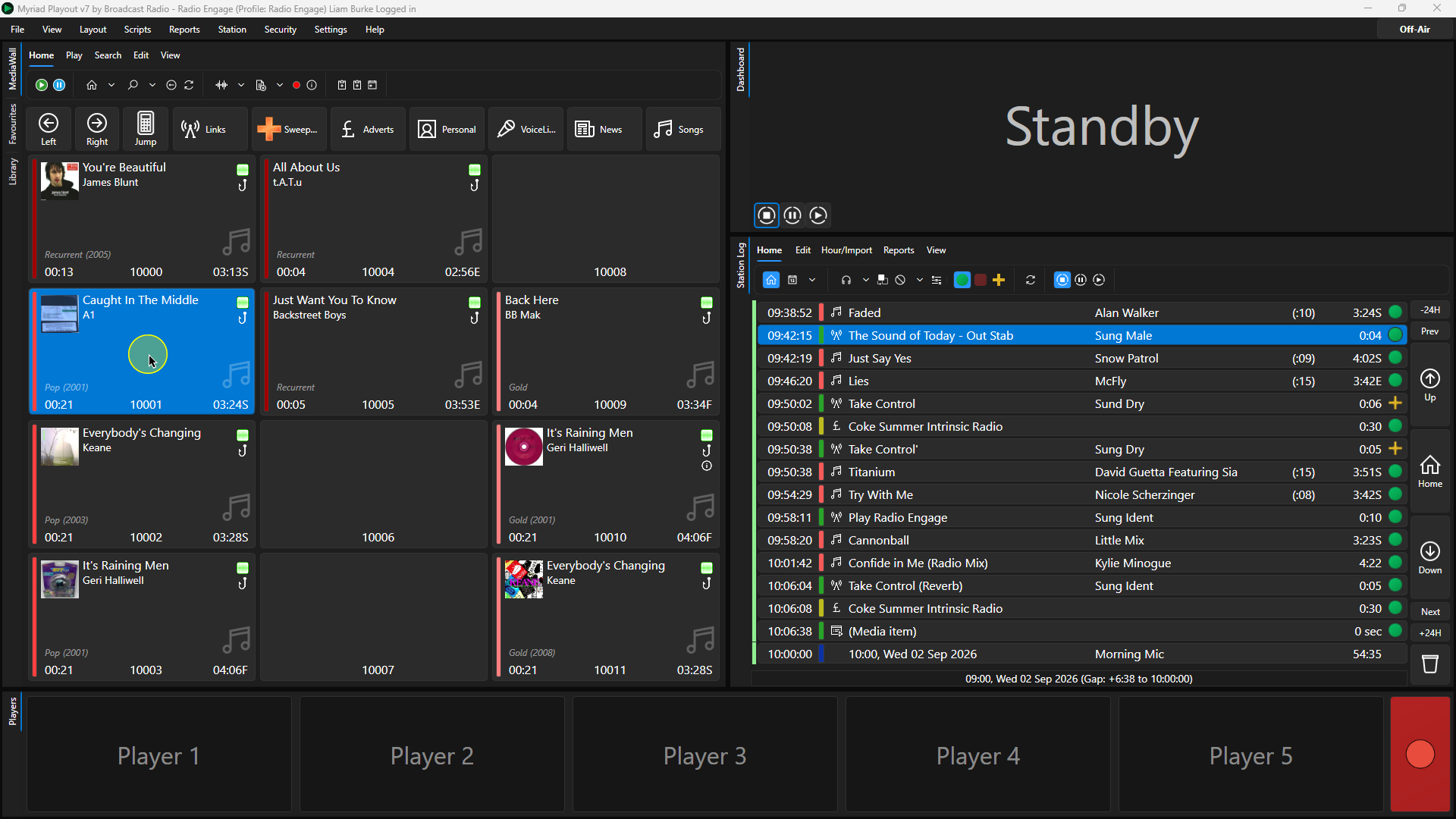
2. Click on the Edit button on the Home ribbon (you can also select Edit via the right click menu).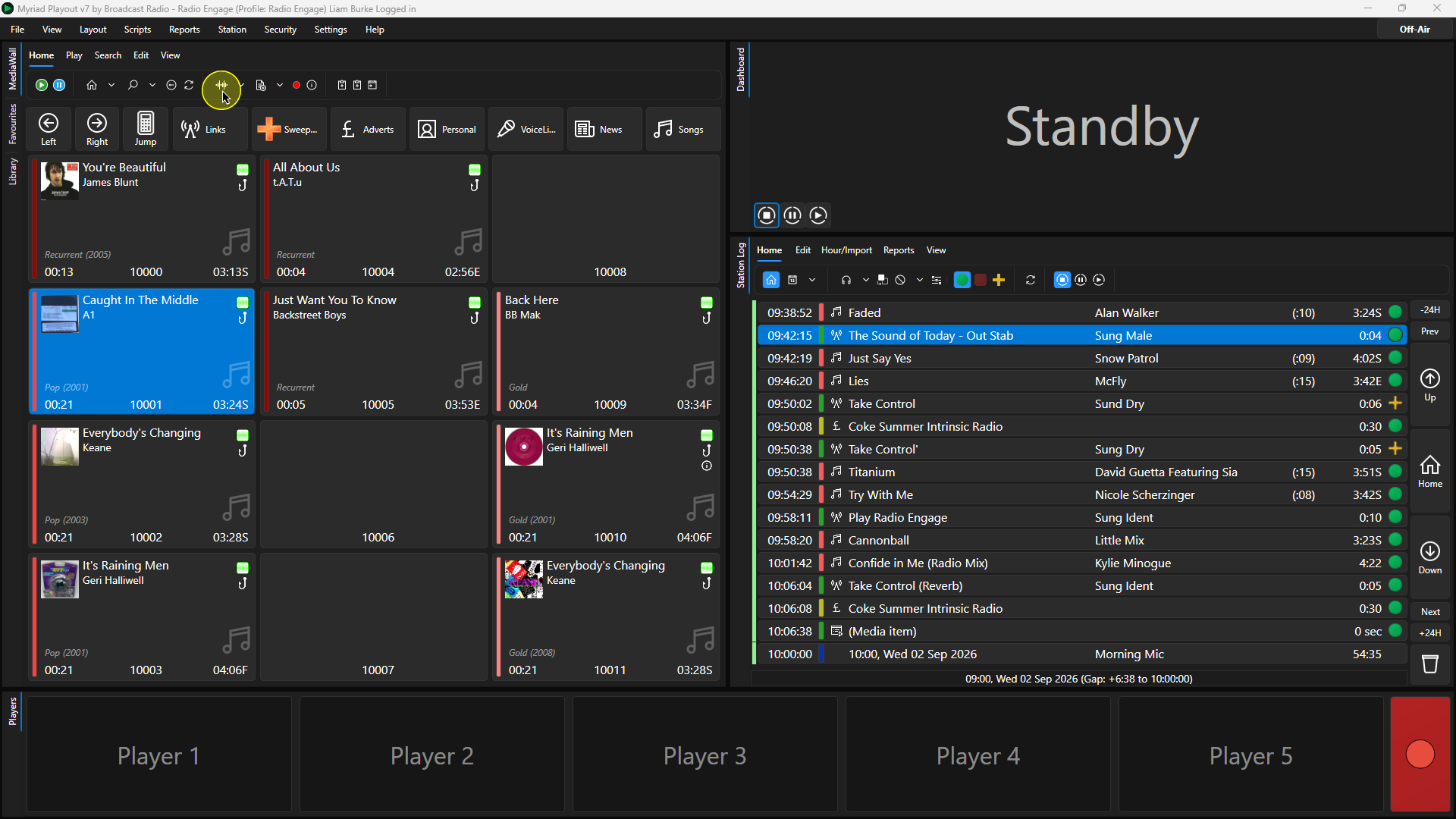
3. Once the waveform has loaded, click towards the end of the to set the playback start point to be close to the end of the audio file.
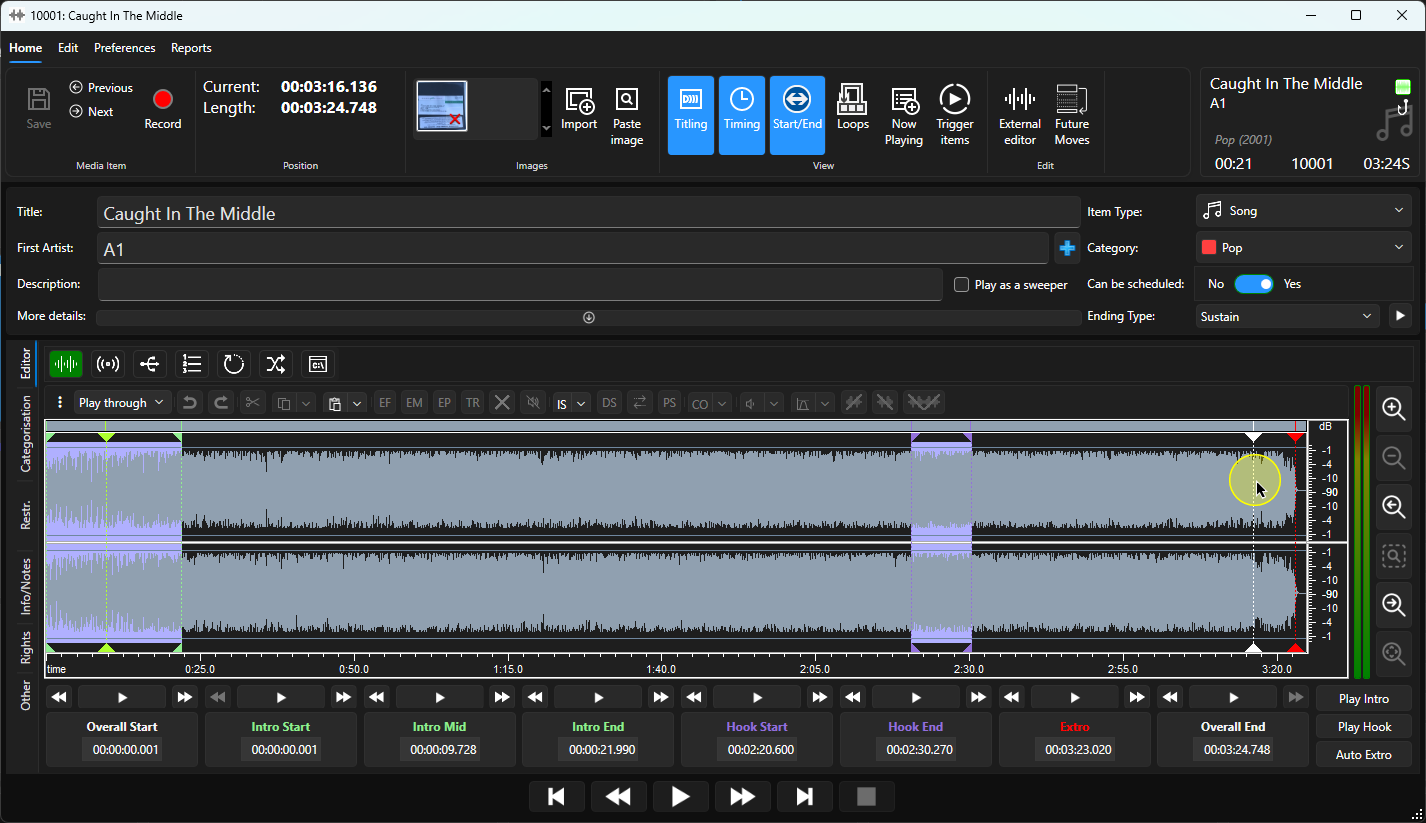
4. Click on the Play button to begin playback.
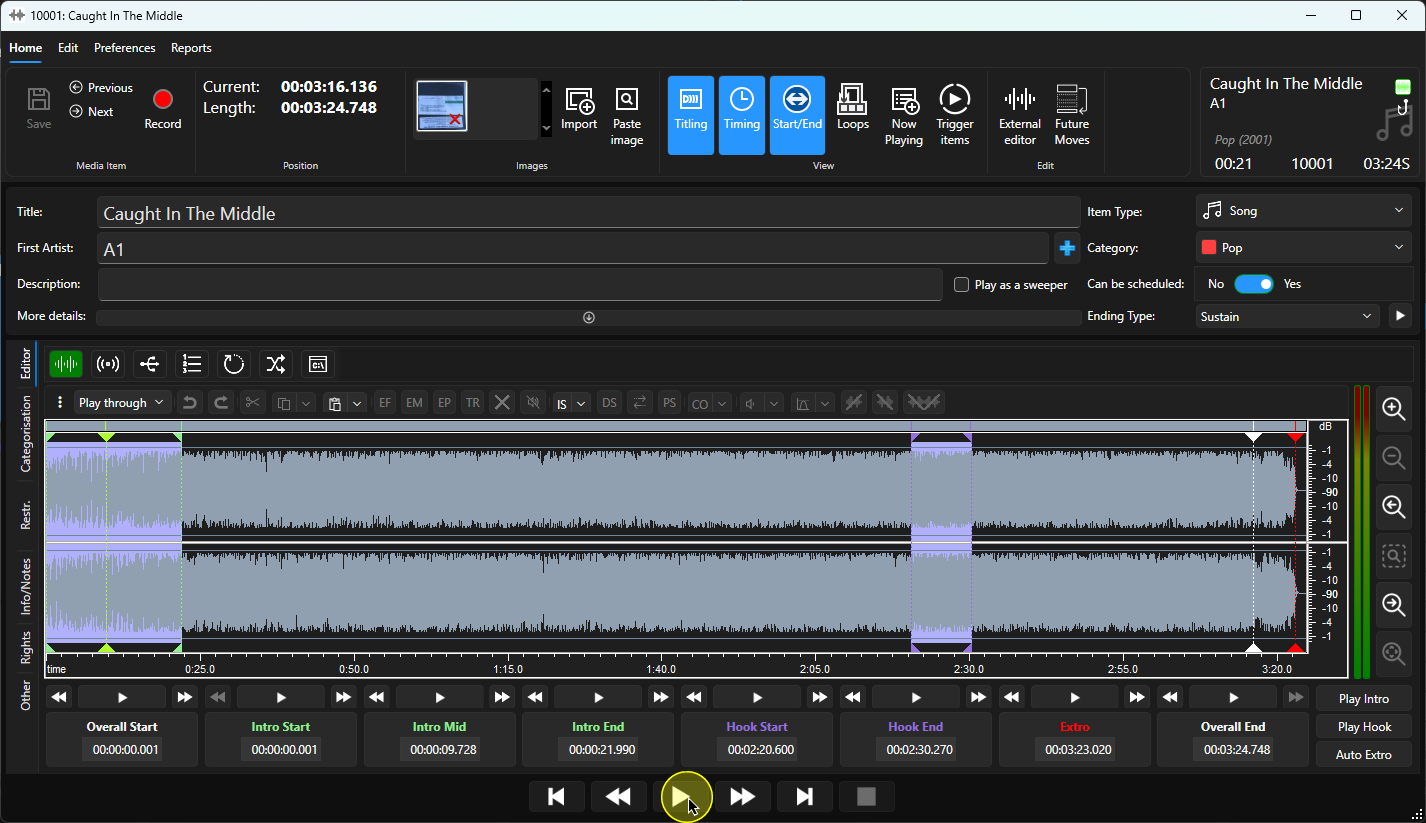
5. When the audio reaches the point you wish to set the Extro, click on the Extro button.
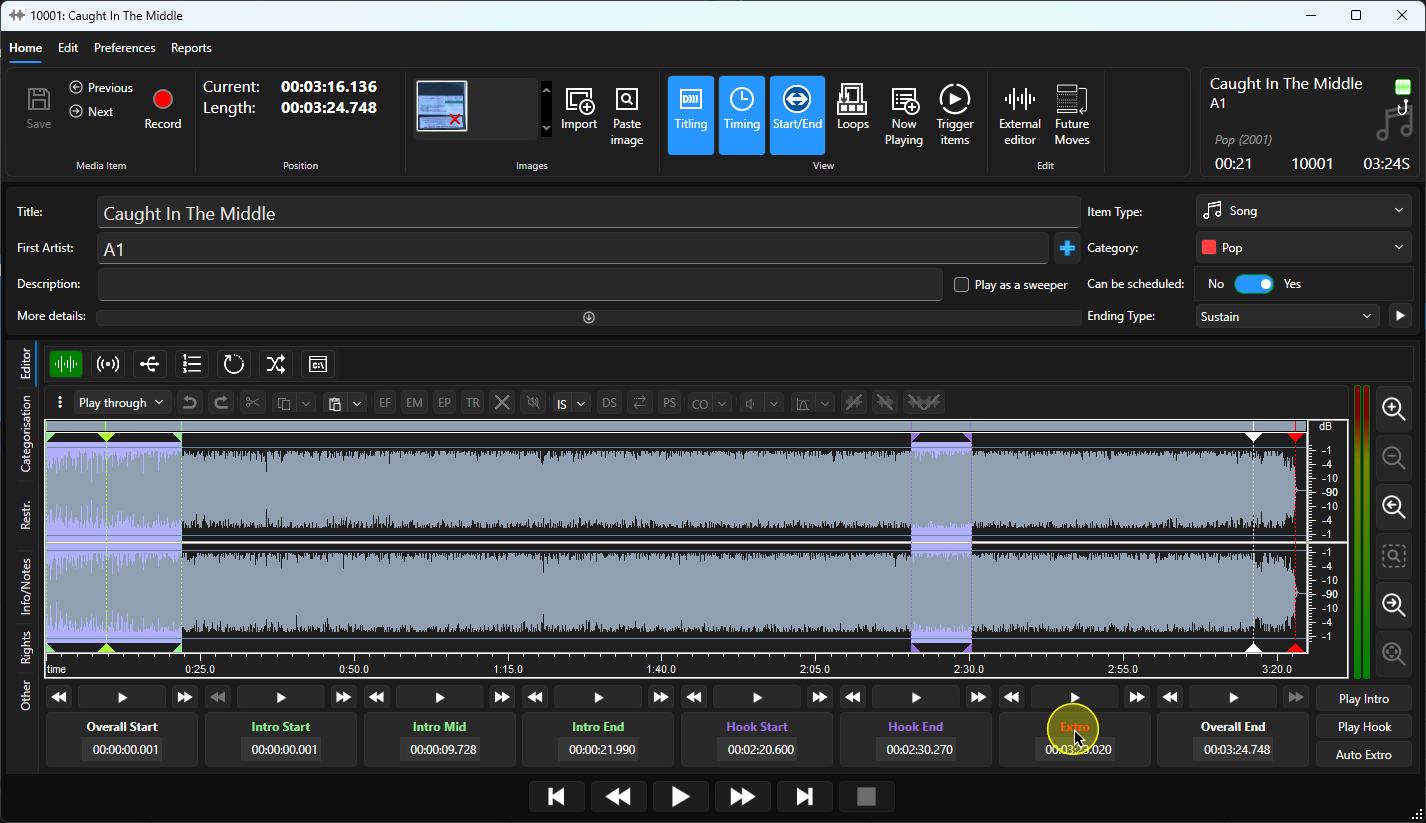
6. To review the Extro, click on the Play button directly above the Extro button.
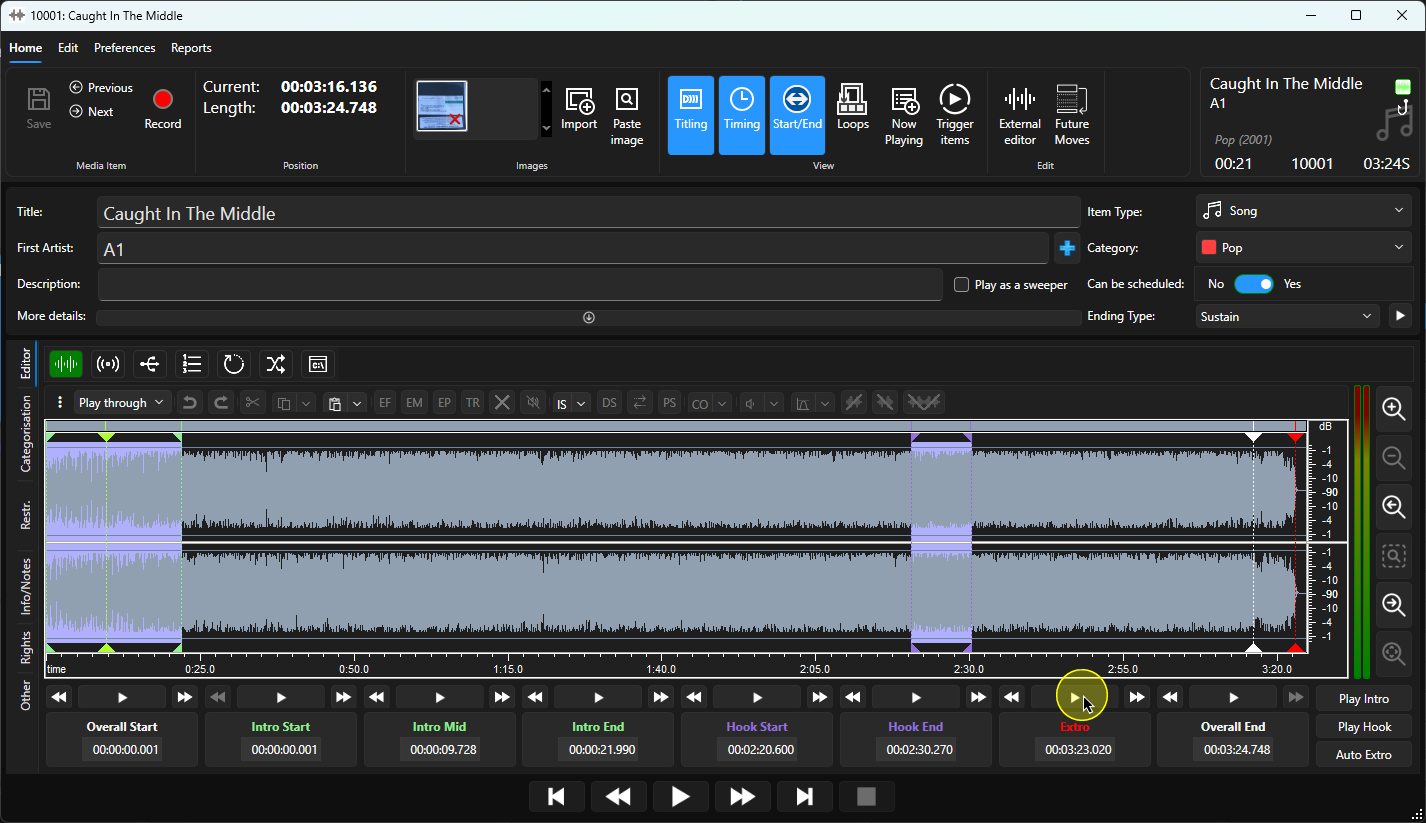
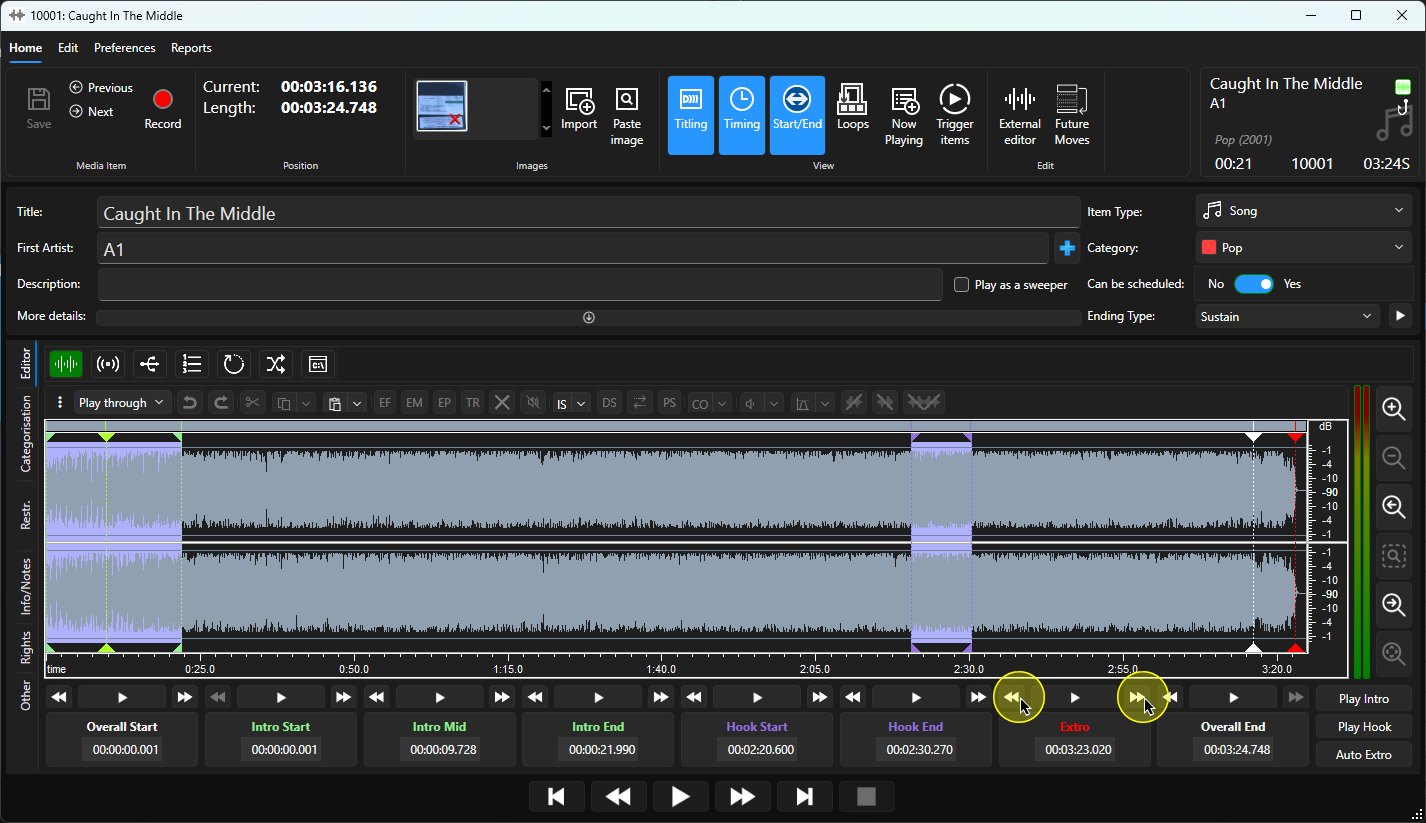
7. You can use the Extro Nudge buttons to move the Extro point forward or backwards by 0.02 seconds.
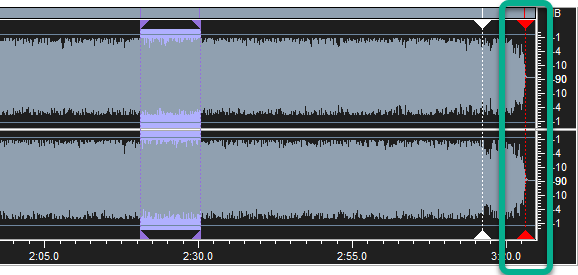
8. Alternatively, you can ask Myriad Playout to set the Extro automatically using the Auto Extro button. This will automatically set the Extro to the audio point where it drops below a customisable threshold. This is typically applied automatically when the audio is imported.
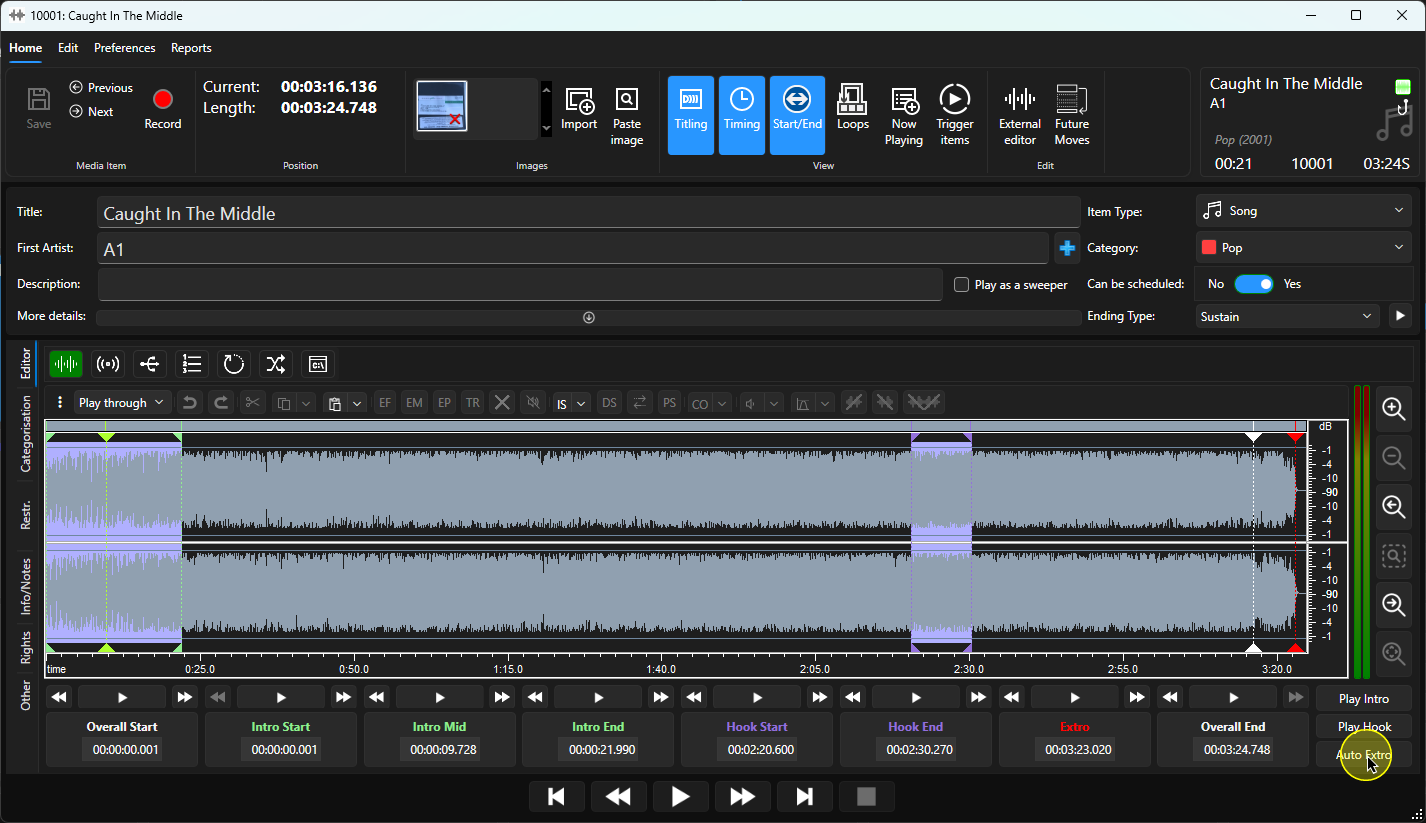
9. Here you can see the Extro has been automatically set.
10. When you are happy, click Save to save the new Extro point.
Was this article helpful?
That’s Great!
Thank you for your feedback
Sorry! We couldn't be helpful
Thank you for your feedback
Feedback sent
We appreciate your effort and will try to fix the article