Hooks are typically the most recognisable parts of Songs, usually a section of the chorus. Hooks can be used by Myriad to create AutoHooks to promote Songs playing soon or in the Live AutoHook Player. Hooks are typically only set on Songs and should be kept short (2 to 4 seconds) for best effect.
1. Select a Song Media Item on the Media Wall.
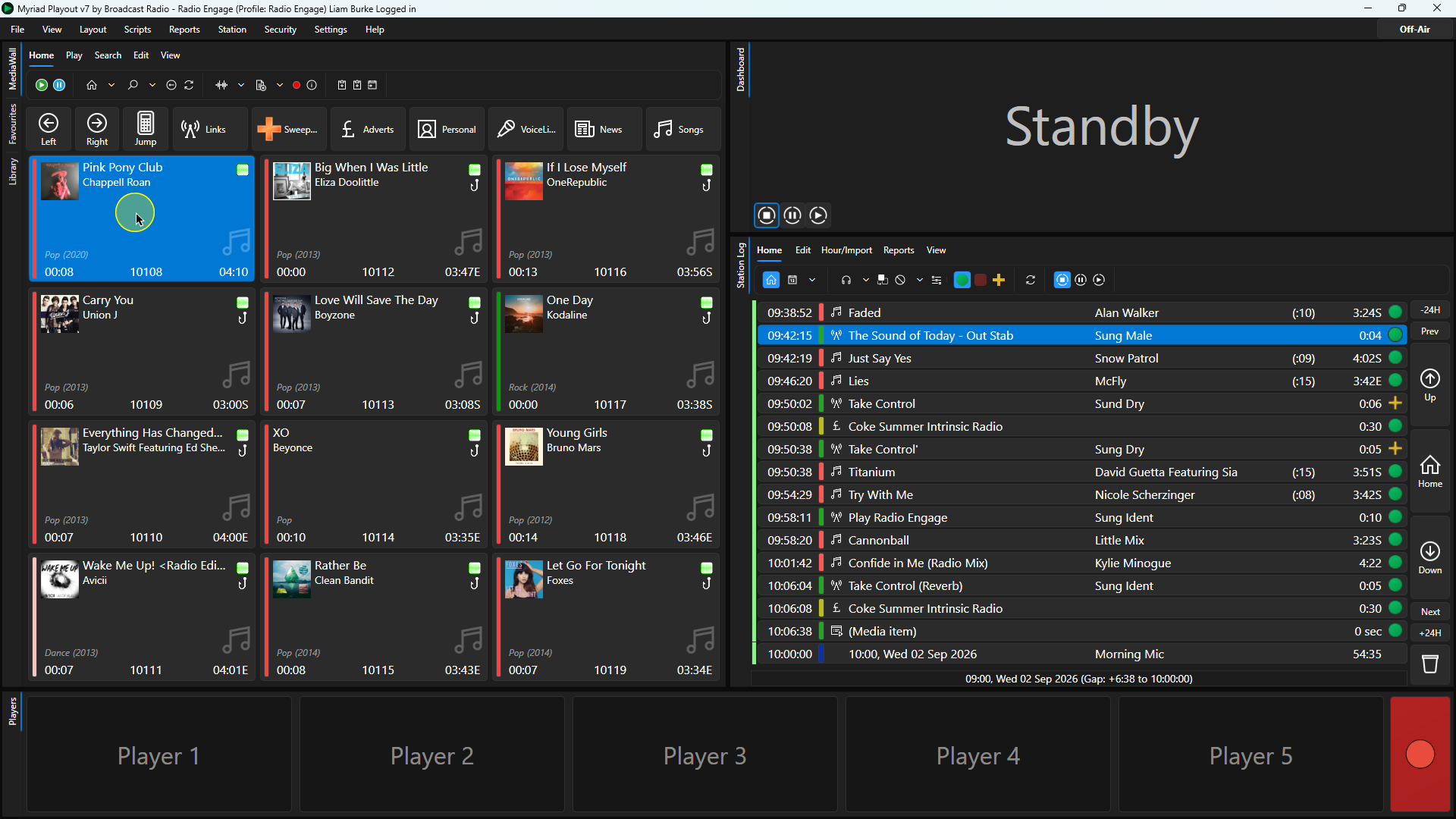
2. Click on the Edit button on the Home ribbon or right click on the Media Item and select the Edit option.
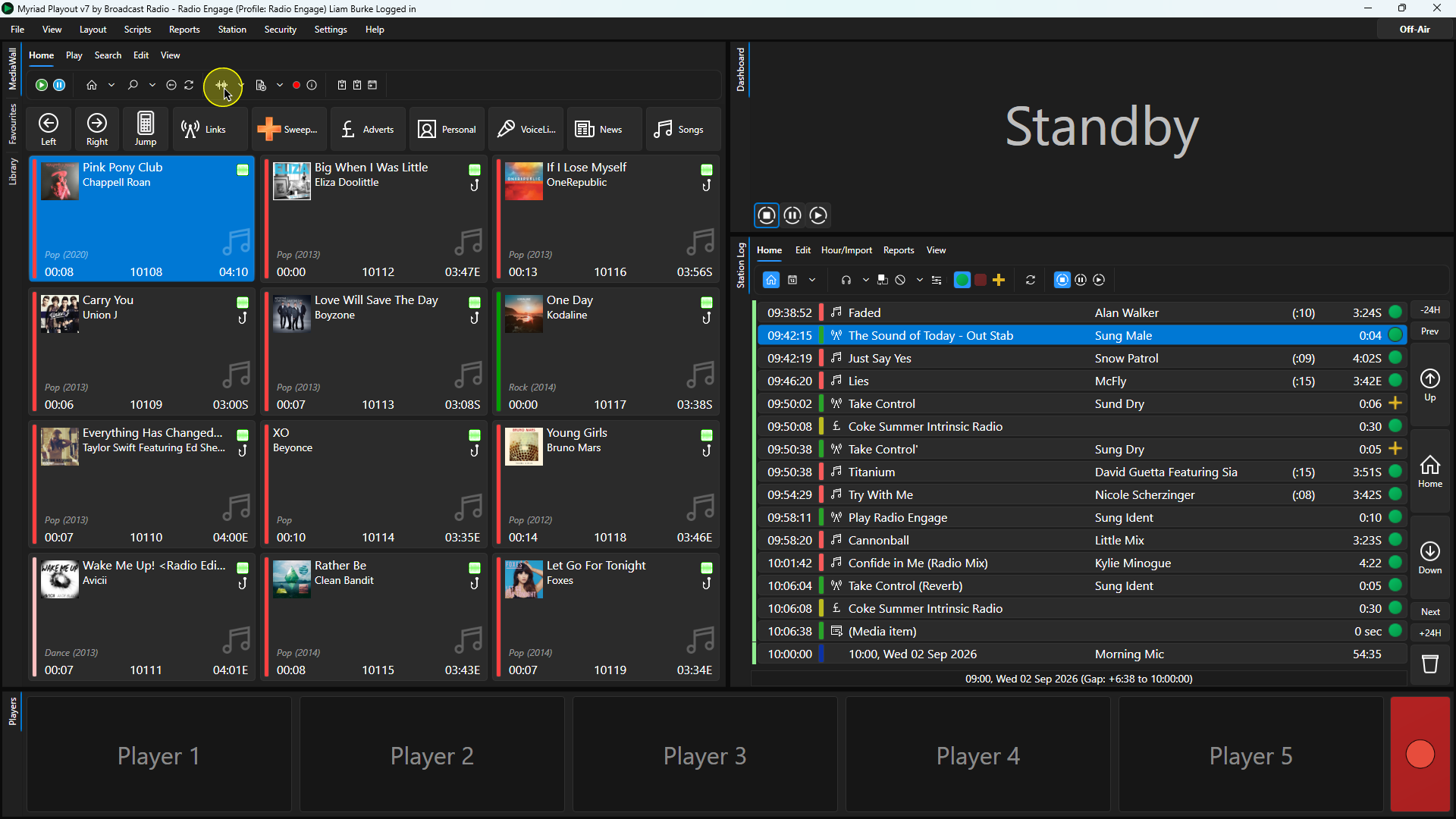
3. Click the Play button on the Edit Window to begin playback.
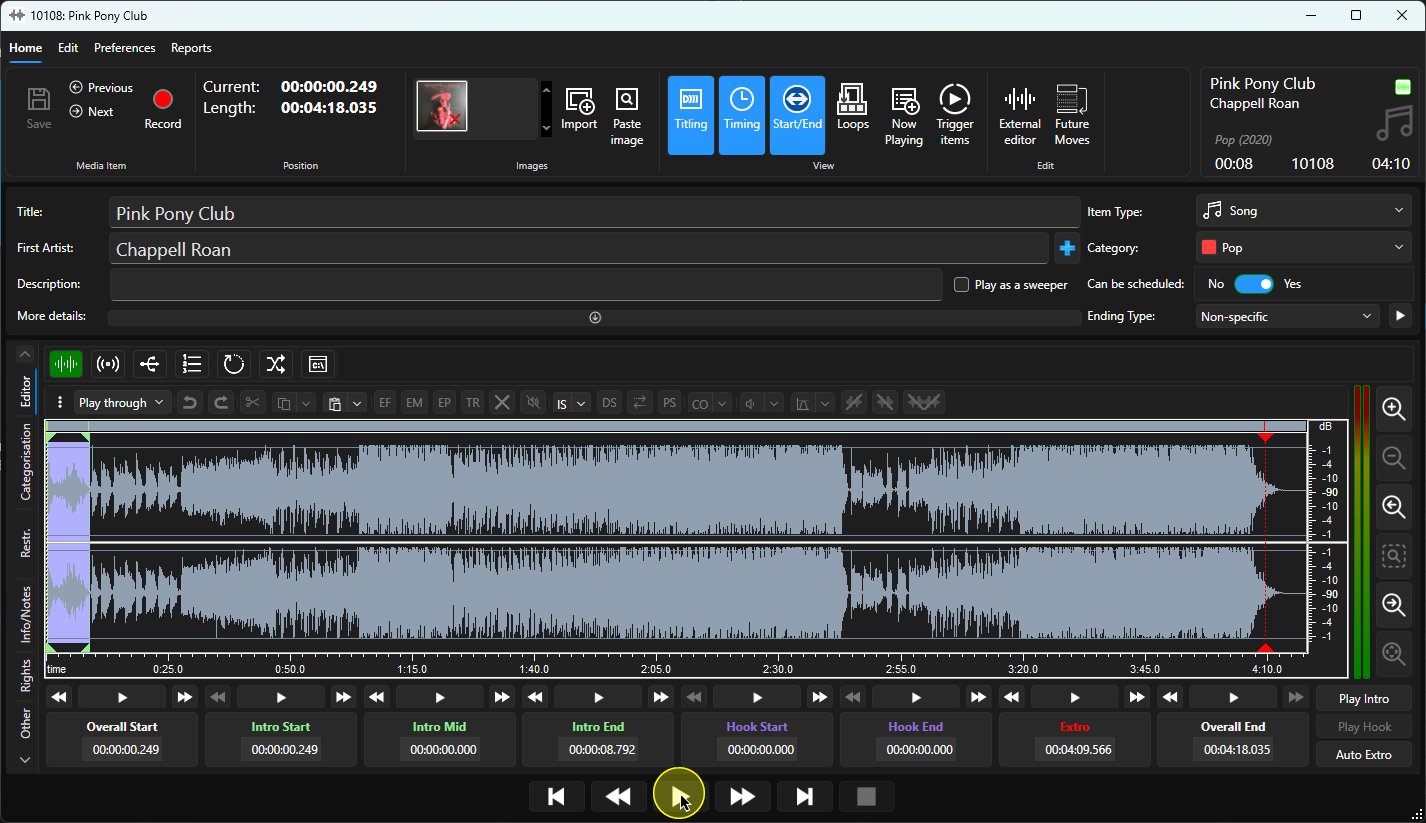
4. You can use the Fast Forward button to skip forward in the Song. You can also click in the waveform to advance playback to that position.
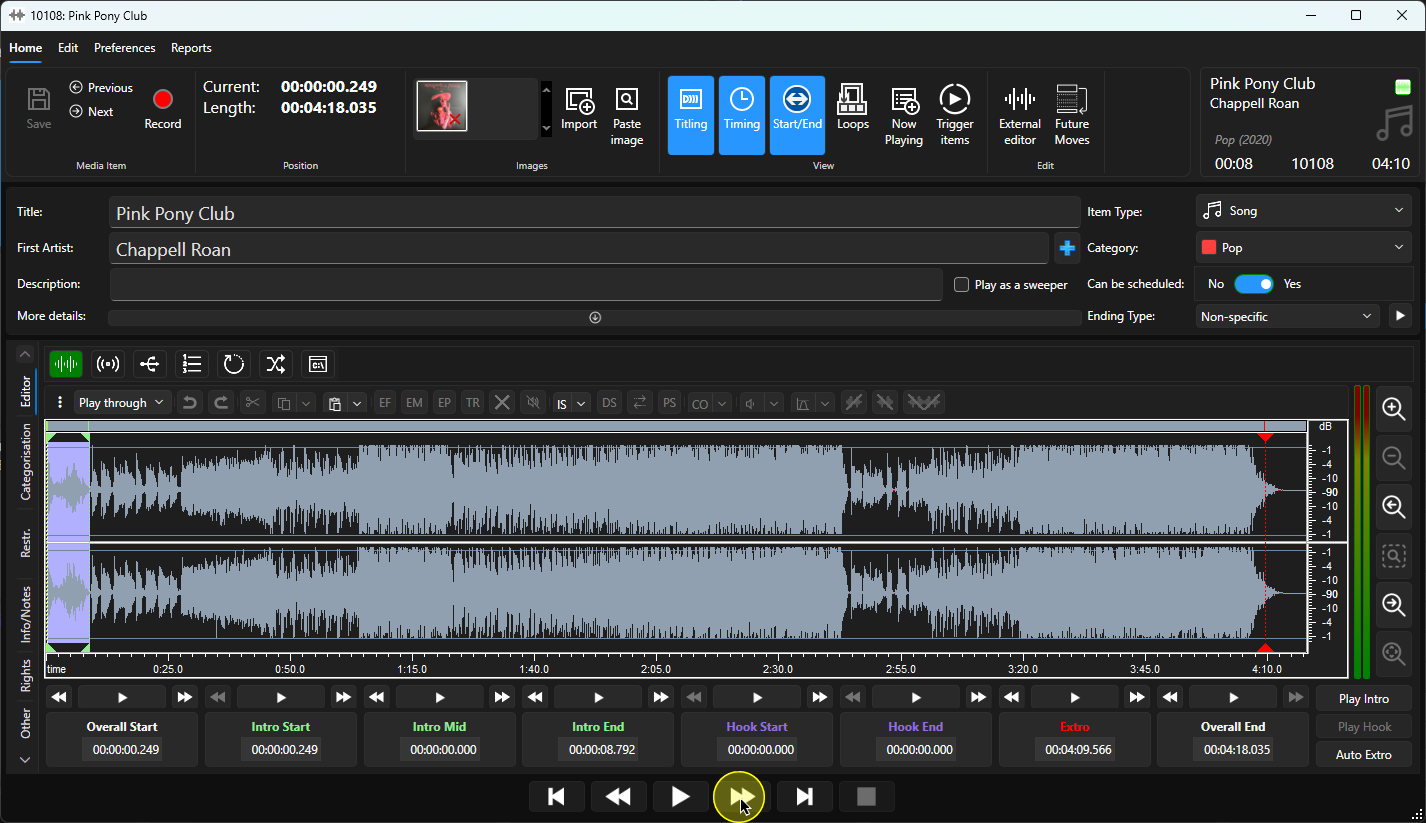
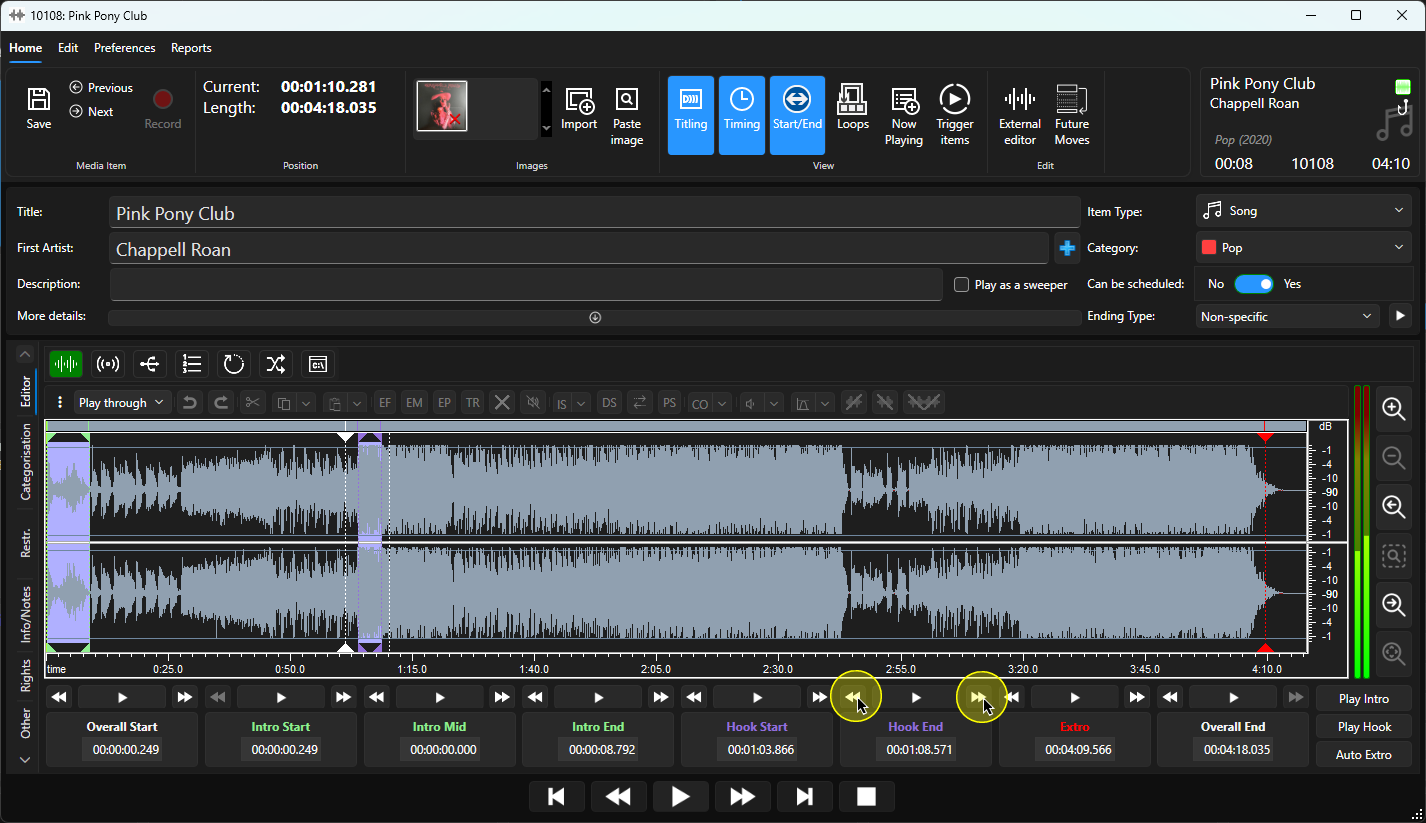
5. When you reach the point in the audio where you wish to place the start of the Hook, click on the Hook Start button. This will mark the Hook Start position and the audio will continue to play.
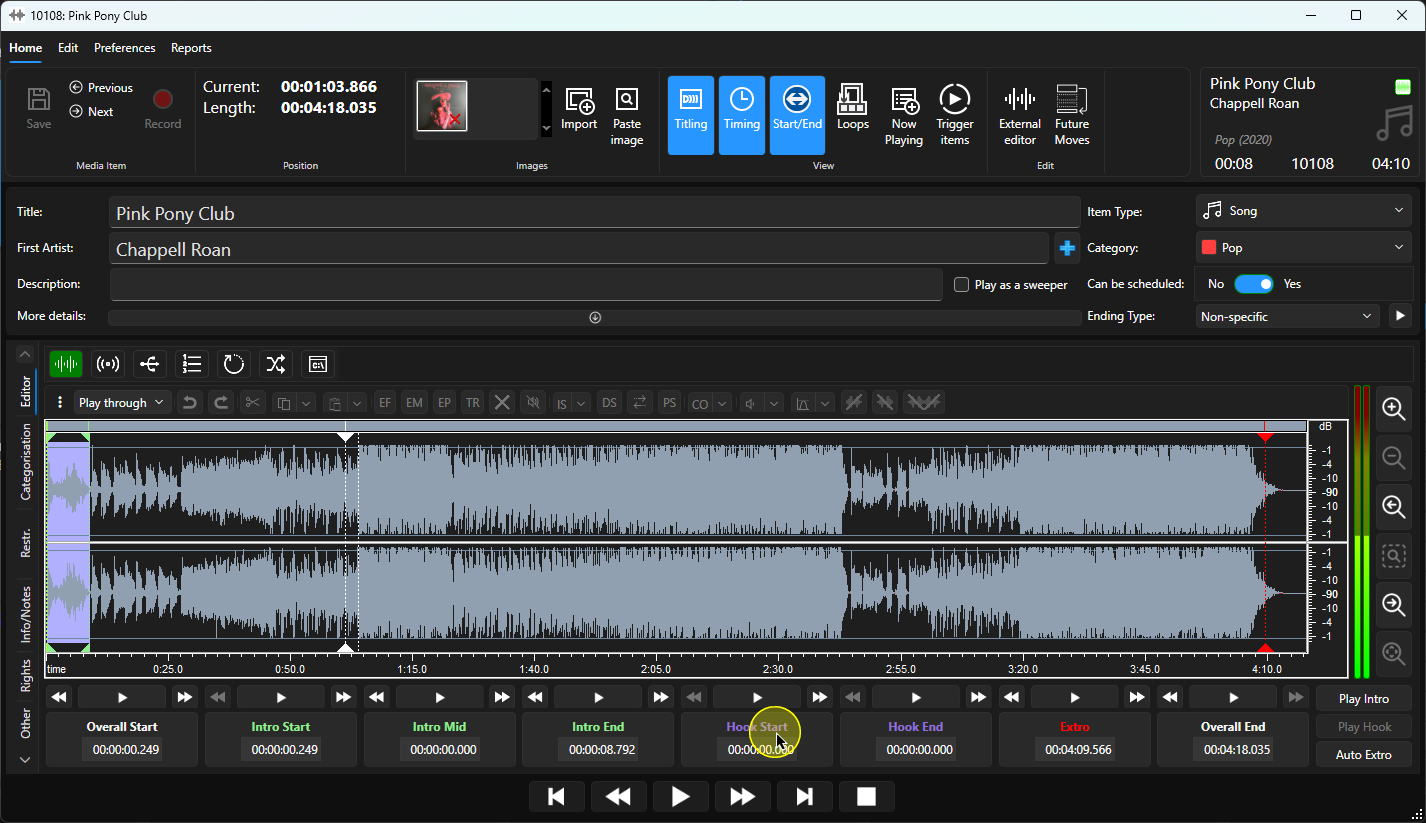
6. When the audio reaches the point where you want to end the Hook, click on the Hook End button.
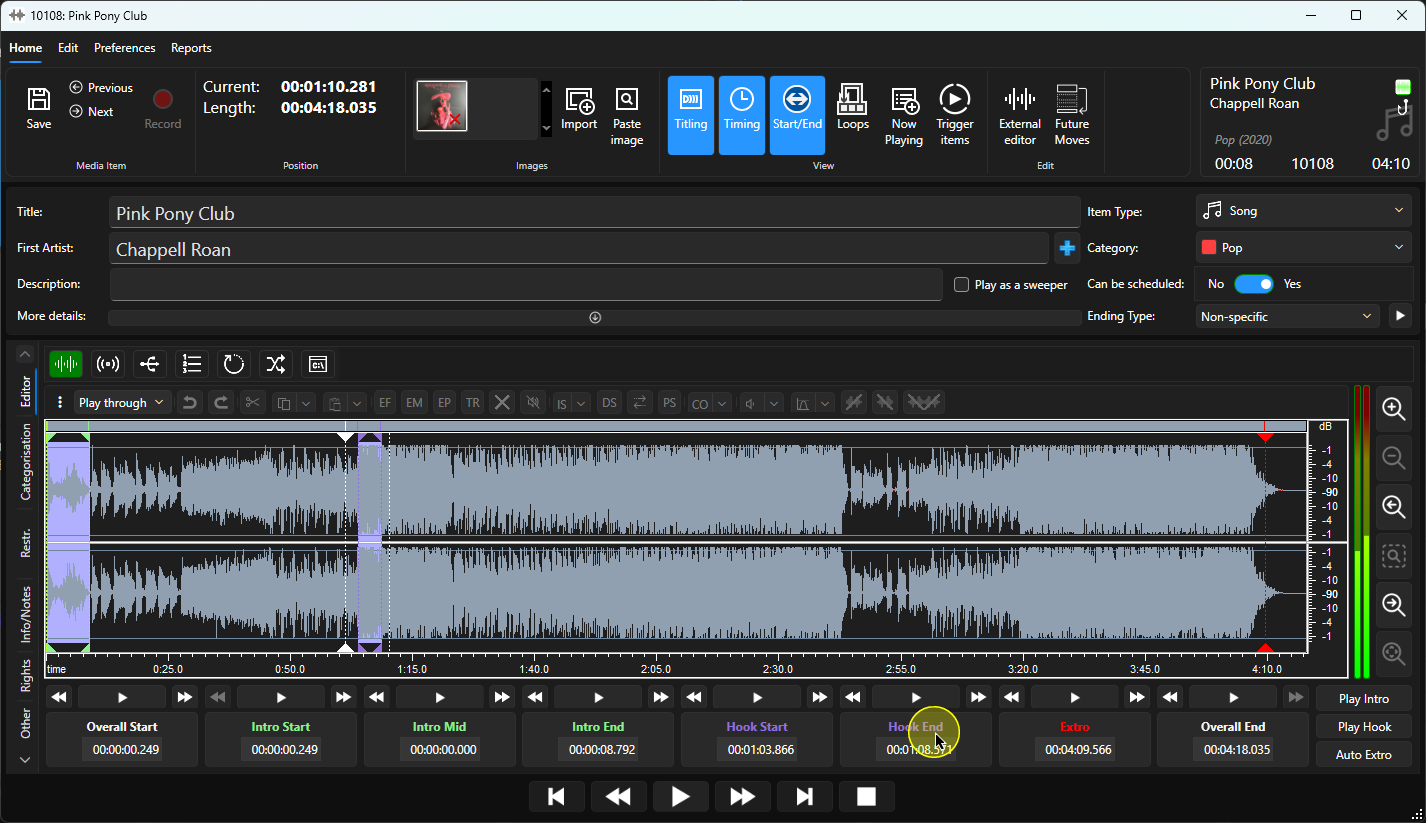
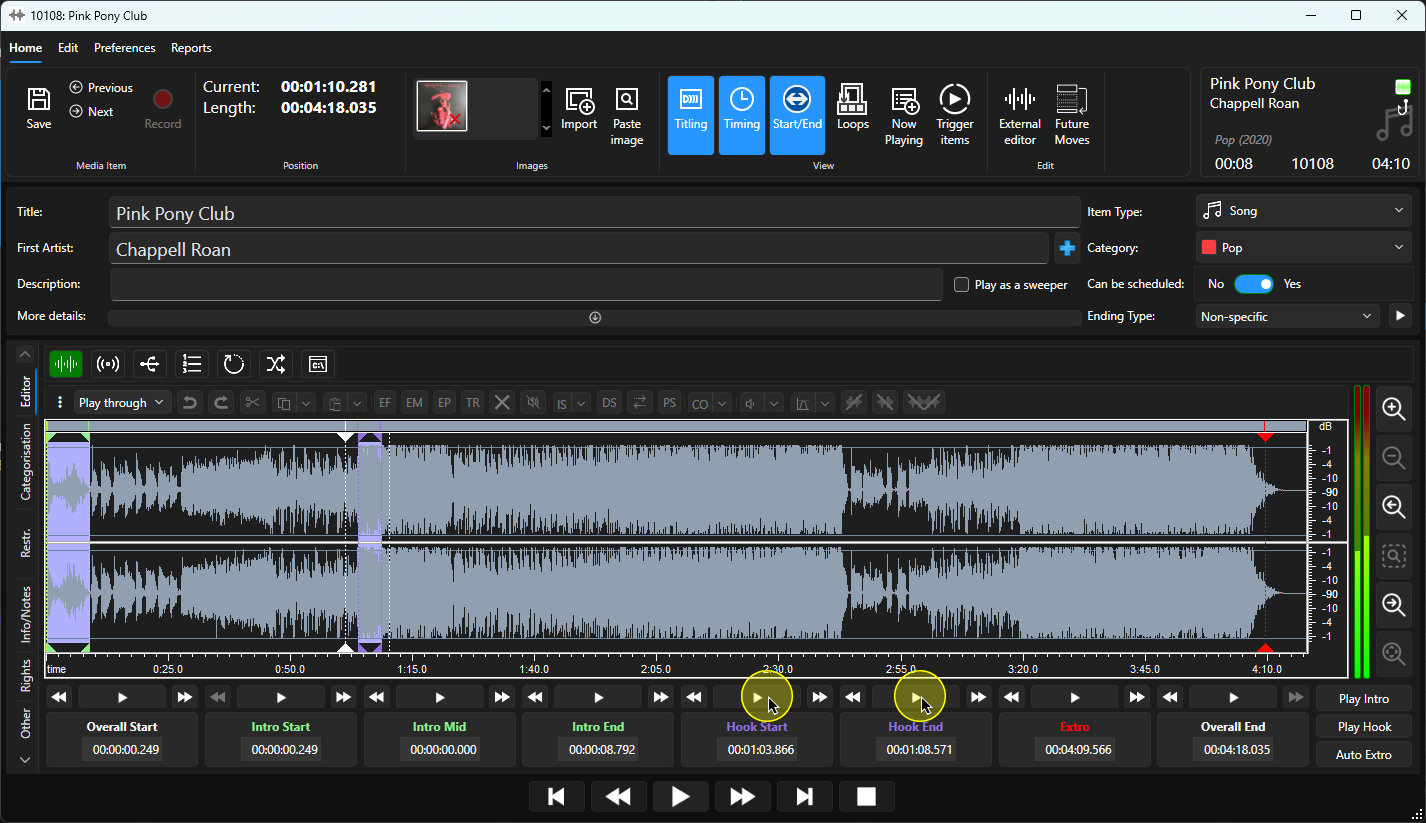
7. You can review the Hook Start or Hook End by clicking on the Play button above each.
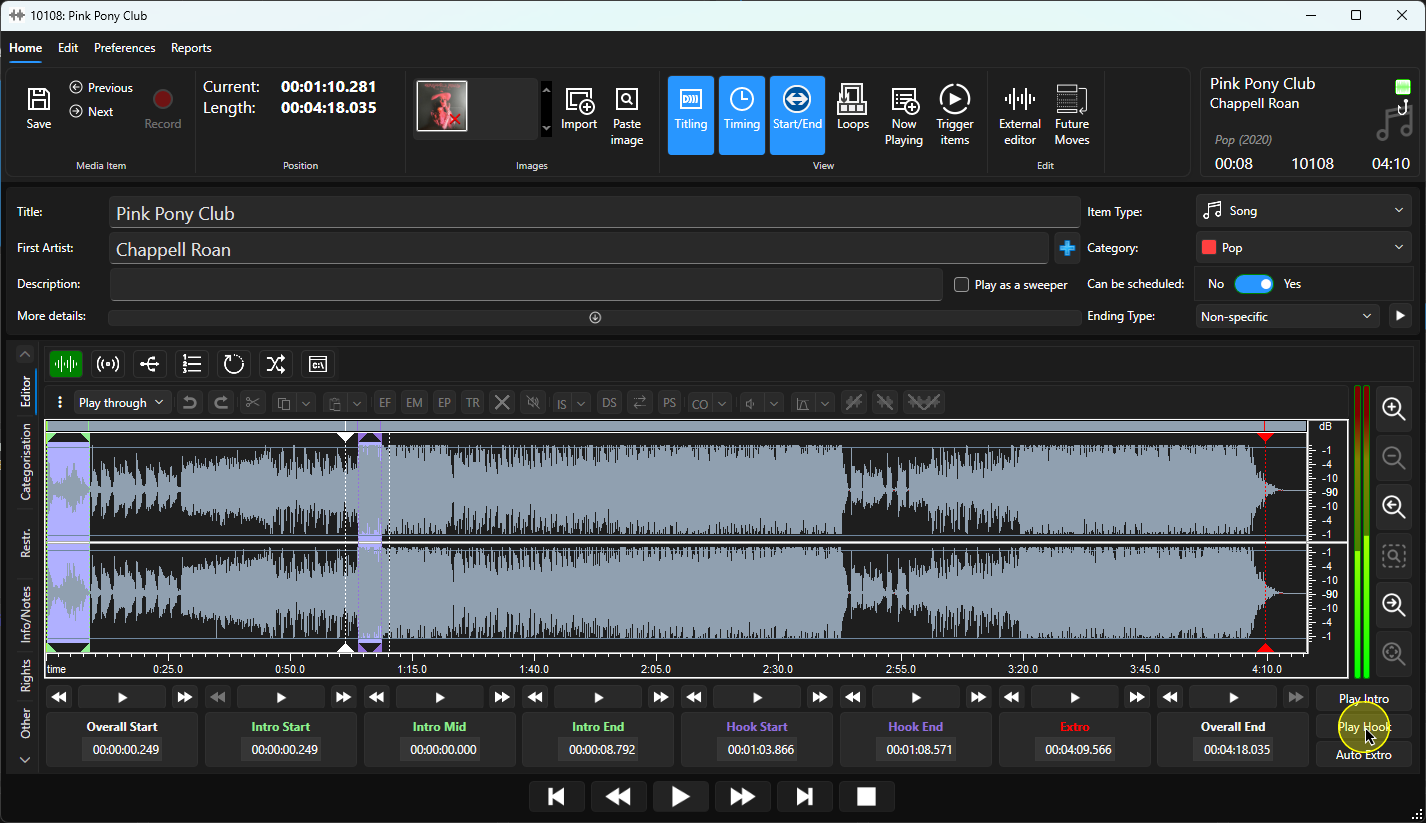
8. You can also click on the Play Hook button to play the Hook in it's entirety.
9. You can move the Hook Start or End Times forward or backwards by 0.02 seconds using the corresponding Forward / Backward Nudge buttons.
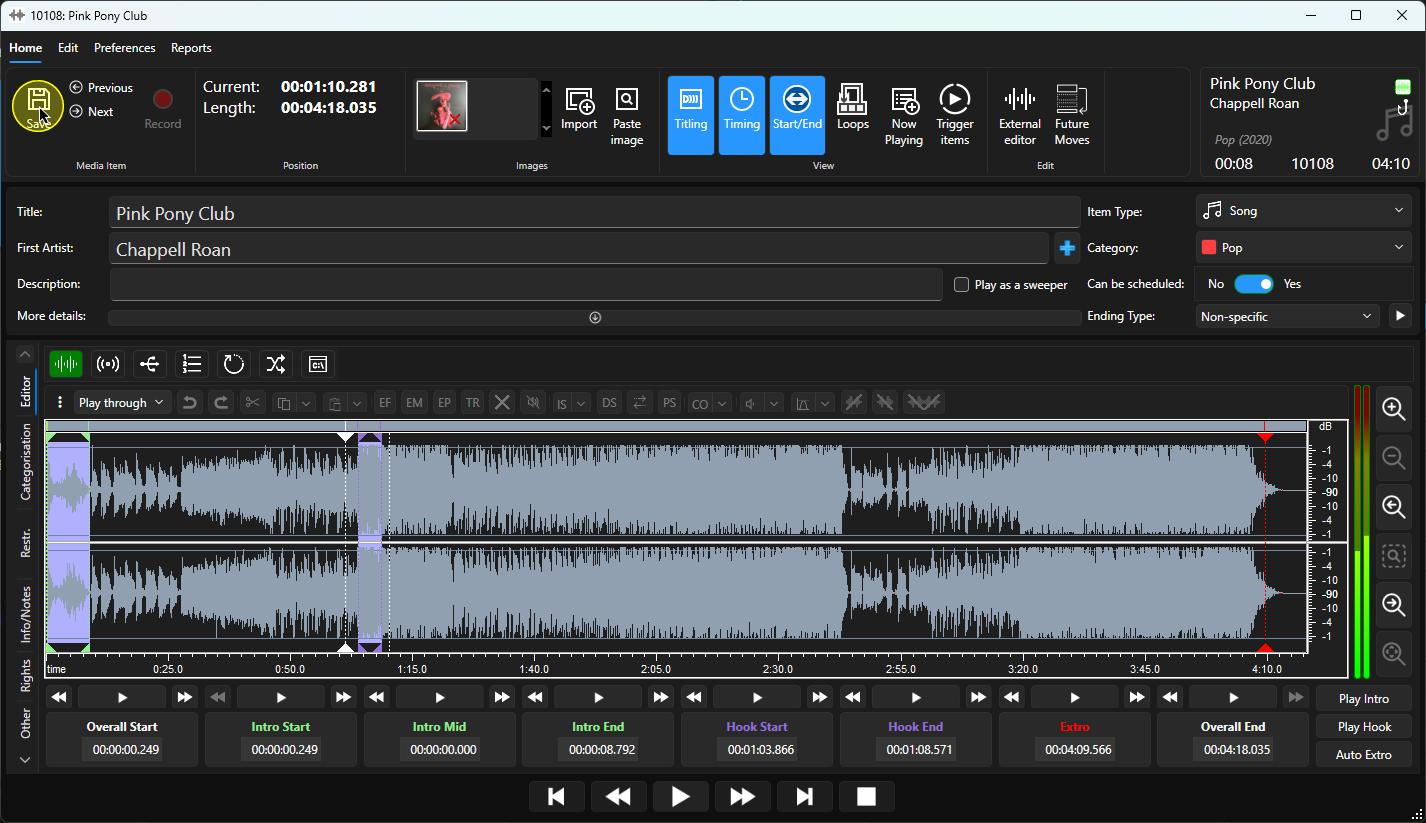
10. When you are happy with your Hook, click Save to save the Media Item.
11. The Hook icon will be added to the Media Item on the Media Wall to indicate a Hook has been set.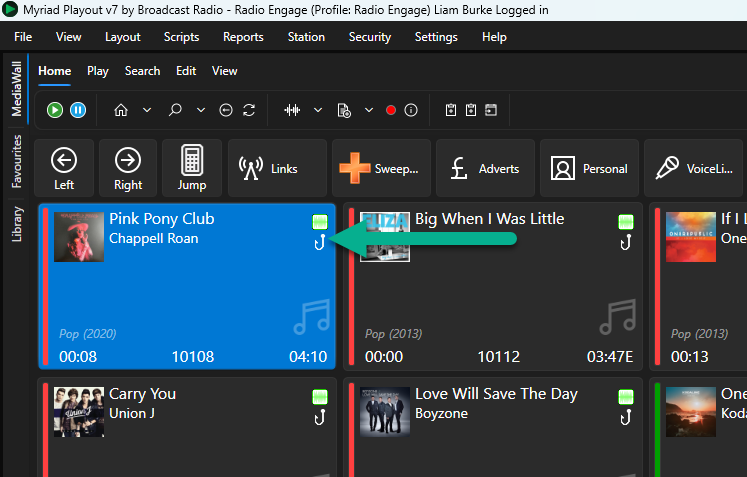
Was this article helpful?
That’s Great!
Thank you for your feedback
Sorry! We couldn't be helpful
Thank you for your feedback
Feedback sent
We appreciate your effort and will try to fix the article