You can add unlimited Song Categories to help you classify your Songs and control your schedule.
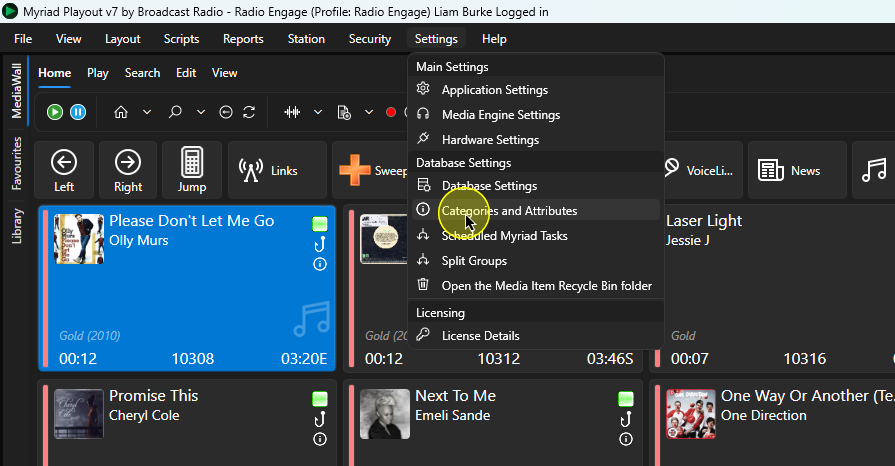
1. In Myriad Playout, click on the Settings Menu and select the Categories & Attributes option.
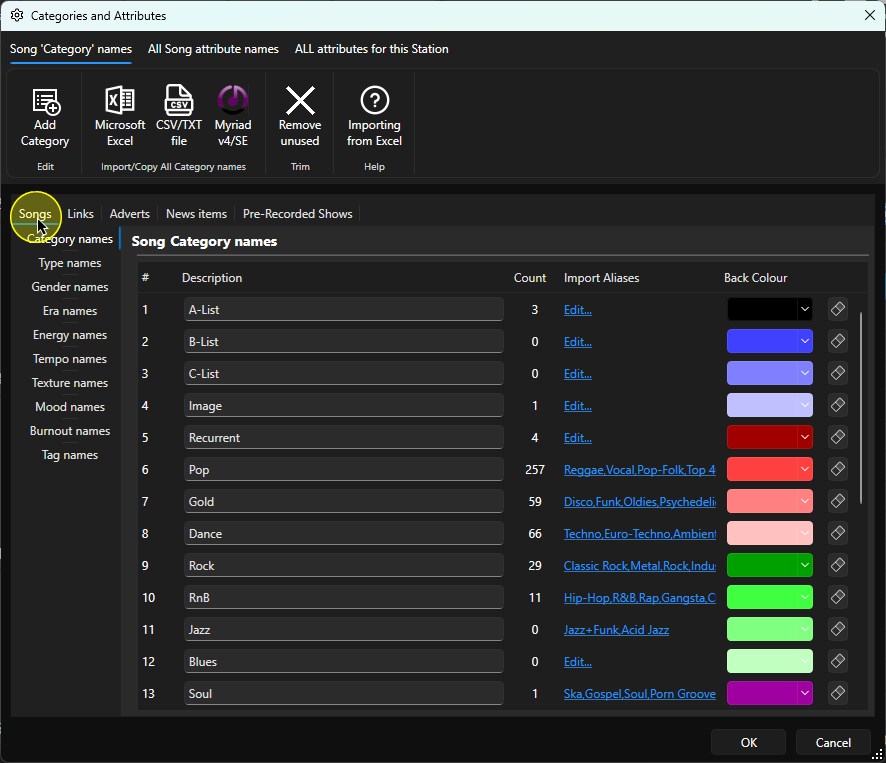
2. Select the Songs tab. Select the appropriate tab if you want to edit Categories or Attributes for Links, Adverts, News Items or Pre-recorded Shows.
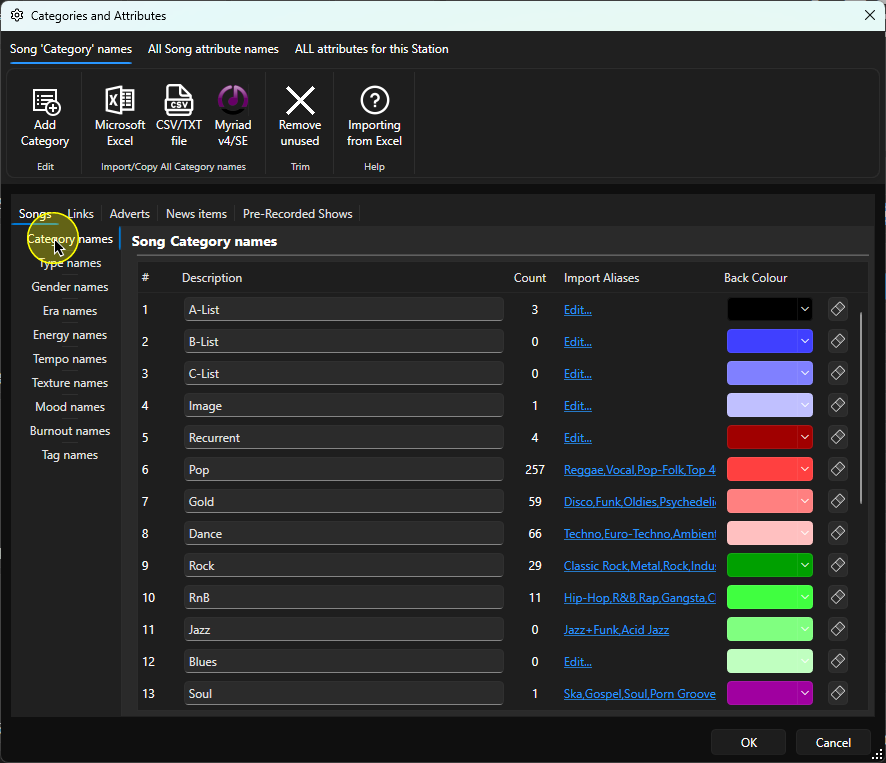
3. Click the Category Names option.
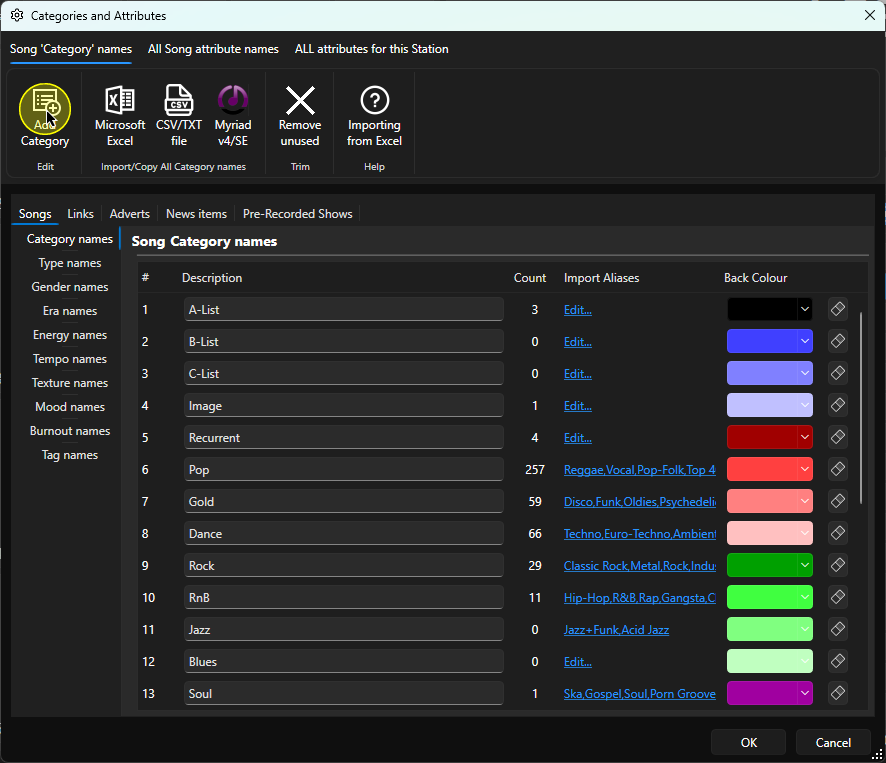
4. Click on the Add Category button on the ribbon.
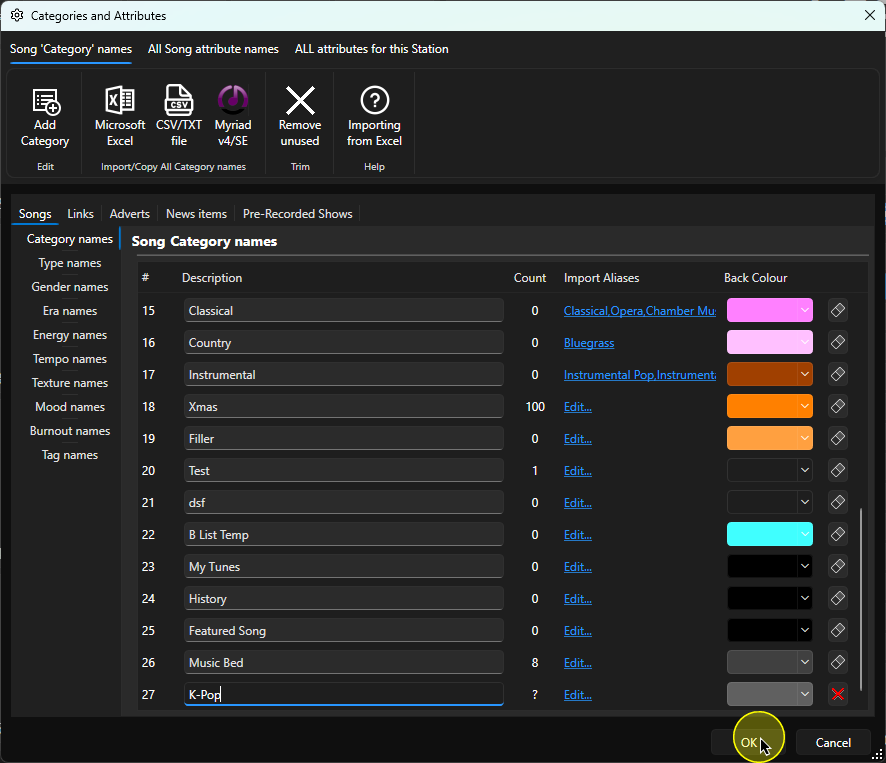
5. The new Category will be added to the bottom of the list. If you have multiple Categories, you may have to scroll down to find the newly added Category.
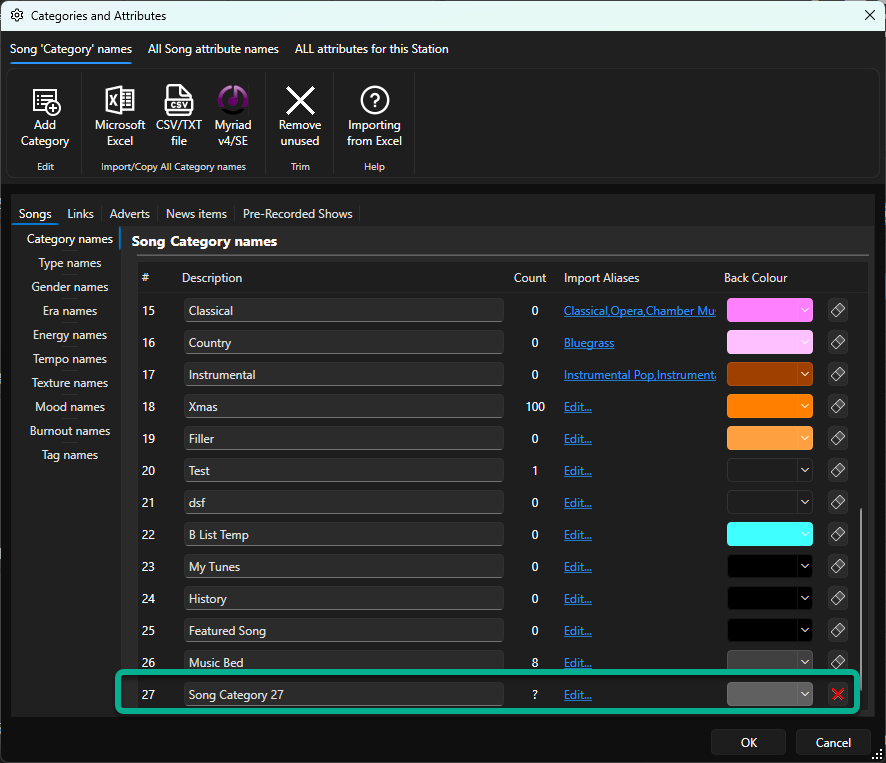
6. Click inside the Category text box and type in the name for your new Song Category. In this example we have added a new Category called K-Pop.
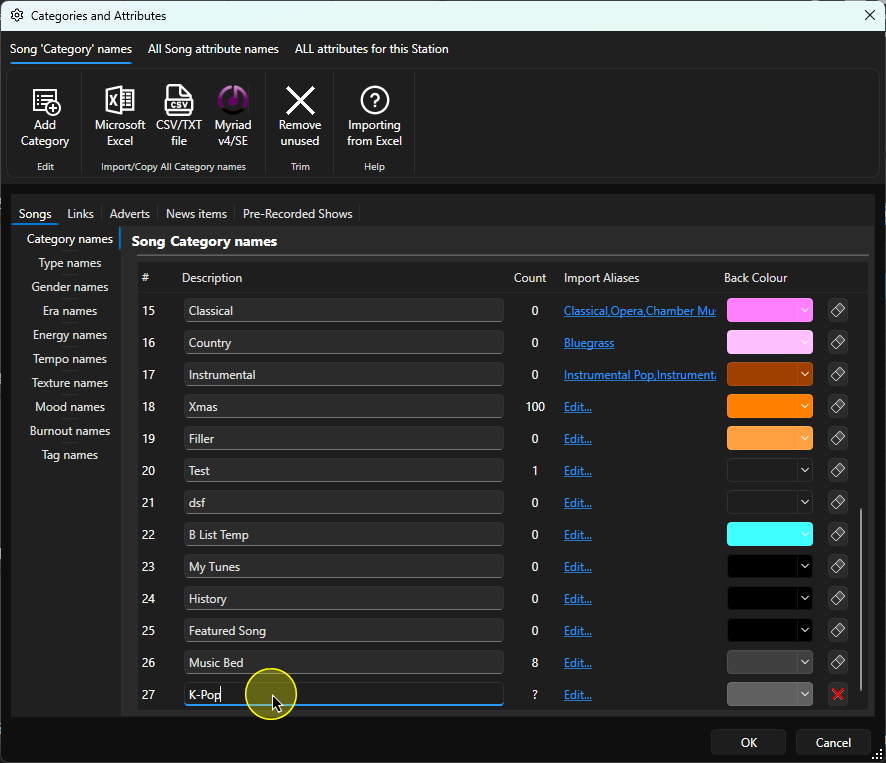
7. You can also assign a colour for your Category using the colour-picker to the right of the Category name.
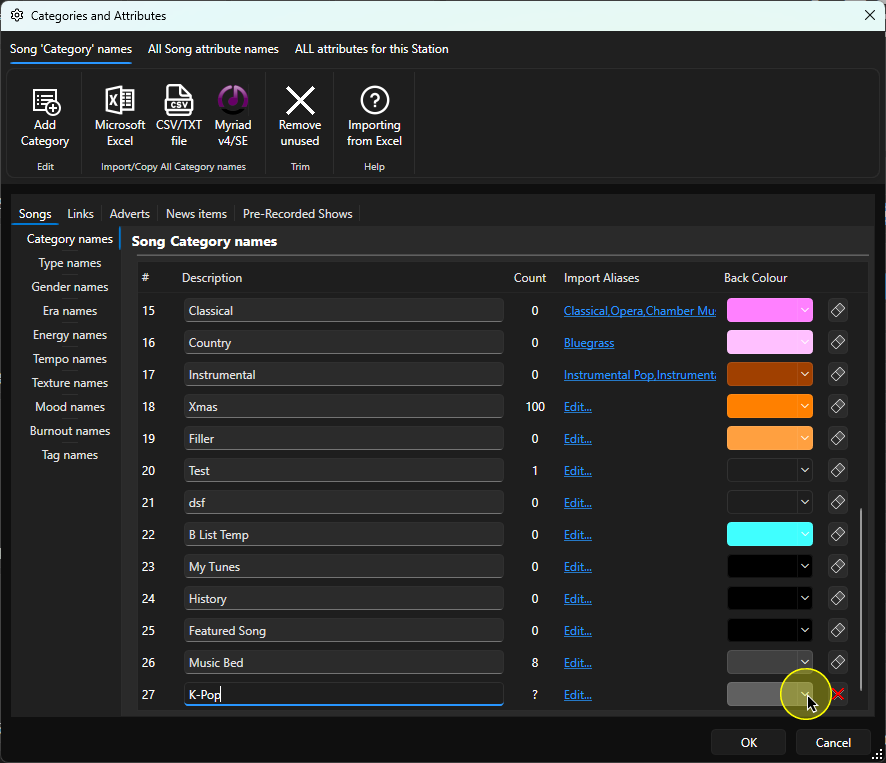
8. You can also add Import Aliases to help map imported Song Metadata by clicking on the Edit button and adding the Alias.
So in this example you might add Korean Pop, K-music, Idol Music, K-Idol etc so that any Songs imported with these Aliases as the Genre will be routed to the K-Pop Category.
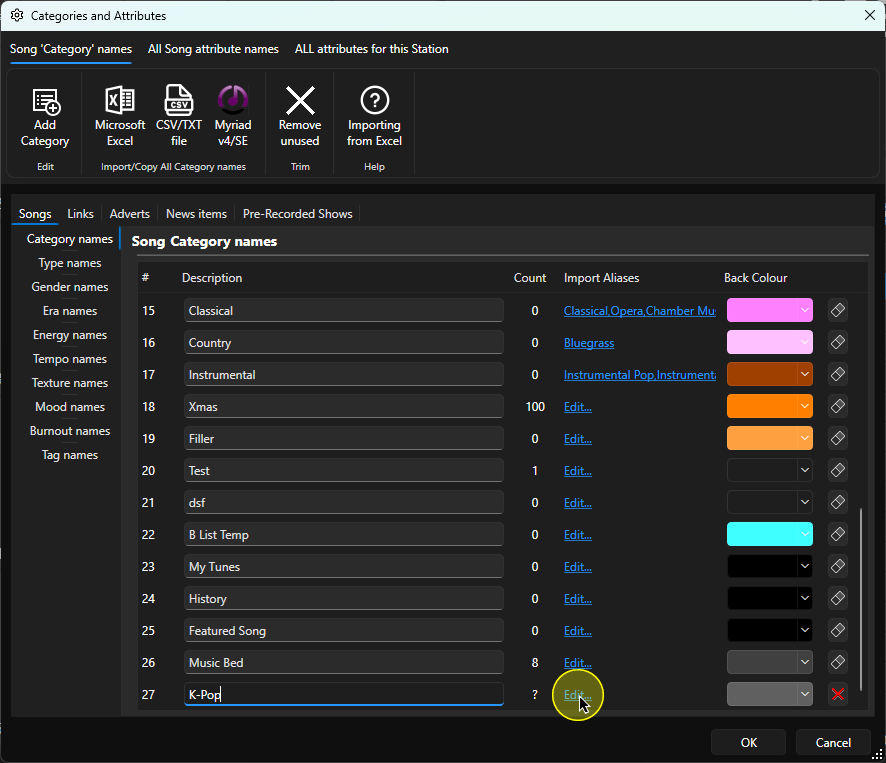
9. When you have finished, click on the OK button.
Was this article helpful?
That’s Great!
Thank you for your feedback
Sorry! We couldn't be helpful
Thank you for your feedback
Feedback sent
We appreciate your effort and will try to fix the article