Myriad Schedule Pro users can use extended attributes Type, Gender & Era to further classify Songs & Links. You can add unlimited Types, Genders and Eras as well as rename existing attributes.
1. In Myriad Playout, click on the Settings menu.
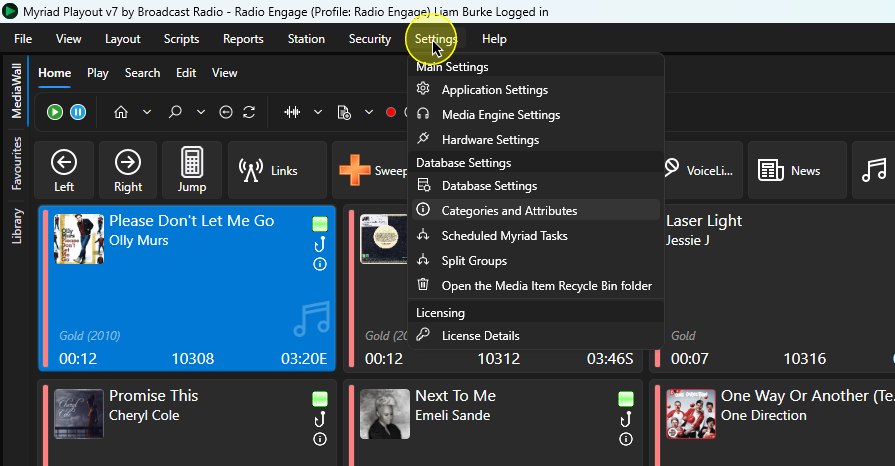
2. Select Categories and Attributes.
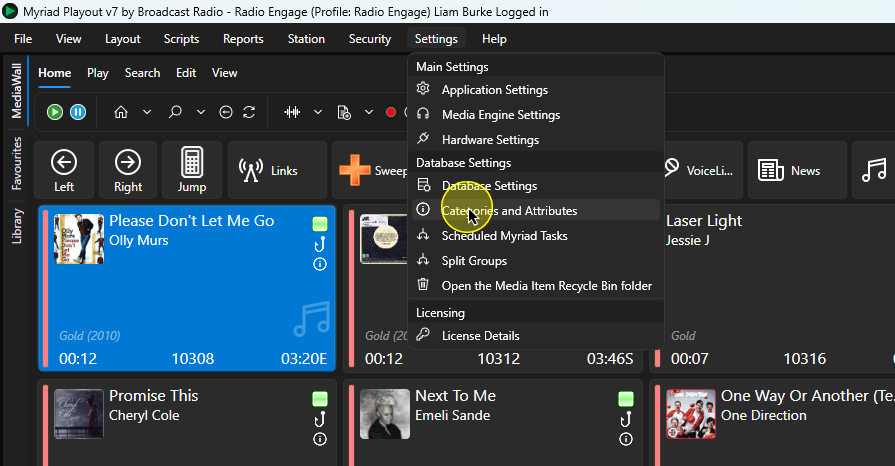
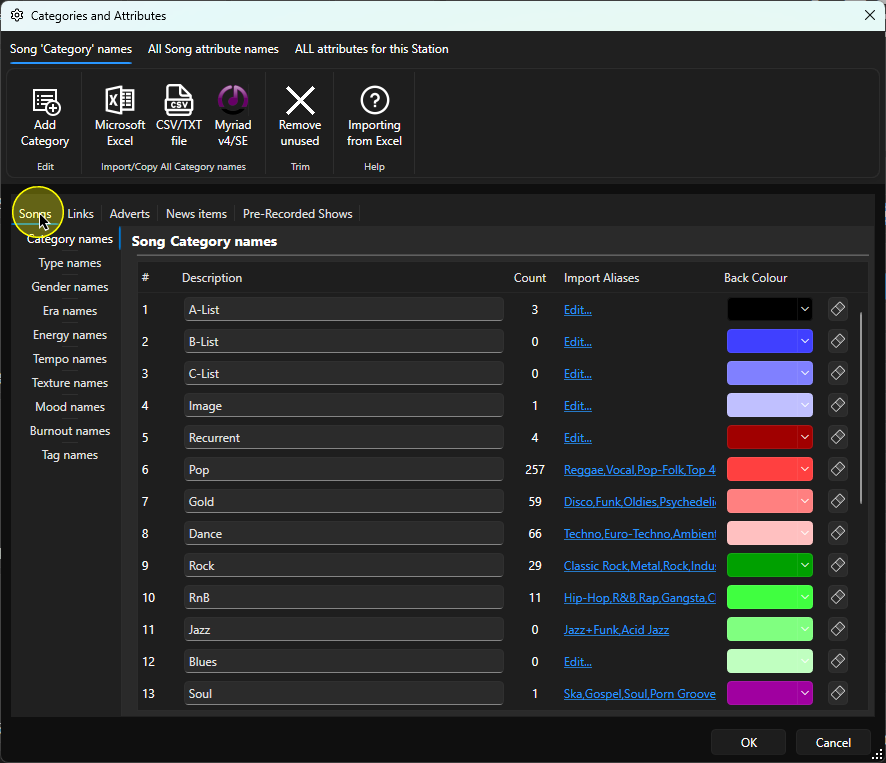
3. Select the Songs tab if you want to work with extended Attributes for Songs. Select the appropriate tab if you want to edit Categories or Attributes for Links, Adverts, News Items or Pre-recorded Shows.
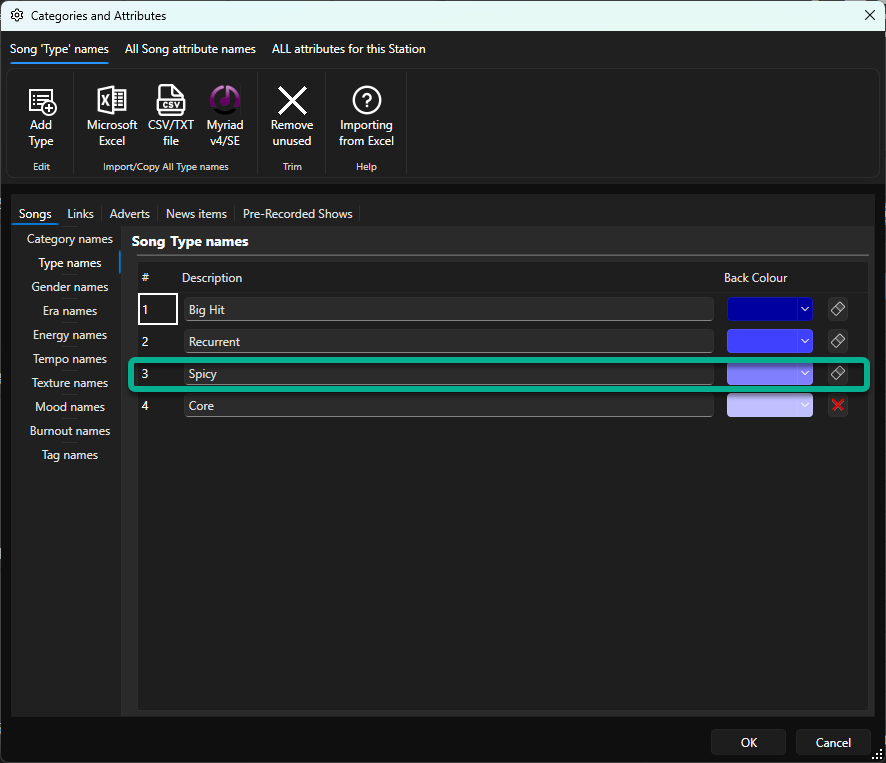
4. To add a new Type, click on the Type Names option to display the current Types.
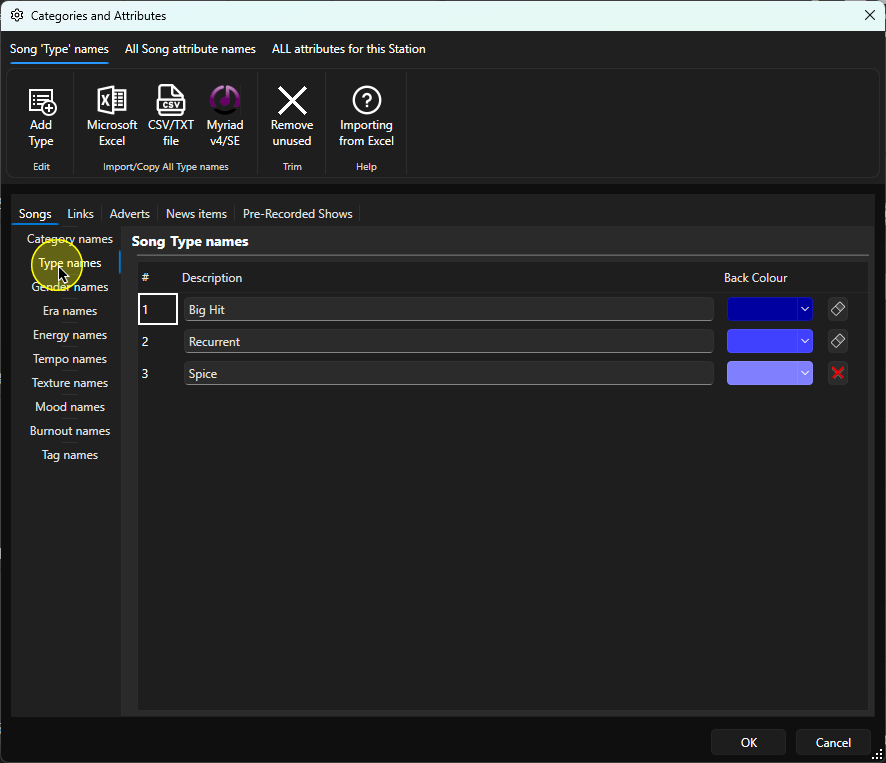
5. Click on the Add Type button on the Song Type Names tab.
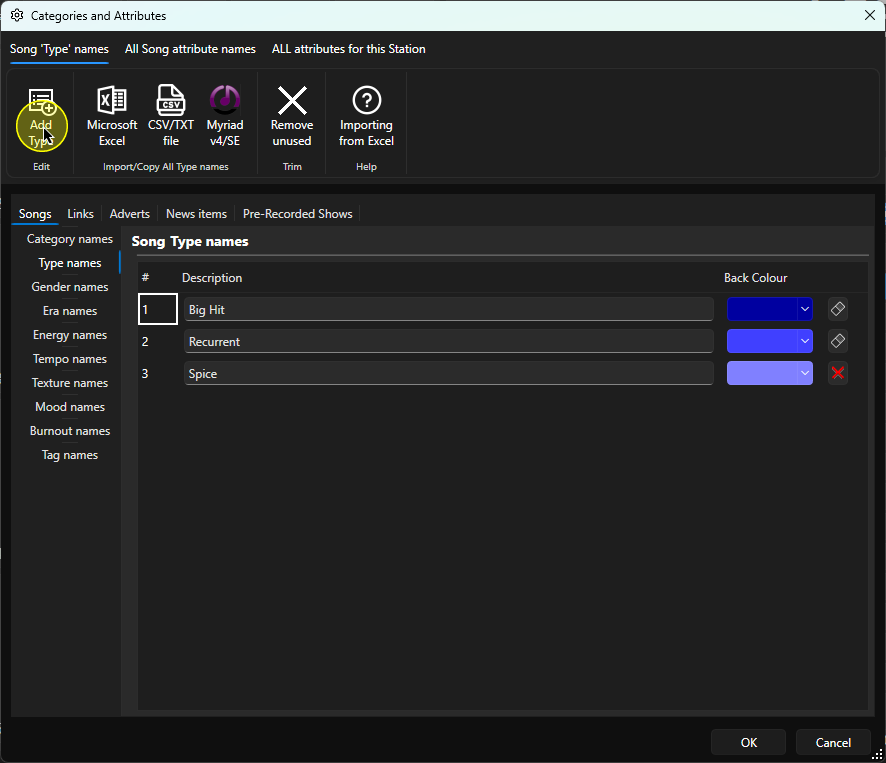
6. A new Type will be added to the bottom of the list.
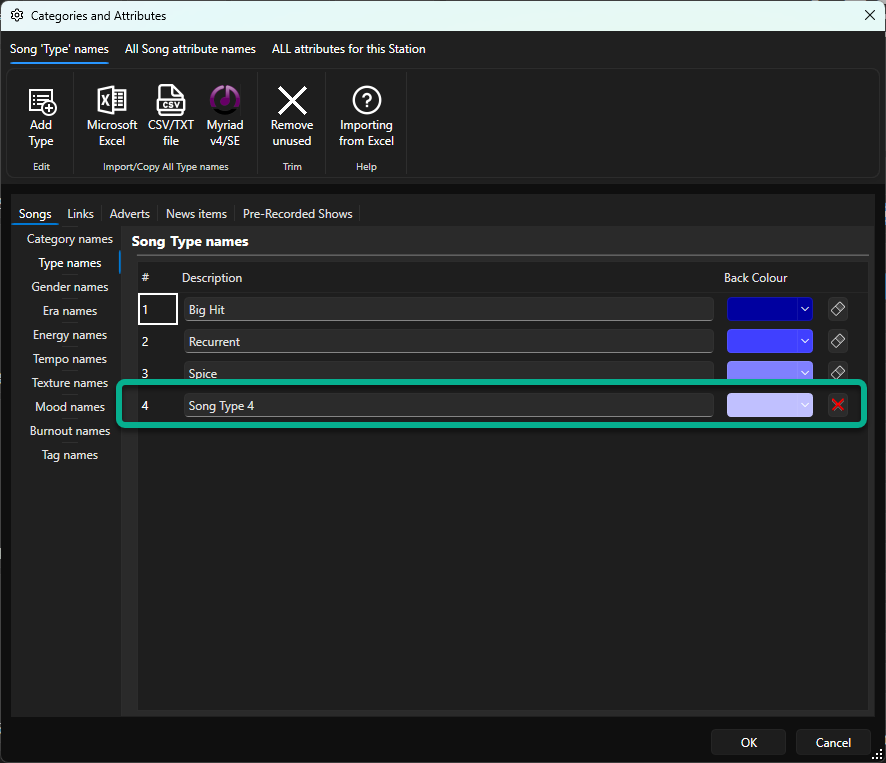
7. To rename the Type, select the Description field and type in the new name.
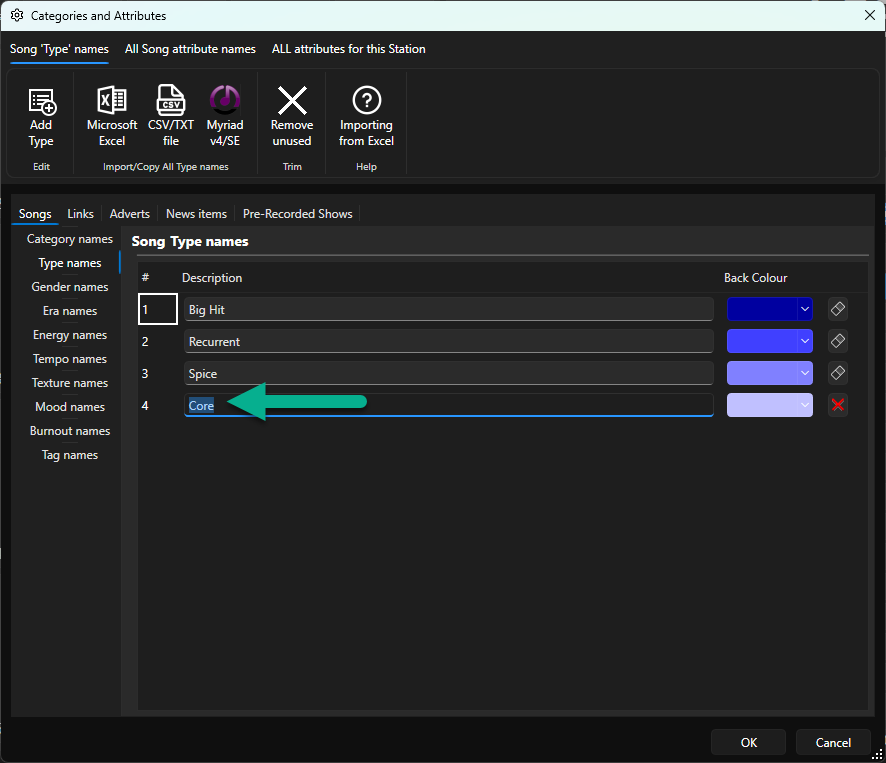
8. You can also rename existing Type names by selecting the Description field and editing the name.
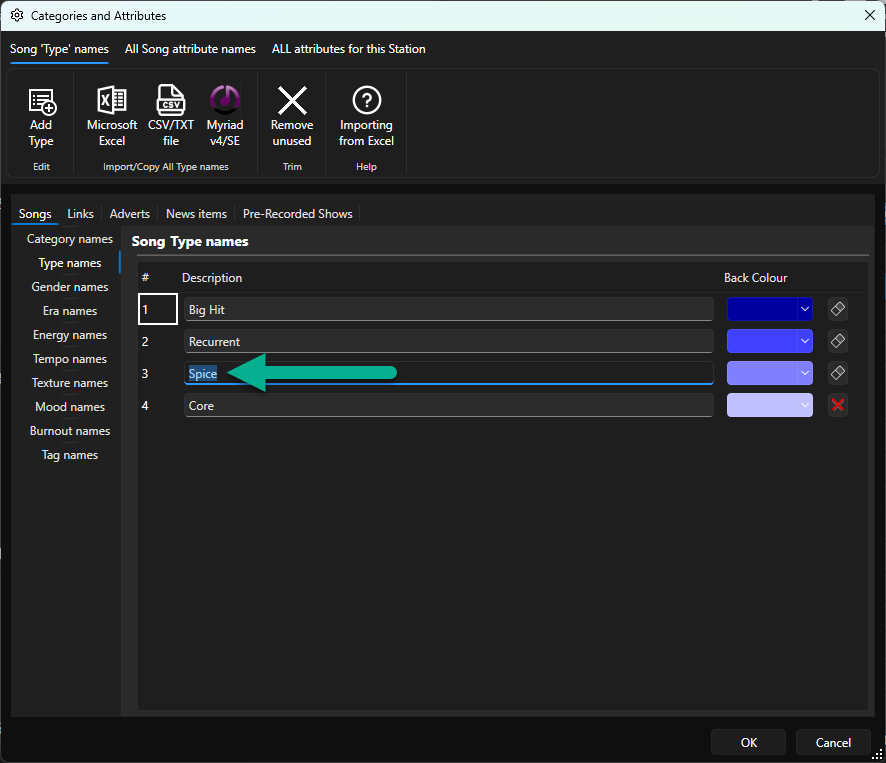
9. Keep in mind that this only changes the Type name. All Songs or Links with the Type assigned will be updated with the new Type name.
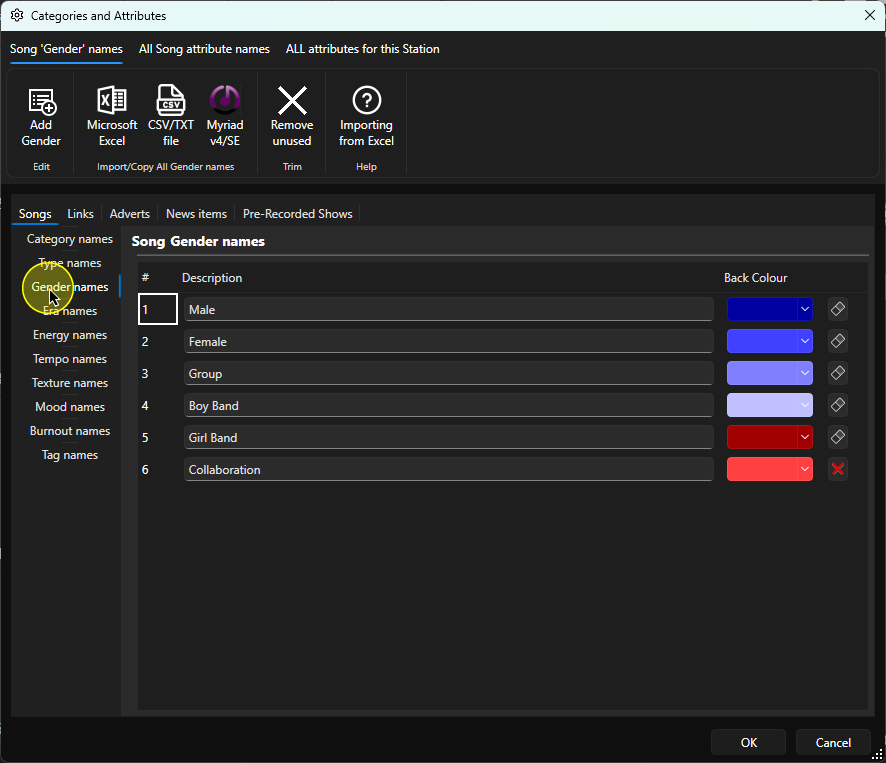
10. You can repeat this process for Genders by selecting the Gender Names option.
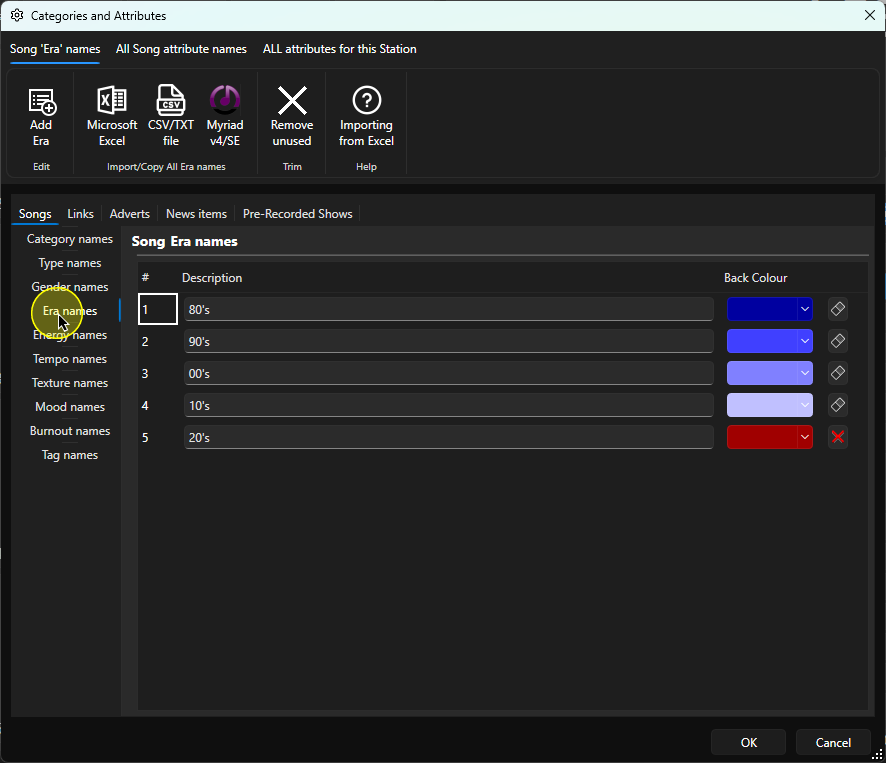
11. Select the Era Names option if you want to add or edit your Eras.
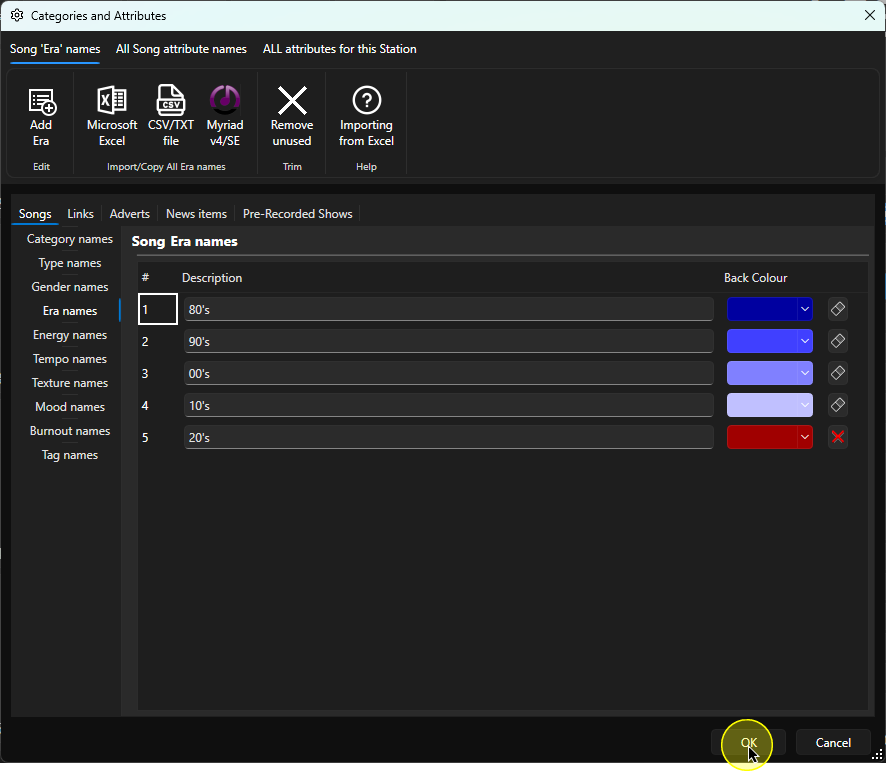
12. When you have completed the changes, click on OK to save and close the window.
Was this article helpful?
That’s Great!
Thank you for your feedback
Sorry! We couldn't be helpful
Thank you for your feedback
Feedback sent
We appreciate your effort and will try to fix the article