Broadcast Radio Streaming customers can upload a Intro File which will be played on all devices, before the main stream connects. This is perfect if you have a sponsor tag to play before the stream starts, or you just want to ensure the first thing a listener hears is a jingle or station promo.
Please note the the audio file must be the same format and bitrate as your main stream (128kbps MP3 by default).
1. Login to your Broadcast.Radio portal.
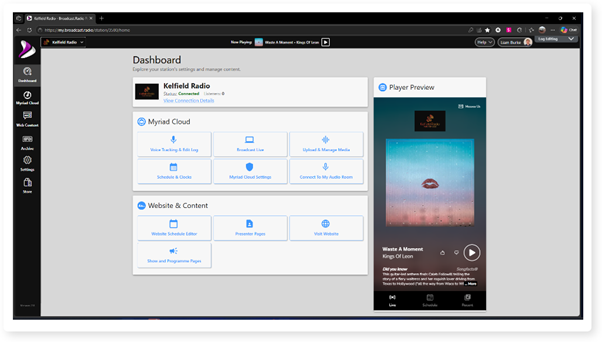
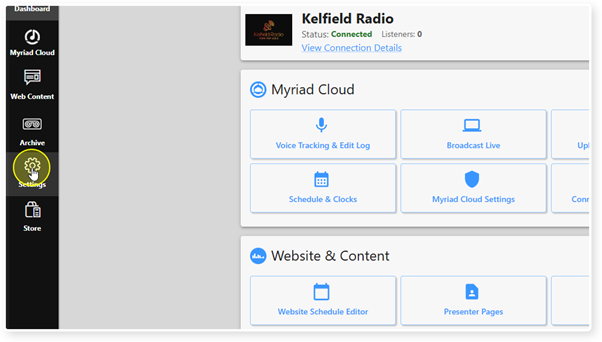
2. Click Settings.
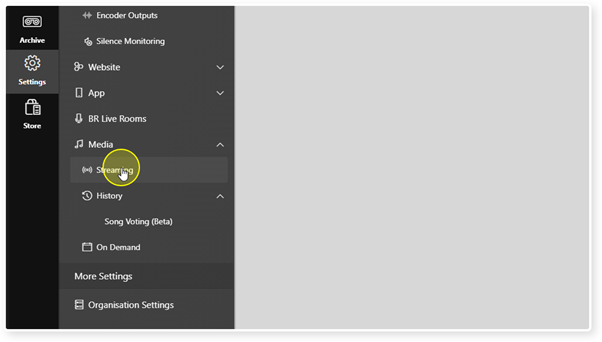
3. Then Streaming.
4. Locate the Stream you want to add an Intro File to. Remember you can only add Intro Files to Streams with the Broadcast Radio provider.
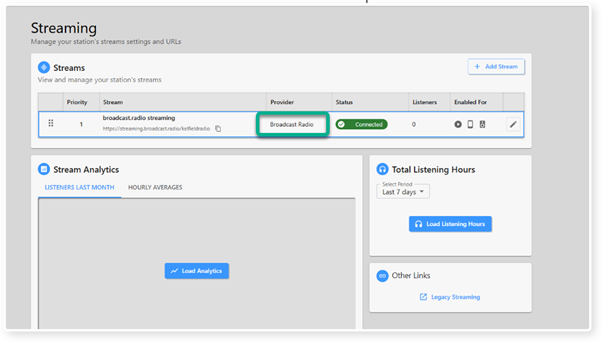
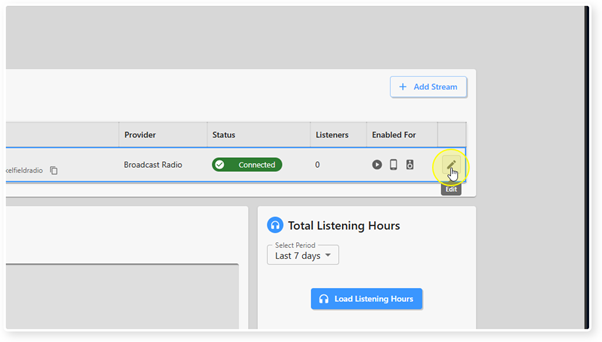
5. Click on the Edit button for the Stream.
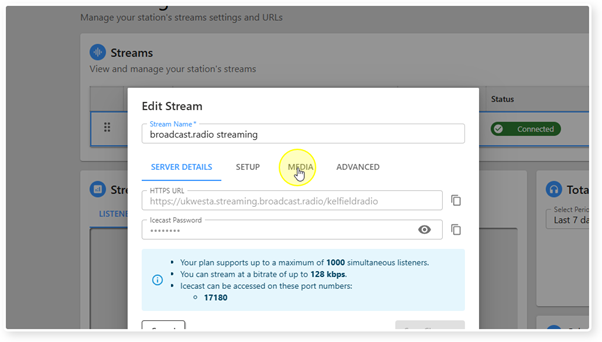
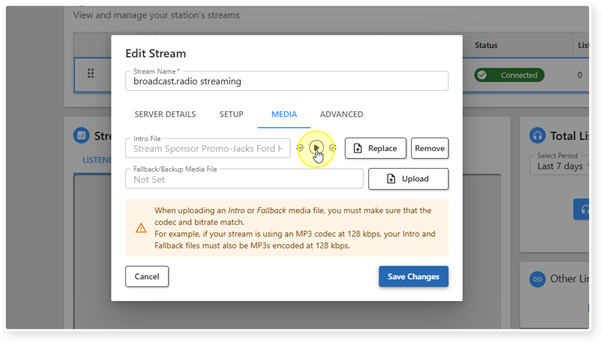
6. Switch to the Media tab.
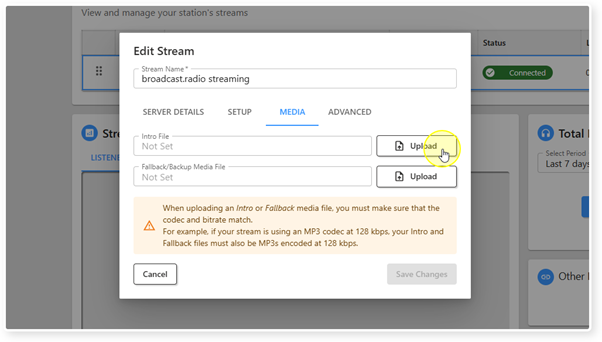
7. Click on the Upload button for the Intro File.
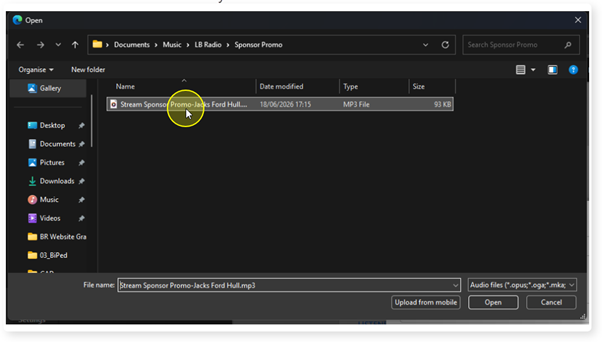
8. Browse and select the audio file you want to use. Remember it must be the same format and bitrate as your main stream.
9. If the format and bitrate is correct, the file will be uploaded and added to your Stream. You can review the file by clicking on the Play button.
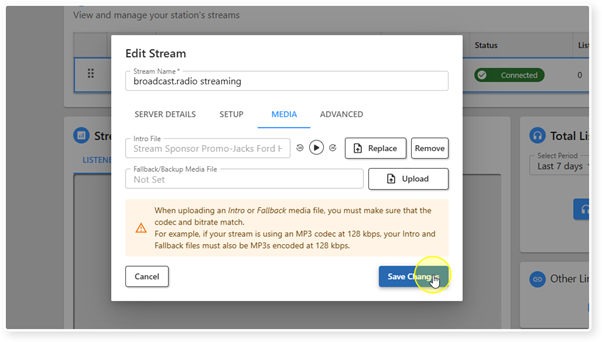
10. When you are happy, click the Save Changes button to save the changes.
Was this article helpful?
That’s Great!
Thank you for your feedback
Sorry! We couldn't be helpful
Thank you for your feedback
Feedback sent
We appreciate your effort and will try to fix the article