You can create new Security Groups for B.R Users, edit existing groups or delete groups entirely via the Security Groups section of Organisation Settings.
1. Login to your Broadcast.Radio portal.
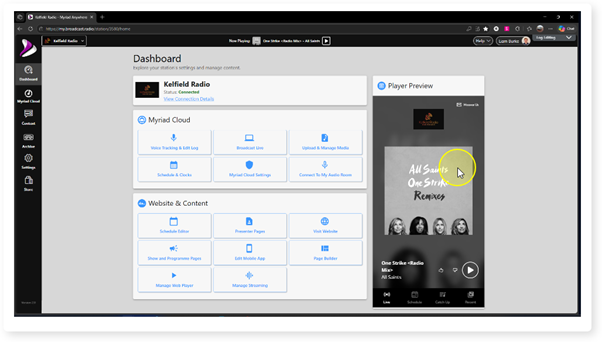
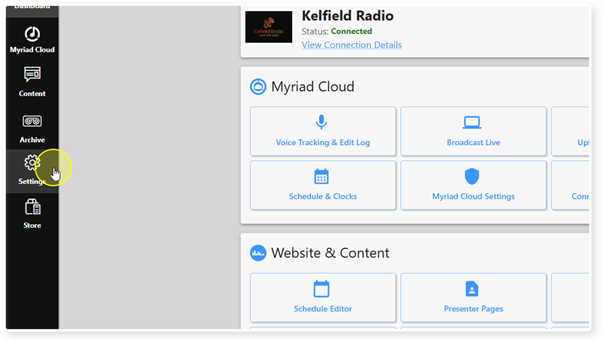
2. Click on the Settings menu option.
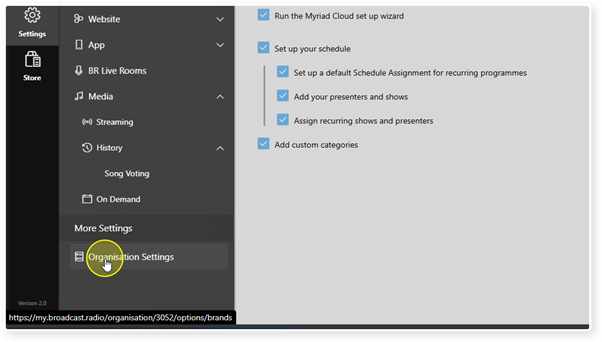
3. Select Organisation Settings.
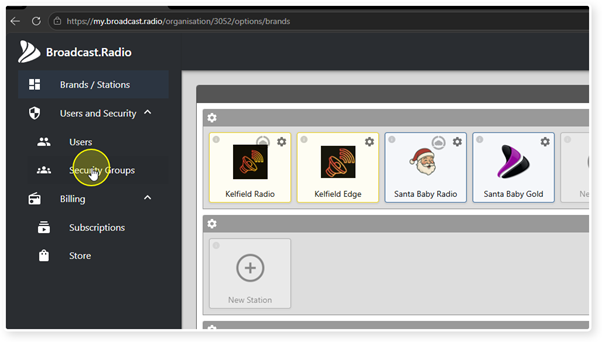
4. Click on the Security Groups option under Users.
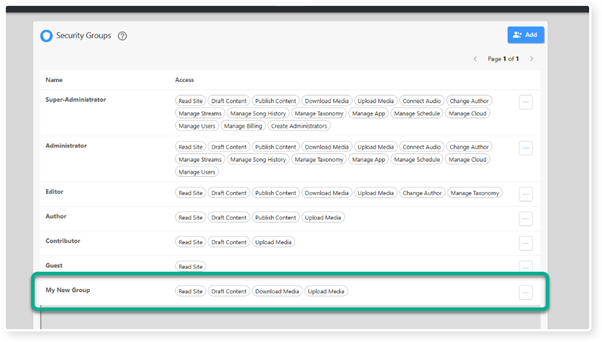
5. You will see a list of existing Security Groups along with what permissions they include.
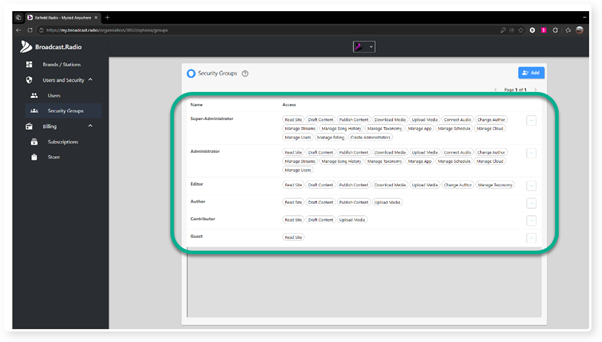
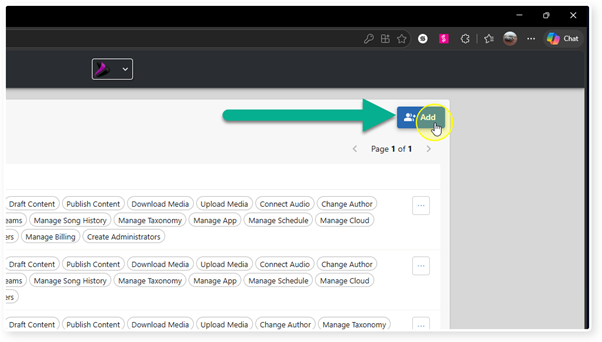
6. To create a new Security Group, click on the Add button.
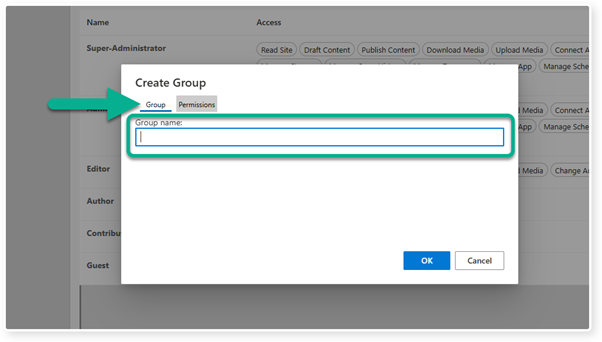
7. On the Group tab, type in a name for your new Security Group.
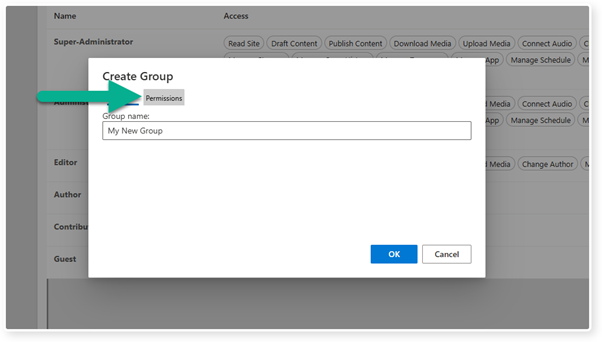
8. Switch to the Permissions tab.
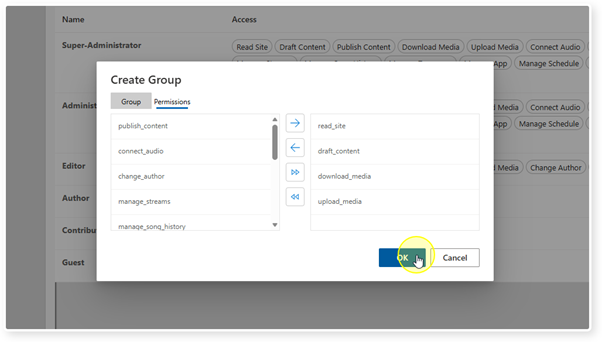
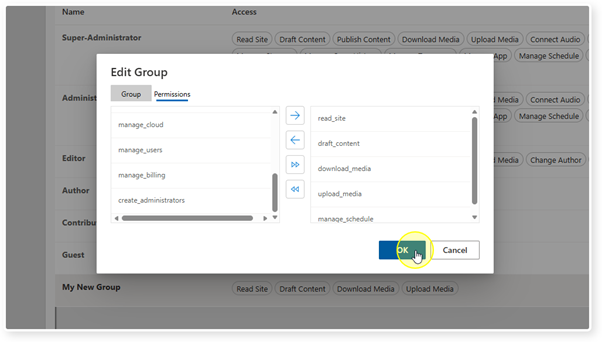
9. The left hand side shows a list of all available Permissions. The right hand side shows the Permissions currently enabled in this Security Group.
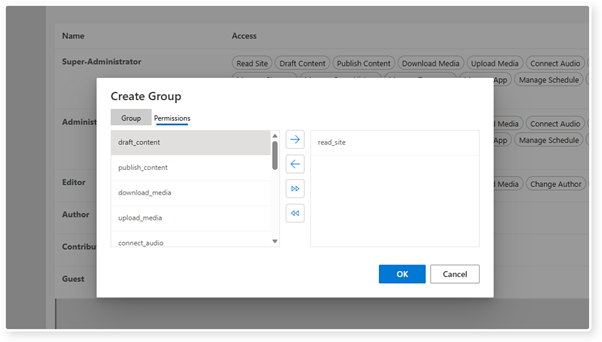
10. Select one or more Permissions on the left hand side (Shift + click)
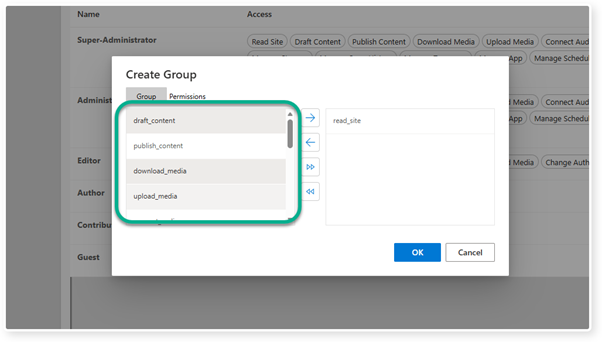
11. Click the single Left to Right Arrow button to move the selected Permissions from the left column to right column.
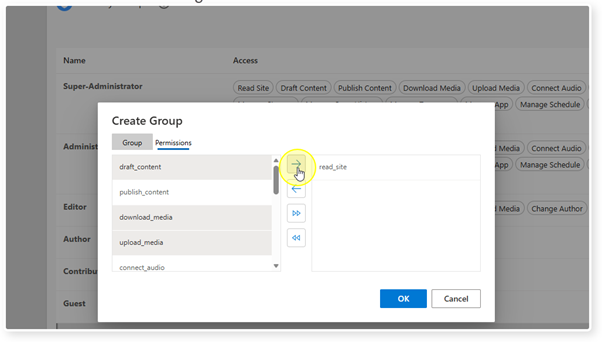
12. The Permissions will be added to the right hand list of Permissions allows within the Group.
If you want to move a Permission from the right column to the left column, highlight it in the right column and click the Right to Left Button.
You can use the double arrow buttons to move everything from left to right or vice versa.
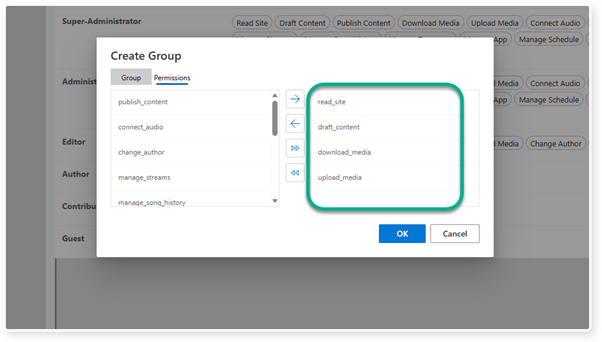
13. Click OK to save your Security Group.
14. The Security Group will be added to the list.
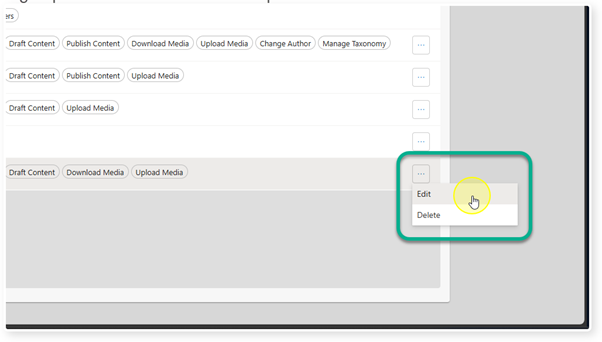
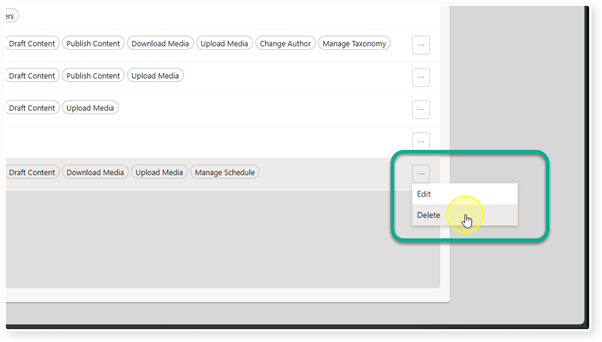
15. To Edit an existing Security Group, click on the options button to the right of the group and select Edit from the drop down menu.
16. You can use the Edit Group window to change the Security Group Name (Group tab) or assigned Permissions (Permissions tab).
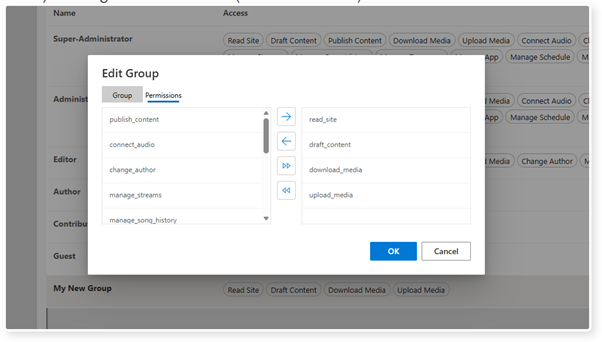
17. Click OK to save your changes.
18. To Delete a Security Group, click on the options button to the right of the Group and select Delete.
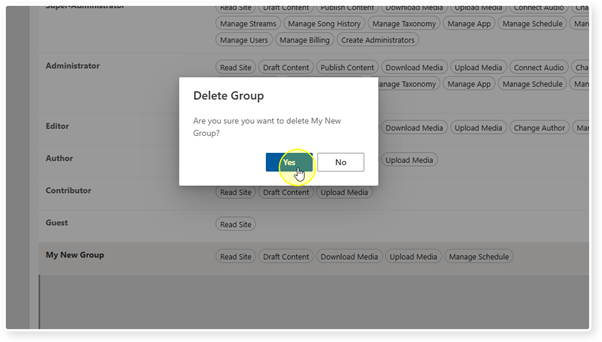
19. You will be asked to confirm the action. Click Yes if you want to proceed.
Was this article helpful?
That’s Great!
Thank you for your feedback
Sorry! We couldn't be helpful
Thank you for your feedback
Feedback sent
We appreciate your effort and will try to fix the article