You can add multiple notes to a Media Item for internal use or for publishing as metadata via OCP.
- Select a Media Item you want to a Note too. You can do this on the Media Wall or Library tabs.
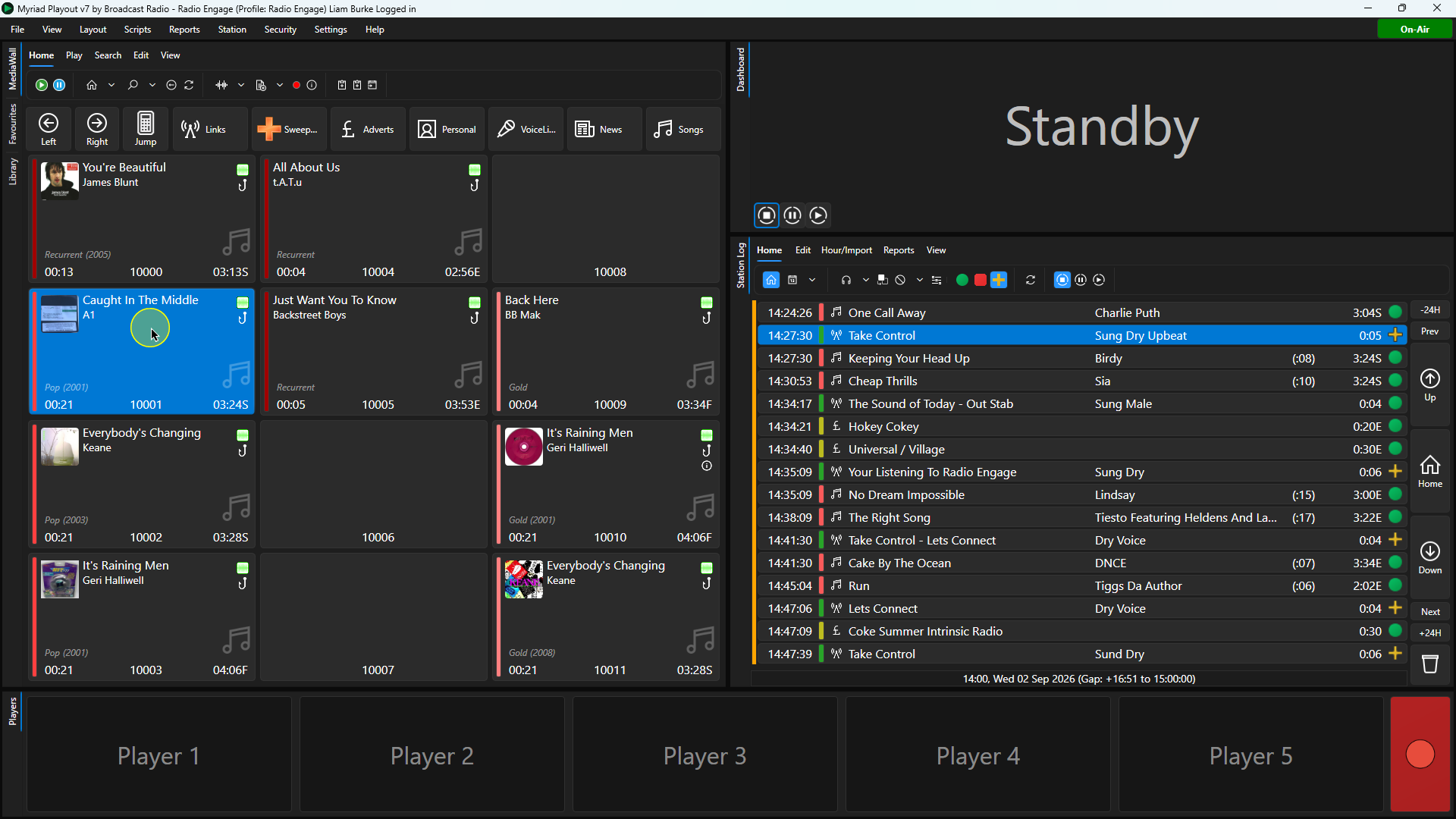
- Click on the Edit button on the Home ribbon.
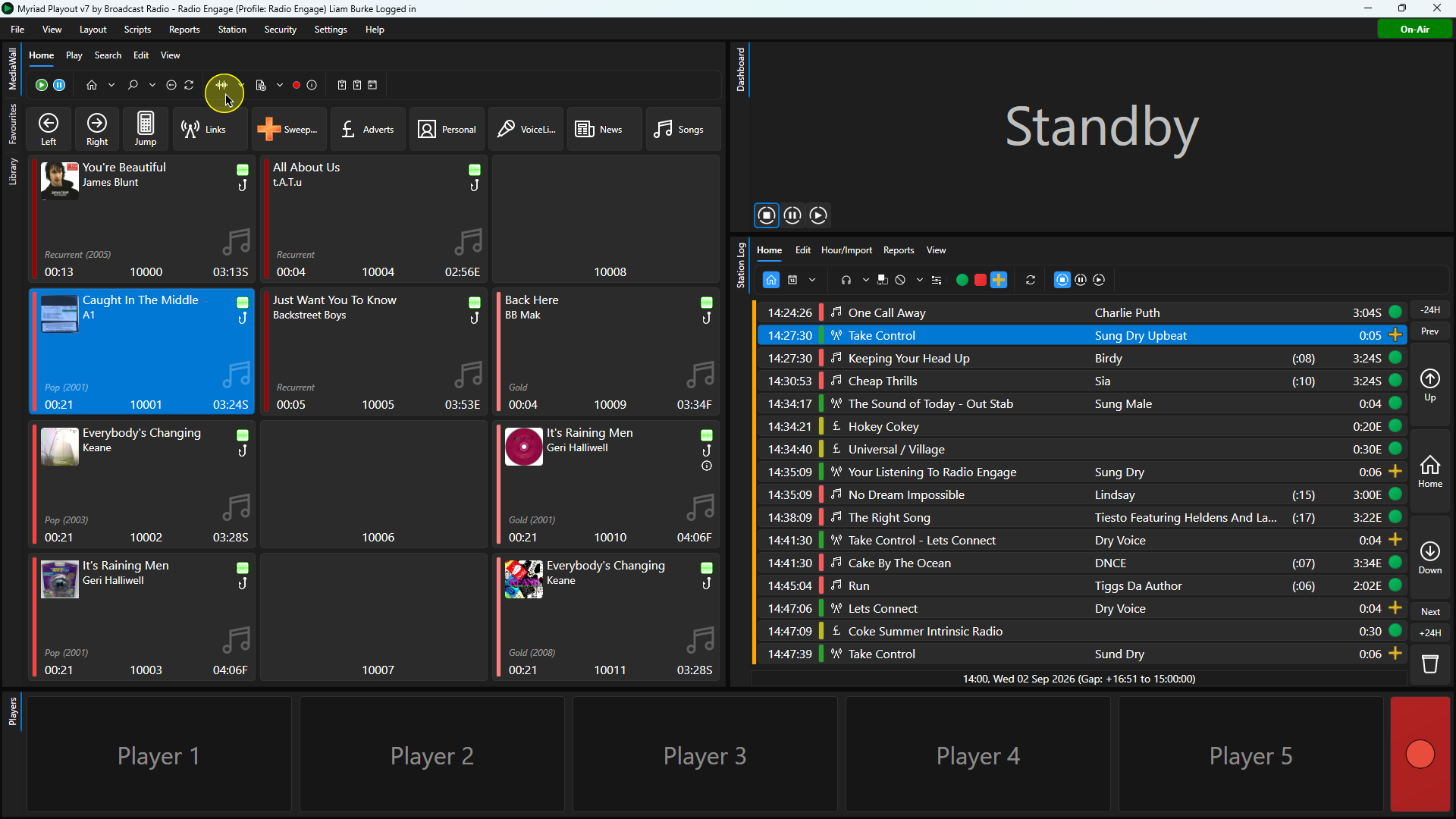
- Click on the Info/Notes tab.
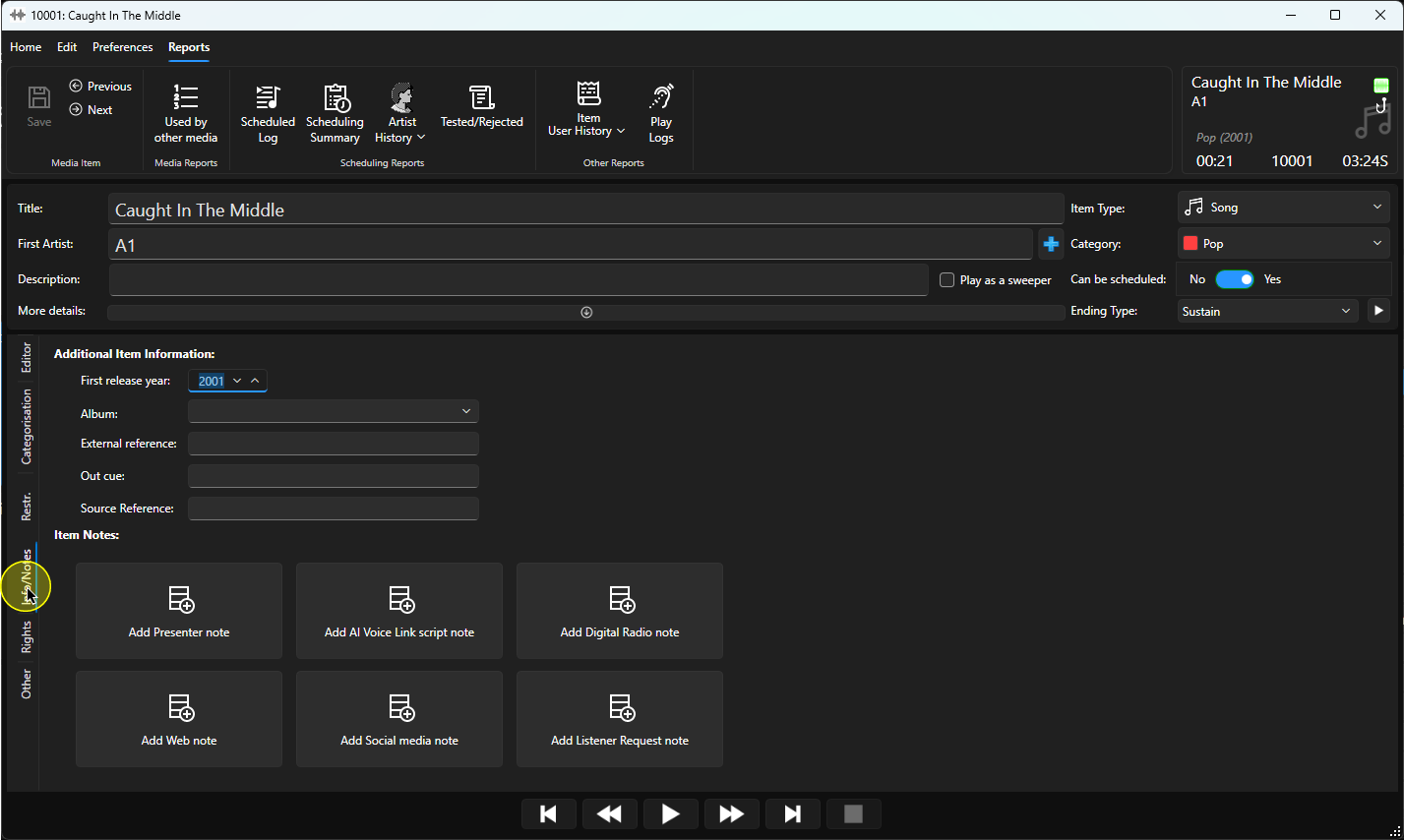
- Click on the button for the type of Note you want to add. We will add a Present Note in this example.
- Type in the Notes you want to add to the Media Item.
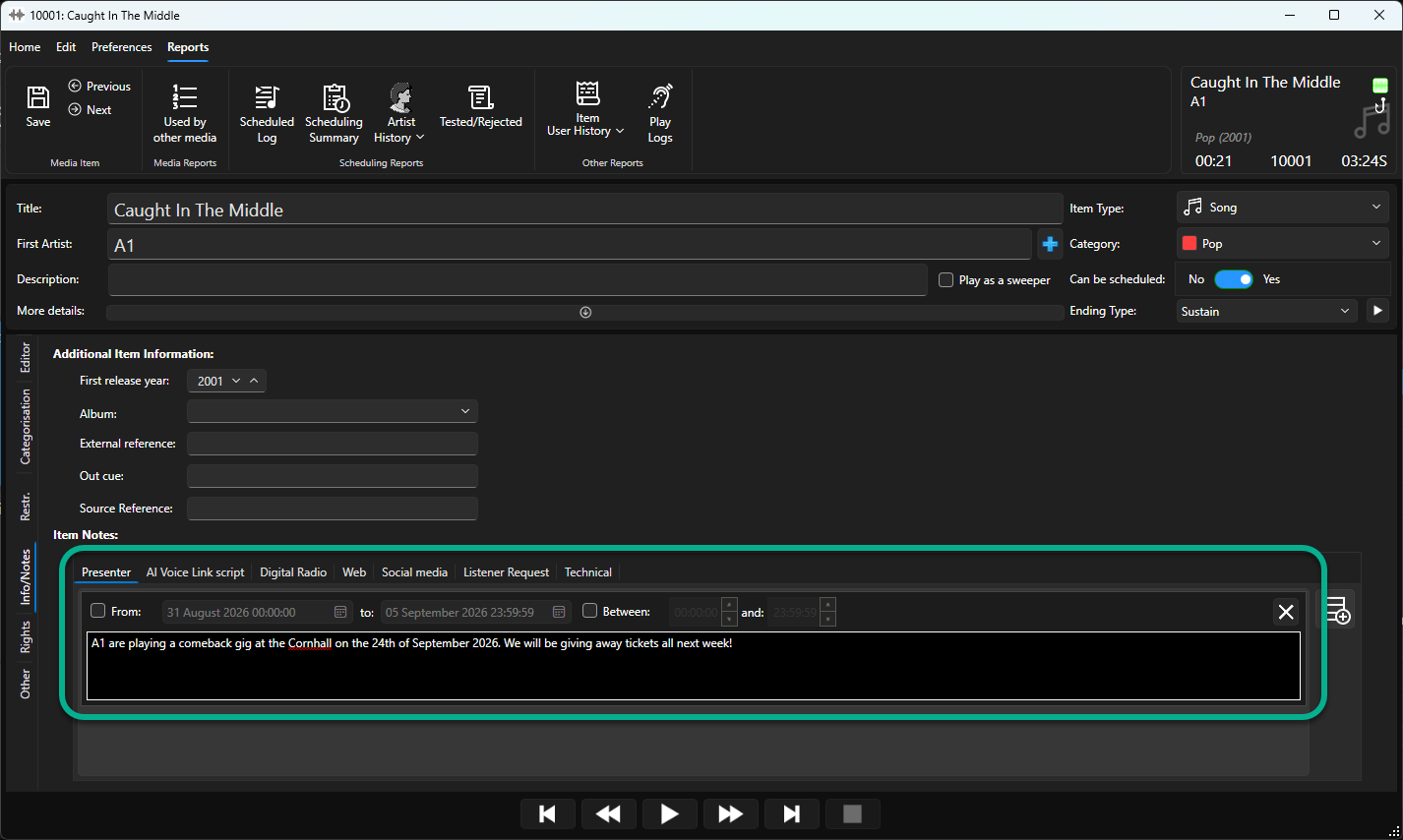
- You can also add a Start / End date which is useful for Notes that are date specific (as in this example).

- Click on other tabs to view and add other types of Notes.

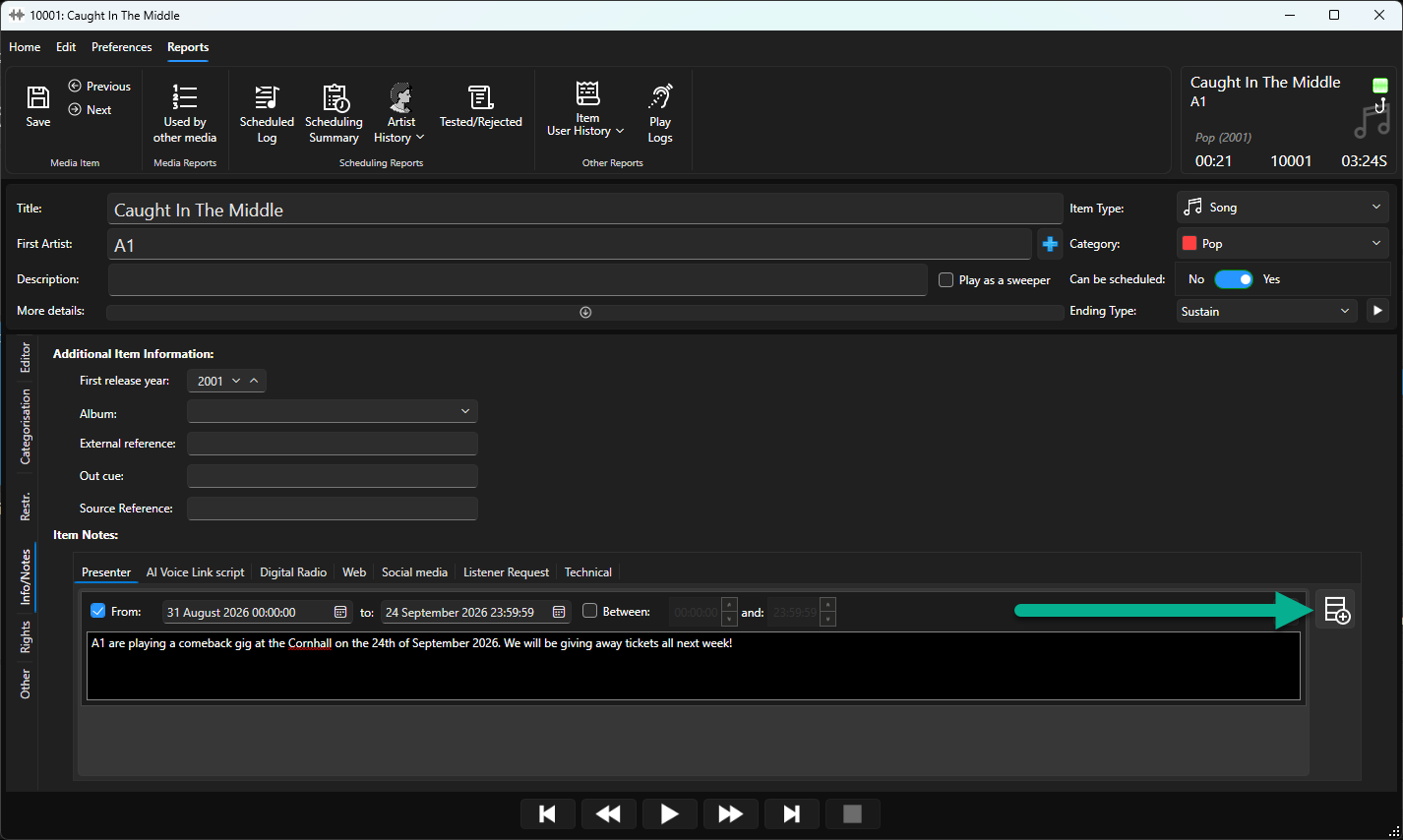
- User the Add Notes button to add additional Notes to the selected tab.
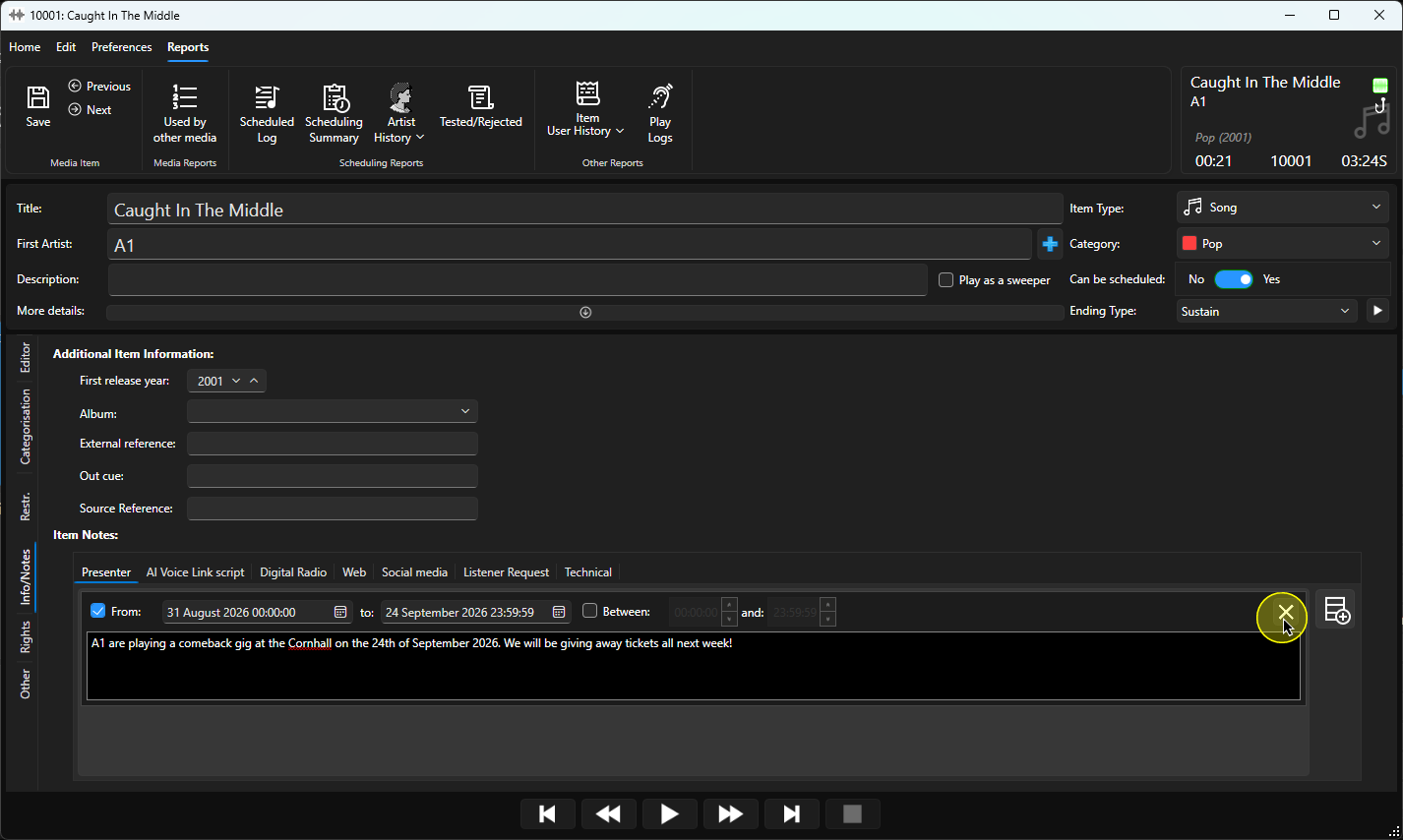
- You can also delete notes using the Delete Notes button.
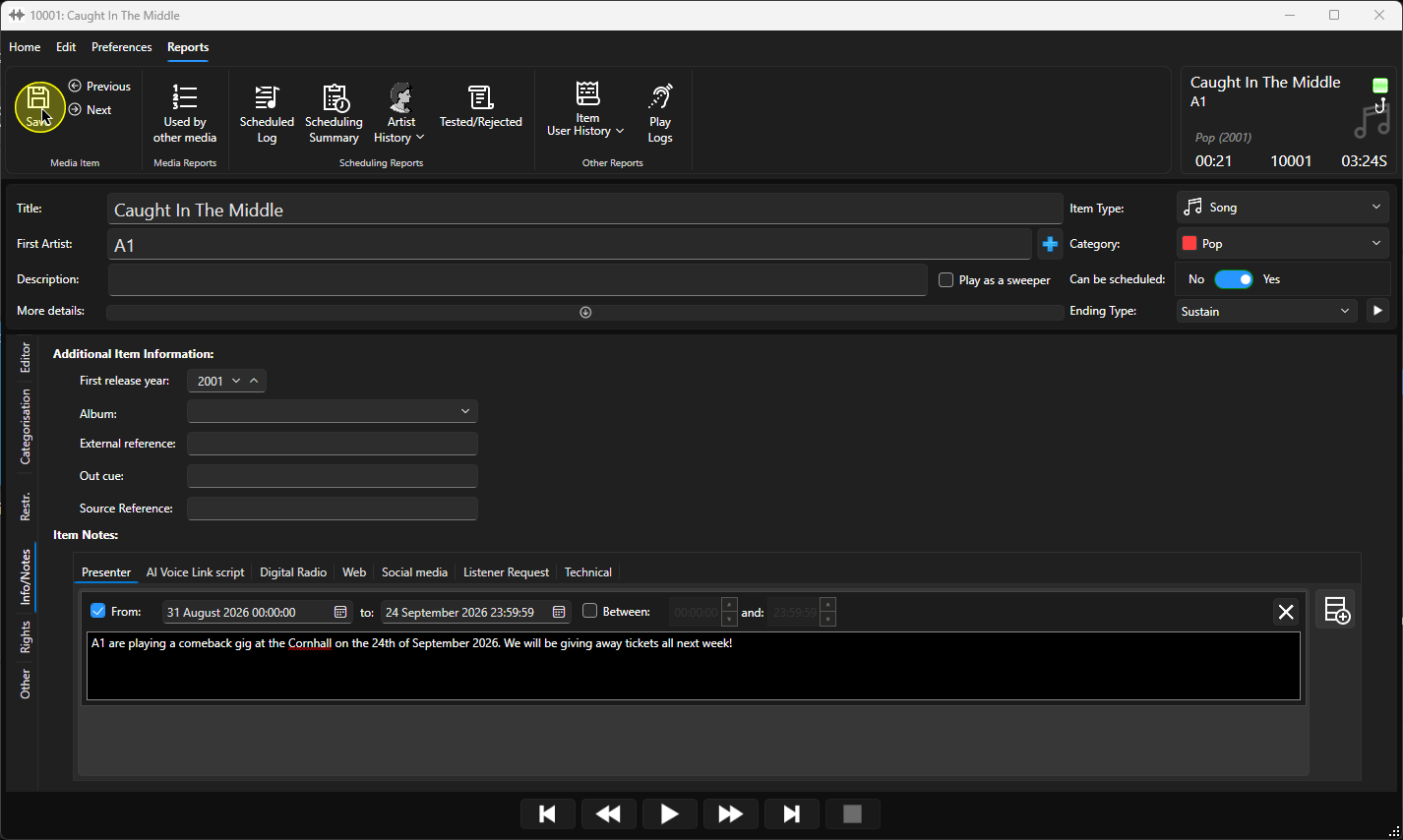
- When you are happy, click on the Save button.
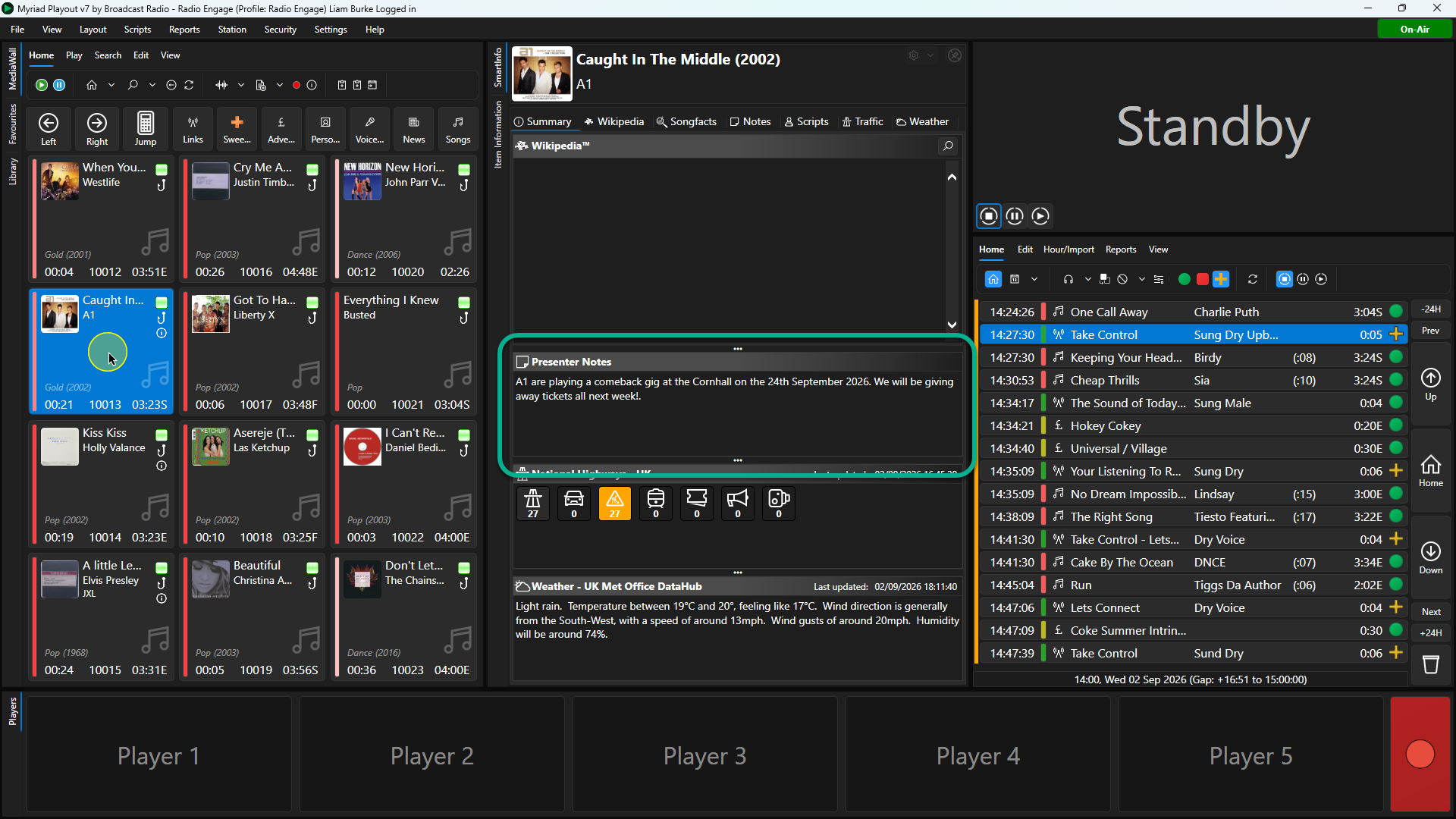
- Presenter Notes can optionally be displayed in the SmartInfo panel.
Was this article helpful?
That’s Great!
Thank you for your feedback
Sorry! We couldn't be helpful
Thank you for your feedback
Feedback sent
We appreciate your effort and will try to fix the article