You can add Start, End and Deletion dates that have the following effect:
- Start Date - The Media Item will not be scheduled before this date. It will also not appear in the Library view or Library searches unless the User optionally includes 'restricted' items.
- End Date - The Media Item will not be scheduled after this date. It will also not appear in the Library view or Library searches unless the User optionally includes 'restricted' items.
- Delete Date - Myriad will automatically delete the Media Item on the selected date. The deleted Media Item may be moved to the deleted folder depending on you deleted media settings (see Settings Menu > Database Settings > MediaWall Tab > Deleting Items from the Media Wall section).
To set or edit a Start, End or Delete, follow these steps:
- Select the Media Item you want to add or edit, and click on the Edit button on the ribbon.
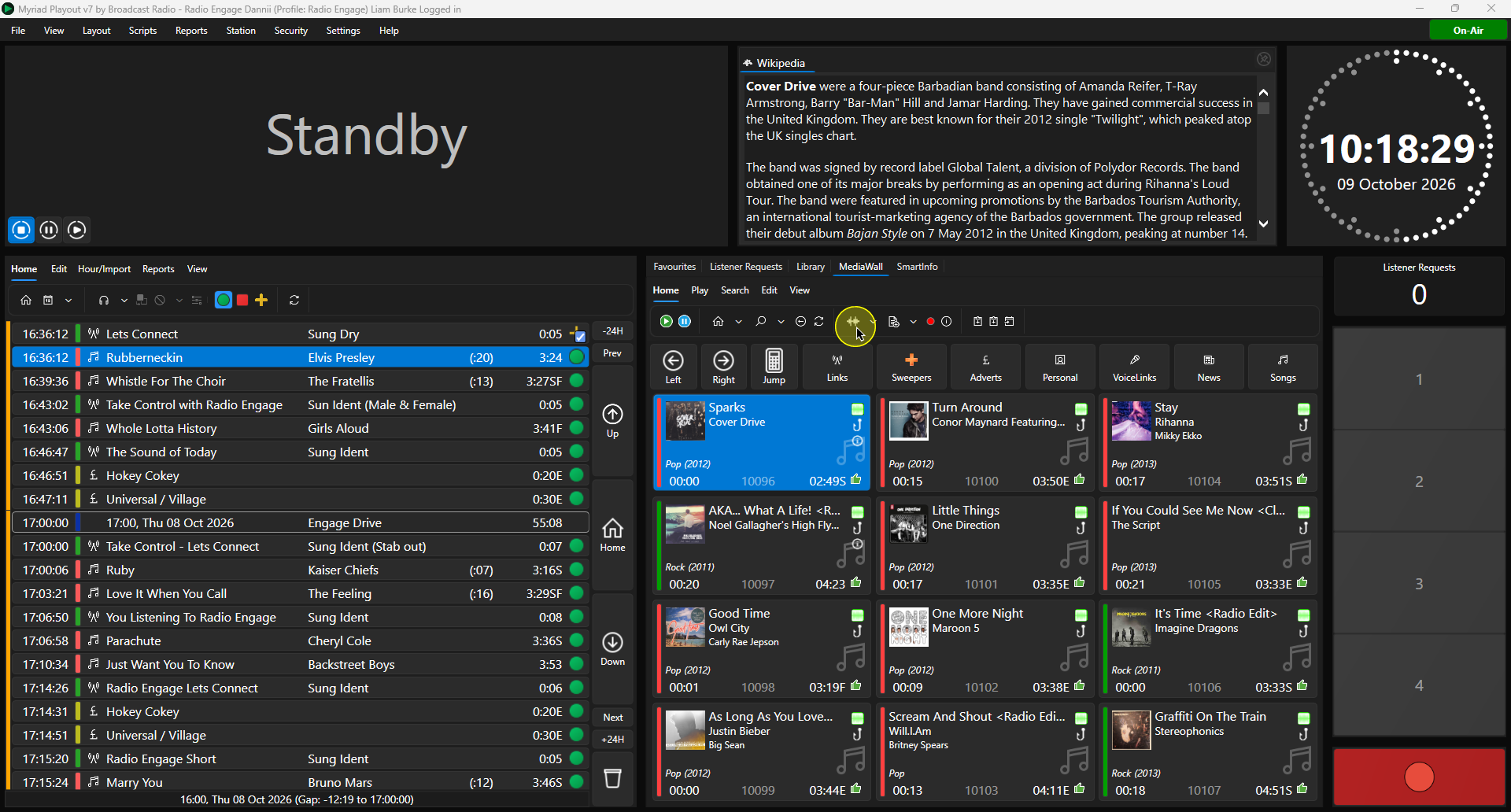
- Click on the Other tab.
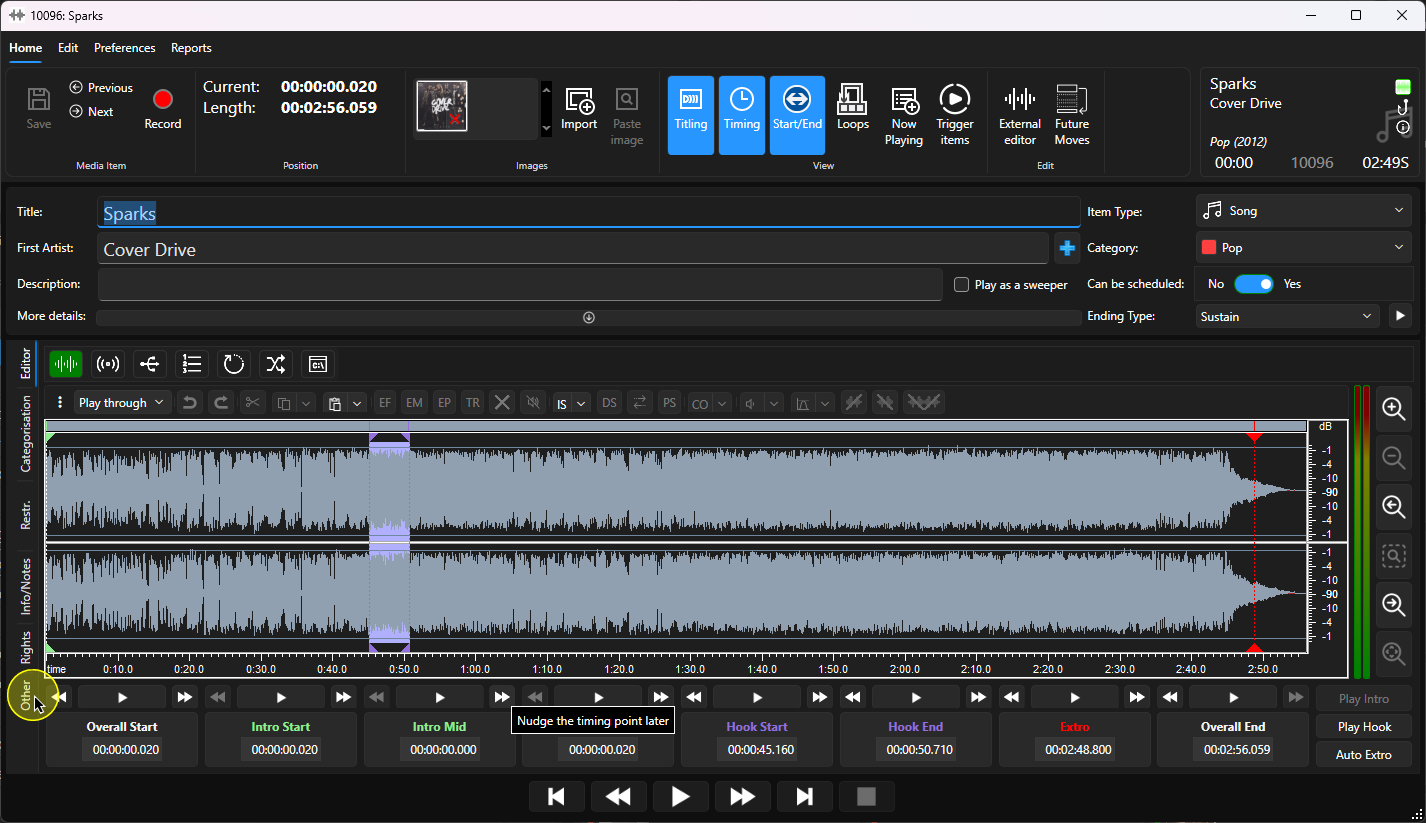
- Select the Start Date, End Date or Delete Date using the Date Select button.
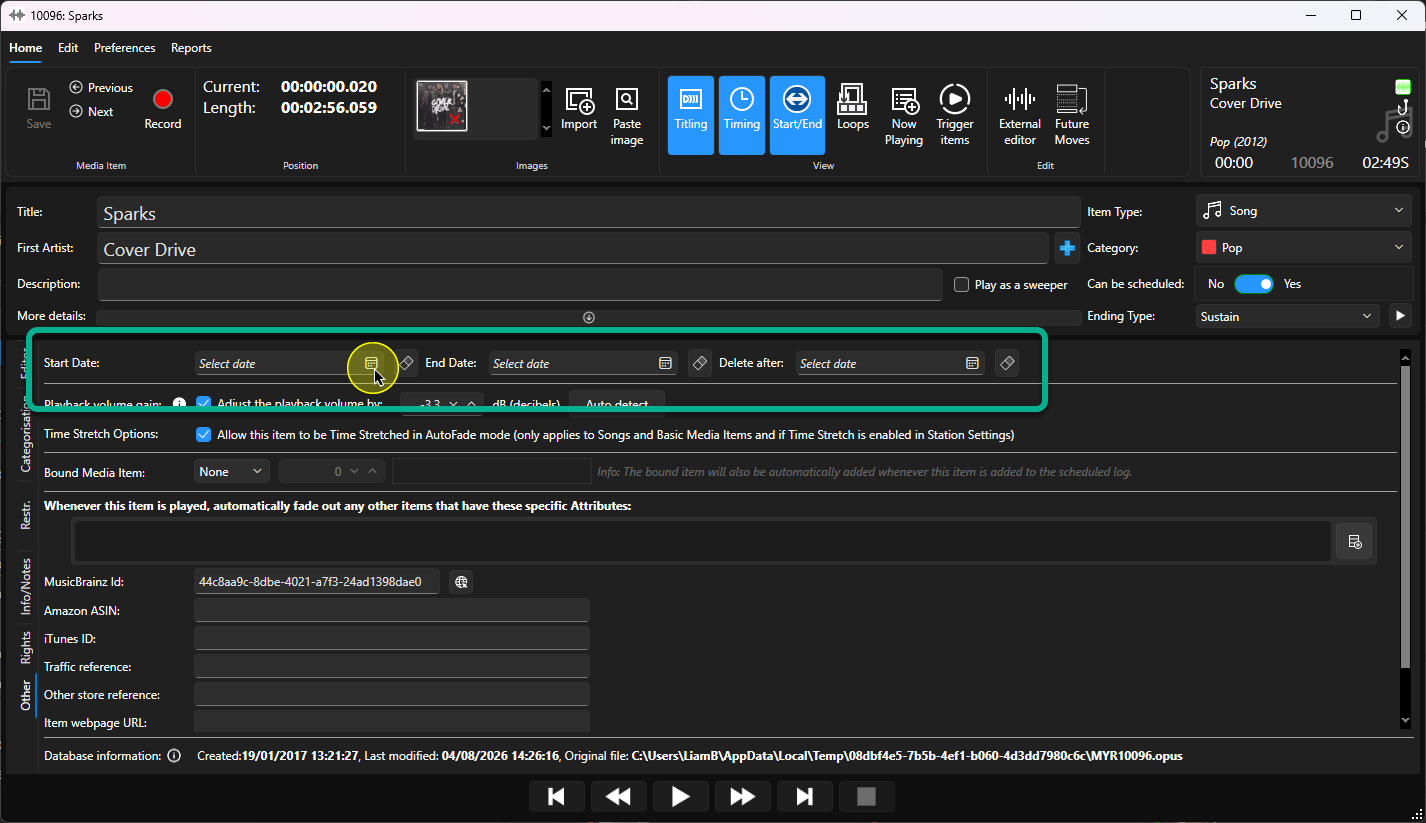
Please note that you can use any combination of these so you could have a Start Date to control when a Media Item starts scheduling, but not set an End Date to let it schedule indefinitely. or use a combination Start/End Date to define scheduling in a fixed date range.
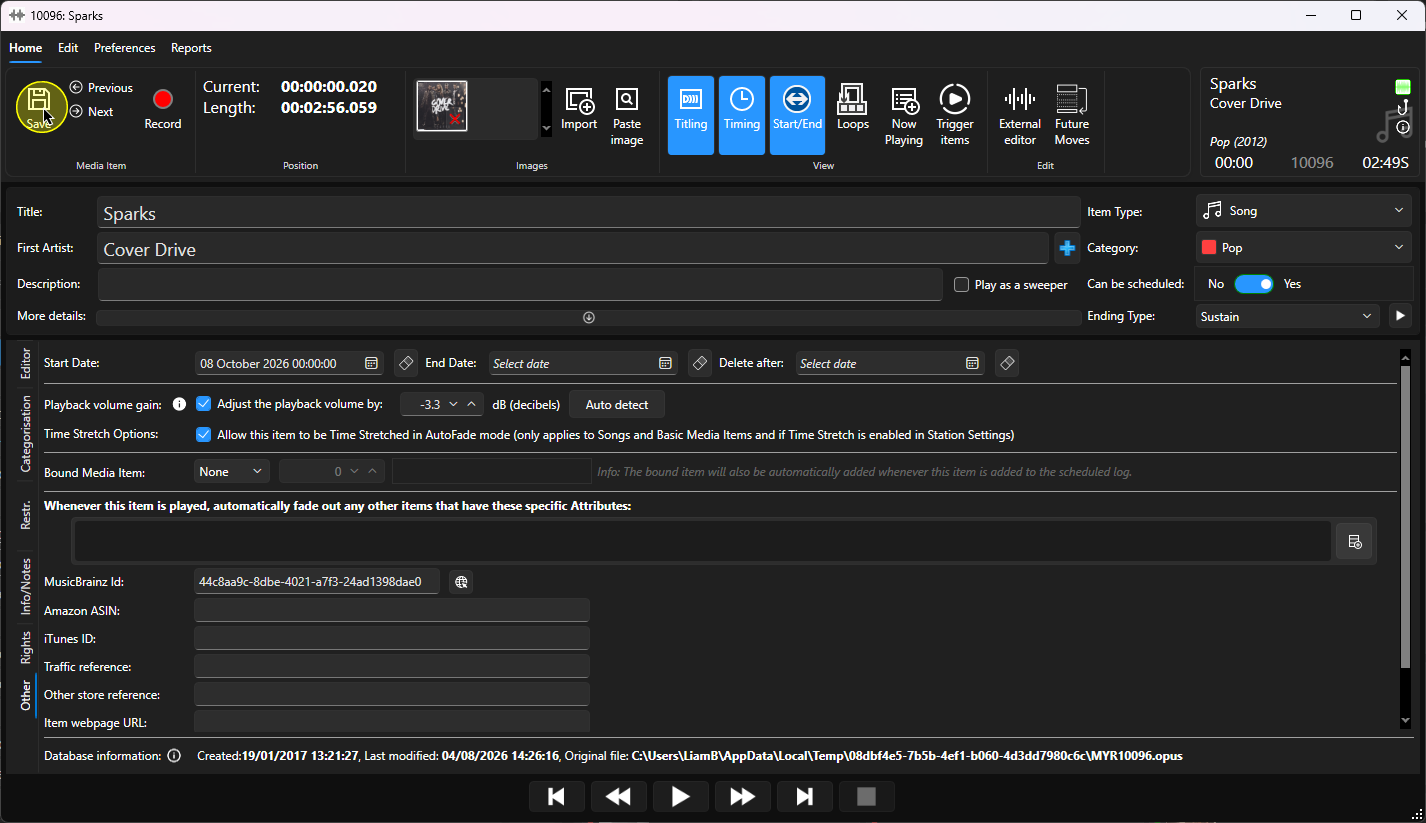
Caution: Myriad will automatically delete Media Items from the Media Wall on the selected Delete Date, - When you are happy, click Save.
Was this article helpful?
That’s Great!
Thank you for your feedback
Sorry! We couldn't be helpful
Thank you for your feedback
Feedback sent
We appreciate your effort and will try to fix the article