Myriad Schedule includes up to five pre-defined Characteristics - Energy, Tempo, Mood, Textures & Burnout. Within these you can set up to six levels per Characteristic to help describe the audio on your system and control the flow of Characteristics in scheduled content. This guide will show you how to add / edit Characteristic Levels and enable unused Characteristics.
1. In Myriad Playout (or Schedule), click on the Settings menu.
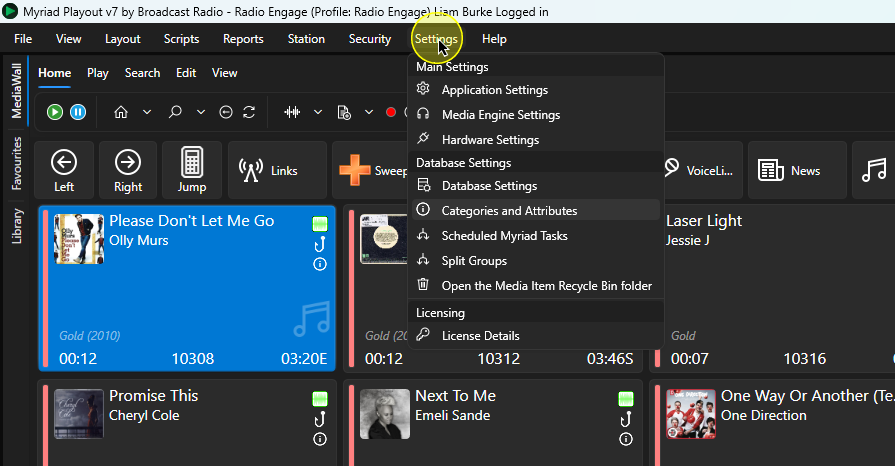
2. Select Categories and Attributes.
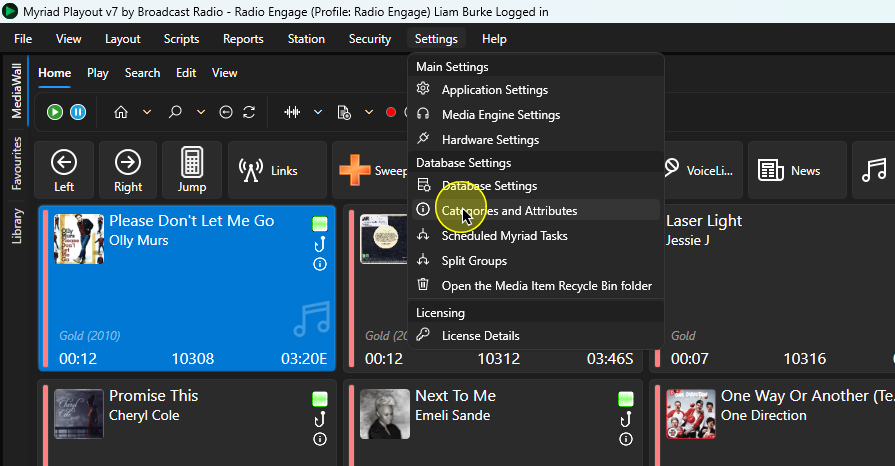
3. Select the Songs or Links tabs.
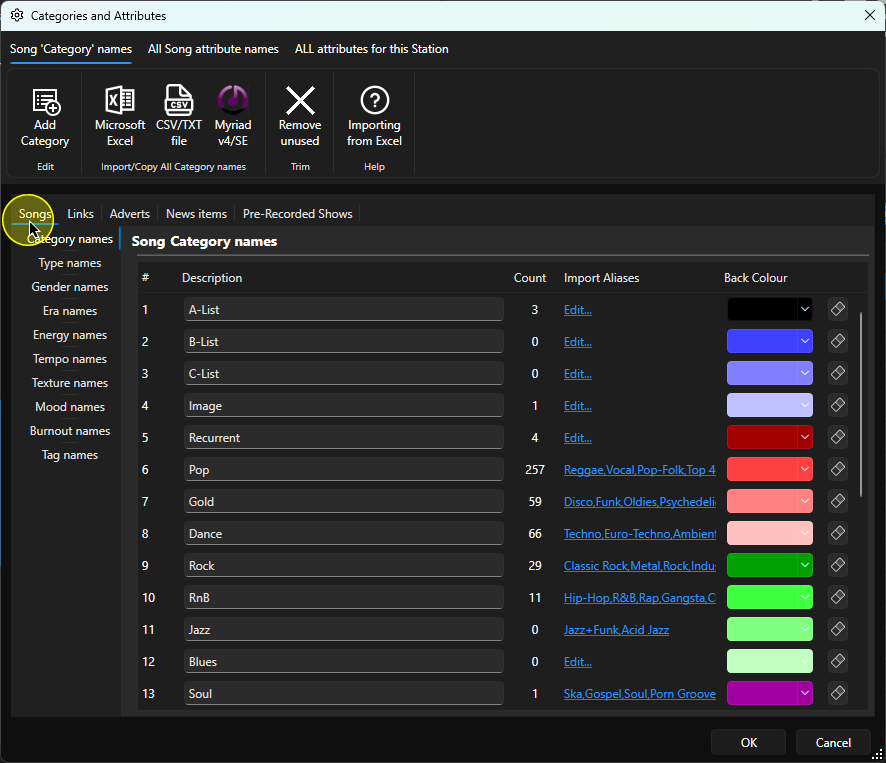
4. Click on the Characteristic you want to edit. In this example we will add a new Energy level.
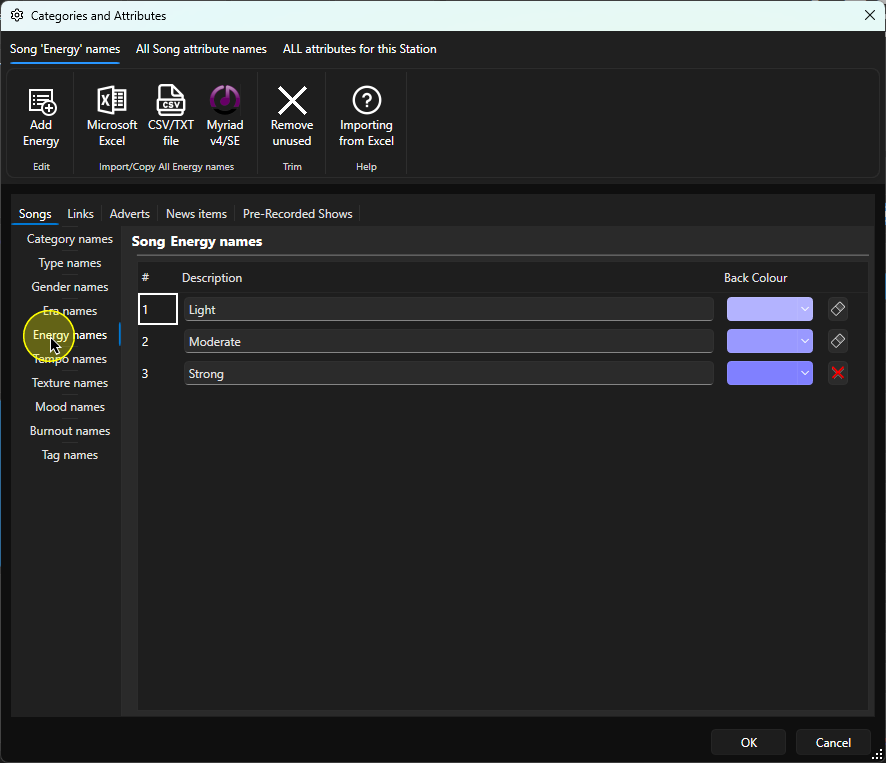
5. To add a new Energy Level, click on the Add Energy button on the ribbon.
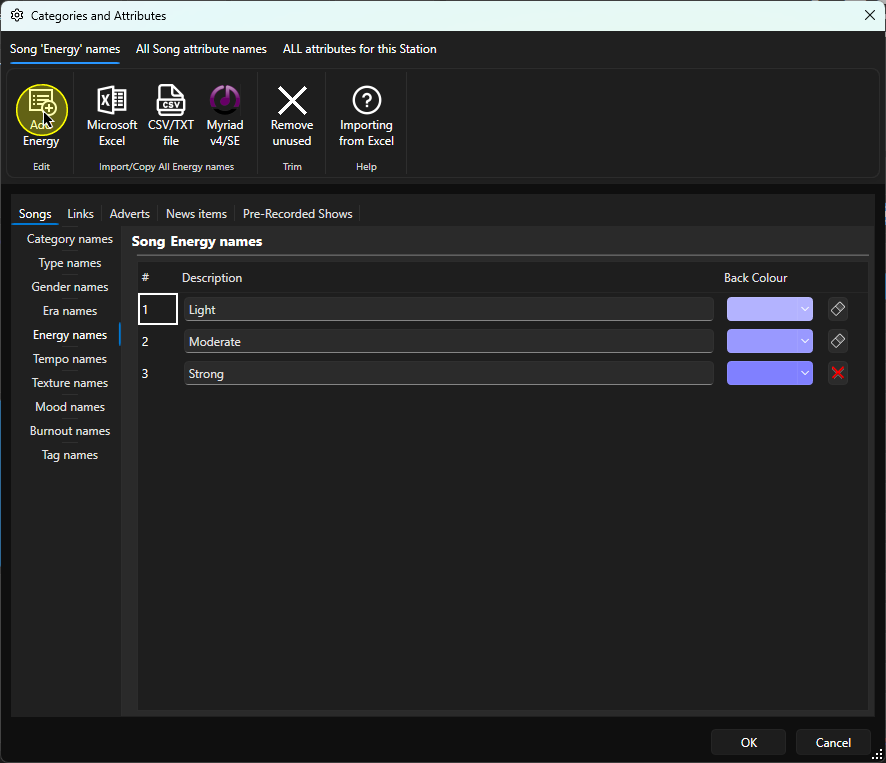
6. The new level will be added to the bottom of the list. Please note that you cannot change the order so it is best to setup your full list of levels before you start assigning them to content on your system.
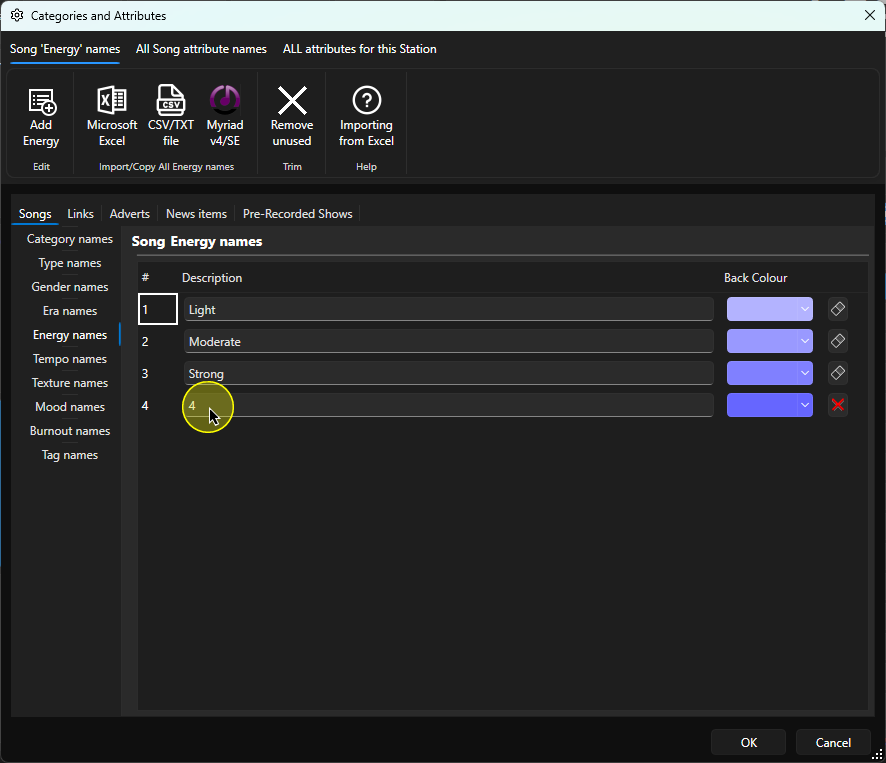
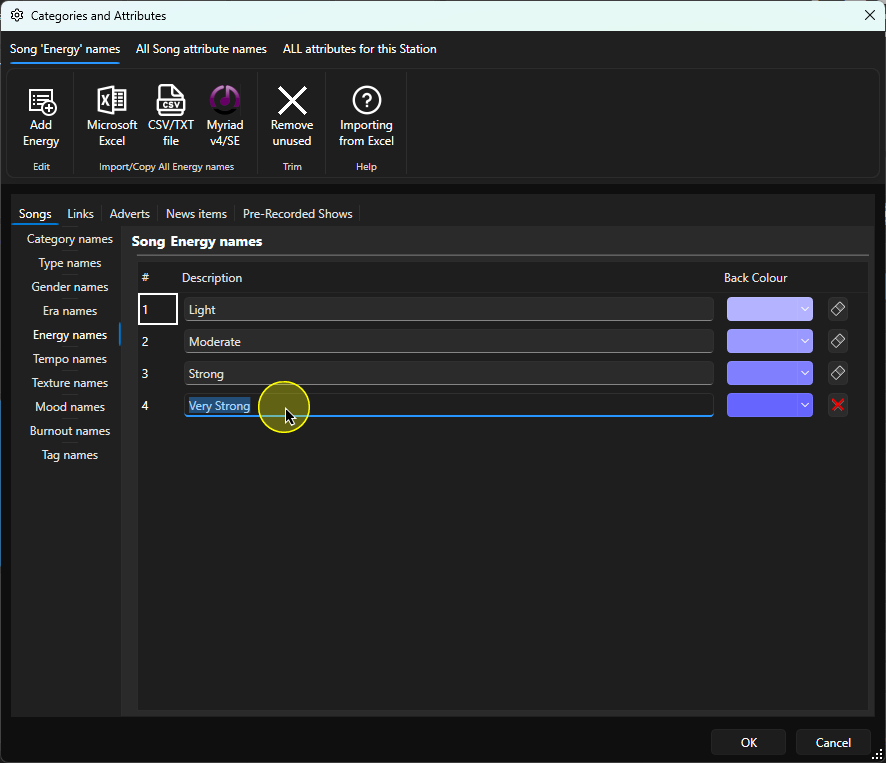
8. Select a colour for the Level if you wish.
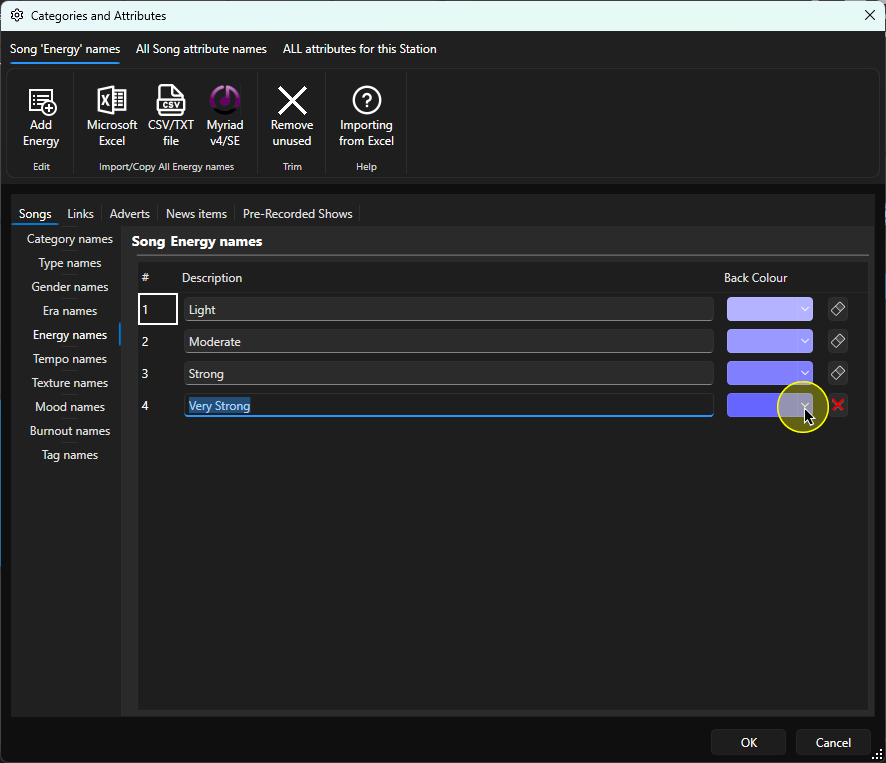
9. You can also delete Characteristic Levels using the X button to the right of the level, but you will need to ensure that no content has the Level assigned before you can remove the level (the system will not allow you to remove a Level that is assigned to a Song or Link.
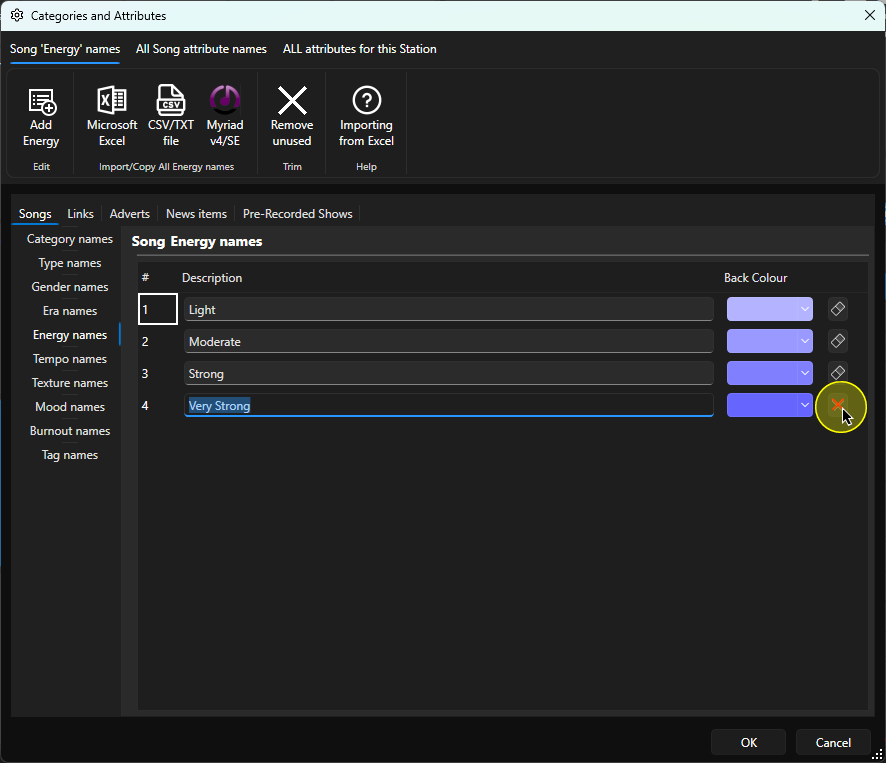 10. Now let's enable a Characteristic that was not previously enabled. In this example, the Mood Characteristic does not have any Levels defined so will not be visible when editing Songs or Links. Once we have added one or more Levels, the Characteristic will be available to be assigned to content.
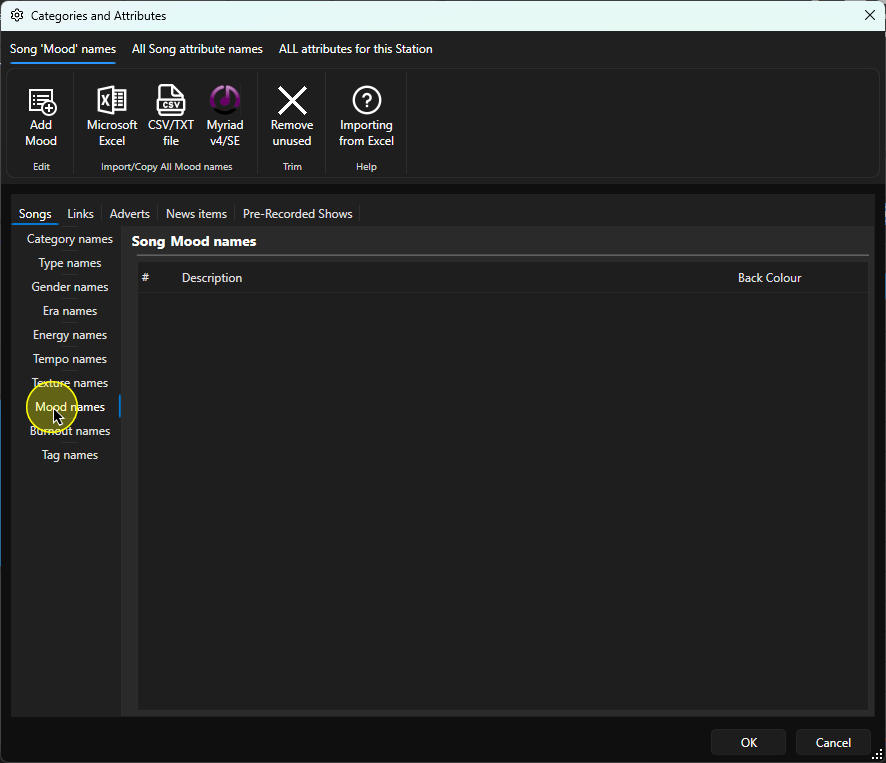
11. Make Sure Mood Names is selected and click on Add Mood. This will add the first Level to the Mood Characteristic.
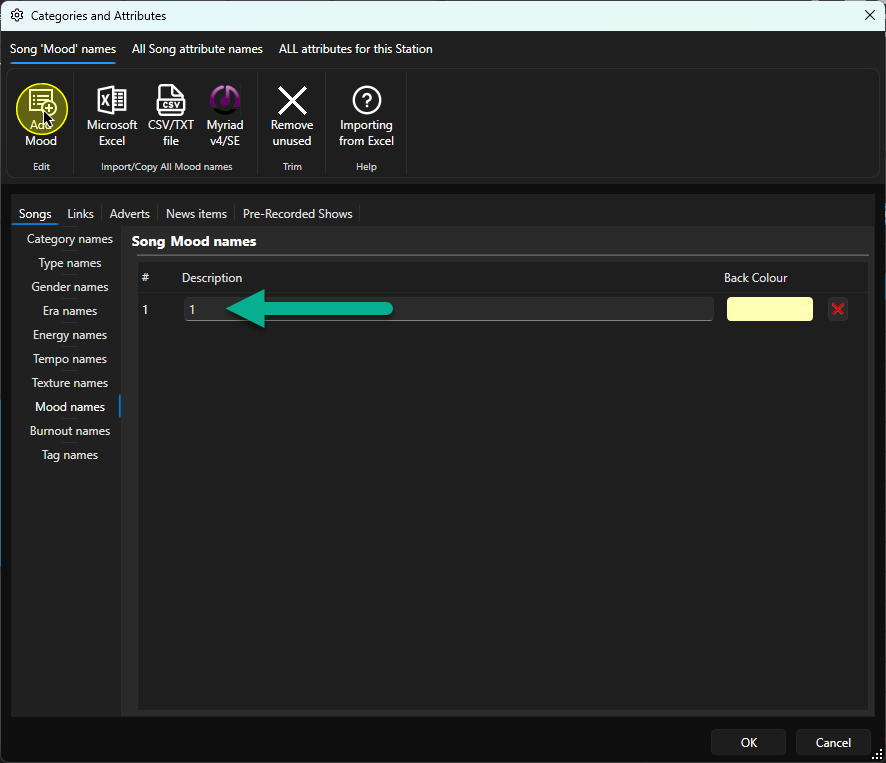
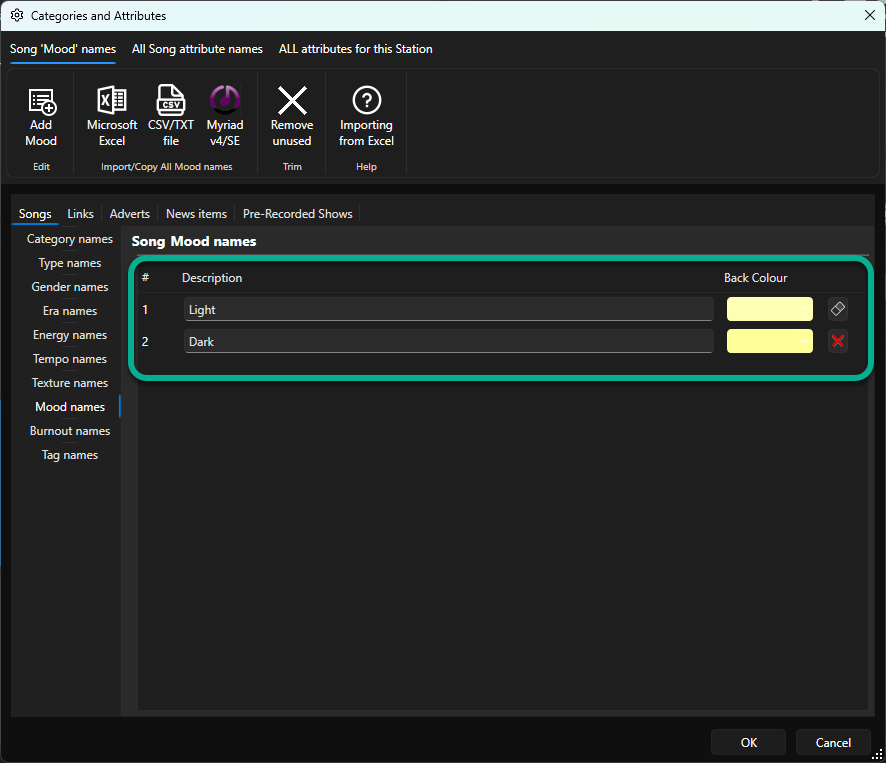
12. You can type in a suitable Level name in the description field and assign a colour to the Level.
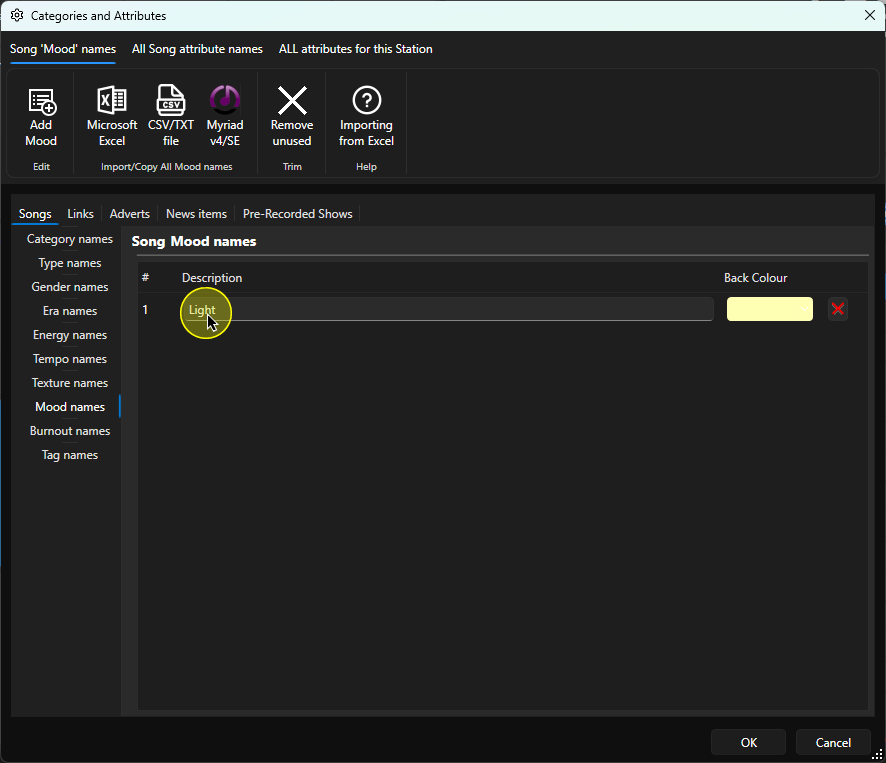
13. Repeat the process to add in up to six Levels.
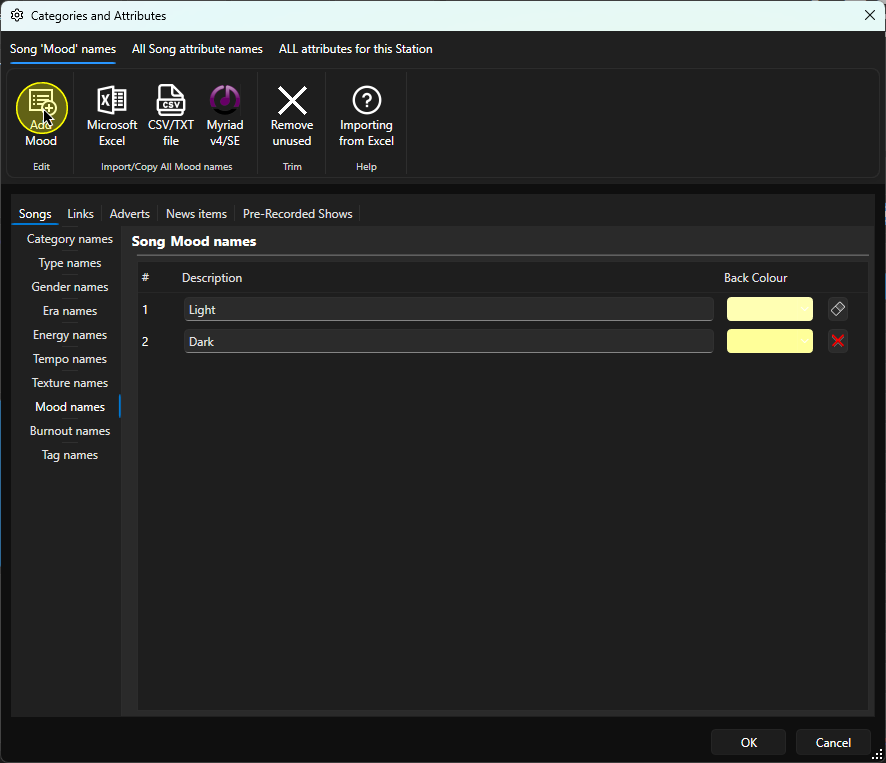
14. Make sure to provide a description for each Level.
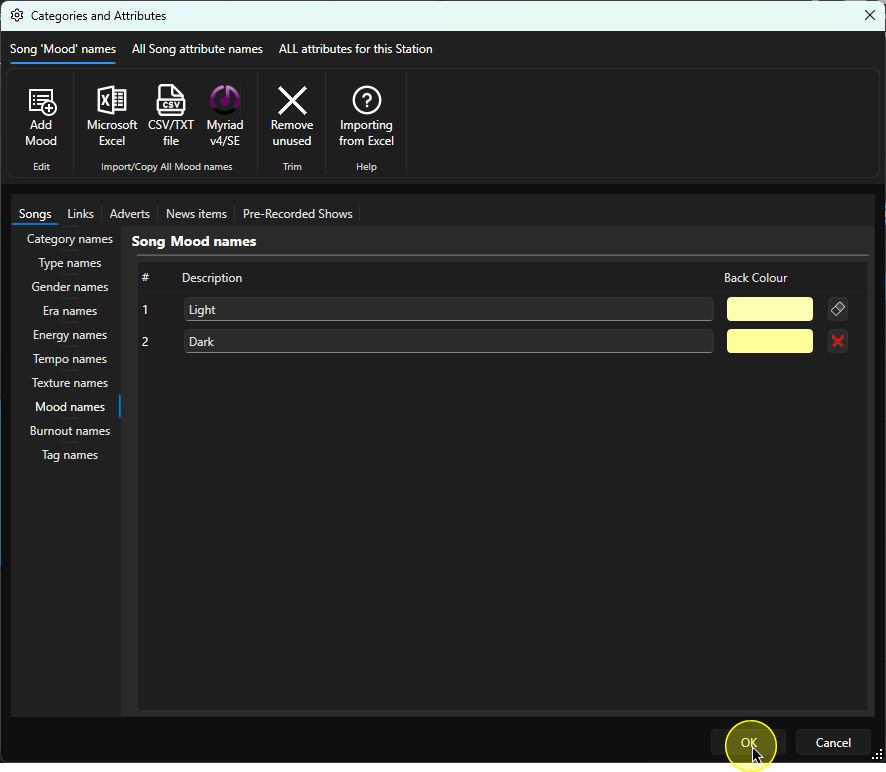
15. When you have added the Levels you need, click on the OK button to save and close the window.
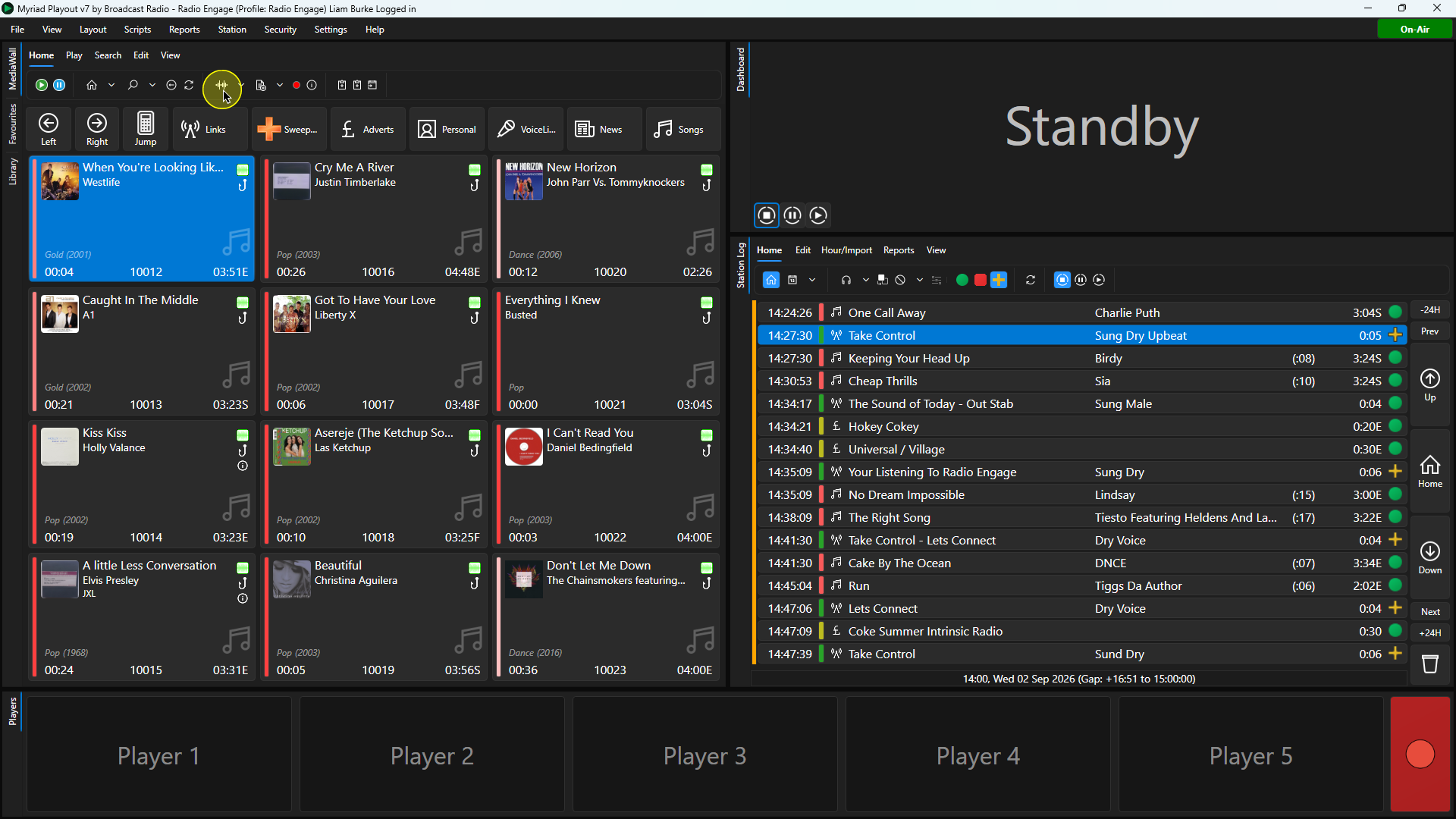
16. To assign the Mood Characteristic to a Song, select the Song and click Edit on the Home ribbon (or right-click and select Edit).
17. Switch to the Categorisation tab.
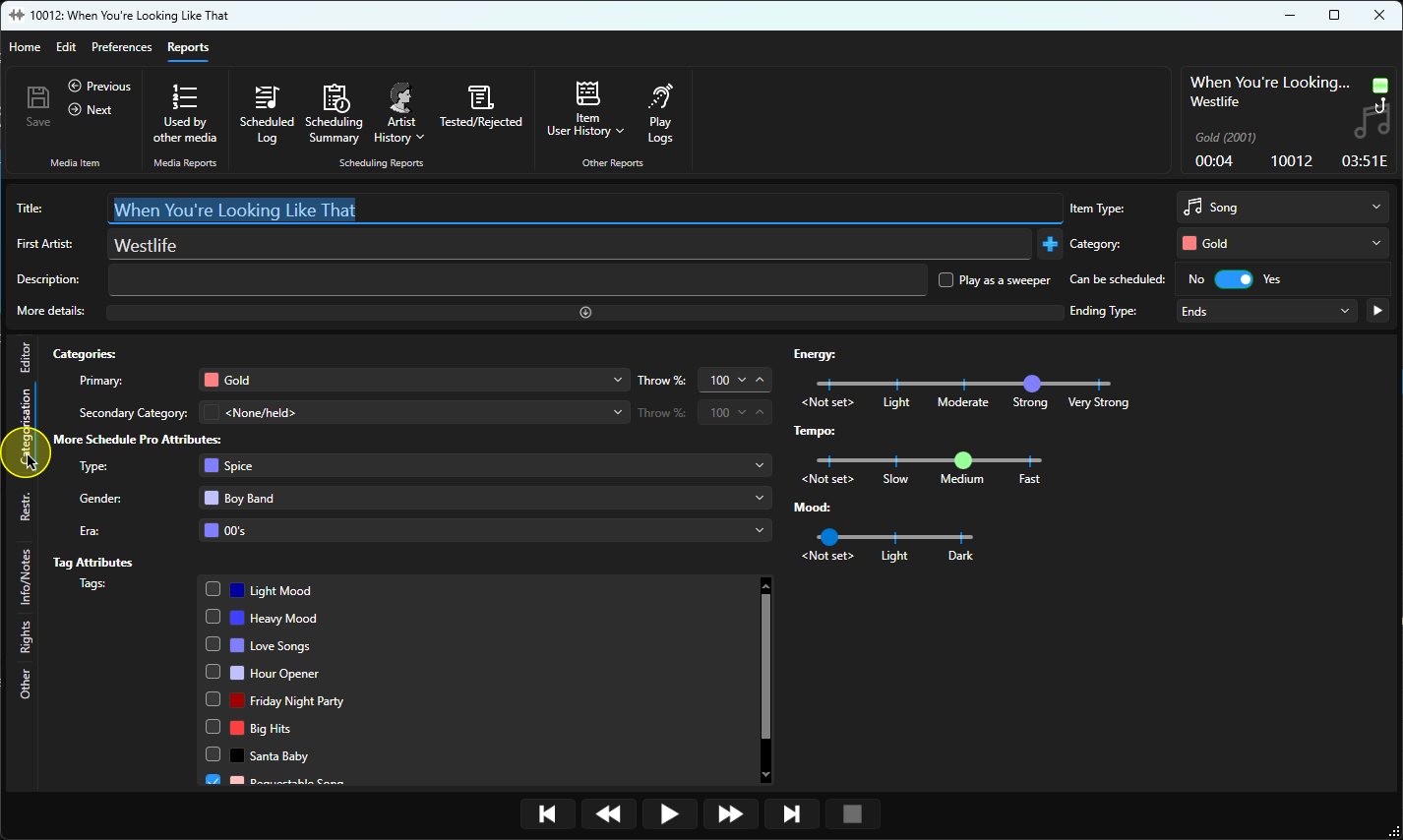
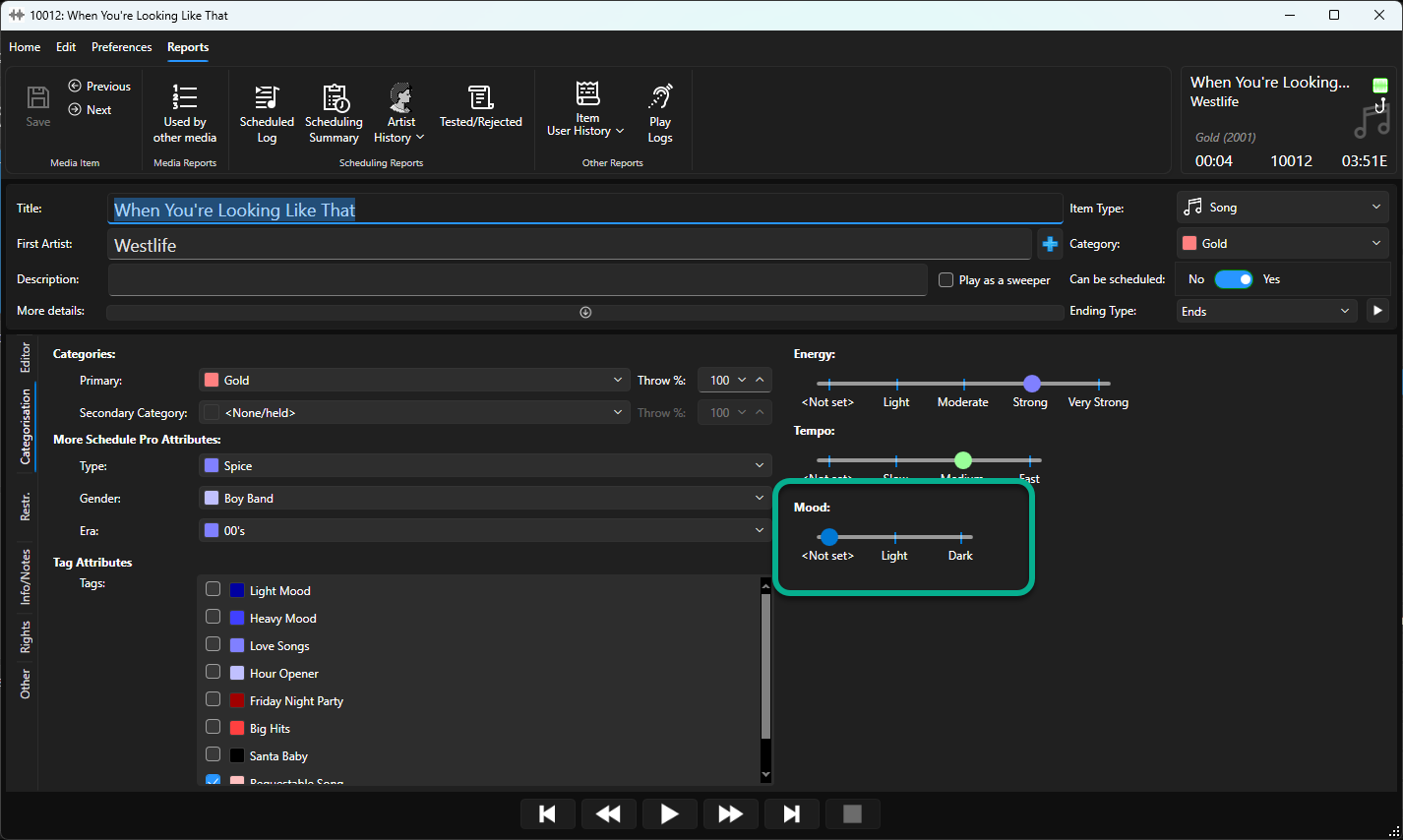
18. The Mood Characteristic will now be available.
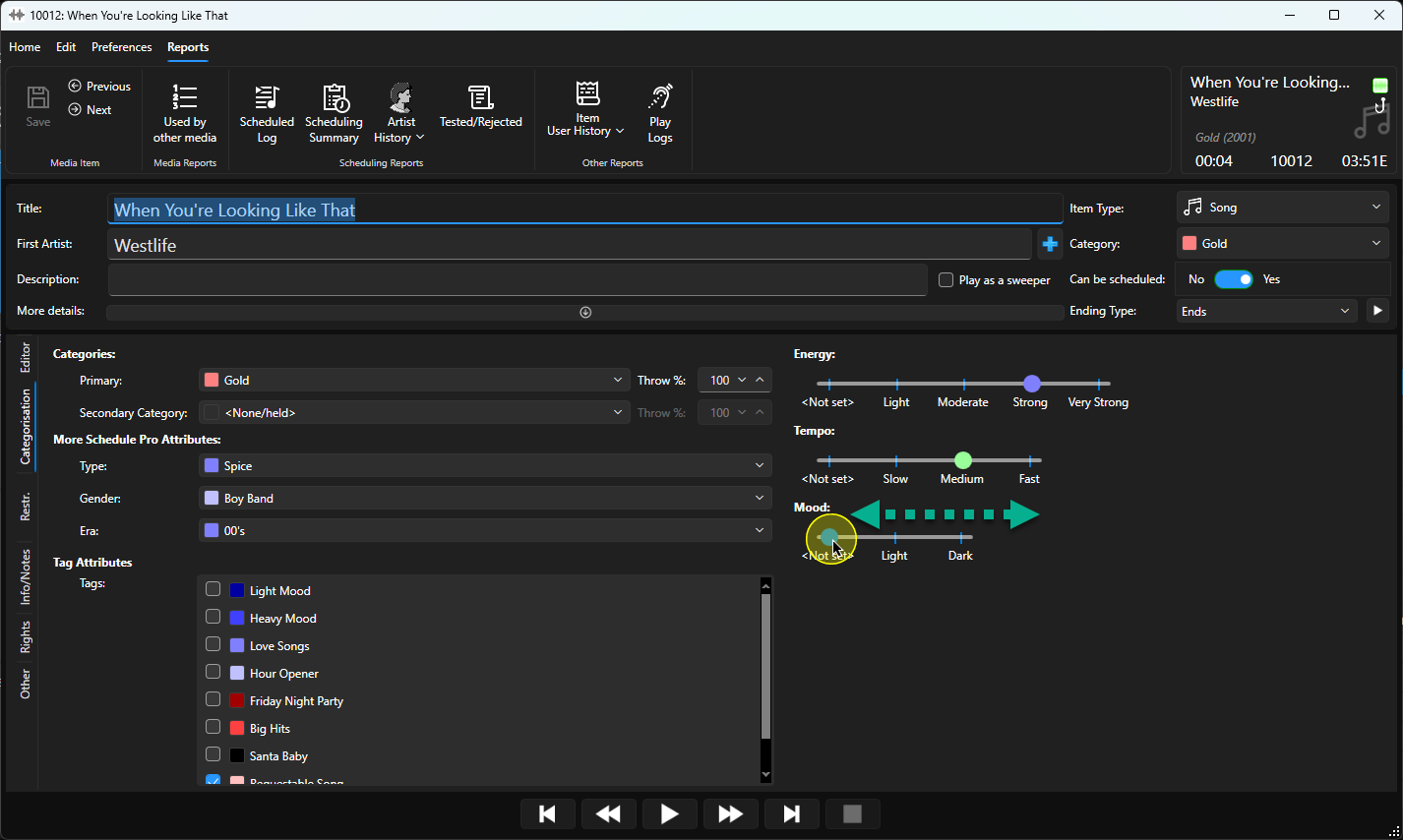
19. Drag the slider to the appropriate Mood level for the item.
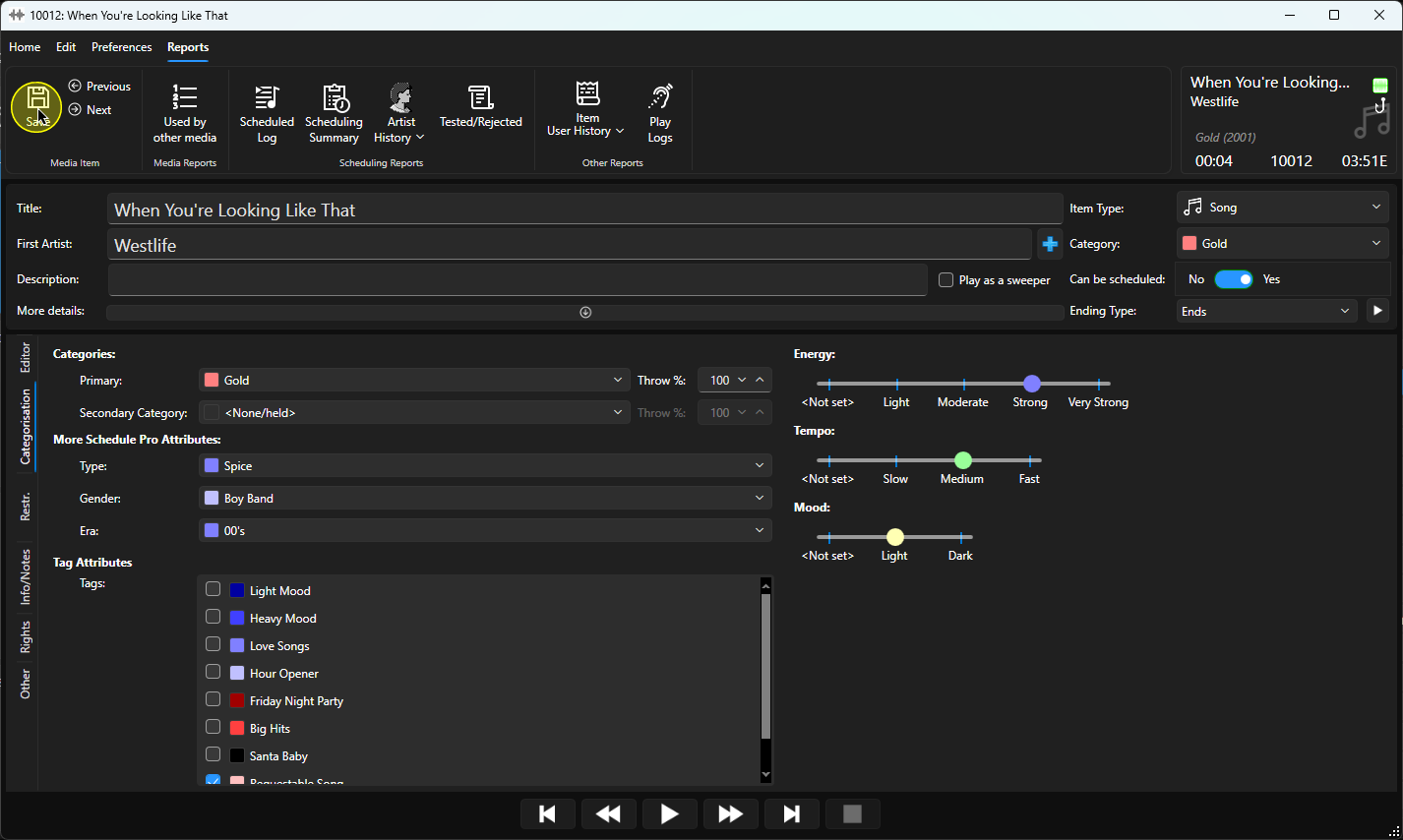
20. When you are happy, click the Save button and close the Edit window.
Was this article helpful?
That’s Great!
Thank you for your feedback
Sorry! We couldn't be helpful
Thank you for your feedback
Feedback sent
We appreciate your effort and will try to fix the article