Myriad Cloud users can select on of three Version Tracks (Alpha, Beta or Full Release). Whenever a new version of released within their selected Version Track, a Update Version banner is displayed with the option to update with a single click.
Users can also pin their Myriad Cloud Station to using a specific release version if preferred.
The Manage Version option allows you to select your Version Track or specific release number.
1. Login to your Broadcast.Radio portal.
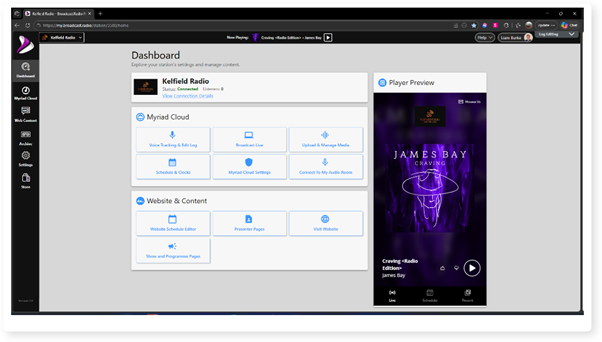
2. Click on the Settings menu option.
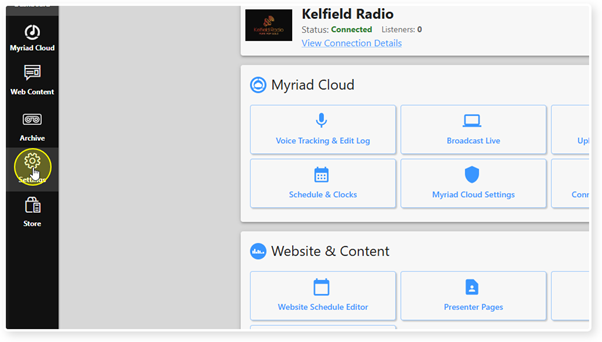
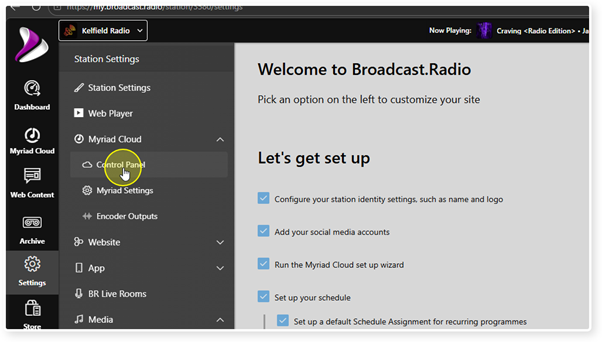
3. Expand the Myriad / Myriad Cloud option and select Control Panel.
4. If a new version is available in your Release Track, an Update Notification banner is
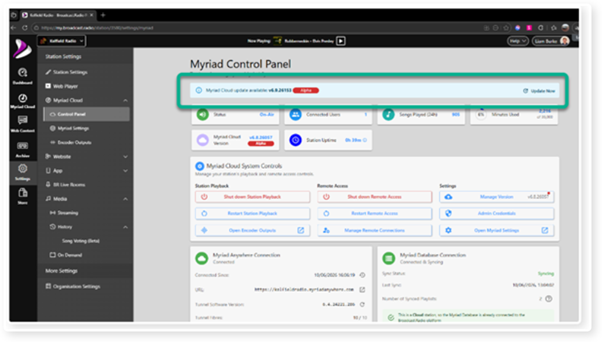
5. To select a Version Track or select a specific version release to use on the Station, click on the Manager Version button.
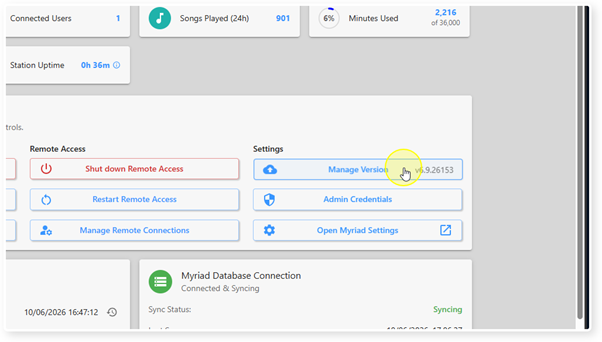
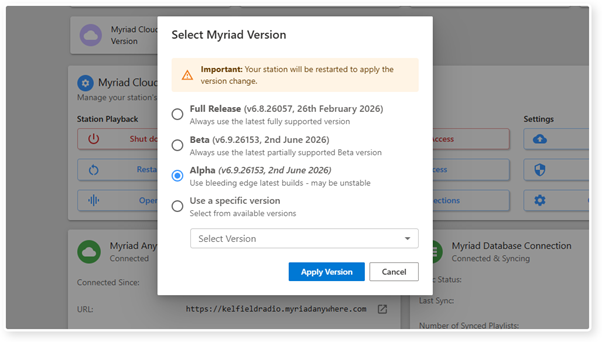
6. The Select Myriad Version popup allows you to select a Release Track or selected a specific version from the drop-down list. Tick the option you want and click on the Apply Version button.
The Version Track options are:
- Full Release - Always use the latest fully supported release version.
- Beta - Use the pre-release version of software with the latest features. Beta releases are generally included with support although you may be asked to switch to a full release in some circumstances.
- Alpha - Use the very latest build of the platform. This will include the very latest features and updates. Alpha software is generally not supported outside of User testing.
- Specific Version - Select a specific version to use on your platform. Restarting your Myriad Cloud system will not update to the latest build on
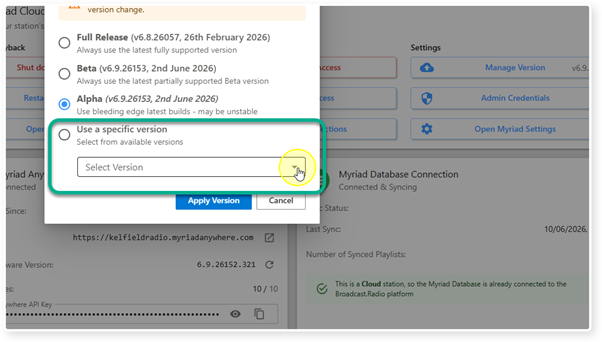
7. To use a specific version, select the Use Specific Version option and select the version number from the drop down list.
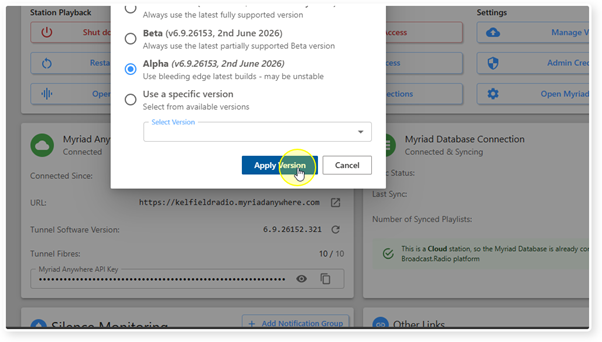
8. When you are happy with your selection, click on Apply Version.
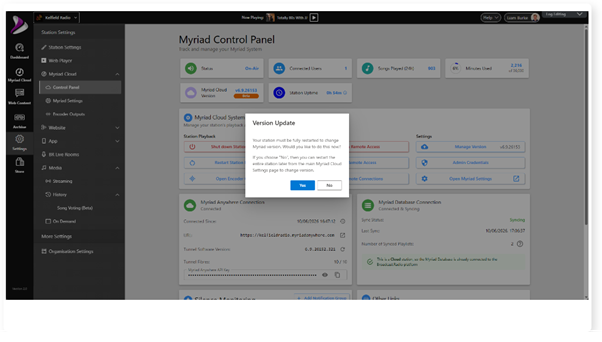
9. If your version number or Version Track has changed, you will be prompted to restart to update to the new selection.
If you select Yes then the update will be applied immediately. This can take up to 120 seconds, and your Station will be off-air throughout the update process.
If you select No then an Update Notification banner will be added to allow you to apply the update when it is convenient.
Was this article helpful?
That’s Great!
Thank you for your feedback
Sorry! We couldn't be helpful
Thank you for your feedback
Feedback sent
We appreciate your effort and will try to fix the article