TABLE OF CONTENTS
- What Is A Sweeper
- Sweeper positioning is handled automatically by Myriad but you can adjust the Sweeper position and volume envelope in the normal way using the Segue Editor (see Editing Segues.Sweepers In The Dashboard
- Adding Sweepers To The Log
What Is A Sweeper
In Myriad, Sweepers refer to dry voice production elements (dry jingles) that can be embedded into the Intro period of suitable Songs to provide a smooth and sophisticated sound for your station.
When Myriad encounters a Sweeper in the Log, the way it manages the segue will depend on the length of the Intro of the Song following the Sweeper.
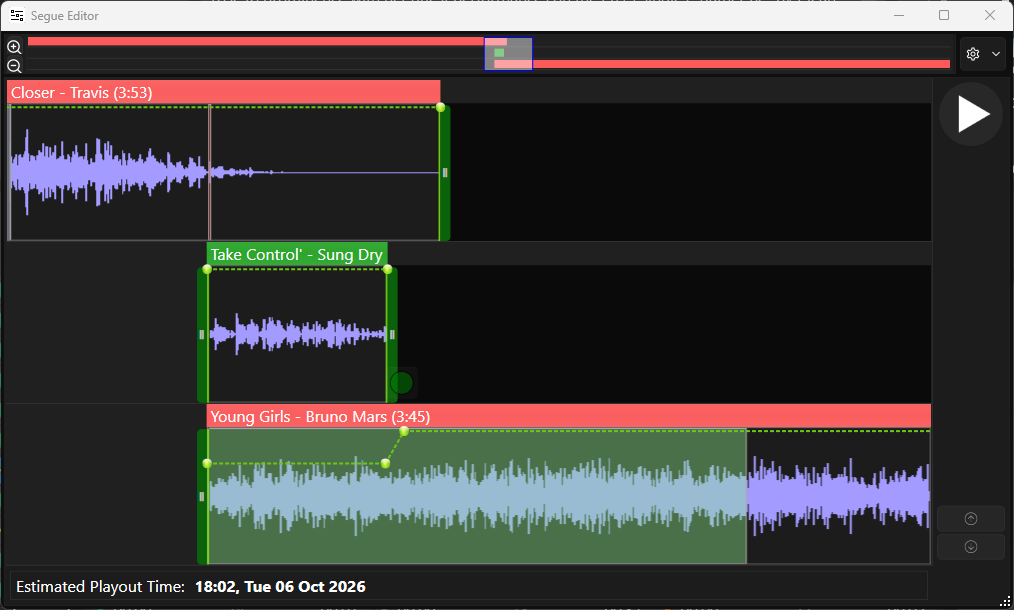
If the Intro is longer than the duration (to Extro) of the Sweeper then the Sweeper will be positioned within the Intro of the Song. The default is for the Sweeper and Song to start simultaneously as in the example below. There is also the option to have the Sweeper Extro coincide with the Song Intro End (see Station Menu > Station Settings > Scheduled Log Tab > Sweeper Playback Position).
Note that a volume envelope edit has automatically been applied to the Song while the Sweeper is playing.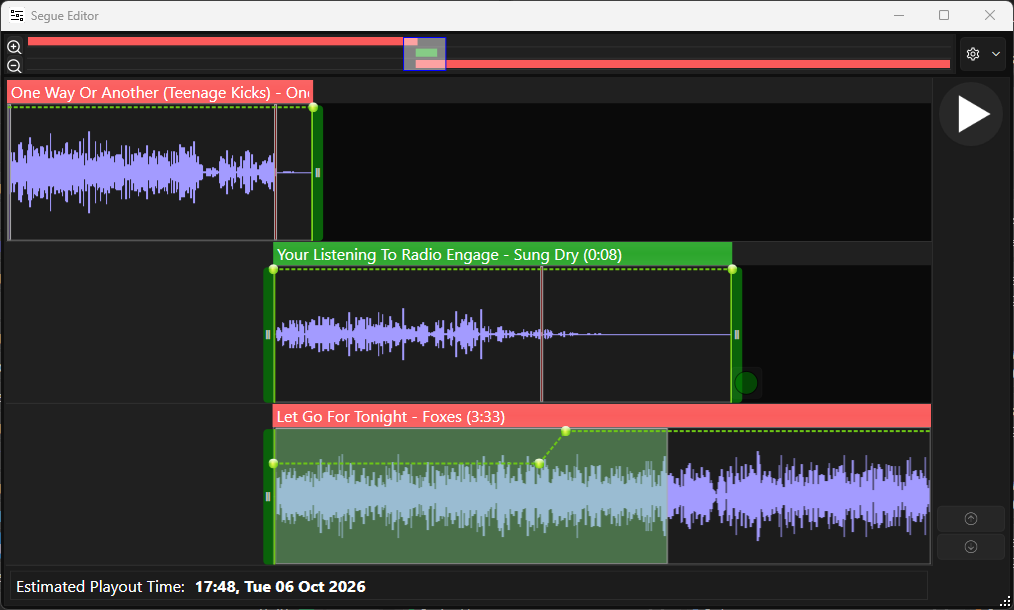
If the Song Intro is shorter than the Sweeper duration (to Extro) then the Sweeper will be positioned to play first with the Song started such that the Sweeper Extro and the Song Intro End coincide.
As before, the volume on the Song is reduced while the Sweeper is playing.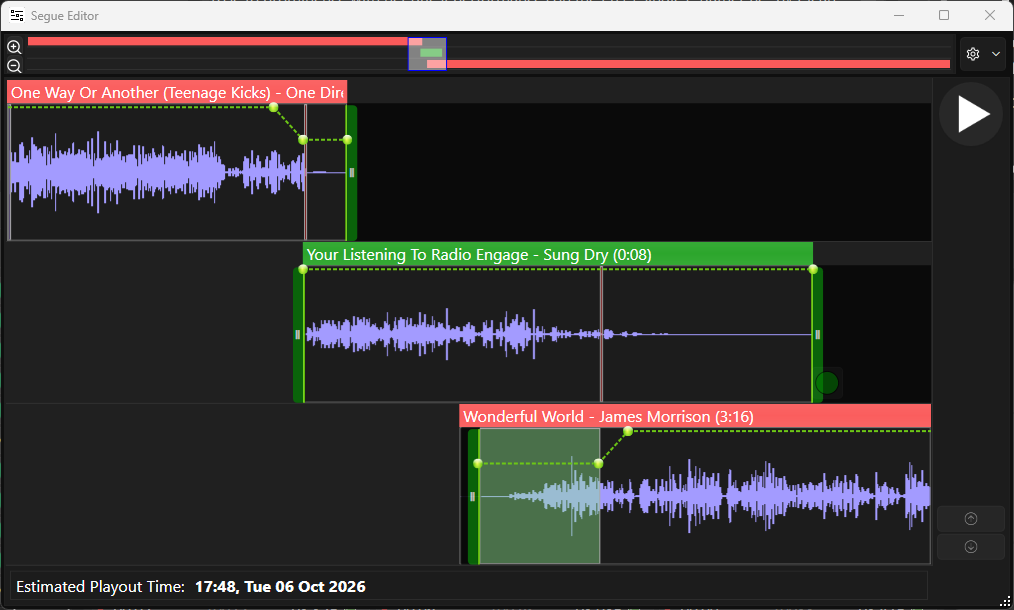
Finally, if the Song has no Intro set then the Sweeper is played 'dry' and the Extro is used as the segue point into the next item in the Log.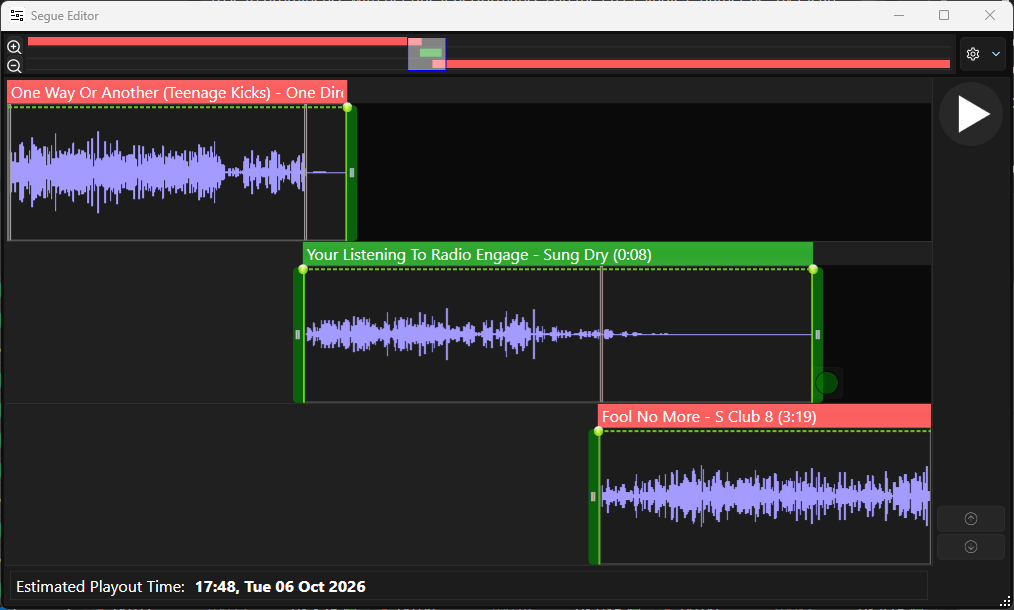
Sweeper positioning is handled automatically by Myriad but you can adjust the Sweeper position and volume envelope in the normal way using the Segue Editor (see Editing Segues.
Sweepers In The Dashboard
When Myriad is in either Live or Autofade, items in the Log that have the Chain Type set to Sweeper, will be displayed slightly differently in the Dashbaord.
Instead of being treated as separate Log Items, Sweepers will be included with the Song beging swept into, in the 'Now Playing' top line in the Dashboard.
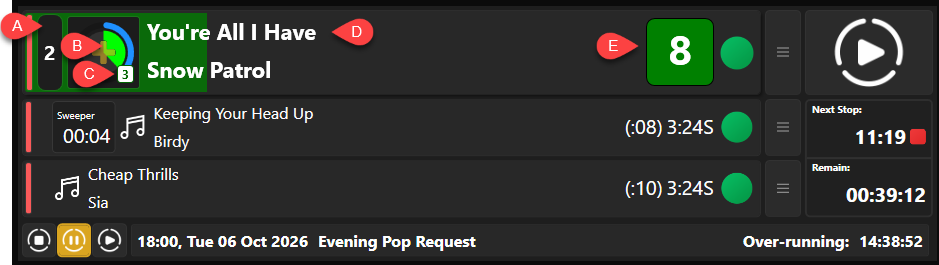
- The Media Player the main item (Song) is playing through.
- The progress of the Log Item being played as a sweeper.
- The Media Player the sweeper is being played through.
- The Song title and artist.
- Time remaining until Extro point.
Adding Sweepers To The Log
There are scenarios that lead to Myriad treating a Log Item as a sweeper.
- Any item added to the Log (manually or by Myriad Schedule) that has the Play as sweeper option ticked in the Edit window, will be treated as a sweeper by default.
- Any item in the Log that has the Chain Type set to Sweeper will be treated as a sweeper by Myriad.
Adding Sweeper Items To The Log
Firstly, let's take a look Media Item that has the Play as sweeper option set.
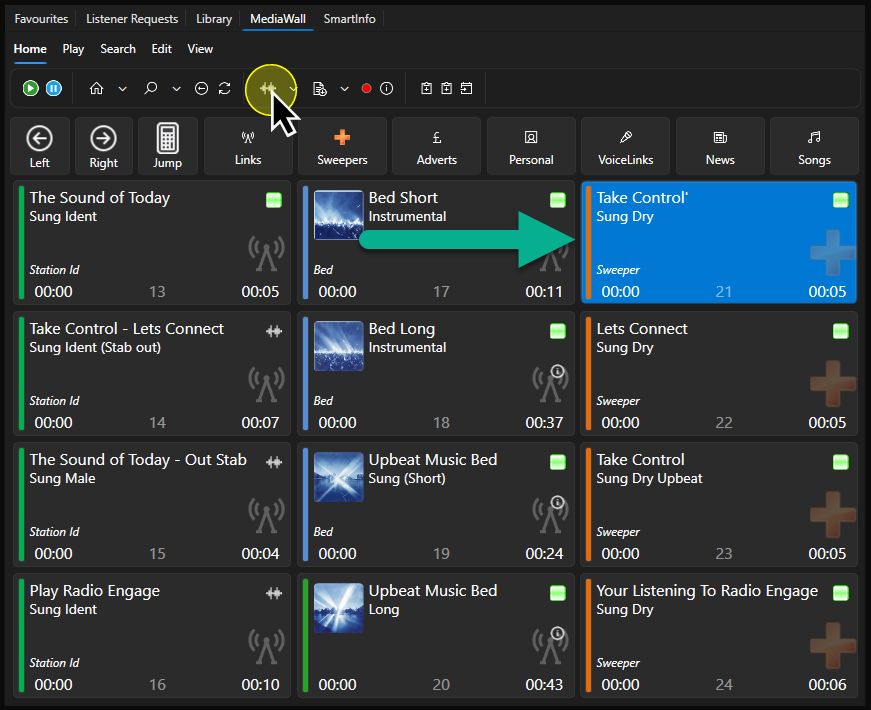
- Select an item on the Media Wall and click on the Edit button on the Home ribbon.
- The Play as sweeper option is located in the general information section, to the right of the Description field.
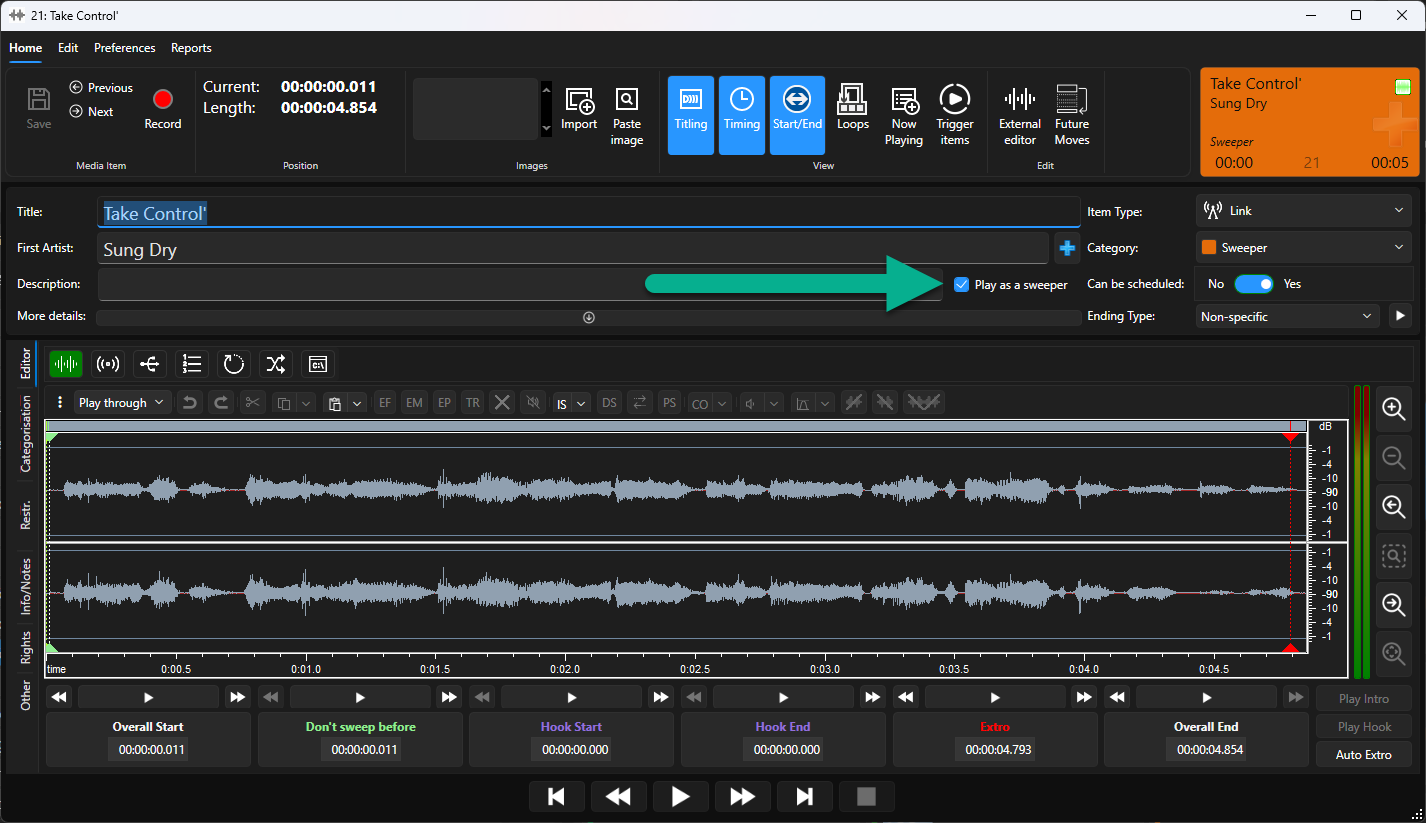
- We can see in this example, that Media ID 21 has Play as sweeper ticked.
- Let's see what happens when we drag this Media Item into the Log.
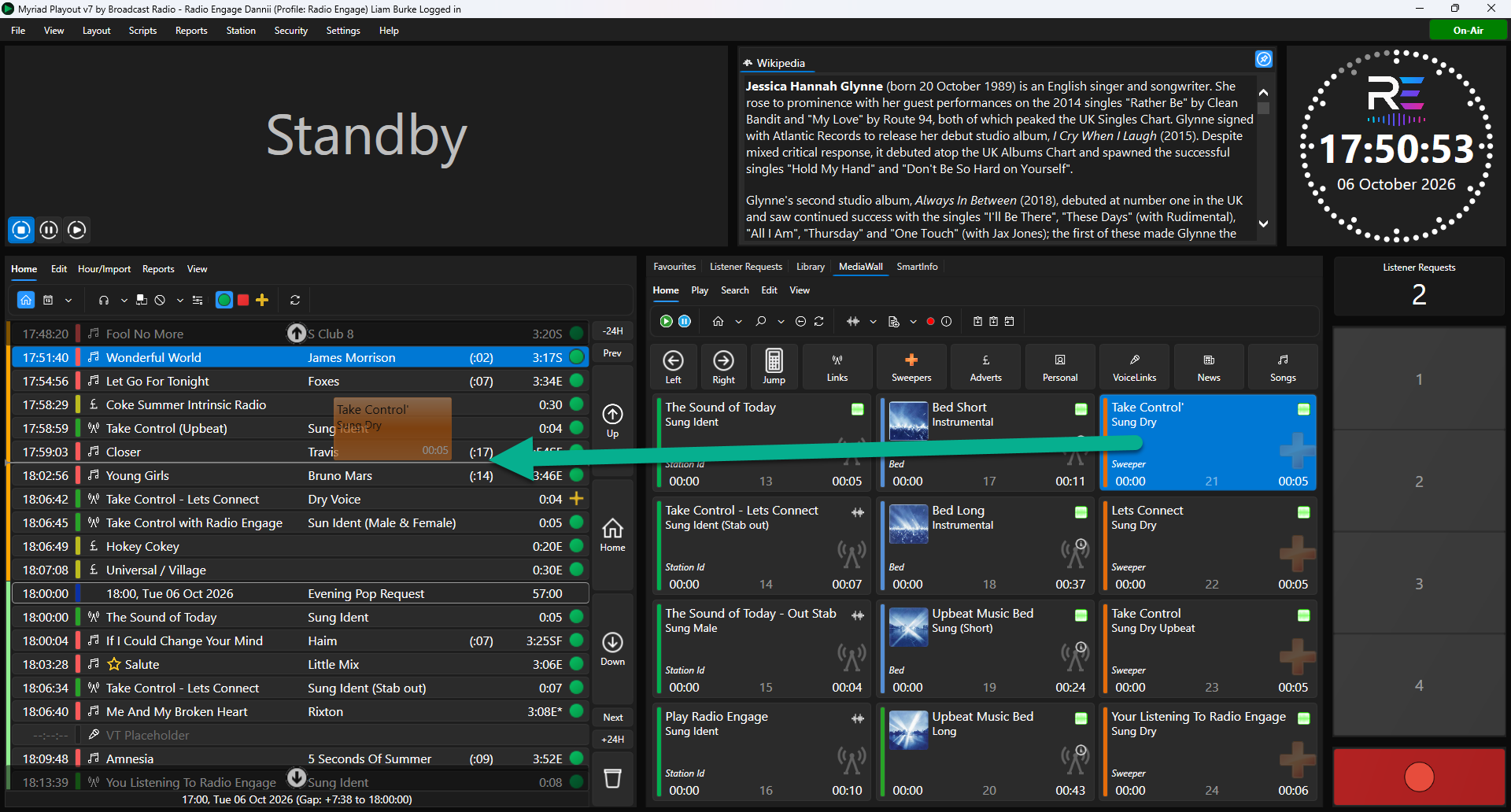
- The item has been added to the Log as a Sweeper. This is denoted by the '+' icon in the Chain Type column in the Log.
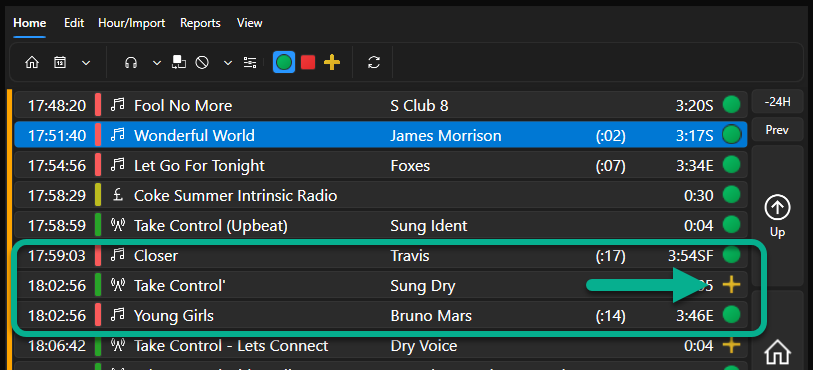
- This confirms, Myriad will treat this item as a sweeper. We can also see that the following song (Bruno Mars) has in Intro of 14 seconds, meaning the 5 second sweeper will be imbedded into the 14 second Intro on the Song.
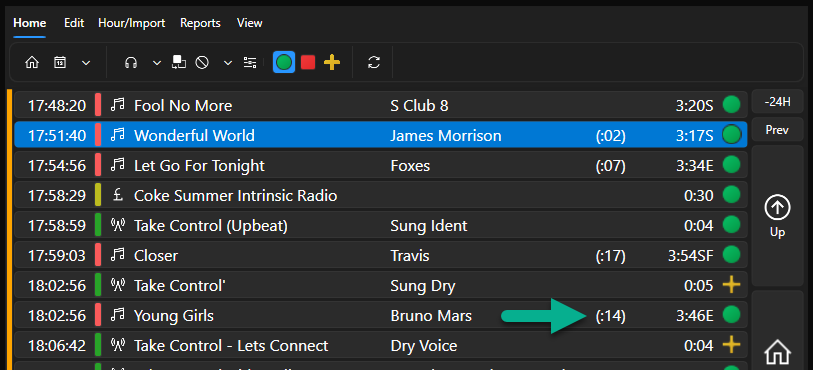
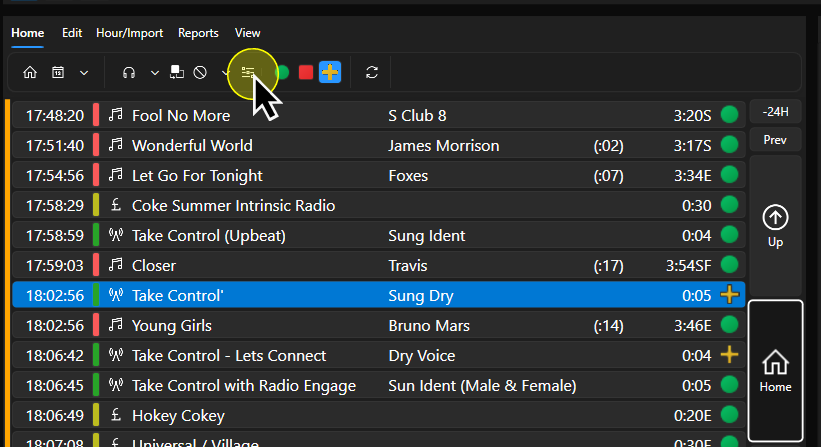
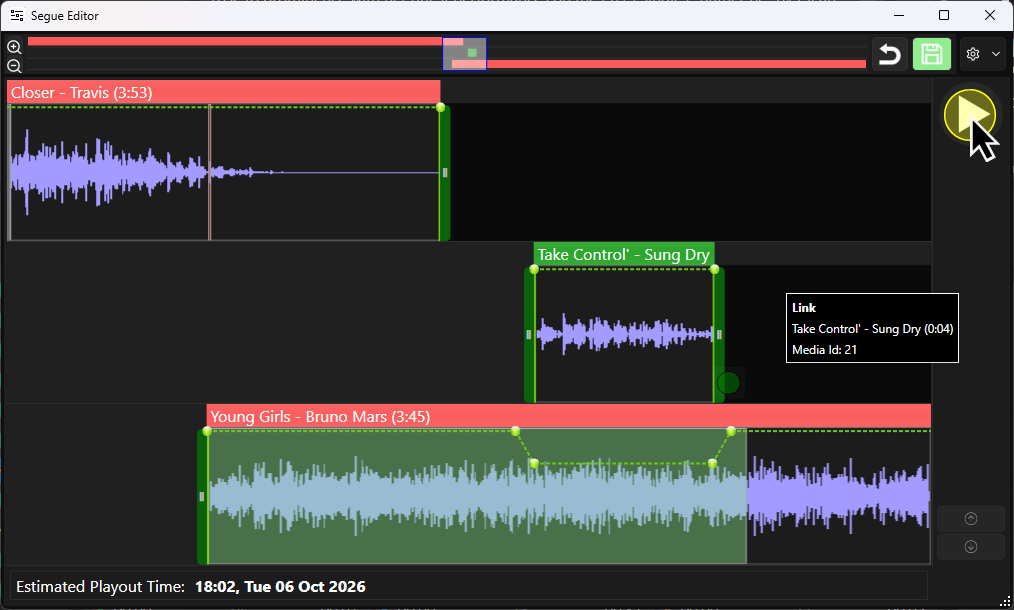
- To review how Myriad will handle this segue, double click on the sweeper or highlight the sweeper and click on the Segue Editor button on the Home ribbon.
- The Segue Editor confirms that the sweeper is 'embedded' into the Intro of the Song.
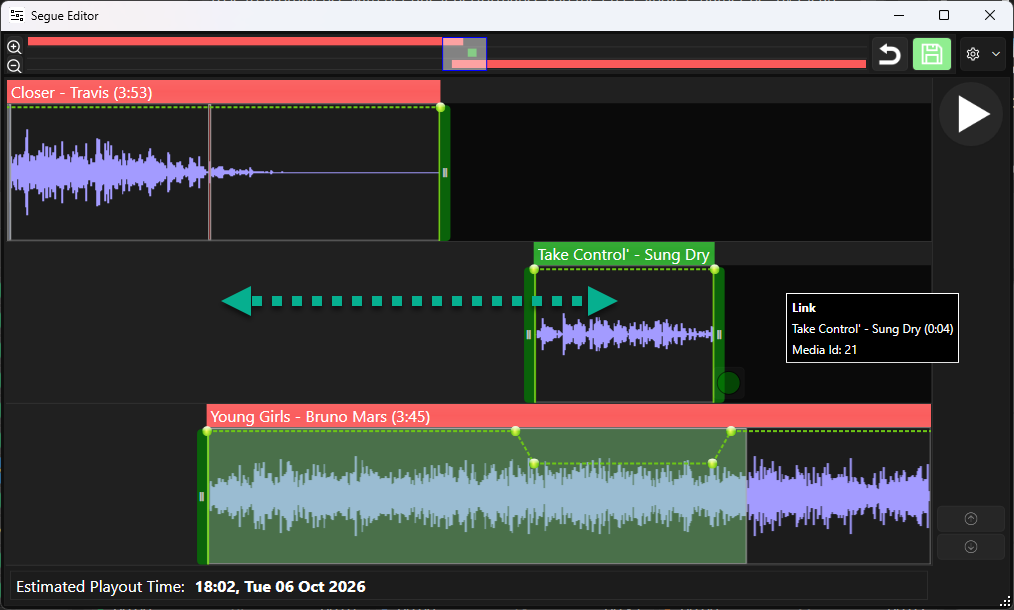
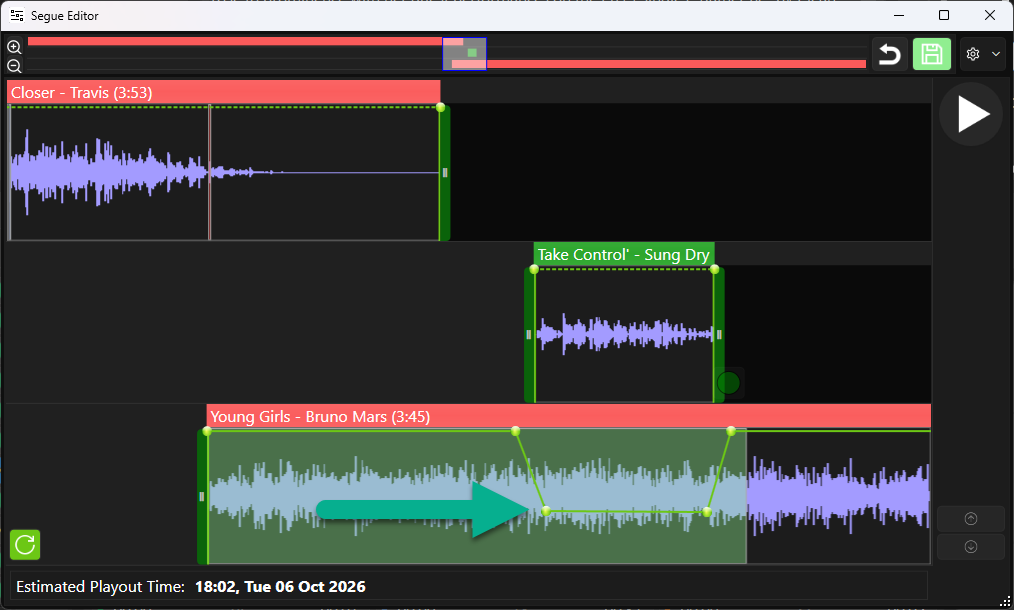
- You can drag the sweeper left or right to change the positioning. Note that the volume envelope ducking on the Song moves with the sweeper.
- Click on the Preview button to listener to the whole segue.
- You can adjust the volume envelope if required, but please be aware that once you have edited the volume envelope, if you then move the sweeper, the ducking will not automatically move with the sweeper, so you are better getting the position right, then adjust the volume if required.
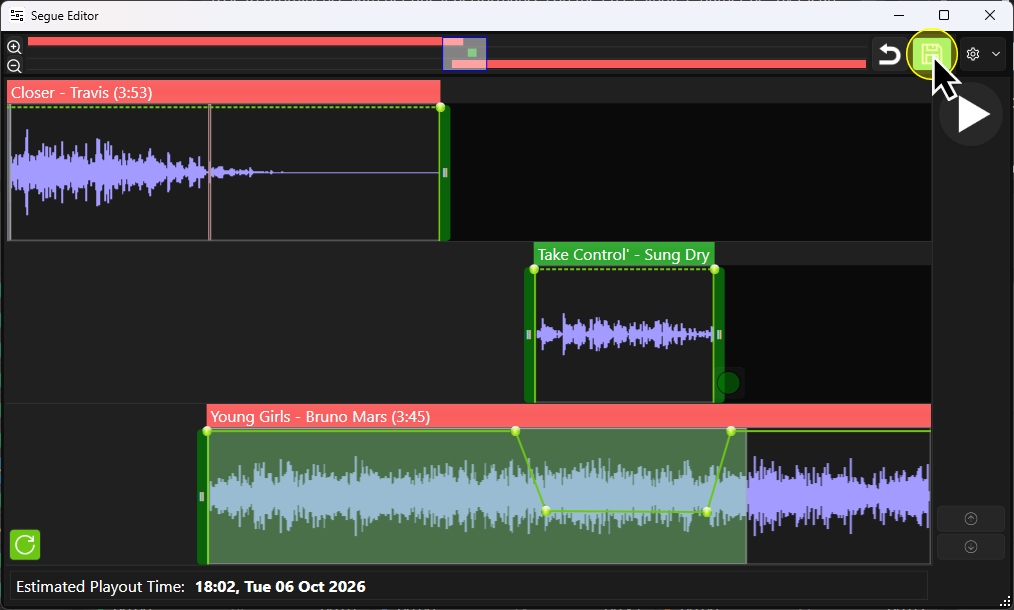
- When you are happy, click on the Save button.
Treating Non-sweeper Items As Sweepers In The Log
You can also force Myriad to treat a Log Item as a sweeper, regardless of whether the Play as sweeper is ticked by changing the Chain Type for the item to be Sweeper.
The Log sequence above, the 'Take Control - Let's Connect' jingle has a the Chain type set to a green circle which means a standard segue will apply.
To change this to be treated as a sweeper, follow these steps:
- Select the Log Item you want to convert to a sweeper.
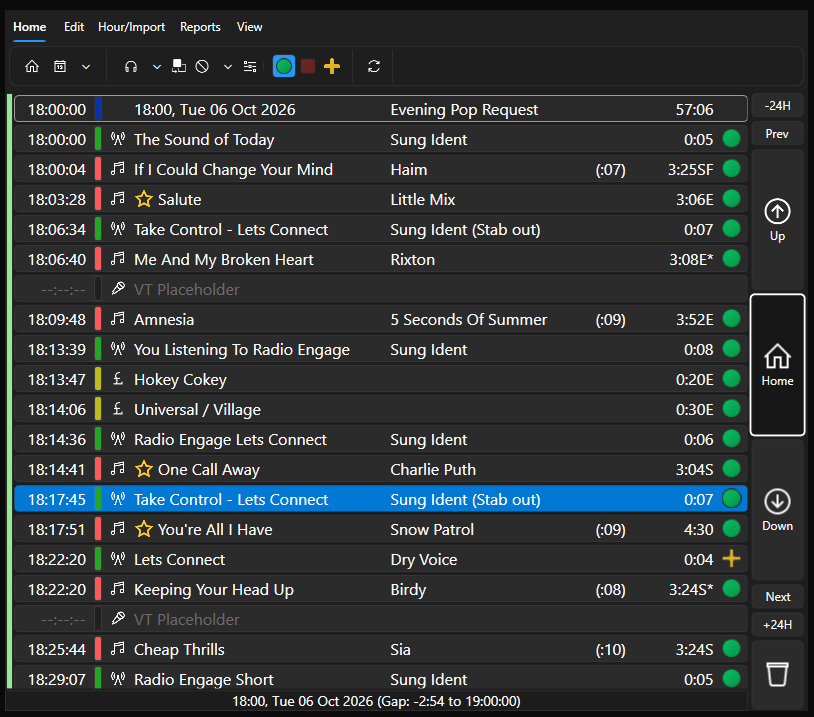
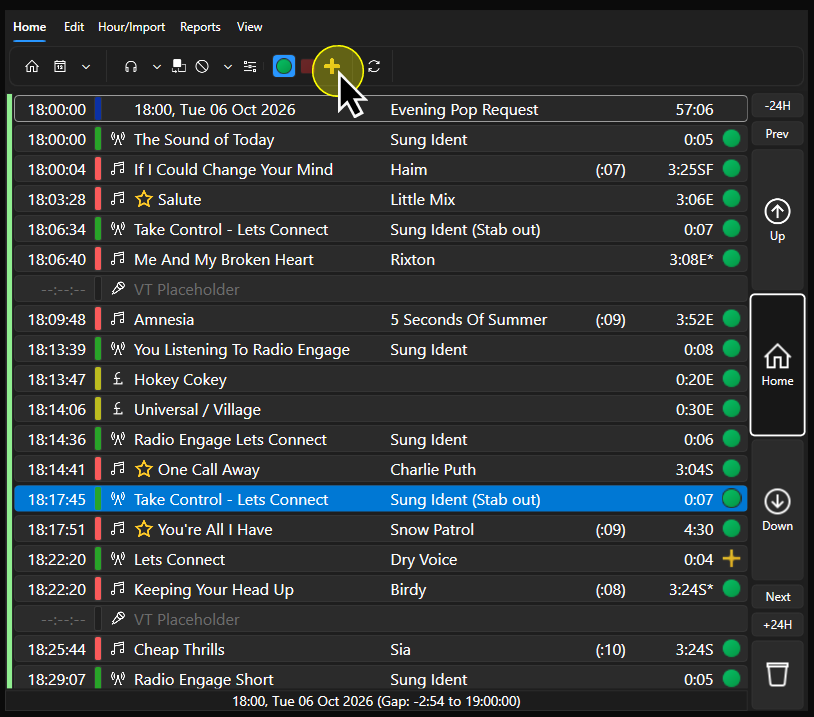
- Click on the Sweeper Chain Type button on the Home ribbon.
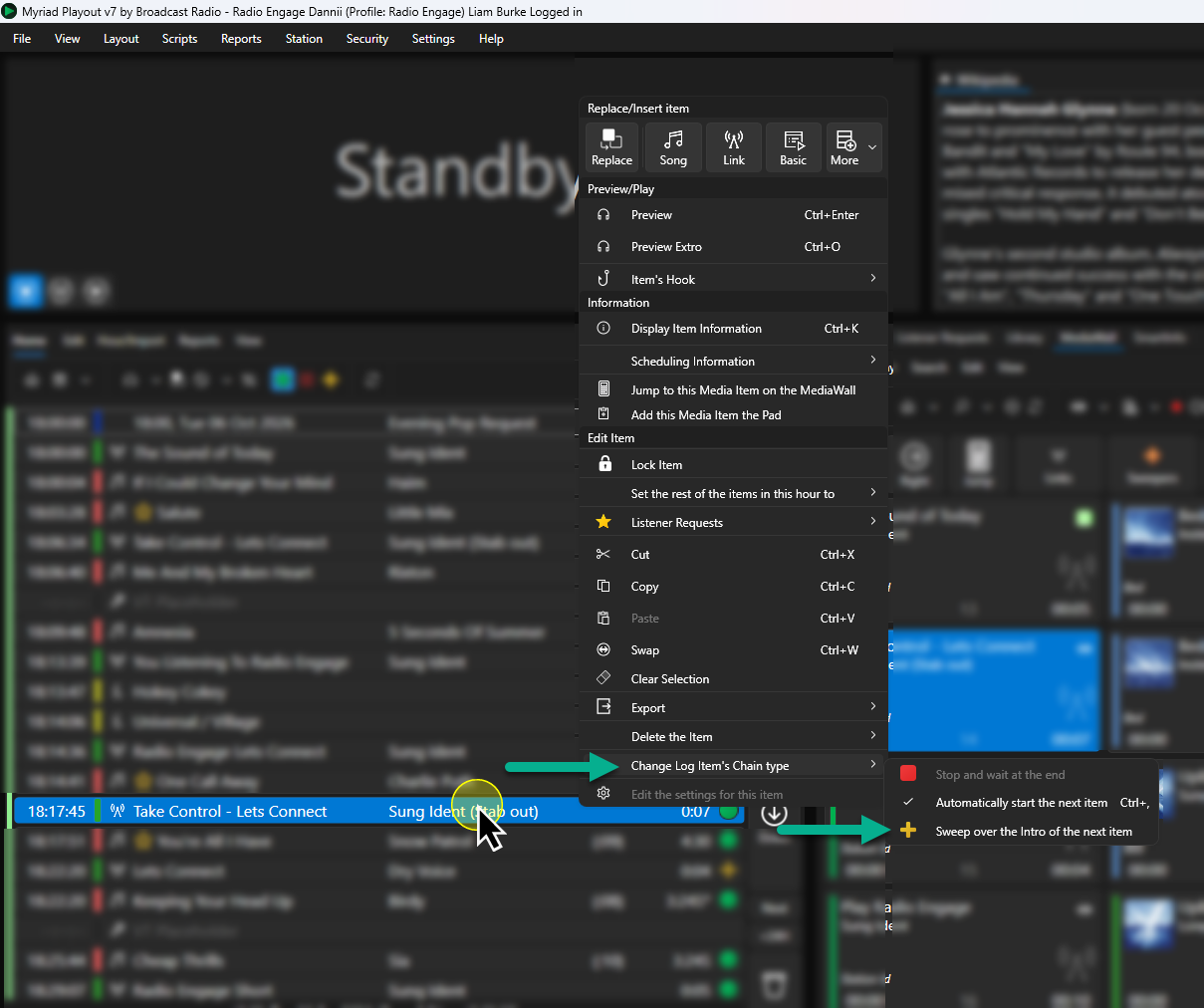
- Alternatively, you can use Right Click > Change Log Item's Chain Type > Sweep over the Intro of the next item.
- The Chain Type icon in the Log will change to a '+' to indicate it will be treated as a Sweeper.

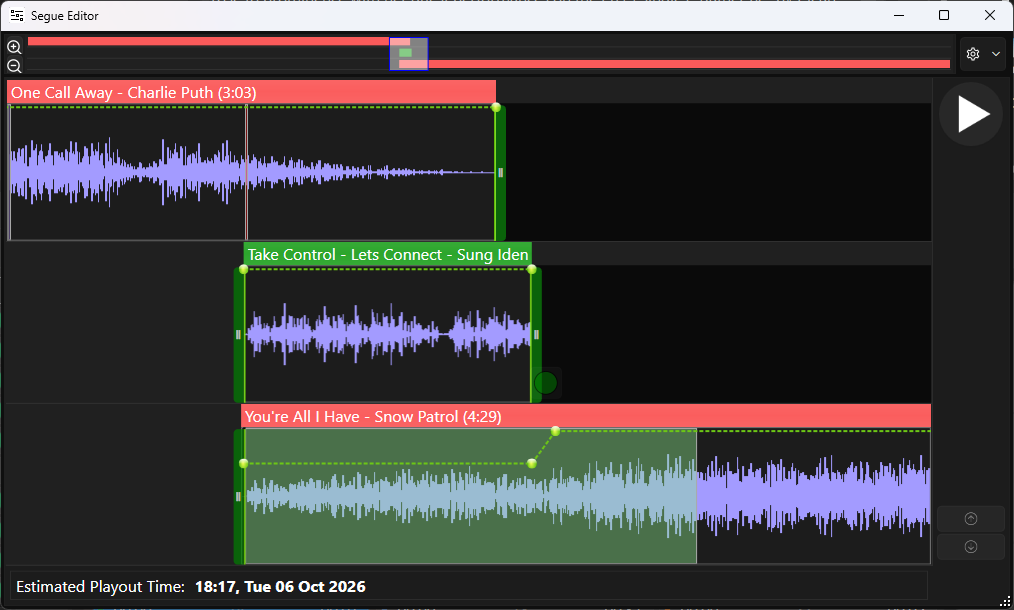
- If you open the Segue Editor, you can preview and adjust how Myriad will sweep the item into the Intro of the next Song.
Was this article helpful?
That’s Great!
Thank you for your feedback
Sorry! We couldn't be helpful
Thank you for your feedback
Feedback sent
We appreciate your effort and will try to fix the article